
API keys
API keys let your own software — or any third-party system that supports BYOK (Bring Your Own Key) — use the models published by Performance Hub. Keys are managed under Settings (cog) → Agent Access & API Keys.
"Provision API keys so third-party software and systems that support BYOK (Bring Your Own Key) can connect to models published by Performance Hub."

Figure 1: The API keys list — label, masked key, status, spend/limits, models, last used, and the row actions
The keys list
| Column | Meaning |
|---|---|
| Label | The optional name you gave the key. |
| Key | The masked key (e.g. phk_4tZR…0uZiUQ) — the full secret is never shown again after creation. |
| Status | Active, Provisioning… (briefly, while a new key is set up), or revoked. |
| Spend / limits | Lifetime spend, and progress toward any spend limits set on the key. |
| Models | all, or the number of models the key is restricted to. |
| Last used | When the key last made a request. |
| Actions | Edit, Rotate, Revoke (or Re-activate), Delete. |
If there are none yet the list shows "No API keys yet."
Creating a key
Click Create key. The Create API key drawer opens:
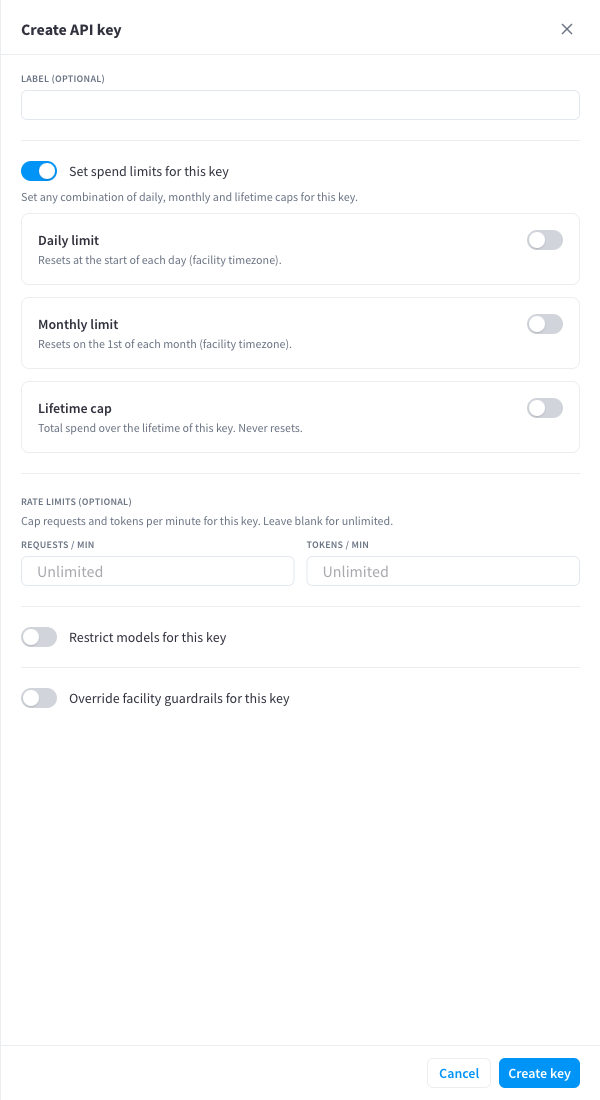
Figure 2: The Create API key drawer — label, spend limits, rate limits, model restriction, and guardrail override
| Setting | Behaviour |
|---|---|
| Label (optional) | A name for the key (e.g. the system it's for). Strongly recommended — labels are how usage is attributed in Activity and Logs. |
| Set spend limits for this key | "Set any combination of daily, monthly and lifetime caps for this key." — Daily limit ("Resets at the start of each day (facility timezone)."), Monthly limit ("Resets on the 1st of each month (facility timezone)."), and Lifetime cap ("Total spend over the lifetime of this key. Never resets."). |
| Rate limits (optional) | "Cap requests and tokens per minute for this key. Leave blank for unlimited." — Requests / min and Tokens / min. |
| Restrict models for this key | "Only the selected models will be usable with this key." Pick from the facility's enabled models. |
| Override facility guardrails for this key | "Select none to explicitly disable guardrails for this key." When on, this key uses its own guardrail selection instead of the facility's — including "none". See Guardrails. |
Click Create key.
The one-time secret
The new key is shown once, in the Copy your API key dialog:
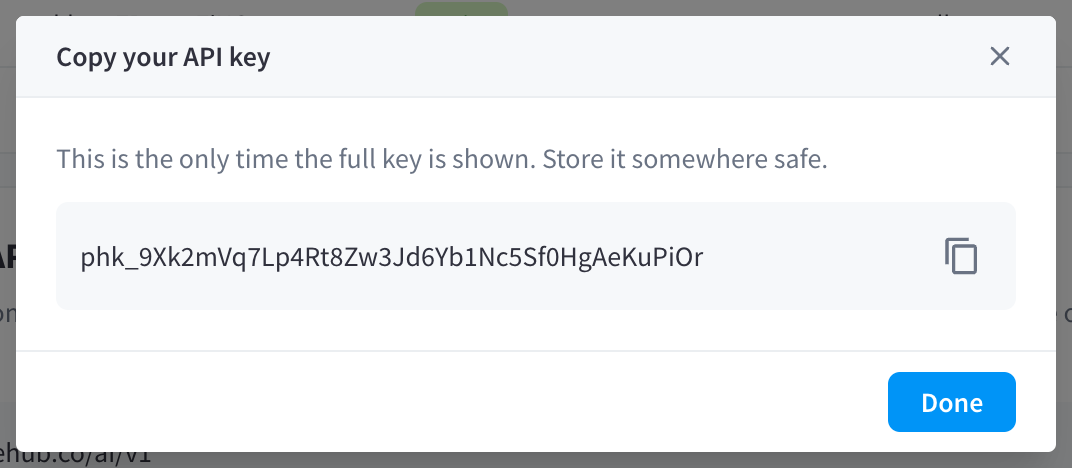
Figure 3: The one-time secret display
"This is the only time the full key is shown. Store it somewhere safe."
Copy it into your secret manager before clicking Done. After this dialog closes, only the masked form is ever displayed. If you lose the secret, Rotate the key to get a new one.
Editing a key
Click the Edit (pencil) action to open the Configure API key drawer — the same settings as creation (label, spend limits, rate limits, model restriction, guardrail override):
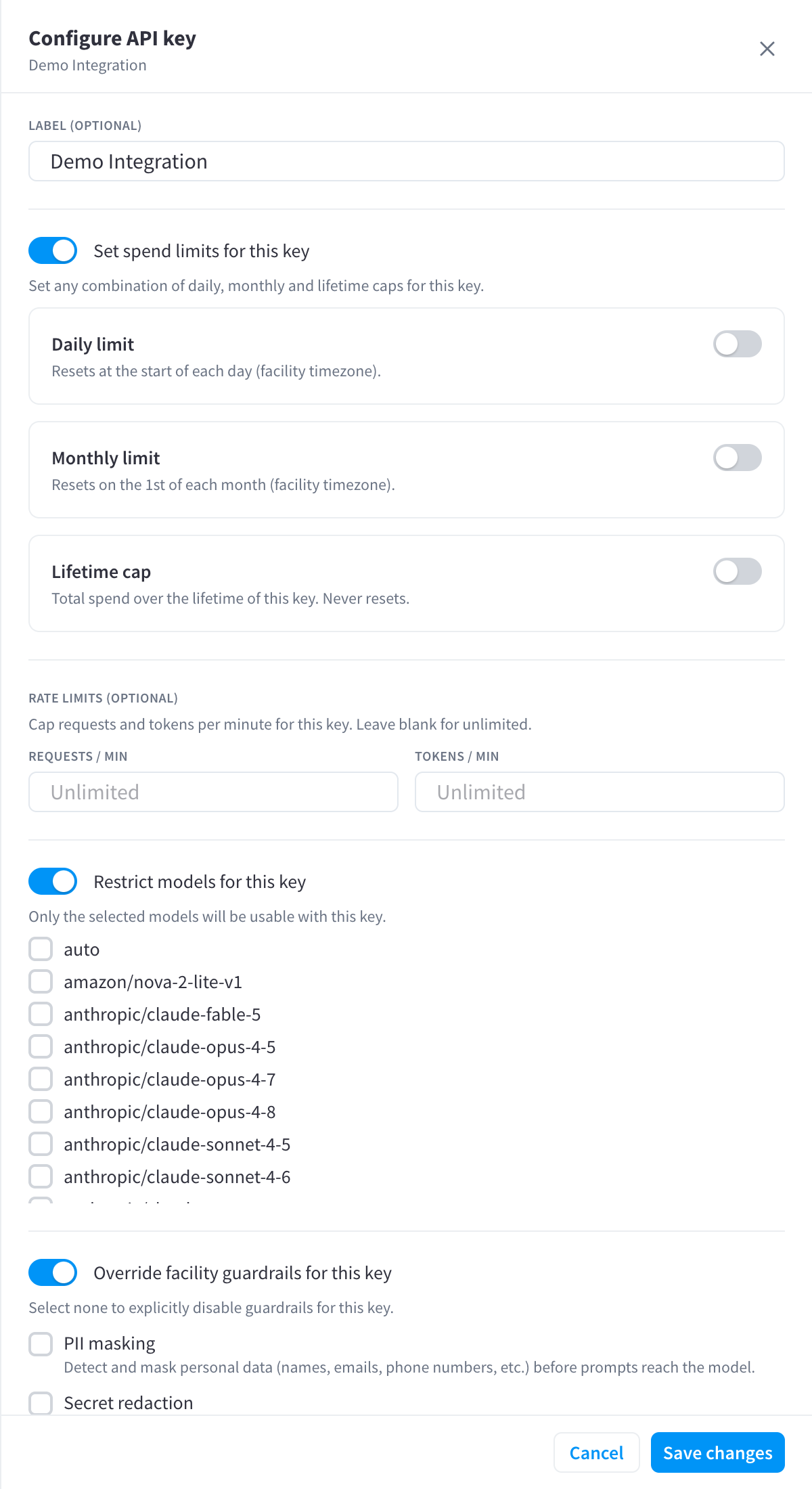
Figure 4: The Configure API key drawer with spend limits and model restriction expanded
Changes take effect within moments of saving. When a key has daily/monthly limits, its row shows usage against them (Today, This month, Lifetime) and a Limit reached badge when one is hit.
Key lifecycle: rotate, revoke, delete
Each action has a confirmation dialog quoting exactly what will happen:
| Action | Effect | Confirmation copy |
|---|---|---|
| Rotate | Issues a new secret (shown once) with the same settings; the old secret stops working immediately. | "A new key will be issued and the current key will stop working immediately." "You will need to reconfigure any services still using the old key. This cannot be undone." |
| Revoke | Disables the key immediately, reversibly. | "This key will be disabled immediately and any services using it will stop working. You can re-activate it again later." |
| Re-activate | Restores a revoked key (same secret). | — |
| Delete | Removes the key permanently. | "This permanently deletes the key and any services using it will stop working. This cannot be undone." |
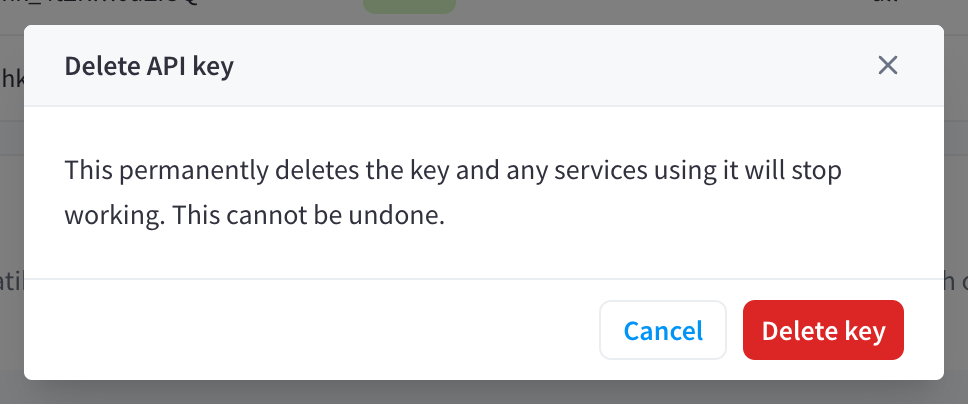
Figure 5: The Delete API key confirmation
Which to use: rotate on suspicion of a leak (service keeps its settings and history — just update the secret); revoke to pause a system temporarily; delete only when the integration is gone for good.
Connecting with a key
The Connecting to the API card below the keys list shows the base URL and a copy-paste example request for your environment. See Connecting your application for the full quickstart with SDK examples and error handling.