
Backups
Everything that makes your agent yours — its conversations, memory, personality, workspace files, wiki, skills, and schedules — lives on the device at your facility. Cloud backups make sure that if the hardware fails, is stolen, or something goes wrong, none of it is lost.
Backups are on by default from the moment you pair a device. They run automatically, are encrypted before they leave the device, and are stored in the cloud region(s) of your choice. You don't have to do anything — but this page explains how to tune retention, storage locations, and manual restore points.
Backup status lives in the device drawer on the Backups tab; configuration lives under Configuration → Cloud backup.
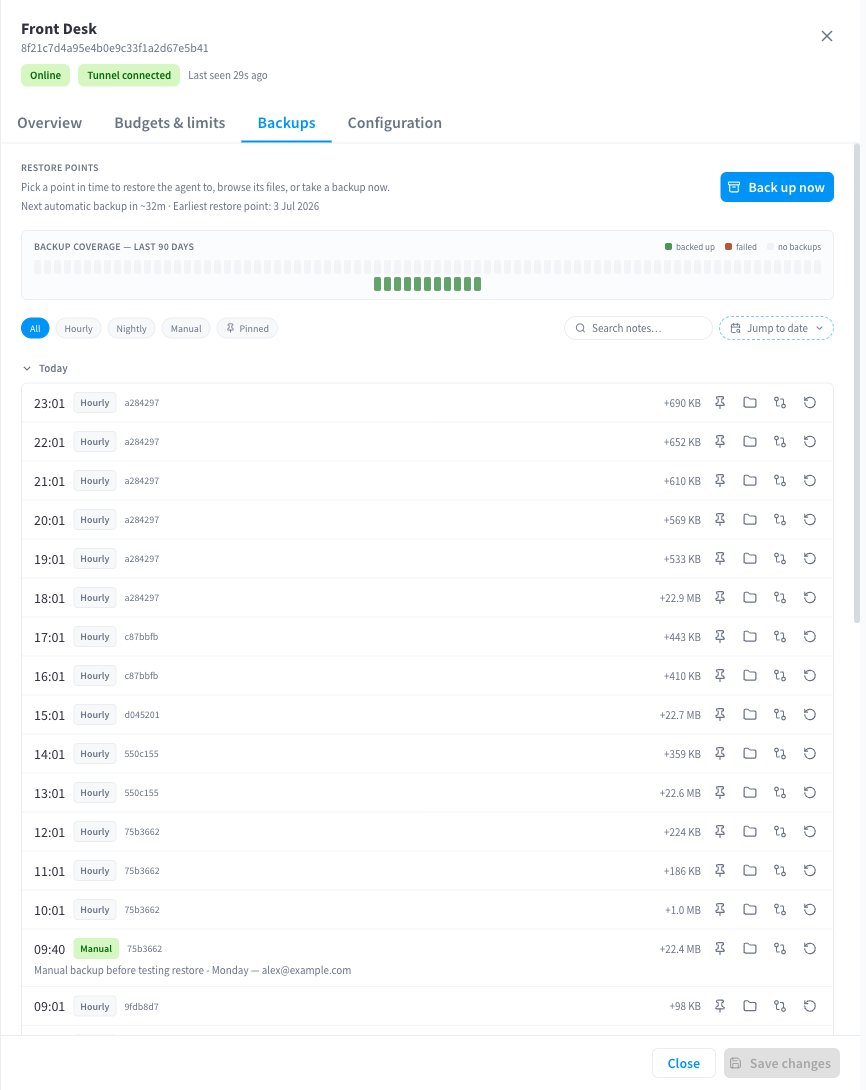
Figure 1: The Backups tab — restore points with time, type, size, and actions
Quick reference
| Fact | Value |
|---|---|
| Automatic backups | Hourly, around the clock |
| Nightly maintenance | ~3am (device local time) — daily restore point + cleanup of expired ones |
| Default retention | 90 days |
| Retention options | 7, 14, 30, 60, 90 days · 1 year · 2 years · 5 years |
| Manual backups | Any time via Back up now, with an optional note |
| Pinning | Pinned restore points are kept forever, regardless of retention |
| Storage location | Automatic (nearest region to your facility) or specific regions you choose |
| Encryption | Encrypted on the device before upload; only your facility can read it |
What's backed up
Every restore point is a complete, consistent copy of the agent's state:
- Conversations — full chat history across all sessions.
- Memory — everything the agent has learned and remembered.
- Workspace files — documents, spreadsheets, and anything else in the agent's file area.
- Wiki — the agent's structured notes.
- Personality and settings — the agent's soul, preferences, and configuration.
- Skills, automations, and scheduled tasks.
In short: if you replaced the device and restored the latest backup onto new hardware, the agent would carry on exactly where it left off. (That's literally how device replacement works.)
Backups are incremental and deduplicated — after the first full backup, each hourly run uploads only what changed, so hourly cadence doesn't mean heavy network traffic or runaway storage.
Restore point types
The Backups tab lists restore points newest-first. Each shows when it was taken, its type, its size, and actions (browse files, view what changed, restore, pin).
| Type | Created |
|---|---|
| Hourly | Automatically, every hour |
| Daily | Automatically, by the nightly maintenance run |
| Manual | When you click Back up now |
| Pre-restore | Automatically, as a safety copy just before any full restore |
Manual backups — Back up now
Before anything risky — a big cleanup of the agent's files, an experiment with its personality, a restore — take a manual restore point.
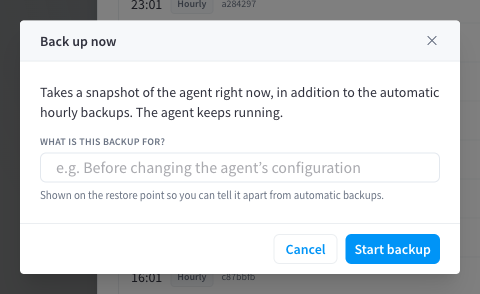
Figure 2: Back up now — with an optional note so you can find it later
Click Back up now on the Backups tab, optionally add a note (up to 200 characters — e.g. "Before rewriting the personality"), and confirm. The device picks the job up within moments and the new restore point appears in the list when it completes. Only one backup or restore runs at a time; if one is already in progress you'll be asked to wait for it.
Retention and pinning
Retention controls how long restore points are kept, set under Configuration → Cloud backup. Choose from 7 days up to 5 years (default 90 days). The nightly maintenance run removes restore points older than the window and reclaims their storage.
Pinning exempts individual restore points from retention. Pin anything you might want back months later — the state before a major change, an end-of-financial-year snapshot, the last backup of a departing configuration. Pinned restore points are kept indefinitely until you unpin them, and are marked in the list with who pinned them.
Longer retention and pinned restore points increase the amount of cloud storage held, which is reflected in your storage usage (see below).
Storage regions
Backups are stored with a cloud storage provider in the region(s) you choose — under Configuration → Cloud backup → Storage regions.
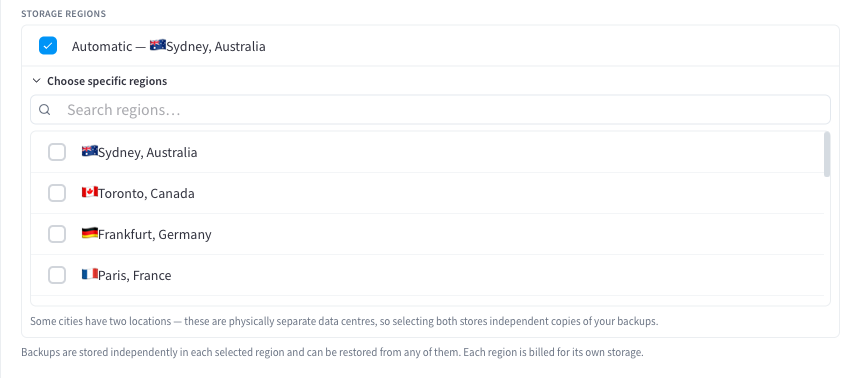
Figure 3: Storage regions — Automatic by default, with specific regions available under "Choose specific regions"
Automatic (default)
Automatic stores backups in the region closest to your facility, resolved from your facility's country. The picker shows which region Automatic currently resolves to (e.g. 🇦🇺 Sydney, Australia). This is the right choice for almost everyone.
Choosing specific regions
If you have data-residency requirements, or want geographic redundancy, expand Choose specific regions and select one or more:
| Region | Location |
|---|---|
| 🇺🇸 | Virginia (Ashburn), USA |
| 🇺🇸 | Virginia (Manassas), USA |
| 🇺🇸 | Texas, USA |
| 🇺🇸 | Oregon, USA |
| 🇺🇸 | San Jose, USA |
| 🇨🇦 | Toronto, Canada |
| 🇳🇱 | Amsterdam, Netherlands |
| 🇩🇪 | Frankfurt, Germany |
| 🇬🇧 | London (Slough), UK |
| 🇬🇧 | London (Chessington), UK |
| 🇫🇷 | Paris, France |
| 🇮🇹 | Milan, Italy |
| 🇯🇵 | Tokyo, Japan |
| 🇯🇵 | Osaka, Japan |
| 🇸🇬 | Singapore |
| 🇦🇺 | Sydney, Australia |
Points to know when selecting multiple regions:
- Each region holds a complete, independent copy. Every backup run writes to all selected regions, so two regions means two full copies (and roughly double the stored size).
- Automatic is exclusive — picking a specific region replaces it; clearing your last specific region falls back to Automatic.
- Deselecting a region doesn't delete its data immediately. Existing restore points in a removed region remain restorable until they age out under your retention setting, and their storage counts until then.
- Restore points stored in different regions can't be compared with the "what changed" view — comparisons work within a region.
Storage usage and cost
The Cloud backup section shows the total stored in cloud figure — the actual bytes held across all your regions, including any regions you've since deselected that still hold data. Backup storage is metered as part of your Performance Hub subscription's storage usage; deduplication and compression keep it far smaller than the sum of your restore point sizes.
Changing settings
Backup settings (enabled, retention, regions) are saved with Save changes in the drawer and picked up by the device before its next run — within about an hour, with no restart needed.
We recommend leaving backups enabled always. If you disable them, the agent keeps working but new restore points stop; existing ones age out under retention as usual.
Browsing, comparing, and restoring
The Backups tab is also where you dig into restore points — browsing the files inside them, seeing what changed between two points in time, downloading individual files, and running restores. That's covered in detail on Restore & recovery.
Related pages
- Restore & recovery — the file browser, version history, restores, and device replacement
- Device management — the rest of the device drawer
- Security & privacy — encryption and data handling