
Using Your Agent
Open the AI Agent module, pick your device, and you're in the agent's own interface. This page covers the day-to-day mechanics of working with it — conversations, attachments, approvals, and the handful of settings worth knowing about.
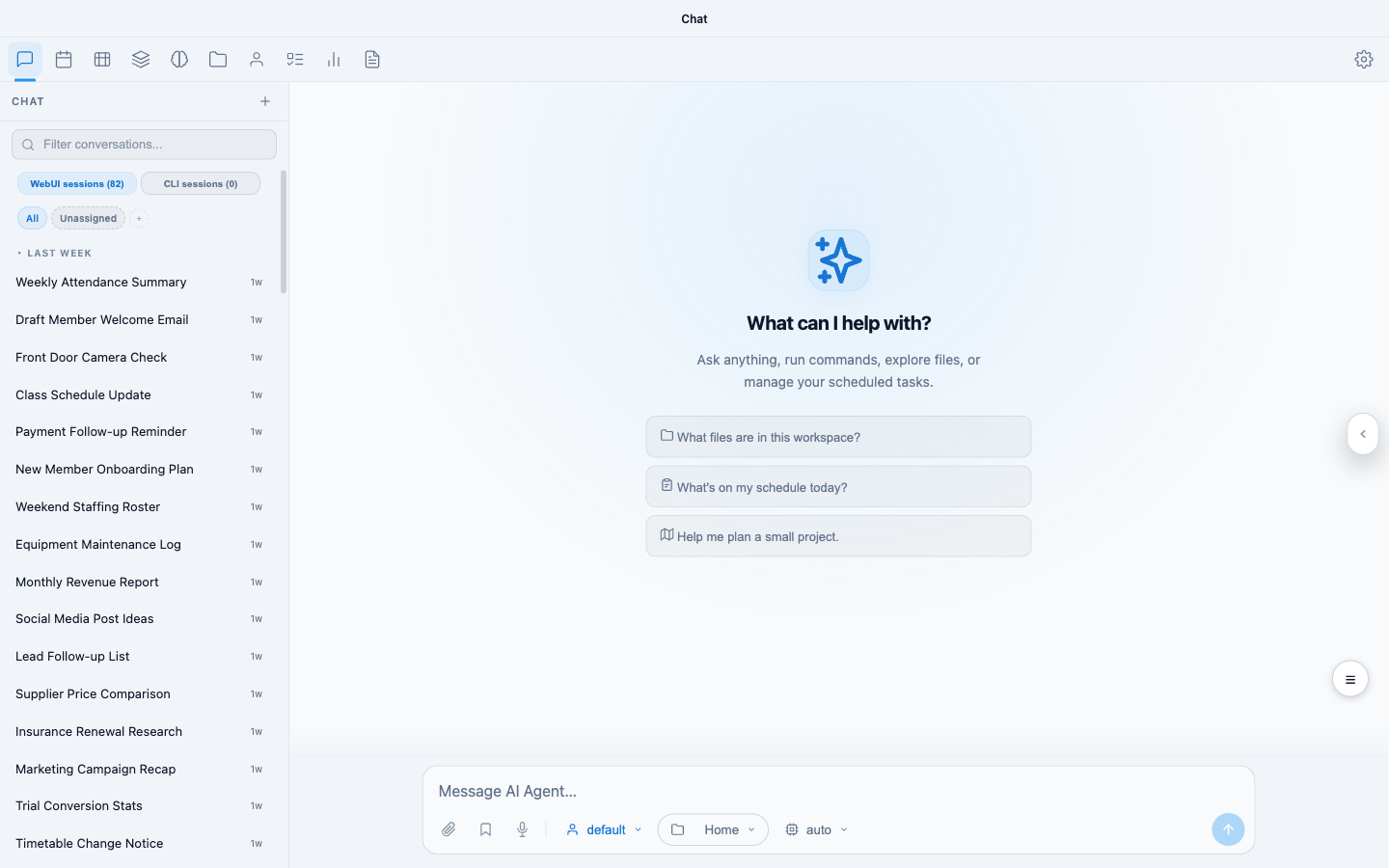
Figure 1: The agent's chat — conversations in the sidebar, chat in the middle
Conversations
Work happens in conversations (sessions), listed in the sidebar. Start a new one for a new topic; return to an old one to pick up where it left off — the agent has the full history of each conversation in front of it when you return.
Two things make conversations here different from a typical chatbot:
- Everything is attributed. Your Performance Hub identity travels with every message, so the agent knows who's asking — useful when several staff share the agent.
- Nothing is throwaway. Conversations persist on the device, are included in backups, and feed the agent's long-term memory.
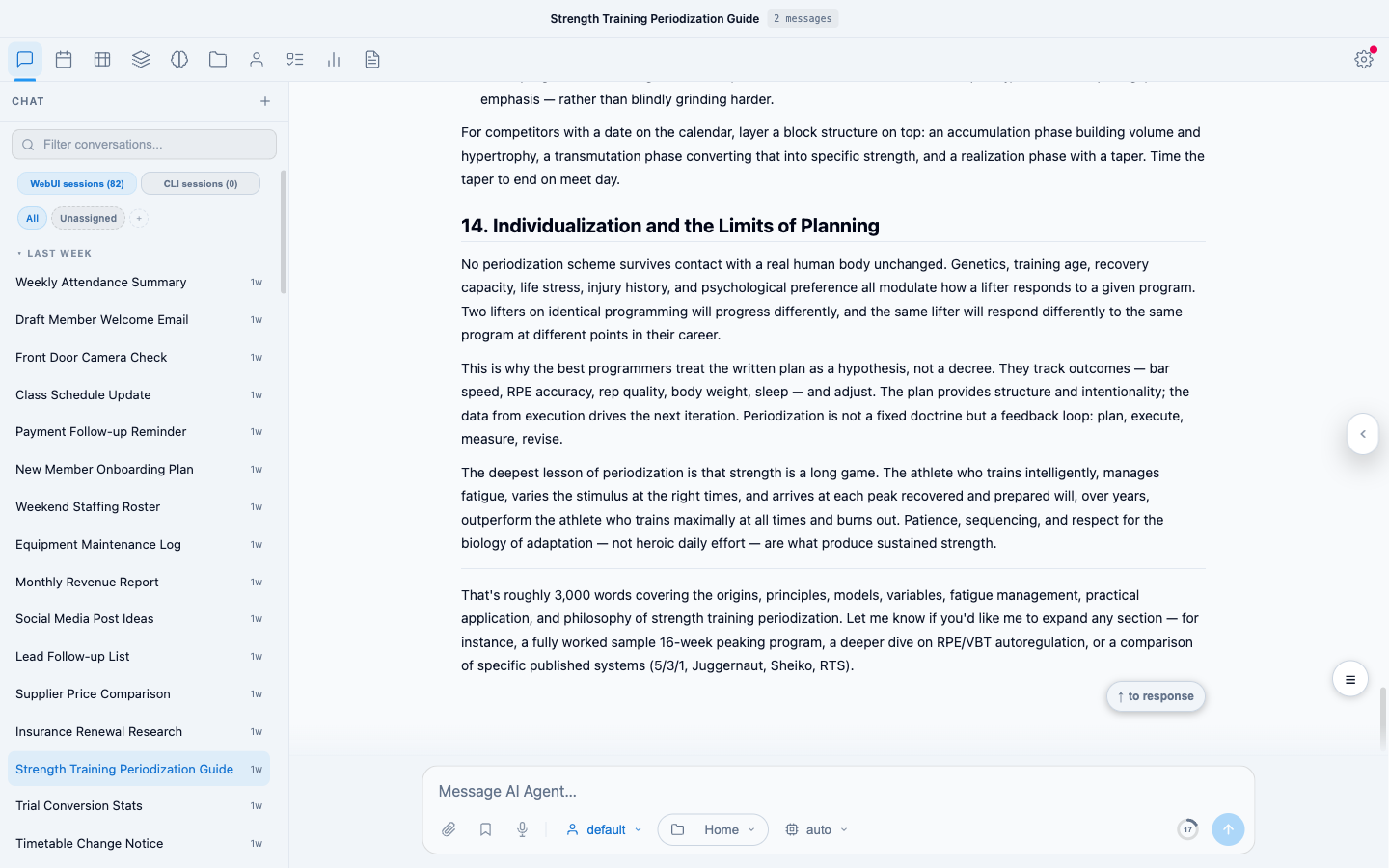
Figure 2: A conversation in progress
You can share a deep link to a specific conversation with a colleague — anyone with access to the agent lands directly in that conversation.
Talking to it
Write the way you'd brief a capable colleague. Give it the goal, not the steps; context helps ("for the board pack", "keep it under a page"). Some useful habits:
- Attach files with the paperclip (or drag and drop) — spreadsheets, PDFs, images, exports. Files land in the agent's workspace so they're available in later conversations too.
- Use the microphone to dictate instead of typing.
- Interrupt freely. If it's heading the wrong way, say so mid-task — you don't have to wait for it to finish.
- Ask for the output you actually want — "as a table", "as a document in your workspace", "as a one-paragraph summary I can paste into an email".
The expand control gives you a full-screen editor for longer briefs, and notification sounds (in settings) chime when a response is ready if you've switched tabs.
Which model is thinking
A model picker near the input controls which AI model the agent uses. The default — auto — is the right choice: Performance Hub routes each request to an appropriate model, and improvements roll out automatically without you changing anything. Pick a specific model only if you have a particular reason to; if you select a notably expensive one, the agent warns you first and suggests starting a fresh conversation so you're not paying premium rates to re-read a long history.
Model usage is metered against the agent's spend key, whatever the selection — see Budgets & limits.
Command approvals
The agent can run commands on its own device to get work done — processing a spreadsheet, converting a file, running an analysis. The approvals setting controls how much it asks first:
| Mode | Behaviour |
|---|---|
| Always allow (default) | Commands run without asking |
| Smart | Safe commands run; risky ones ask first |
| Ask every time | Confirms with you before each command |
Always allow is the recommended default — commands run on the appliance, inside the agent's own environment, so approvals govern the agent's autonomy on its own device, not access to anything else. Switch to Smart or Ask every time if you prefer the agent to check in before acting; you choose during setup and can change it any time in the agent's settings.
Long conversations and compacting
Very long conversations eventually strain any model's working attention. The agent manages this with compacting — summarising the older parts of a conversation so the essentials stay in view while the transcript remains yours to scroll. It happens automatically when needed; you can also ask the agent to compact a conversation explicitly.
The practical habit: one topic per conversation. Start fresh for new work — the agent's memory carries what matters across conversations, so you lose nothing by starting clean, and each conversation stays sharp.
When it needs time
Bigger tasks — a deep research job, a long document — take minutes, not seconds. You don't need to sit and watch: leave the tab, and the agent will push a notification when the response is ready, deep-linked back to the conversation. For work that should happen on a schedule rather than on demand, set up an automation.
Related pages
- Agent capabilities — what it can actually do, with prompting tips
- Workspace, files & wiki — where its files live
- Memory — what it remembers between conversations
- Personality — shaping how it behaves