
Access Logs
The Access Logs tab is the audit trail: every unlock attempt — successful, denied, or failed; from the mobile app or by an admin — is recorded with who, which door, when, where from, and the outcome. This page covers reading the log, filtering, the No visit recorded view, exporting to CSV, and the event detail view.
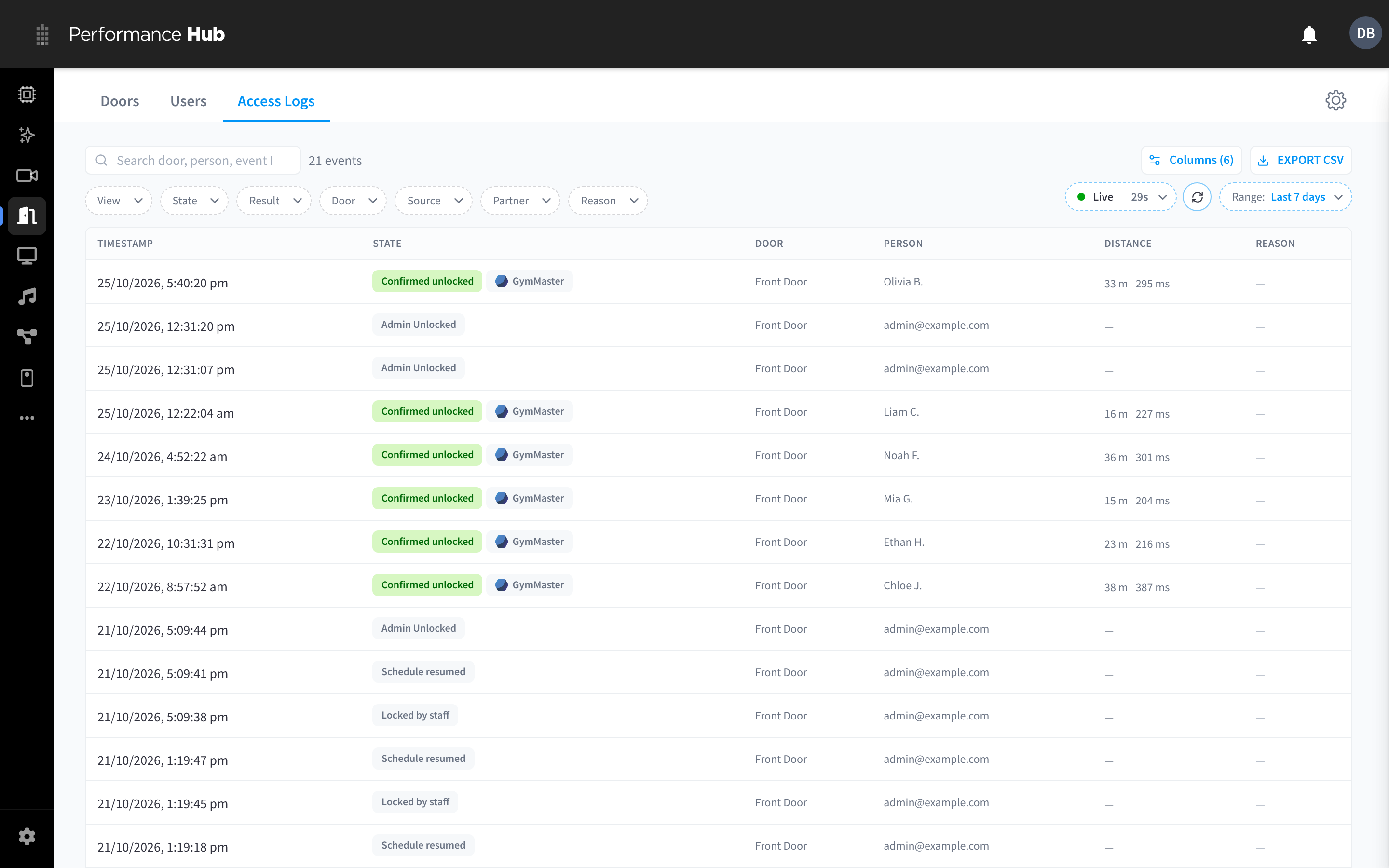
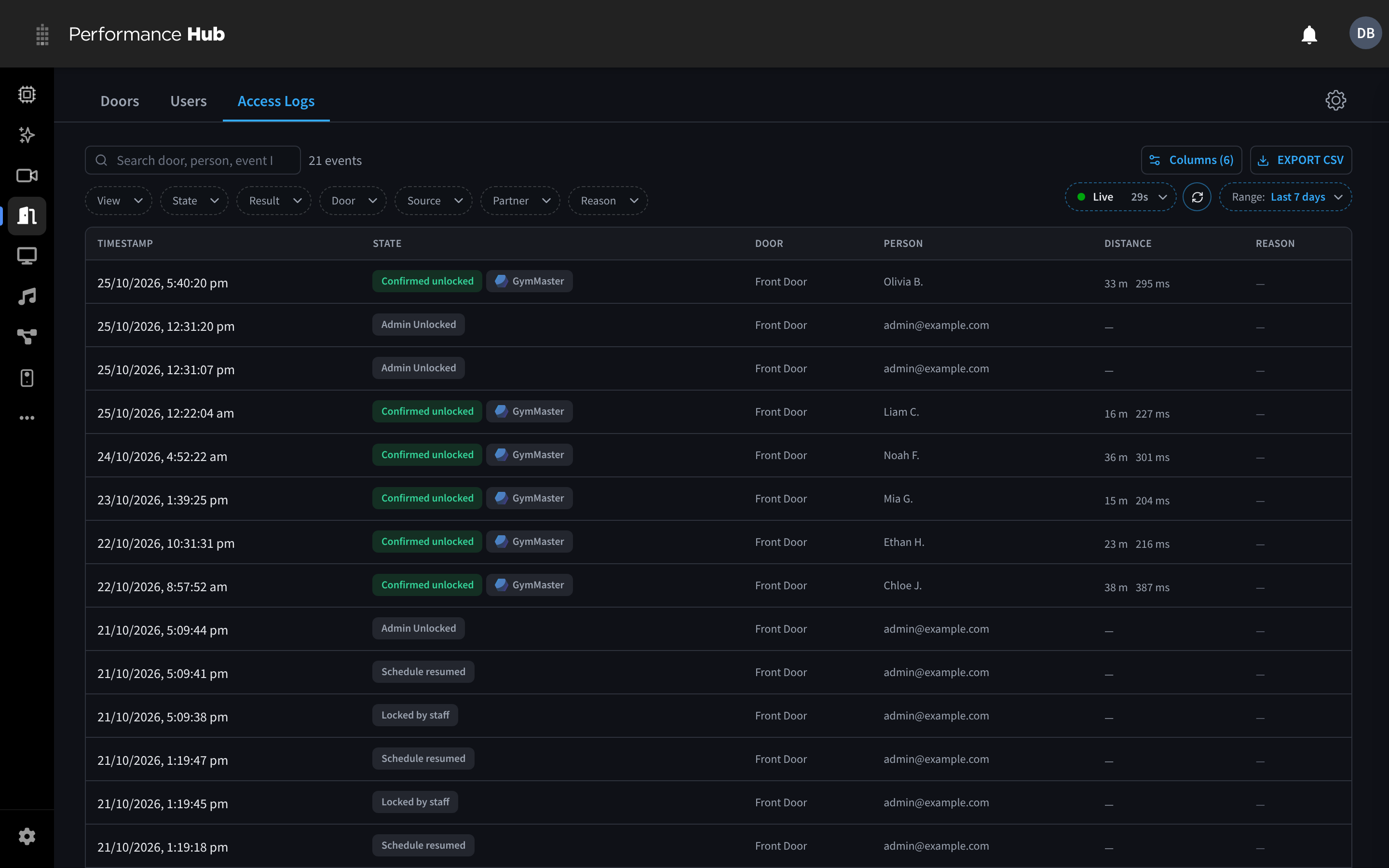
Figure 1: The Access Logs tab
Events are retained for approximately 13 months, then removed automatically. Deleting a user does not delete their events — history is kept for the audit trail.
Access Logs are separate from Audit Logs, which record requests made across Performance Hub.
Filtering and searching


Figure 2: Search, filter chips, columns, export, live refresh and range
| Control | What it does |
|---|---|
| Search | "Search door, person, event ID…" — matches door, person, event ID, command ID, state, and denial reason |
| View | Door events (the audit trail) or No visit recorded (see below) |
| State, Result, Door, Source, Partner, Reason | Filter chips that narrow the list by event state, outcome, door, where the request came from, integration partner, and denial reason |
| Columns | Choose which columns the table shows; the button shows how many are on |
| Export CSV | Downloads the currently filtered events (see Exporting to CSV) |
| Live | Refreshes the list automatically, with a countdown to the next refresh; the button beside it refreshes now |
| Range | Last day, Last 7 days, Last 30 days, Last 90 days, or custom dates |
The header shows the event count for the current range and filters. Each range loads up to the 500 most recent events.
Event states
| State chip | Meaning |
|---|---|
| Confirmed unlocked | The door controller confirmed the relay released — the door actually unlocked |
| Unlocked | The unlock was reported successful |
| Admin Unlocked | An admin triggered the unlock from Performance Hub (admin override). Recorded as soon as the command is dispatched |
| Denied | The request was rejected — see the Reason column (all reasons) |
| Pending / Request received | The request is still being processed (transient — normally resolves within seconds) |
| Timed out | The unlock command was sent but the controller didn't confirm in time — usually connectivity trouble at the door |
| Failed | The unlock could not be completed due to an error |
| Locked by staff | Staff used Lock now while the auto-unlock schedule was holding the door open. A schedule event, not an unlock attempt |
| Schedule resumed | The auto-unlock schedule took over again, either at its next change or because staff pressed Resume schedule. A schedule event, not an unlock attempt |
Each row shows the timestamp, state, door, person, distance from the door and command latency (when available), and the denial reason for denied events.
No visit recorded
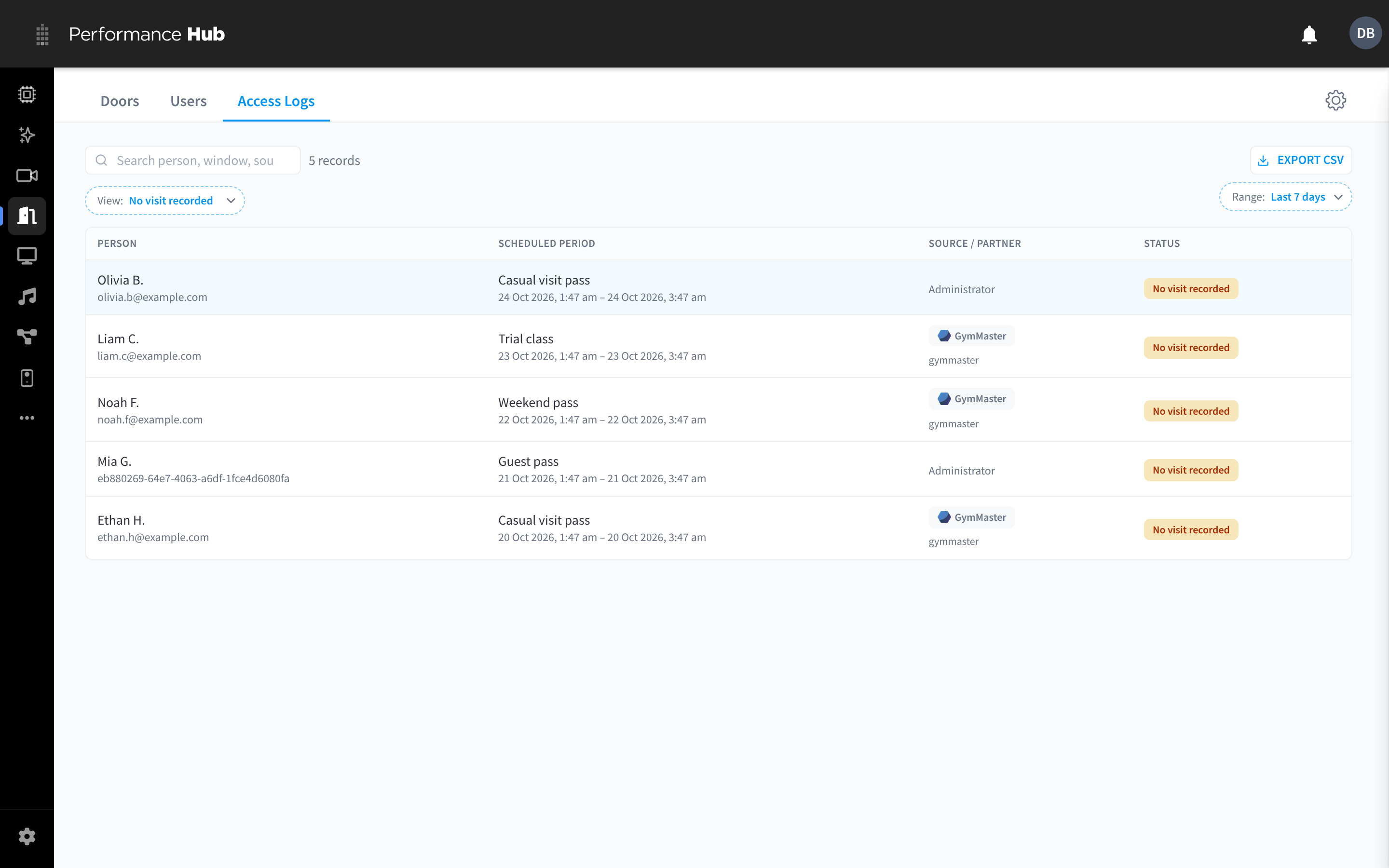
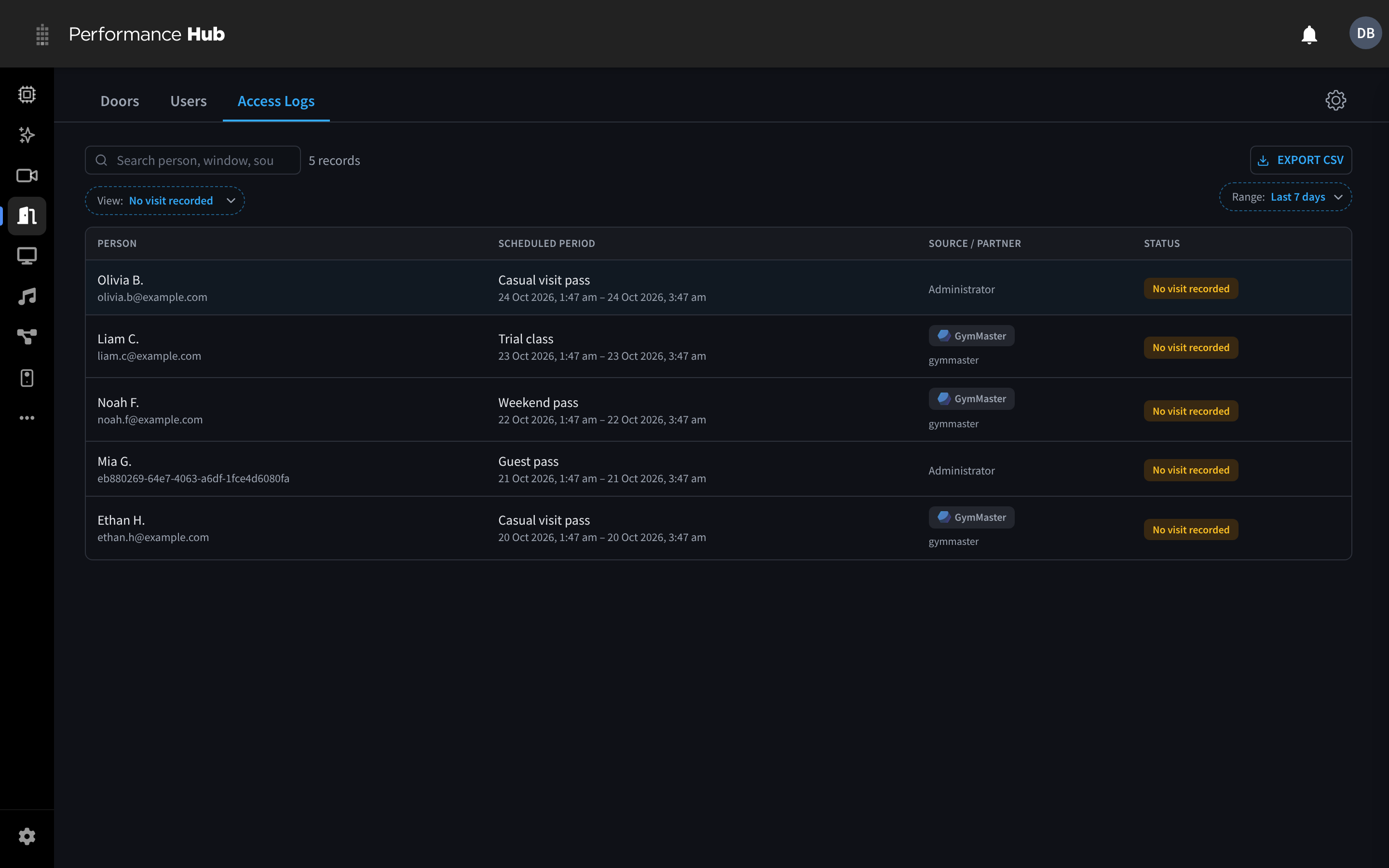
Figure 3: The No visit recorded view
Set View to No visit recorded to list one-off Access Time Windows, added by an admin or an integration, where the person never unlocked a door during the window (including any grace period). Columns: Person, Scheduled period, Source / partner, Status. Records are kept for about 13 months.
For example, an office can see which contractors with a one-off window never turned up.
Access Policy attribution
Policy-authorised events identify the named policy and the matched audience, target, and schedule. Scheduled matches can also include the active concrete start and end.
Administrator-owned and integration-owned Access Time Windows keep their own attribution paths (admin_time_window and source_time_window); they are not relabelled as Access Policies. Policy denials distinguish target, audience, and inactive-schedule mismatches. A future occurrence uses outside_access_time_window with structured availability when known.
Event details
Click any row to open the Access Details dialog.
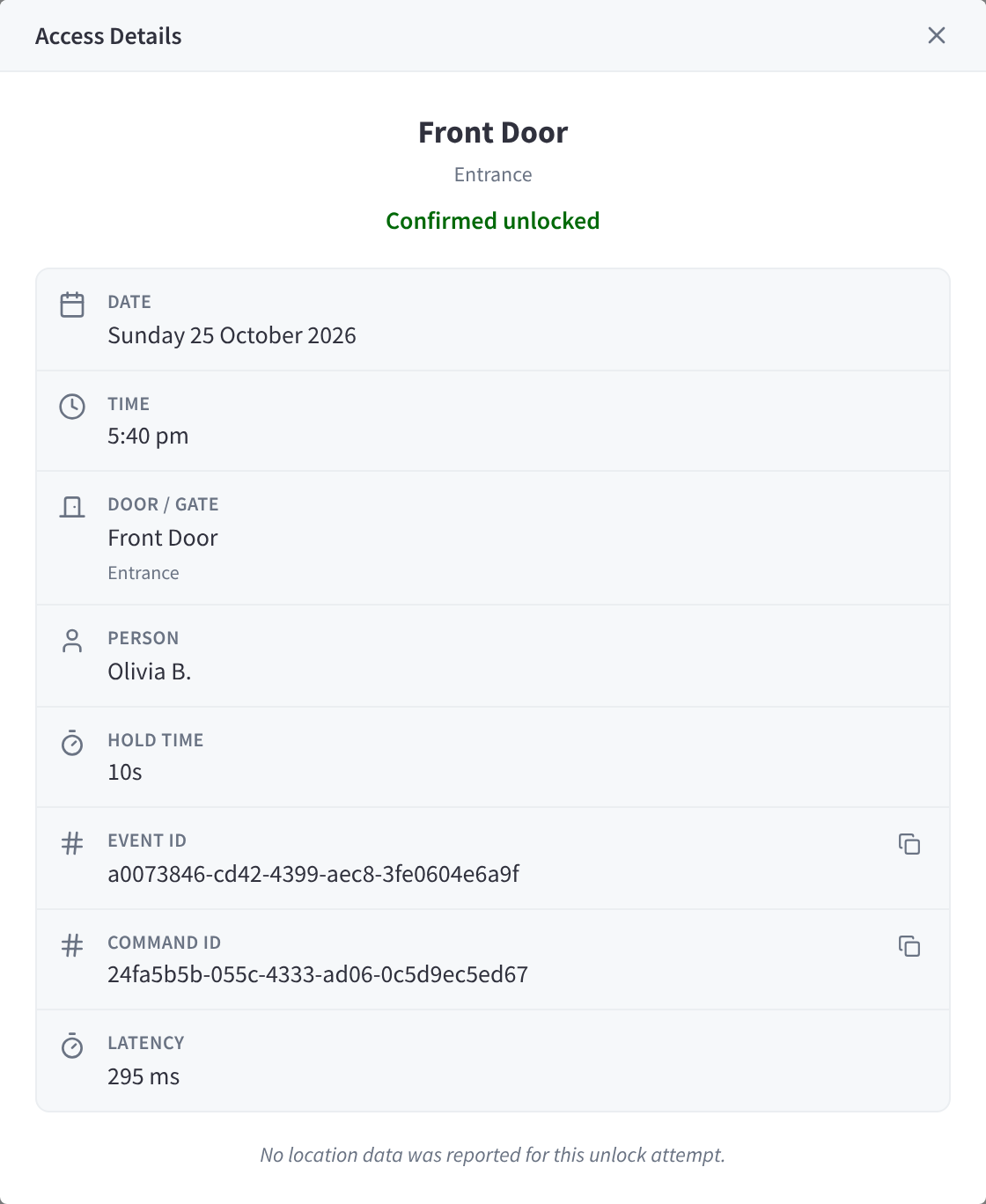
Figure 4: The Access Details dialog for a member unlock
The header shows the door, its location, the outcome, an Admin override badge when applicable, and the denial reason if denied. Fields shown when available:
| Field | Notes |
|---|---|
| Date / Time | When the attempt happened |
| Coordinates | The location the phone reported, with GPS accuracy (±N m); copyable |
| Door / Gate | Door name and location |
| Person or Admin | Who attempted — admin unlocks show the admin's account |
| Device | The phone/device used |
| IP Address | The requesting IP; copyable |
| Hold time | How long the door stayed unlocked |
| Distance from door | Computed distance from the geofence centre |
| Event ID / Command ID | Copyable identifiers for support escalation |
| Latency | How long the controller took to respond to the command |
| Authorization source | Access Policy, permanent grant, administrator window, or integration window |
| Policy | Policy ID/name plus the matched audience, door/Access Scope target, and Anytime/Scheduled mode |
| Window / Source ID | Bounded attribution for active scheduled or source windows |
| Active from / to | Concrete Unix-second occurrence used for a window decision; the end is exclusive |
Unlock Location plots the reported coordinates on a map with an Open in Google Maps link. When there are no coordinates you'll see "No location captured — unlocked from the Performance Hub." (admin overrides) or "No location data was reported for this unlock attempt."
Exporting to CSV
Click Export CSV to download the currently filtered events. The file includes identity, door, result, denial, controller, integration, and policy/window attribution fields. The button is disabled when the filtered list is empty. In the No visit recorded view, Export CSV downloads that list instead.
Tips
- The Doors tab's Recent activity card is a 24-hour shortcut into this log — clicking an event there jumps straight to it here.
- Investigating a member complaint? Use the State or Result chip to show denied attempts, search their name, and read the reason — then see Troubleshooting for the fix per reason.
- For policy complaints, confirm the policy name and its Who/Where/When. For integration windows, also inspect source age and
scope_keymapping. - A burst of Timed out events on one door usually means that door's controller has network problems — check its status in the Doors tab.
- Your AI Agent can read door events through MCP, for example for an office lobby welcome for each visitor. Door events carry a user ID, not a name or date of birth.
Related pages
- Reference — every state and denial reason
- Access Policy Schedules
- Troubleshooting
- Doors