
Doors
The Doors tab is your live view of every door and gate at the facility: status counters, access analytics, the door list, and a recent-activity feed. From here you can remotely unlock a door, make a controller beep so you can find it on-site, lock a door early while its schedule holds it open, and open each door's settings panel.
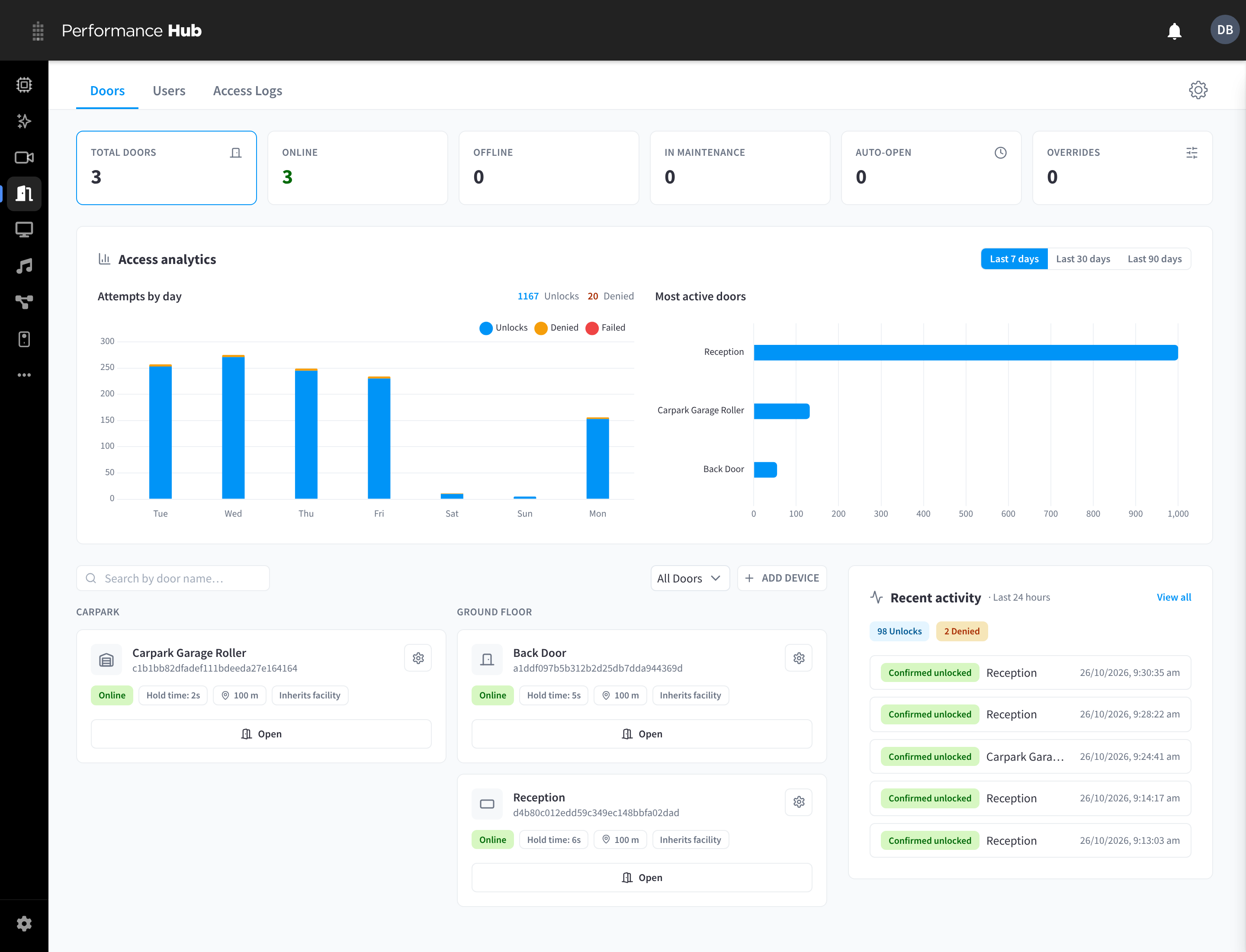
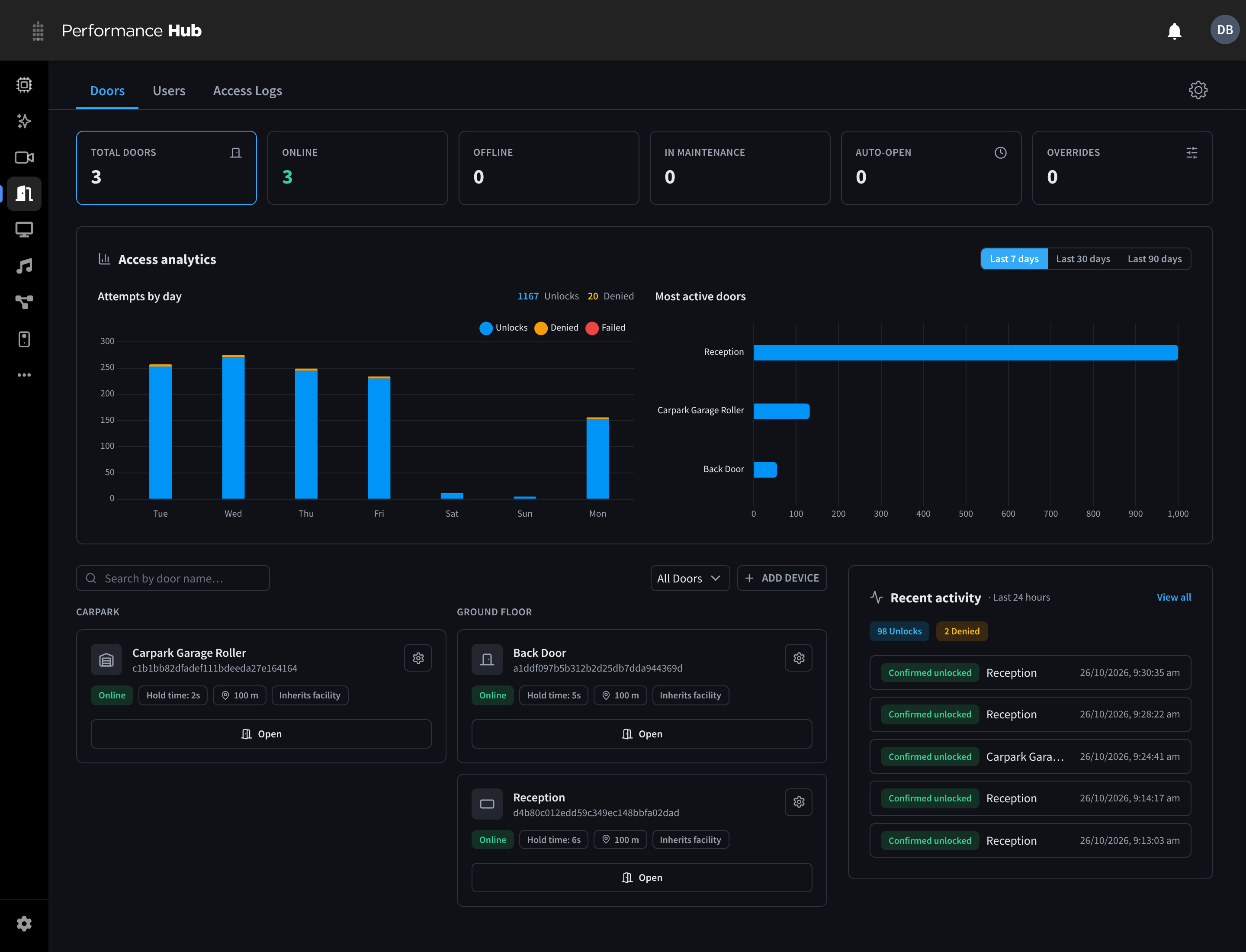
Figure 1: The Doors tab
Status counters


Figure 2: The status tiles at the top of the Doors tab
| Counter | Meaning | Click behaviour |
|---|---|---|
| Total doors | All door controllers registered at this facility | Shows all doors |
| Online | Doors whose controller has reported in within the last 5 minutes | Filters the list to online doors |
| Offline | Doors that have not reported in recently | Filters the list to offline doors |
| In maintenance | Doors with maintenance mode set to Force open or Force closed | Filters the list to doors in maintenance |
| Auto-open | Doors currently held open by an auto-unlock schedule | Display only |
| Overrides | Doors with their own geofence or Access Policy settings | Display only |
Clicking an already-active counter clears the filter back to All doors.
Access analytics
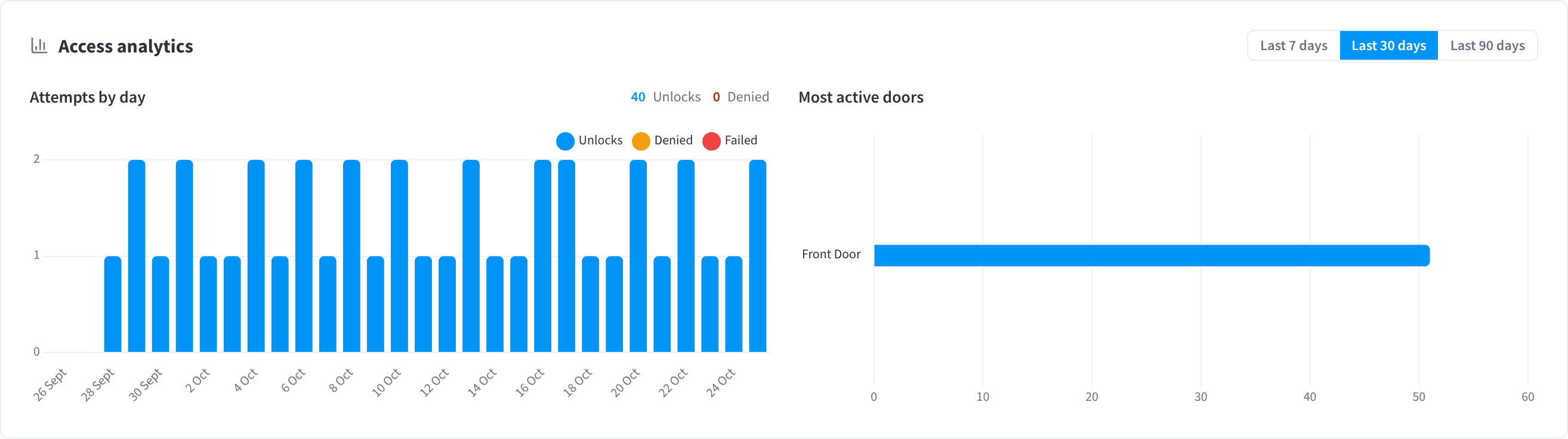
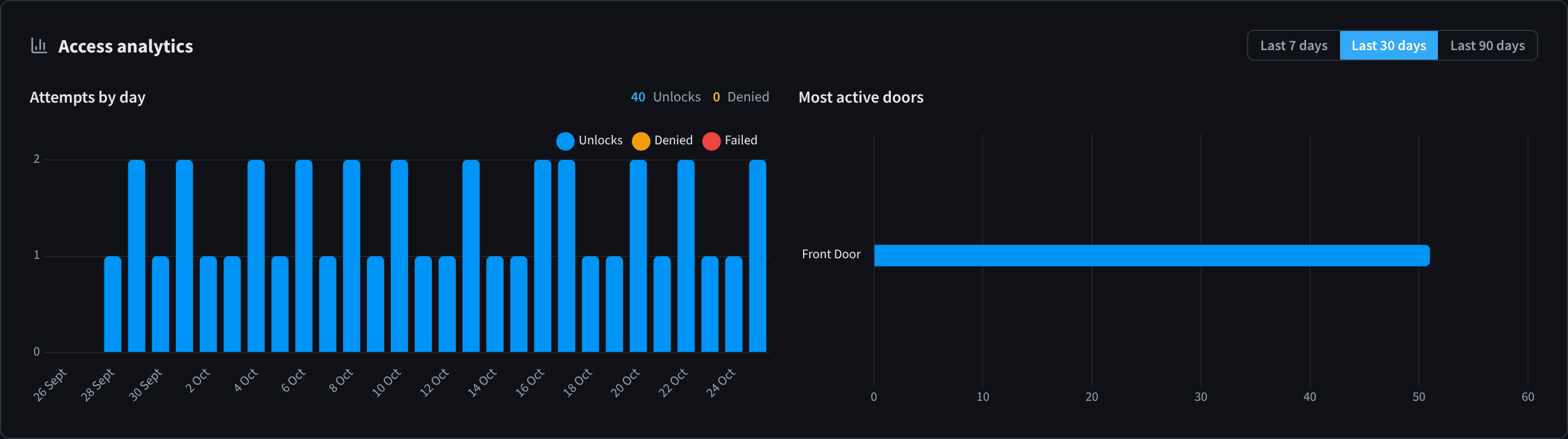
Figure 3: The Access analytics card
- Range buttons: Last 7 days, Last 30 days (default), Last 90 days.
- Attempts by day — a stacked daily chart of Unlocks, Denied, and Failed attempts.
- Most active doors — a bar chart of attempts per door (up to 8 doors).
- When there is no data: "No access activity in this period."
The door list
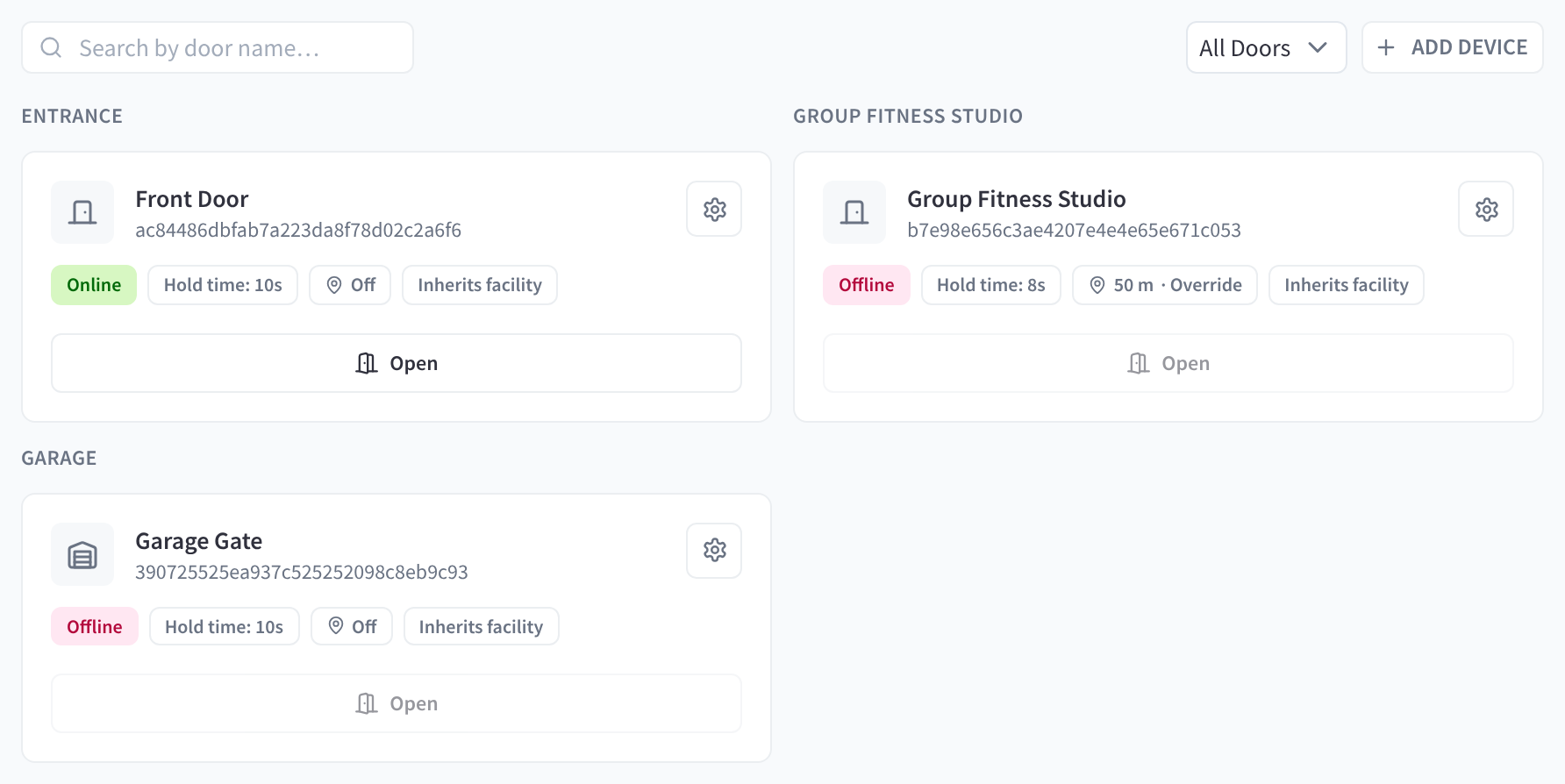
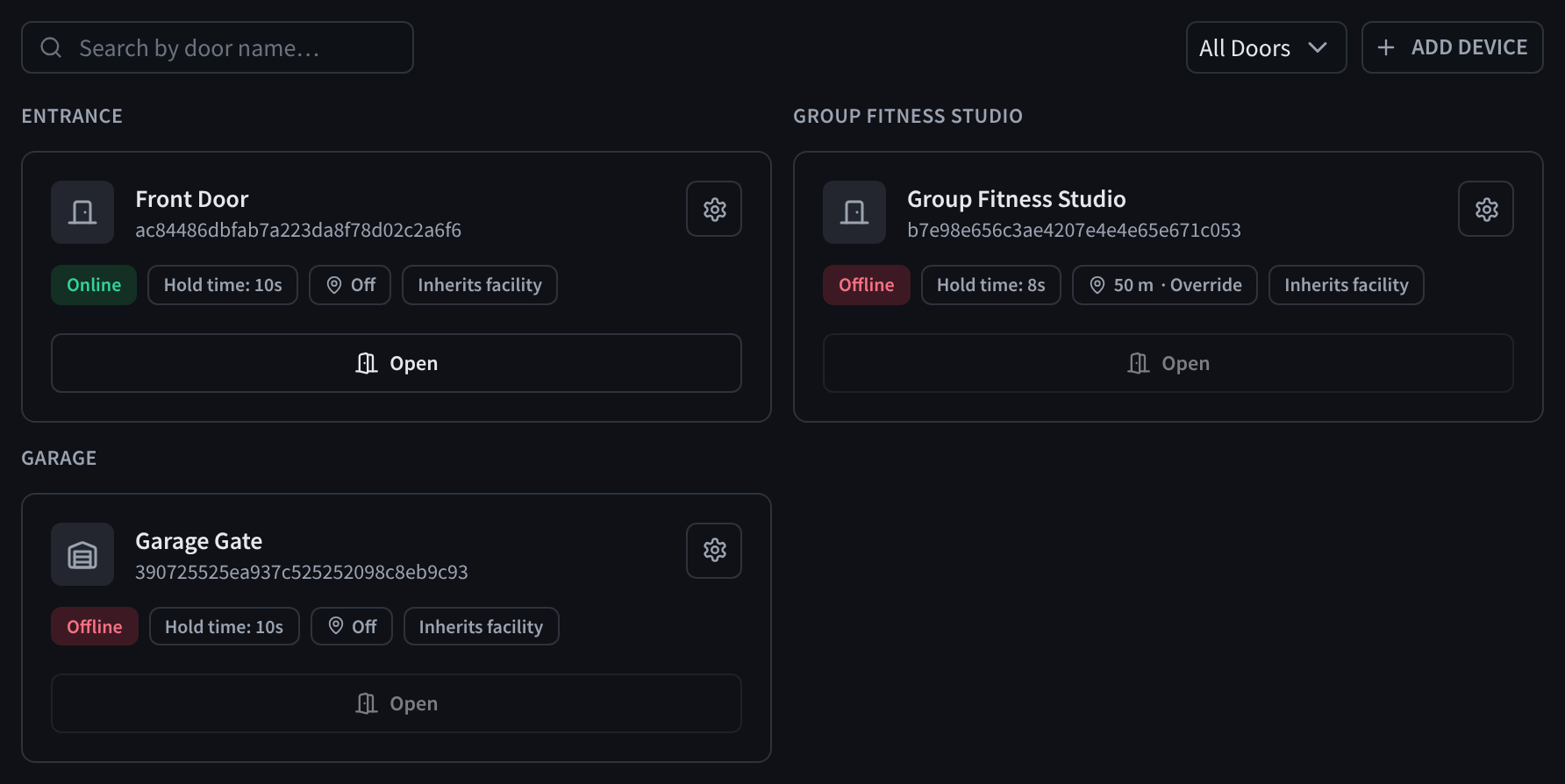
Figure 4: Door cards grouped by location
Doors are grouped by their Door location label (set during pairing or in the door's Configuration tab). Doors without a location appear under Other.
Above the list:
- Search — "Search by door name…"
- Status filter — All doors, Only online, Only offline, In maintenance
- Add Device — pairs a new controller; see Adding doors
Door card badges
| Badge | Meaning |
|---|---|
| Online / Offline | Controller connectivity (heartbeat within the last 5 minutes) |
| Auto-open | An auto-unlock schedule is currently holding the door open |
| Locked by staff until HH:MM | Staff used Lock now while the schedule was holding the door open (see below) |
| Open now / Closed now | Whether current authorisation configuration has a time-limited path for the door |
| Force open / Force closed | Maintenance mode is active |
| Hold time: Ns | How long the door stays unlocked per unlock |
| N m or Off (geofence) | The door's effective geofence radius, or geofence disabled; · Override is appended when the door has its own geofence override |
| Access Policies | The door is targeted by one or more enabled policies |
Door card actions
- Open — sends an admin unlock to the door. Admins can unlock a door remotely; every admin unlock is recorded in Access Logs against the admin's account. Disabled while the door is offline.
- Lock now / Resume schedule — shown while an auto-unlock schedule is holding the door open (see below).
- Gear icon (Door settings) — opens the door's detail panel (below).
Lock now and Resume schedule
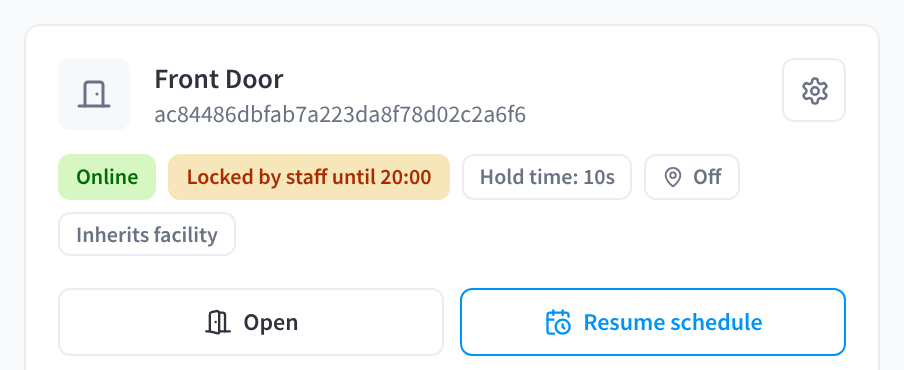
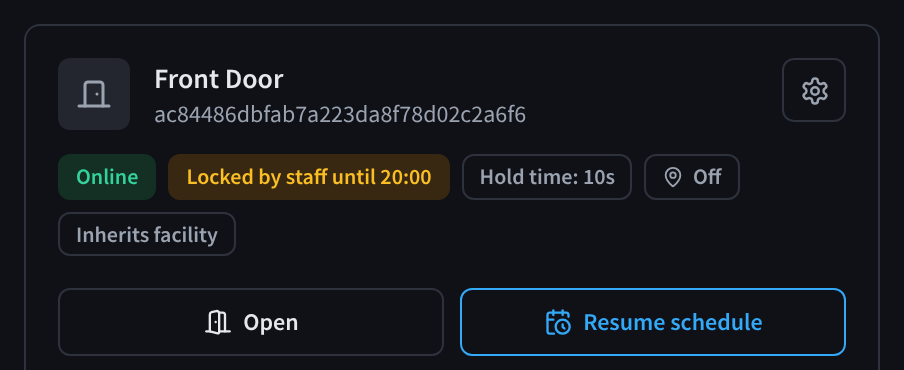
Figure 5: A door locked by staff, with Resume schedule
While the auto-unlock schedule is holding a door open, Lock now locks it until the schedule's next change. The card shows Locked by staff until HH:MM. Members can still unlock it as usual. The schedule takes over again when this unlock period ends. Resume schedule puts it back immediately.
Lock now is on the door card and the door panel's Overview tab. It needs a recent controller version; on an older controller the button is disabled with "Requires a door controller update".
For example, a venue can lock the foyer doors as soon as an event finishes early, and the schedule opens them again for the next event.
Recent activity
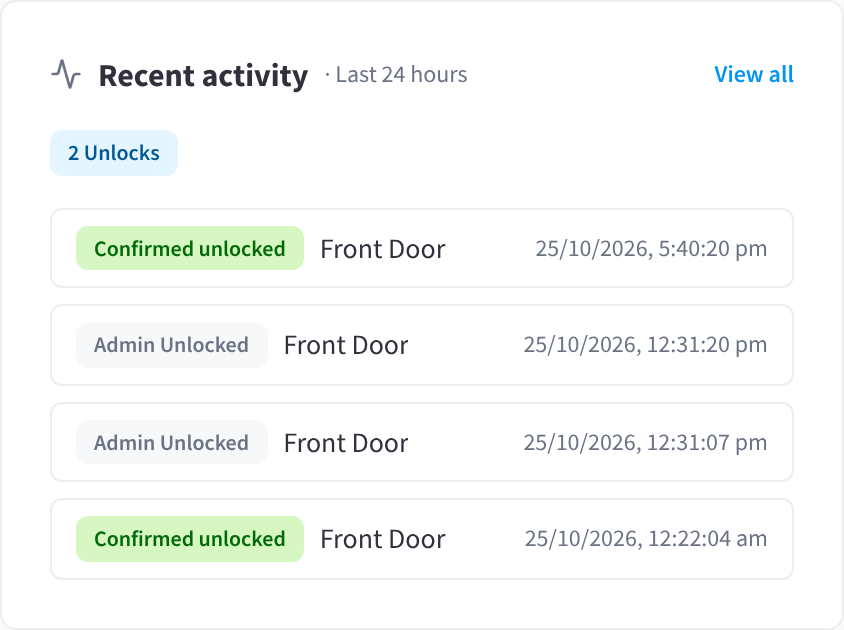
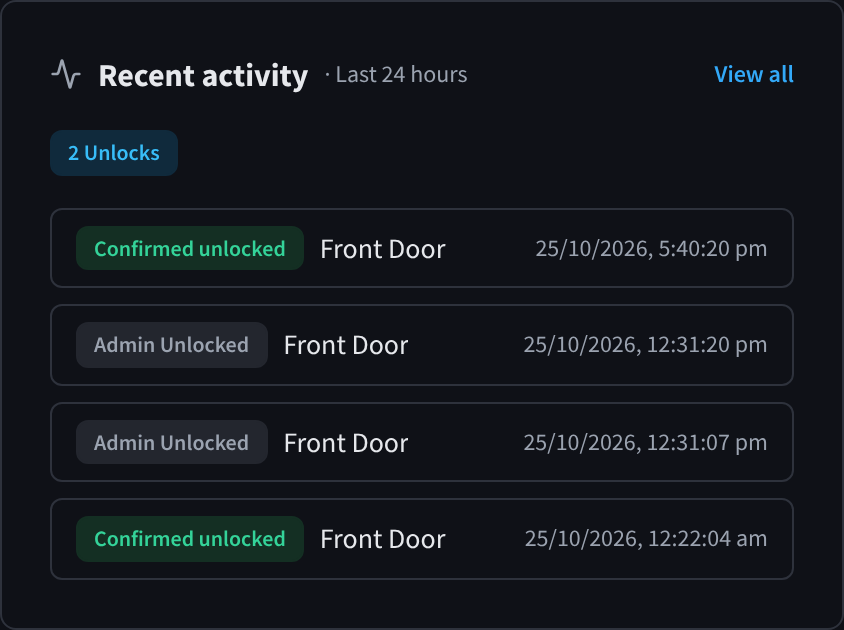
Figure 6: The Recent activity feed
Shows the five most recent access events from the last 24 hours, with summary chips for unlocks and denials. Schedule events, Locked by staff and Schedule resumed, appear here too. Click View all to jump to the Access Logs; clicking an individual event opens it there directly.
The door detail panel
Click the gear icon on a door card to open its settings panel. It has five tabs: Overview, Configuration, Schedule, Access Policies, and Geofence. Changes are applied with Save at the bottom; Cancel discards them.
Overview tab
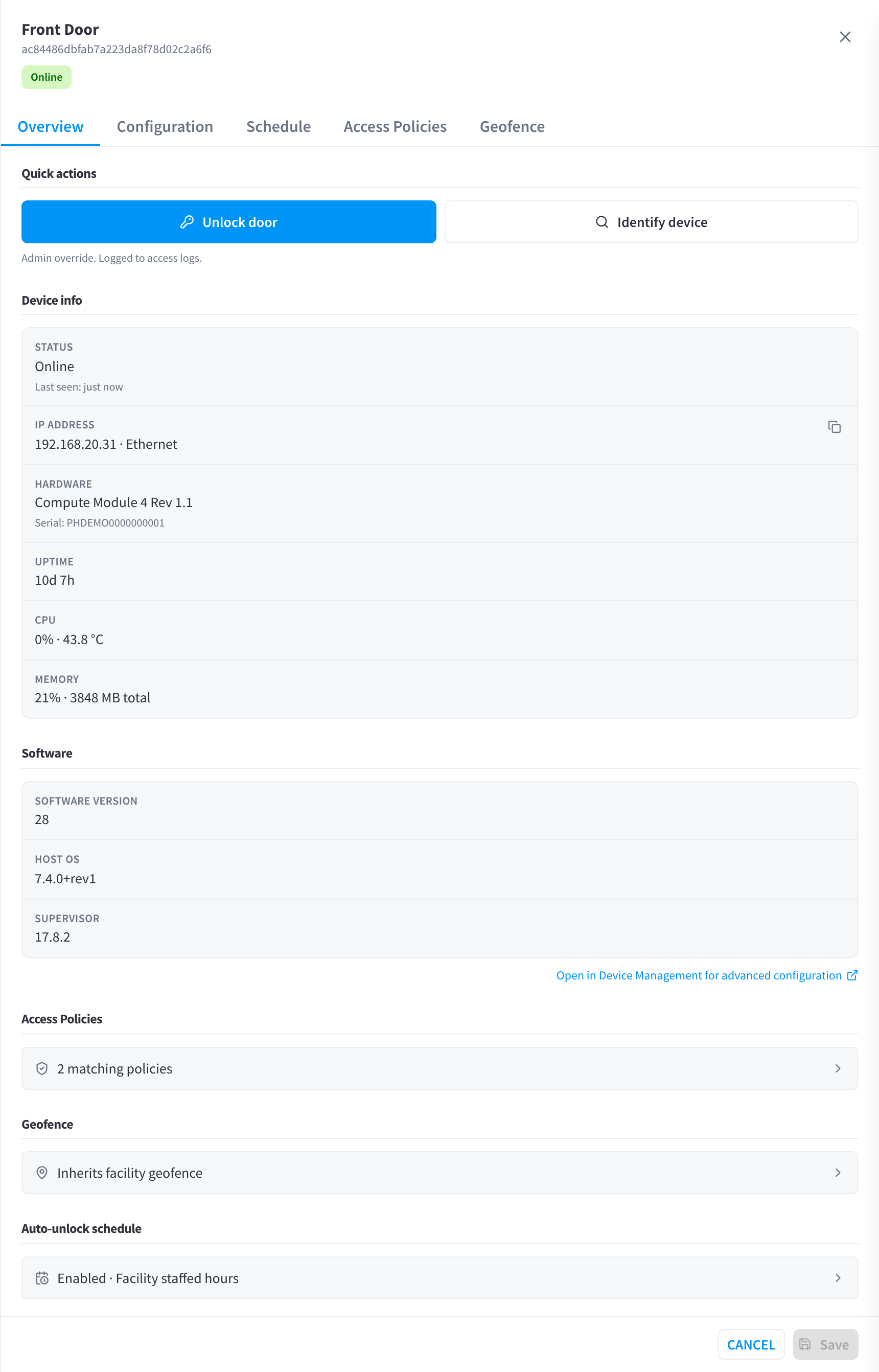
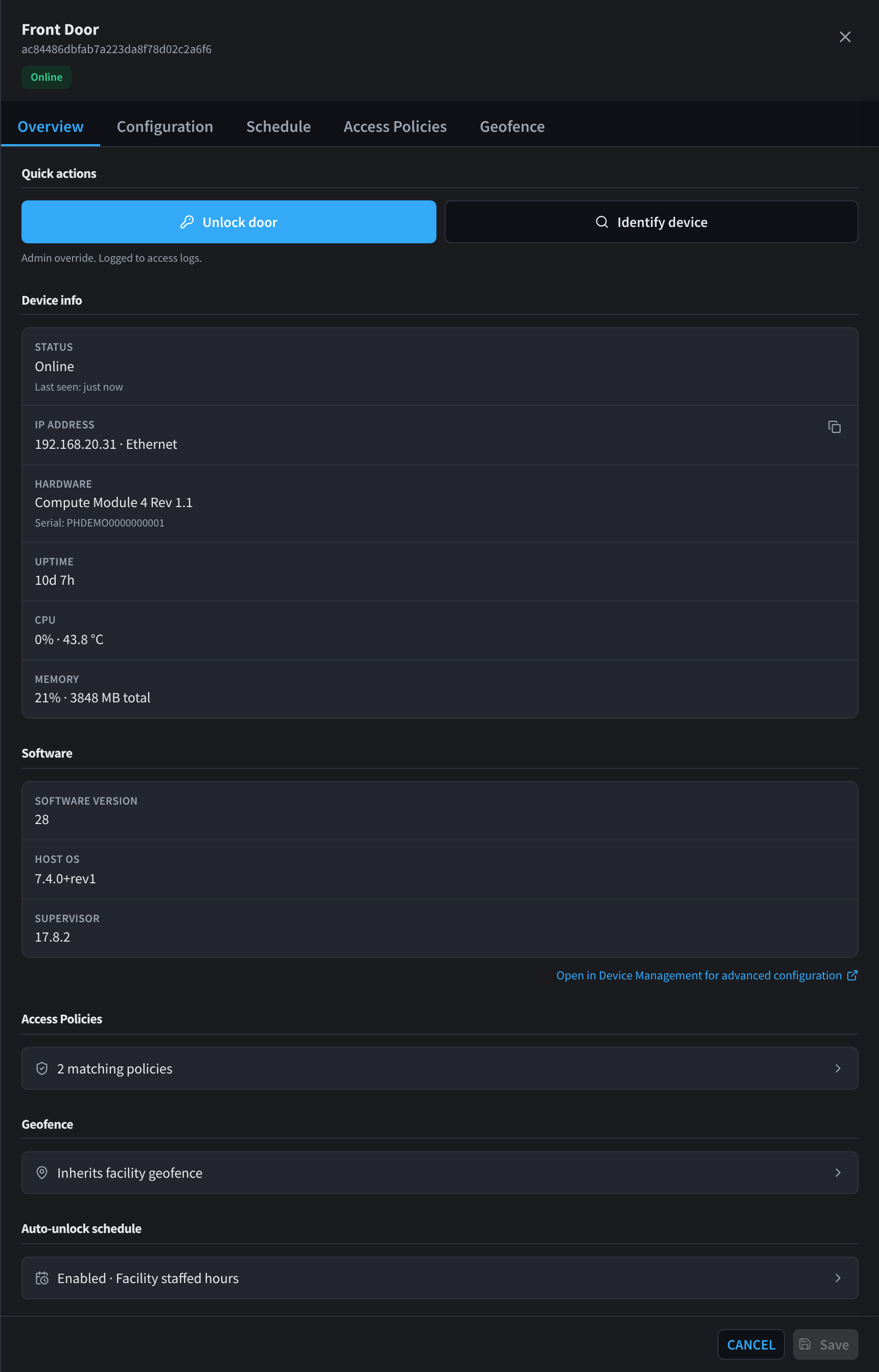
Figure 7: Overview tab with quick actions, device info and software
Quick actions
| Action | What it does |
|---|---|
| Unlock door | Admins can unlock a door remotely; every admin unlock is recorded in Access Logs. |
| Identify device | "Plays three medium beeps on the controller so you can find it on-site. Doesn't affect the lock state." Useful when several controllers are installed close together. |
| Lock now / Resume schedule | Shown while the auto-unlock schedule is holding the door open. See Lock now and Resume schedule. |
Device info shows live hardware telemetry from the controller: Status (with last-seen time), IP address (and whether it's on Ethernet or Wi-Fi), Hardware (model and serial, for example PHDEMO0000000001), Uptime, CPU (load and temperature), and Memory.
Software
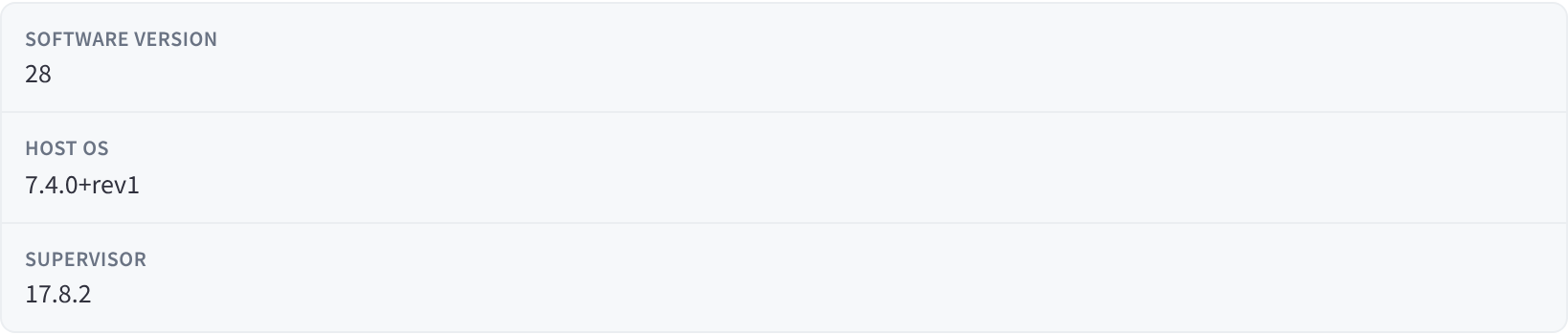
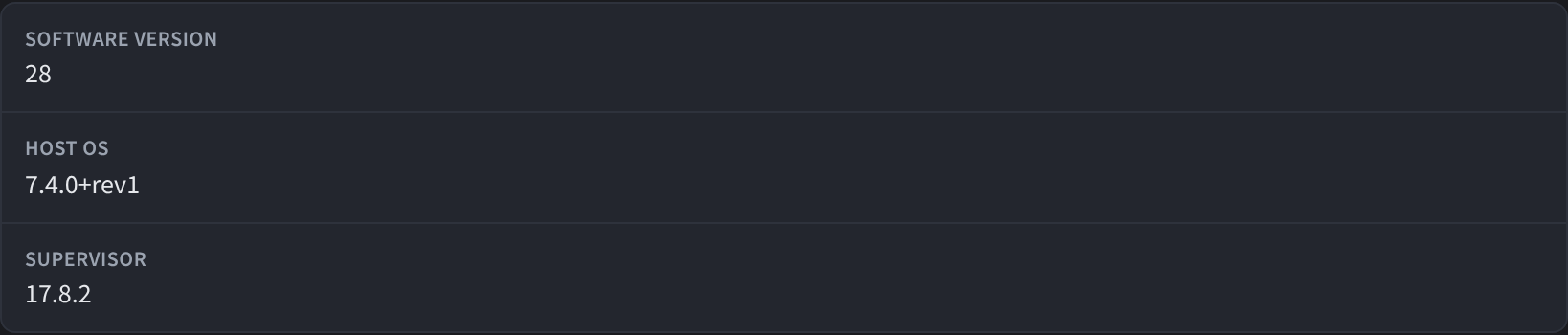
Figure 8: The Software section
The Software section shows the controller's Software version, Host OS and Supervisor. When the device reports them, it also shows the release date (Released) and an update status of Up to date or Update available. Users who also have Device Management access can install updates from here.
The link Open in Device Management for advanced configuration jumps to the Device Management module.
Below the software details, summary cards show the door's current Access Policies, Geofence, and Auto-unlock schedule state; clicking one jumps to that tab.
Configuration tab
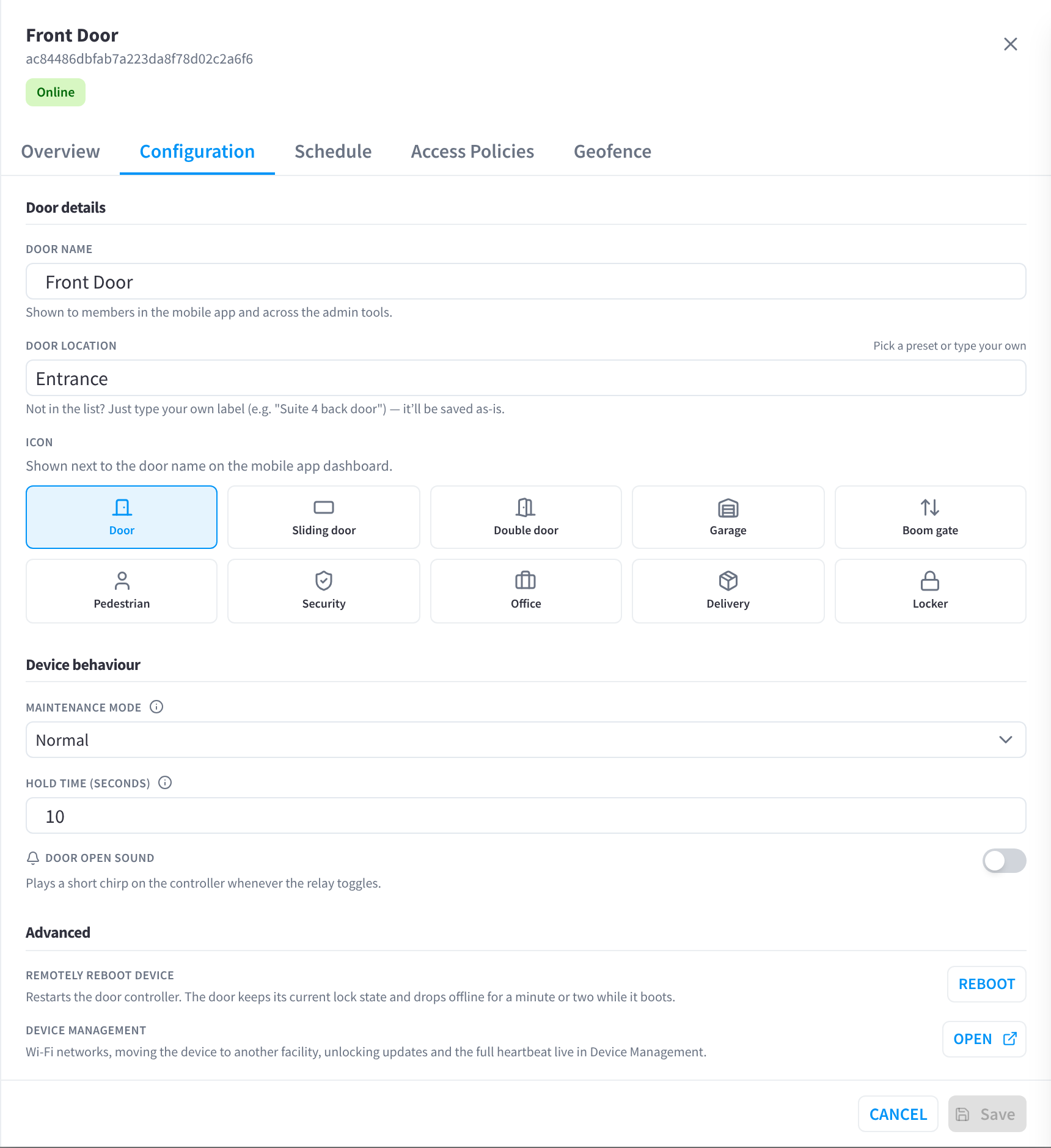
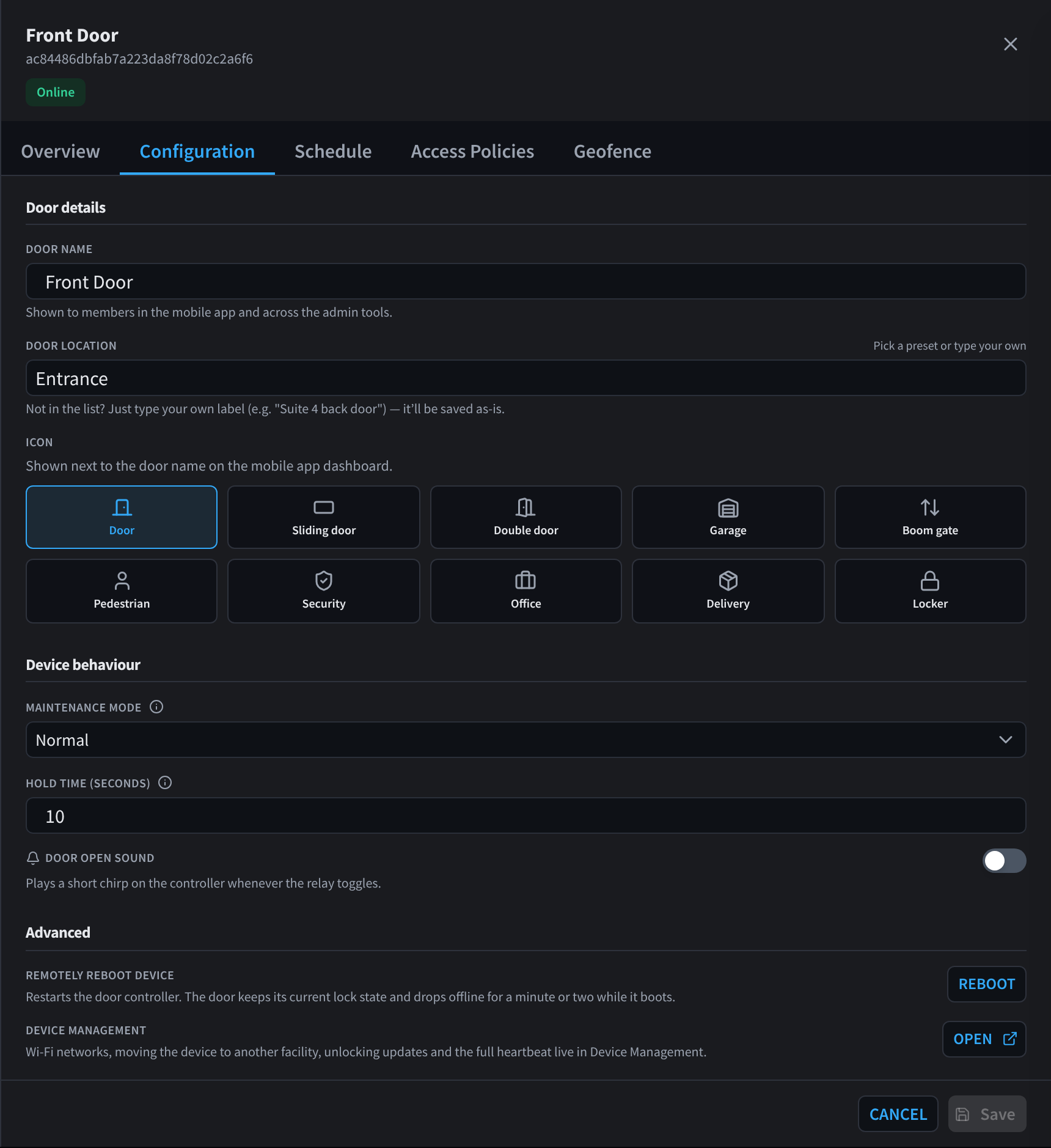
Figure 9: Configuration tab
Door details
- Door name — "Shown to members in the mobile app and across the admin tools."
- Door location — pick a preset (e.g. Entrance, Reception, Gym Floor, Pool Area, Parking Lot) or type your own label up to 64 characters ("Not in the list? Just type your own label (e.g. "Suite 4 back door") — it'll be saved as-is."). The location only affects how doors are grouped in the list — it has no effect on access policy.
- Icon — shown next to the door name on the mobile app dashboard. Ten choices:
| Icon | Intended use |
|---|---|
| Door | Standard single door (default) |
| Sliding door | Sliding / automatic door |
| Double door | Double / French door |
| Garage | Garage / roller door |
| Boom gate | Boom gate / barrier arm |
| Pedestrian | Staff / pedestrian walk-in entry |
| Security | Restricted / security door |
| Office | Office / staff-only room |
| Delivery | Loading dock / delivery bay |
| Locker | Locker / storage |
The icon is purely visual — it has no effect on Access Policies or the unlock flow.
Device behaviour
- Maintenance mode — takes the door out of normal operation:
| Mode | Purpose |
|---|---|
| Normal | Standard operation |
| Force open | Keeps the door unlocked, for example during a busy event or while a lock is being serviced |
| Force closed | Keeps the door locked and out of service for members, for example during repairs |
Use Force open/closed for repairs, events, or emergencies. If an auto-unlock schedule is also configured, maintenance mode takes precedence.
- Hold time (seconds) — "How long the relay stays released after each unlock command, before automatically locking again." Range: 1–30 seconds. Default: 10. Set it long enough for someone to push the door open after tapping unlock, but short enough that the door isn't left unlocked if no one walks through.
- Door open sound — "Plays a short chirp on the controller whenever the relay toggles."
Advanced
- Remotely reboot device — "Restarts the door controller. The door keeps its current lock state and drops offline for a minute or two while it boots." Use it when a controller stops responding normally.
- Device Management — Open goes to the controller in Device Management for Wi-Fi networks, moving the device to another facility and other device-level settings.
Saving reloads the controller. Saving door changes shows "Saving will reload the door controller"; confirm with Reload and save. The door may be unavailable for a few moments while the new configuration is applied, typically 10–15 seconds.
Schedule tab (auto-unlock)
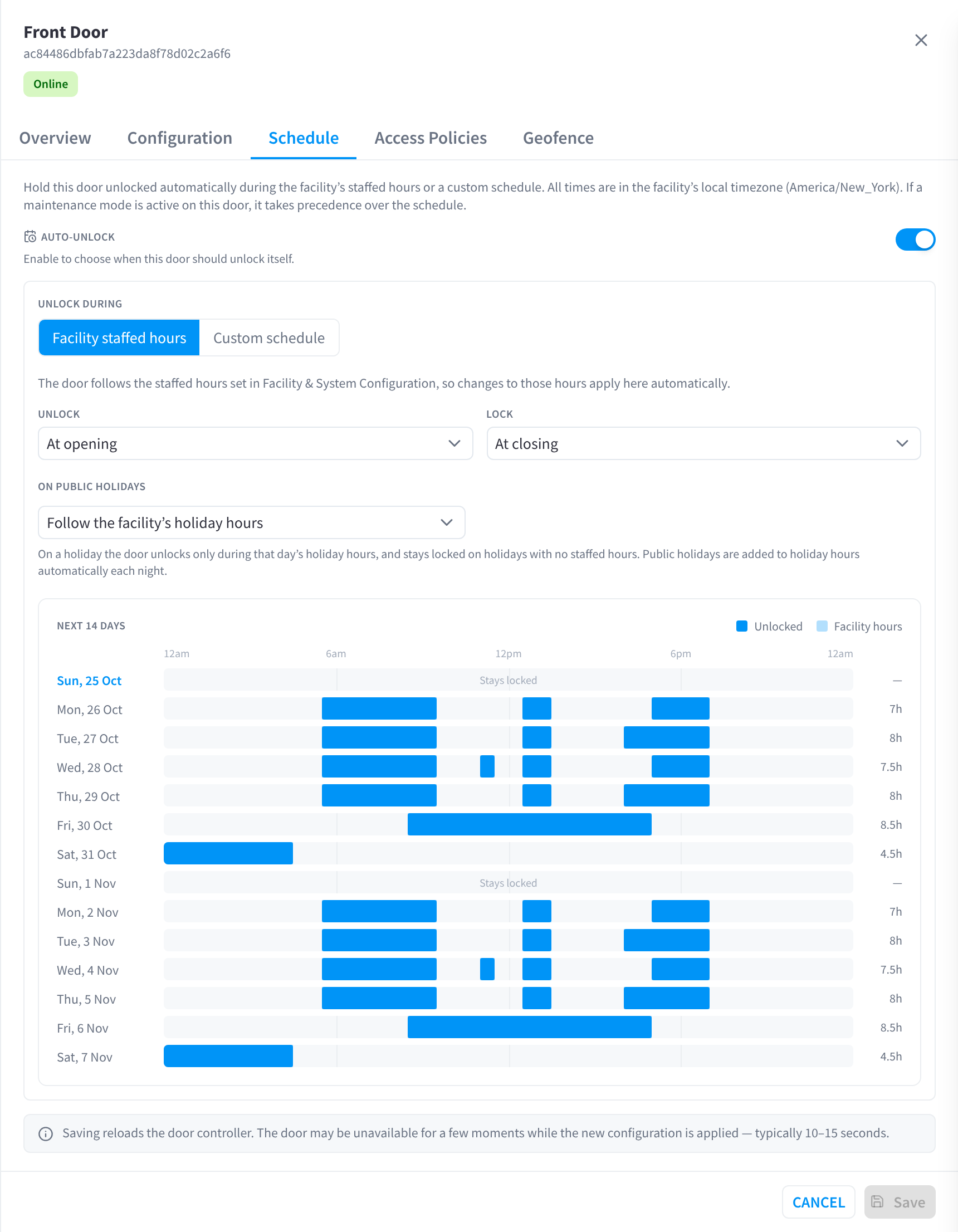
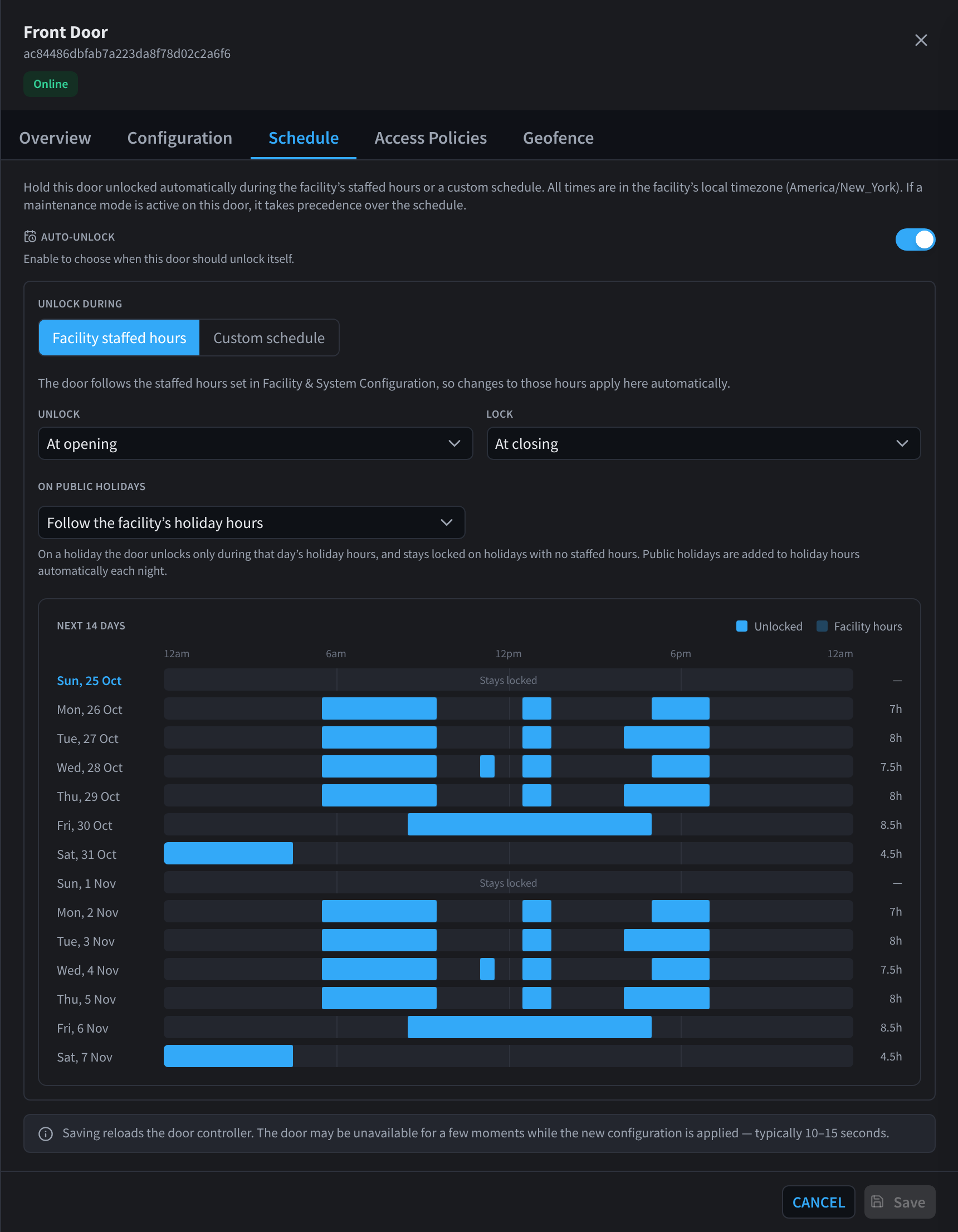
Figure 10: Auto-unlock during facility staffed hours
The auto-unlock schedule holds this door unlocked automatically, either during the facility's staffed hours or during a custom schedule. For example, an office can hold the lobby door open during staffed reception hours and keep it locked on public holidays.
- Auto-unlock — turns the schedule on or off.
- Unlock during — Facility staffed hours or Custom schedule.
- Facility staffed hours: "The door follows the staffed hours set in Facility & System Configuration, so changes to those hours apply here automatically." See Facility Hours.
- Custom schedule: set the door's own weekly times.
- Unlock and Lock — At opening / At closing, or 5, 10, 15, 30, 45, 60, 90 or 120 minutes before or after. For example, a retail stock-room door can unlock 15 minutes before opening for the morning shift.
- On public holidays — Follow the facility's holiday hours, Stay locked all day, or Ignore holidays (the default). With Follow the facility's holiday hours, the door "unlocks only during that day's holiday hours, and stays locked on holidays with no staffed hours." Public holidays are added to holiday hours automatically each night. See Holiday hours.
- A maintenance mode takes precedence over the schedule.
- All times are in the facility's local timezone.
- The schedule runs on the controller itself, so it keeps working even if the site's internet drops out.
While a schedule is holding the door open, the Doors list shows an Auto-open badge, and staff can use Lock now to lock it early.
Next 14 days
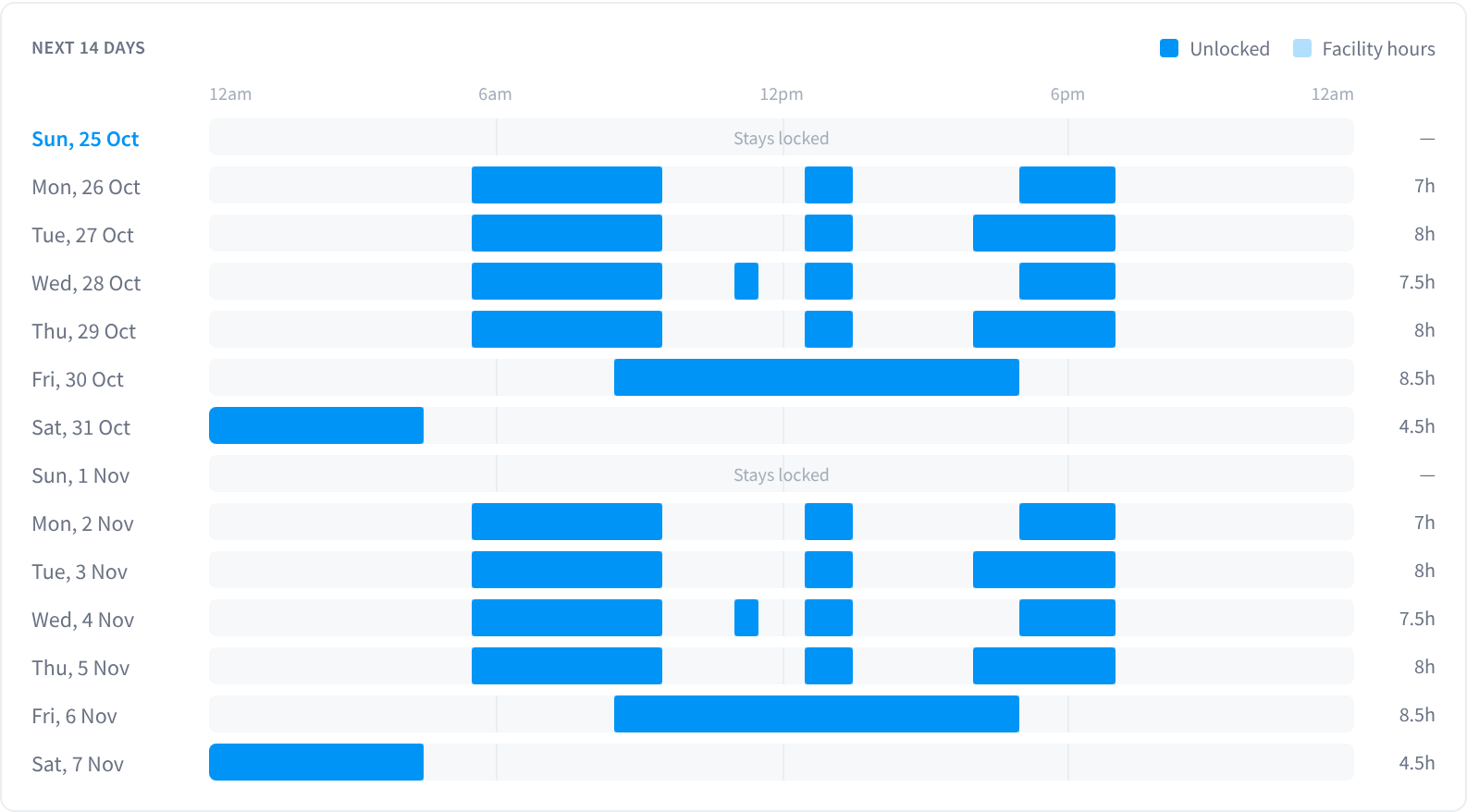
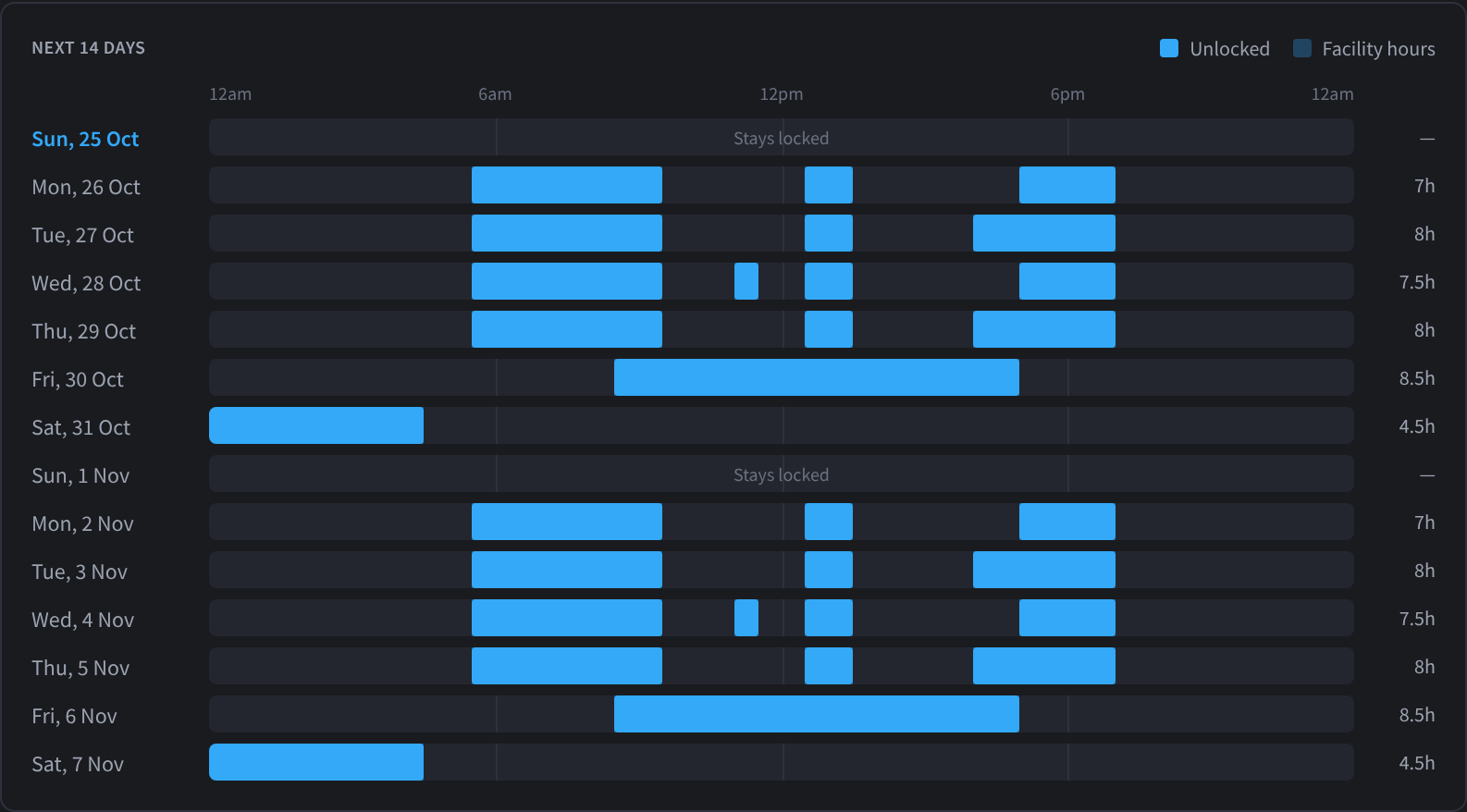
Figure 11: The Next 14 days preview
The Next 14 days preview shows when the door will be Unlocked compared with Facility hours, with the hours per day. Days when the door stays locked show Stays locked.
Saving schedule changes reloads the controller, as described under Configuration tab.
The auto-unlock schedule is different from When in Access Policies. Policy schedules decide when matched users may unlock with the app; auto-unlock physically holds the door open regardless of who walks through.
Access Policies tab
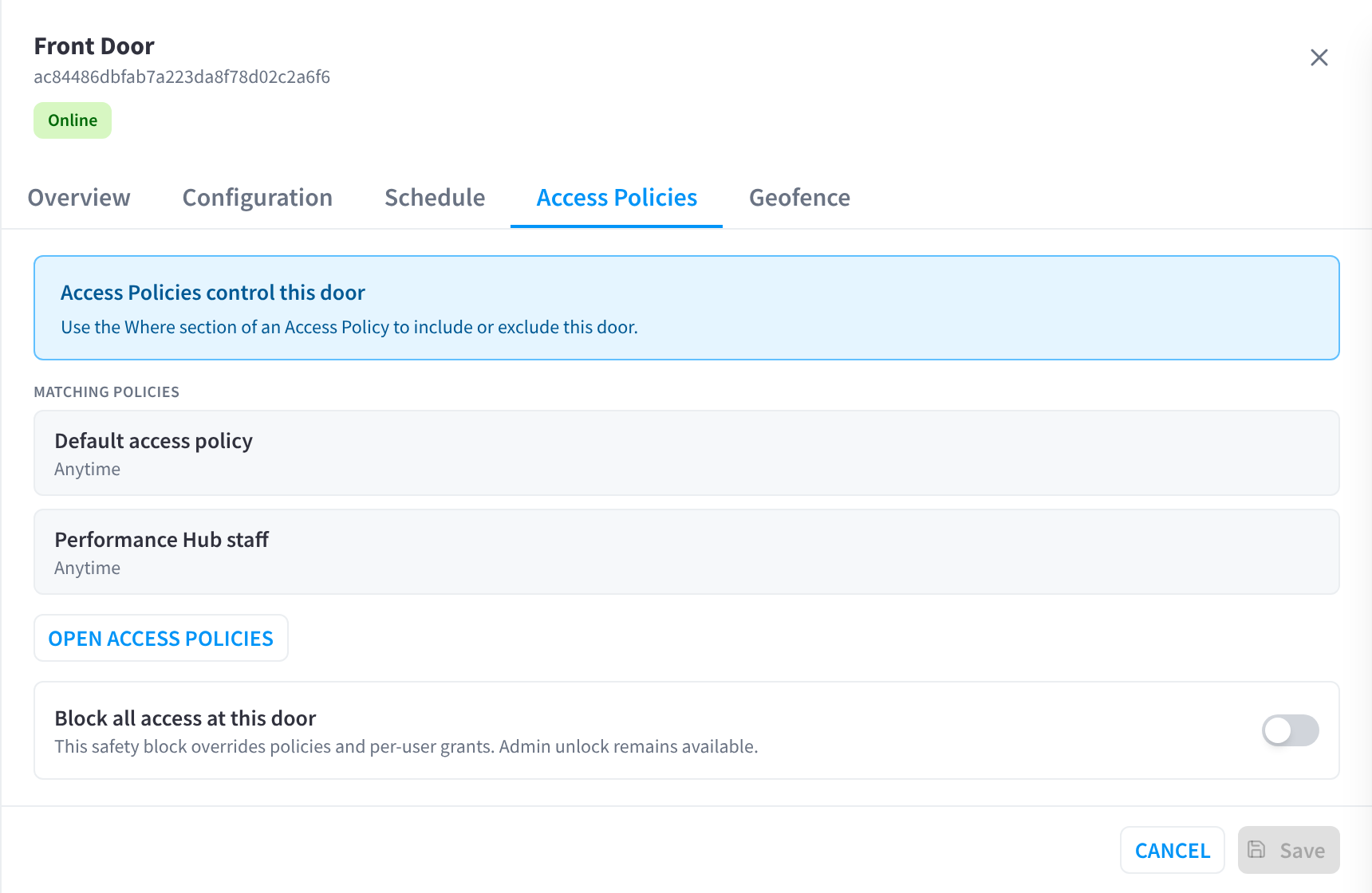
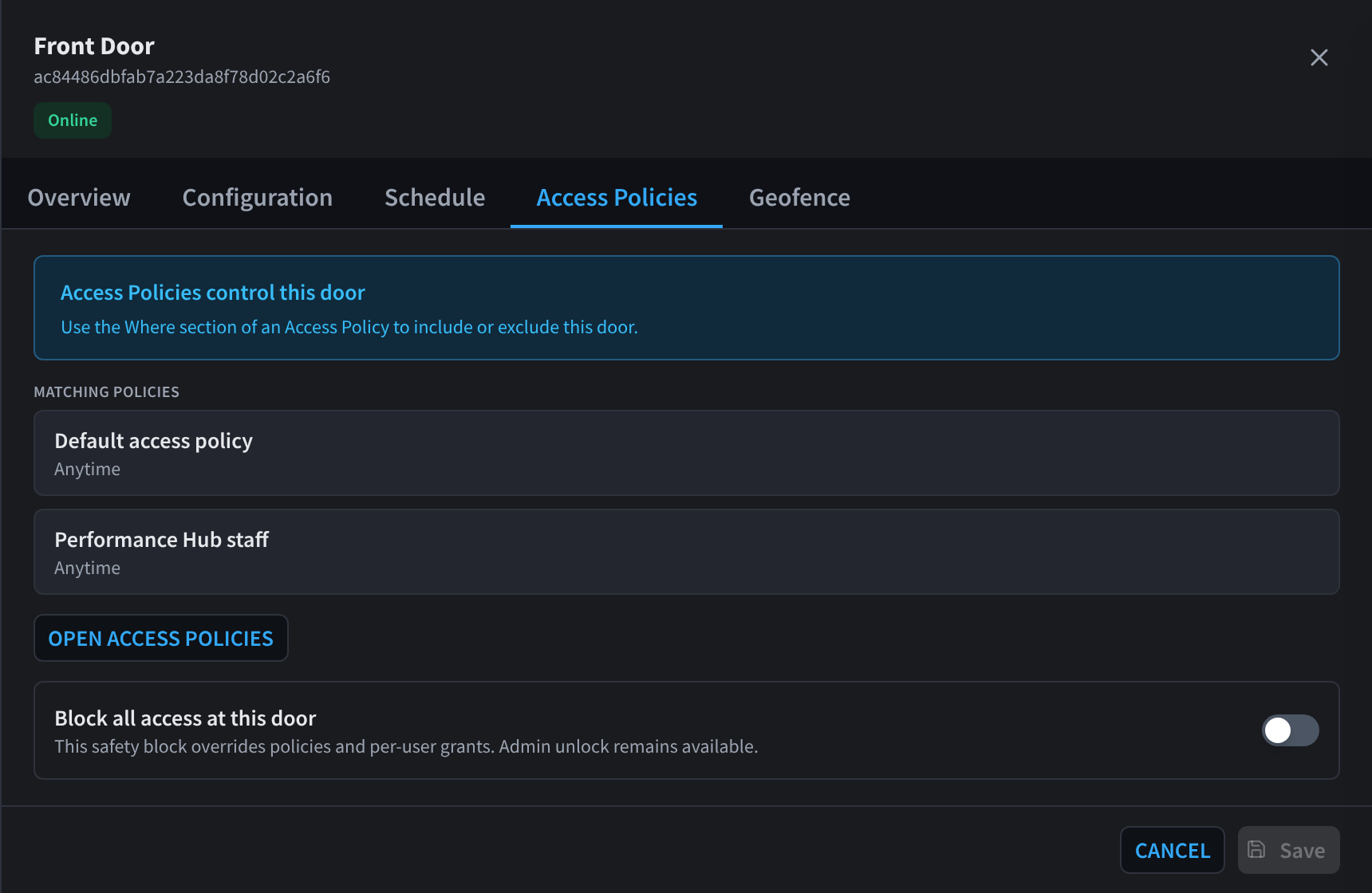
Figure 12: Policies that match this door
The banner reads Access Policies control this door. Below it, Matching policies lists the enabled Access Policies whose Where targets include the door, with each policy's schedule. Use Open Access Policies to edit Who, Where, and When.
Block all access at this door is a separate safety control: "This safety block overrides policies and per-user grants. Admin unlock remains available." Use it to take one door out of service for members.
See How access decisions work.
Geofence tab (per-door override)
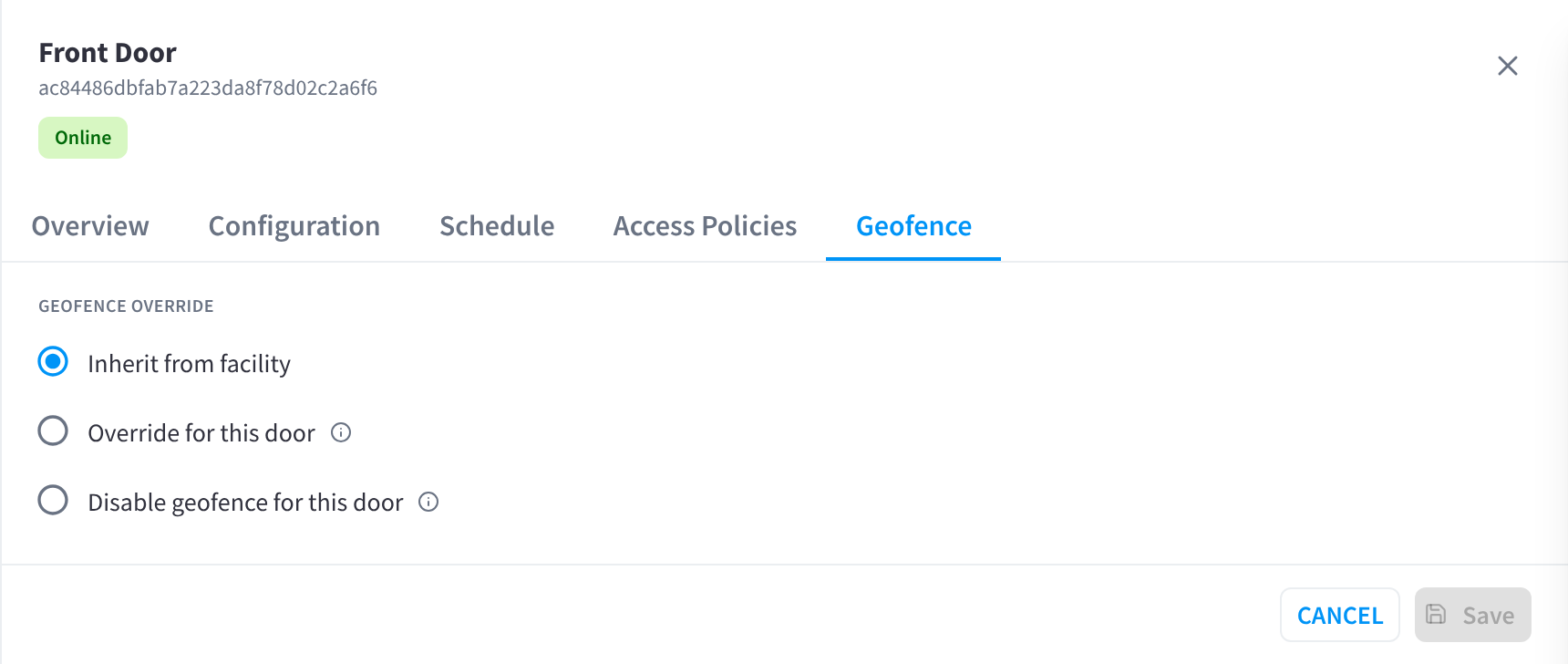
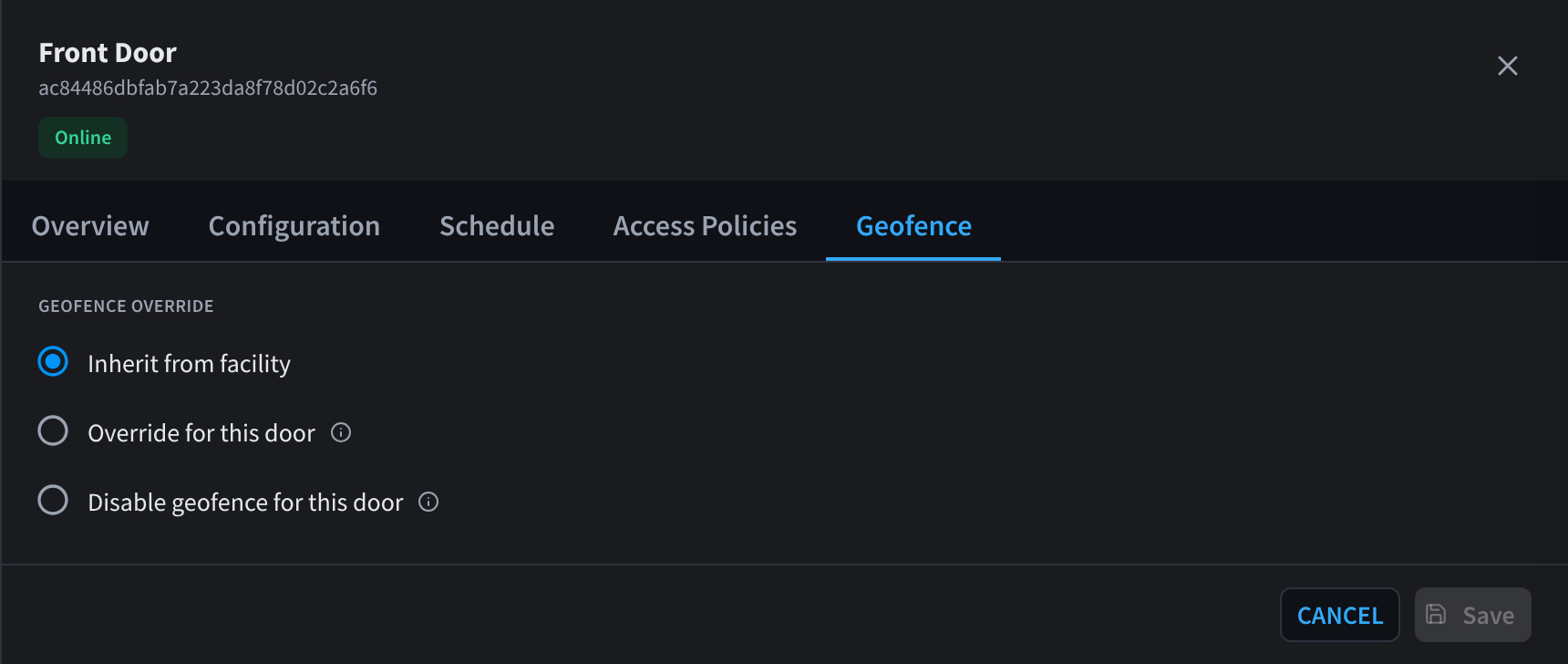
Figure 13: Per-door geofence override options
Three options:
| Option | Effect |
|---|---|
| Inherit from facility | Uses the facility geofence (or the Access Scope's override if one covers this door). Default. |
| Override for this door | A separate geofence pin, radius, and accuracy settings just for this door. "Per-door overrides win over Access Scope overrides, which in turn win over facility defaults." |
| Disable geofence for this door | "Skip the geofence check for this door entirely — admins and members can unlock from anywhere. Useful for back-of-house or service entrances where staff often unlock while still off-site." |
See Geofencing for how the check works and the editor's controls.
Related pages
- Adding doors
- Relay Wiring Guide — how the relay, hold time, and lock wiring fit together physically
- How access decisions work
- Access Logs
- Troubleshooting — offline doors and failed unlocks
- Doors can also be included in Duress responses. See Response actions in Duress.