
App Messaging
App messages are announcement cards shown on the mobile app's dashboard. There are three kinds: a facility-wide message everyone sees, a per-user message set on an individual, and automated messages applied by rules (e.g. an expired-membership notice). This page covers all three plus the message editor they share.
The three message kinds at a glance
| Kind | Audience | Where it's configured | Who wins |
|---|---|---|---|
| Facility-wide message | Everyone at the facility | Settings → App Security & Settings → facility-wide message card | Shown alongside any per-user message |
| Per-user message (manual) | One person | Users → user panel → App message | A manual message is never overwritten by automation |
| Automated message | Everyone matching a condition | Settings → Automated Messages | Applied only where no manual message is set; clears itself when the condition stops matching |
The message editor
All three kinds use the same editor (Figure 1 below shows it inside two automated message rules).
| Field | Details |
|---|---|
| Notification type | Information (neutral), Notice (warning tone), or Urgent. Controls the card's colour and severity label in the app (INFORMATION / NOTICE / URGENT). |
| Title | Up to 120 characters — e.g. Pool Closed for Maintenance |
| Message body | Up to 2000 characters (a soft warning appears past 500 — keep dashboard cards short) |
| Optional link URL | A http:// / https:// link; https:// is added automatically if you omit it |
| Link label | The button text for the link; defaults to More info |
| Schedule | Optional Starts at / Ends at date-times. Leave blank for no limit; the message only displays inside the window. |
A live preview shows "How this will look on the mobile app dashboard." The editor's main toggle turns the message on or off without losing its content.
Facility-wide message
Settings → App Security & Settings, facility-wide message card — "Allows you to configure a notification in the app for everyone at this facility." Use it for closures, maintenance windows, or events. Remember to Save changes in the settings save bar.
Per-user messages
Open a user in Users and use the App message section of their panel. Typical uses: a payment reminder, a personal notice, a "see the front desk" prompt. Users with an active message show a Message badge in the list, coloured by severity.
A manually-set per-user message always takes priority — automation will not overwrite it.
Automated messages
Settings → Automated Messages opens the App Messaging Rules page, which automates per-user messages based on membership data or current door visibility. A manually-set message is never overwritten, and automated messages clear themselves when they no longer apply.
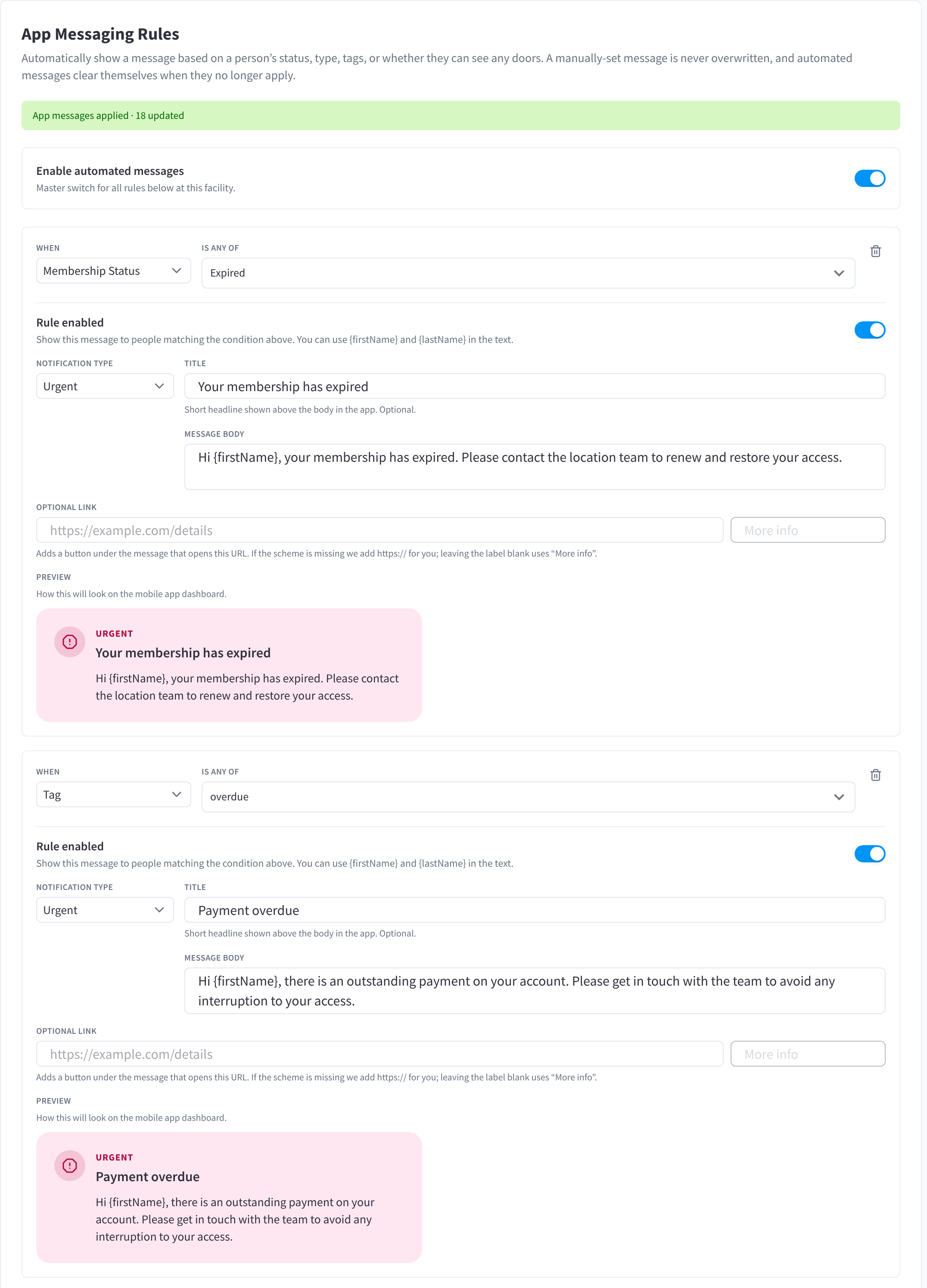
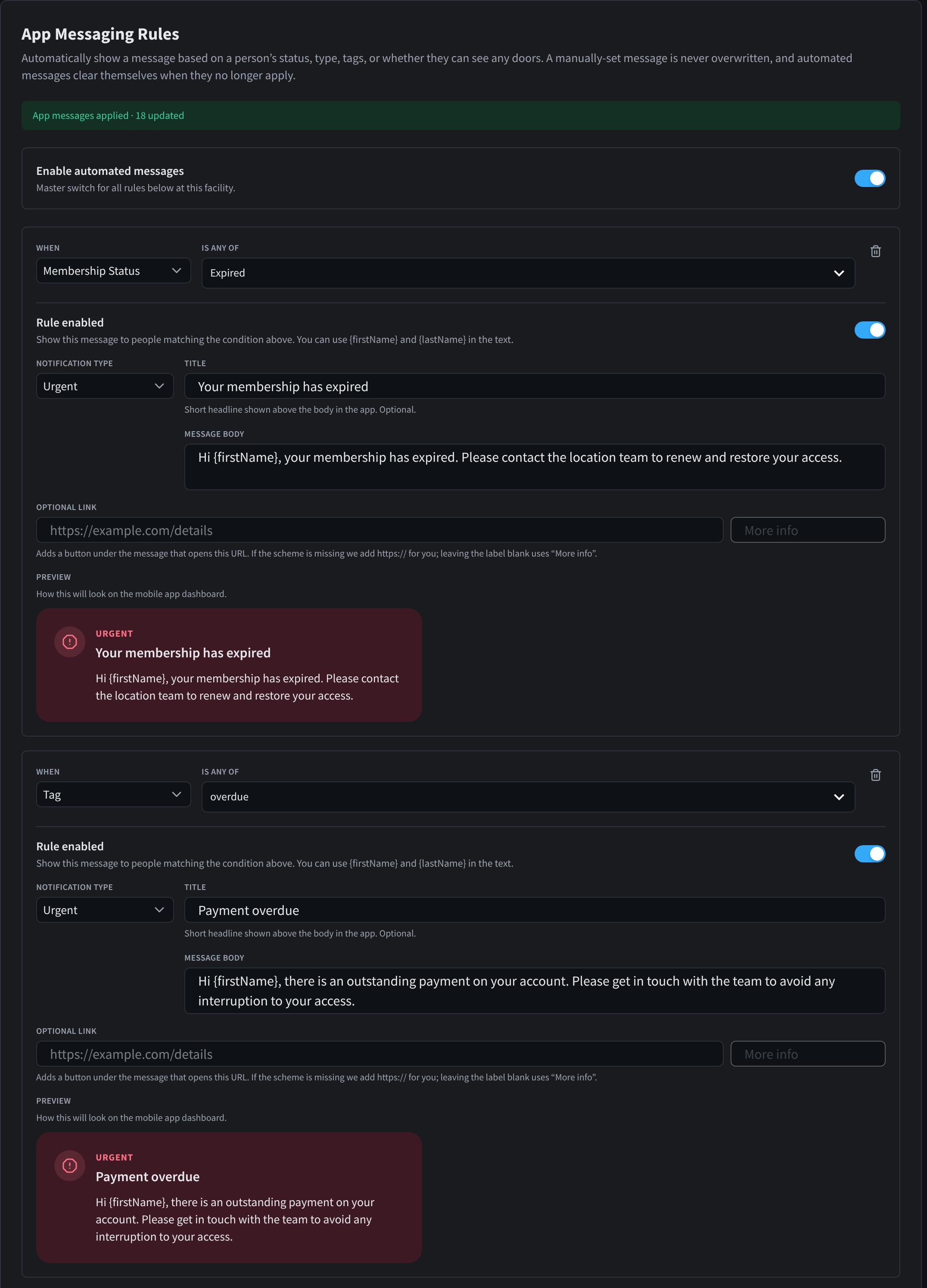
Figure 1: App Messaging Rules, with two rules using the Urgent notification type
How rules work
- Enable automated messages is the master switch — when off, all rules below are inactive (shown dimmed: "Automated messages are turned off — these rules are inactive.").
- Each rule is: When <Membership status | Person type | Tag | Door visibility> is any of <values> → show this message. Tag rules match both synced and custom tags (case-insensitive).
- Door visibility supports No doors visible and Has visible doors. It uses the mobile app's final door list: usable and future/outside-hours doors count as visible, as do doors deliberately shown in a blocked or maintenance state. No doors visible matches only when that list is empty.
- Rule order is priority — the first enabled rule that matches a person wins; one automated message per person.
- When a person stops matching every rule, their automated message clears itself automatically.
- The message text supports the placeholders {firstName} and {lastName} — e.g. "Hi {firstName}, your membership has expired."
Adding a rule
- Click Add rule, or pick from Start from a template…:
| Template | Matches | Pre-filled message (severity) |
|---|---|---|
| No door access | Door visibility: no doors visible | No door access available (Notice) |
| Expired membership | Membership status: expired | Your membership has expired (Notice) |
| Payment overdue | Tag: overdue | Payment overdue (Notice) |
| Account on hold / suspended | Membership status: on hold, suspended | Your account is on hold (Urgent) |
| Welcome (new member) | Tag: new | Welcome! (Information) |
| Trial / prospect | Person type: prospect | Enjoying your trial? (Information) |
| Document / waiver required | Tag: waiver-required | Action required (Notice) |
- Set the When field and values, edit the message, and ensure the Rule enabled toggle is on.
- Click Save changes in the settings save bar.
What happens after saving
Saving triggers a background sweep that applies the rules to everyone at the facility. The card shows progress: "Applying to members in the background…", then "App messages applied · N updated" (or "Background update failed."). Decoupled users are skipped by the sweep, and the rules also apply to users as they're synced or edited going forward.
The mobile API re-evaluates automated rules against current door visibility whenever facilities are loaded. Policy, grant, maintenance, and schedule changes therefore affect the message immediately; the app does not wait for another background sweep.
Turning automation off for one person
On a user's panel, when an automated message is active you can click Turn off for this user — the automated message is removed and no rule will ever message them again (until you click Re-enable automated messages there). Useful for exceptions, e.g. a member with a billing dispute you're handling personally.
What members see
Messages appear as cards at the top of the app dashboard, coloured by type, with the title, body, and optional link button. Urgent messages are visually prominent. Messages are informational — they do not block door access by themselves (use the Access enabled switch or Access Policies for that).
Related pages
- Users — per-user messages, the Message badge
- Access Policies — door authorisation by Who, Where, and When
- App Security & Settings — the facility-wide message card
- Mobile app guide