
Device Management
Everything about the physical device behind your agent is managed from the device drawer. Open it with the Device management button at the top right of the AI Agent module (next to the metrics chips).
The drawer has four tabs — Overview, Budgets & limits, Backups, and Configuration — plus a header that is always visible:
- The device name, with its unique device ID underneath.
- Status pills: Online / Offline and Tunnel connected / Tunnel down, plus a Last seen time (e.g. Last seen 29s ago).
- Close and Save changes buttons at the bottom. Most settings only apply after you click Save changes.
Overview tab
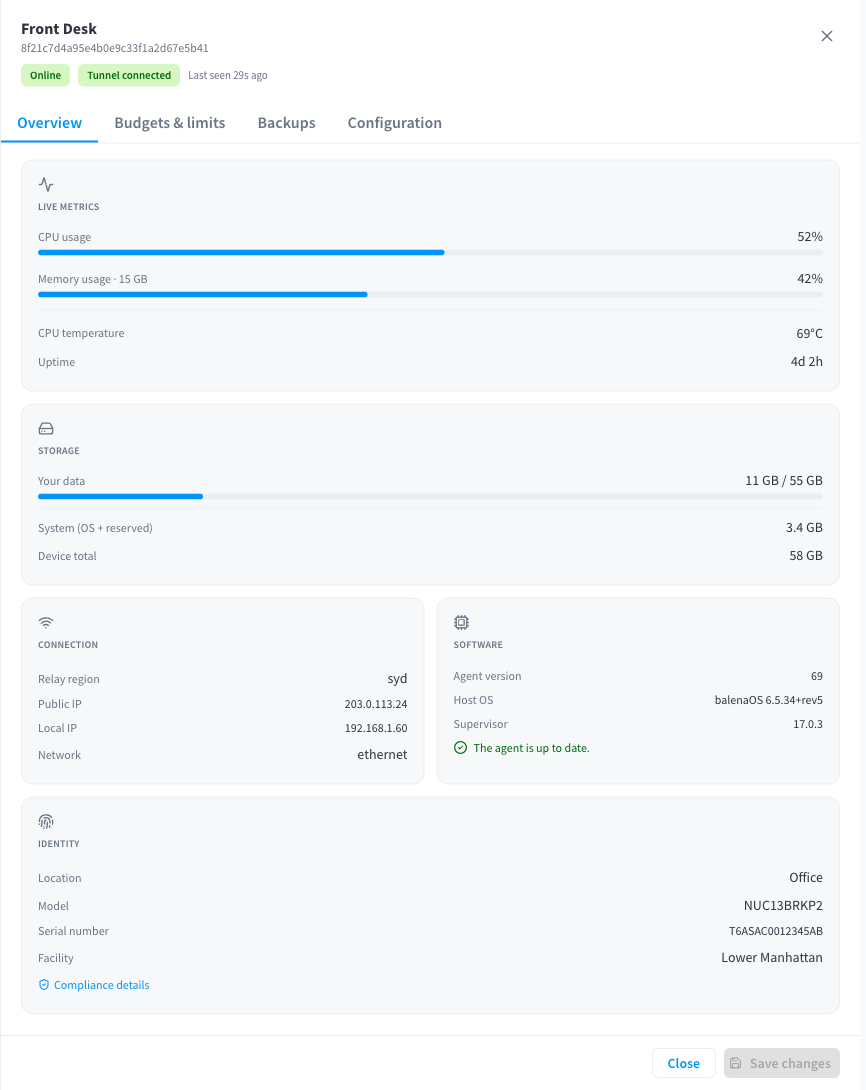
Figure 1: The Overview tab — live metrics, storage, connection, software, and identity
Live metrics
Real-time readings from the device, refreshed automatically:
| Metric | Notes |
|---|---|
| CPU usage | Percentage bar |
| Memory usage | Percentage bar, with the device's total memory shown alongside |
| CPU temperature | The unit is fanless; warm readings under load are normal |
| Uptime | Time since the device last started, e.g. 4d 2h |
While the device is offline you'll see "Metrics are unavailable while the device is offline." The same metrics also appear as compact chips in the module header, so you can glance at them without opening the drawer.
Storage
- Your data — how much of the device's usable space your agent's data occupies (used vs. available).
- System (OS + reserved) — space used by the device's operating system.
- Device total — the total capacity of the hardware.
Remember that everything in "Your data" is also protected by cloud backups.
Connection
| Row | Meaning |
|---|---|
| Relay region | The cloud relay region the device is anchored to (e.g. syd) |
| Public IP | The internet address your facility presents |
| Local IP | The device's address on your local network |
| Network | How the device is connected — ethernet or Wi‑Fi |
| Wi‑Fi network | Shown when the device is on Wi‑Fi |
See How it works for what the connection modes in the module header mean (Direct (local network), Cloud relay, via Performance Hub).
Software
- Agent version, Host OS, and Supervisor — the software running on the device.
- Update status:
- "The agent is up to date." — nothing to do.
- "A new update is available." with an Update now link.
- "An update is being applied. The agent will restart shortly." — while an update converges.
Identity
- Location — where you recorded the device as installed.
- Model — the hardware model (see The hardware).
- Serial number — matches the label on the device.
- Facility — the facility this device is paired to.
- Compliance details — opens the regulatory/compliance dialog for the hardware.
Software updates
Updates are delivered automatically to the device, but you decide when they apply — the device holds its current version until you update now or schedule a time.
When a new version is available, a banner appears across the top of the module:
"A new AI Agent update is available." — with Schedule and Update now buttons.
- Update now starts the update immediately. The agent restarts briefly while it applies; you'll see phase messages (Downloading update…, Installing update…, Restarting AI Agent…) with a progress bar.
- Schedule opens the Schedule update dialog.
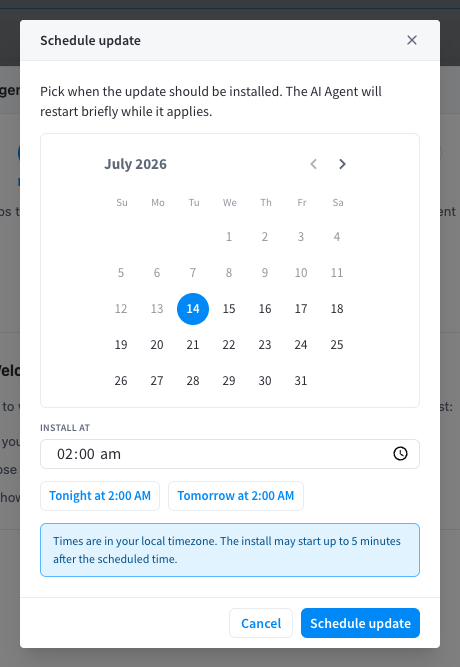
Figure 2: Scheduling an update — pick a date and time, or use the one-click presets
The dialog reads: "Pick when the update should be installed. The AI Agent will restart briefly while it applies." Pick a date on the calendar and a time under Install at, or use the presets Tonight at 2:00 AM / Tomorrow at 2:00 AM. Note: "Times are in your local timezone. The install may start up to 5 minutes after the scheduled time."
A scheduled update shows in the banner as "Update scheduled for {date and time}", with Cancel schedule and Update now available at any point before it runs.
Your agent's data is unaffected by updates — conversations, memory, files, and skills all persist across versions.
Locking updates
Under Configuration → Actions you can Lock updates — "The device will hold its current release and skip automatic updates until unlocked." Use this if you need the device to stay exactly as it is (for example, during an important business period). Unlock updates resumes normal behaviour.
Configuration tab
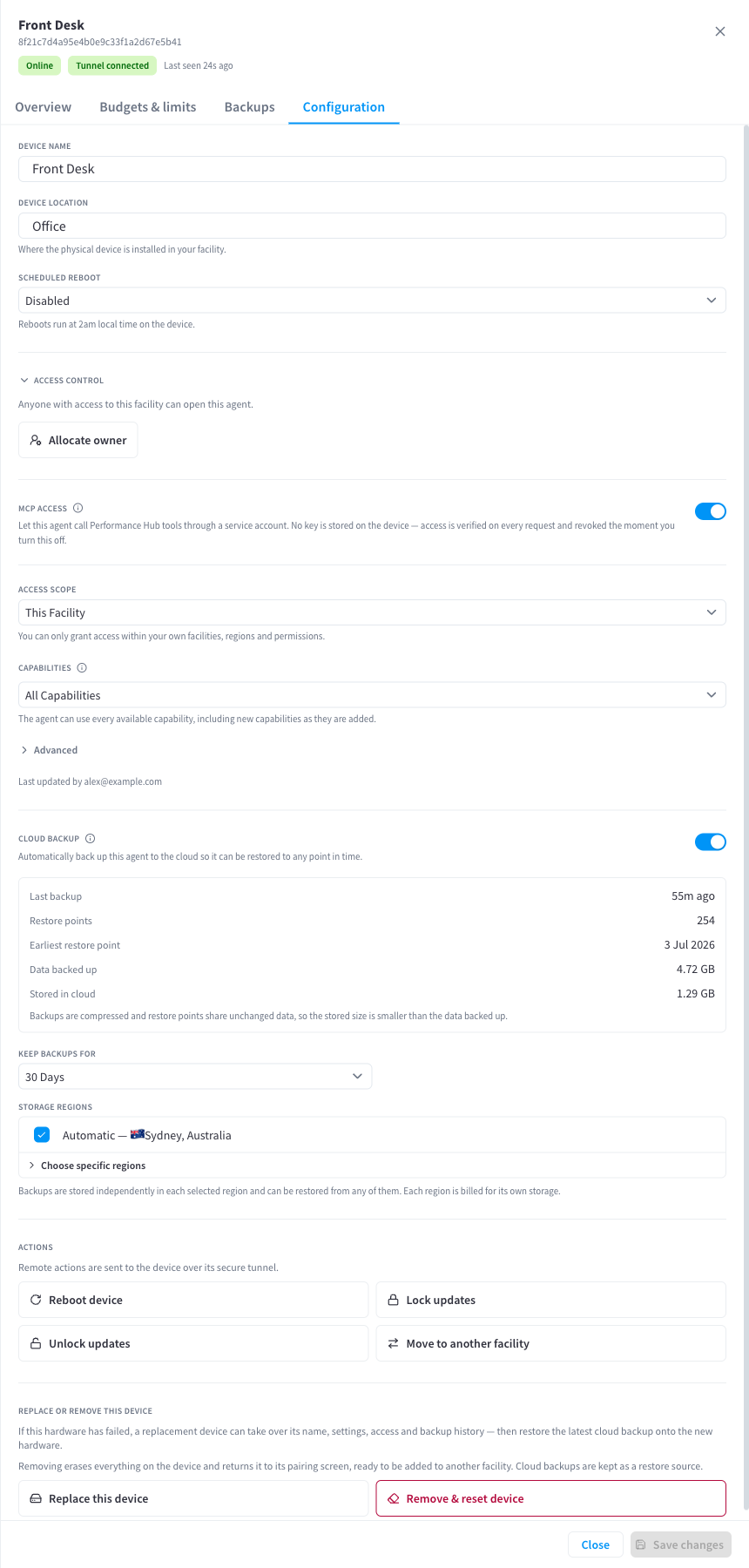
Figure 3: The Configuration tab — name, location, scheduled reboot, access control, MCP access, cloud backup, actions, and replace/remove
Device settings
| Setting | Notes |
|---|---|
| Device name | The name shown everywhere — the device dropdown, notifications, and confirmation prompts |
| Device location | "Where the physical device is installed in your facility." Free text with suggestions; up to 64 characters |
| Scheduled reboot | Disabled (default), Daily, Weekly, or Monthly. "Reboots run at 2am local time on the device." |
A periodic reboot is optional — the device is designed for continuous operation — but a weekly or monthly reboot is a reasonable hygiene measure if you prefer it.
The Configuration tab also contains Access Control (see Access control), MCP access (see Connecting to Performance Hub), and Cloud backup (see Backups).
Actions
"Remote actions are sent to the device over its secure tunnel." Each action asks for confirmation before it runs, and shows "Command sent to the device." on success.
| Action | What it does |
|---|---|
| Reboot device | "The AI Agent will restart and be briefly unavailable. Continue?" |
| Lock updates | Holds the current software version (see above) |
| Unlock updates | Resumes applying available updates |
| Move to another facility | Re-registers the device under a different facility in your organisation |
Moving a device: the dialog warns — "Backup history and the AI spend key stay with the current facility. A fresh backup history and spend key (with default budgets) start at the new facility." The device itself, its name, settings, and access configuration move with it; its backup history remains available at the original facility.
Replace or remove this device
The bottom of the Configuration tab handles hardware lifecycle:
- Replace this device — swap failed hardware for a new unit that takes over this device's name, settings, access and backup history. See Restore & recovery.
- Remove & reset device — remove the device from the facility and erase it back to its pairing screen. See Restore & recovery.
Header metrics and the spend chip
The module header shows compact chips for CPU, memory, temperature, and uptime (with disk usage on larger screens). Two additional chips relate to spend:
- If a lifetime cap is set for the agent, a budget chip shows
$spent / $budget. - An optional spend chip (e.g. "$7.18 left") shows the remaining amount of your tightest budget — or your facility's AI account balance if no caps are set. Turn it on under *Budgets & limits → "Show the remaining AI spend as a chip in the top metrics bar. Only you see this." Clicking the chip opens the Budgets & limits tab.
Chips turn amber at 75% usage and red at 90% (temperature: 75°C / 85°C), so problems are visible at a glance.
Related pages
- Access control — who can open this agent
- Budgets & limits — spend caps and rate limits
- Backups — cloud backup configuration
- Restore & recovery — restores, replacement, and removal
- Troubleshooting — offline devices and update issues