
Access Control
Your AI Agent can hold sensitive business context — conversations, documents, memory about your operation. Access control determines who at your organisation can open the agent and chat with it.
Access is configured per device, in the device drawer under Configuration → Access Control.

Figure 1: The Access Control section — owner, access mode, and Performance Hub support access
Quick reference
| Concept | Behaviour |
|---|---|
| Owner | The person who paired the device (until reassigned). Manages access settings and approves requests |
| Everyone at the organisation (default) | Anyone with the AI Agent module at this facility can open the agent |
| Restrict to specific users | Only the owner and people on the allowed list can open it; others can request access |
| Visibility | When restricted, the device can be hidden entirely from users without access (admins always see it) |
| Performance Hub support access | On by default; lets PH support staff open the agent to help troubleshoot |
The owner
Every AI Agent has exactly one owner — initially, the person who paired the device with the facility. The owner:
- Controls the access mode and the allowed-users list.
- Receives and resolves access requests.
- Is always able to open the agent, regardless of restriction settings.
Changing the owner
Ownership can be reassigned with the Change button next to the owner's name in the Access Control section. Only the facility's account owner or an administrator can reassign ownership — useful when the original owner leaves the business.
Both the previous and the new owner are notified when ownership changes. If the new owner was on the allowed-users list, they're removed from it (owners don't need to be listed).
Access modes
Everyone at the organisation (default)
Anyone at your organisation who can access the facility and has the AI Agent module can open the agent and chat. This is the right choice for a shared, team-facing agent — front-desk questions, member lookups, operational help.
Restrict to specific users
Switch on Restrict to specific users to lock the agent down to a named list. When restricted:
- The owner and users on the allowed list open the agent as normal.
- Everyone else sees the device with a lock and a Request access panel instead of the chat.
- The owner adds or removes people by email address in the allowed-users list. Only the owner can see and edit this list.
Restricted mode suits agents that hold sensitive material — financials, HR context, strategy documents — where you want an explicit, auditable list of who's in.
Visibility when restricted
With restriction on, a Visibility option controls what everyone else sees:
- Visible to everyone — users without access still see the device in the dropdown, with a locked state and the option to request access.
- Admins only — the device is hidden from the device list entirely for users without access. Administrators and the account owner still see it.
Use Admins only when you don't want the agent's existence advertised — the device simply doesn't appear for people who aren't on the list.
Requesting and granting access
When someone without access opens a restricted (but visible) agent, they see a locked panel with a Request access button.
- The user clicks Request access. If they've already asked, the panel shows their request is pending — asking again doesn't send duplicate notifications.
- The owner is notified — in-app, by push notification, and by email — with a link straight to the device.
- The owner approves or denies the request from the notification or the Access Control section. Approving adds the person to the allowed-users list.
- The requester is notified of the outcome the same way.
The email notification looks like this — Review Request takes the owner straight to the agent's settings drawer:
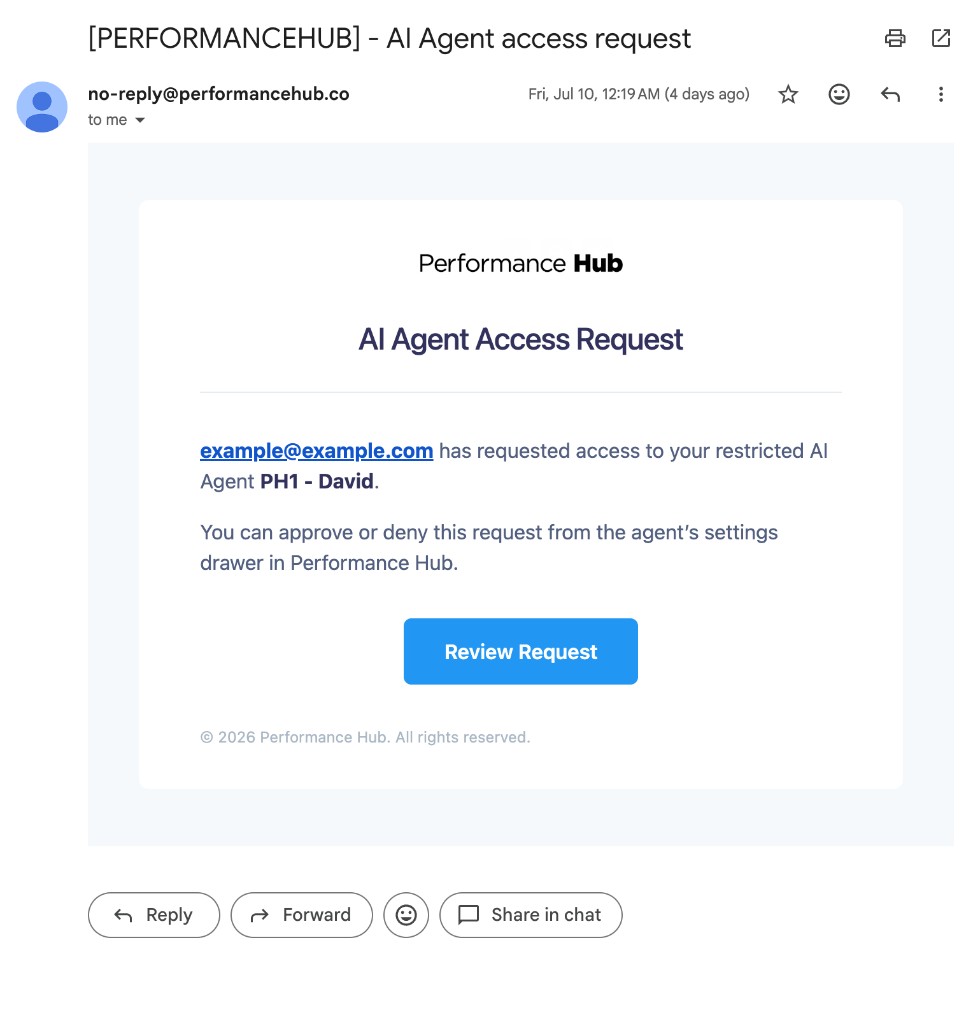
Figure 2: The access request email sent to the agent's owner
A denied user can request again later — the request simply reopens as pending.
Access changes apply within minutes; the person doesn't need to log out or refresh anything beyond the module page.
Performance Hub support access
Performance Hub support access is on by default. It allows Performance Hub support staff to open the agent when helping you troubleshoot — for example, diagnosing why the agent isn't responding, or assisting with a restore.
If your agent holds material you don't want anyone outside the organisation to see, switch it off. Support staff are then treated like any other user: they cannot open the agent without requesting access and being approved by the owner.
What access control does — and doesn't — cover
- Access control governs opening the agent and chatting with it. It doesn't restrict who can see the device drawer — device management (metrics, backups, configuration) is governed by the Device Management module's own permissions.
- All access still requires the AI Agent module to be enabled for the user at the facility. Access control narrows within that group; it can't grant the agent to someone who doesn't have the module.
- Every chat message is attributed to the signed-in Performance Hub user, so the agent always knows who it's talking to — regardless of access mode.
Related pages
- Device management — the rest of the Configuration tab
- Connecting to Performance Hub — what the agent itself is allowed to reach
- Common questions