
Sync & Integrations
Sync mirrors people from your other systems into Users automatically, so door access follows external source data without manual entry. This page covers the three sync sources, Performance Hub staff sync, identifiers, source-owned Access Time Windows, freshness and scope mapping, removals, duplicate resolution, the sync activity panel, invitations, and bulk deletion. Configure everything under Settings → Sync settings.
Performance Hub staff sync is on by default. Integration and Computer Vision syncing are off by default so existing facilities keep their manually-managed list; nothing syncs from them until you enable the source.
Sync sources
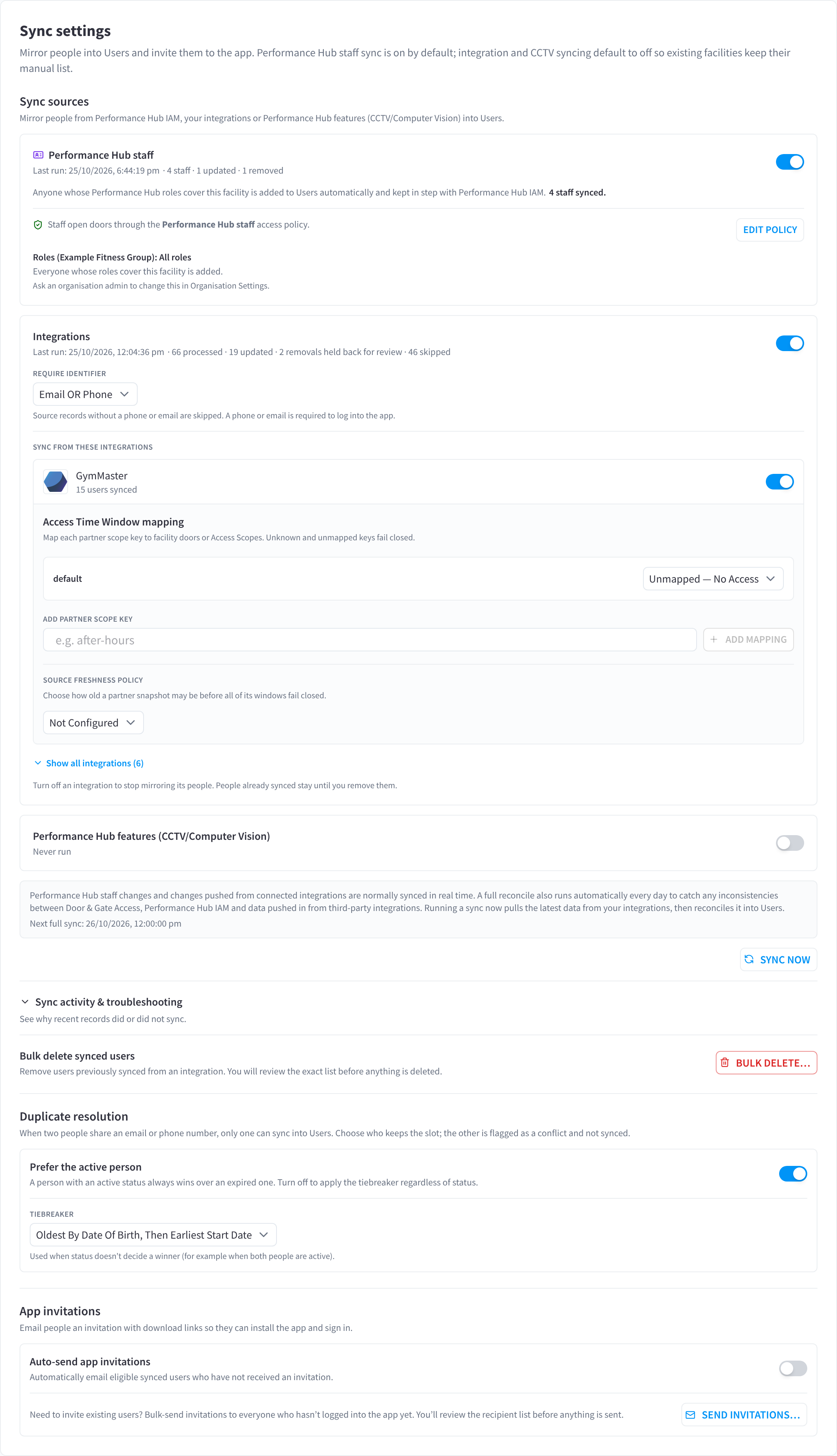
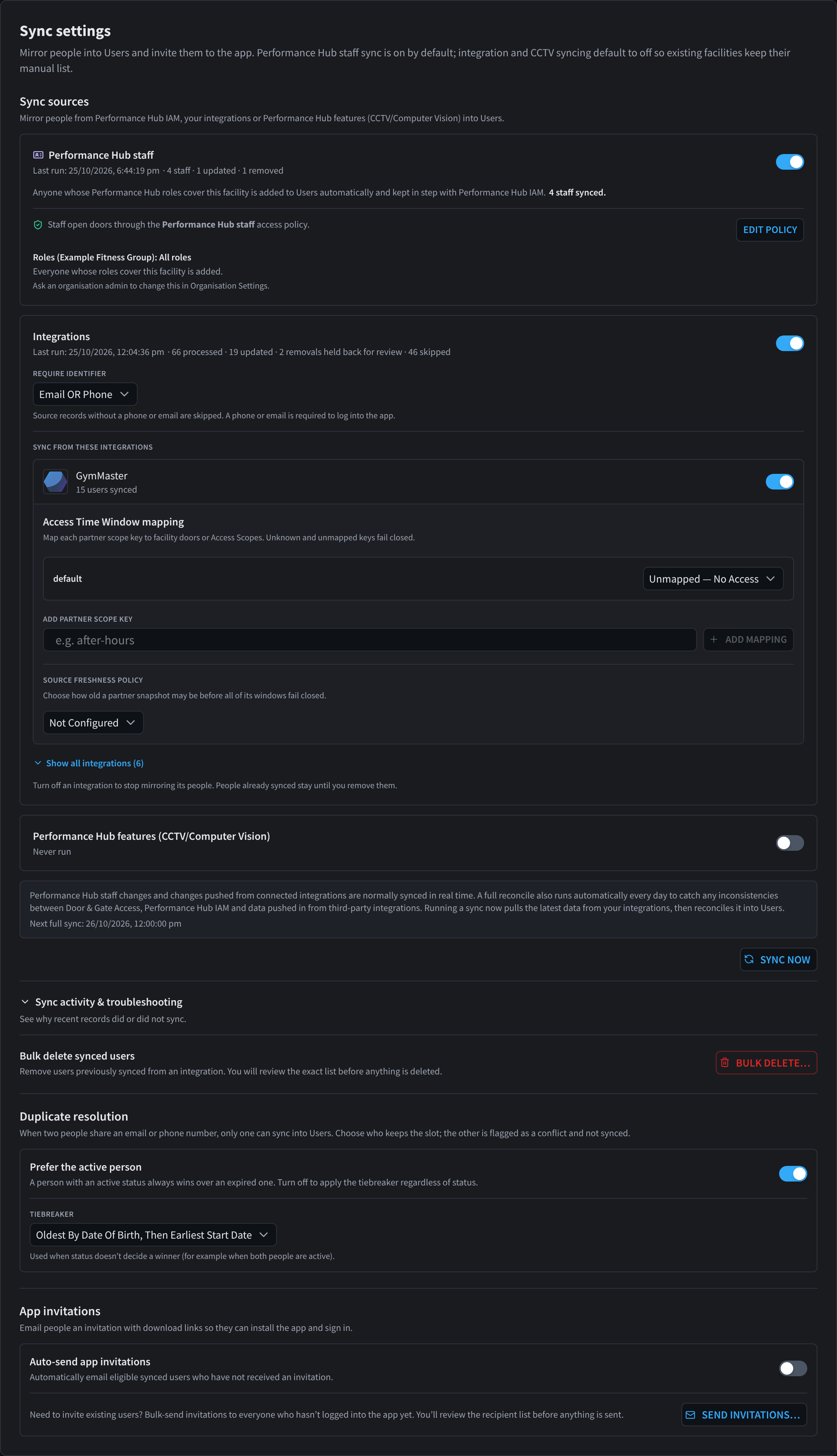
Figure 1: Sync settings
| Source | What it mirrors | Resulting user source badge |
|---|---|---|
| Performance Hub staff | Performance Hub users whose roles include this facility | Performance Hub staff |
| Integrations | Members and, when supported, source-owned Access Time Windows from connected integrations | Integration / the partner's name |
| Performance Hub features (CCTV/Computer Vision) | Identified people from the CCTV module | CCTV/Computer Vision |
Each block has its own enable toggle and shows its last run time and counts (or Never run).
For the Integrations source you can also opt individual integrations in or out under Sync from these integrations — "Turn off an integration to stop mirroring its people. People already synced stay until you remove them." Show all integrations expands the full list.
Require identifier
People sign in to the mobile app with a one-time code sent to their phone or email, so a record without either is useless for door access. The Require identifier dropdown controls which records are synced:
| Option | Records synced |
|---|---|
| Email OR phone (default) | Has an email or a phone |
| Email required | Has an email |
| Phone required | Has a phone |
| Both required | Has both |
Records that don't meet the requirement are skipped (and show in the sync activity panel as skipped for a missing identifier).
Access Time Window mapping and source freshness
Each integration that supplies Access Time Windows has its own settings:
- Access Time Window mapping — "Map each partner scope key to facility doors or Access Scopes. Unknown and unmapped keys fail closed." Each integration can have up to 50 mappings, including the
defaultkey. Add a key under Add partner scope key. - Source freshness policy — a safety setting: "Choose how old a partner snapshot may be before all of its windows fail closed." Set it to match how often the integration promises to send updates, so windows from an integration that has stopped updating don't keep granting access.
See Access Time Window snapshots for how integration windows are updated.
Performance Hub staff
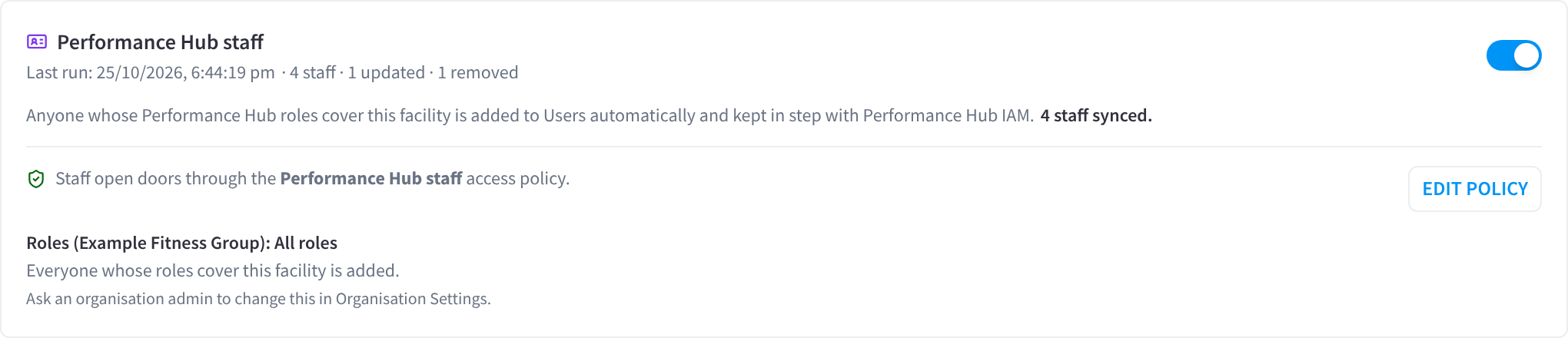
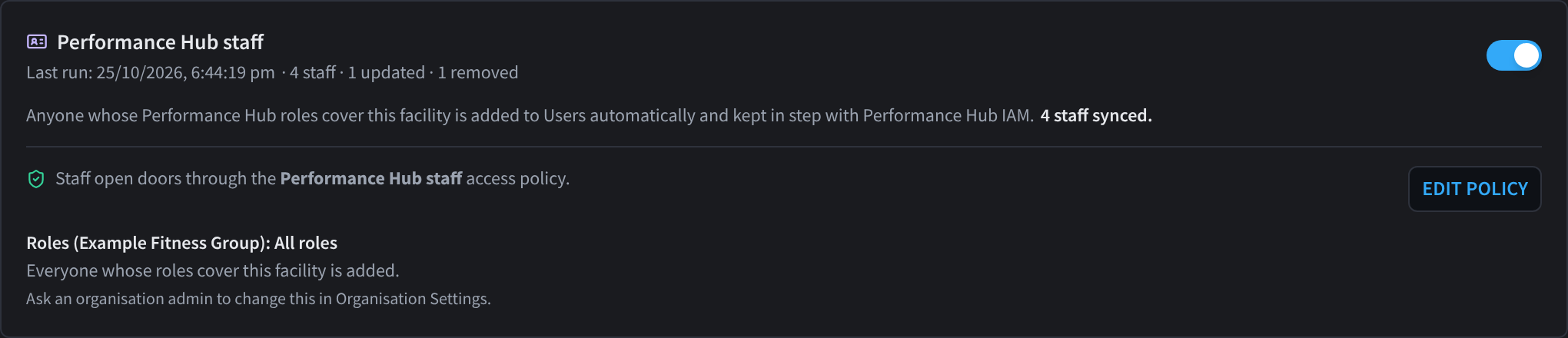
Figure 2: The Performance Hub staff source
"Anyone whose Performance Hub roles cover this facility is added to Users automatically and kept in step with Performance Hub IAM." For example, a retail chain's store staff get the back-of-house door without anyone adding them by hand.
- Staff (Performance Hub users) are synced with the tags Performance Hub staff, Role: … (one per role) and, for organisation admins, Organisation admin.
- An editable Performance Hub staff Access Policy is created once per facility and lets that tag through every door at any time. The card shows whether the policy is active, with Edit policy. Edit or disable it like any Access Policy.
- Roles shows which roles are included. Roles to include or exclude are set by an organisation admin in Organisation Settings; other admins see "Ask an organisation admin to change this in Organisation Settings."
- Turning sync off asks for confirmation ("Turn off Performance Hub staff sync?").
Staff details are managed in Performance Hub IAM and are read-only in Users. To stop a staff member's door access, see Users → Performance Hub staff.
When sync runs
| Trigger | When |
|---|---|
| Continuous | Performance Hub staff changes and changes pushed from connected integrations are normally synced in real time |
| Daily full sync | "A full reconcile also runs automatically every day to catch any inconsistencies." Next full sync shows when the next one runs |
| Sync now | The button on this page pulls the latest data from your integrations, then reconciles it into Users — it shows Running… then Sync complete (or Sync failed) |
What sync updates — and what it never touches
On every pass, synced rows are refreshed from the source:
| Overwritten each sync | Preserved (admin-owned) |
|---|---|
| First name, last name | Access enabled switch |
| Mobile phone, email | Additional permanent access |
| Person type, membership status | Custom tags |
| Synced tags | Notes |
| Last-synced timestamp | Decoupled state, app message |
| Source-owned Access Time Windows for that source | Permanent grants and administrator-owned Access Time Windows |
So you can safely disable a synced user, give them grants, or tag them — sync won't undo it.
Decoupling: turning off Track source updates on a user's panel makes sync skip that row entirely — edits to name/contact details stick, and source removals no longer affect them. See Users.
For a source that supplies Access Time Windows, decoupling also clears that source's windows after an explicit confirmation. Re-coupling restores them on the next successful complete snapshot; it does not restore cached windows from a failed fetch.
Removals
When a member is deleted in the integration, their door access is removed (Removed by integration). Their Users row isn't deleted, so their history is kept.
If a sync would remove an unusually large number of people at once, those removals are held back for review instead (N removals held back for review). Integration-driven removals above a safety limit wait for an admin to review them before they apply, so a faulty pull from an integration can't remove access for everyone at once.
Access Time Window snapshots
Each integration updates only its own source partition. Its member update is a complete, monotonically revisioned window snapshot:
- Omitted window data leaves the current source snapshot unchanged.
- A newer snapshot replaces that source's complete list.
- The same revision and same normalised payload is an idempotent replay.
- The same revision with different data is a conflict; an older revision is skipped as stale.
- A newer empty snapshot explicitly revokes that source's windows.
- A failed or incomplete upstream fetch must send no snapshot, never an empty or partial one.
Each stable source scope_key (including default) is mapped to facility-wide, door, or Access Scope targets under Access Time Window mapping. Unknown or disabled mappings fail closed. The settings also show source age and the integration's source freshness policy.
Duplicate resolution
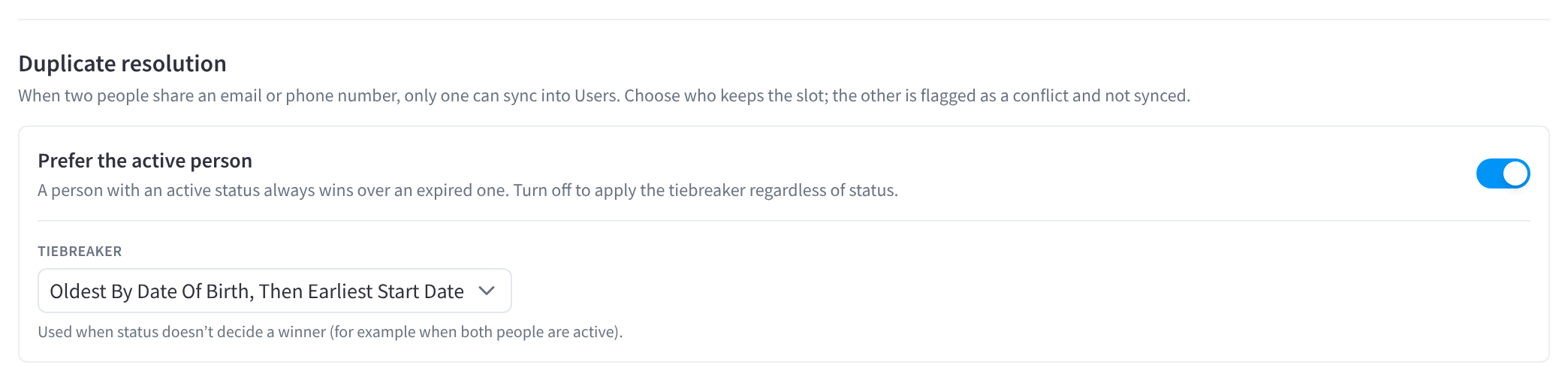
Figure 3: Duplicate resolution
"When two people share an email or phone number, only one can sync into Users. Choose who keeps the slot; the other is flagged as a conflict and not synced."
- Prefer the active person — "A person with an active status always wins over an expired one. Turn off to apply the tiebreaker regardless of status."
- Tiebreaker — used when status doesn't decide a winner, for example Oldest By Date Of Birth, Then Earliest Start Date.
The other record shows Not synced – duplicate in Users and is counted in the Not synced tile. For example, a healthcare clinic can keep one record when a clinician is both staff and a patient member.
Automatic app invitations
Under App invitations, Auto-send app invitations emails eligible synced users who haven't received an invitation yet, and Advanced recipient rules can limit who receives them. Send invitations… bulk-sends to existing users after you review the recipient list. Full details in Invitations.
Sync activity & troubleshooting
Expand Sync activity & troubleshooting to "see why recent records did or did not sync." You can search by name, ID, or reason, and Refresh the list. Each entry has an outcome badge:
| Outcome | Meaning |
|---|---|
| Added | A new Users row was created |
| Updated | An existing row was refreshed from the source |
| Skipped | The record was not synced — the entry shows why (below) |
| Disabled | The person was removed at the source, so their access was turned off |
| Processed | The record was handled with no visible change |
| Stale snapshot | An older Access Time Window revision was ignored so it could not overwrite newer state |
Skip reasons you may see:
| Skip reason | Fix |
|---|---|
| Integration sync is turned off for this facility | Enable the source toggle on this page |
| This integration is turned off in sync settings | Enable that integration under "Sync from these integrations" |
| No phone or email on the record (a phone or email is required to log in) | Add contact details in the source system, or relax Require identifier |
| Record is decoupled and managed manually | Expected — re-couple via the user's Track source updates toggle if you want sync back |
| No facility on the source record | The source record isn't associated with this facility in the source system |
| No matching Users record | The change referenced a person who has no row here (e.g. removed before first sync) |
| Unknown or unmapped scope key | Configure the integration's scope_key mapping; the affected window fails closed |
| Access Time Window source is stale | Restore successful source delivery and review the configured freshness threshold; do not clear from an unverified fetch |
Clicking an entry opens Sync activity detail with the full record: name, external ID, source, integration, reason, and IDs for support escalation.
Bulk delete synced users
To clear out users that came from an integration (e.g. after disconnecting it), use Bulk delete synced users. You review the exact list before anything is deleted.
- Under Bulk delete synced users, click Bulk delete…
- Choose the scope: All integration-synced users or a single integration. Click Preview.
- Review: the dialog shows exactly how many users will be removed (with a sample list). Note the warning — This cannot be undone, and any admin customisations on those rows (grants, custom tags, notes) are lost. The users' access log history is kept.
- Also turn off syncing from this integration (recommended) is checked by default — leave it on, otherwise the same users are recreated on the next sync pass (without their old customisations).
- Tick I understand this is permanent and customisations will be lost, then click Delete N.
If the underlying user set changed between preview and confirm, you'll be asked to re-run the preview — this guarantees you delete exactly what you reviewed.
Related pages
- Users — sources, decoupling, the user panel
- Access Policy Schedules — schedules and the Access Time Windows settings
- Invitations
- Troubleshooting — "user missing / out of date" walkthroughs