
App Invitations
Invitations are emails that tell a person they've been given door access and link them to the mobile app downloads (App Store and Google Play). This page covers the three ways invitations are sent — per user, in bulk, and automatically on sync — plus invitation statuses and common pitfalls.
What an invitation is (and isn't)
- An invitation is an email only. Users with only a phone number have no invitation channel — they can still sign in to the app directly (their phone number works for one-time-code login), but they won't receive the email.
- The email contains the facility name, the address the user should sign in with, and App Store / Google Play download links. See What the person receives.
- An invitation does not grant access. Access comes from Access Policies or per-user grants. Sending an invite to someone without access just gets them an app they can't unlock with.
What the person receives
The person gets an email with the subject "Your Door & Gate Access invitation". It says your facility uses the Door & Gate Access app, with Download on the App Store and Get it on Google Play buttons. Under Details it shows the Facility and the email address to Sign in with. A tip reminds them to sign in with that address "so your access is recognised straight away". Questions go to your location or site administrator, not to Performance Hub.
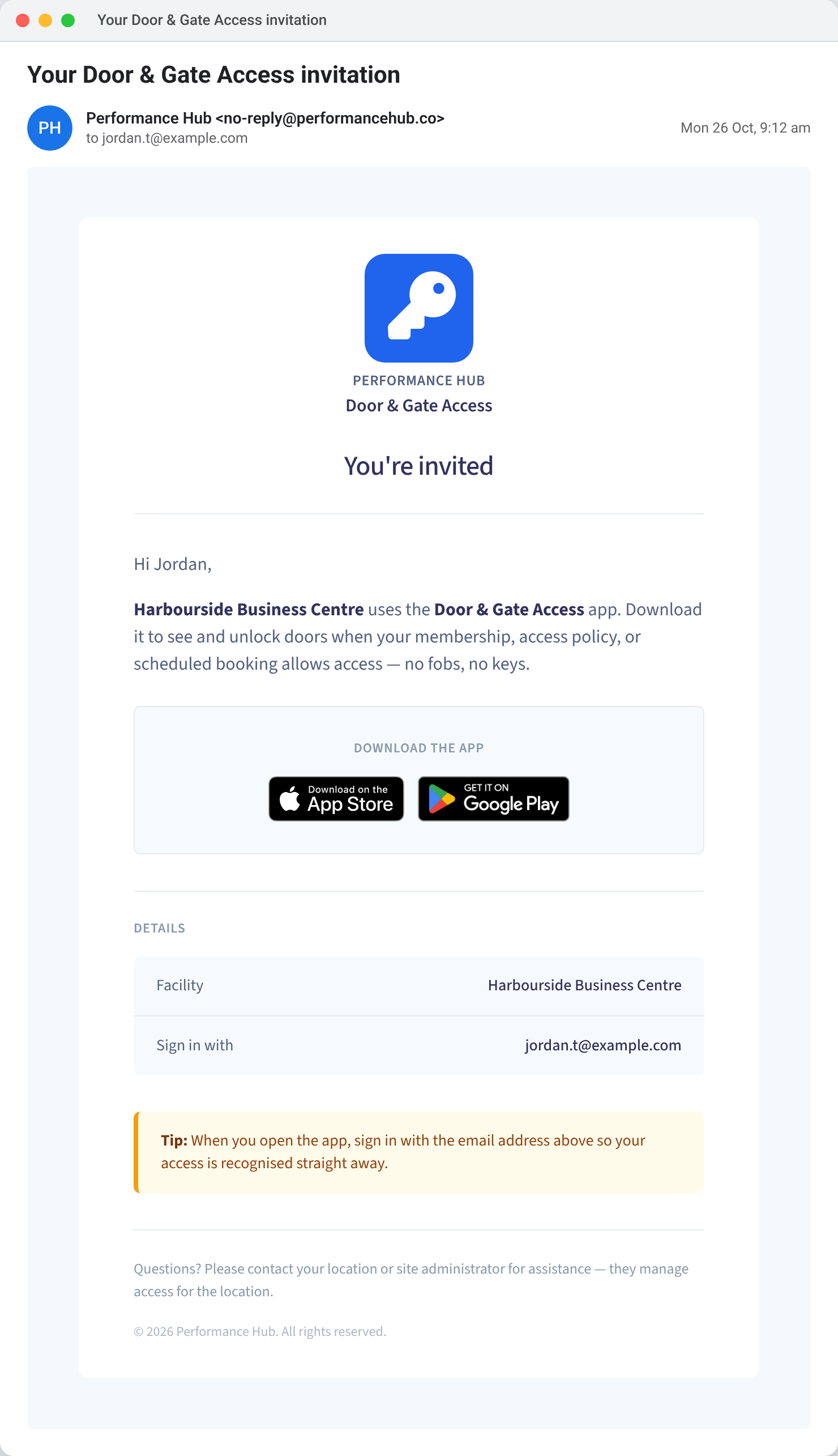
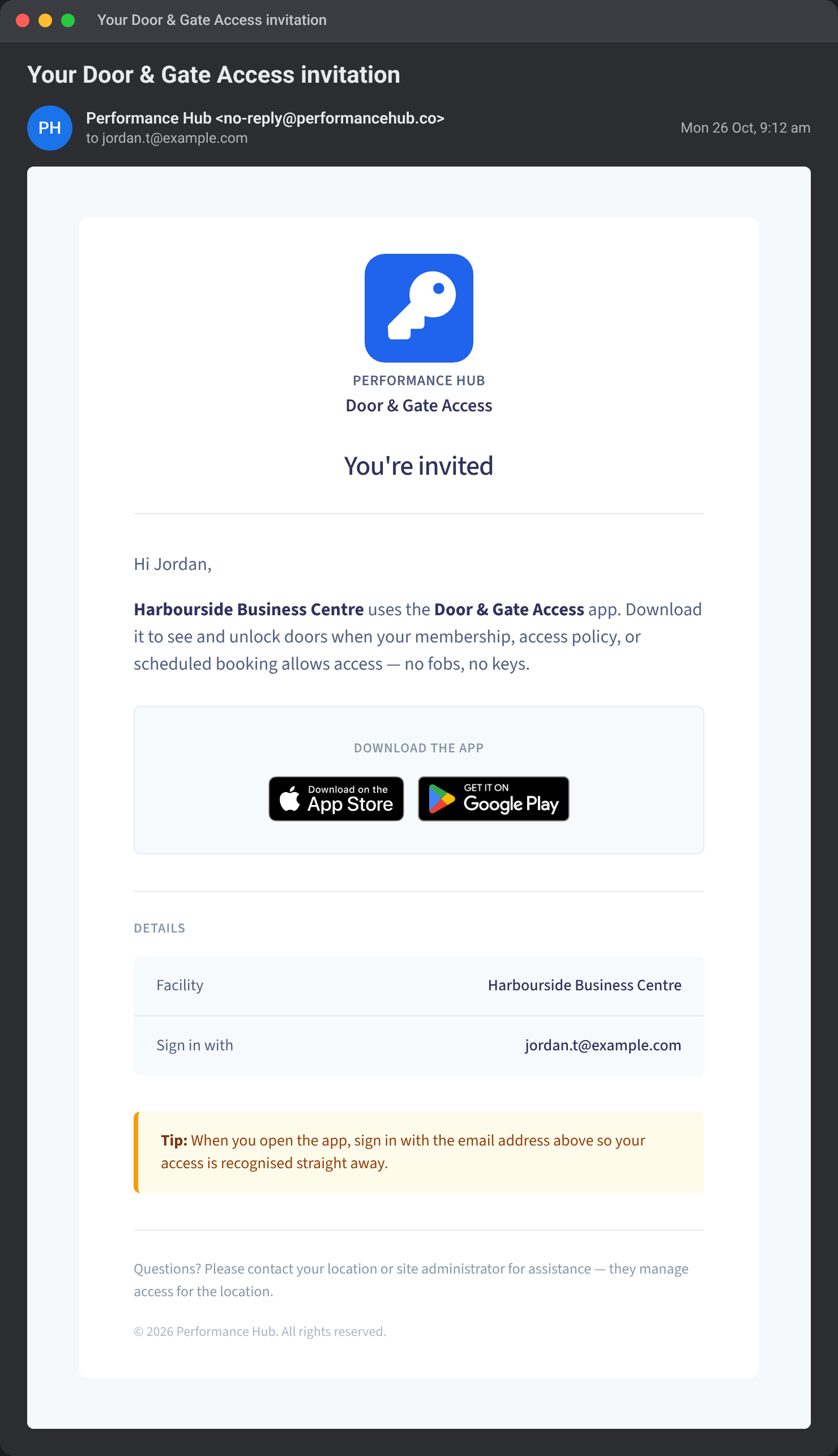
Figure 1: An example app invitation email. Names and addresses are examples.
Invitation status
Each user's invitation state is shown in their detail panel and available as the Invitation filter in Users:
| Status | Meaning |
|---|---|
| Not invited | No invitation email has been sent |
| Invited | An invitation was sent (timestamp shown). The list badge Invited appears until the user first uses the app |
| Send failed | The last attempt to send failed — use Resend invitation email to retry |
Once a user has actually signed in (App adoption: Active), the Invited badge disappears — invitations have done their job.
Sending an invitation to one user
- Open Users and click the user.
- Scroll to the Invitation section.
- Click Send invitation email (or Resend invitation email if one was sent before).
You'll see Invitation email sent on success. If the user has no email address, add one first — the section explains the email requirement.
You can also invite at creation time: the Add user dialog and the CSV import wizard both have a Send email invitation checkbox (on by default, and only applies to users with an email).
Bulk invitations
Use the bulk dialog to invite many users at once: Settings → Sync settings → App invitations → Send invitations… The Send app invitations dialog shows the recipient list for review before anything is sent.
By default the bulk send targets users who:
- have an email address,
- currently have access (would match a policy or have a grant),
- have never been invited, and
- have never used the app.
Two checkboxes (both off by default) widen the audience:
| Option | Effect |
|---|---|
| Also re-send to users who were already invited | Includes previously-invited users who still haven't used the app |
| Also include users who don't currently have access | Includes users who wouldn't currently match a policy or grant |
The dialog previews exactly how many users will receive an email (with a sample recipient list and a note about phone-only users being excluded), then sends in batches with live progress — "Please keep this window open until sending completes." The final summary shows sent, failed, and skipped (no longer eligible) counts. Up to 50 invitations are sent per batch request; the dialog handles batching automatically.
Automatic invitations on sync
If you sync users, you can have invitations go out automatically: Settings → Sync settings → App invitations → Auto-send app invitations ("Automatically email eligible synced users who have not received an invitation.").
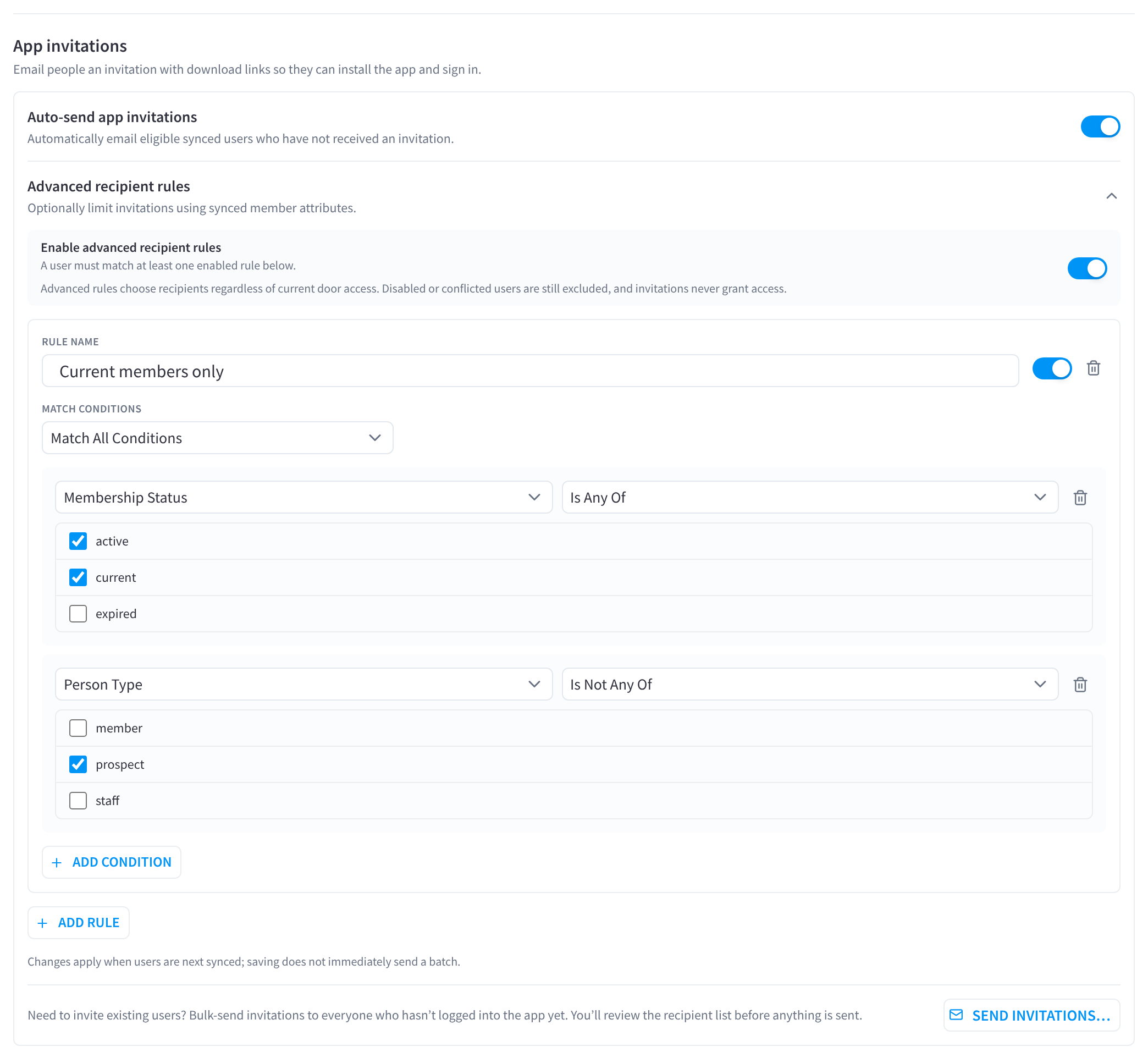
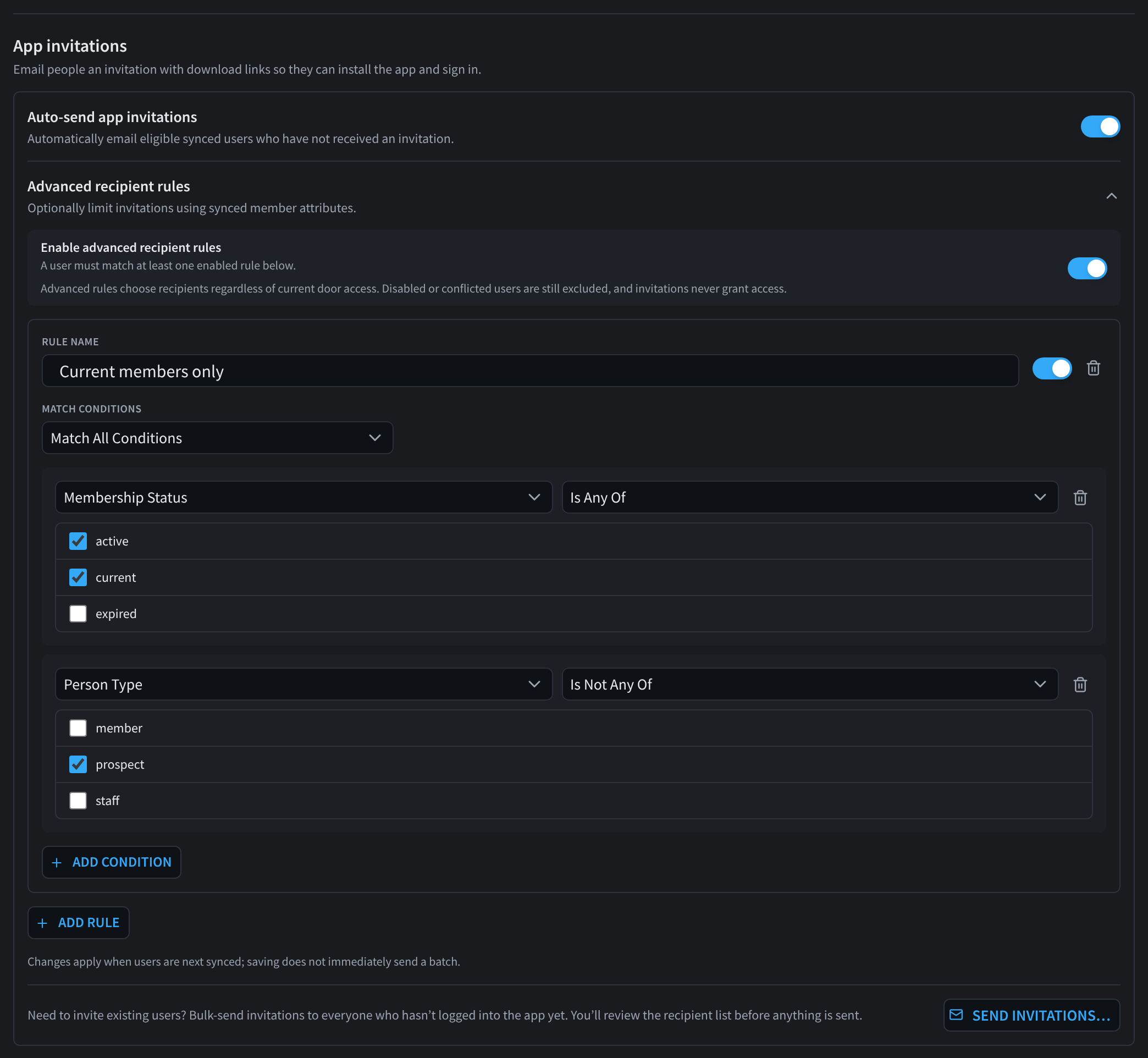
Figure 2: App invitations, with an advanced recipient rule
When on, each sync pass emails an invitation to synced users who:
- have an email address,
- are eligible under Who should receive an invitation? (below), and
- have not been invited before. Invitations are never re-sent automatically.
A failed auto-send is retried on the next sync pass. See Sync & Integrations.
Who should receive an invitation?
Choose Only users with door access or All eligible synced users.
Advanced recipient rules
Advanced recipient rules ("Optionally limit invitations using synced member attributes.") narrow the recipients further. Turn on Enable advanced recipient rules, then add one or more rules:
- Rule name and an on/off toggle for each rule.
- Match conditions — match all or any of the rule's conditions.
- Conditions — a field (Membership Status, Person Type, Tag, Sync Source or Integration), an operator (Is Any Of or Is Not Any Of) and the values to match. Use Add condition and Add rule to build more.
The page explains how rules work:
- "A user must match at least one enabled rule below."
- "Advanced rules choose recipients regardless of current door access. Disabled or conflicted users are still excluded, and invitations never grant access."
- "Changes apply when users are next synced; saving does not immediately send a batch."
In Figure 2, the rule "Current members only" has two conditions: Membership Status with Is Any Of active and current, and Person Type with Is Not Any Of prospect. Similarly, a college can invite only enrolled students to the app for after-hours studio access.
Troubleshooting invitations
| Symptom | Cause | Fix |
|---|---|---|
| Send button disabled / "no email" | User has no email address | Add an email to the user (or have them sign in directly with their phone number) |
| Status shows Send failed | The email could not be delivered by the mail service | Check the address for typos, then Resend invitation email |
| User not included in bulk send | They were already invited, have used the app, lack an email, or don't currently have access | Use the dialog's include checkboxes, or invite them individually from their panel |
| Auto-invite never fires | Auto-send app invitations is off, or sync itself is disabled | Enable both under Settings → Sync settings |
| A synced user isn't invited automatically | They don't match Who should receive an invitation? or any enabled advanced recipient rule | Review the rules under Settings → Sync settings → App invitations; changes apply on the next sync |
| User got the email but can't unlock | Invitations don't grant access | Check Access Policies and grants |
Related pages
- Users
- Sync & Integrations
- Mobile app guide — what the member sees after installing