
Users
The Users tab lists every person who can (or could) use the mobile app to unlock doors at this facility. This page covers adding users, CSV import and export, Access Policy attribution, permanent grants, separate administrator/integration Access Time Windows, the access kill switch, app activity, sessions, and deletion.
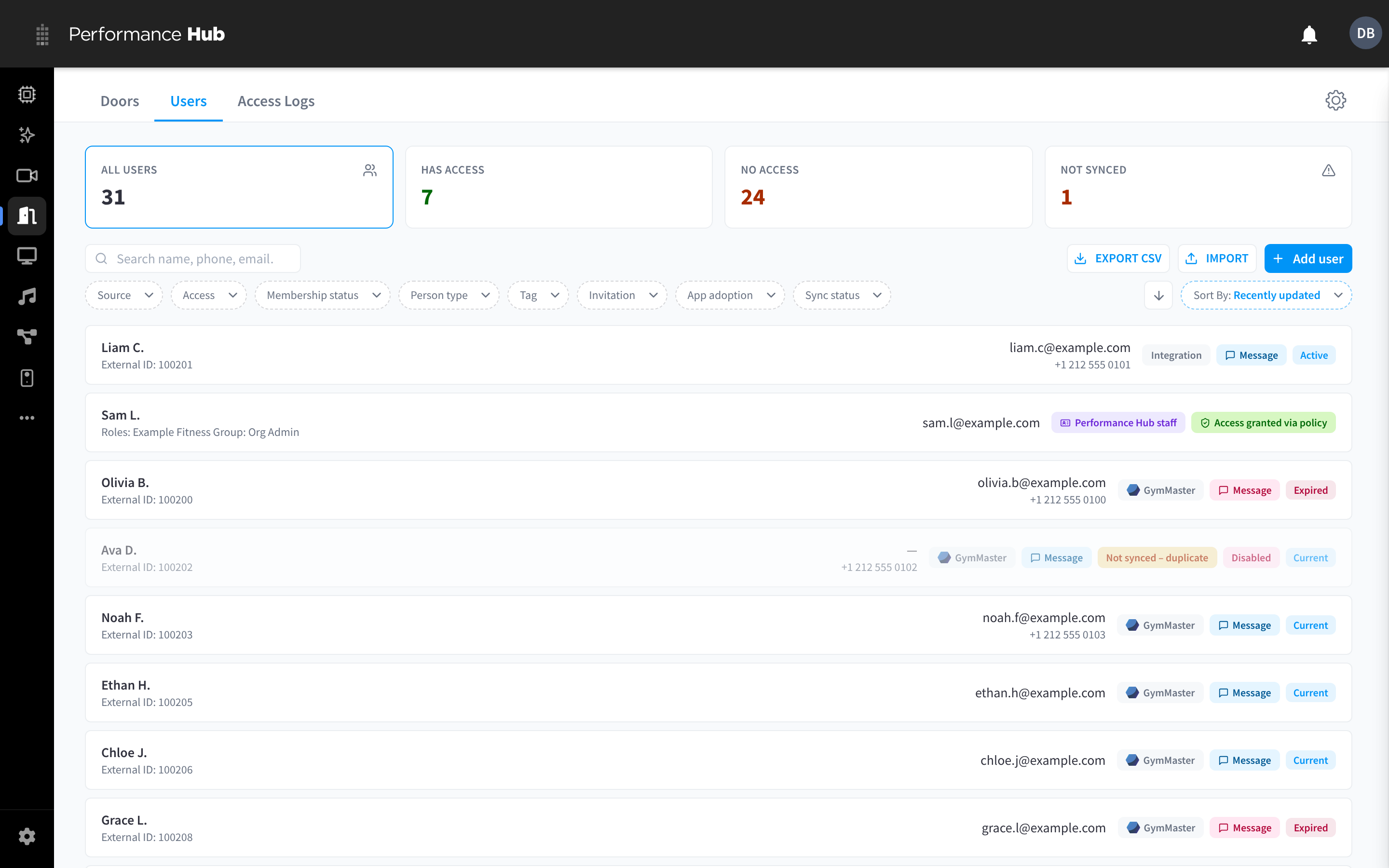
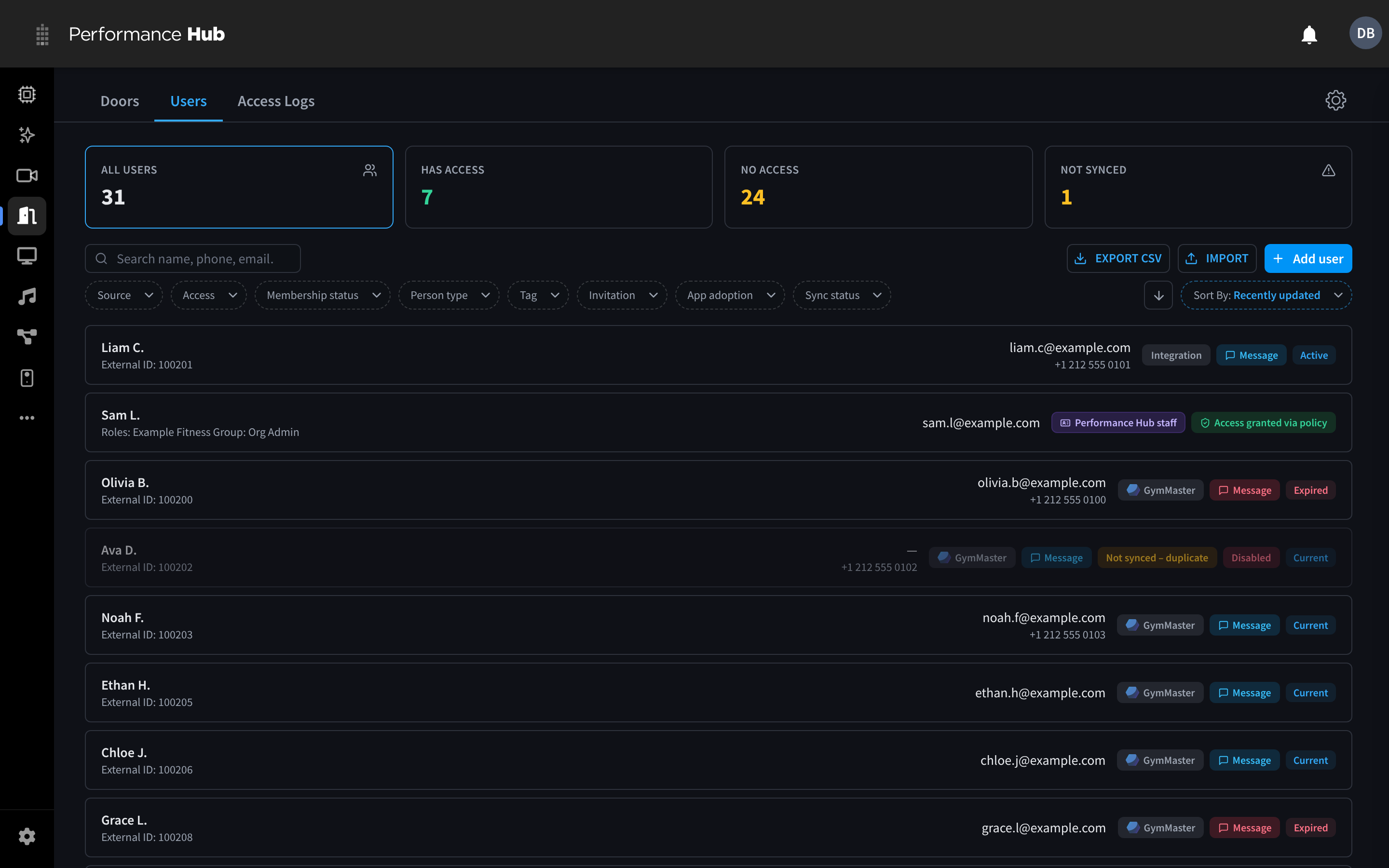
Figure 1: The Users tab
Where users come from
Each row has a source that tells you how it was created:
| Source | Badge | How rows appear | Who maintains the data |
|---|---|---|---|
| Manually added | Manual | An admin clicked Add user or used Import (CSV) | Admins |
| External Integration | Integration (or the partner's name) | Synced automatically from a member-management integration | The sync — synced fields are overwritten on every pass |
| CCTV/Computer Vision | CCTV/Computer Vision | Synced from identified people in the CCTV module | The sync |
| Performance Hub staff | Performance Hub staff | Synced automatically from Performance Hub IAM for staff whose roles include this facility | Performance Hub IAM |
Performance Hub staff sync is on by default; integration and Computer Vision sync are off by default. Configure them under Settings → Sync settings — see Sync & Integrations.
A row needs at least a mobile phone or an email address — that's what the person uses to sign in to the mobile app with a one-time code.
Stats and filters


Figure 2: The stat tiles
| Tile | Shows |
|---|---|
| All users | Every user at this facility |
| Has access | Users who can currently unlock at least one door |
| No access | Users who can't currently unlock any door |
| Not synced | Records held back by a sync, for example a duplicate |
Click a tile to filter the list. (Selecting a tile also resets the Source filter.)


Figure 3: Search, Export CSV, Import, Add user, the filter chips and sort
- Search — matches name, phone, or email.
- Export CSV — downloads the current filtered list. For example, a gym can export its No access users before a win-back campaign.
- Import and Add user — see below.
- Filter chips:
| Chip | Options |
|---|---|
| Source | All sources, Manually added, External Integration, CCTV/Computer Vision, Performance Hub staff |
| Access | Any status, Has access, No access, Disabled, Without grants |
| Membership status | Any membership + the statuses present in your data |
| Person type | Any type + the types present in your data |
| Tag | Any tag + the tags present in your data |
| Invitation | Any invitation, Invited, Not invited, Send failed |
| App adoption | Any adoption, Active (has used the app), Not yet active |
| Sync status | Any status, or only records that a sync held back (for example duplicates) |
- Sort by — Name, Recently added, Recently updated, Last used, Last synced; with an ascending/descending toggle.
- Clear filters appears whenever a search or filter is active.
Reading a user row
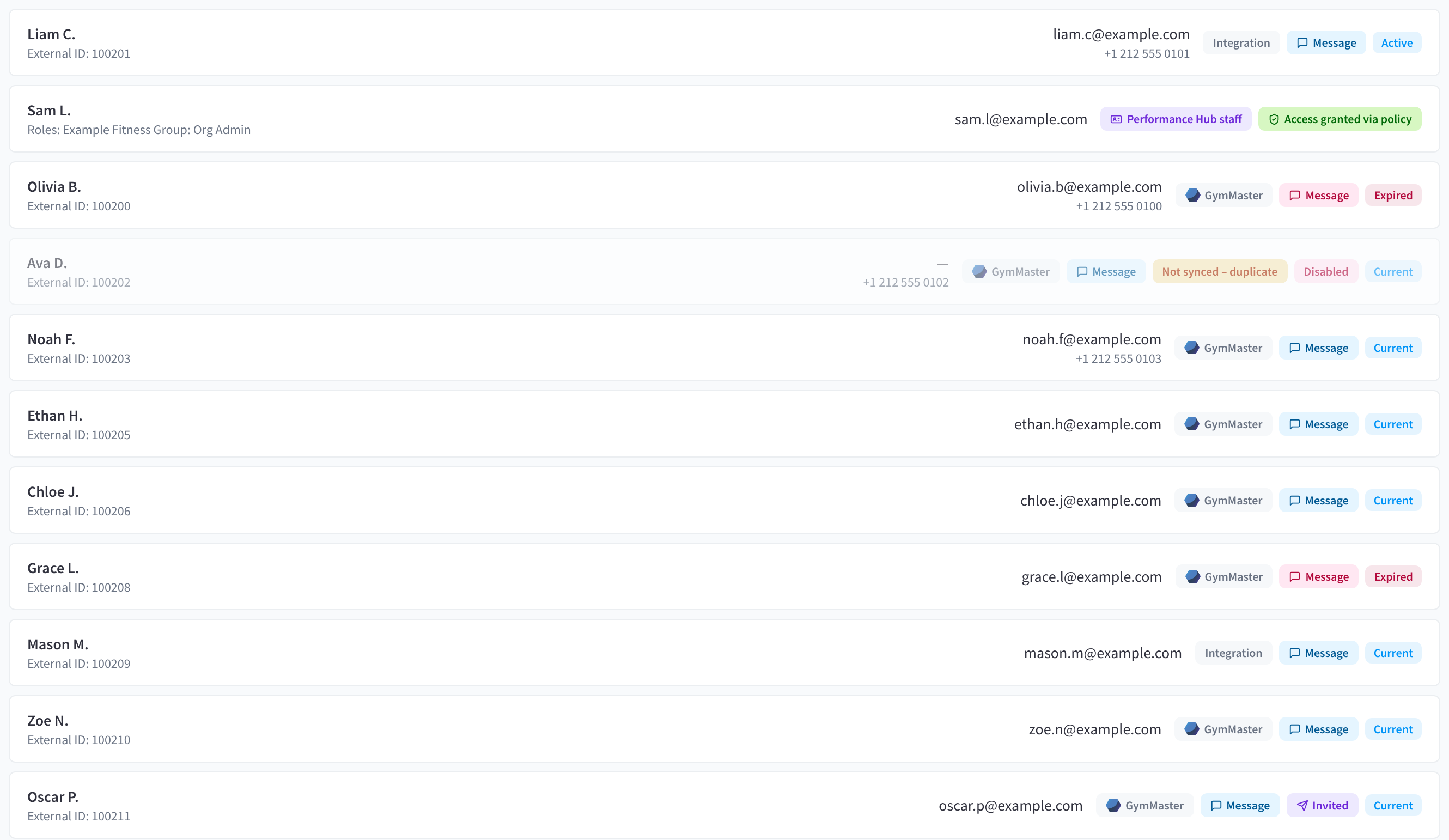
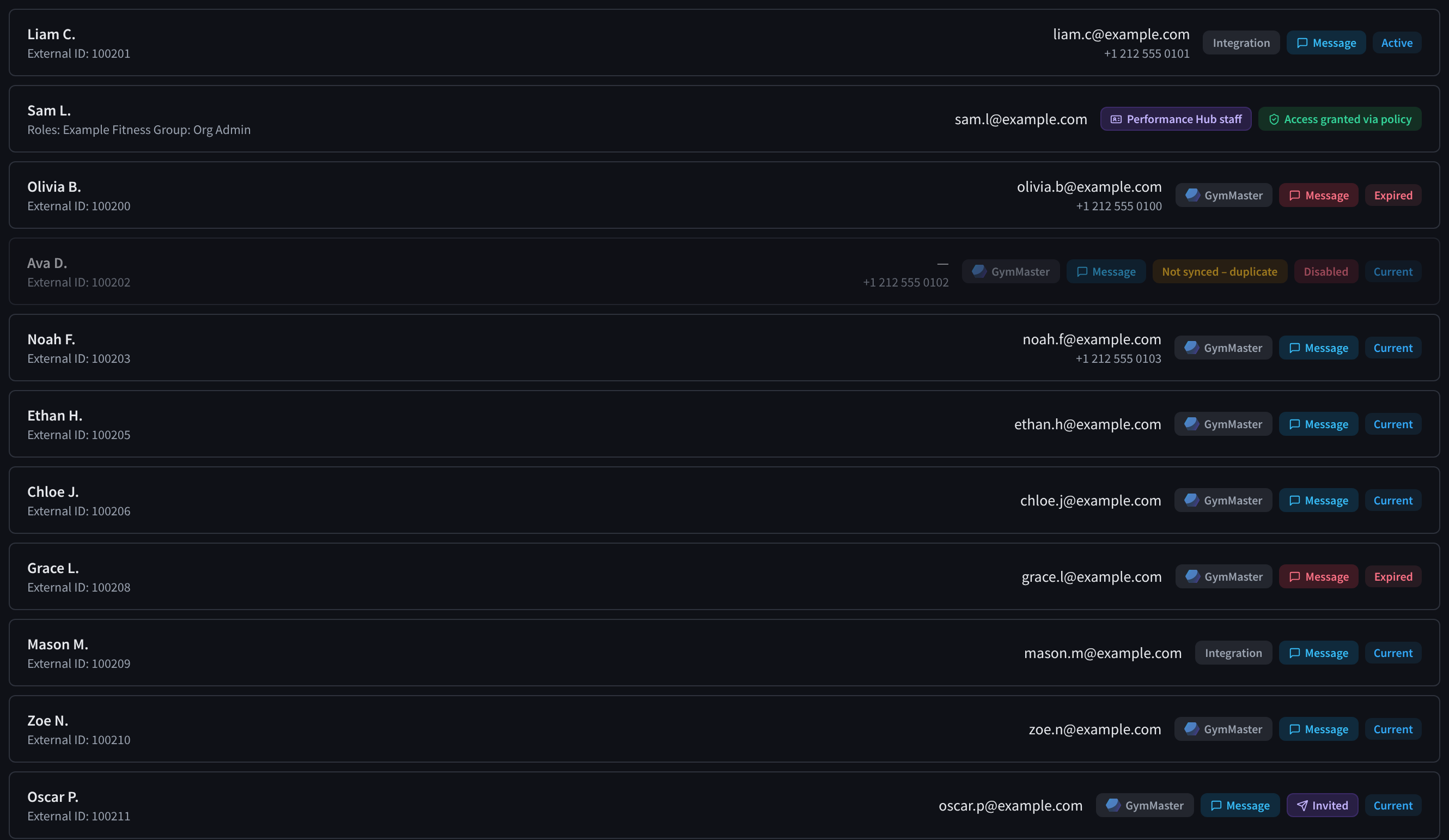
Figure 4: User rows with badges
| Badge | Meaning |
|---|---|
| Manual / Integration / CCTV/Computer Vision (or partner name) | The row's source |
| Performance Hub staff | The row is synced from Performance Hub IAM |
| Message | The user has an active app message (coloured by severity) |
| Disabled | Access enabled is off — the user can't unlock anything; the row is dimmed |
| Access granted via policy | At least one enabled Access Policy can match this user and a configured door now or in a future policy window |
| Access via time windows | The user has administrator- or integration-owned Access Time Windows; open the row to see whether they are active, upcoming, expired, stale, or unmapped |
| Grants | The user has separate permanent per-user grants |
| Not synced – duplicate | Another record with the same email or phone kept the slot; this one isn't synced. See Duplicate resolution |
| Invited | An invitation email was sent and the user hasn't used the app yet |
| Membership status (e.g. Current, Expired) | The user's membership status from the source system |
Synced rows also show their External ID or Computer Vision ID under the name. Staff rows show their Performance Hub roles instead.
Large lists load progressively: while the rest of the list loads, the bottom of the list shows N more users loading….
Adding a user manually
- Click Add user.
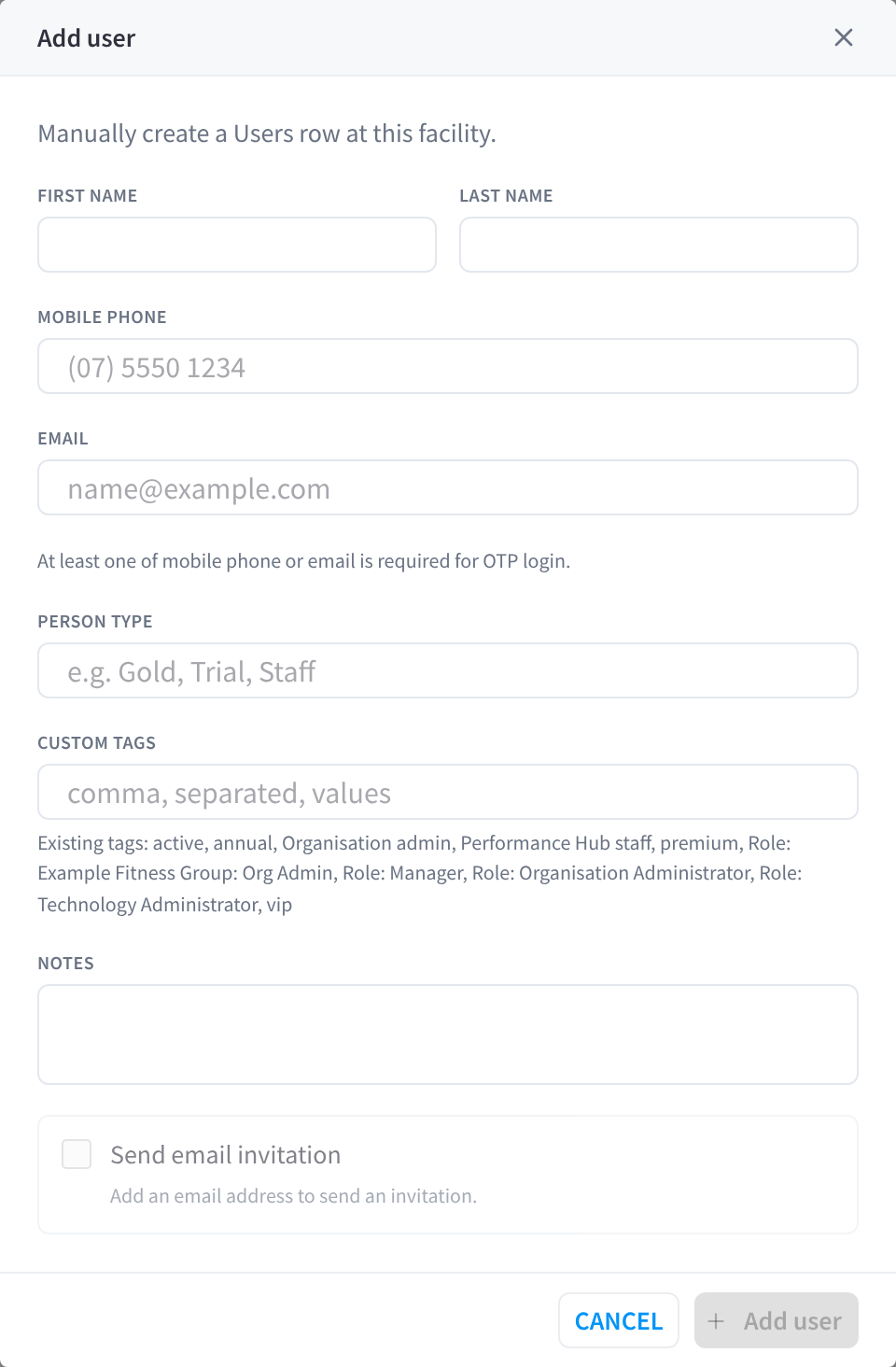
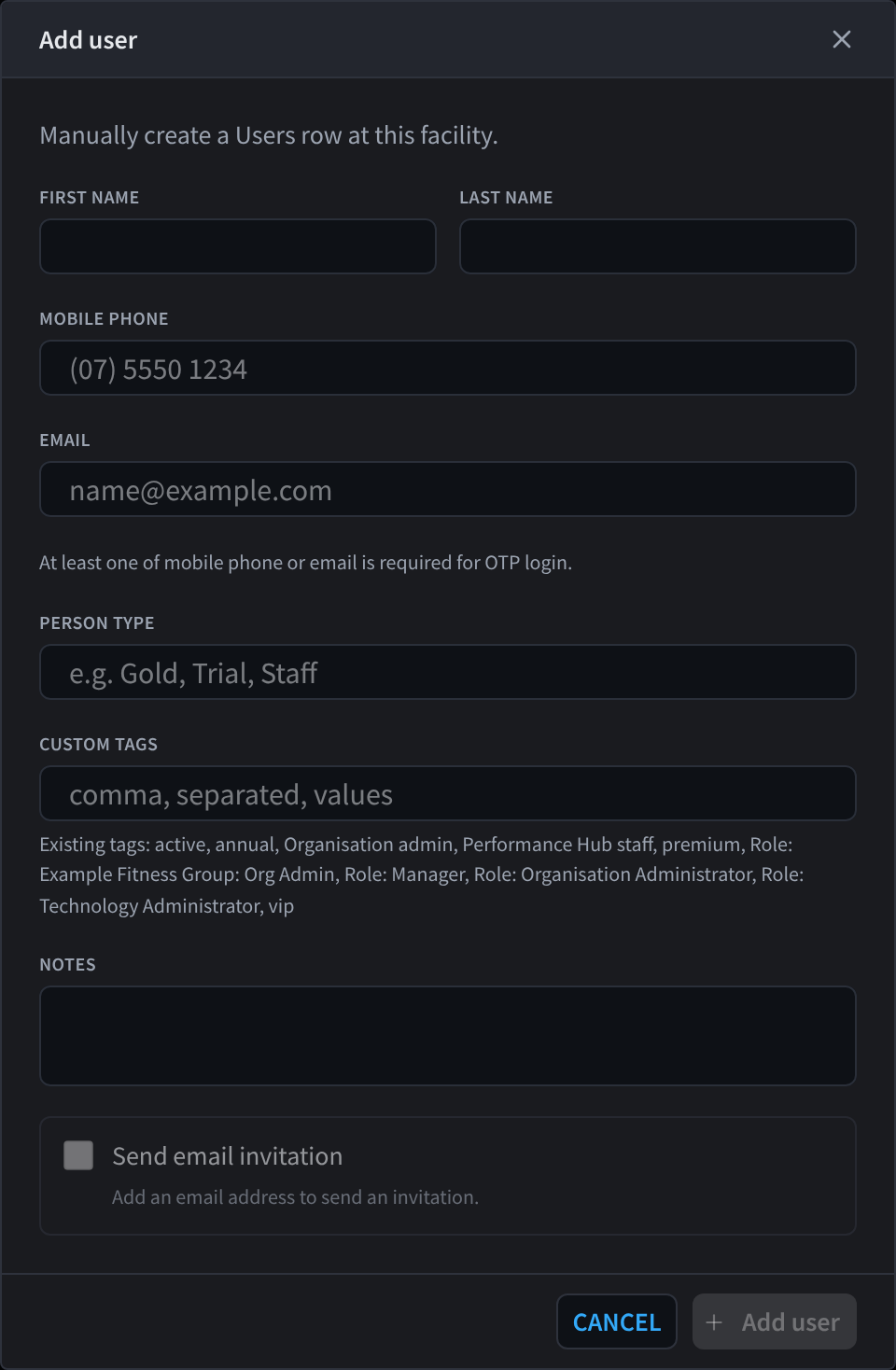
Figure 5: The Add user dialog
- Fill in First name, Last name, and at least one of Mobile phone or Email — "At least one of mobile phone or email is required for OTP login." Phone numbers are normalised to international format.
- Optionally set a Person type (e.g. Gold, Trial, Staff), Custom tags (comma-separated; existing tags are listed below the field), and Notes.
- Tick Send email invitation to email the person app download links straight away (requires an email address; the checkbox is disabled without one).
- Click Add user.
If a user with the same phone/email already exists at this facility, the dialog tells you and offers Open existing user instead of creating a duplicate.
Adding a user does not by itself let them through any door. They still need a matching Access Policy, a permanent grant, or a separate administrator/integration Access Time Window.
Importing users from CSV
Click Import to bulk-create users from a spreadsheet. Maximum 200 users per import.
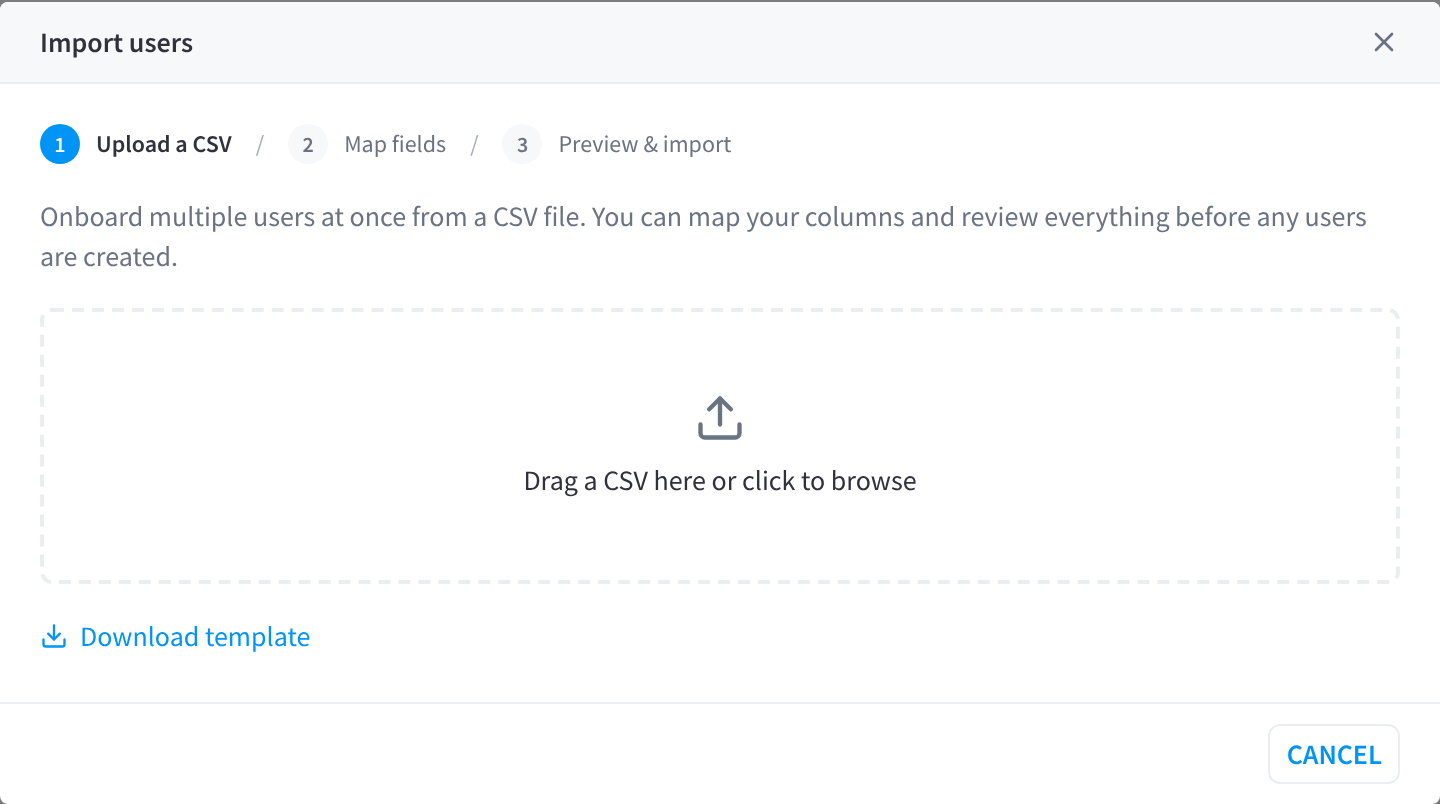
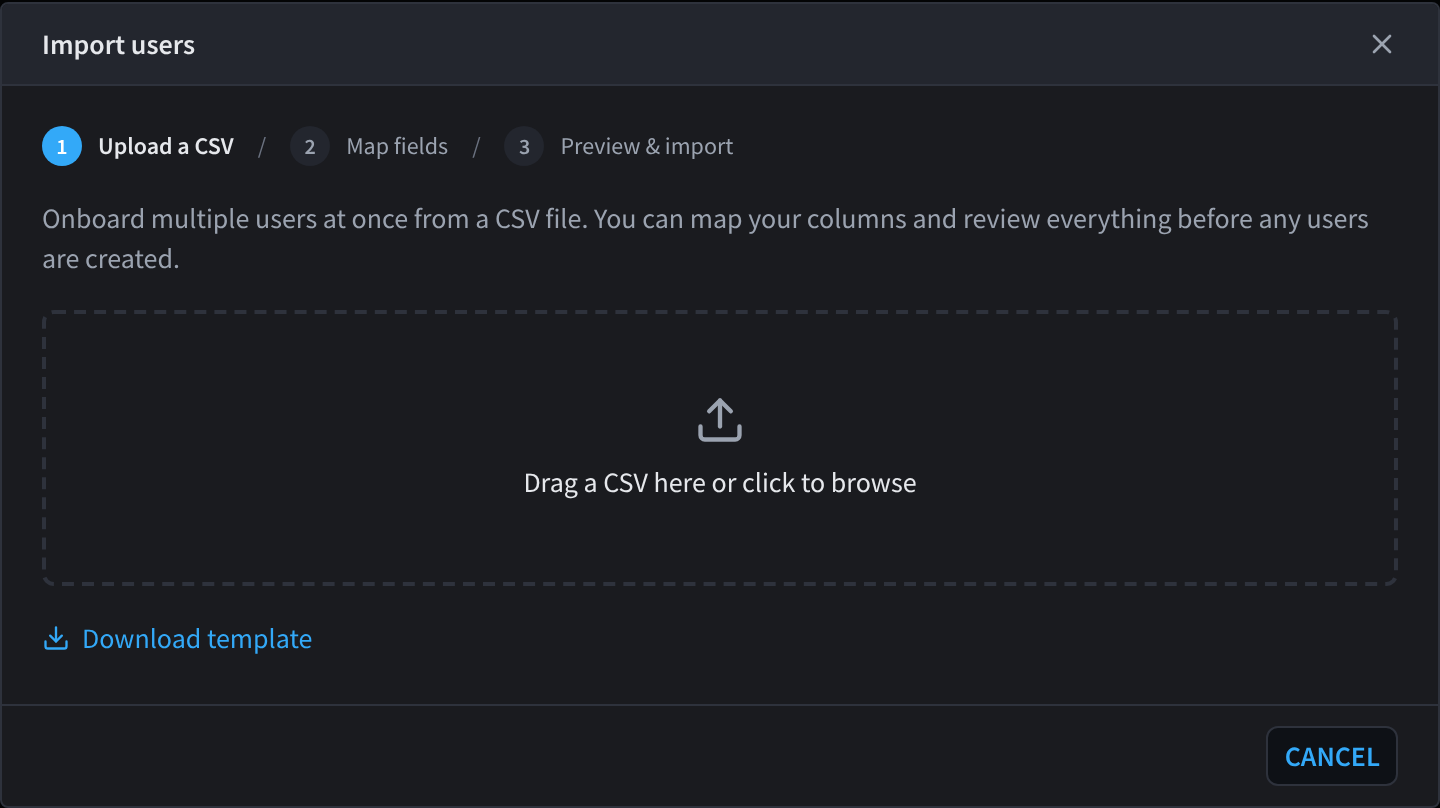
Figure 6: The CSV import wizard
Step 1 — Upload a CSV. Drag a .csv file in or click to browse. Download template gives you a correctly-headed starter file.
Step 2 — Map fields. Each CSV column is mapped to a field: First name, Last name, Mobile phone, Email, Person type, Tags, Notes, Access enabled, Door grants, Scope grants — or Do not import. Common header names (e.g. mobile, phone, groups) are mapped automatically. You must map at least a mobile phone or email column.
- Access enabled accepts
true/yes/enabled/1/on/y/activeandfalse/no/disabled/0/off/n/inactive. - Door grants / Scope grants take door or Access Scope names; unmatched names are flagged in the preview.
Step 3 — Preview & import. Review the first rows, choose whether to Send invitation email to imported users (only users with an email are invited), then click Import. Results show Imported, Skipped (already exist), and Errors counts.
The user detail panel
Click any row to open the user's panel.
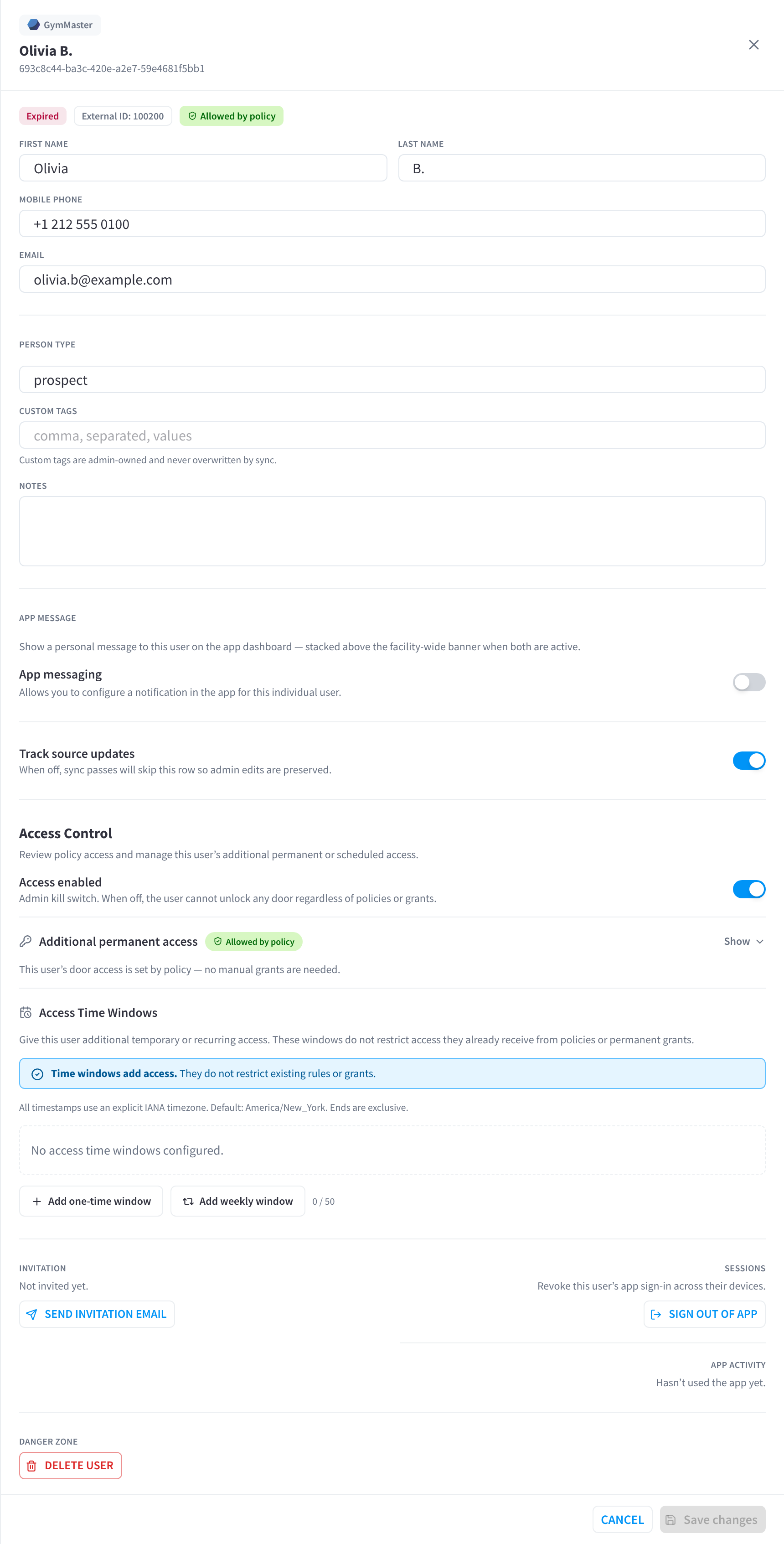
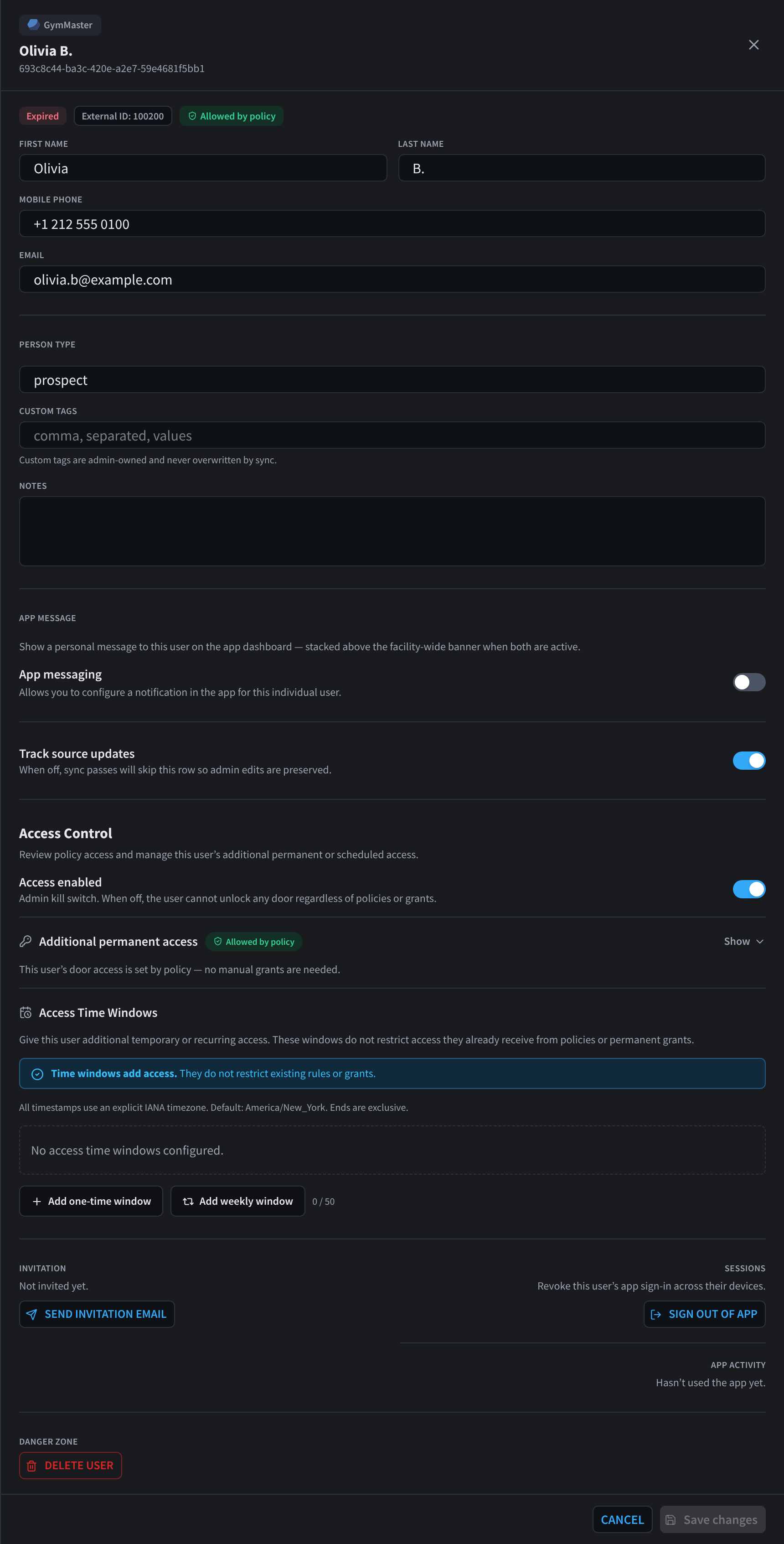
Figure 7: The panel for a synced member
Profile and identity
The header shows the source, membership status, External ID and whether the user is allowed by a policy.
- First name / Last name / Mobile phone / Email — for synced users these are overwritten by each sync pass unless the row is decoupled (below).
- Person type and Membership status — used by Access Policy Who conditions.
- Synced tags (read-only, from the source system) and Custom tags (admin-owned, never overwritten by sync). Both kinds can satisfy policy tags.
- Notes — free text, up to 2000 characters.
App message
App messaging sets a personal message shown on this user's app dashboard, stacked above the facility-wide banner when both are active. When an automated message applies, the panel shows it with controls to turn automation off for this user. See App Messaging.
Track source updates (synced users only)
For Integration/CCTV users, the Track source updates toggle controls whether sync keeps overwriting the row:
- On (default): name, phone, email, type, status, synced tags, and source-owned Access Time Windows are refreshed on successful syncs.
- Off (decoupled): after explicit confirmation, source-owned Access Time Windows are cleared and sync skips this row entirely. Your manual edits and administrator-owned windows are preserved, and source removals no longer affect it. The row shows a Decoupled badge.
Toggle back on to re-couple. The current source window snapshot is restored on the next successful complete sync, not from a failed or partial source fetch.
Panels for synced users also include links to the source record (the Integration record or the Computer Vision person).
Removed by integration
When a member is deleted in the integration, their door access is removed and the panel shows Removed by integration. The row stays in the list so its history is kept. See Sync & Integrations.
Access Control
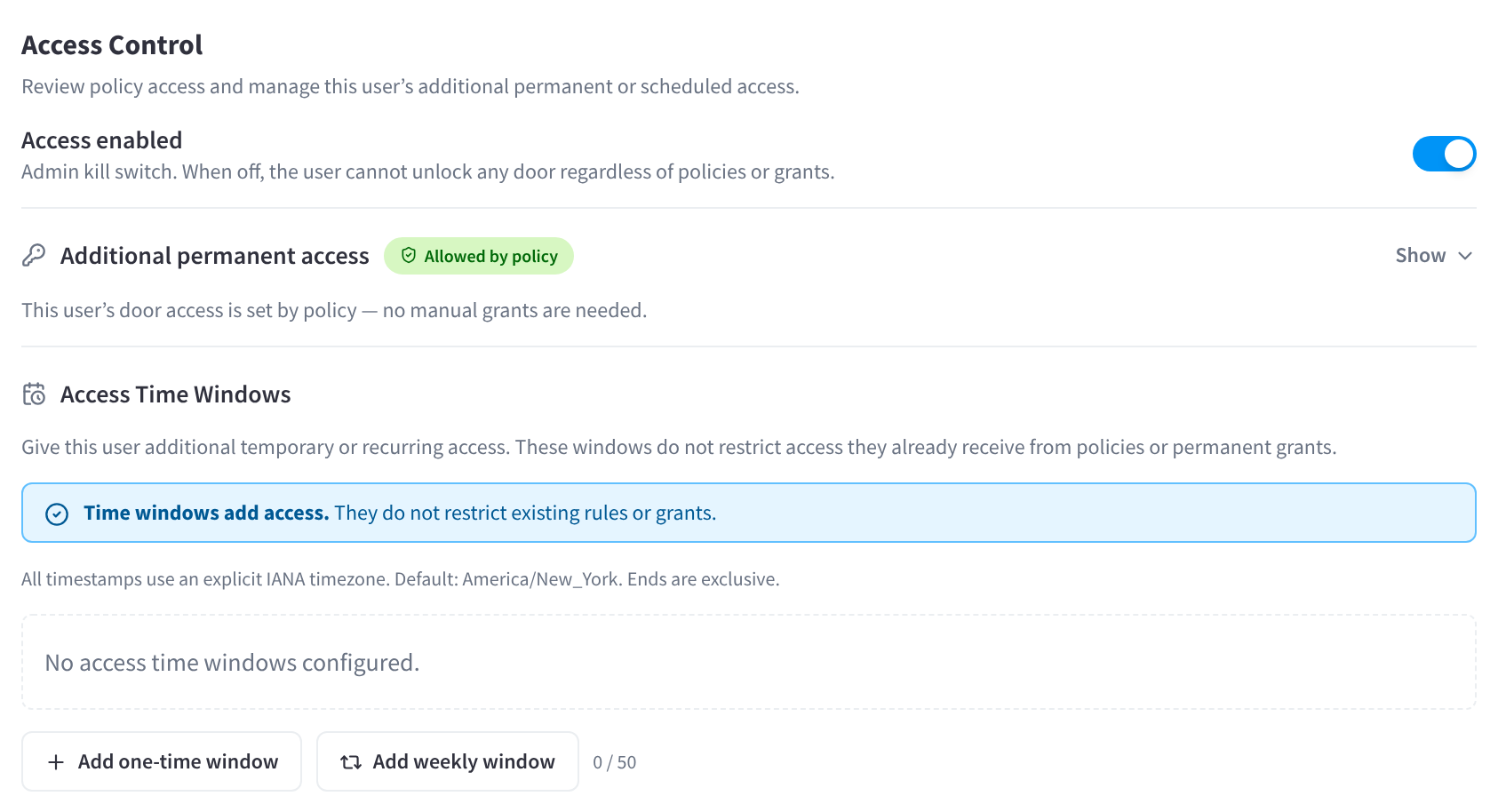
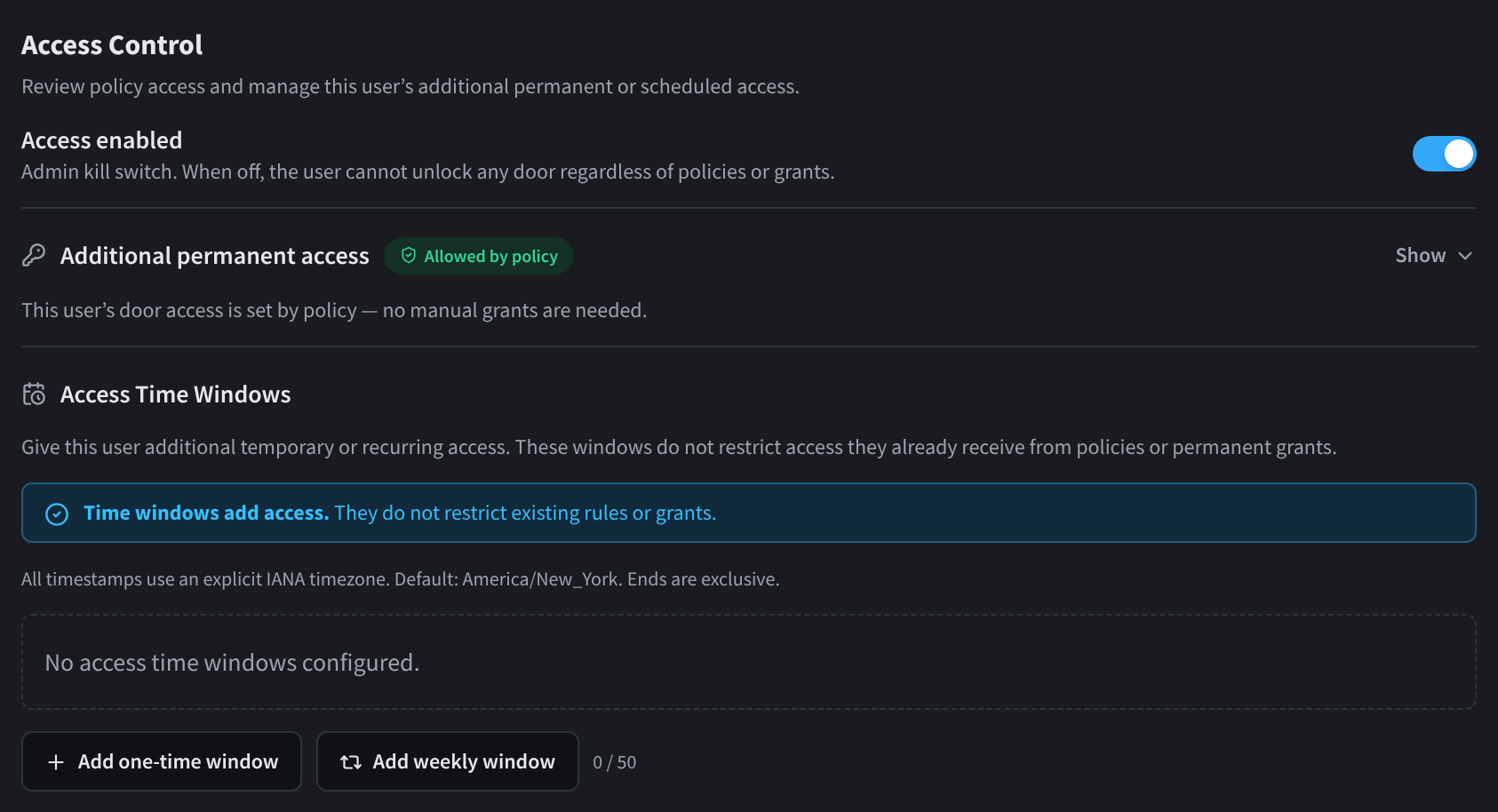
Figure 8: The Access Control section
The Access Control section keeps the user's authorisation settings together: the access kill switch, policy coverage, additional permanent access, and administrator/integration Access Time Windows.
Access enabled (the kill switch)
The Access enabled toggle instantly blocks or restores all door access for this user. When off:
- Every member unlock attempt is denied (reason: access disabled), regardless of policies, grants, or Access Time Windows.
- The row shows a Disabled badge and is dimmed in the list.
Use this to suspend someone immediately without deleting their record or changing policy.
Additional permanent access
Grants give this specific person access in addition to whatever the facility's Access Policies allow. When a policy already covers the user, the section shows Allowed by policy and "This user's door access is set by policy — no manual grants are needed." Click Show to open the grants editor:
| Grant | Effect |
|---|---|
| Facility-wide | Every door at the facility (overrides the door/scope lists while on) |
| Door grants | Tick individual doors |
| Scope grants | Tick Access Scopes — the user gets every door in the scope, including doors added to the scope later |
Doors that a policy already covers are marked Already covered by policy or Set by policy, so you can see where a manual grant isn't needed. Grants can carry their own operating hours, limiting when the grant applies. Clear all removes every grant at once. Automatic policy import and later policy edits do not change permanent grants.
Policy and grant indicators are additive. Removing a redundant manual grant does not remove policy access, and editing a policy does not remove the grant.
Access Time Windows
The Access Time Windows section manages temporary additive access for this person, with Add one-time window and Add weekly window (up to 50):
- Administrator-owned absolute and weekly windows are editable and can target the facility, selected doors, or Access Scopes.
- Integration-owned windows are read-only and show their source, source ID, declared timezone, logical scope mapping, source age, and freshness state.
- Active, upcoming, expired, stale, and unmapped states are shown separately. A stale or unmapped window does not grant access, but Access Policies and permanent grants remain available as fallback paths.
- Exact instants use
[from, to)boundaries. Weekly windows use the displayed IANA timezone and its daylight-saving rules.
The panel notes: "Time windows add access. They do not restrict existing rules or grants." See Access Policy Schedules.
Invitation
Shows whether an app invitation email has been sent, when, and whether it failed; the button reads Send invitation email or Resend invitation email. Invitations are email-only. Full details in Invitations.
Sessions and app activity
- App activity — Last used the app with a timestamp (or "Hasn't used the app yet.") and recent IP addresses.
- Sessions — Sign out of app revokes the user's app session: "This revokes the user's app session. They'll need to sign in again to unlock doors." Note: "Sessions are revoked immediately, but if the user is currently signed in it may take up to 15 minutes before they're fully signed out of the app." Because sessions are keyed by phone/email, a person using the same phone/email at another facility is signed out there too.
Deleting a user


Figure 9: The danger zone
Delete user removes the row from Users. "Their access log history is kept for the audit trail." Deleting also disables their access immediately. For synced users, note that the person can reappear on the next sync unless you also disable the integration or decouple — to clear out whole integrations, use Bulk delete synced users in Sync & Integrations.
Performance Hub staff
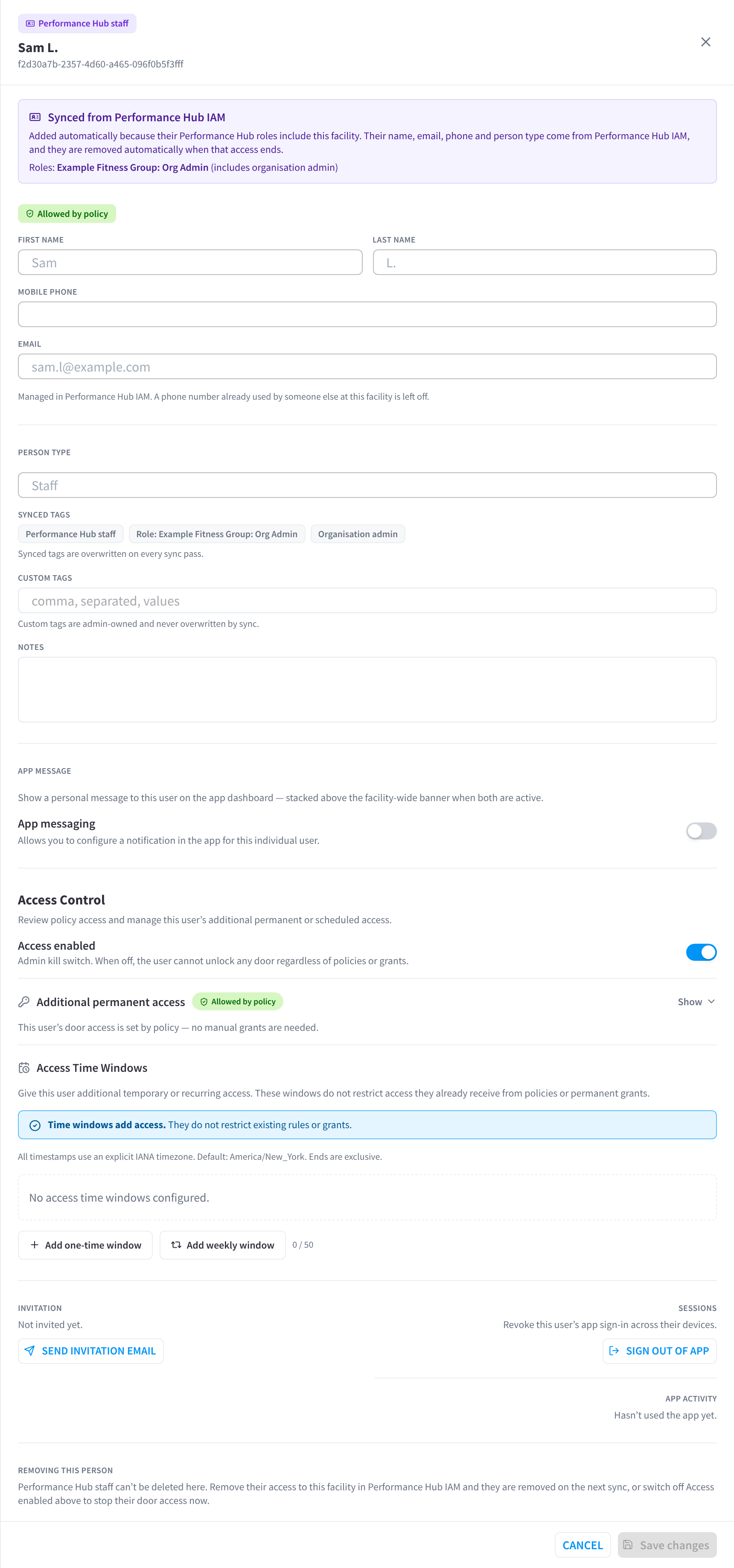
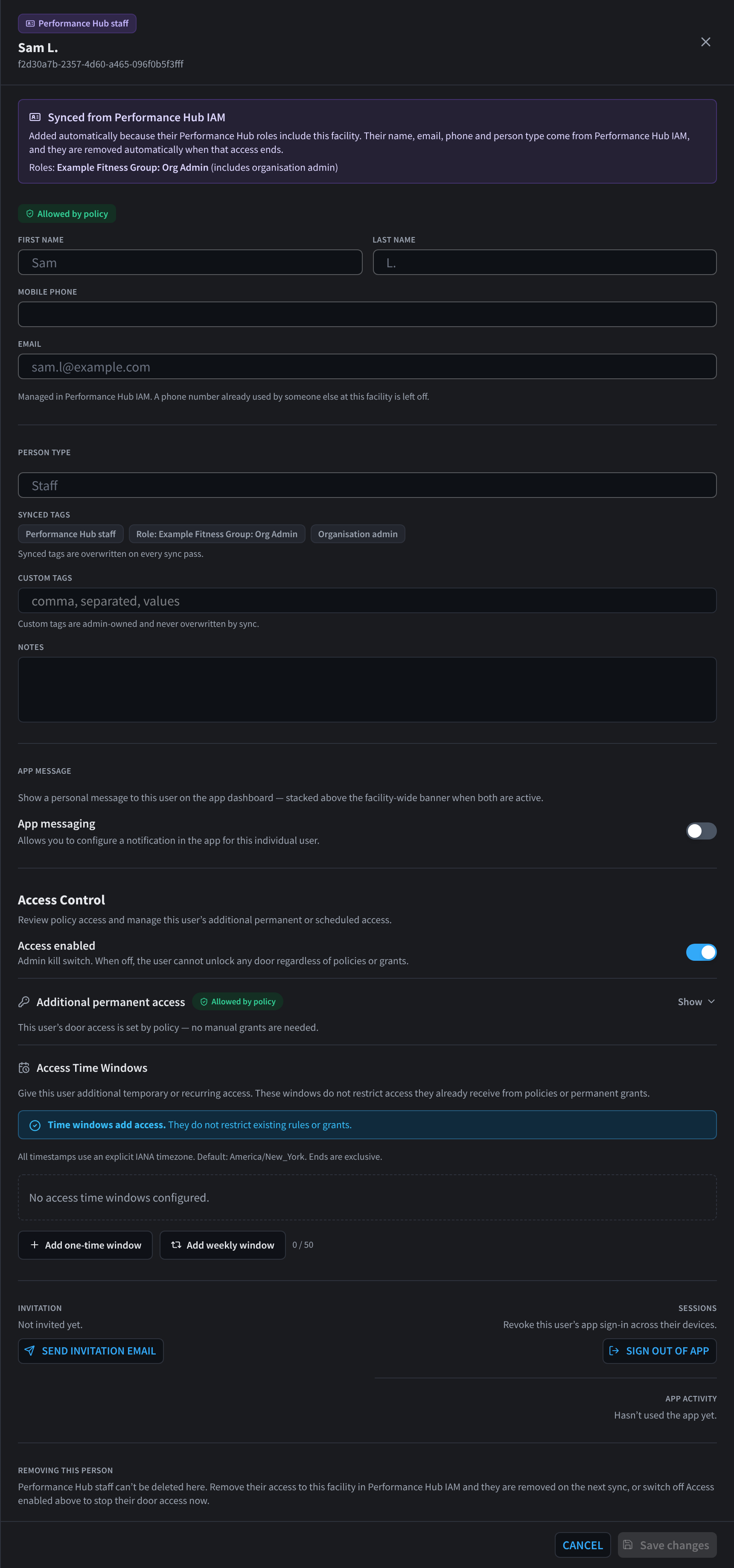
Figure 10: The panel for a Performance Hub staff member
A staff member's panel has the banner Synced from Performance Hub IAM. Staff are added automatically because their Performance Hub roles include this facility, and removed when that access ends. The banner lists their roles.
- Name, email, phone and person type are managed in Performance Hub IAM and are read-only here.
- Synced tags (such as Performance Hub staff and Role: …) are overwritten on every sync. You can still add Custom tags and Notes.
- Staff can't be deleted here. Remove their facility access in Performance Hub IAM, or switch off Access enabled to stop their door access straight away.
See Performance Hub staff sync.