
Display Screens
Display Screens is cloud-managed digital signage for the TVs and monitors at your sites, whether that's an office lobby, a shop floor, a restaurant, a venue, a campus, a clinic waiting room or a gym. Pair a screen once, then manage everything it shows from the Performance Hub: images and videos, web pages, live camera views, and apps that you or your AI agent build, from lobby welcome boards and menu boards to room schedules, leaderboards and live occupancy. Combine content into playlists, schedule what plays when, and take over every screen in seconds when you need to. Display Screens also turns displays on and off with your staffed hours, dims them at night, and shows a branded slate whenever a screen has nothing to play.
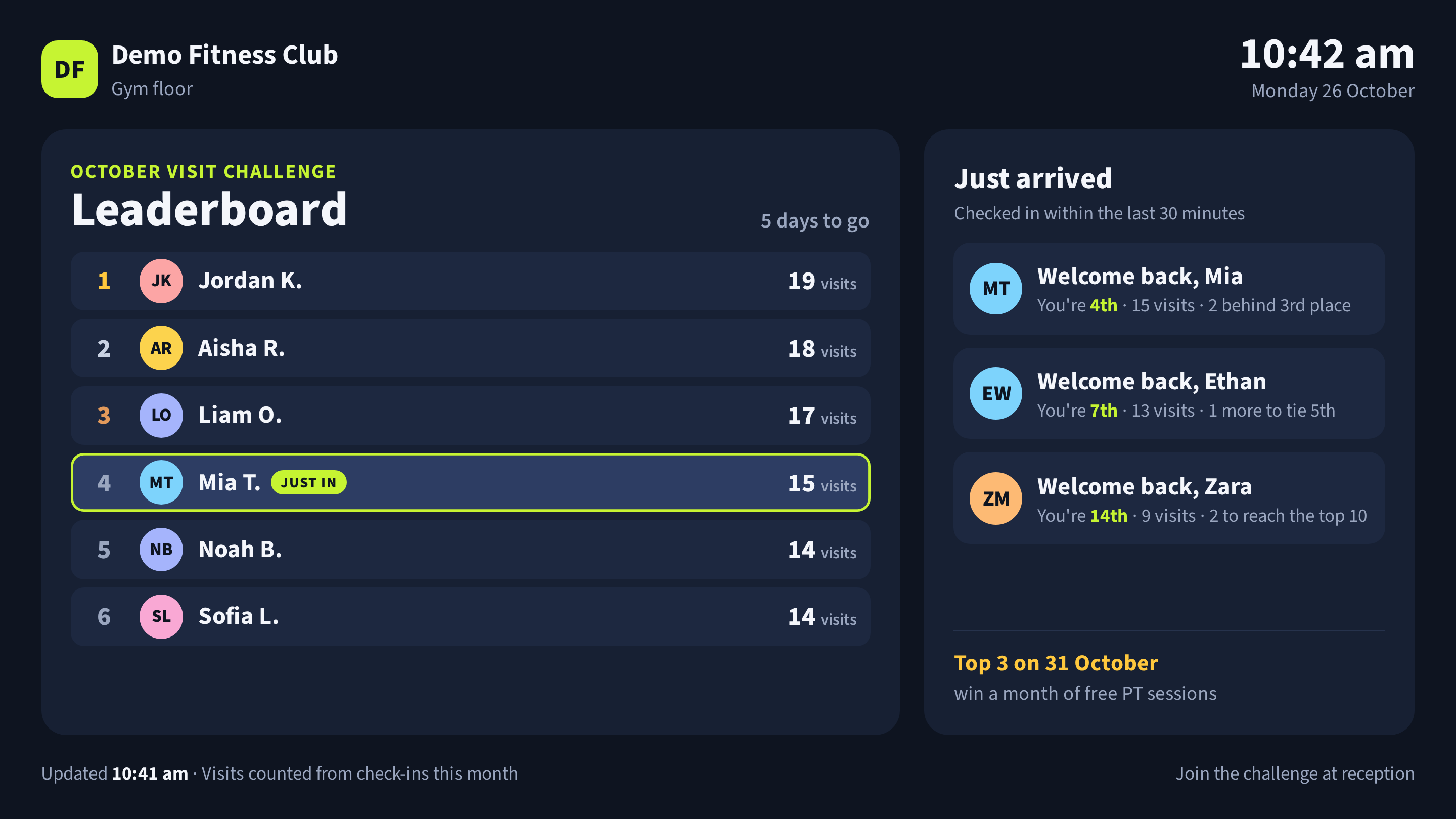
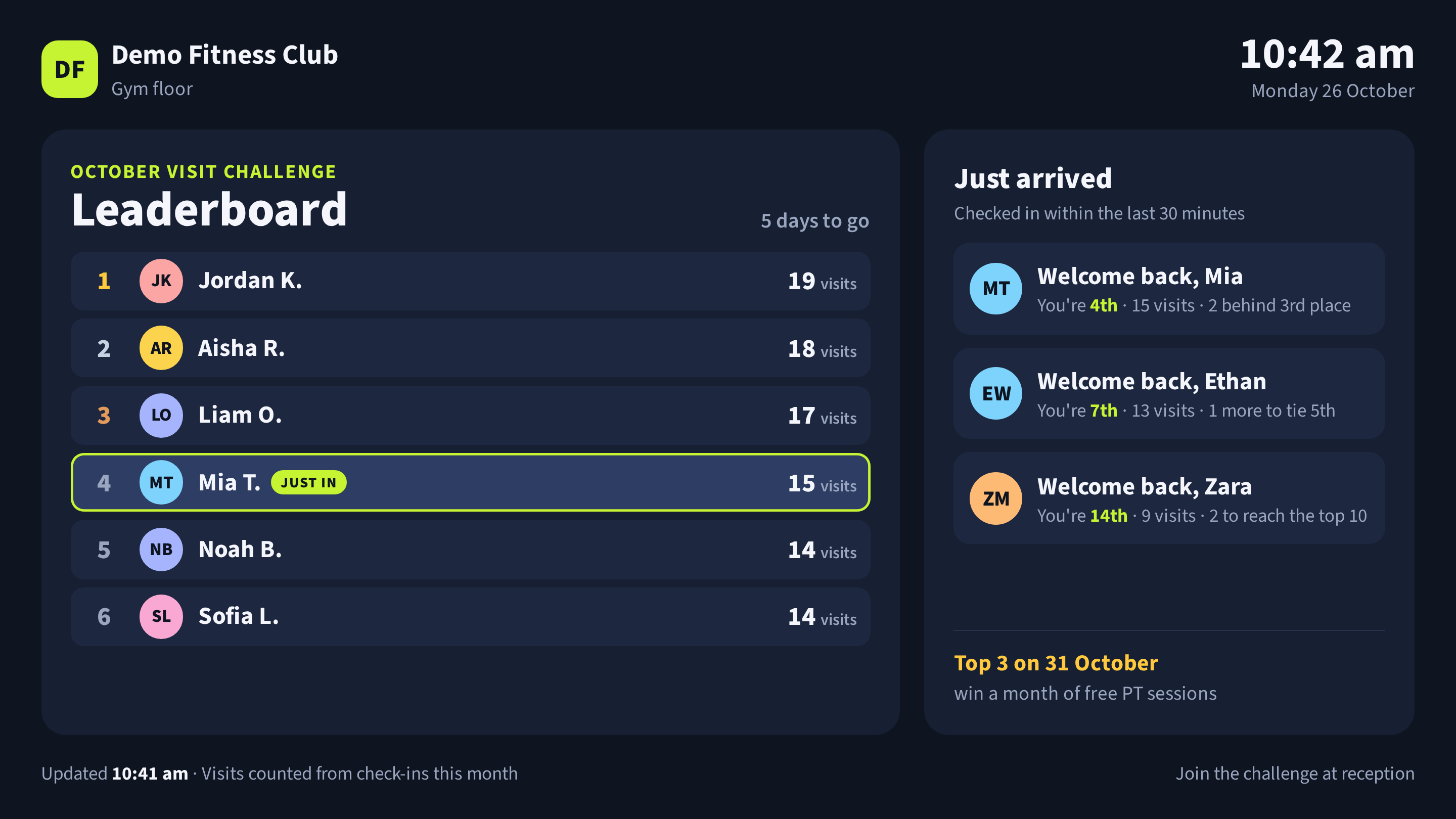
Figure 1: A Smart Display on a gym floor: the AI Agent keeps the leaderboard current from check-ins. The club, members and visits are fictitious.
Start here
- Adding a screen: connect a Display Screen Player to a TV and pair it with your facility. A new screen is usually playing within a few minutes.
- Smart Displays and published apps: your AI agent hosts an app on your screens and keeps changing it as things change around the screen, such as a gym leaderboard that greets members as they check in. It can also build apps that play from the screen itself.
Quick reference
Where to find it: Main menu → Display Screens
Who can access: Users with Display Screens access at the facility. Some actions need extra access; see Roles and permissions.
Hardware: One Display Screen Player per TV or monitor, connected by HDMI and to your network (Ethernet recommended). Order a player.
Purpose: Show the right content on every screen in your facility, keep screens healthy, and control them remotely
How it fits together
- A screen is a Display Screen Player paired to your facility, together with the TV or monitor it drives. The physical TV or monitor is called the display. A screen can be online while its display is switched off.
- The Library holds everything a screen can show: images, videos, web pages, apps and CCTV live views.
- A playlist is an ordered loop of Library items, each with its own time on screen.
- You publish a Library item or playlist to a target: one screen, a group of screens, or every screen at the facility. Users with organisation-wide access can also publish to every screen in a brand or organisation.
- Each publish has a layer that decides when it plays: Default (what the screen normally shows), Scheduled (only at the days and times you set) or Takeover (interrupts everything for a set time, then ends by itself).
- Screens check in with the Performance Hub and update within seconds of a change. When there is nothing to show, a screen displays your facility's Fallback Slate.
The Glossary at the end of this page defines each term.
Tabs and Settings
| Area | What you do there |
|---|---|
| Screens | See every screen at the facility, its status and what it is playing. Add screens, turn all displays on or off, and take over screens. Click a screen to open its details panel. |
| Library | Add and manage images, videos, External Web Pages, On-Device Web Apps, Agent: Published Apps and CCTV live views. Publish any item to screens. |
| Playlists | Build looping playlists with transitions, per-item timing and date ranges, preview them in landscape and portrait, and publish them. |
| Schedule | See takeovers, scheduled and default content on a calendar for the facility or a screen, schedule content for particular days and times, and edit or remove it. |
| Templated content | Only where templated content is enabled for your location. The page is available when you're signed in to the Performance Hub with an account at one of those facilities. |
| Settings (cog icon) | Facility-wide Display Automations, Brightness, Fallback Slate, and Updates and CCTV. |
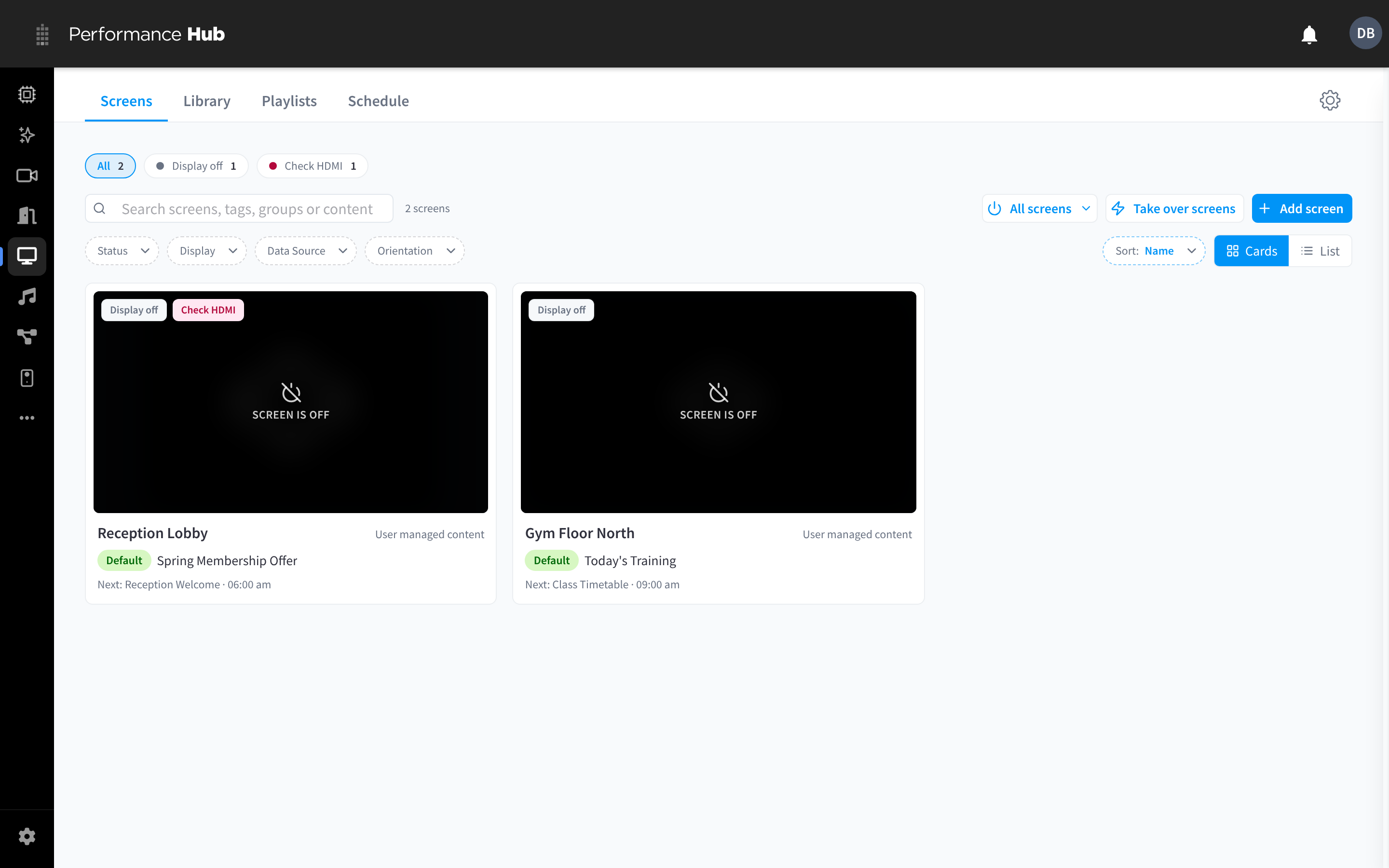
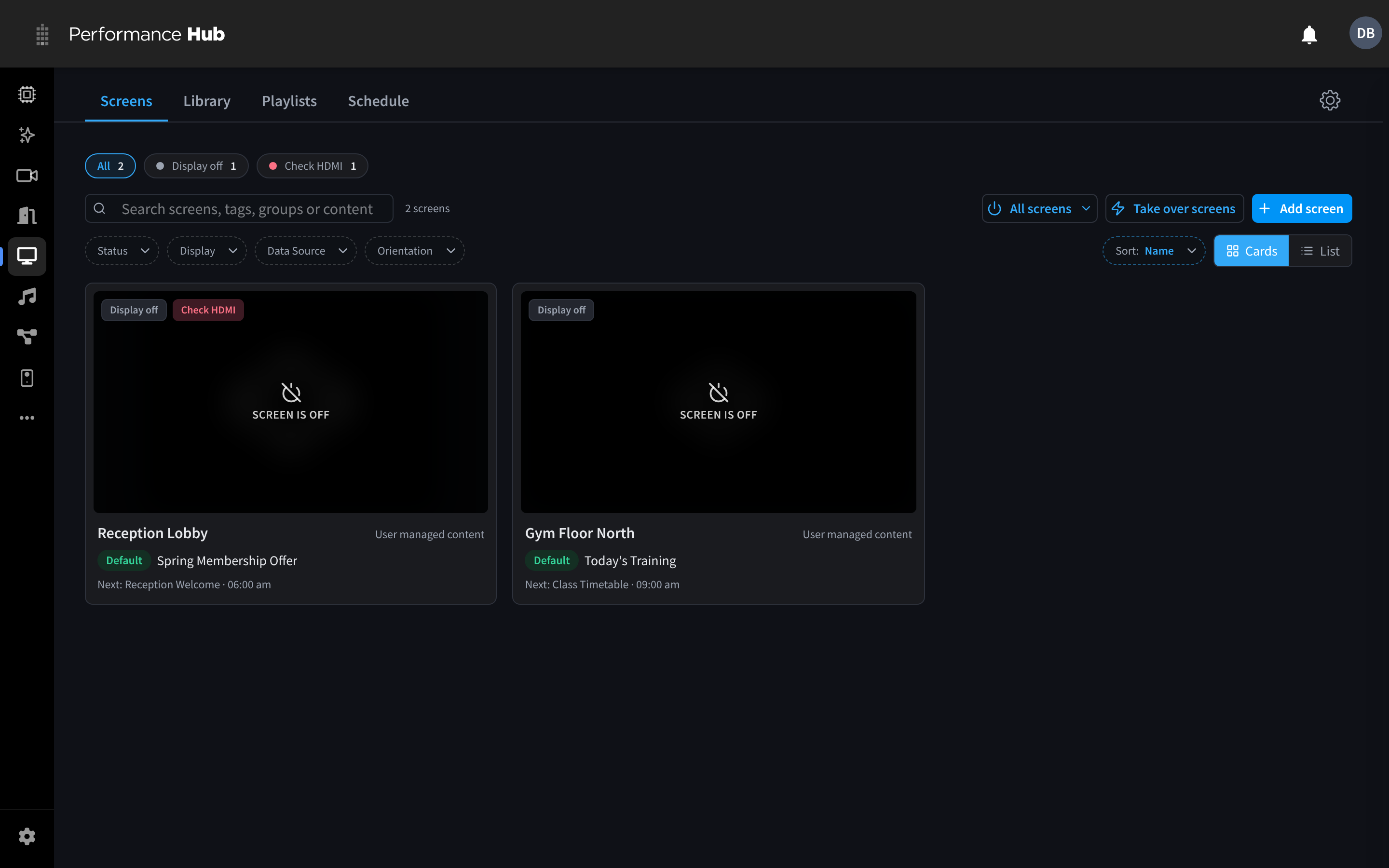
Figure 2: The Screens tab, showing each screen as a card with its status and the content it is playing
How a screen decides what to show
A screen can have several things published to it at once: something published straight to it, to a group it belongs to, and to the whole facility. It works out what to play in two steps:
- Layer first. A running Takeover beats anything Scheduled, and a scheduled item that is inside its time window beats the Default.
- Then the most specific target. Within the same layer, content published to the screen itself beats content for its group, which beats content for the whole facility (and then brand, then organisation).
If nothing applies, or nothing that applies can be played (for example, a web page that refuses to load inside a playlist), the screen shows the Fallback Slate.
You can see the result for any screen on its Content tab: what is playing now, the next 24 hours, and everything published to it.
Data Sources
Each screen has a Data Source, set on its Settings tab. It decides whether the screen uses the Library, Playlists and Schedule at all.
| Data Source | What the screen shows |
|---|---|
| User managed content | The content you publish from Display Screens: Library items, playlists, schedules and takeovers. This is the standard signage mode. |
| Full-page website (Kiosk Mode) | One website, full screen. Use it for a page that must fill the whole display, including pages that refuse to load inside a playlist. Published content is ignored. |
| Templated content (source name) | Only at facilities that use templated content: the template for the screen's equipment or area, with a synchronised round timer. Published content is ignored. See the Templated content tab, available where templated content is enabled for your location. |
Only User managed content screens play what you publish. When you publish to a group or the facility, screens with another Data Source are skipped.
Roles and permissions
What you can do depends on your access in the Performance Hub:
| Task | Who can do it |
|---|---|
| See screens, the Library, playlists and the schedule; send quick actions such as Display on/off, Reload content, Identify and Display message | Users with Display Screens access at the facility |
| Add content, build playlists, and publish to a screen, a group or the whole facility | Users with Display Screens access at the facility |
| Own content at brand or organisation level, and publish to every screen in a brand or organisation | Users with organisation-wide Display Screens access, such as organisation admins |
| Add a CCTV/VSaaS: Live View to the Library or a screen | People with CCTV (VSaaS) access at the facility, once an organisation admin with CCTV access has turned on Allow CCTV on display screens |
| Turn Allow CCTV on display screens on or off | Organisation admins who also have CCTV access (the setting itself says "Only facility admins can change this") |
| Show an Agent: Published App | Anyone who can add content, once the app has been published by your AI Agent and allowed on display screens, at a facility with the Custom Apps module |
Content can only be published within its owner. Content owned by a facility can go on that facility's screens; content owned by a brand or organisation can go on screens anywhere in it.
Integrations
Display Screens works with several other parts of the Performance Hub:
| Module or feature | How it connects |
|---|---|
| AI Agent and MCP | Your agent can run Smart Displays, apps it hosts and keeps updating on your screens, build other published apps, and manage screens, playlists and schedules for you through the Display Screens MCP tools. |
| CCTV (VSaaS) | Show a shared Live View or a set of cameras as a CCTV/VSaaS: Live View on any screen. An organisation admin with CCTV access must turn on Allow CCTV on display screens first. |
| Door & Gate Access | A door unlock can trigger a workflow that turns screens on. Through its Performance Hub access (MCP), which is on by default, your AI Agent can check door events and update a Smart Display it hosts, such as an office lobby welcome for each visitor. The PoE dongle used with Door & Gate Access hardware can also power a Display Screen Player. |
| AI Insights & People | Through its Performance Hub access (MCP), which is on by default, your AI Agent can check recent check-ins from your member management system and people records on a schedule, within its permissions, and reflect them in an app it published, such as a gym leaderboard or a lobby welcome. |
| Facility & System Configuration | Staffed hours, holiday hours and the facility time zone drive Display Automations, Brightness and the Schedule. Check-ins during unstaffed hours can turn screens on. |
| Duress | Display Screen Players relay presses from nearby duress buttons when Duress alarm monitoring is on. |
| Audio Control | A Display Screen Player can act as the controller for the facility's Sonos system. |
| Edge Processors | Camera restreaming shares USB cameras plugged into a Display Screen Player with your Edge Processors. |
| Device Management | Screens also appear in Device Management, alongside your other devices. |
Documentation guide
Get started
- Adding a screen: connect a player and pair it with the pairing code or QR code.
- Smart Displays and published apps: Smart Displays your AI agent hosts and keeps changing with what happens around the screen, other apps it builds for your screens, and how to publish your own.
- Hardware: the Display Screen Player, mounting, power and connectivity, specifications and hardware troubleshooting.
Screens
- Screens: the Screens tab, statuses, filters, turning all screens on or off, and taking over screens.
- Screen overview: the details panel, quick actions, live metrics and live view, and sending a message.
- Screen content: what a screen is playing now, its next 24 hours, and everything published to it.
- Screen settings: name, groups and tags, Data Source, display, casting and audio, and peripherals.
- Advanced & device actions: restart, updates, Wi-Fi, moving and removing a screen.
Content
- Library: content types, the Library layout, and viewing and editing items.
- Adding content: images and videos, web pages, apps and CCTV live views.
- Publishing content: put an item on screens as default, scheduled or takeover content.
- Playlists and Schedule: rotate content and plan the week.
Settings and help
- Display Automations, Brightness, Fallback Slate and Updates & CCTV: facility-wide settings.
- Troubleshooting and Common questions.
Getting started checklist
Tick items off as you go. Your progress is saved in this browser, and you can print the list.
Glossary
| Term | Meaning |
|---|---|
| Display Screen Player | The small, fanless computer that drives one TV or monitor over HDMI. See Display Screen Player. |
| Screen | A Display Screen Player paired to your facility, together with the TV or monitor it drives. |
| Display | The physical TV or monitor. Display Automations turn the display on and off; the player stays online. |
| Pairing code | The 6-character code a new player shows on the TV, used to add the screen. |
| Group | A set of screens that should show the same content, such as "Lobby", "Waiting room" or "Gym floor". Content published to a group shows on every screen in it. |
| Tag | A label for finding screens or Library items. Tags don't change what a screen shows. |
| Library | Everything a screen can show: images, videos, web pages, apps and CCTV live views. |
| External Web Page | A website shown live on a screen. Needs internet access. |
| On-Device Web App | A static HTML, CSS and JavaScript app that screens download and keep, so it plays offline. Each publish is a new version. See Published apps. |
| Agent: Published App | A web app your AI Agent built that runs live on your AI Agent device and is shown on screens. Shown on a screen, it makes a Smart Display. See Published apps. |
| Smart Display | A screen showing an Agent: Published App, which your AI Agent changes as things change around the screen. See Smart Displays. |
| Version | One published copy of an On-Device Web App. One version is Live; you can make an earlier version live again. |
| CCTV/VSaaS: Live View | Live cameras from this facility shown on a screen as a video wall. |
| Playlist | An ordered loop of Library items, each with its own time on screen. |
| Publish | Put a Library item or playlist on a target, in a layer. See Publishing content. |
| Target | Where content is published: one screen, a group, every screen at the facility, or (with organisation-wide access) a brand or organisation. |
| Layer | When published content plays: Default, Scheduled or Takeover. |
| Takeover | Content that interrupts everything else on its target for a set time (up to 7 days), then ends by itself. |
| Data Source | A per-screen setting that decides whether the screen plays published content, one full-page website, or templated content. |
| Fallback Slate | The branded slate a screen shows when it has nothing it can play. |
| Display Automations | Facility-wide schedule that turns displays on and off with staffed hours or a custom schedule. |
| Check-in power | Turns displays on when someone checks in during Unstaffed or Extended Hours, and off again after the last check-in. |
| Templated content | Screens that show the facility's program from a template, at facilities that use templated content. |
| Published app | An app built for your screens, often by an AI agent: an On-Device Web App or an Agent: Published App. See Published apps. |
| PoE dongle | The optional power over Ethernet adapter that can power a Display Screen Player driving a single display. See Power & Connectivity. |
Related pages
- Adding a screen: pair your first screen
- Smart Displays and published apps: Smart Displays your AI agent hosts and keeps current, and other apps it builds for your screens
- Display Screen Player: the hardware
- Library: the content your screens can show
- Display Automations: turn displays on and off with your hours
- Troubleshooting and Common questions
Image credits
The sample Library content in the Display Screens screenshots includes these photos, cropped and resized (some as backgrounds for sample signage):
- "Design and equipment in modern gym", "Interior of new modern gym with equipment" and "A variety of colorful weight plates" by Shixart1985, CC BY 2.0, via Wikimedia Commons
- "Dumbbells - Hanteln" by I G, CC BY 2.0, via Wikimedia Commons
- "Green Templeton College Gym" by Oxfordhistorian101, CC BY 4.0, via Wikimedia Commons
The demo apps shown in the published app screenshots (October Visit Challenge, Counter Menu Board, Lobby Visitor Welcome, Reception Welcome Sign, Reception Welcome Board and Gym Floor Live Board) are original work made for these docs. Their companies, people, teams and data are fictitious and simulated.