
Adding a screen
Adding a screen pairs a Display Screen Player with your facility. Connect the player to the TV and your network, enter the pairing code the TV shows, and the screen starts playing whatever is published to the facility within a few minutes.
Quick reference
Where to find it: Main menu → Display Screens → Screens → Add screen
Who can access: Users with Display Screens access at the facility
You need: One Display Screen Player per TV or monitor, an HDMI cable, a network connection (Ethernet recommended) and a power outlet
Purpose: Bring a new TV or monitor under Display Screens management
Before you start
- The player comes pre-loaded. There's no software to install: mount it, plug it in, connect it to the TV and your network, and pair it.
- Mount the player near the TV, with clear airflow around it. See Mounting & Dimensions.
- Connect it: HDMI from the player to the TV, Ethernet to your network (recommended), then power. See Power & Connectivity.
- Turn on the TV and select the HDMI input the player is plugged into. Display Automations turn the TV off by stopping the HDMI signal (DPMS), the preferred method; most TVs go to standby on their own when the signal stops. If yours doesn't, add a Pulse-Eight USB-CEC adapter and turn on HDMI-CEC in the TV's settings. The player uses HDMI-CEC only through the adapter. See Display (HDMI).
After a short start-up, usually a minute or two, the TV shows a 6-character pairing code and a QR code.
Pair the screen
- On the Screens tab, click Add screen.
- Under Pairing Code, type the 6-character code shown on the TV. Or click Scan QR, then Request Camera Permissions, and scan the QR code on the TV with your device's camera. Click Stop to go back to typing the code.
- Under Display Name, enter a descriptive name that tells people where the screen is, for example "Reception Lobby", "Café Menu Board" or "Gym Floor North".
- Click Add. It is available once you have entered both the code and a name.
Some facilities see extra fields in this dialog, depending on the features they use. Fill them in as prompted.
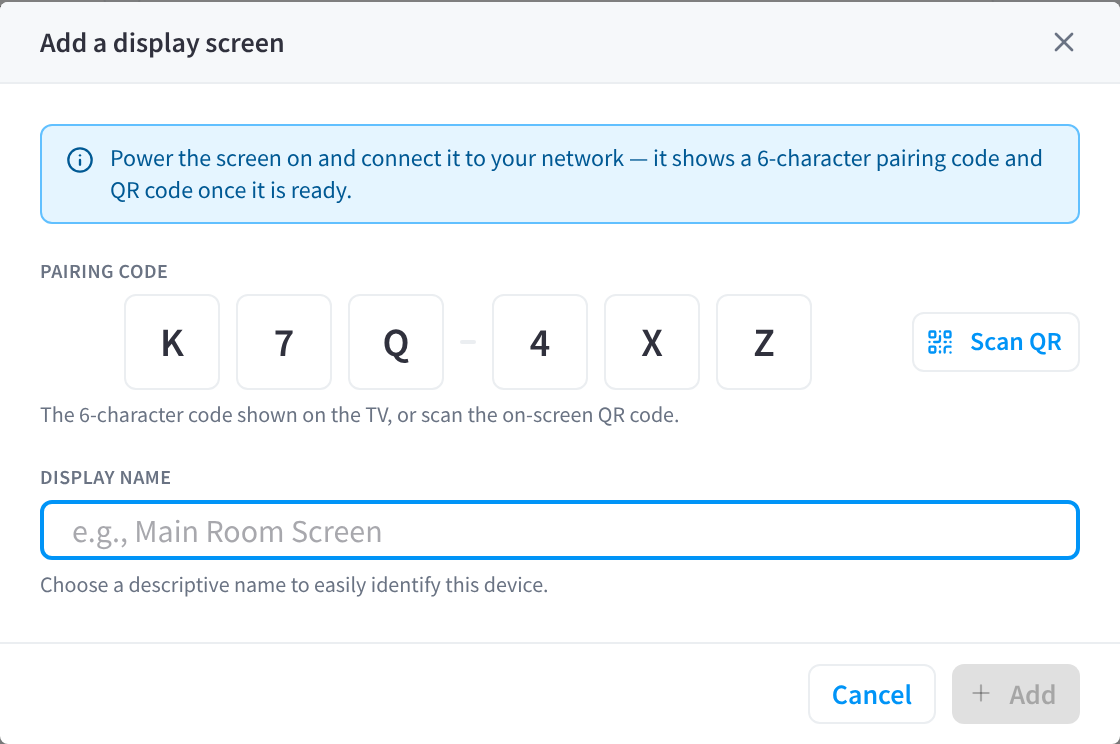
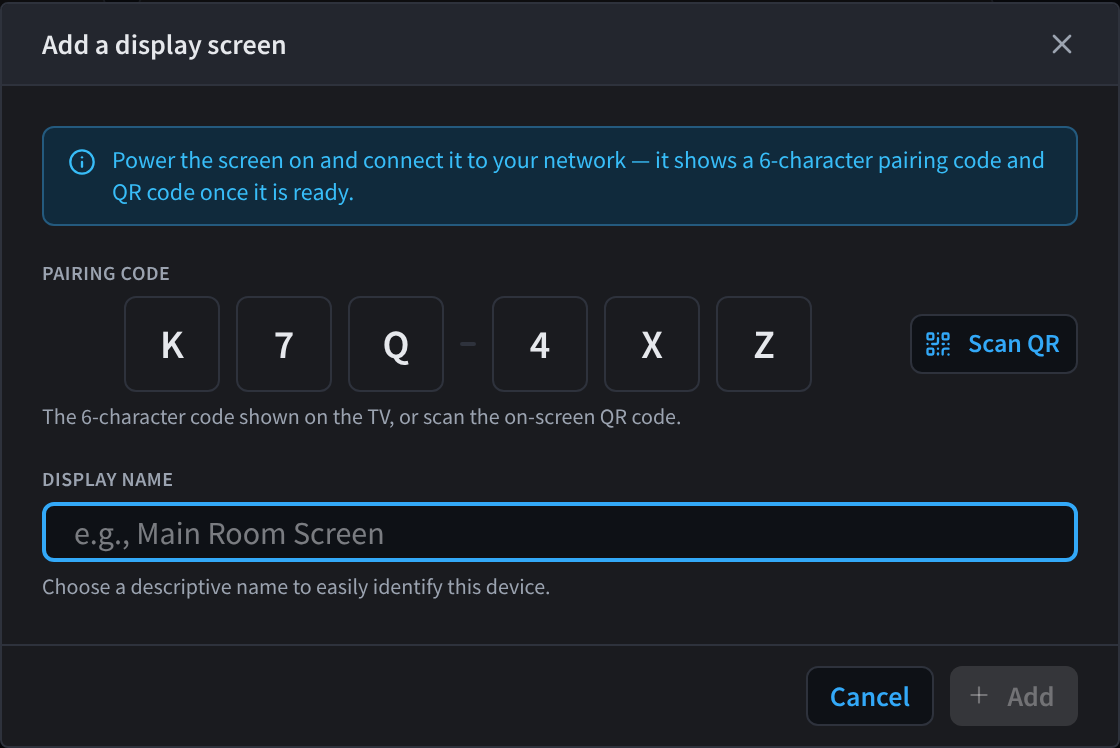
Figure 1: Enter the pairing code shown on the TV
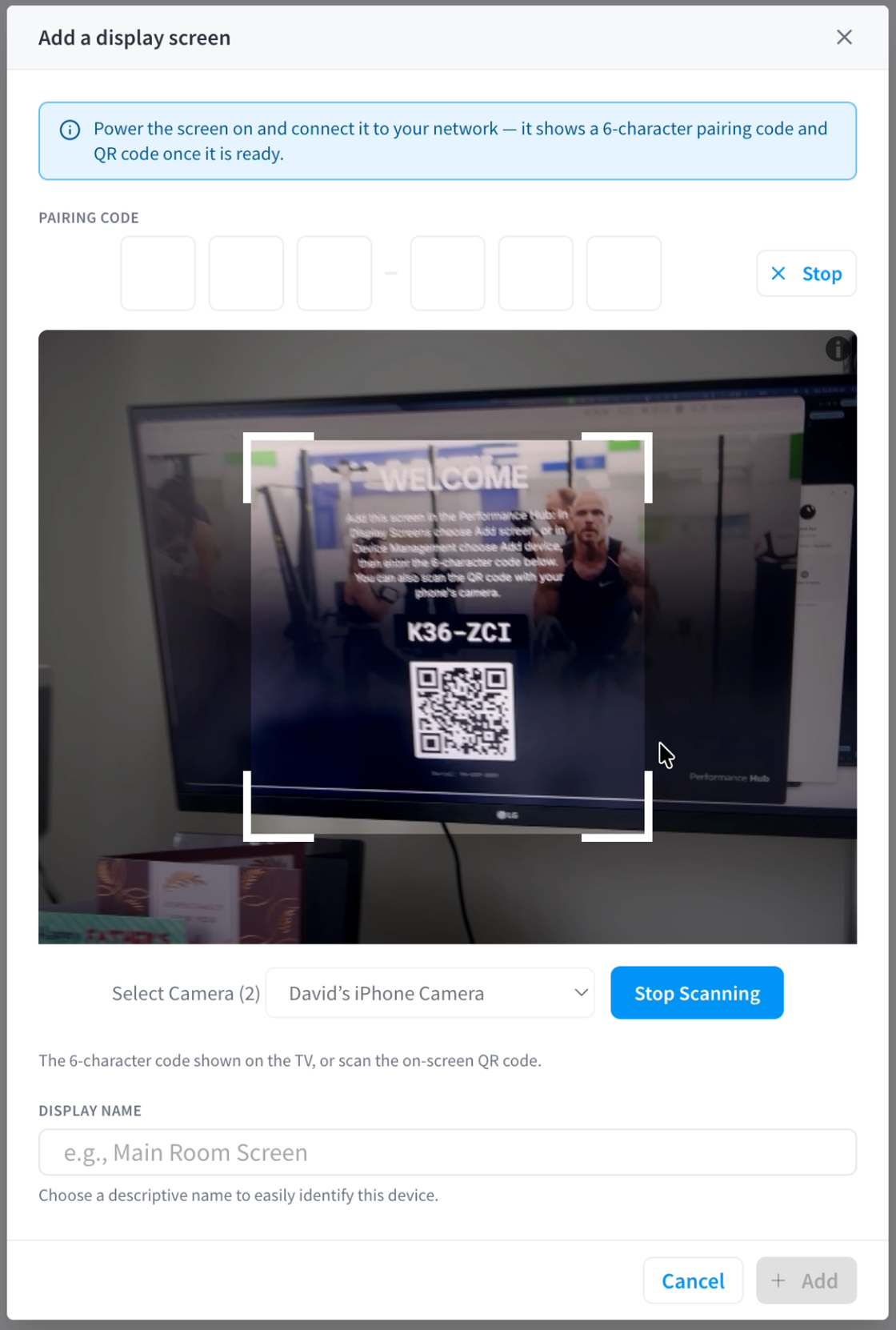
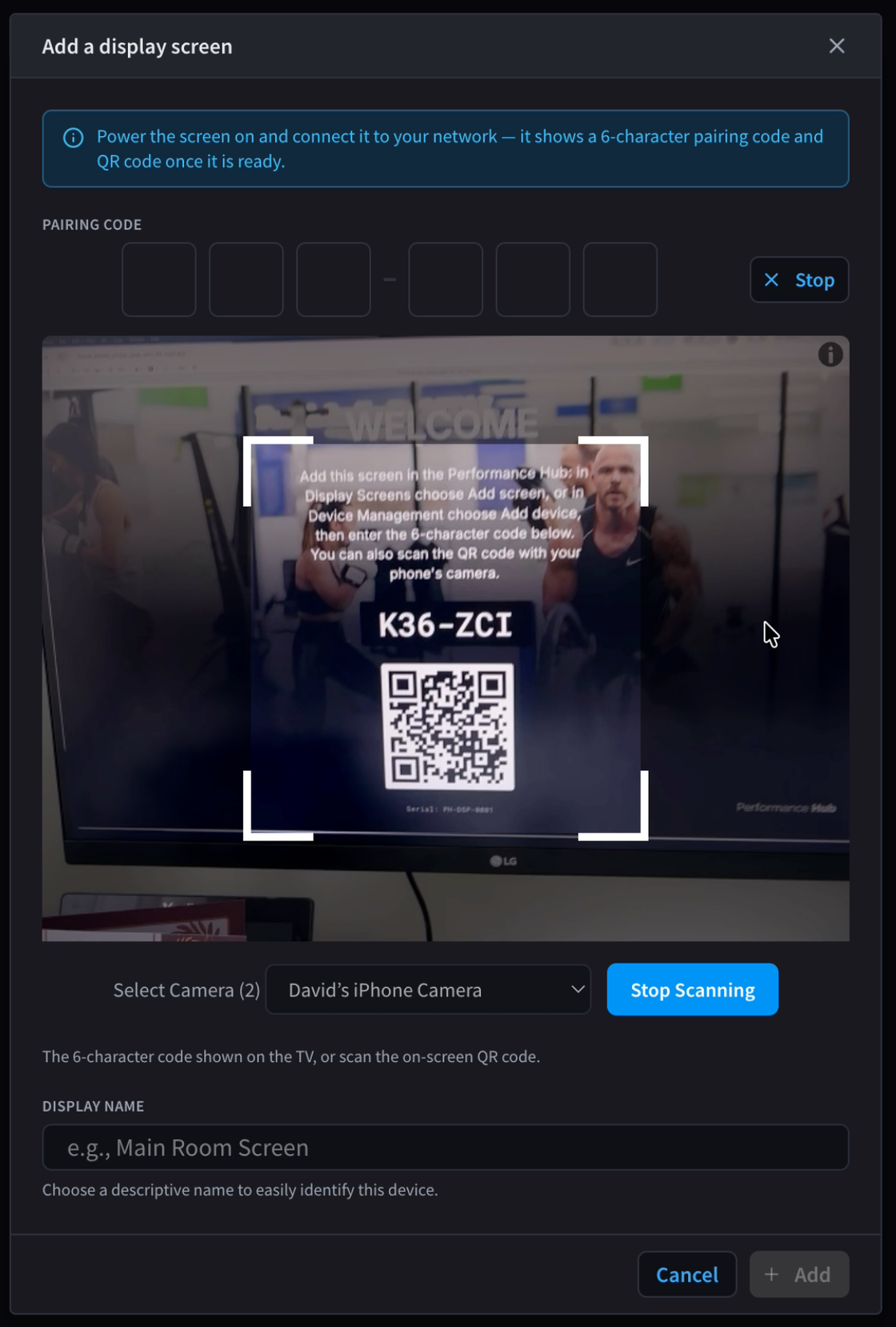
Figure 2: Or scan the QR code on the TV with this device's camera
After pairing
The screen appears on the Screens tab straight away with the status Provisioning while it downloads its settings. This can take up to 15 minutes and is not a fault. The screen then plays whatever is published to the whole facility, or the Fallback Slate if nothing is.
Next steps for a new screen:
- Use Identify on the screen's Overview tab to flash its name and code on the TV, and confirm you paired the right one.
- Open the screen → Settings tab to add it to groups and tags, and check its Data Source and Display settings, such as orientation for a portrait screen.
- Put something on it: publish content, or ask your AI agent to build a published app.
If the code is rejected
- Check you typed all six characters. Codes never use the letters O or I, or the numbers 0 or 1.
- Check the TV still shows the same code.
- If the player has already been added to another facility, it must be removed there first with Remove & reset screen.
If the TV shows no code at all, see Hardware Troubleshooting.
Adding a screen from Device Management
You can also add a Display Screen Player from Device Management: click Add Device and enter the pairing code, or choose Display Screen under Or choose the device type manually. The screen then appears in Display Screens as well. See Adding devices.
Related pages
- Display Screen Player: the hardware and what's in the box
- Screens: every screen at the facility and its status
- Screen settings: name, groups, Data Source and display settings
- Smart Displays and published apps: apps your AI agent builds for your screens