
Screens
The Screens tab is the home of Display Screens. It lists every screen at the selected facility, shows whether each one is healthy and what it is playing right now, and gives you the facility-wide controls: Add screen, All screens and Take over screens. Click any screen to open its details panel.
Quick reference
Where to find it: Main menu → Display Screens → Screens
Who can access: Users with Display Screens access at the facility
Purpose: See the state of every screen, find a screen quickly, pair new screens and control all screens at once
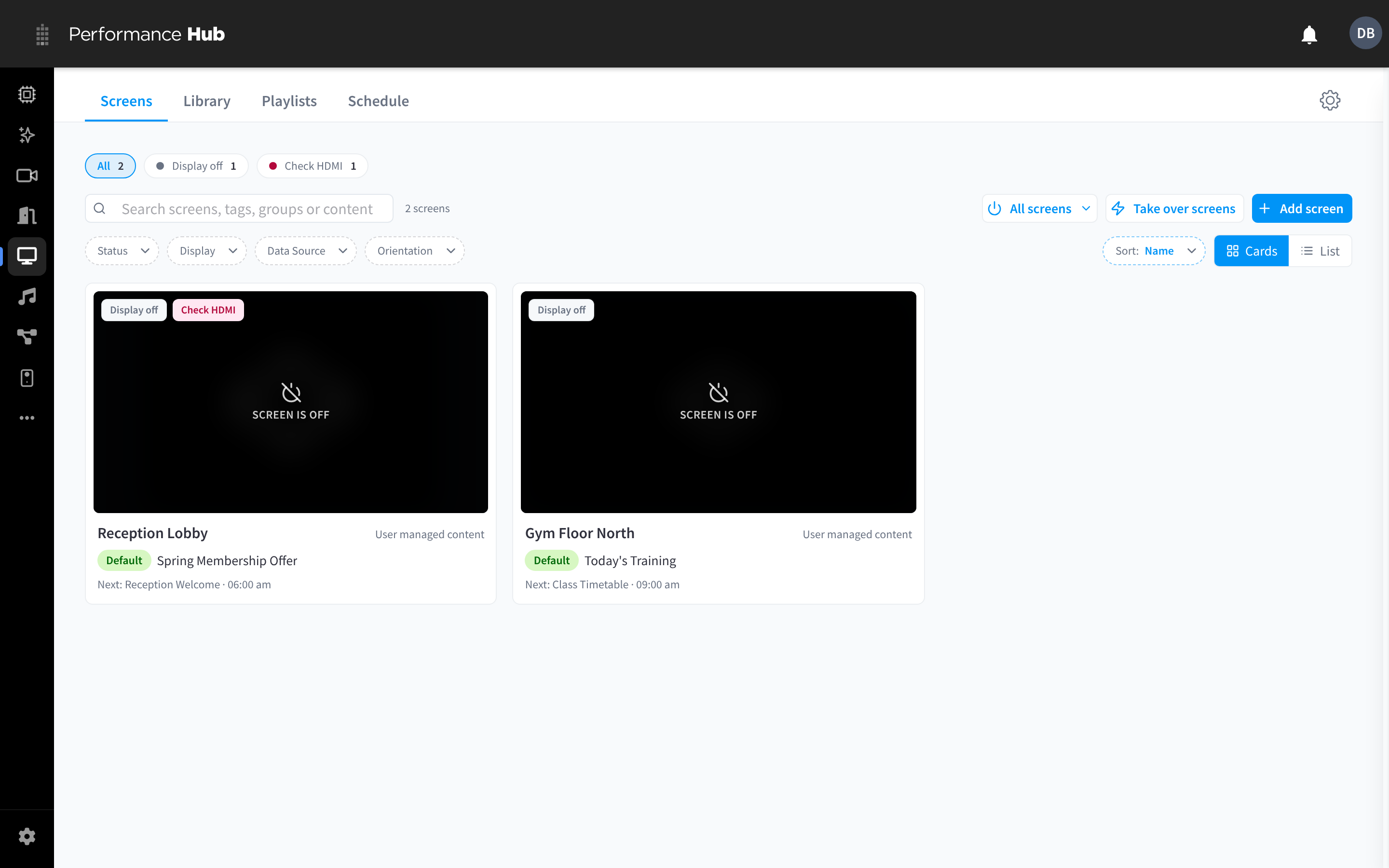
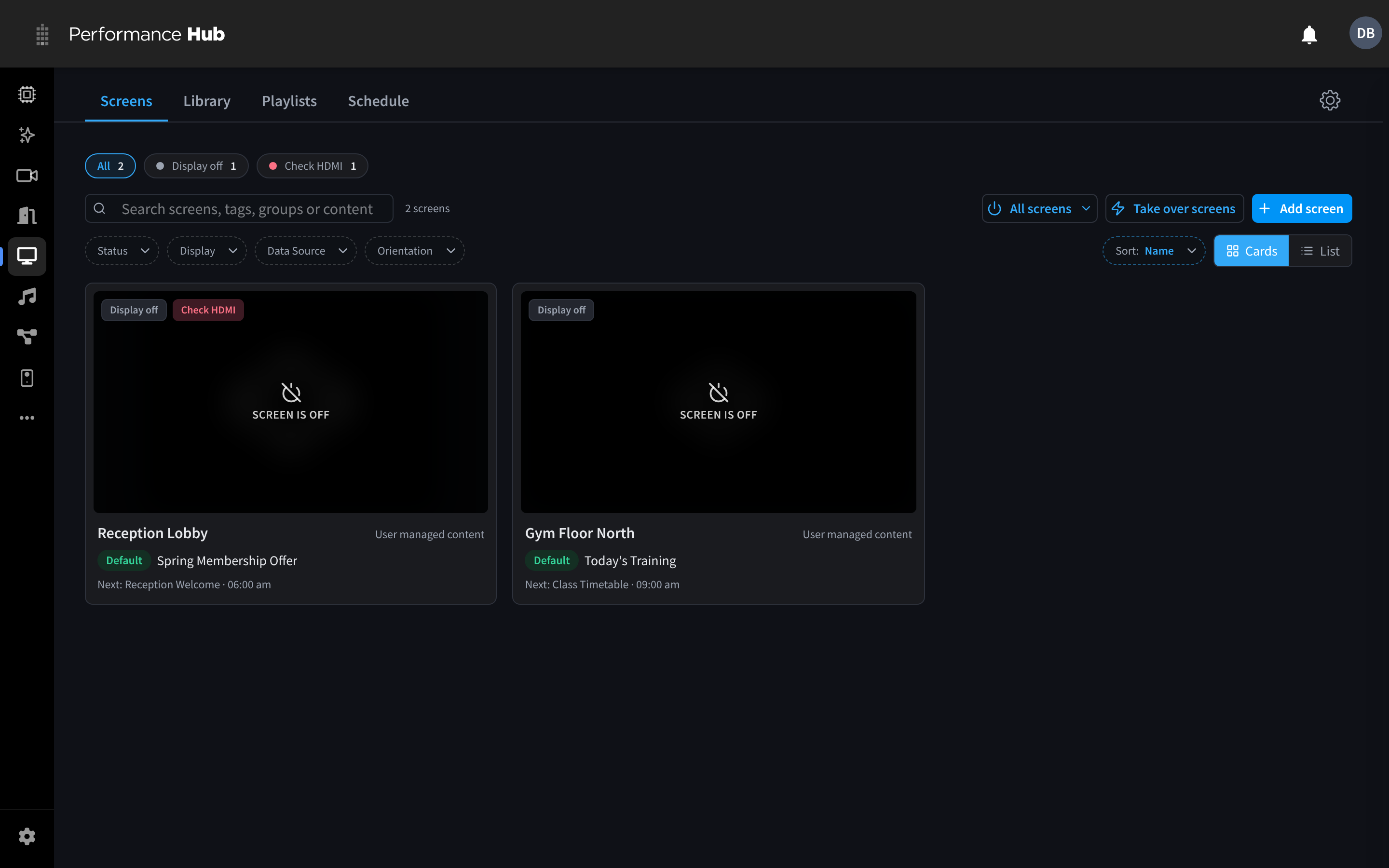
Figure 1: The Screens tab in card view, with status chips, search, filters and the facility-wide controls
Page layout
| Area | What it shows |
|---|---|
| Status chips | All plus a chip for each problem or state that applies right now, with a count, for example Display off 1 and Check HDMI 1. Click a chip to show only those screens; click All to clear it. |
| Search | Type in Search screens, tags, groups or content to find screens by name, pairing code, tag, group or the content they are playing. The count beside it (for example 2 screens) shows how many match. |
| All screens | Turn every display at the facility on or off. See Turn all screens on or off. |
| Take over screens | Interrupt what screens are showing for a set time. See Take over screens. |
| Add screen | Pair a new Display Screen Player. See Adding a screen. |
| Filters | Status, Display, Group, Tag, Data Source and Orientation. Combine them with search and the status chips. |
| Sort | Change the order of screens, for example Sort: Name. |
| Cards / List | Switch between card view and list view. |
Card view
Each card shows:
- A live preview of what's on the screen. When the display is turned off, it reads SCREEN IS OFF.
- Chips for anything that needs attention, such as Display off or Check HDMI.
- The screen name and its Data Source, for example User managed content.
- What is playing now, with its layer (Takeover, Scheduled or Default) and the name of the item or playlist.
- What plays next and when, for example Next: Class Timetable · 09:00 am.
List view
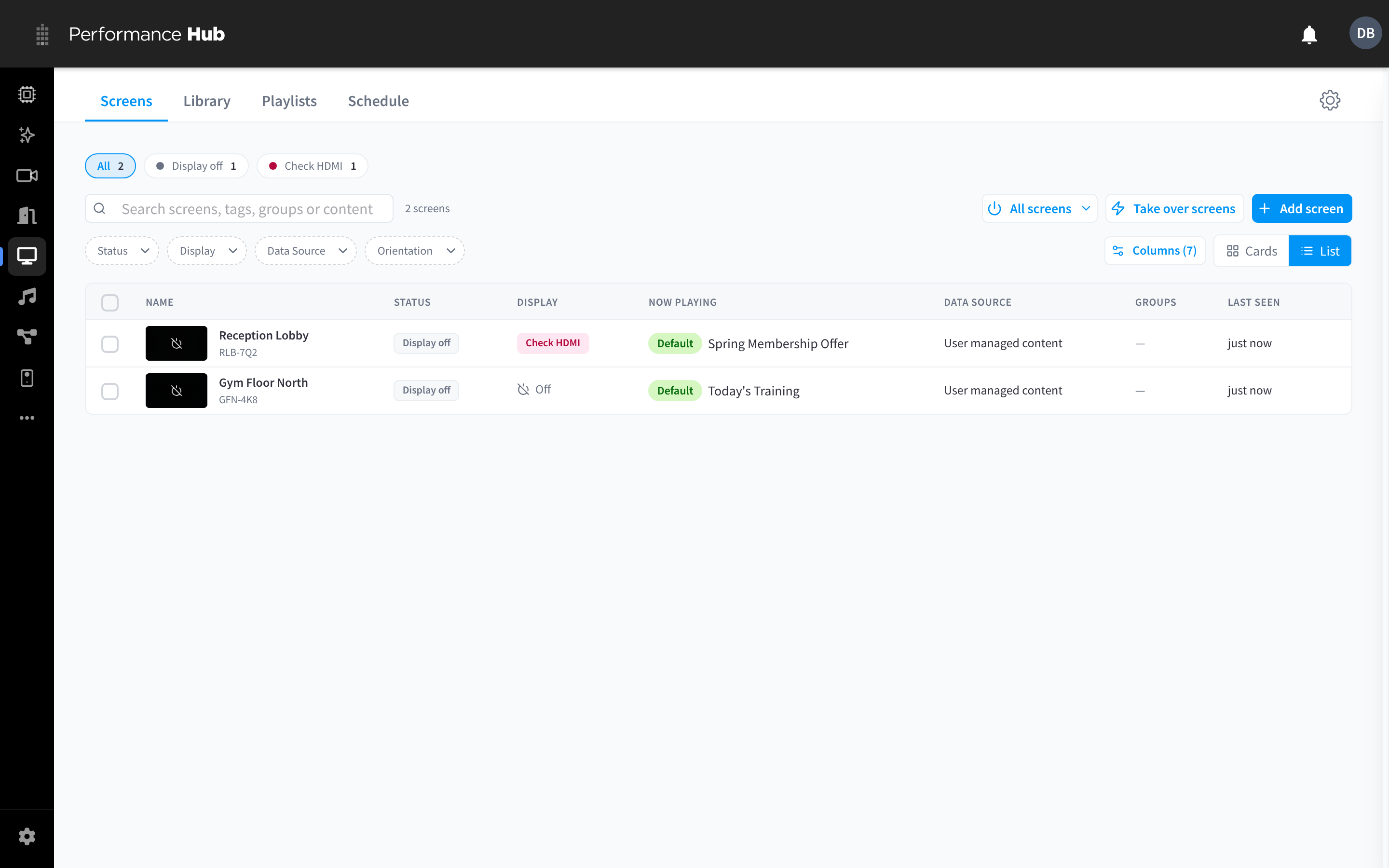
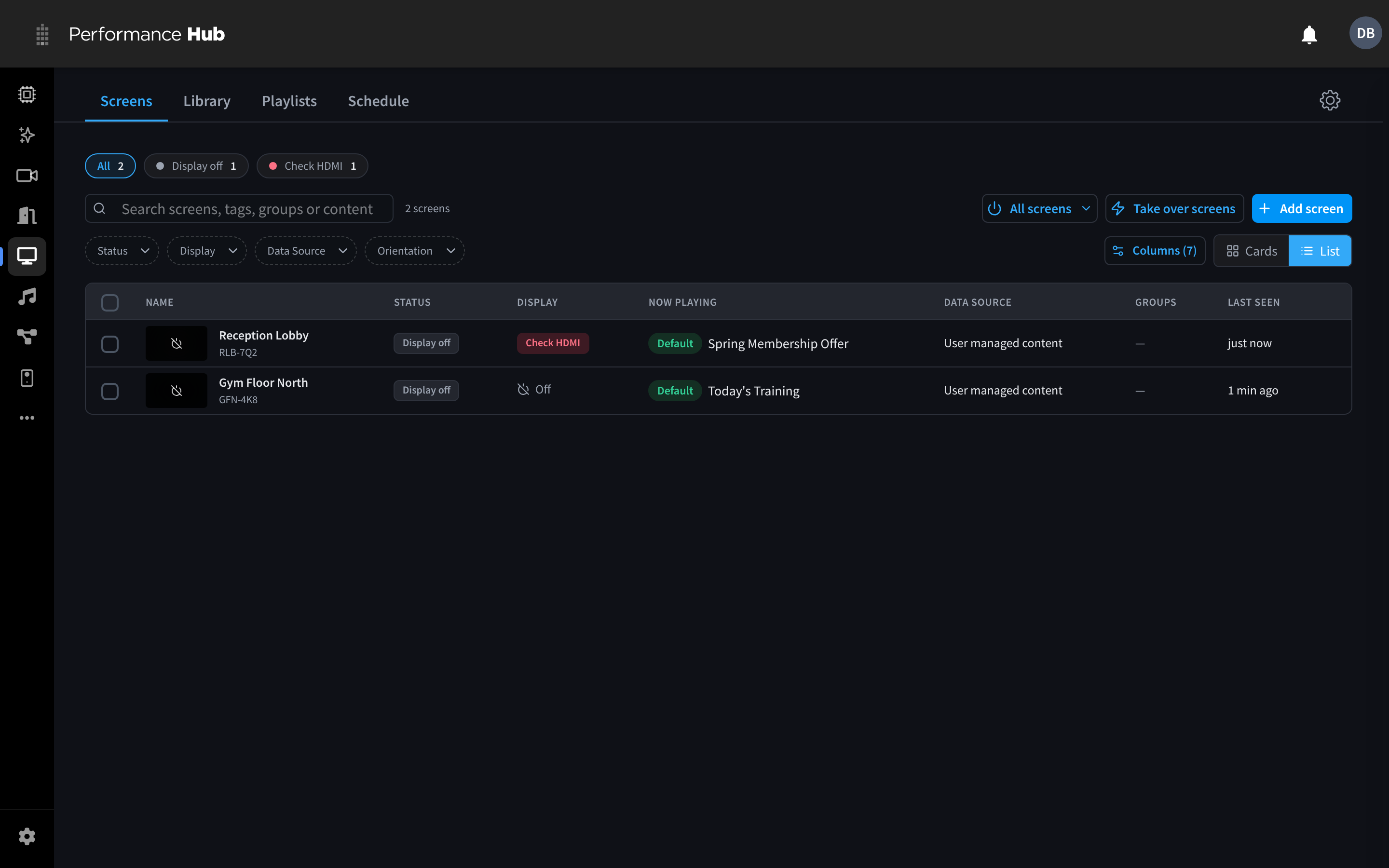
Figure 2: List view, with one row per screen and columns for status, display state and what is playing
List view is easier to scan when you have many screens. Use Columns to choose which columns to show.
| Column | What it shows |
|---|---|
| Name | The screen name, with a small live preview of what's on the screen and its 6-character screen code underneath (for example RLB-7Q2) |
| Status | The screen status. See Screen statuses. |
| Display | The state of the connected TV or monitor: Off when it has been turned off, or Check HDMI when the player can't confirm a display on its HDMI connection |
| Now playing | The layer chip and the item or playlist playing right now |
| Data Source | User managed content, Full-page website (Kiosk Mode) or Templated content. See Data Sources. |
| Groups | The groups the screen belongs to, or a dash if none |
| Last seen | When the screen last checked in, for example just now |
Act on several screens at once
Each row has a checkbox, and the header checkbox selects every row. When you tick one or more screens, a bar above the list shows how many are selected (for example 2 selected) and the actions you can take on all of them:
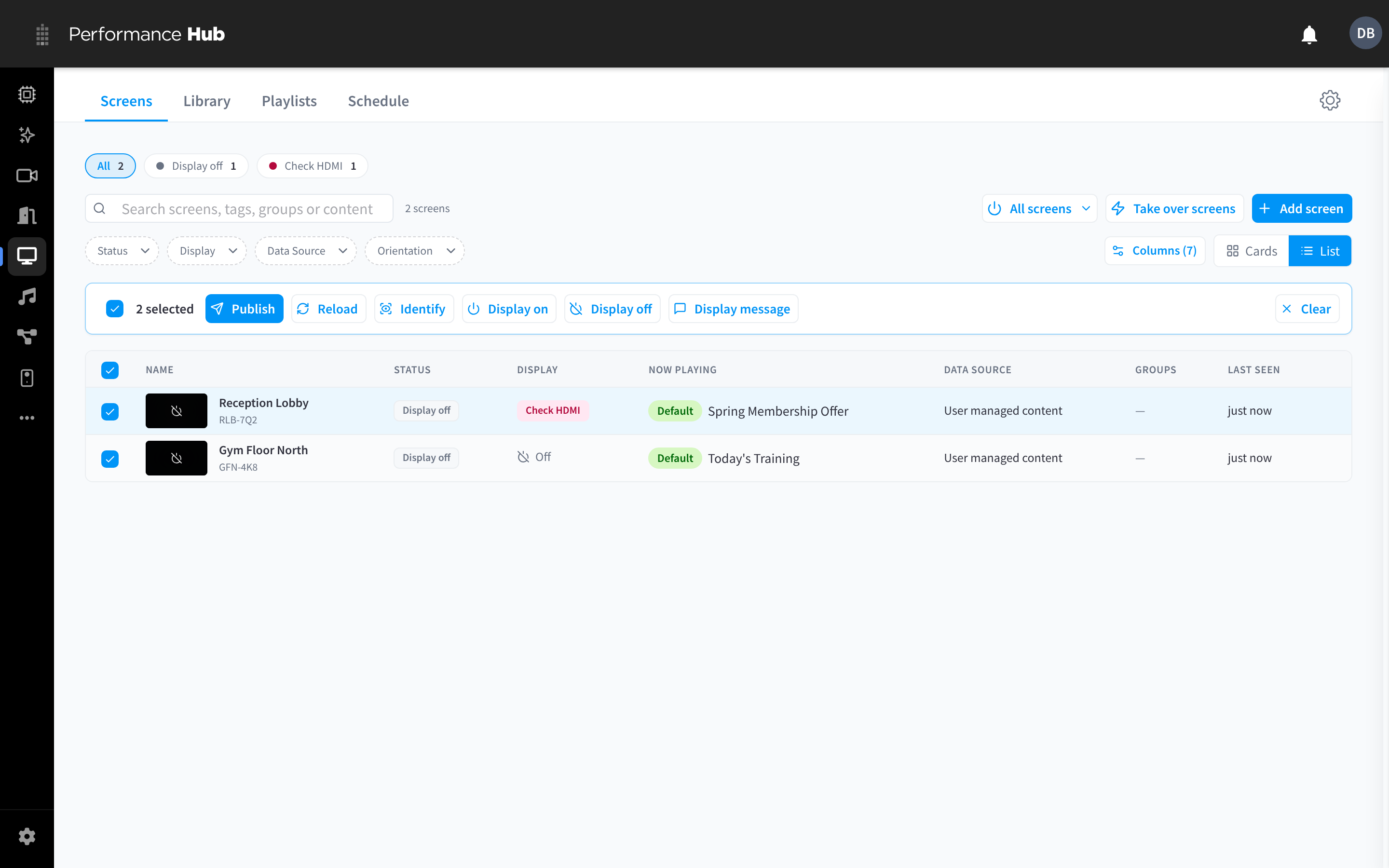
Figure 3: Select screens to act on several at once
| Action | What it does |
|---|---|
| Publish | Publish content to the selected screens. See Publishing content. |
| Reload | Makes each selected screen reload what it is playing |
| Identify | Flashes each screen's name and code on its TV |
| Display on / Display off | Turns the selected displays on or off |
| Display message | Shows a short message on the selected screens. See Display a message. |
| Clear | Clears the selection |
Screen statuses
The Status column uses these states. The Status filter lists Playing, Provisioning, Display off, Not responding and Offline.
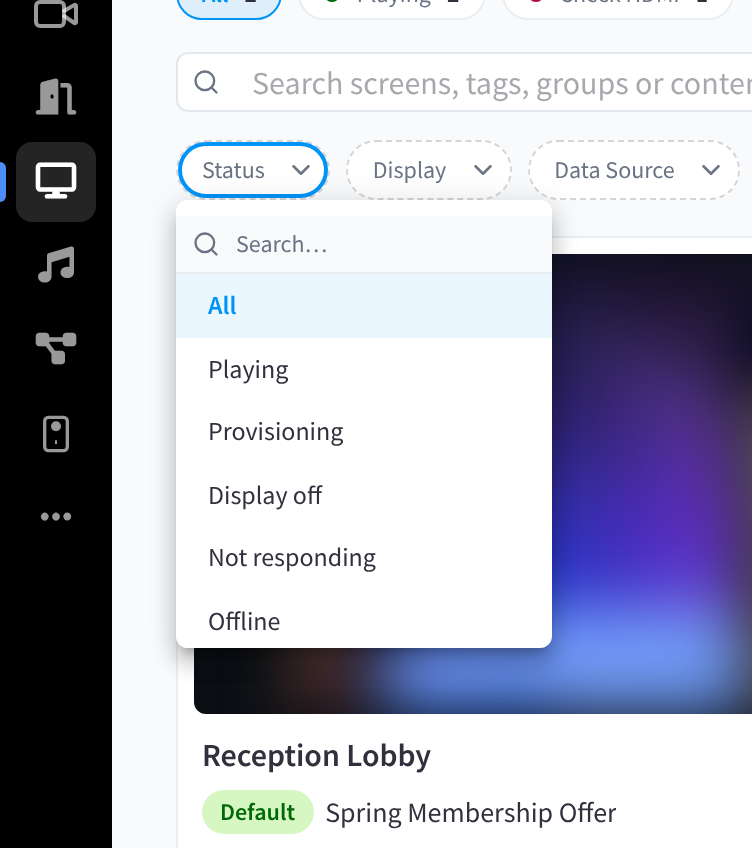
Figure 4: Filter screens by status
| Status | What it means | What to do |
|---|---|---|
| Playing | The screen is online and playing published content. | Nothing. |
| Online | The screen is online. Used for screens whose Data Source is not User managed content, which don't play published content. | Nothing. |
| Provisioning | The screen was paired recently (up to 15 minutes ago) and is still downloading its settings and content. This is normal, not a fault. | Wait a few minutes. |
| Display off | The screen is online but its display (the TV or monitor) is turned off, either by Display Automations, a workflow or someone using Display off. This is not a fault. | Use Display on if you want it on now. |
| Not responding | The screen is connected but the player isn't responding as expected. | Open the screen and try Reload content, then Restart device. See Troubleshooting. |
| Offline | The screen hasn't checked in recently. It may have lost power or network. | Check power and network at the player. See Hardware Troubleshooting. |
The Display column and the Check HDMI chip are separate from the status: a screen can be online while its display needs attention. See A screen shows Check HDMI.
The Display filter shows screens by the state of their display: Display on, Display off, Check HDMI or Unknown.
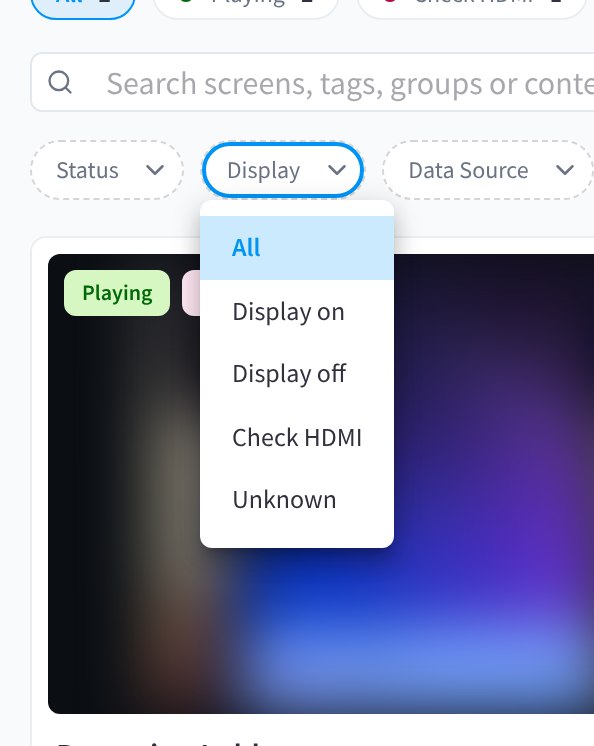
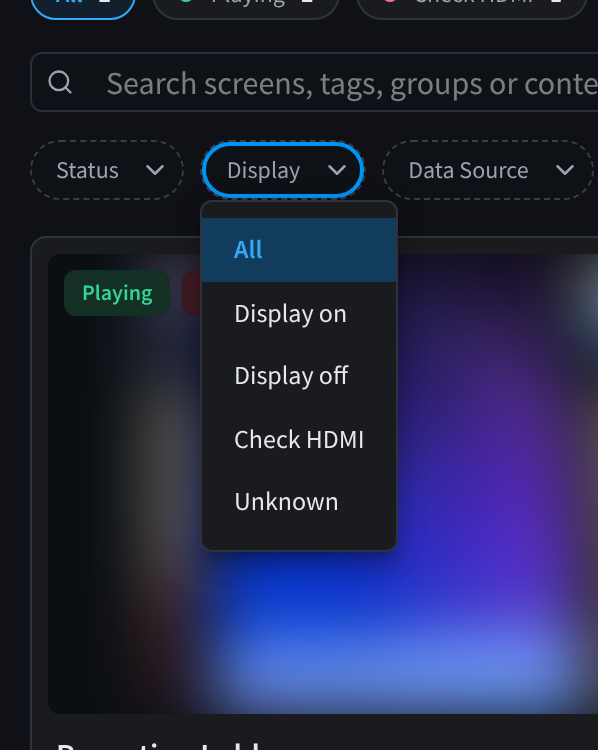
Figure 5: Filter screens by whether the display is on
Add a screen
To pair a new Display Screen Player with Add screen, see Adding a screen.
Turn all screens on or off
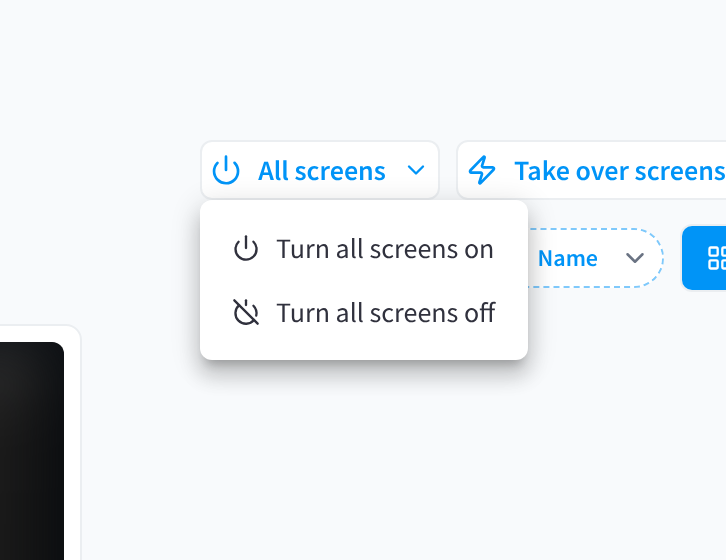
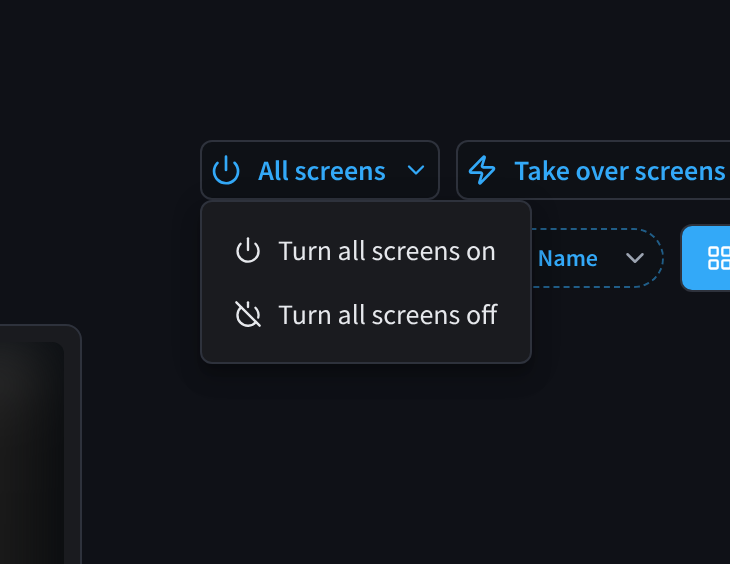
Figure 6: The All screens menu
- On the Screens tab, click All screens.
- Choose Turn all screens on or Turn all screens off.
This turns the display (the TV or monitor) on or off at every screen in the facility, including templated content screens where templated content is enabled for your location. The players stay online, so you can turn displays back on at any time. To turn a single display on or off, use Display on or Display off on the screen's Overview tab.
Displays switched manually stay that way until the next scheduled change from Display Automations, a workflow, or someone switching them again: the latest command wins.
Take over screens
A takeover interrupts everything else for a set time and then ends by itself. Use it for urgent notices, a special event, or a live camera view during an incident.
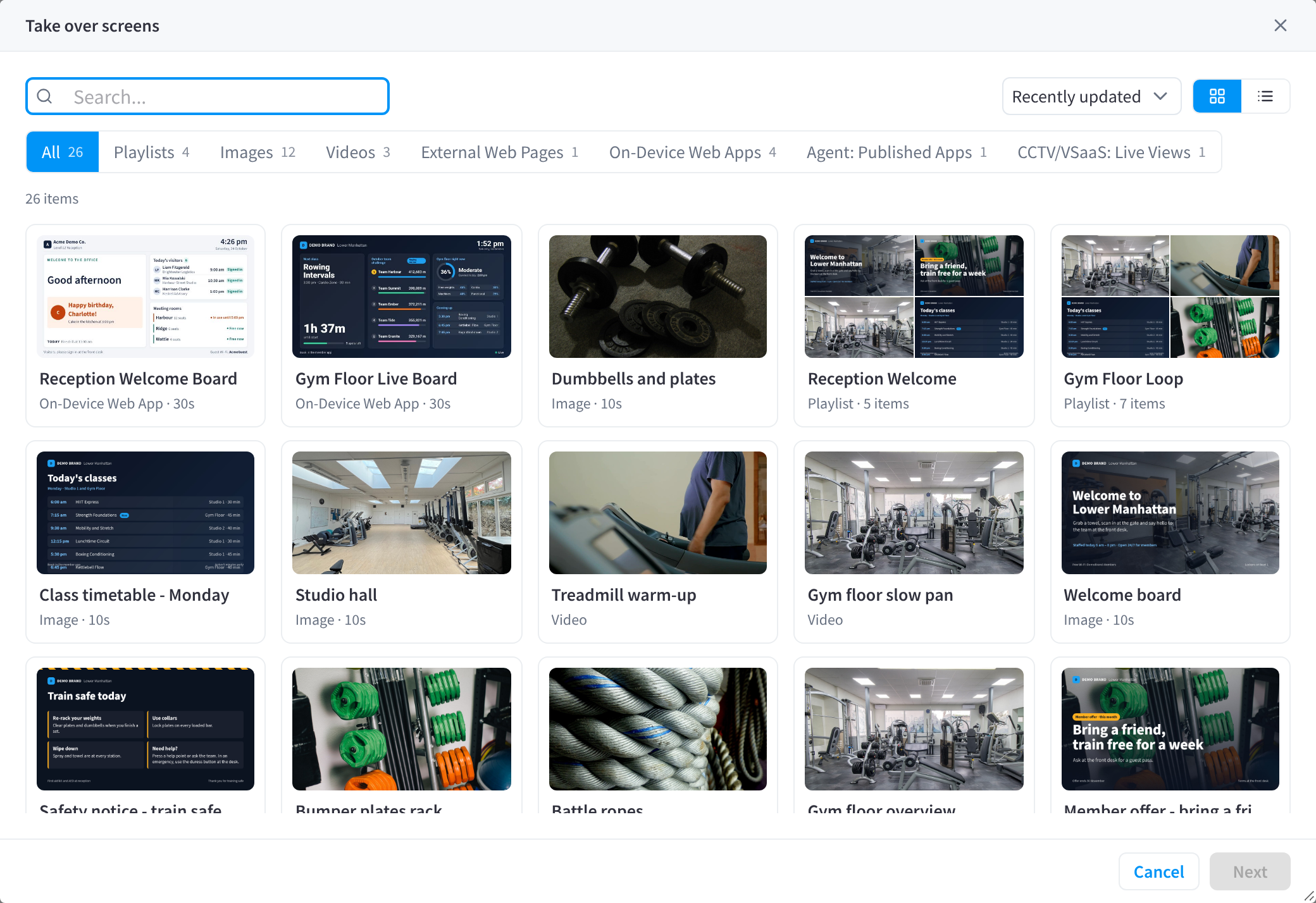
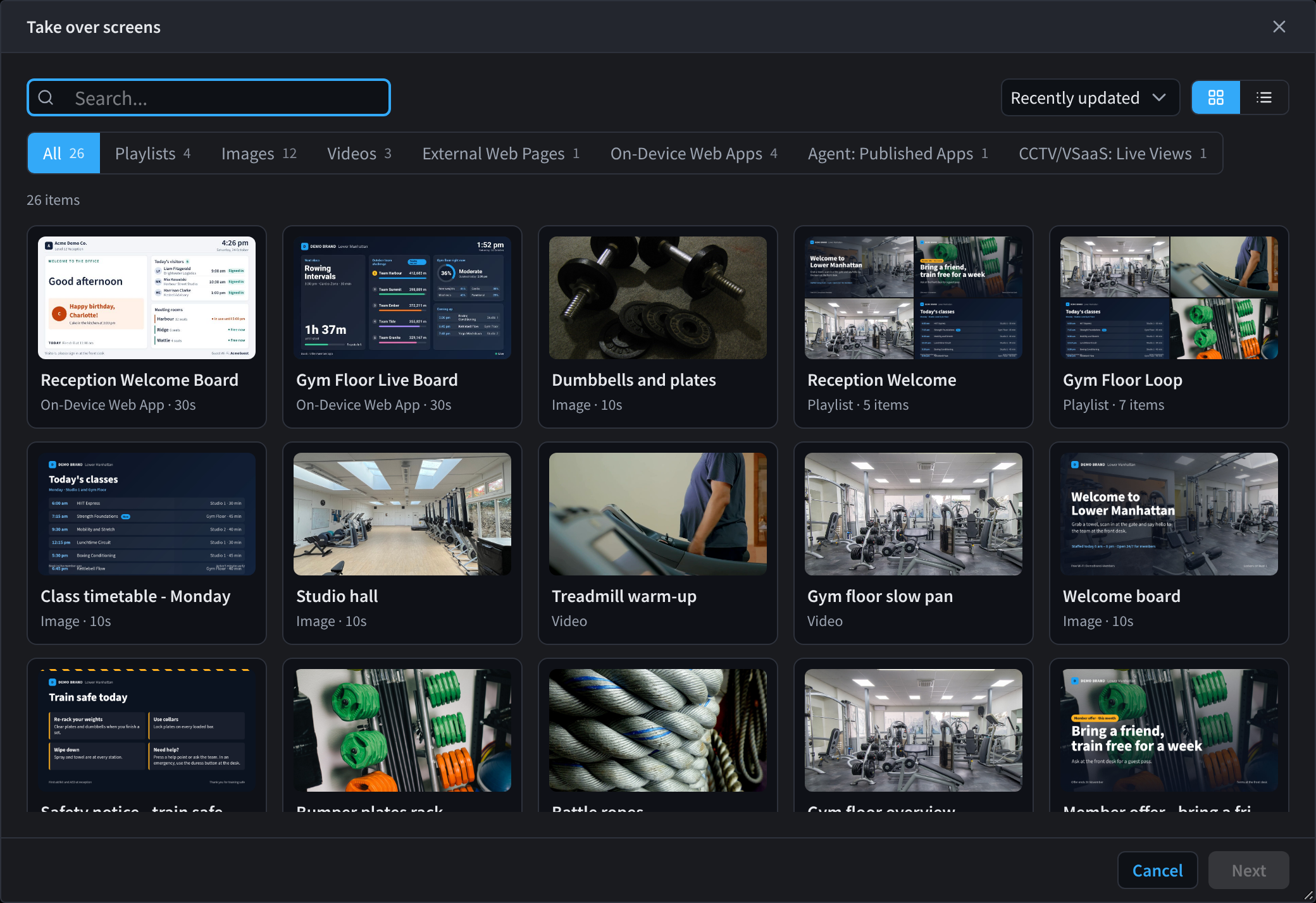
Figure 7: Choosing the content for a takeover
- On the Screens tab, click Take over screens.
- Choose what to show. Use the tabs to filter by type (All, Playlists, Images, Videos, External Web Pages, On-Device Web Apps, Agent: Published Apps and CCTV/VSaaS: Live Views), search by name, or change the sort order. Items marked LIVE are camera views.
- Click Next. To pick something else later, click Change beside the content.
- Under Screens, tick Every screen at your facility, or the individual screens to take over.
- Under When, choose how long the takeover lasts: 15 minutes, 30 minutes, 1 hour, or Until… to choose an end time. A takeover can last up to 7 days.
- Click Take over.
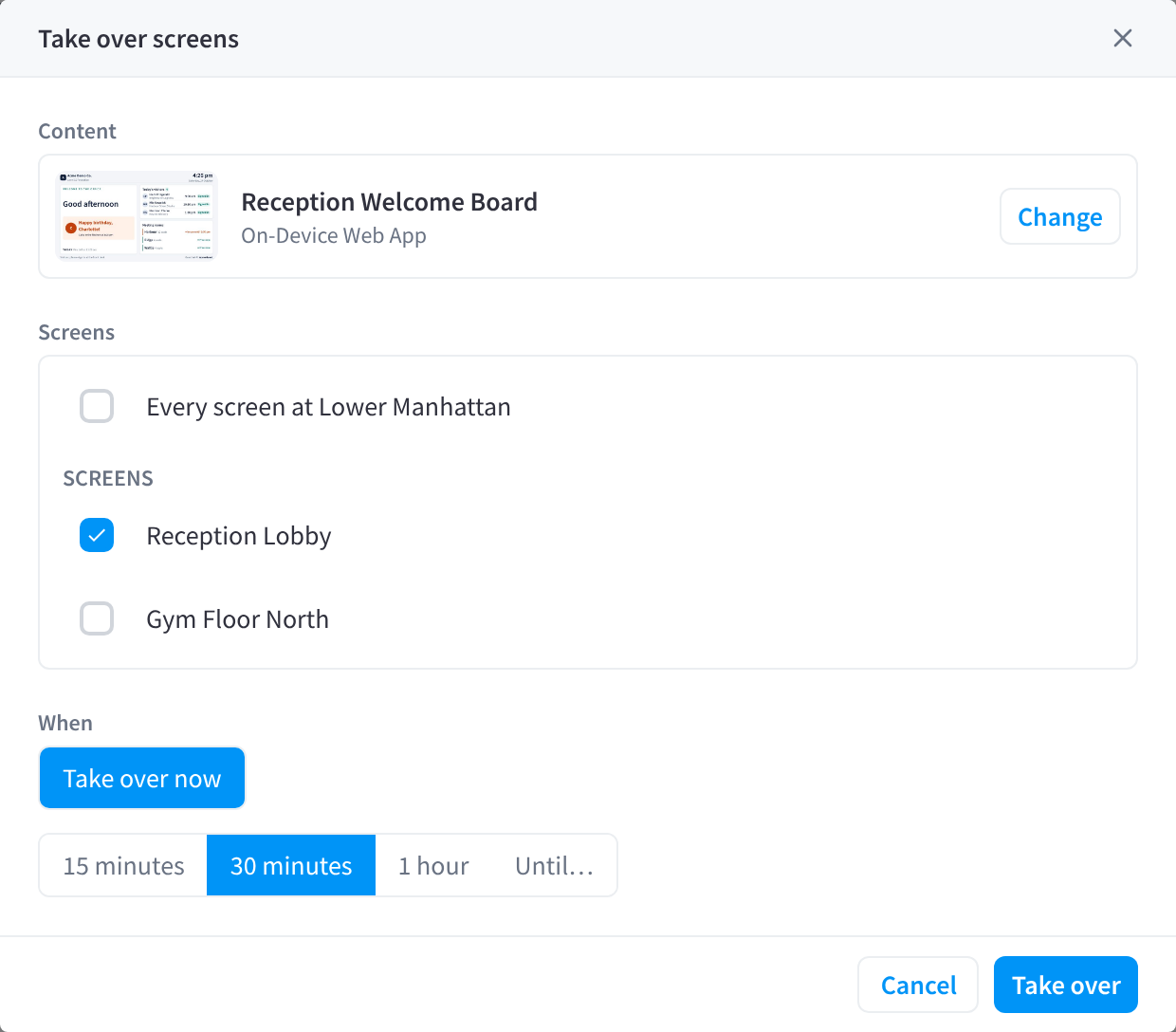
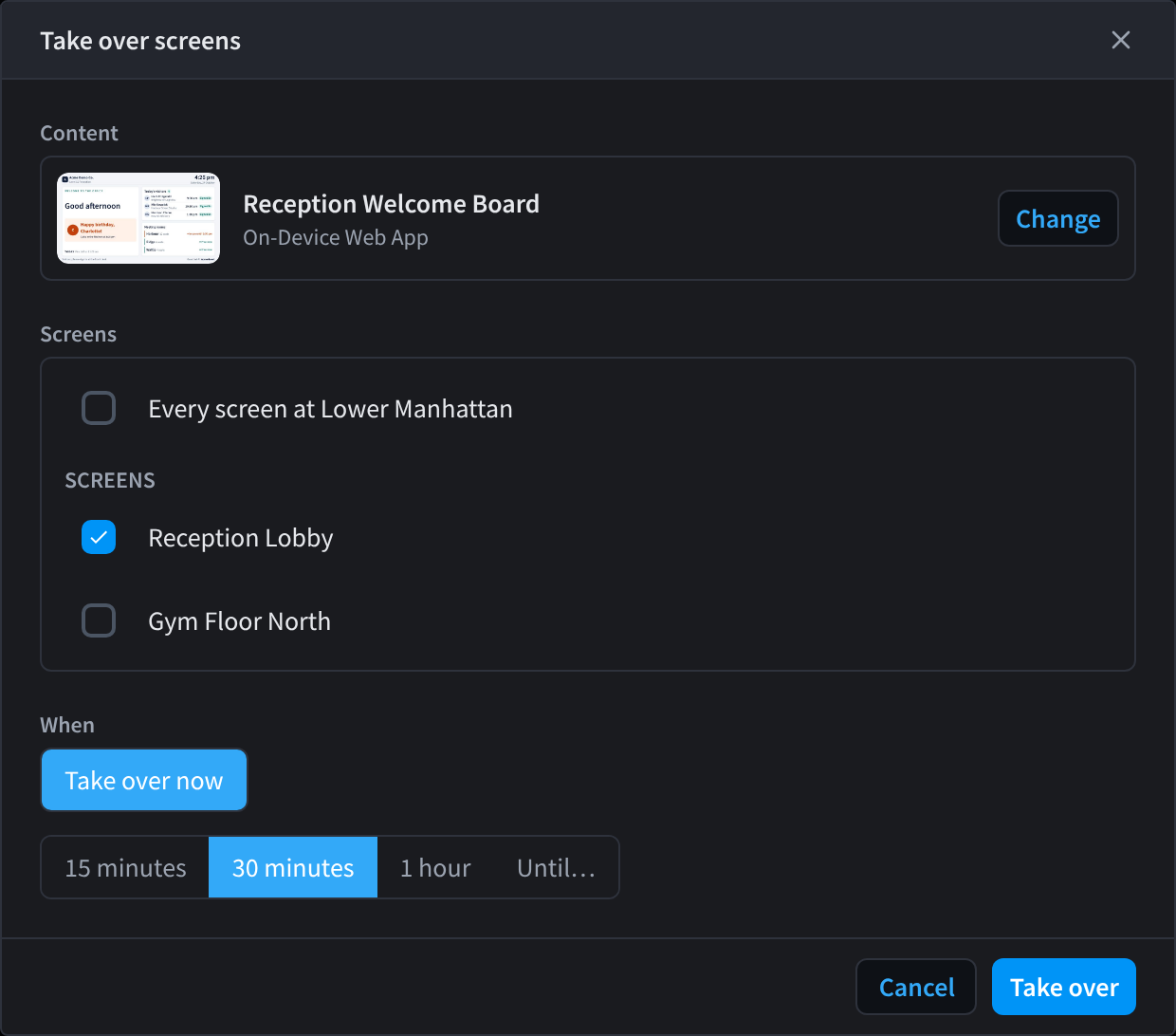
Figure 8: Choose which screens to take over and for how long
The takeover starts within seconds. It shows as Takeover on each screen's card and on the Schedule, and ends automatically when the time is up, after which screens go back to their scheduled or default content.
While a takeover is running, a banner under the header on every tab shows it. To end it early, click Stop (or Stop all) and confirm; screens go back to their scheduled or default content within seconds.
To take over a single screen from its own panel, open the screen → Content tab → Take over content. See Screen content.
Things to know:
- Only screens with the Data Source User managed content show takeovers.
- A CCTV live view takeover is visible to anyone near the screens. You need CCTV (VSaaS) access, and Allow CCTV on display screens must be on in Settings → CCTV.
- For a short text notice over the current content, Display message is quicker than a takeover.
Related pages
- Adding a screen: pair a new Display Screen Player
- Screen overview: quick actions, live metrics and device details for one screen
- Schedule: see takeovers alongside scheduled and default content
- Display Automations: turn displays on and off on a schedule
- Troubleshooting and Hardware Troubleshooting