
Updates & CCTV
Two facility-wide settings that keep screens running and control what they may show: Updates (how screens pick up changes, and a nightly restart) and CCTV (whether live camera views can be shown on screens).
Quick reference
Where to find it: Main menu → Display Screens → cog icon → Updates or CCTV
Who can access: Users with Display Screens access at the facility. The CCTV setting can only be changed by organisation admins who also have CCTV access, and is shown only at facilities with CCTV.
Purpose: Keep screens up to date, and decide whether camera views may appear on them
Updates
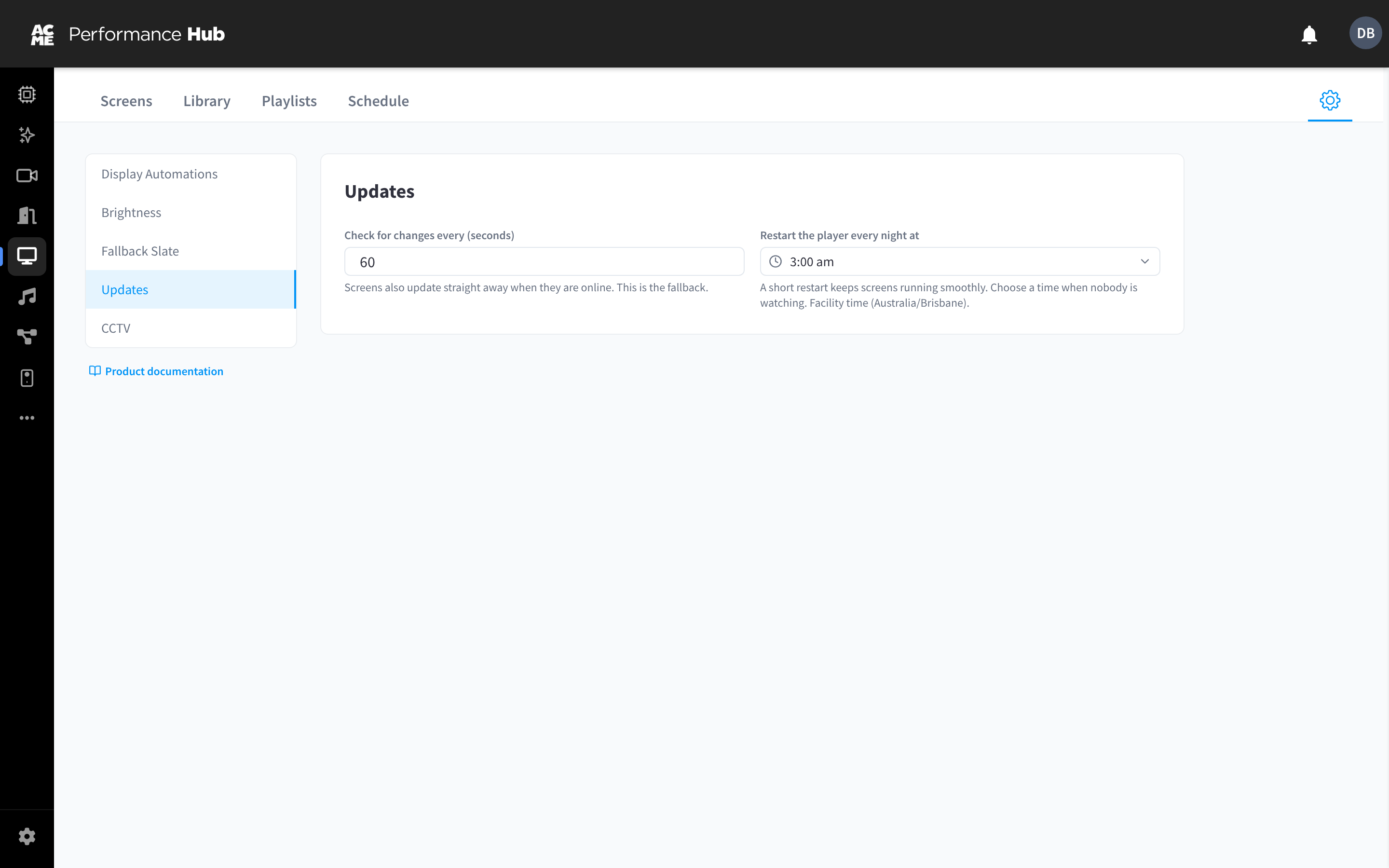
Figure 1: Update and nightly restart settings
| Setting | What it does |
|---|---|
| Check for changes every (seconds) | How often screens check for new content and settings: from 30 to 300 seconds, 60 by default. Screens also update straight away when they are online; this is the fallback. |
| Restart the player every night at | A short nightly restart of the player software, for example at 3:00 am, keeps screens running smoothly. Choose a time when nobody is watching. Times are in the facility's time zone. |
The nightly player restart is separate from a screen's Scheduled reboot setting, which restarts the whole device. See Display settings. To let one player install a waiting software update straight away, use Unlock updates on its Advanced tab.
CCTV
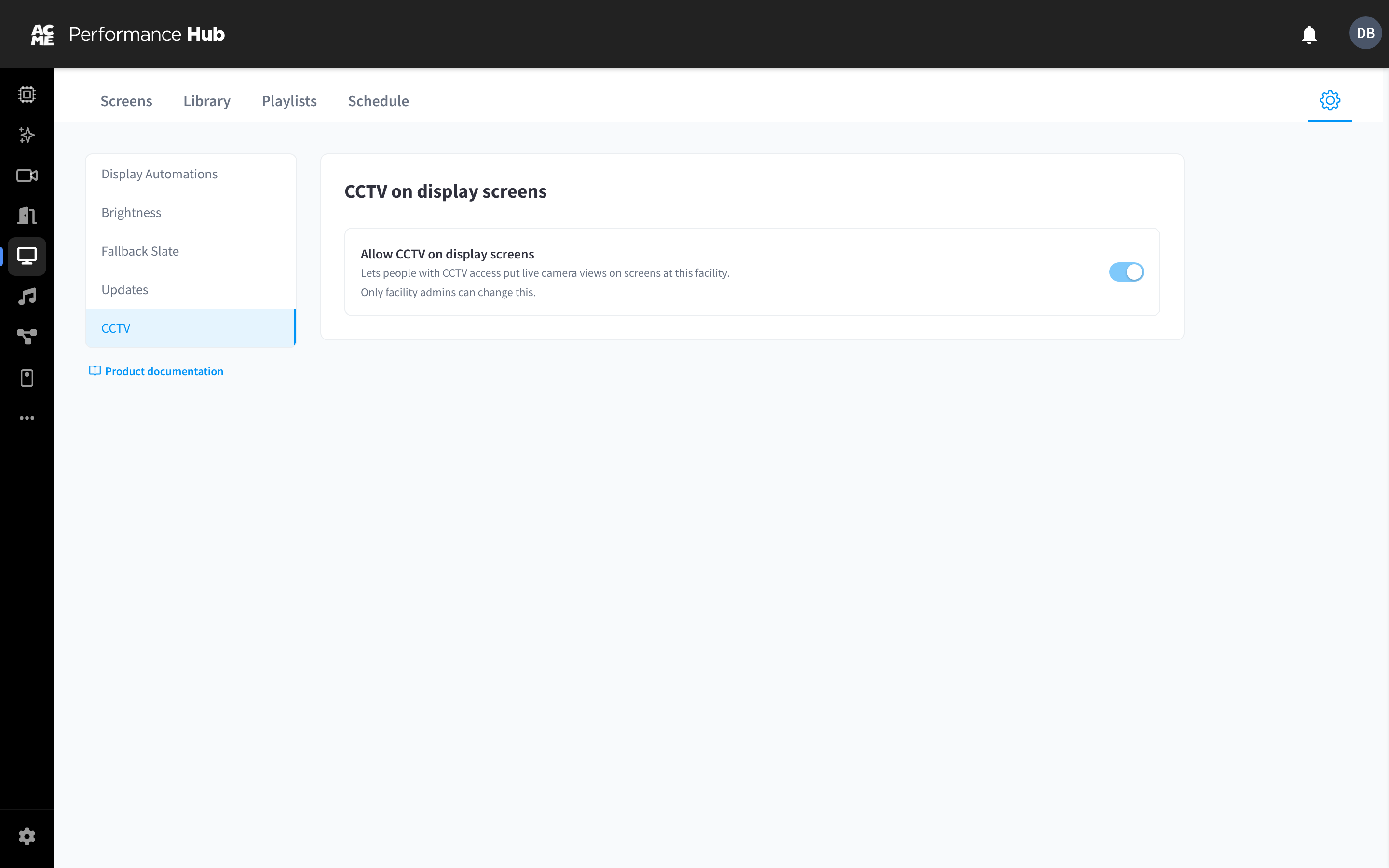
Figure 2: Allow CCTV live views on display screens
Allow CCTV on display screens lets people with CCTV access put live camera views on screens at this facility. It is off by default, and is shown only at facilities with CCTV.
The setting says "Only facility admins can change this": in practice, an organisation admin who also has CCTV access must turn it on. The switch saves straight away after you confirm.
- When it is on, people with CCTV (VSaaS) access at the facility can add CCTV/VSaaS: Live Views to the Library and publish them.
- When it is off, screens skip any CCTV live views that are published, and move on to their other content or the Fallback Slate.
Live camera feeds are visible to anyone near the screens. Only turn this on if your facility is comfortable showing camera views publicly, and consider which screens and cameras are appropriate.
Related pages
- Adding content: CCTV/VSaaS: Live Views
- Advanced & device actions: restart a player or unlock updates
- CCTV (VSaaS)