
Adding content
Everything a screen shows starts in the Library. This page covers each way to add content: images and videos, web pages, apps and live camera views. Once an item is in the Library, publish it to screens or add it to a playlist.
Quick reference
Where to find it: Display Screens → Library → Add content
Who can access: Users with Display Screens access at the facility. CCTV live views also need CCTV access at the facility.
Purpose: Bring new content into the Library, ready to publish
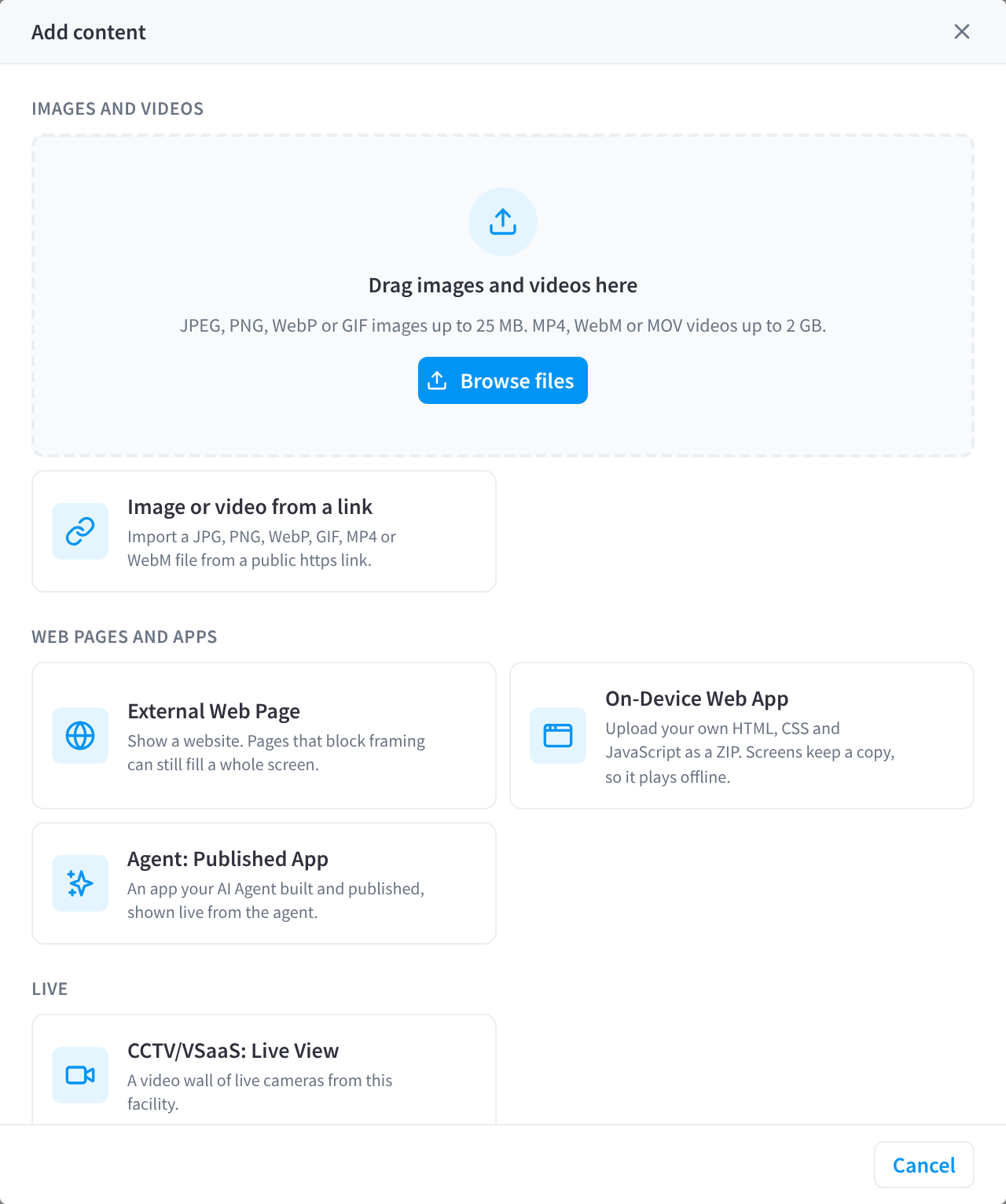
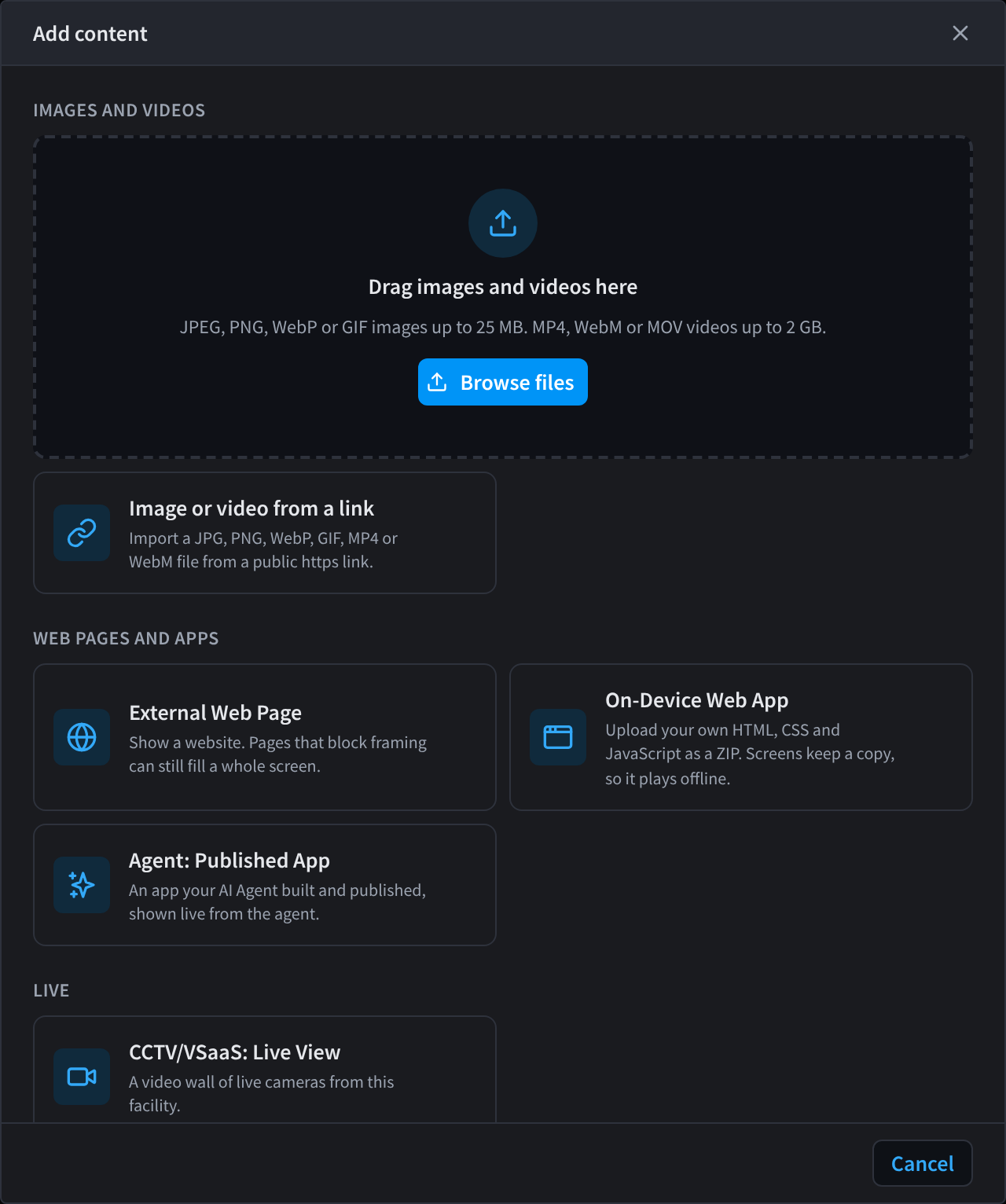
Figure 1: Add content to the Library
Click Add content on the Library tab, then choose what to add. For the formats each type accepts and what it's good for, see Content types.
Images and videos
Upload files:
- Click Add content.
- Drag images and videos onto Drag images and videos here, or click Browse files.
| Type | Formats | Maximum size |
|---|---|---|
| Images | JPEG, PNG, WebP or GIF | 25 MB each |
| Videos | MP4, WebM or MOV | 2 GB each |
Import from a link:
- Click Add content → Image or video from a link.
- Under Link, paste a public
https://link to a JPG, PNG, WebP, GIF, MP4 or WebM file. Linked images can be up to 25 MB and linked videos up to 200 MB. - Optionally, enter a Name (otherwise it is taken from the link) and Tags.
- Click Import.
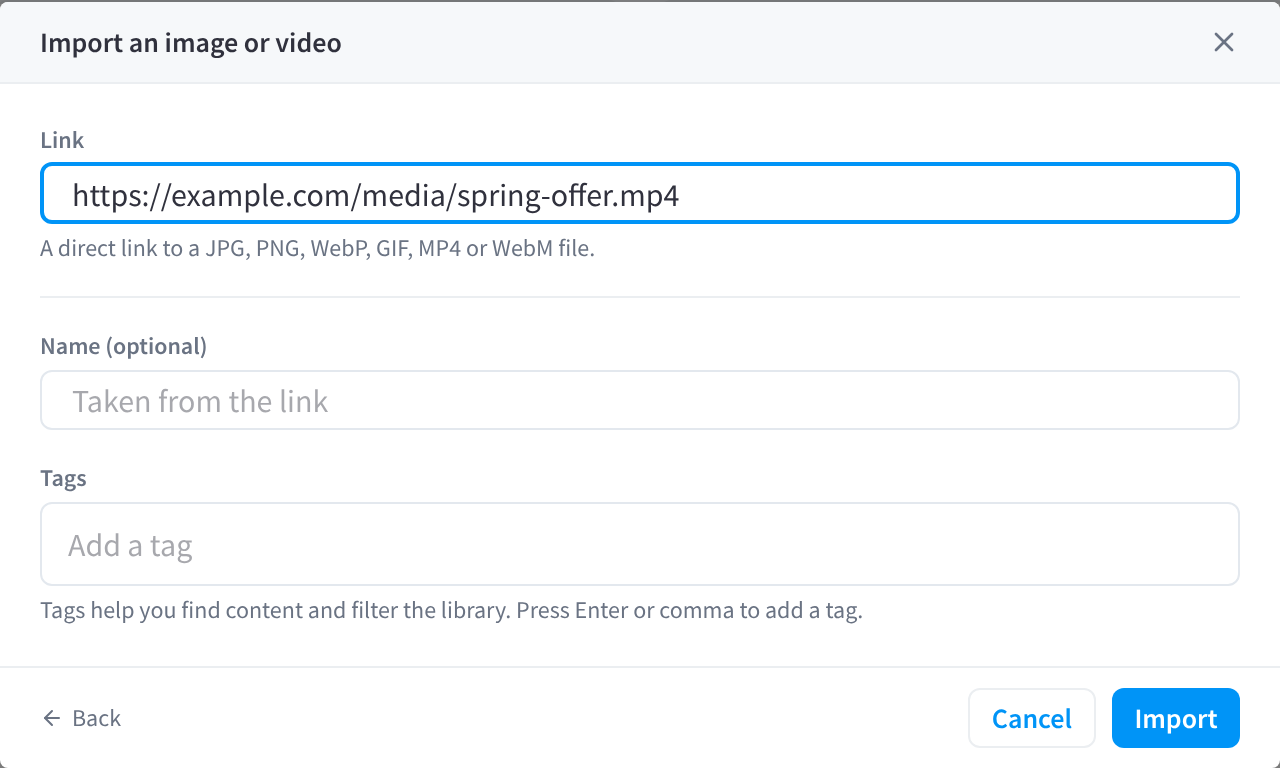
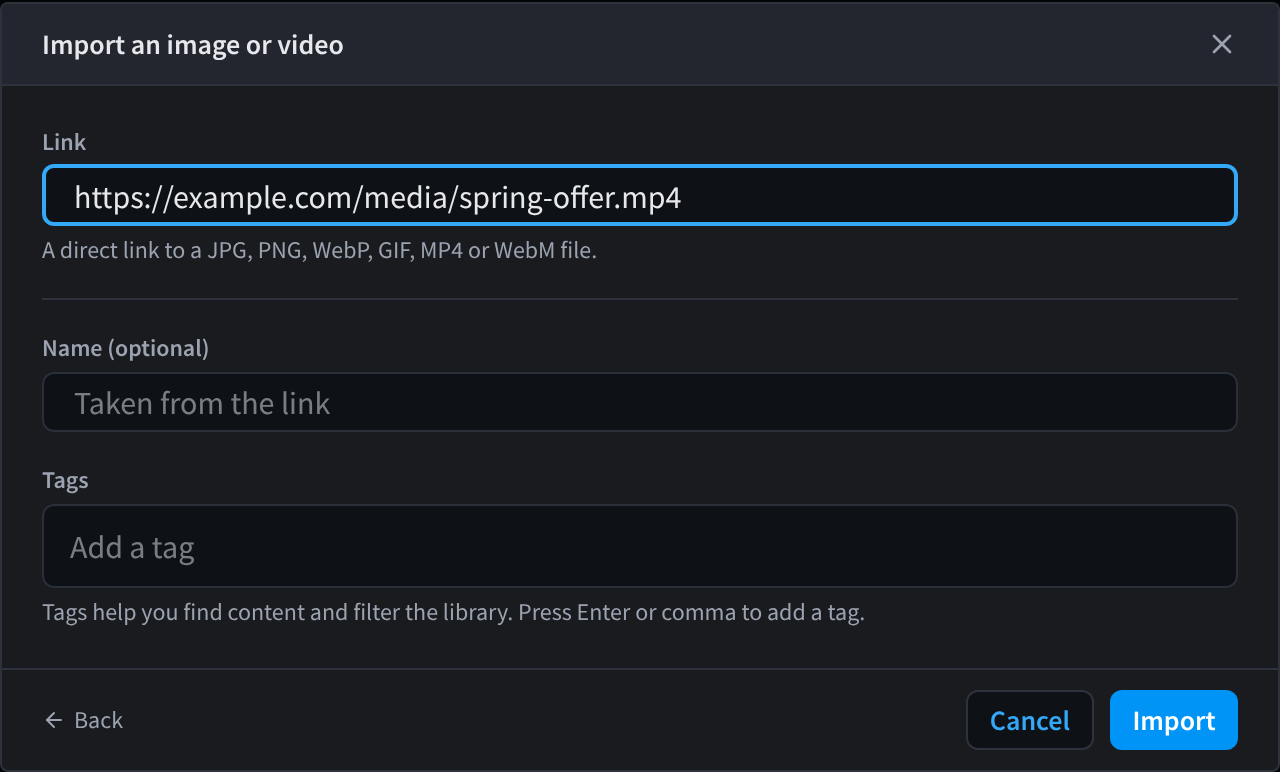
Figure 2: Import an image or video from a link
Linked files are copied into your Library, so the item keeps working if the original link changes.
New images and videos show a processing status while screen-ready versions are made: usually under a minute for images, longer for videos. You can add a processing item to playlists straight away, and it starts playing once it is ready. If processing fails, the item is marked Failed and shows the reason; fix the file and upload it again. To find items like this, click the Needs attention chip or set the Status filter to Needs attention.
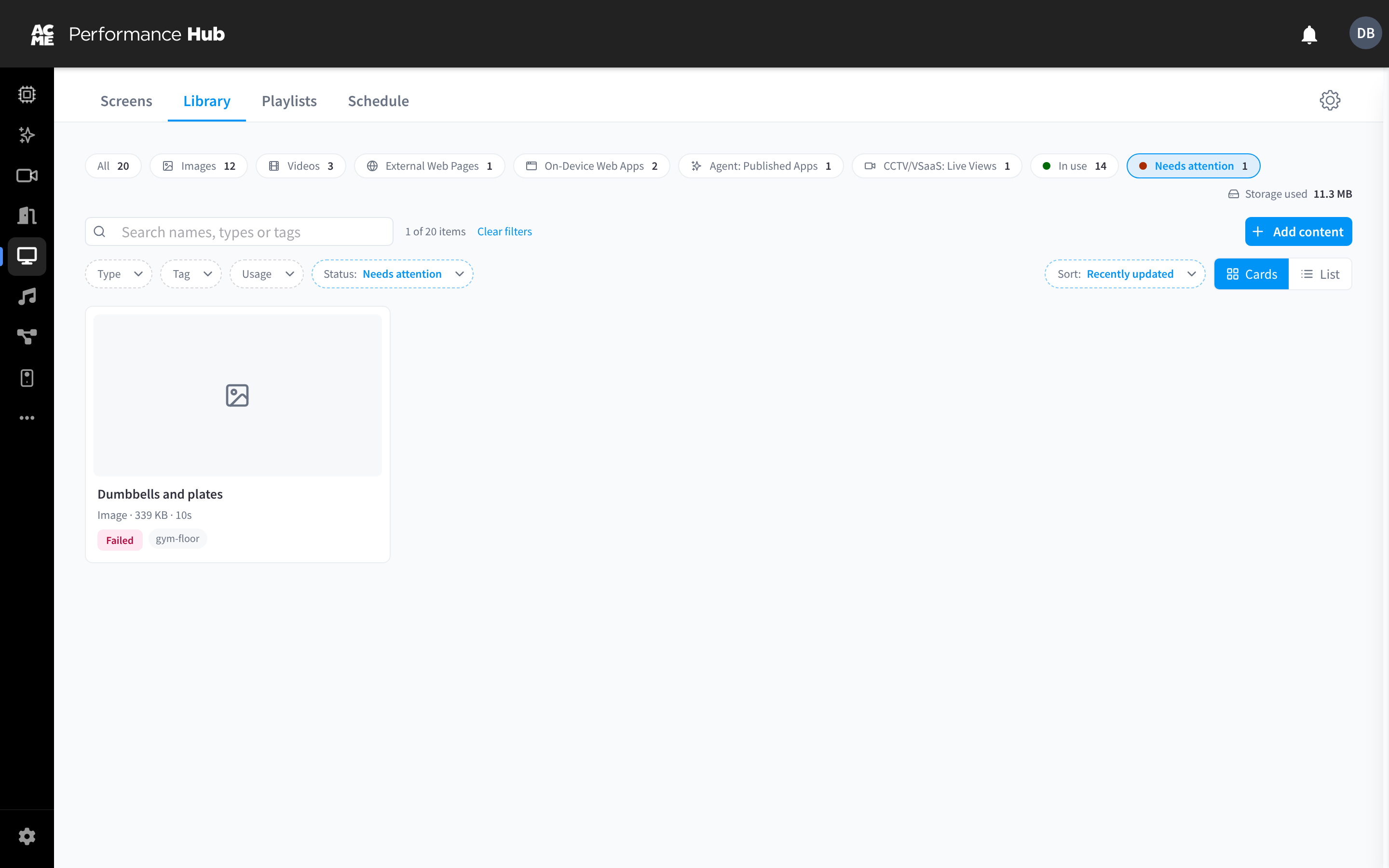
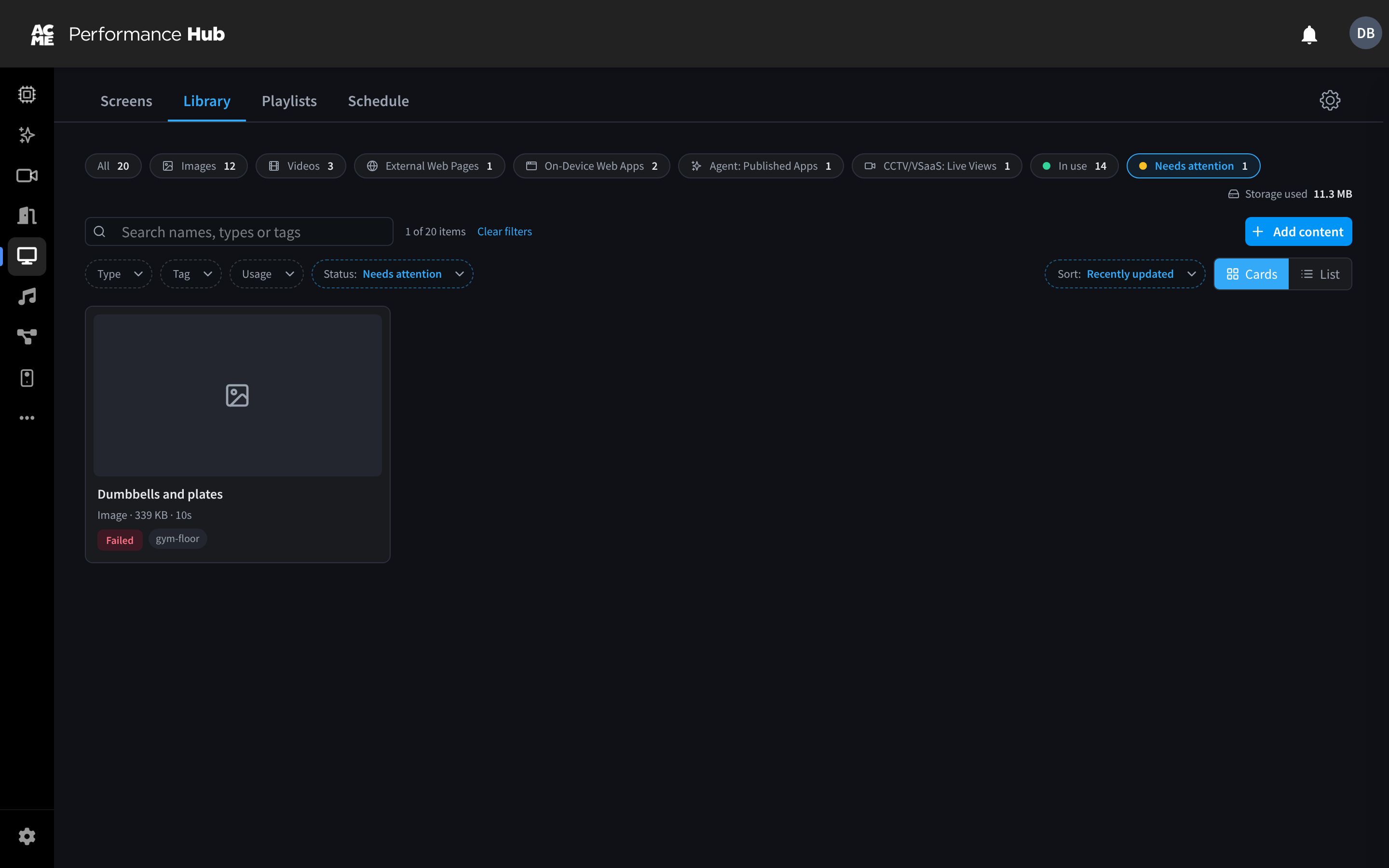
Figure 3: An item that failed to process shows Failed; filter by Needs attention to find it
External Web Pages
- Click Add content → External Web Page.
- Under Link, enter the page's
https://address, and give it a Name. - Optionally, add Tags and set Show for (seconds): how long it shows in a playlist. Leave it empty to use the playlist default.
- Click Add to library.
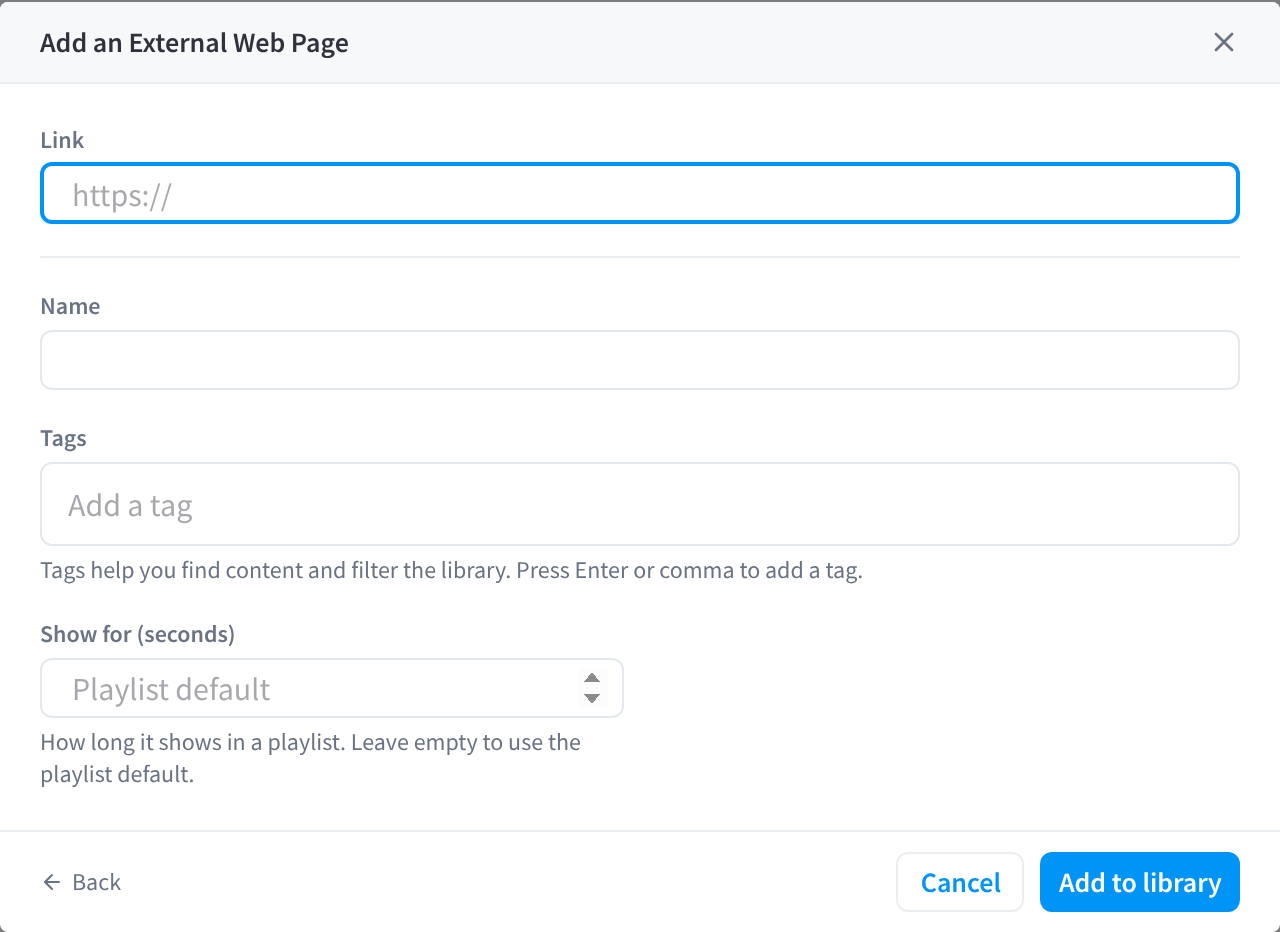
Figure 4: Add a web page
Some websites block being shown inside other pages ("framing"). Those pages can't play inside a playlist or as a Library item, but they can still fill a whole screen: set that screen's Data Source to Full-page website (Kiosk Mode) and enter the address there.
A web page is loaded live, so the screen needs internet access to show it.
On-Device Web Apps
An On-Device Web App is your own web page or app, uploaded as a ZIP of HTML, CSS and JavaScript. Screens keep a copy, so it keeps playing if the internet drops. You can also ask an AI agent to build and publish one for you; see Published apps.
- Click Add content → On-Device Web App. To start from a working example, click Download the starter template, edit the files, and open
index.htmlin a browser to try it. - Build your app with an
index.htmlstart page at the top level, plus any CSS, JavaScript, images and fonts it uses. It must fit the screen without scrolling. - Under App files, drop a ZIP, a folder or files, or use Choose ZIP, Choose folder or Choose files.
- Give the app a Name, and optionally Tags and Show for (seconds).
- Click Publish app.
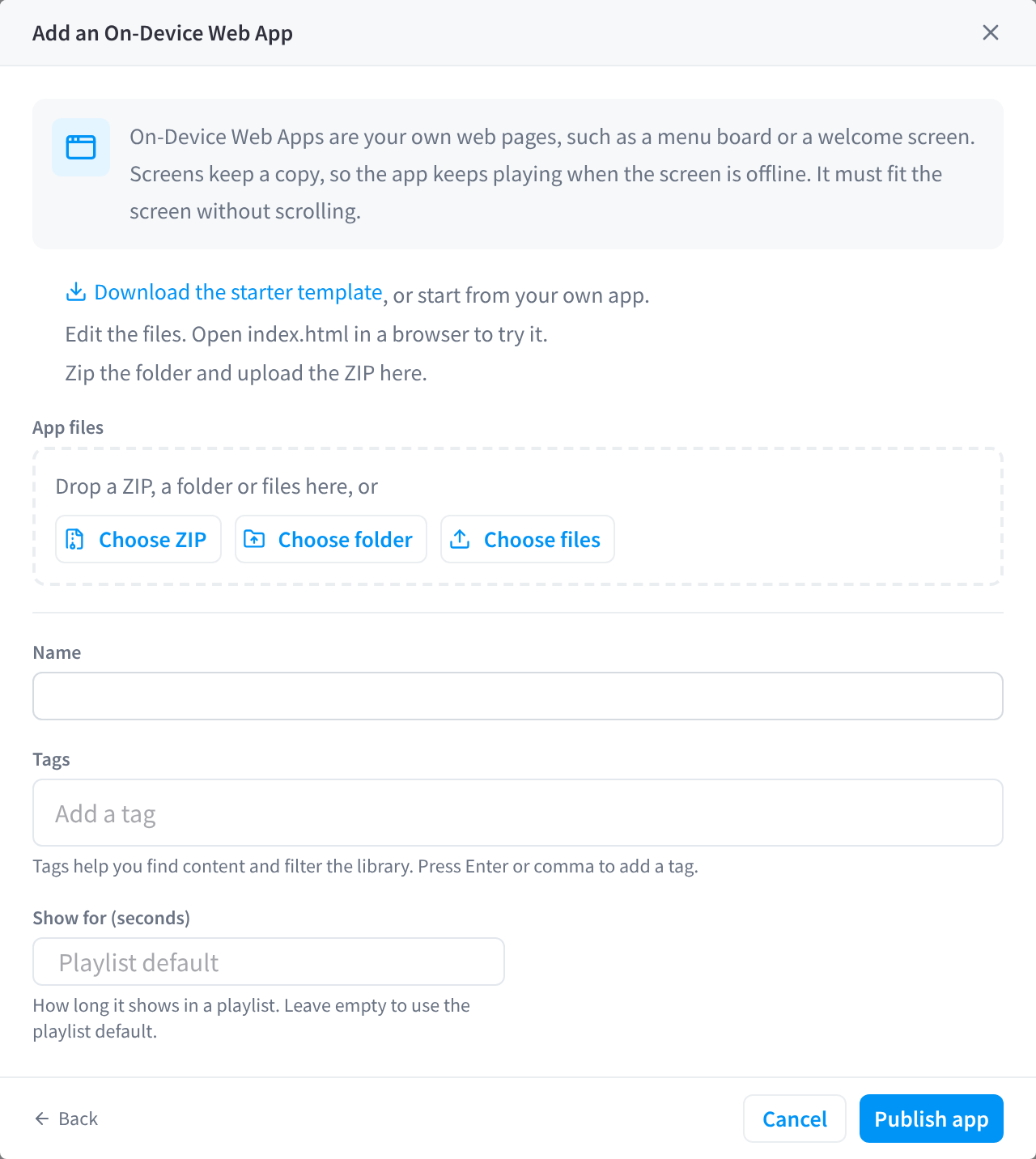
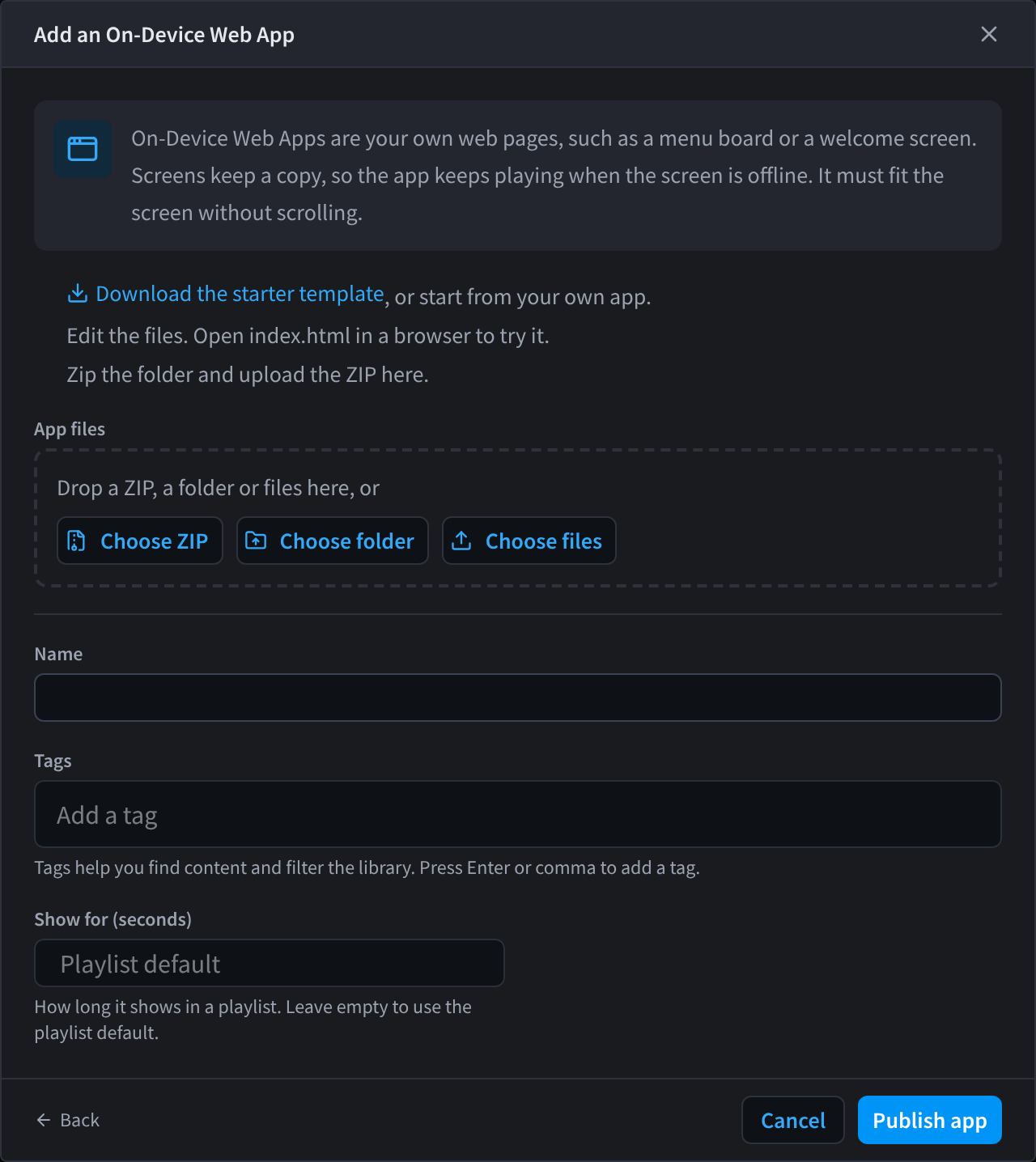
Figure 5: Upload an On-Device Web App
Keep everything the app needs inside the ZIP. Anything the app loads from the internet won't be available when the screen is offline. For size limits, versions and design guidelines, see On-Device Web Apps.
Agent: Published Apps
Apps your AI Agent builds and publishes can be shown live on screens. Once an app has been published by the agent and allowed on screens, it is listed under Agent: Published App when you add content.
- Click Add content → Agent: Published App.
- Choose the app, give it a Name, and optionally Tags and Show for (seconds).
- Click Add to library.
For publishing an app from your AI Agent, its requirements, and when screens skip it, see Agent: Published Apps.
CCTV/VSaaS: Live Views
A CCTV/VSaaS: Live View shows live cameras from this facility on a screen, as a video wall.
Before you start:
- You need CCTV (VSaaS) access.
- An organisation admin with CCTV access must turn on Allow CCTV on display screens in Settings → CCTV. It is off by default.
- Live camera feeds are visible to anyone near the screens. Think about privacy before you publish one, especially in areas where customers, guests, patients or members spend time.
To add a live view:
- Click Add content → CCTV/VSaaS: Live View.
- Choose the source:
- Choose cameras: click up to 9 cameras, in the order you want them on the wall, then choose a Layout: Automatic, One camera, Side by side, One large, two small, 2 × 2, One large, five small, 3 × 2 or 3 × 3. On screen previews the wall.
- Shared Live View: choose one of the Live Views your team already shares in CCTV/VSaaS. Views with more than 9 cameras show the first 9.
- Under Quality on screens, choose Auto (recommended), Native (the camera's own quality), or a fixed 1080p, 720p, 480p or 360p. Auto plays the camera's own quality on screens on the same network as its Edge Processor, and 720p (up to 3 cameras) or 360p (more cameras) elsewhere. Choose a lower quality if your network is slow.
- Choose whether to Show camera names, and give the live view a Name and optionally Tags.
- Click Add to library. You are asked to confirm that the cameras will be visible on screens.
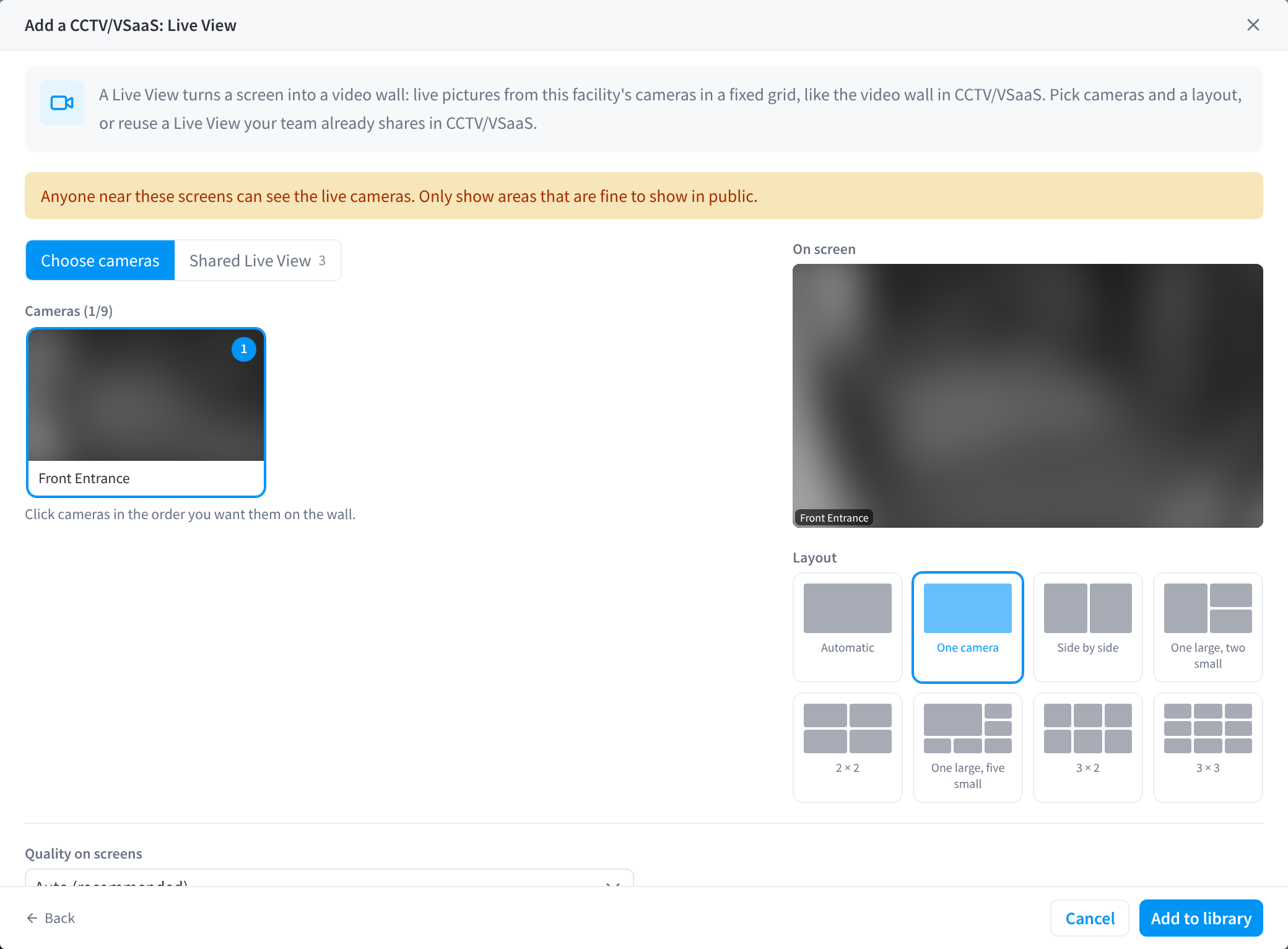
Figure 6: Add a live camera view: pick cameras and a layout
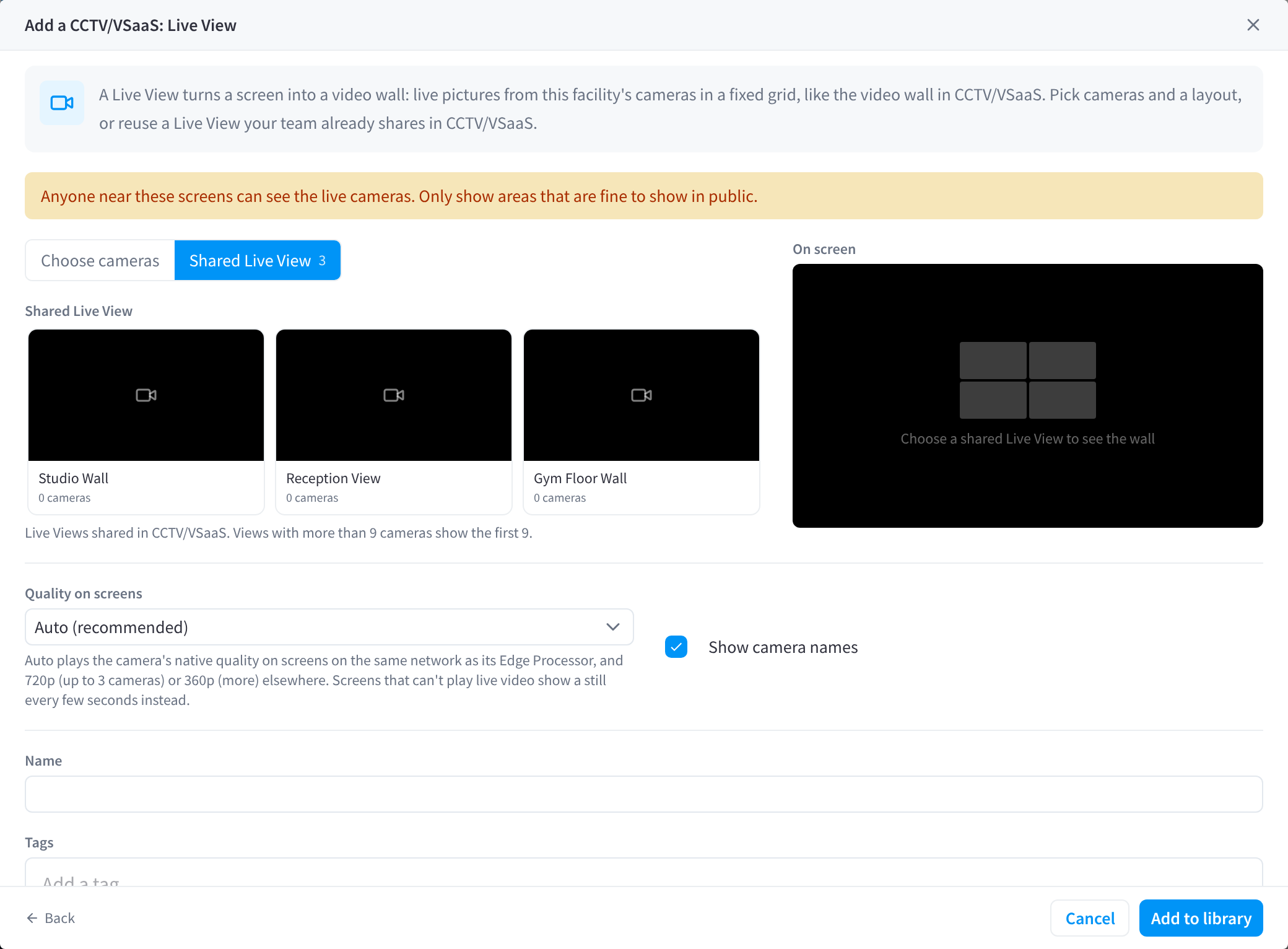
Figure 7: Or reuse a Live View shared in CCTV/VSaaS
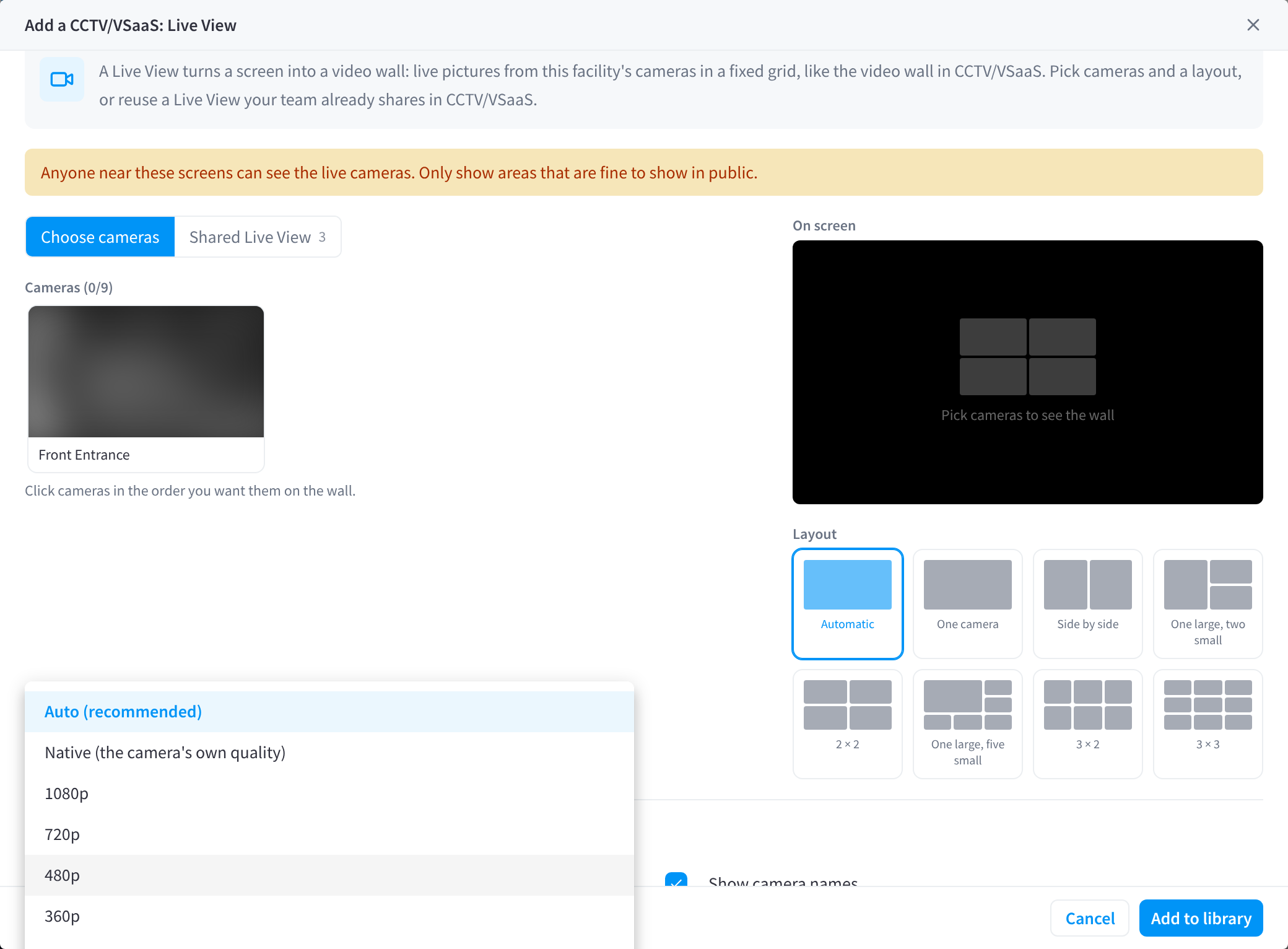
Figure 8: Choose the video quality on screens
Screens that can't play live video show a still picture every few seconds instead.
Live views can only go on screens at this facility. Screens skip a live view if the facility no longer has CCTV, if Allow CCTV on display screens has been turned off, or if none of its cameras are available; edit the live view's cameras to fix the last case.
Related pages
- Library: find, preview and edit what you've added
- Publishing content: put an item on screens
- Smart Displays and published apps: apps your AI agent builds for your screens
- CCTV (VSaaS) Live View: create shared live views