
Live View
Live View is the module's video wall: real-time streams from your cameras, arranged into saved layouts you can flip between. Streams come straight from the Edge Processor to your browser — see How it works.
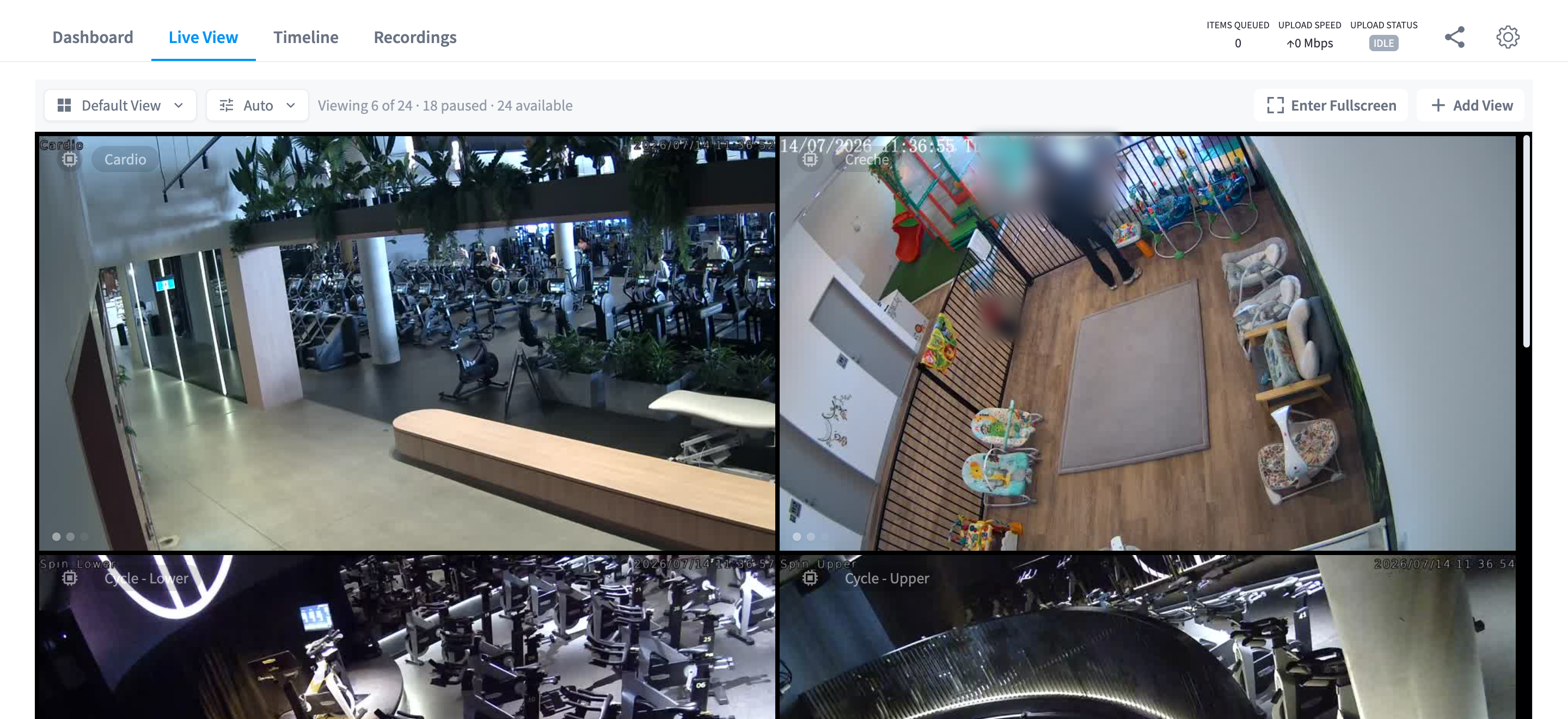
Figure 1: Live View — a multi-camera wall with the view selector, quality control, and stream summary in the toolbar
Views (video walls)
A view is a saved layout — a named arrangement of cameras. The view selector at the top-left switches between them:
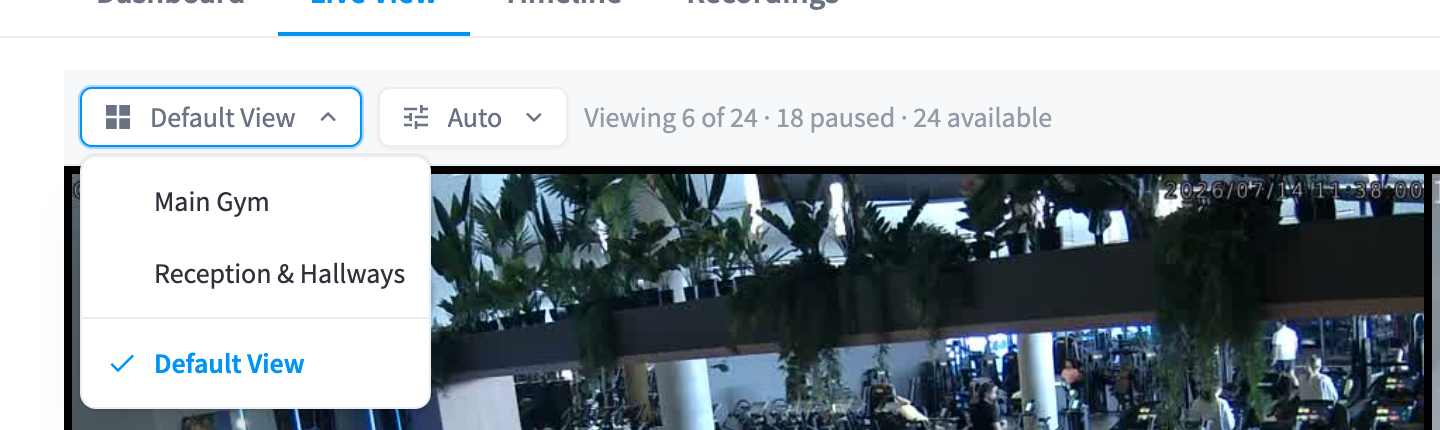
Figure 2: The view selector — switch between saved views
- Every facility starts with a Default View containing all cameras.
- Views are shared (visible to everyone at the facility) or personal (just you) — chosen when the view is created.
Creating a view
Click Add View:
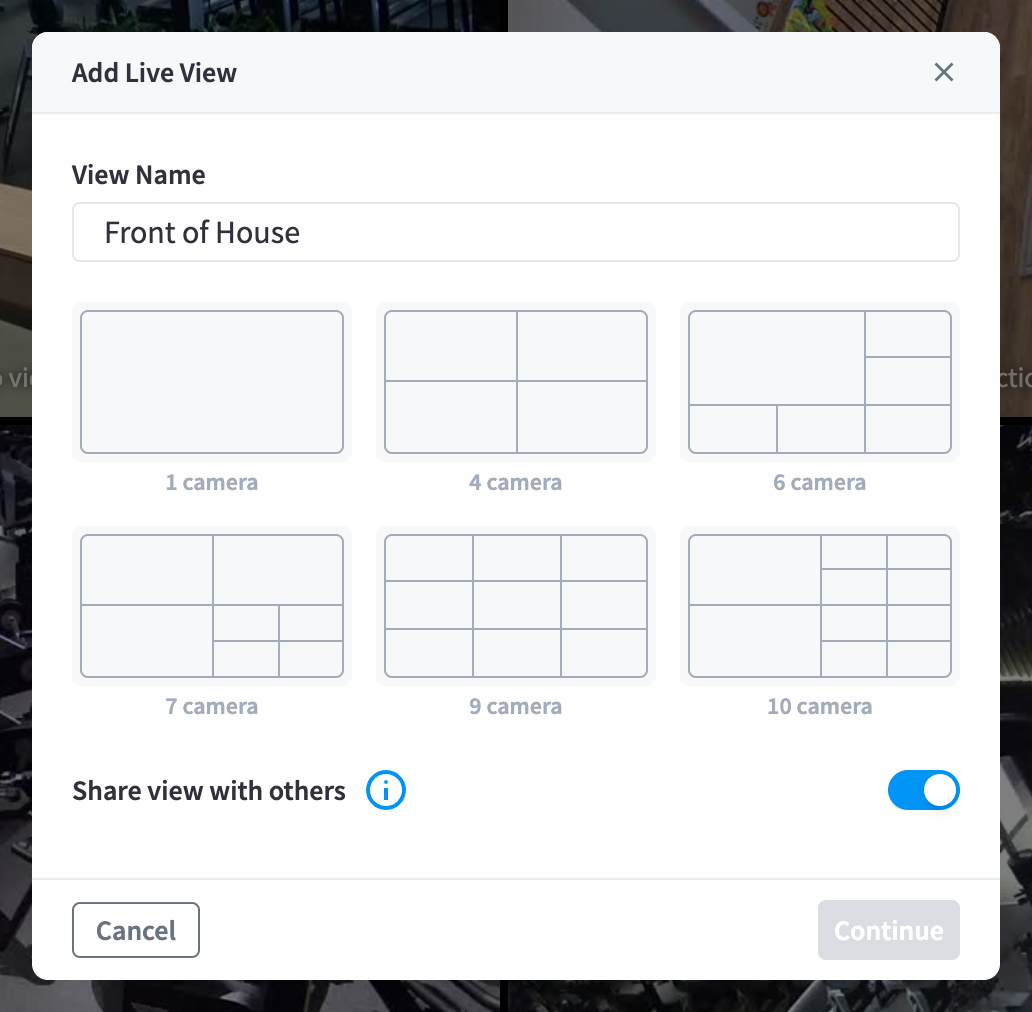
Figure 3: The Add Live View dialog — name, layout, and sharing
- Enter a View Name (e.g. Front of House).
- Pick a layout: 1, 4, 6, 7, 9, or 10 cameras. The 6, 7, and 10-camera layouts feature one large tile — put your most important camera there.
- Share view with others — on by default; when on, everyone with access to the facility sees the view. Turn it off for a personal view.
- Click Continue, then drag cameras from the camera list into the layout's tiles ("Drag and drop a camera here"). Search the list with Search Device; drag a tile's camera out to the bin ("Remove Camera") to empty it.
Edit or delete an existing view from the toolbar's Edit View / Delete View (deleting asks "Are you sure you want to delete?"). The toolbar also offers Configure View for tweaking the current wall.
Stream quality
Every stream is served at multiple quality levels, and two controls decide what you get:
- The global quality selector in the toolbar sets all cameras at once: Auto, Low, High, or Native. Auto is the default and right for almost everyone — it measures your connection and picks a level (shown as "Auto (720p)" etc.).
- Per-tile quality — each tile's Stream Quality control overrides the global setting for that camera alone.
When you pick a level your connection may not sustain, the UI warns: "Your connection may not be fast enough for this quality". If the module detects a genuinely slow path it says so plainly — "Slow Network Detected" — with your measured download speed, the facility's upload speed, and the recommended speeds for the camera count you're viewing. On severely constrained connections the module limits you to one stream at a time and explains which side (your download or the facility's upload) is the constraint.
The stream summary in the toolbar always tells you what's happening: "Viewing 6 of 24 · 18 paused · 24 available" — streams outside your current scroll position pause automatically to save bandwidth.
Fullscreen
- Enter Fullscreen in the toolbar takes the whole wall fullscreen — the wall-mounted-monitor mode.
- Each tile also has its own Full Screen control for a single camera.
Inactivity and the "continue watching" prompt
Live streaming consumes facility upload bandwidth, so an idle wall left open eventually asks whether anyone is still there: "Still watching?" — "Your livestream will pause due to inactivity. Choose an option to continue." You can choose Yes, Continue Watching, Ask Again in 1 Hour, Ask Again in 3 Hours, or Never ask again. Without an answer, streams pause after a 30-second countdown ("Pausing in {n} seconds"), showing "Livestream is currently paused due to inactivity." with a Resume Livestream button.
When the prompts appear is configurable in Settings → Live View:
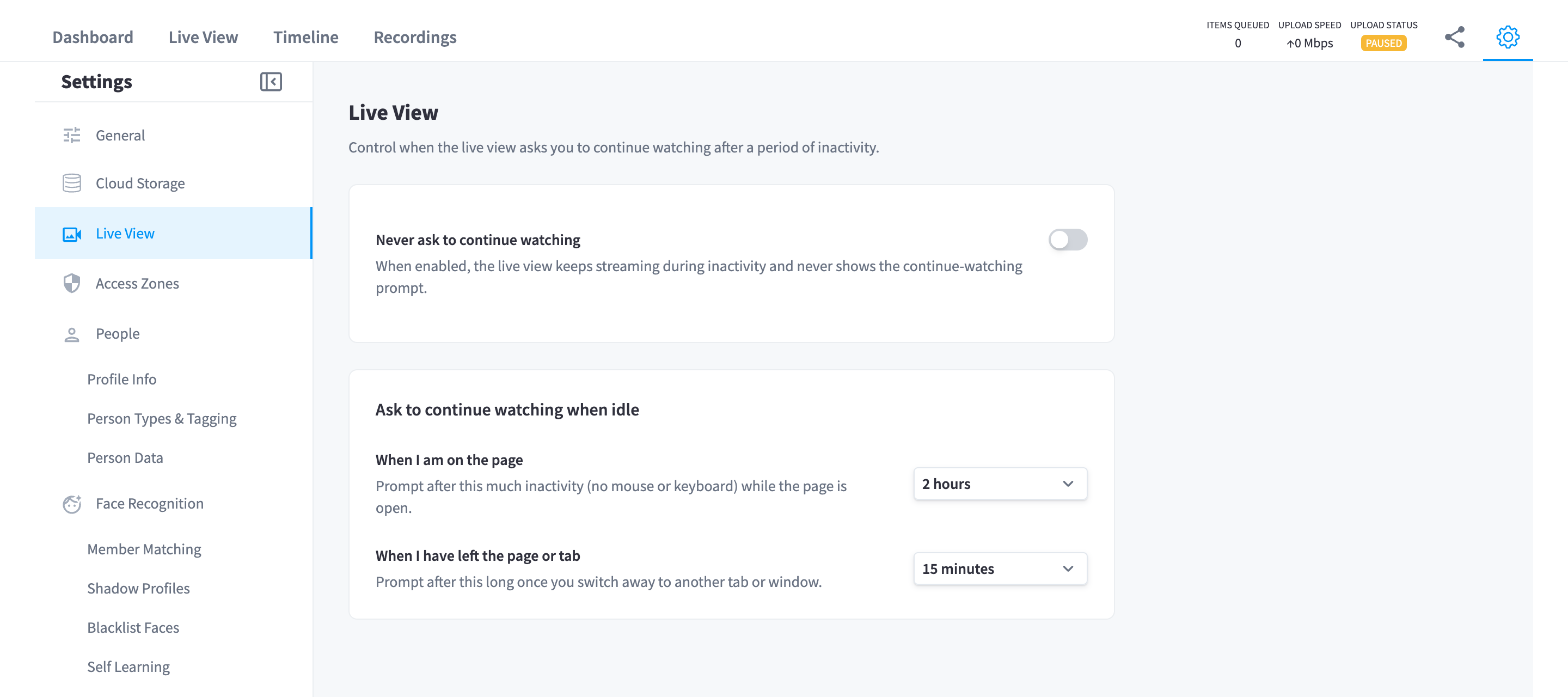
Figure 4: Settings → Live View — inactivity prompt behaviour
| Setting | Meaning | Default |
|---|---|---|
| Never ask to continue watching | "When enabled, the live view keeps streaming during inactivity and never shows the continue-watching prompt." For dedicated monitoring screens | Off |
| When I am on the page | "Prompt after this much inactivity (no mouse or keyboard) while the page is open." Options: 5 minutes – 4 hours | 2 hours |
| When I have left the page or tab | "Prompt after this long once you switch away to another tab or window." Options: 5 minutes – 4 hours | 15 minutes |
Tile badges and states
| Badge / state | Meaning |
|---|---|
| "This stream is being optimised by an AI Edge Processor" | The stream is served through the appliance's quality ladder |
| "Connected via Wifi" | The appliance is on Wi‑Fi rather than Ethernet — expect less headroom |
| "Device Overheating" | The appliance is running hot — check its ventilation (Device health) |
| "Provisioning device changes" / "Device updates are currently in progress" | Configuration or updates are being applied; the stream returns shortly |
| "Paused" | The tile is paused (scrolled out of view, or by the inactivity prompt) |
| "{camera} is offline" | The camera isn't reachable — see Troubleshooting |
| "Taking longer than usual to connect — retrying automatically" | The player is renegotiating; no action needed |
Cameras that are offline can be hidden from the wall with the toolbar's Apply Filters and Hide Offline Cameras (and restored with Remove Filters and Show All Cameras).
Extras in the toolbar
- Unlock Facility Doors — appears for facilities with the compatible door integration; remotely unlocks doors you're authorised for, with a mandatory reason, logged to the door unlock logs.
- Write Message on Coaching Screens — appears for facilities with coaching screens.
Related pages
- Timeline & playback — a single camera, in depth, over time
- How it works — how streams reach your browser
- Sharing & guest access — giving someone Live View without an account