
Display Automations
Display Screens Settings apply to every screen at the selected facility. This page covers the settings menu and Display Automations, which turn displays on and off with your hours. The other sections have their own pages. Settings for a single screen, such as its orientation or AirPlay, are on that screen's Settings tab.
Quick reference
Where to find it: Main menu → Display Screens → cog icon (top right of any tab)
Who can access: Users with Display Screens access at the facility. The CCTV setting can only be changed by organisation admins who also have CCTV access.
Purpose: Turn displays on and off automatically, so screens are on while you are open and off when nobody is watching
The settings menu
The settings are grouped in a menu on the left:
| Section | Shown | Page |
|---|---|---|
| Display Automations | Always | This page |
| Timer/Bell Volume Automations | Only where templated content is enabled for your location | Templated content |
| Brightness | Always | Brightness |
| Fallback Slate | Always | Fallback Slate |
| Updates | Always | Updates & CCTV |
| CCTV | Only at facilities with CCTV | Updates & CCTV |
| Templated Content Configuration | Only where templated content is enabled for your location | Templated content |
Under the menu, Product documentation opens this page.
Change settings in a section, then click Save changes in the bar at the bottom of the page (it says You have unsaved changes), or Discard to undo them. The CCTV switch is the exception: it saves straight away, after you confirm.
Set up Display Automations
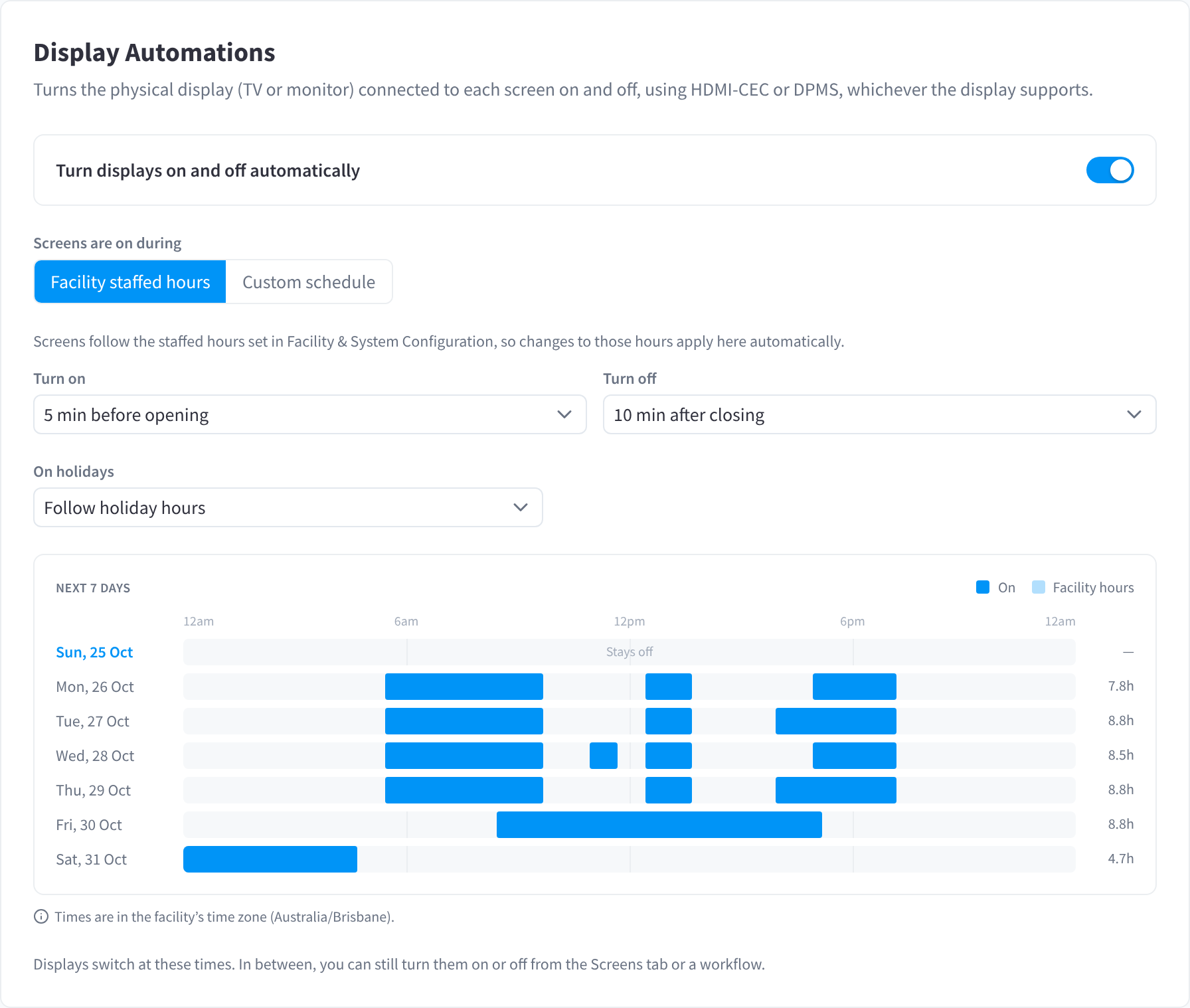
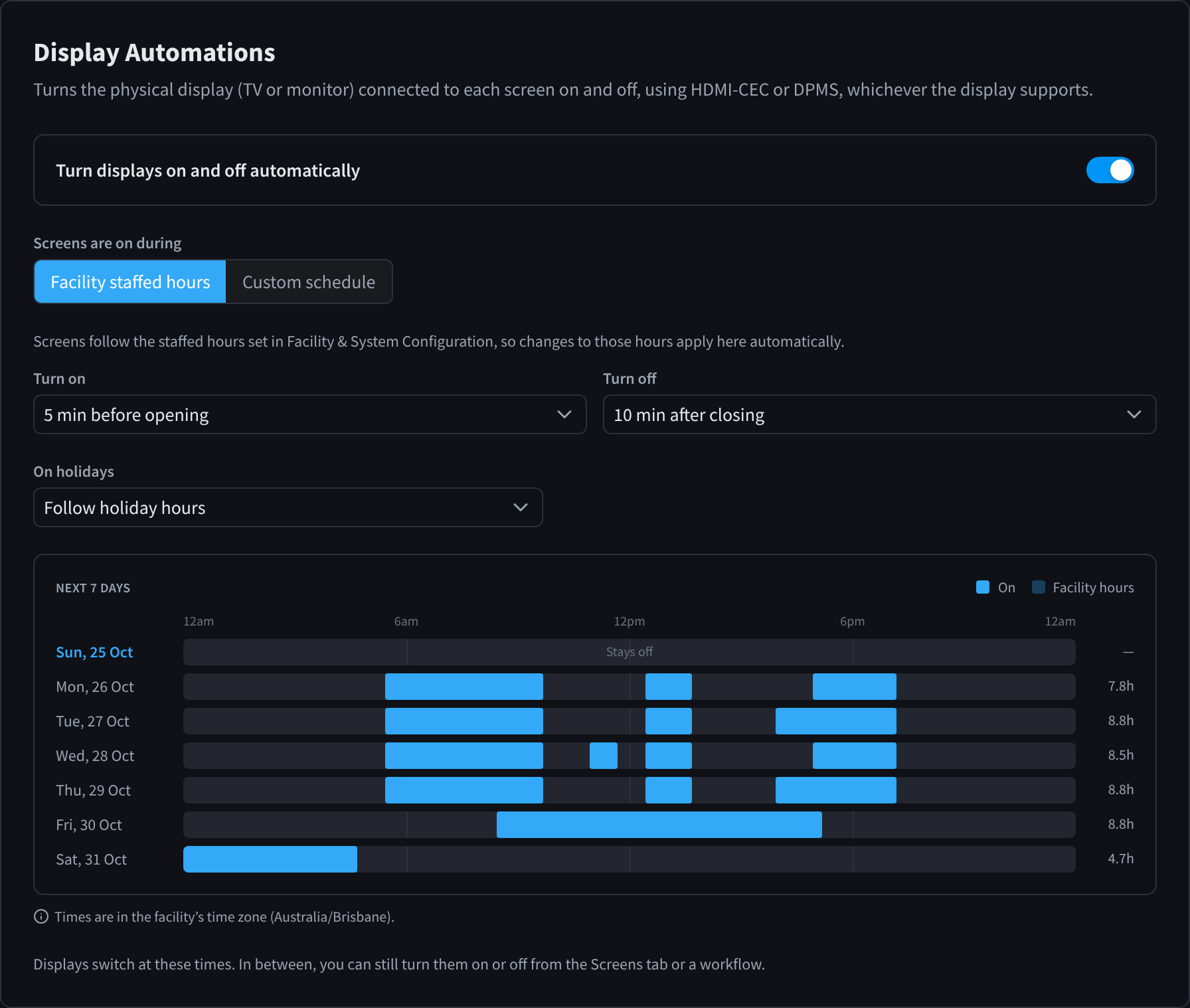
Figure 1: Display Automations following facility staffed hours, with the Next 7 days preview
Display Automations turn the physical display (the TV or monitor) connected to each screen on and off. DPMS is the preferred method: the player always uses it, and adds HDMI-CEC only when it has a Pulse-Eight USB-CEC adapter. See Turning the TV on and off. The players themselves stay online, so screens are ready the moment their displays turn on.
To set up Display Automations:
- Open Settings (cog icon) → Display Automations.
- Turn on Turn displays on and off automatically.
- Under Screens are on during, choose Facility staffed hours or Custom schedule.
- For Facility staffed hours, choose:
- Turn on: At opening, or 5 min, 10 min, 15 min, 30 min or 1 hour before opening.
- Turn off: At closing, or 5 min, 10 min, 15 min, 30 min or 1 hour after closing.
- For Custom schedule, click Add time block under a day and set when screens turn on and off. Same as previous day copies the day before. Until you add a time block, screens won't turn on automatically.
- Under On holidays, choose Follow holiday hours (the default) to follow the holiday hours set for the facility, Keep screens off to leave displays off on holidays, or Use the normal schedule to ignore holidays.
- Check the Next 7 days preview to confirm when displays will be on, then click Save changes.
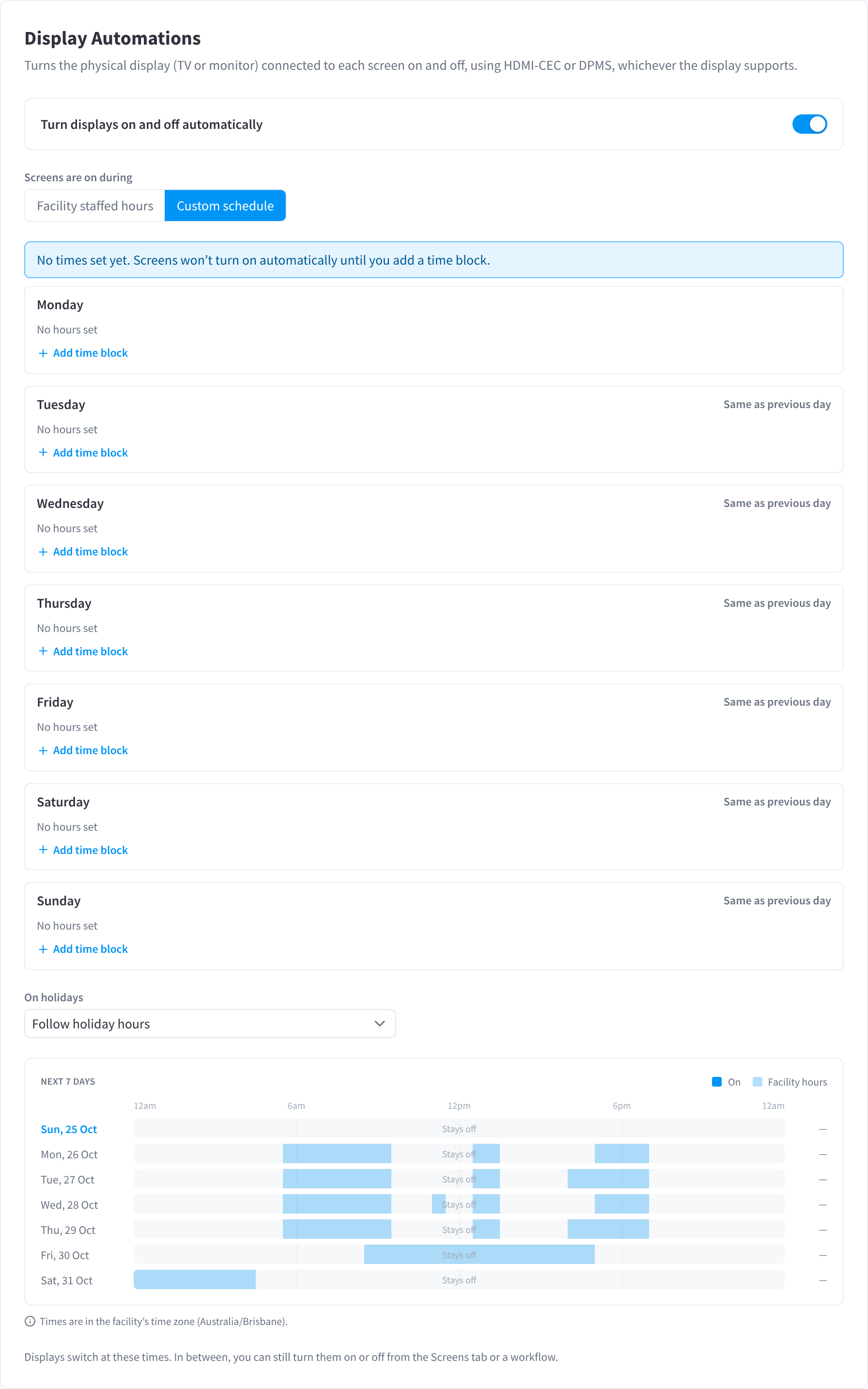
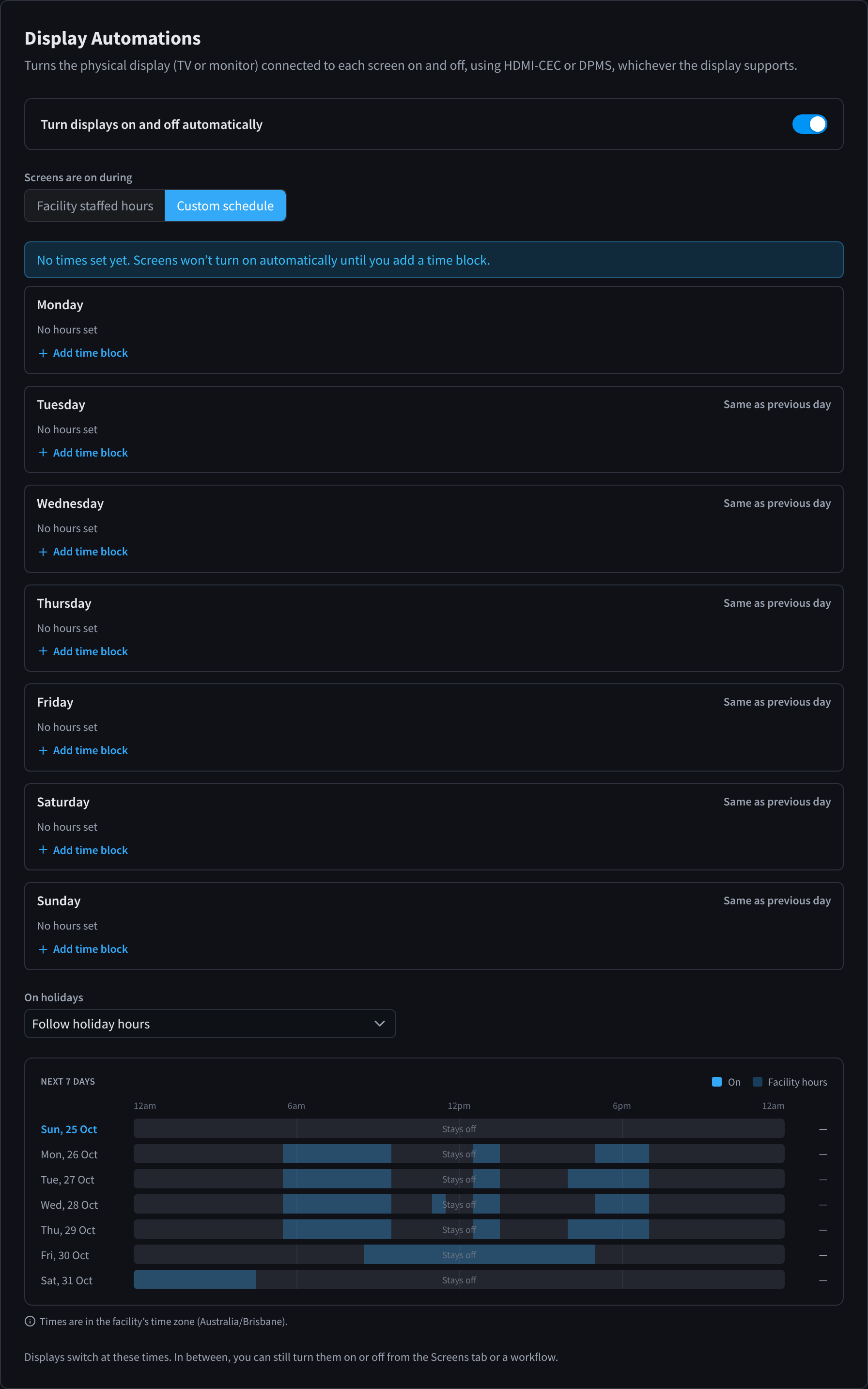
Figure 2: A custom schedule before any time blocks are added, with what to do on holidays
Facility staffed hours or a custom schedule
| Option | How it works |
|---|---|
| Facility staffed hours | Screens follow the staffed hours set in Facility & System Configuration, so changes to those hours apply here automatically. Use this in most facilities. See How hours are used. |
| Custom schedule | Set your own on and off times for each day, separate from your staffed hours. |
Next 7 days preview
The Next 7 days chart shows when displays will be on each day (On), against the facility hours, with the total hours on at the right. A day with no hours shows Stays off. Check it after changing hours or holiday settings.
Times are in the facility's time zone, shown under the chart.
Switching displays manually
Displays switch at the scheduled times. In between, you can still turn them on or off from the Screens tab, from a screen's quick actions, or with a workflow. A manual change lasts until the next scheduled switch: the latest command wins.
If a display doesn't respond to Display Automations, see The display won't turn on or off.
Check-in power
Check-in power turns screens on and off around check-ins during Unstaffed or Extended Hours, so people arriving outside staffed hours see working screens without displays being on all night. It is shown only at facilities with Unstaffed or Extended Hours.
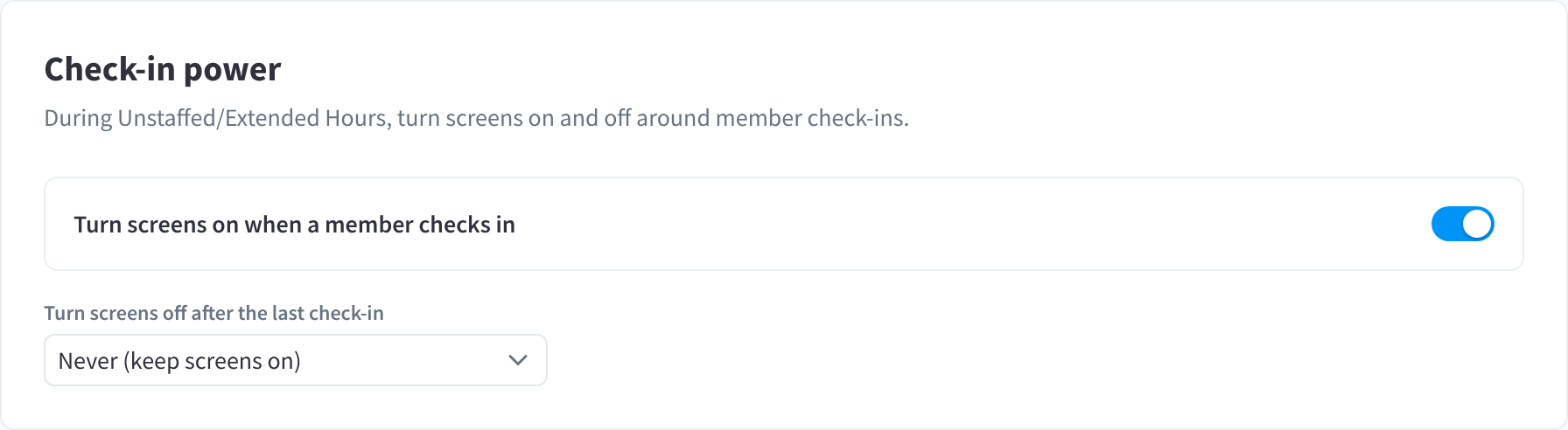
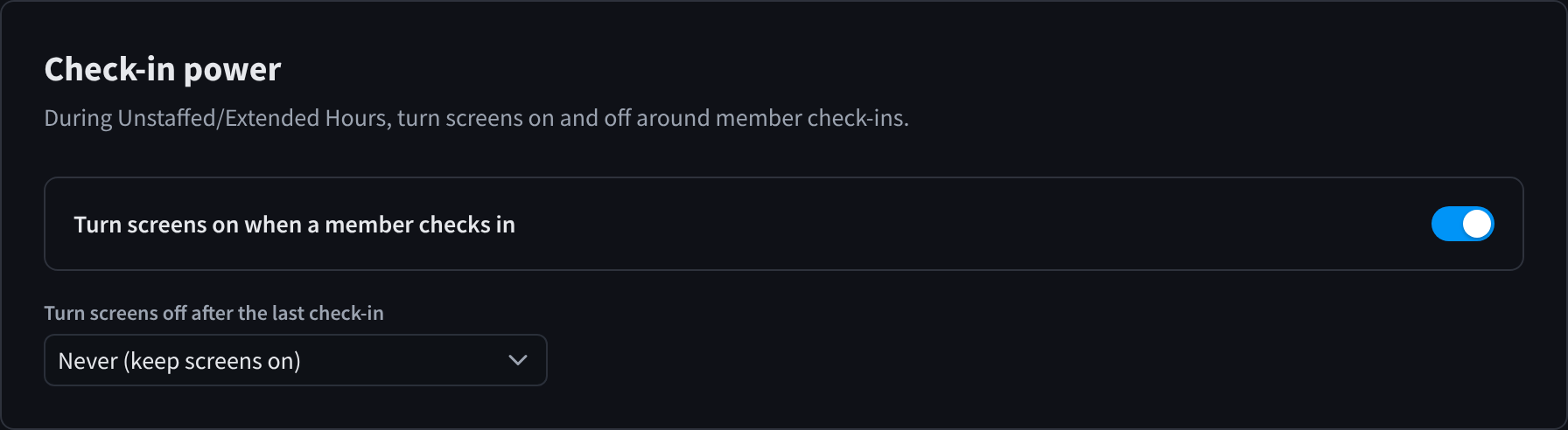
Figure 3: Check-in power, at a facility with Unstaffed or Extended Hours
| Setting | What it does |
|---|---|
| Turn screens on when a member checks in | When someone checks in during Unstaffed or Extended Hours, displays turn on straight away |
| Turn screens off after the last check-in | How long after the last check-in displays turn off again: After 45 minutes, After 1 hour, After 1 h 30 min or After 2 hours. Facilities that saved Never (keep screens on) earlier also see that option. |
More power automation with Workflows
Use Workflows to turn screens on or off when something happens, not just at set times. Workflow actions turn every screen at this facility on or off. The Display Automations schedule and your workflows both apply; the latest command wins.
The settings page suggests examples such as:
- When a door unlocks (someone is let in), turn all screens on: Door unlocked → Displays On. Pairs well with Door & Gate Access.
- Turn screens off at 9pm on Fridays only: Schedule → Displays Off.
- Turn screens off after an hour with no check-ins: Facility activity → Displays Off.
Click Open Workflows to go to Workflows and set one up.
Brightness
Brightness now has its own page: Brightness.
Fallback Slate
The Fallback Slate now has its own page: Fallback Slate.
Updates
Update and nightly restart settings are now on Updates & CCTV.
CCTV
The CCTV setting is now on Updates & CCTV.
Related pages
- Screens: turn all screens on or off now
- Screen settings: settings for one screen
- Facility hours: staffed hours, holiday hours and time zone
- Power & Connectivity: how the player turns the TV on and off
- Hardware Troubleshooting: displays that won't turn on or off