
Screen overview
Click any screen on the Screens tab to open its details panel. This page covers the panel's Overview tab, which opens first. The other tabs have their own pages:
| Tab | What you do there |
|---|---|
| Overview | Quick actions such as Display on/off and Display message, live metrics, a live view of the screen, and connection and device details |
| Content | See what is playing now and over the next 24 hours, everything published to the screen, and take over this screen |
| Settings | Name, groups and tags, Data Source, display and audio settings, peripherals, and the screen key |
| Advanced | Restart the device, manage Wi-Fi and updates, move the screen to another facility, diagnostics, and remove the screen |
Quick reference
Where to find it: Display Screens → Screens → click a screen
Who can access: Users with Display Screens access at the facility
Purpose: Check a screen's health and act on it straight away
The panel header shows the screen name, its 6-character screen code, its Data Source and its status (for example Display off). Close the panel with X.
Overview tab
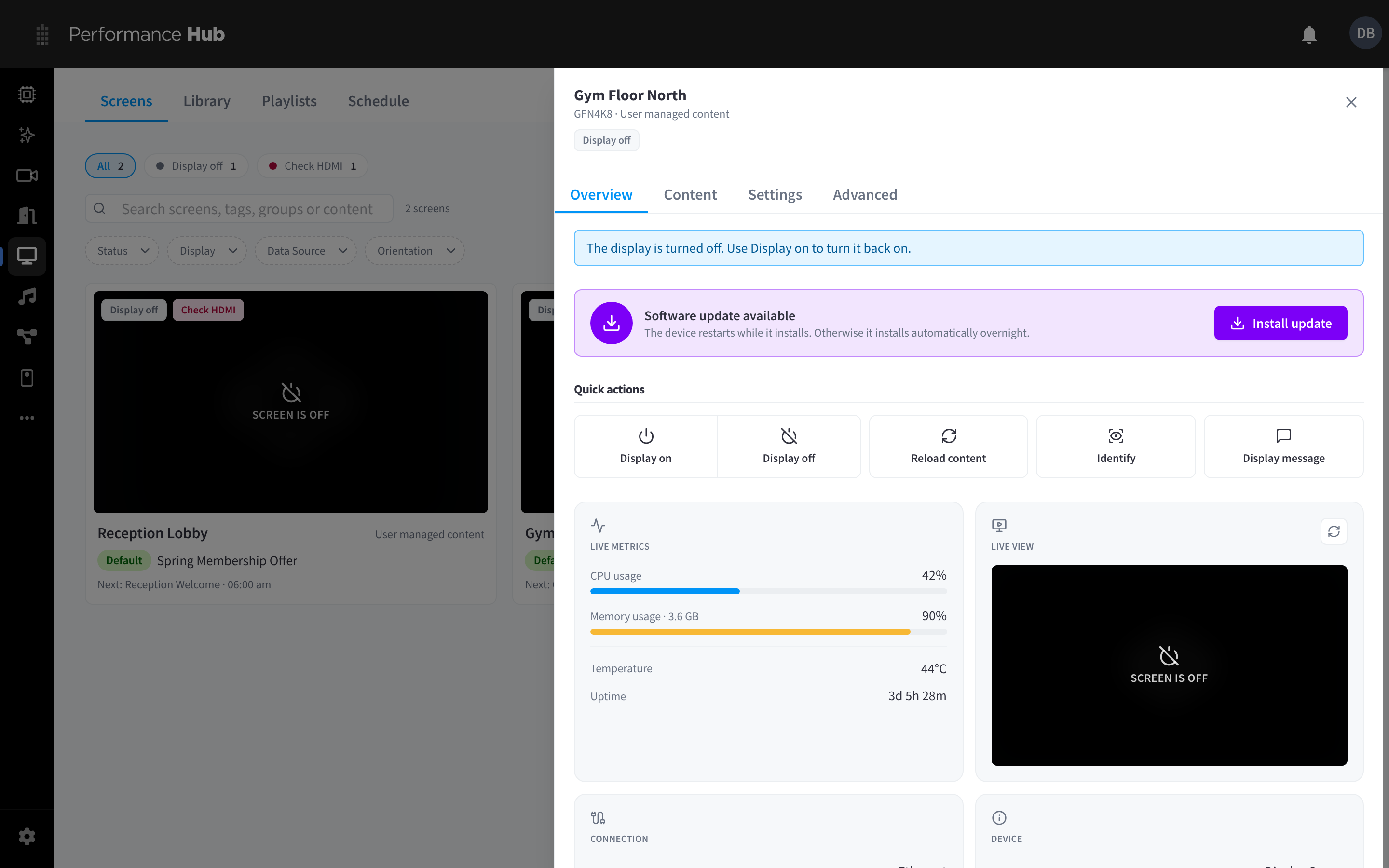
Figure 1: A screen's Overview tab, with quick actions, live metrics and device details
If something needs attention, a banner at the top tells you what to do, for example "The display is turned off. Use Display on to turn it back on."
When a software update is waiting for the player, a Software update available banner offers Install update. The device restarts while it installs, so the screen goes blank for a short time. If you don't install it, the update installs automatically overnight.
Quick actions
| Action | What it does |
|---|---|
| Display on | Turns the connected TV or monitor on |
| Display off | Turns the connected TV or monitor off. The player stays online. |
| Reload content | Makes the screen reload what it is playing. Try this first if content looks stuck or out of date. |
| Identify | Flashes the screen's name and code on the TV, so you can check which physical screen you are looking at |
| Display message | Shows a short message over whatever the screen is playing. See Display a message. |
Display on and Display off use DPMS, the preferred method, plus HDMI-CEC only when the player has a Pulse-Eight USB-CEC adapter (see Turning the TV on and off). The status shows what the player last sent, not whether the TV is actually on. Some displays ignore these commands; see The display won't turn on or off. A manual change lasts until the next scheduled change from Display Automations or a workflow.
Live metrics, live view, connection and device
| Card | What it shows |
|---|---|
| Live metrics | CPU usage, Memory usage (with the total memory), Temperature and Uptime. Consistently high temperature usually means the player needs more airflow; see placement guidance. |
| Live view | A recent picture of what is on the screen. Use the refresh button for a new one. When the display is off it reads SCREEN IS OFF. |
| Connection | Network (for example Ethernet or Wi-Fi), Local IP, Public IP, Activity Down/Up (data received and sent) and Last heartbeat |
| Device | Type (Display Screen), Status, Serial number, Model and Device UUID of the player. The model tells you which Display Screen Player hardware version is installed. Use the copy button beside the UUID if support asks for it. |
| Software | The player's Software version with its release date, the Host OS and Supervisor versions, and whether the player is Up to date. To install a waiting update straight away, see Unlock updates. |
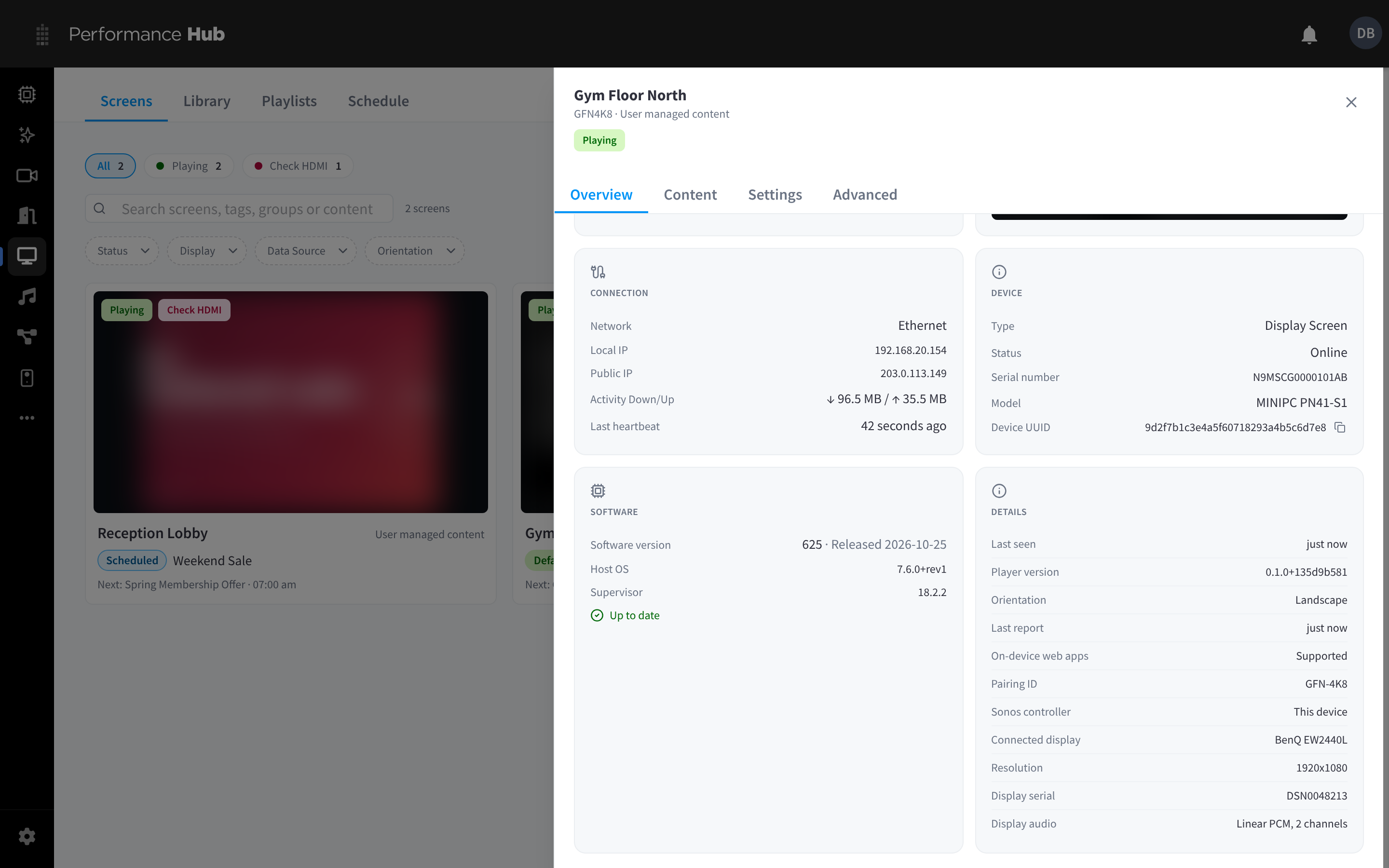
Figure 2: Connection, device, software and connected display details
Further down, the Details card shows:
| Field | What it shows |
|---|---|
| Last seen | When the screen last checked in, for example just now |
| Player version | The version of the player software |
| Orientation | How the picture is rotated, for example Landscape |
| Last report | When the player last sent a status report |
| Pairing ID | The screen's 6-character code |
| Sonos controller | Whether this player is acting as the facility's Sonos controller (This device) |
| Master clock | Whether this player is acting as the master clock that keeps the session timer in time across screens. See Session timer. |
| On-device web apps | Whether the player can play On-Device Web Apps: Supported, or Needs a device update |
| Connected display | The make and model of the TV or monitor |
| Resolution | The resolution the display is running at, for example 1920x1080 |
| Display serial | The serial number of the TV or monitor |
| Display audio | The audio format the display accepts, for example Linear PCM, 2 channels |
Display a message
Use Display message to put a short notice over whatever a screen is playing, for example "Lifts out of service until 2 pm, please use the stairs".
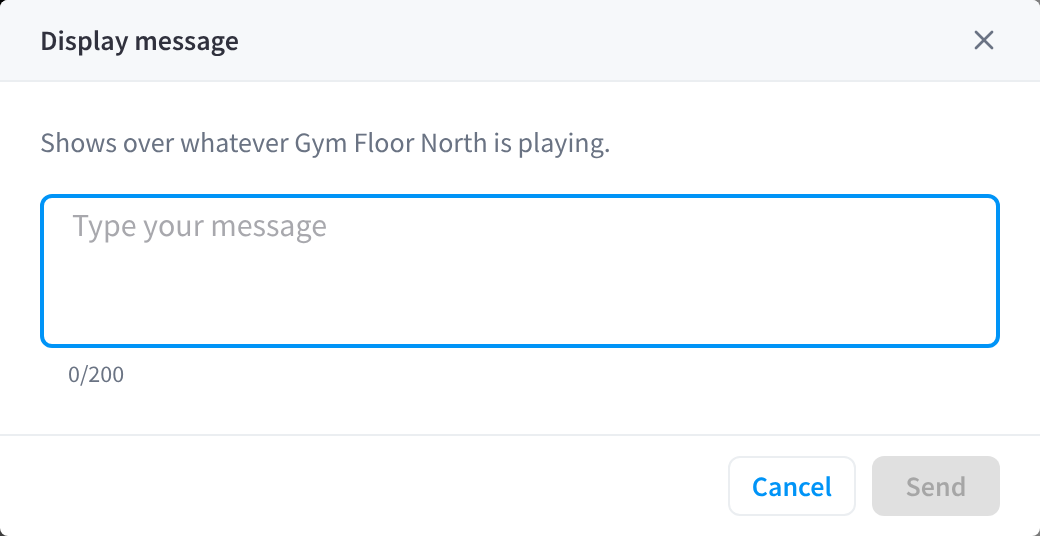
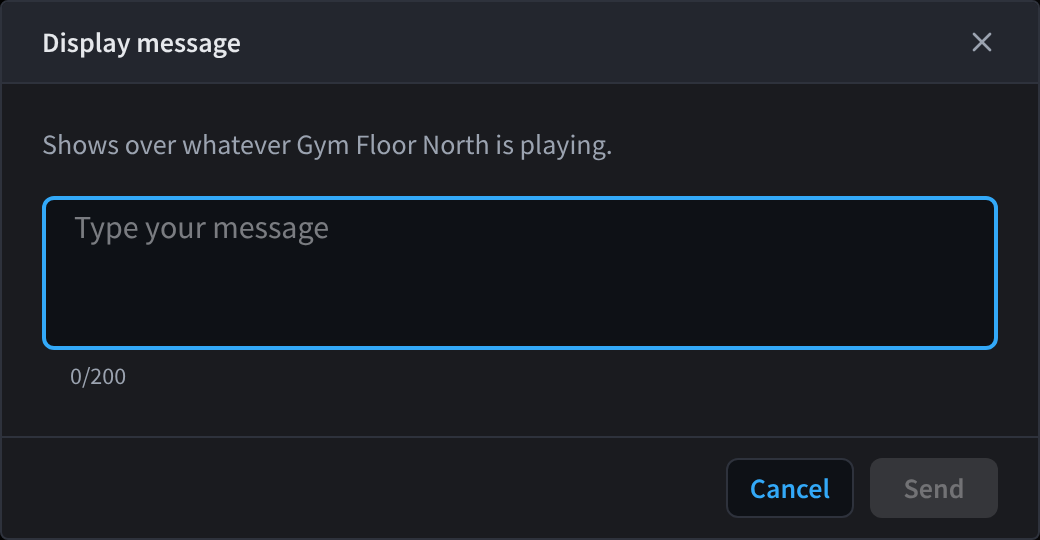
Figure 3: Display a message on a screen
- Open the screen → Overview tab.
- Under Quick actions, click Display message.
- Type your message (up to 200 characters). The counter shows how many you have used.
- Click Send.
The message shows over the screen's current content. To send a notice to several screens, or to replace the content entirely for a while, use Take over screens instead.
Content tab
The Content tab now has its own page: Screen content.
Settings tab
The Settings tab now has its own page: Screen settings.
Advanced tab
The Advanced tab now has its own page: Advanced & device actions.
Related pages
- Screens: every screen, statuses and facility-wide controls
- Screen content, Screen settings and Advanced & device actions: the panel's other tabs
- Display Screen Player: the hardware behind each screen
- Troubleshooting and Hardware Troubleshooting