
Screen content
A screen's Content tab shows what the screen is playing now, what it will play over the next 24 hours, and everything published to it, including what it inherits from its groups and the facility. Use it to check why a screen shows what it does, and to take over a single screen.
Quick reference
Where to find it: Display Screens → Screens → click a screen → Content tab
Who can access: Users with Display Screens access at the facility
Purpose: Check and change what one screen plays
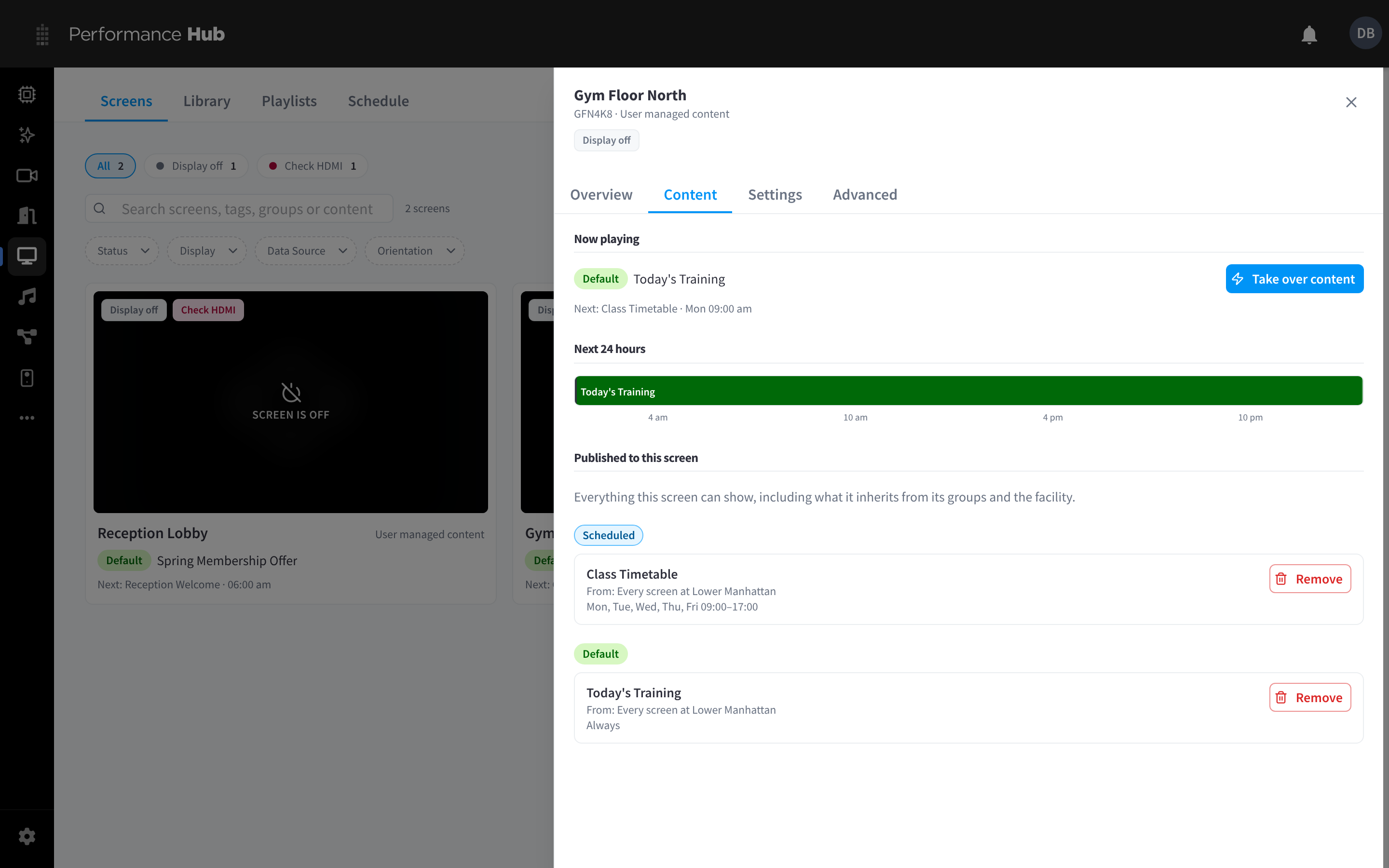
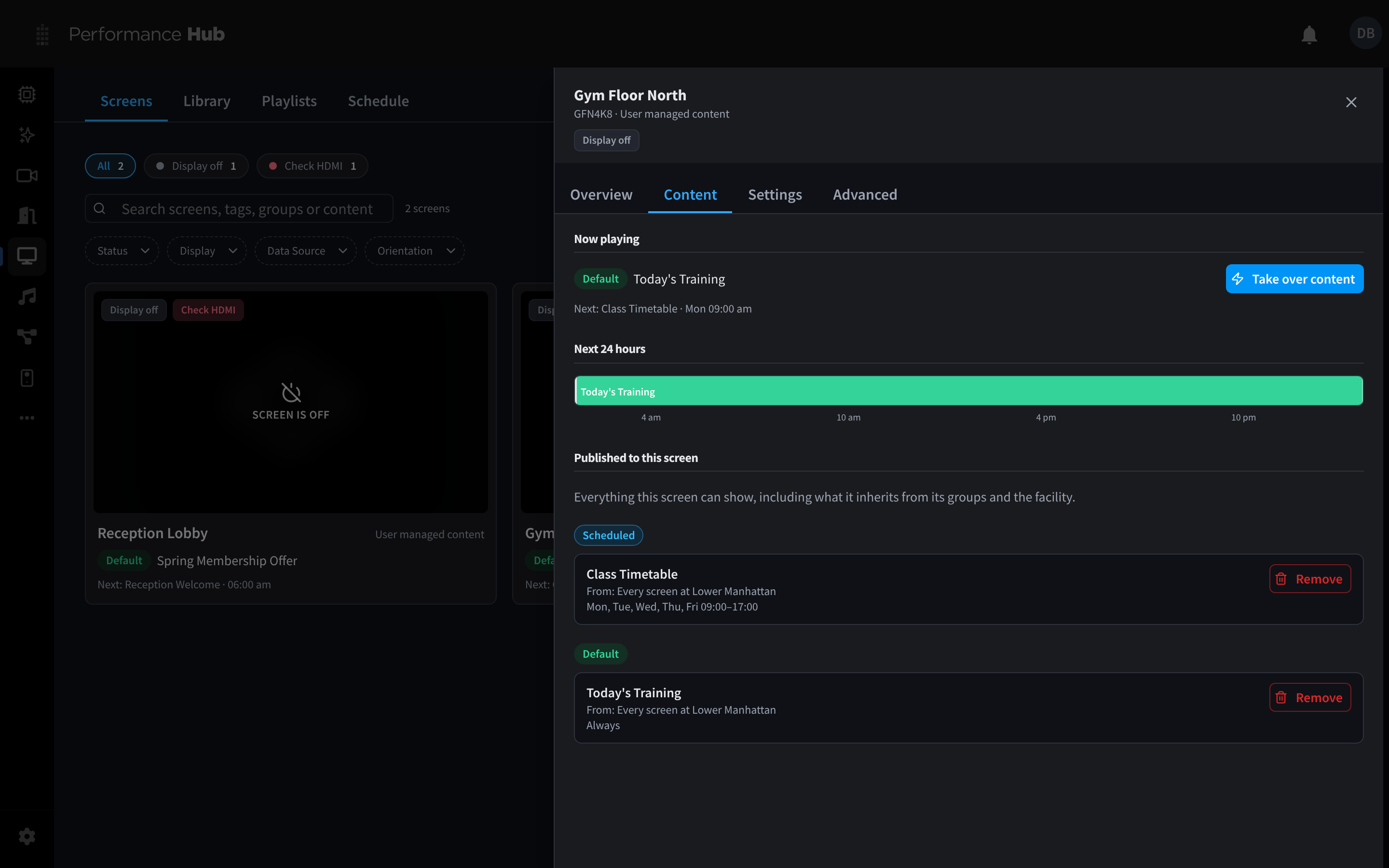
Figure 1: The Content tab shows what is playing now, the next 24 hours and what is published to the screen
What the tab shows
| Section | What it shows |
|---|---|
| Now playing | The item or playlist playing right now, with its layer chip (Takeover, Scheduled or Default) |
| Take over content | Starts a takeover on this screen only. See Take over this screen. |
| Next 24 hours | A timeline of what the screen will play over the next day, so you can check a schedule before it starts |
| Published to this screen | Everything this screen can show, including what it inherits from its groups and the facility, grouped by layer |
Published to this screen
Each item under Published to this screen shows:
- Its name, for example "Class Timetable".
- From: where it was published, for example "Every screen at" followed by the facility name for content published to the whole facility (as in Figure 1), or the name of a group.
- When it plays: Always for default content, or the days and times for scheduled content, for example "Mon, Tue, Wed, Thu, Fri 09:00–17:00".
- Remove, to stop publishing it.
Removing inherited content affects other screens. If an item comes from a group or the whole facility, Remove removes that publish for every screen that inherits it, not just this one. To change what one screen shows without affecting the others, publish something to this screen directly instead: content published to the screen itself beats group and facility content in the same layer. See How a screen decides what to show.
Screens whose Data Source is not User managed content don't play published content, so their Content tab won't match what is on the TV. See Data Source.
Take over this screen
Take over content interrupts everything else on this screen for a set time, then ends by itself. Choose the content, then how long it lasts (up to 7 days). It works the same way as Take over screens on the Screens tab, which can take over several screens at once.
Related pages
- Screen overview: quick actions, live metrics and device details
- Publishing content: put content on screens, groups or the whole facility
- Schedule: the facility-wide view of scheduled and default content
- Troubleshooting: Content doesn't appear on a screen