
Schedule
The Schedule is a calendar of what is published to the facility or a screen: takeovers, scheduled content and default content, in the facility's time zone. Use it to check what will play and when, and to schedule content for certain days and times, such as a café lunch menu on weekdays from 11:30 am to 2 pm, a town hall notice on Thursday afternoon or a weekend sale.
Quick reference
Where to find it: Main menu → Display Screens → Schedule
Who can access: Users with Display Screens access at the facility
Purpose: See and plan what screens show across the week
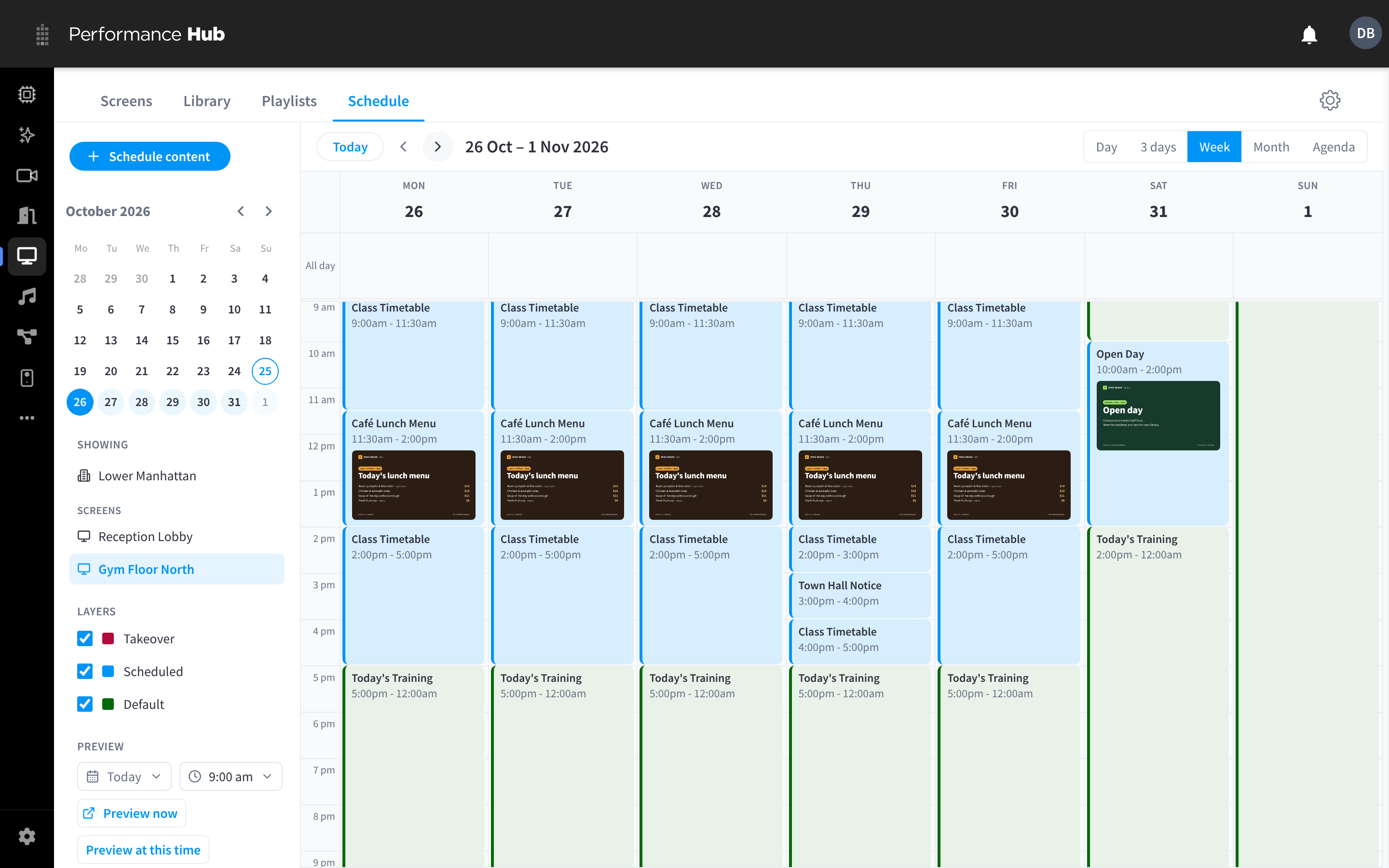
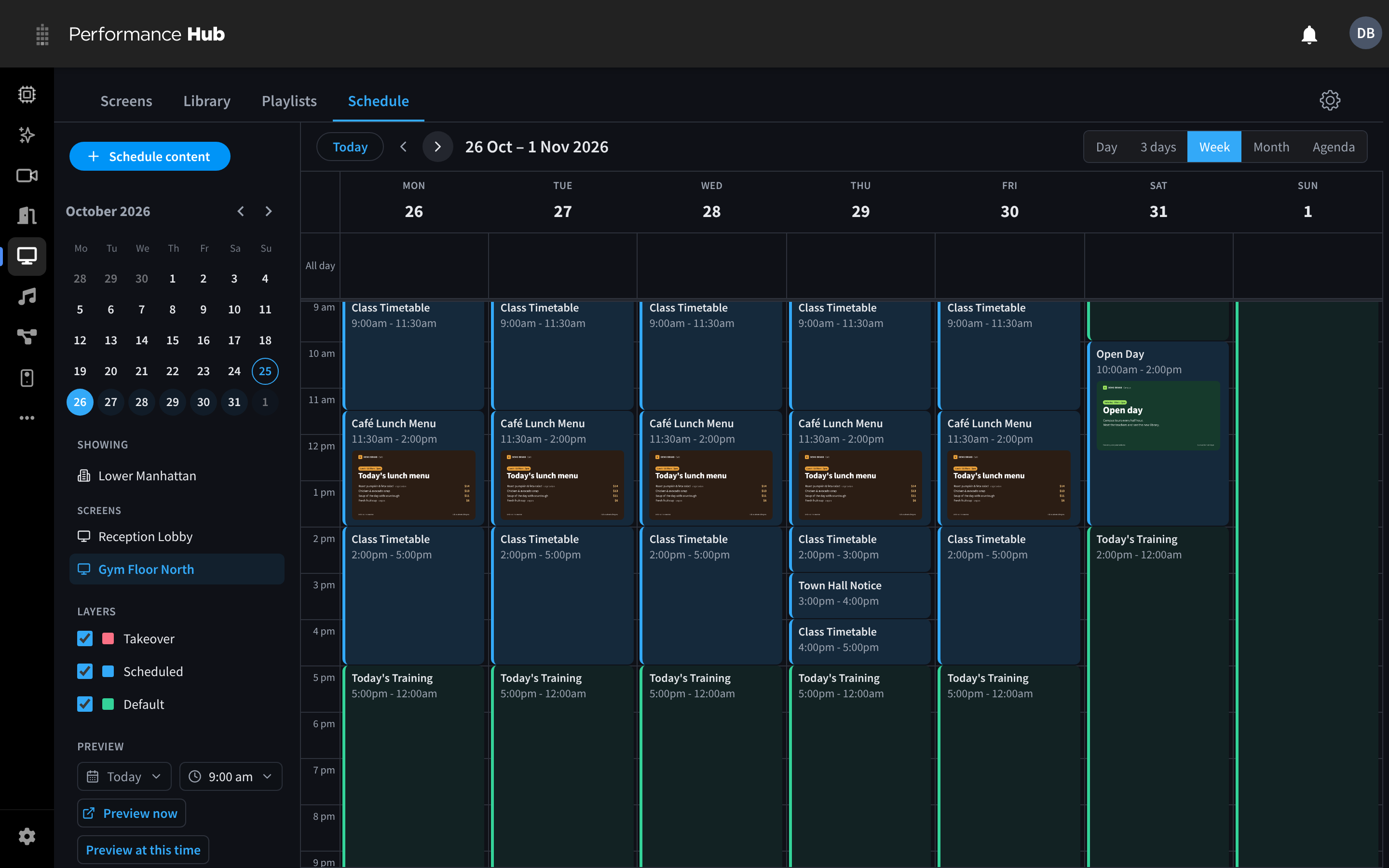
Figure 1: The Schedule calendar for one screen, with scheduled and default content for the week
Reading the calendar
The sidebar chooses what the calendar shows:
| Control | What it does |
|---|---|
| Schedule content | Schedule something. See Schedule content. |
| Mini calendar | Jump to a date. Today is circled. |
| Showing | The facility, a group or one screen. Select one to see its schedule. When there are many, use Find a group or screen to search. |
| Layers | Show or hide each layer: Takeover, Scheduled and Default. The facility view also has Inherited. |
| Preview | Choose a date and time, then click Preview at this time to see what will play then. Preview now shows what is playing now. |
Above the calendar, choose a view: Day, 3 days, Week, Month or Agenda. Use the previous and next buttons to move back or forward, and Today to return to the current date. Times are in the facility's time zone, shown at the bottom of the sidebar.
The Schedule opens on the view you last picked in this browser. If you haven't picked one (or haven't opened the Schedule for 90 days), it opens on Agenda on a phone; on a tablet or computer it opens on Month when everything scheduled runs all day, and on Week otherwise. Shortcuts: D, W, M and A for Day, Week, Month and Agenda, T for today, and the left and right arrow keys to move back or forward.
Content is colour-coded by layer:
| Layer | Colour | When it plays |
|---|---|---|
| Takeover | Red | Straight away, for a set time, interrupting everything else |
| Scheduled | Blue | On the days and times (and between the dates) you set. Beats the default. |
| Default | Green | Whenever nothing else applies. In the facility or a group, it shows as a banner across the top of each day, labelled Default: and the content name; Month leaves always-on defaults out. One screen shows exactly what plays when, so its default fills the gaps. |
In the facility view, content that a group or screen inherits from the facility shows striped, under the Inherited layer.
The Schedule shows what is published to the facility, group or screen you chose. A single screen may also show content published to its groups and the facility, and content published straight to it beats group and facility content in the same layer. You can also check what one screen will play from the screen's page: open the screen → Content tab → Next 24 hours. See Screen content.
Schedule content
You can start from the button or from the calendar:
- Click Schedule content, or
- Drag on a day in the calendar to select a time range. The schedule starts with that day and time filled in.
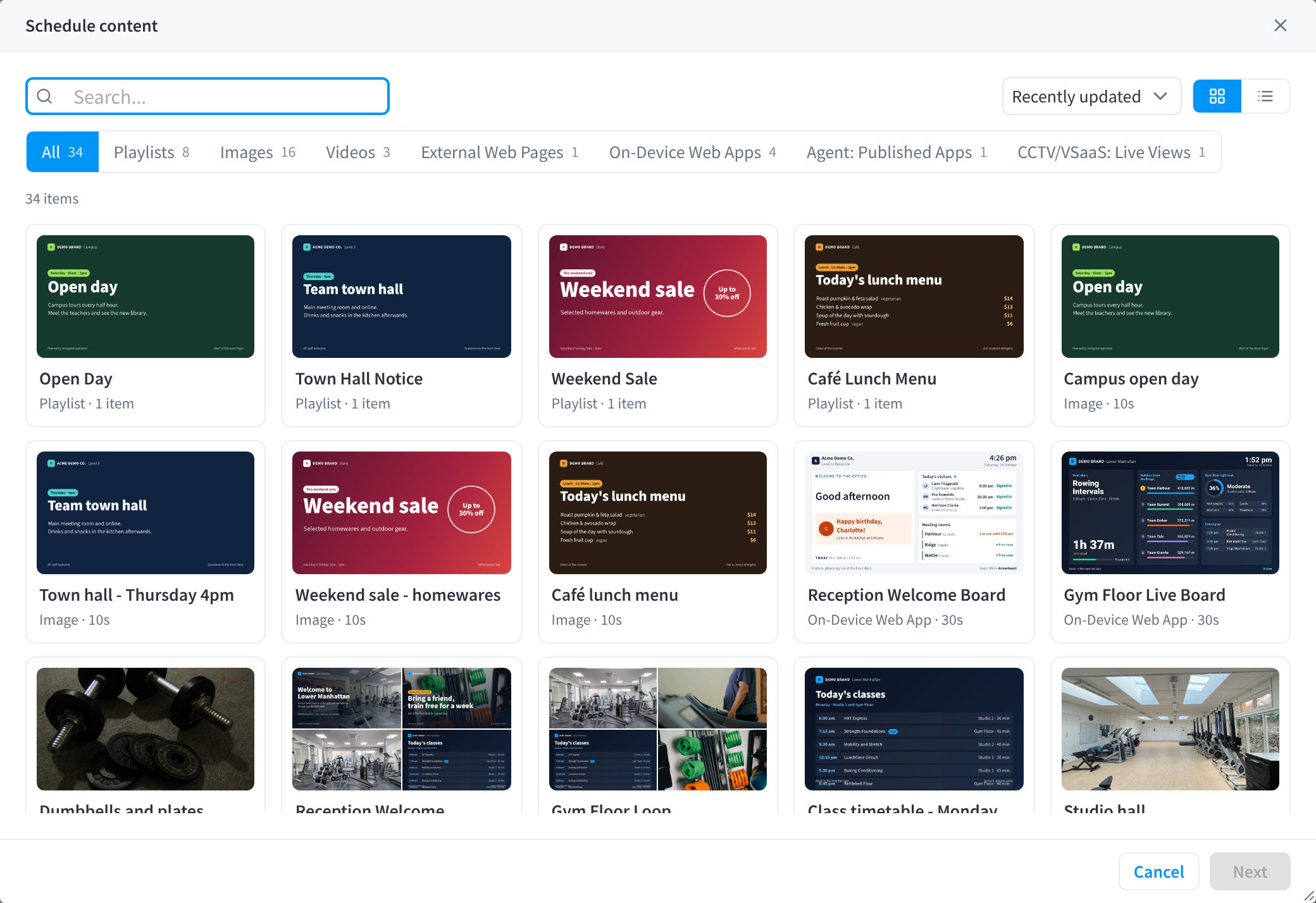
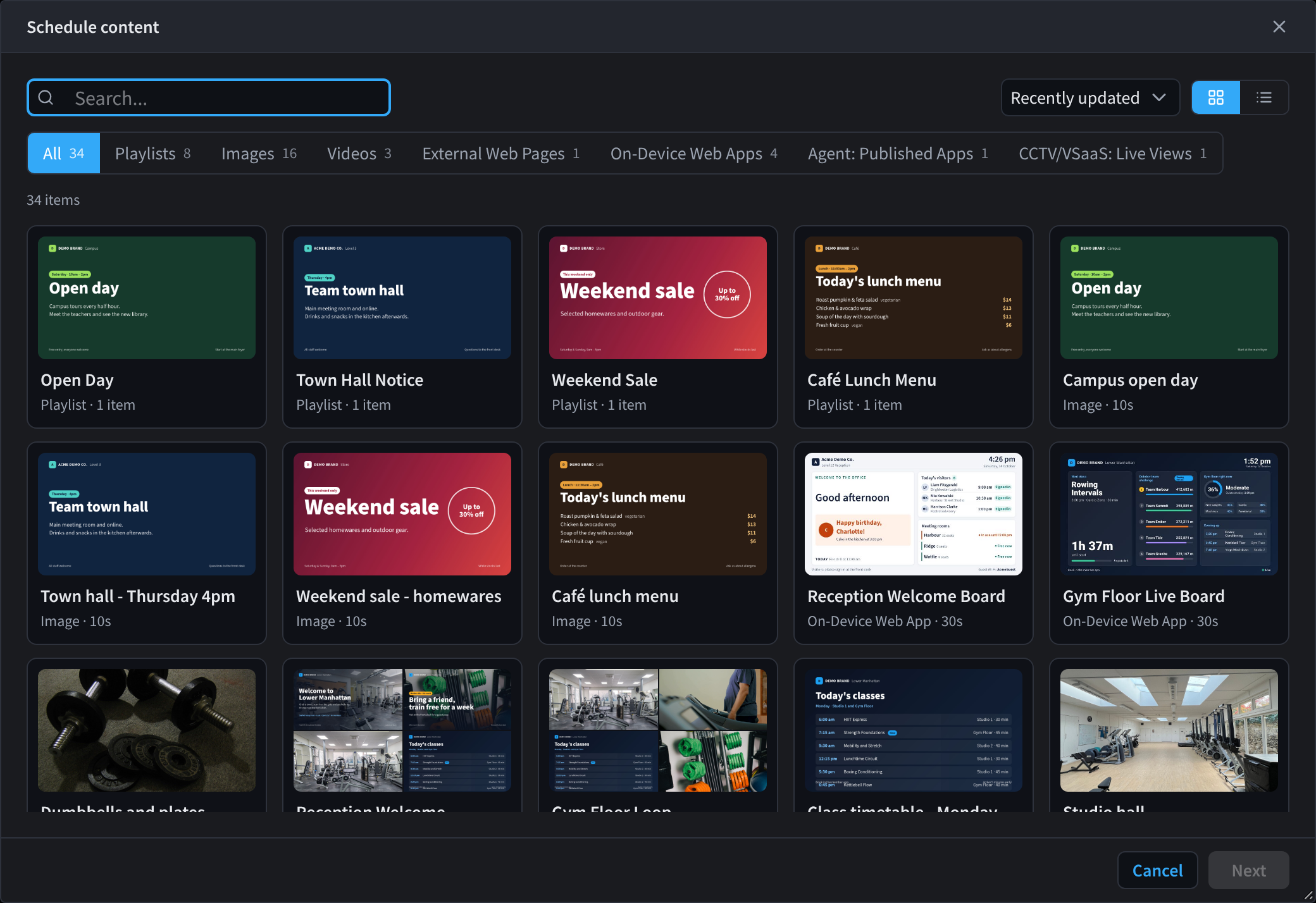
Figure 2: Choose content to schedule
- Choose what to show: a playlist or any Library item. Use the tabs (All, Playlists, Images, Videos, External Web Pages, On-Device Web Apps, Agent: Published Apps and CCTV/VSaaS: Live Views), search, sort, and the grid or list toggle to find it.
- Click Next. To pick something else, click Change beside the content.
- Under Screens, choose where it plays, if it isn't already set: Every screen at your facility, or individual screens (and groups, if you have them).
- Under When, Scheduled is selected. Choose the days (Mon to Sun), then the times From and to. Times are in the facility's time zone, shown beside them. To run until the end of the day, choose Midnight as the end time.
- Optionally, set Starting and Ending dates so the schedule only runs for a while, for example during a promotion. Leave Ending as No end date to keep it running.
- Click Publish.
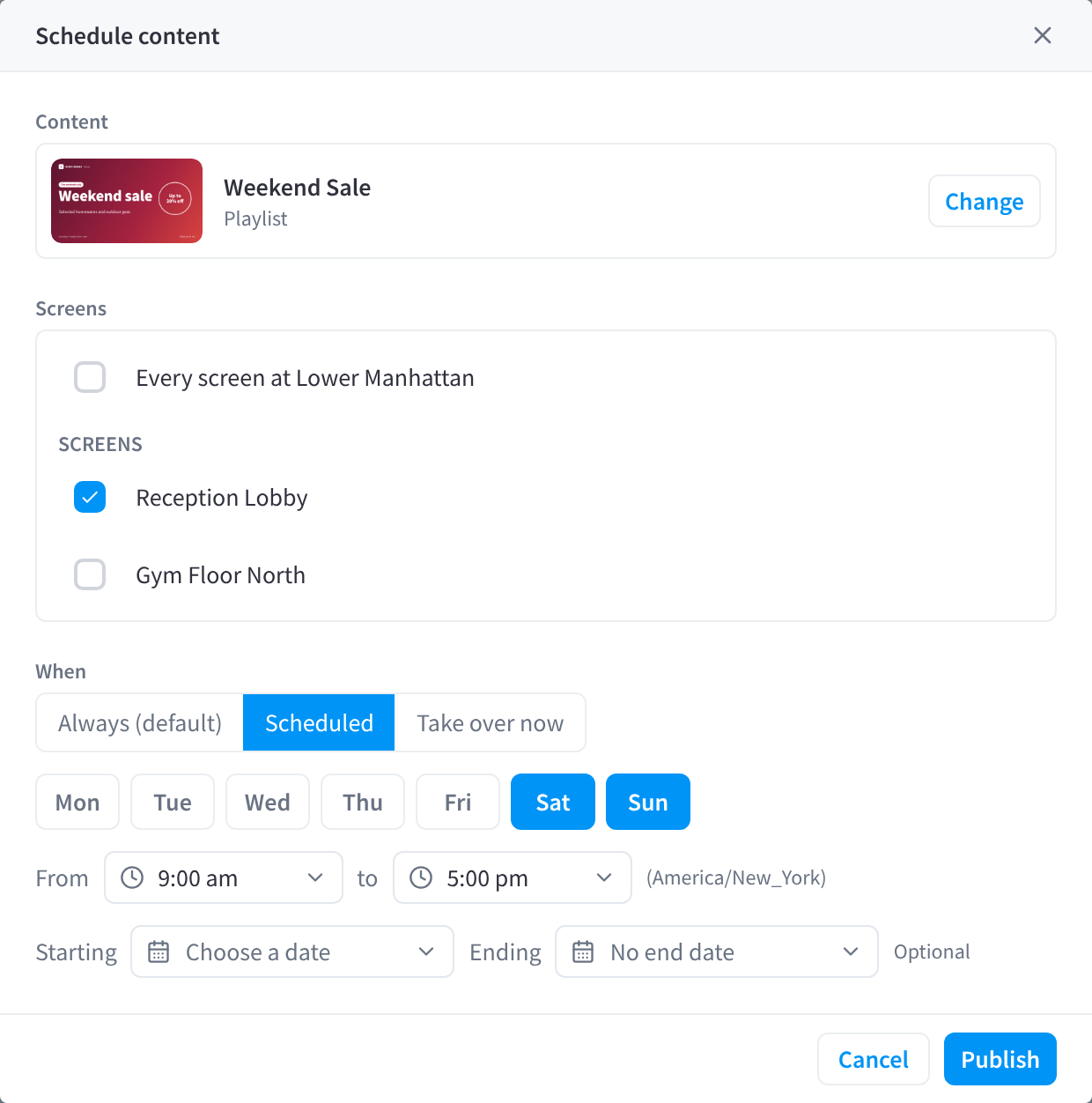
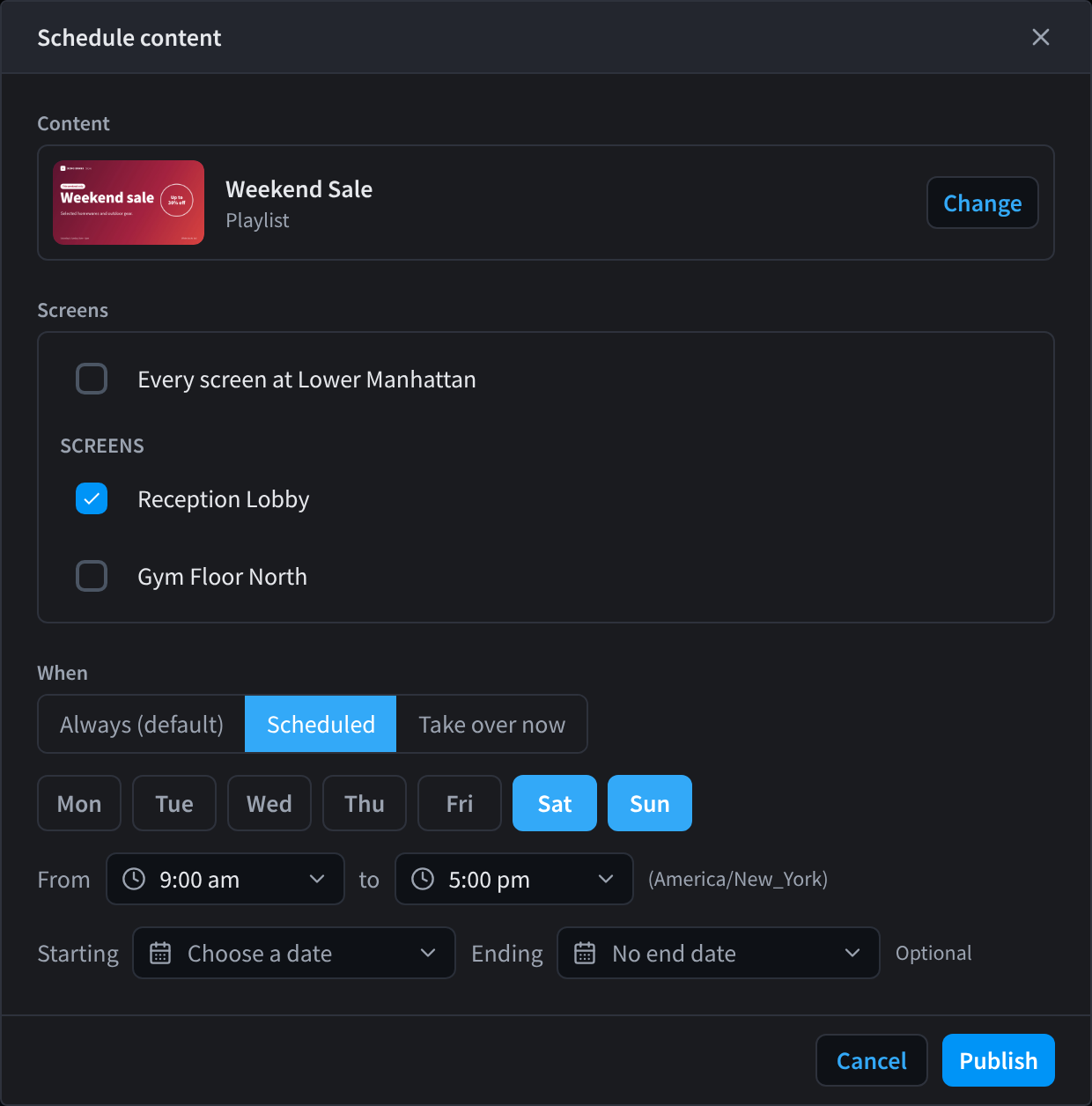
Figure 3: Choose where and when the content plays
Under When, the form also offers Always (default) and Take over now, which work as in Publishing content.
The new event appears on the Schedule straight away, and screens pick it up within seconds.
Tips:
- Overnight times: each window sits within one day. For 10 pm to 6 am, schedule 10:00 pm to Midnight on the first day, then midnight to 6:00 am on the next.
- Opening hours: to show something only while you are staffed, schedule it for those hours. Turning the displays themselves on and off is handled by Display Automations, not the Schedule.
- Clashes: if two scheduled items overlap on the same screens, publish the one that should win to a more specific target (a screen or group), or adjust the times.
Move or resize an item
Drag an item on the calendar to move it, or drag its bottom edge to change its times. On a touch screen, press and hold to create or move an item. Items published to a brand or the whole organisation, and items set for a broader target than the one you're viewing (for example facility-wide items while viewing a group), can only be moved by someone with organisation-wide Display Screens access.
If the item repeats on several days, Change which days? asks which to change. Each choice names the days, for example Only Tuesdays and Every Mon–Fri:
- Only and the plural full name of the day you dragged (Only Tuesdays): just that day moves, and the other days stay as they are.
- Every and the days it repeats on, in short form (Every Mon–Fri for three or more days in a row, otherwise a list such as Every Sat, Sun): they all move.
The message "Schedule updated. Screens update within a few seconds." appears with Undo. If a change isn't allowed, the item goes back where it was.
Change or remove scheduled content
Click an event on the calendar to open its details: what it is and its layer, when it plays, the screen, and who scheduled it and when. If it overlaps another item in the same layer, the details say which one screens show and why: the most specific target wins, then priority, then the newest. Items published by an AI agent show a name followed by "via AI Agent", and items from a workflow show the workflow's name.
Then:
- Click Edit to change the content, days, times or dates of the item you clicked. If it was published to several screens or groups together, you can apply the change to all of them. Edit can't change the layer, and there is no option to change a single date only. To move the item to other screens or another layer, remove it and schedule it again.
- Click Remove to stop it playing. If the item was published to a group or the whole facility, this removes it from every screen that inherits it. If it was published to several screens or groups together, Remove from schedule? asks whether to remove it From this target only or from all of them (for example From all 3 targets in this publish).
- Click Preview at this time to see what the screen plays at that time.
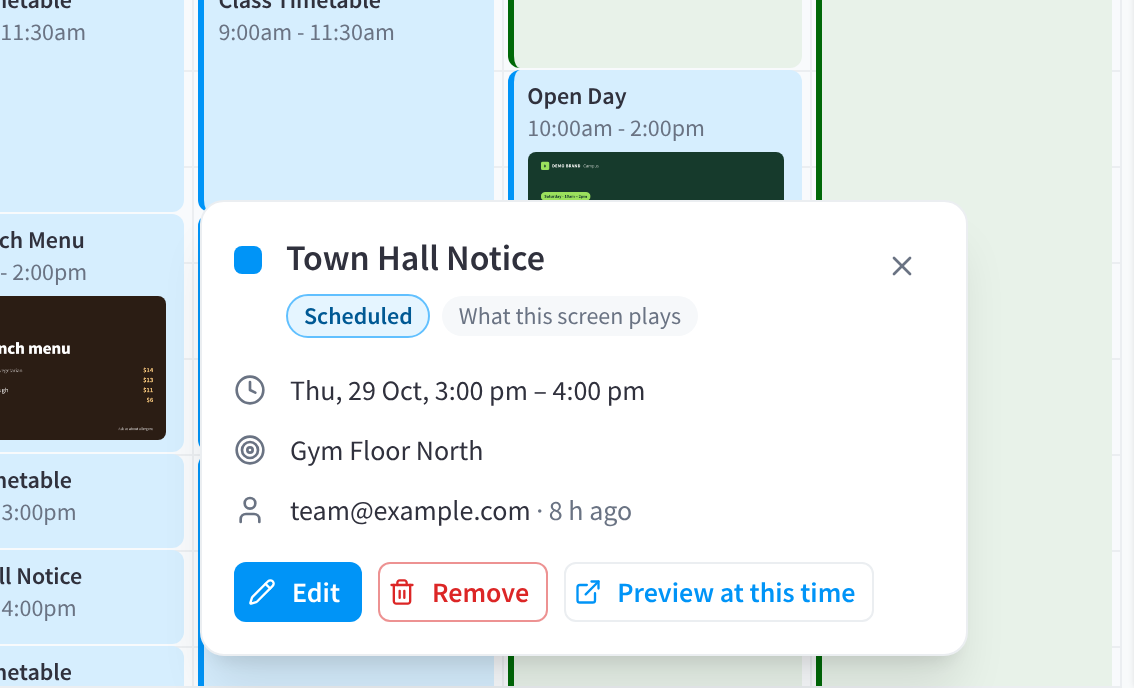
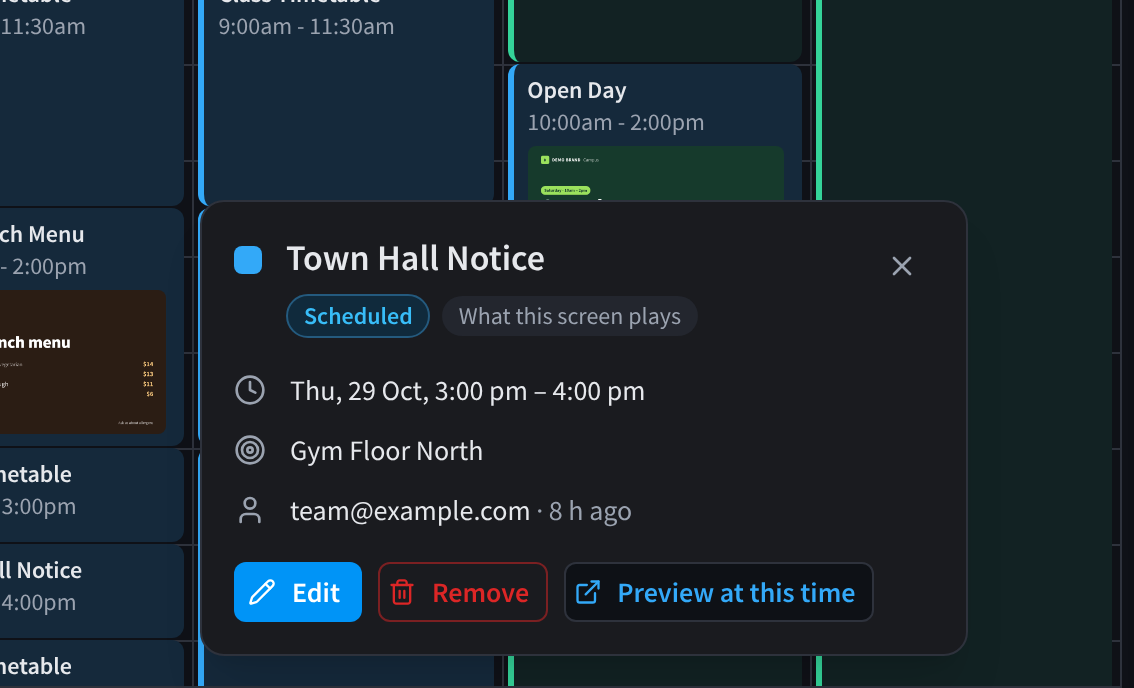
Figure 4: Click an event to see what it is, when and where it plays, and to edit or remove it
You can also remove scheduled content from a screen: open the screen → Content tab → Published to this screen, and click Remove on the item.
Related pages
- Library and Playlists: what you can schedule
- Publishing content: publish always, on a schedule or as a takeover
- Take over screens: interrupt screens straight away
- Display Automations: turn displays on and off with your hours
- Staffed Hours: set staffed hours and the facility time zone in Facility & System Configuration