
Library
The Library holds everything your screens can show. Add images and videos, web pages, your own web apps, apps your AI agent builds and live camera views, then publish them to screens directly or combine them into playlists.
Quick reference
Where to find it: Main menu → Display Screens → Library
Who can access: Users with Display Screens access at the facility. CCTV live views also need CCTV access at the facility.
Purpose: Keep all screen content in one place, see where each item is used, and publish it
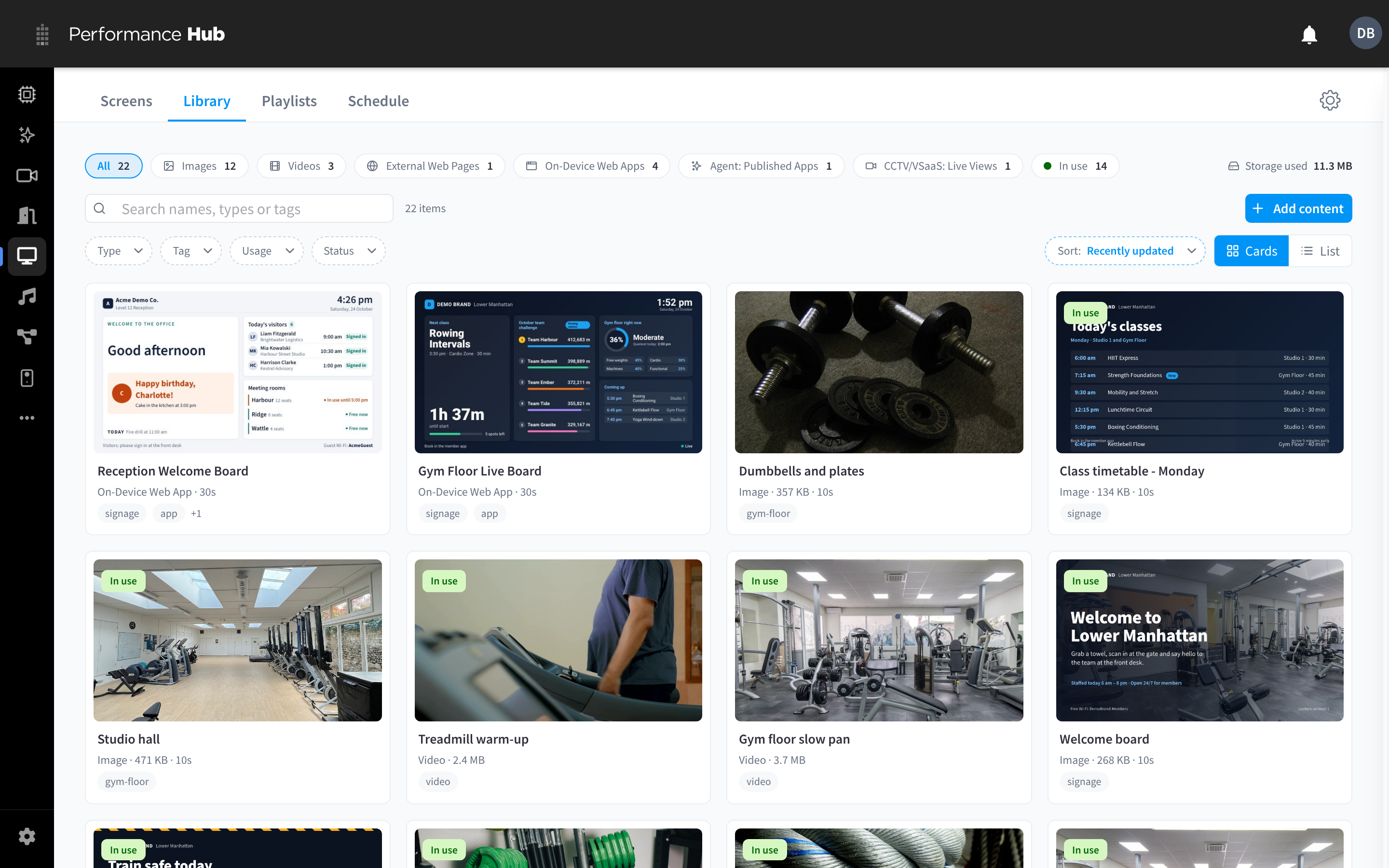
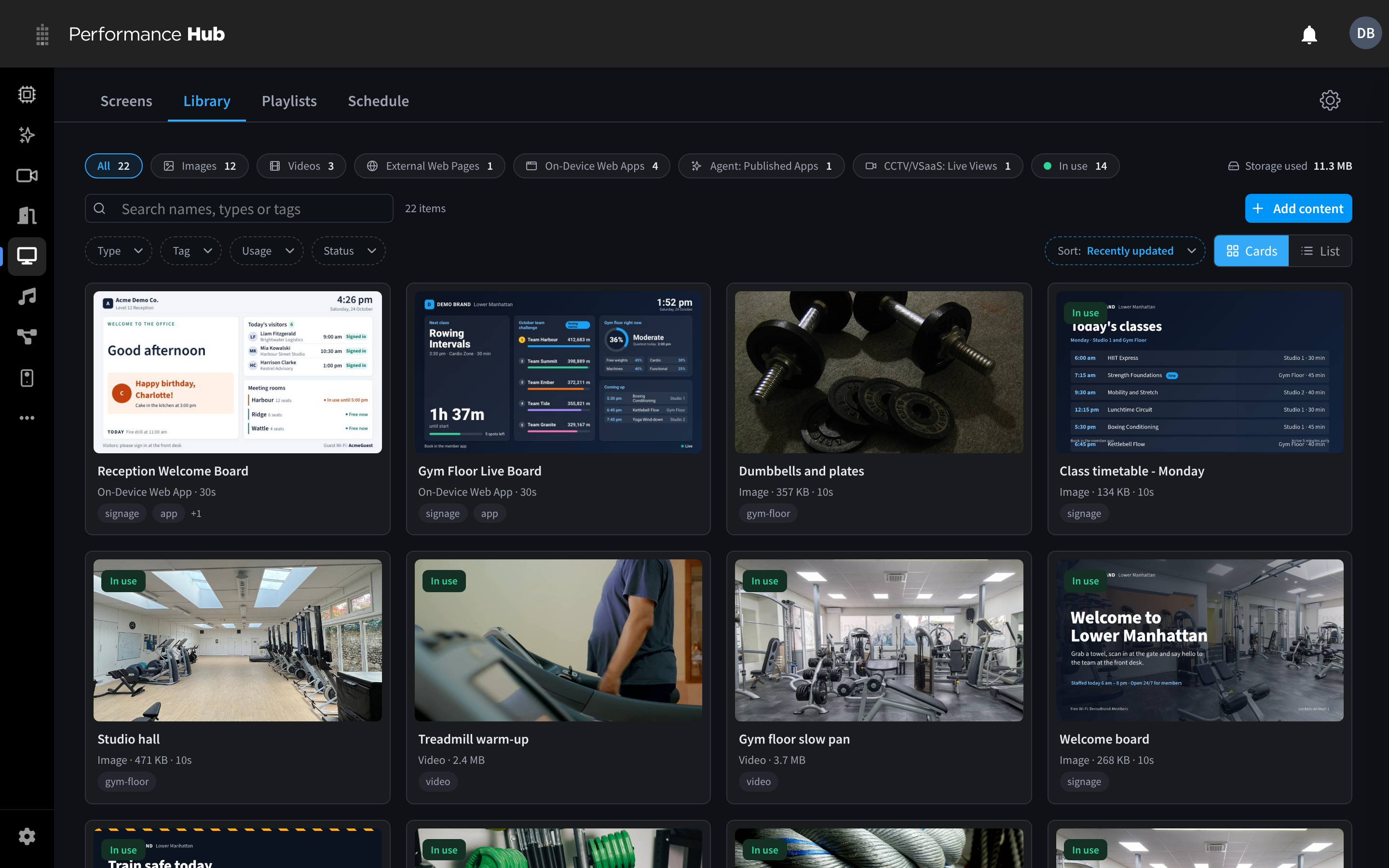
Figure 1: The Library holds images, videos, web pages, apps and live views
Page layout
| Area | What it shows |
|---|---|
| Type chips | All, Images, Videos, External Web Pages, On-Device Web Apps, Agent: Published Apps and CCTV/VSaaS: Live Views, each with a count, plus In use for items that are published or in a playlist, and Needs attention when an item failed to process. Click a chip to filter. |
| Storage used | How much space your uploaded images and videos take up |
| Search | Search names, types or tags. The count beside it (for example 22 items) shows how many match. |
| Add content | Add something new. See Adding content. |
| Filters | Type, Tag, Usage and Status |
| Sort | For example Sort: Recently updated |
| Cards / List | Switch between card view and list view |
Each card shows a preview, the item's name, its type (with the file size for images and videos) and its tags. Cards are marked In use when the item is published or in a playlist, and LIVE for CCTV live views.
List view
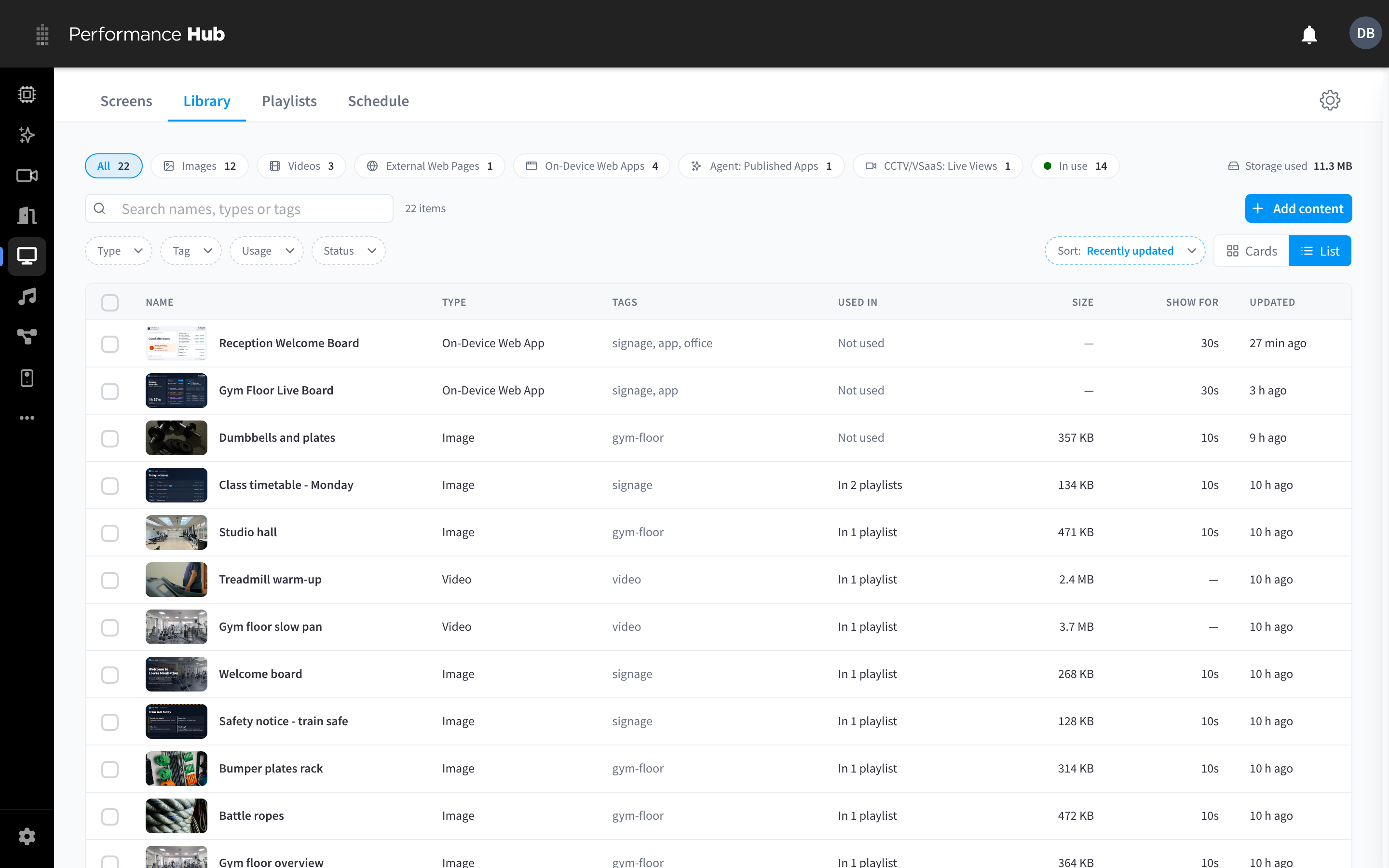
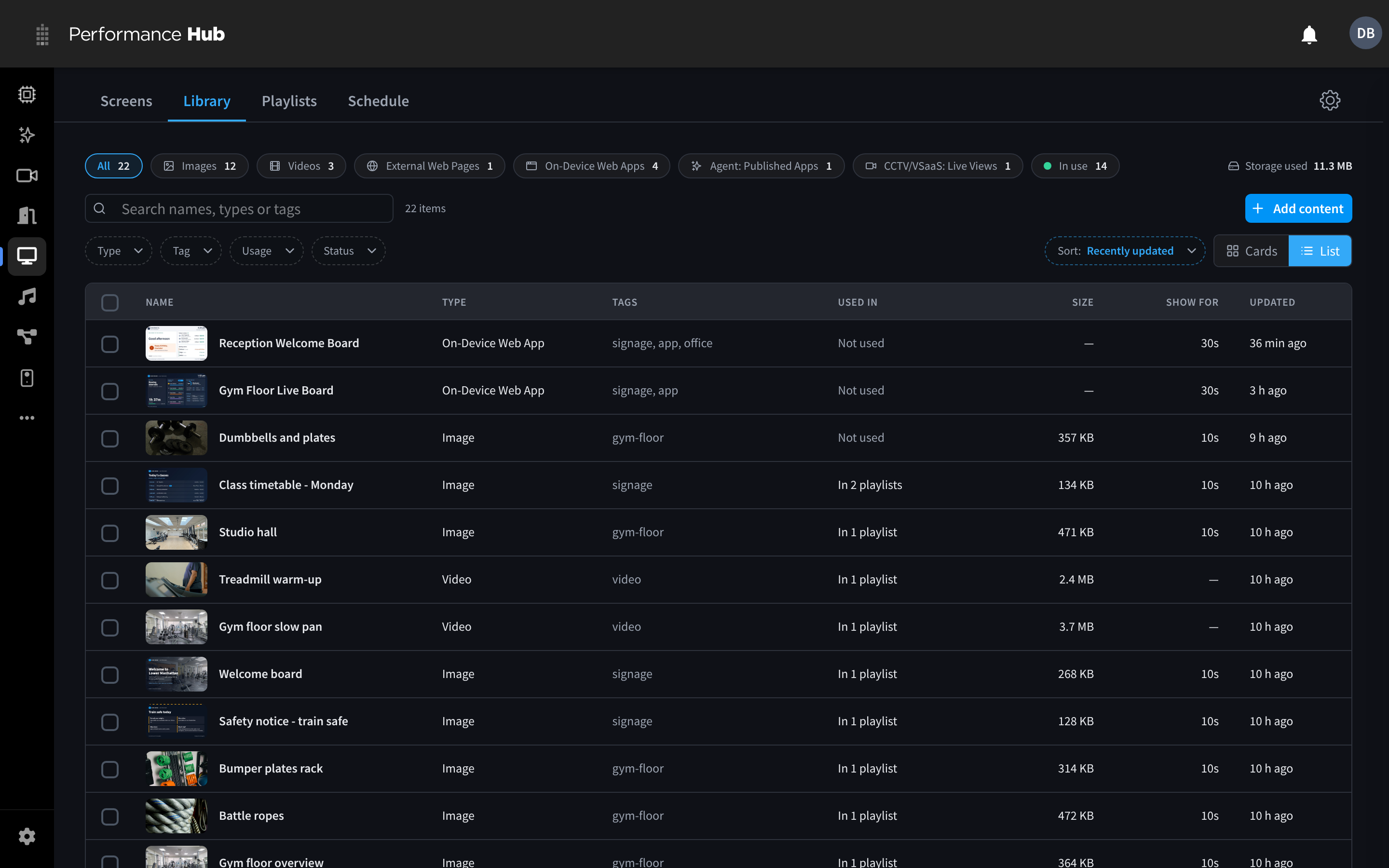
Figure 2: The Library in list view
| Column | What it shows |
|---|---|
| Name | The item name and a thumbnail |
| Type | Image, Video, External Web Page, On-Device Web App, Agent: Published App or CCTV/VSaaS: Live View |
| Tags | The item's tags |
| Used in | Where the item is used, for example "On 1 schedule · In 1 playlist", "In 2 playlists" or "Not used" |
| Size | File size, for images and videos |
| Show for | The item's default time on screen when it is added to a playlist, if one is set |
| Updated | When the item was last changed |
Content types
| Type | What it is | Good for |
|---|---|---|
| Images | JPEG, PNG, WebP or GIF images | Promotions, notices, menus, welcome slides |
| Videos | MP4, WebM or MOV videos | Brand videos, product and event promos, how-to clips |
| External Web Pages | A website, shown live | Live timetables, dashboards, news |
| On-Device Web Apps | Your own HTML, CSS and JavaScript, uploaded as a ZIP or built by an AI agent. Screens keep a copy, so they play offline. | Custom layouts, welcome boards, leaderboards, anything that must keep working without internet |
| Agent: Published Apps | An app your AI Agent built and published, shown live from the agent | Live occupancy, room and class availability, and other data your agent already works with |
| CCTV/VSaaS: Live Views | A video wall of live cameras from this facility | Entrance and car park views at reception |
Design guidelines
- Design images and videos at 1920 × 1080 for landscape screens or 1080 × 1920 for portrait screens.
- Videos are converted for the screens to 1080p by default (MP4, plus a WebM copy that the screens play). For large or 4K sources you can choose a larger size, up to the source size or 3840 px on the long side. Videos are never upscaled.
- Screens are read from across a room: use large text, high contrast and short messages.
- Use the Preview landscape and Preview portrait options on a web page or app to check it fits before you publish.
Add content
Click Add content on the Library tab to add images and videos, web pages, apps and live camera views. Each type is covered step by step in Adding content:
- Images and videos: upload files or import from a link
- External Web Pages
- On-Device Web Apps
- Agent: Published Apps
- CCTV/VSaaS: Live Views
On-Device Web Apps
Your own HTML, CSS and JavaScript, which screens download and keep playing offline. An AI agent can build and publish one for you, and every version is kept in the Library. See Published apps.
Agent: Published Apps
Web apps your AI Agent built, shown live from the agent so they update on their own. If the agent is offline, screens skip the app until it is back. See Published apps.
View and edit an item
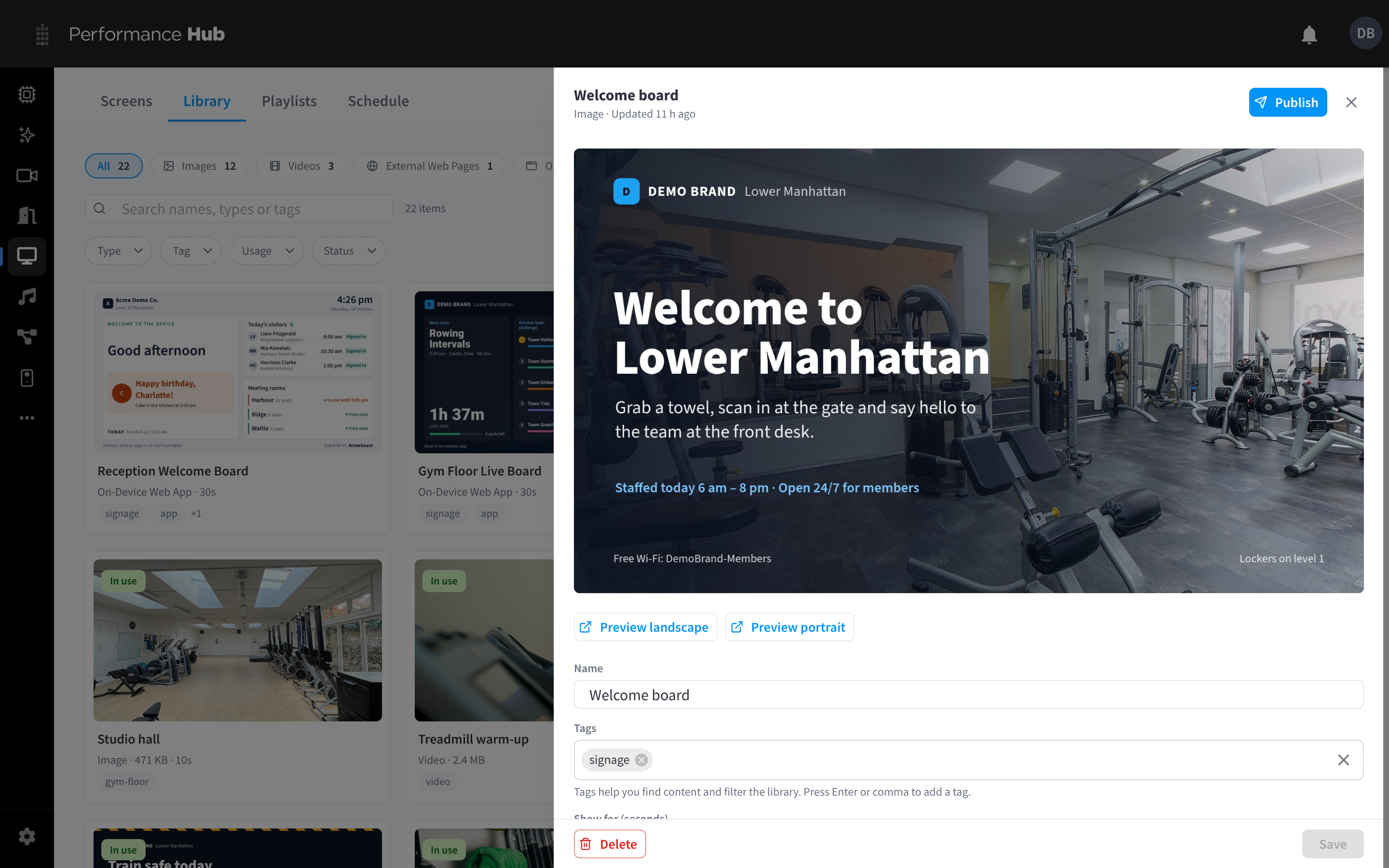
Figure 3: A Library item, with its preview, name, tags and Publish
Click any item to open its details panel. It shows the item type and when it was last updated, plus:
| Control | What it does |
|---|---|
| Publish | Put the item on screens. See Publishing content. |
| Preview | A picture of the item. For web pages and apps, the preview shows when it was taken (for example "Preview updated 1 h ago"); click Refresh preview for a new one. |
| Preview landscape / Preview portrait | Open the page or app at landscape or portrait screen size, to check it fits |
| Link | For web pages, the address. Click it to open the page. |
| Name | Rename the item |
| Tags | Add tags to find items quickly with search and the Tag filter |
| Show for (seconds) | How long the item shows in a playlist. Leave it empty to use the playlist default. |
| Delete | Remove the item from the Library |
| Save | Save changes to the name, tags and time on screen |
You can't delete an item while it's in a playlist or published. Remove it from those playlists and schedules first; Used in shows where.
Publish content
To put an item on screens, open it and click Publish. See Publishing content.
Related pages
- Adding content: add each type of content
- Publishing content: put content on screens, always, on a schedule or as a takeover
- Smart Displays and published apps: apps your AI agent builds for your screens
- Playlists: combine Library items into a loop
- Schedule: schedule content for certain days and times
- Screen content: see what is published to one screen