
Playlists
A playlist is an ordered loop of Library items. Each item has its own time on screen, and items can be set to play only between certain dates, so one playlist can run all season while offers come and go. Publish a playlist the same way as a single item: as a screen's default content, on a schedule, or as a takeover.
Quick reference
Where to find it: Main menu → Display Screens → Playlists
Who can access: Users with Display Screens access at the facility
Purpose: Rotate several pieces of content on the same screens
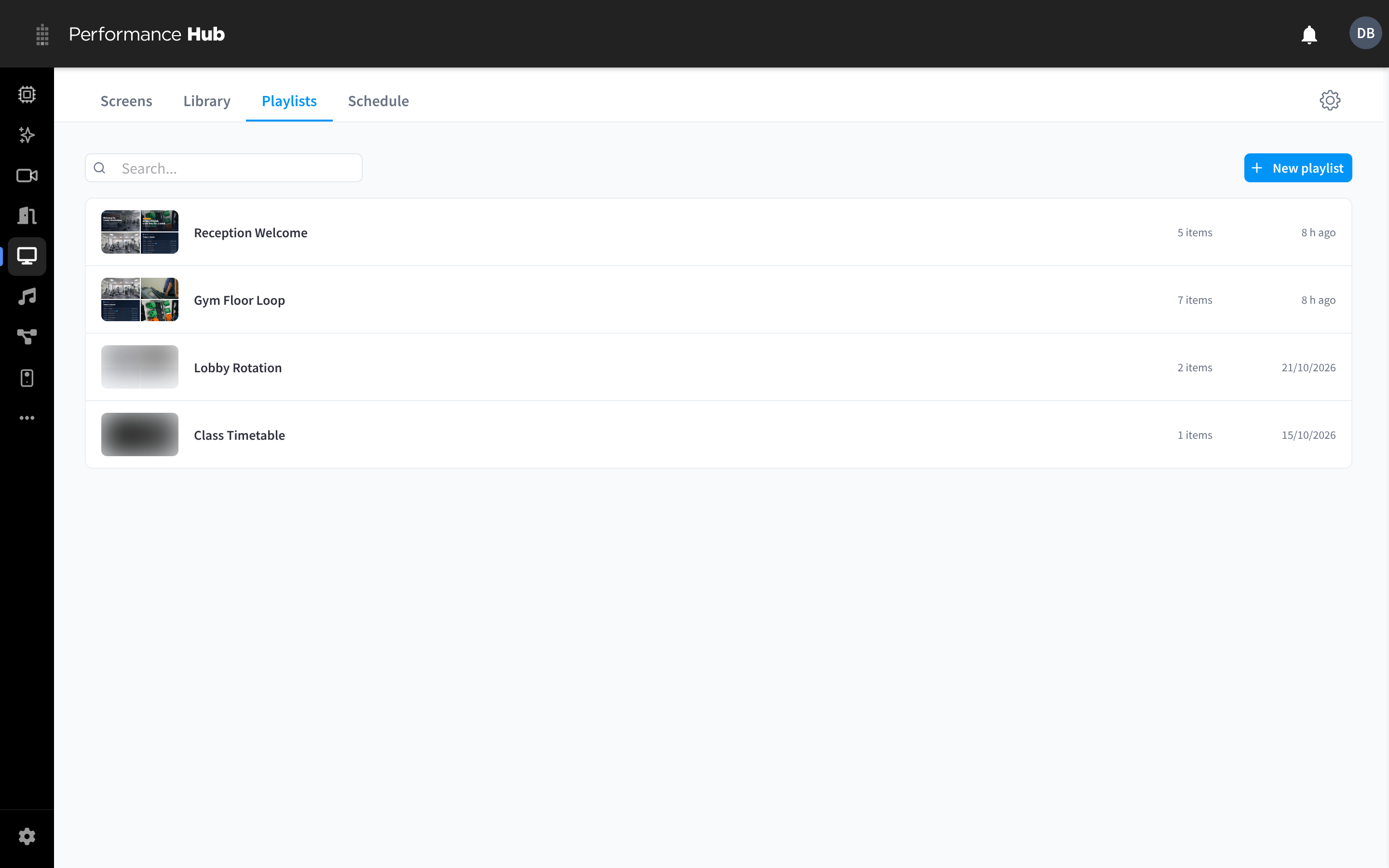
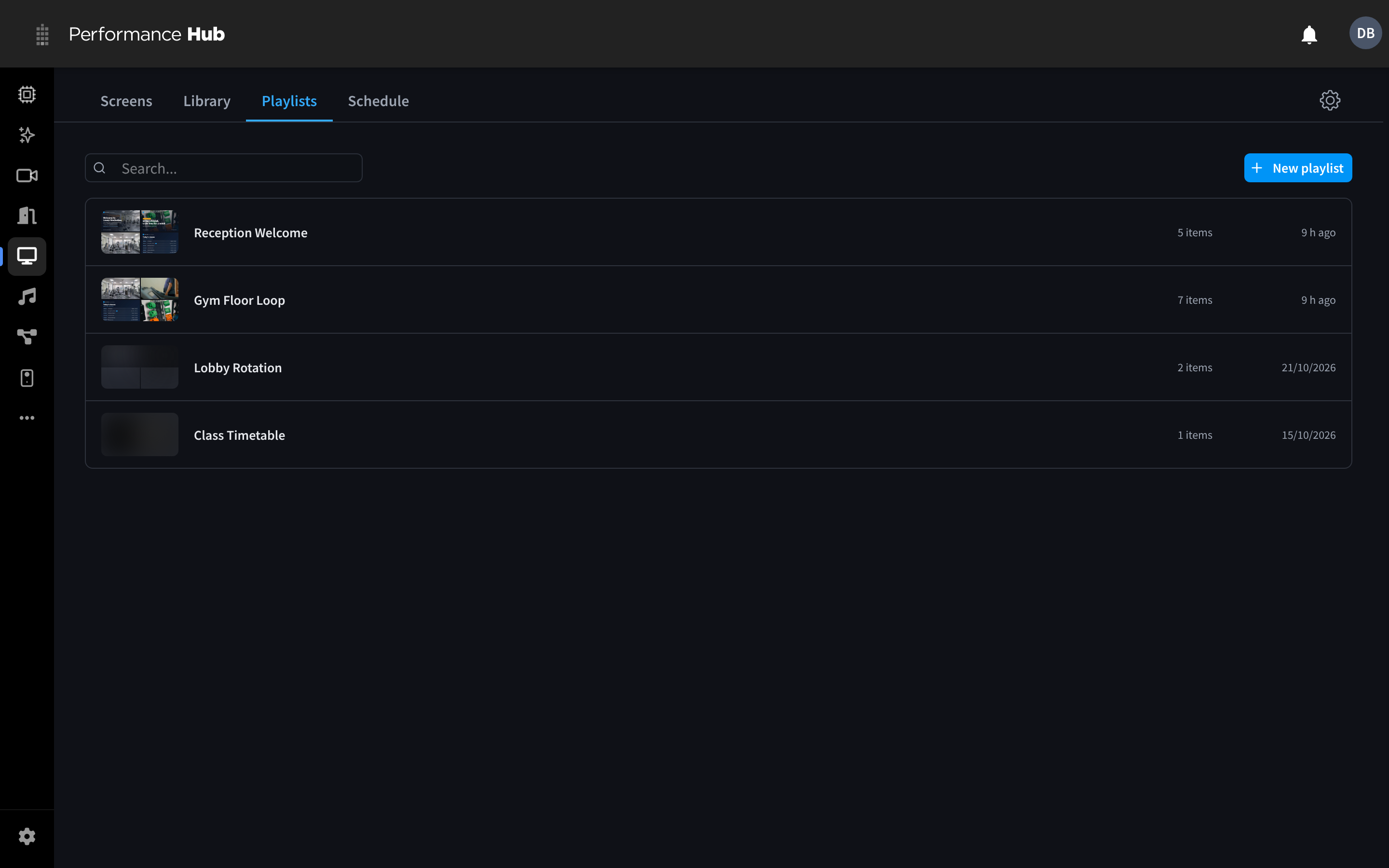
Figure 1: The Playlists tab
The Playlists tab lists every playlist with a thumbnail, its name, how many items it has and when it was last changed. Use Search to find a playlist by name, and click a playlist to open it in the editor.
Create a playlist
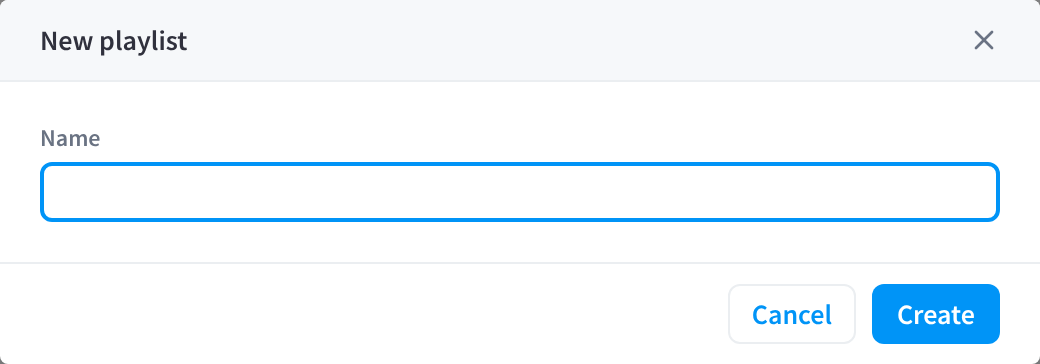
Figure 2: Create a new playlist
- On the Playlists tab, click New playlist.
- Enter a Name that says where or when it plays, for example "Lobby Rotation".
- Click Create. The playlist opens in the editor.
- Click Add items. In the Add to playlist dialog, search or scroll, tick the items you want, then click Add (the button shows how many you ticked, for example Add 2).
- Set each item's timing and options, and the order. See Edit a playlist.
- Click Save changes in the bar at the bottom of the page, check the preview, then click Publish. See Publish a playlist.
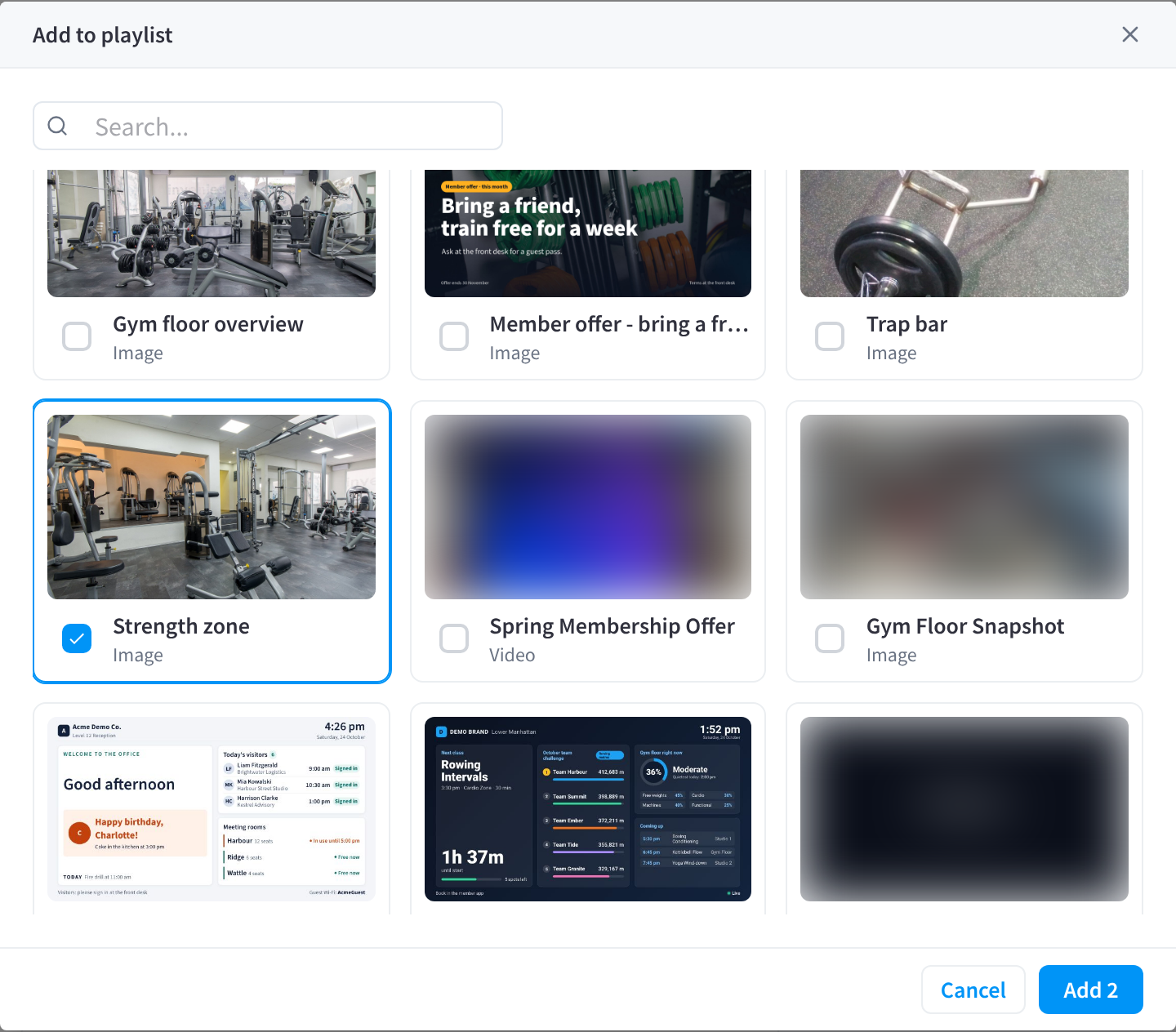
Figure 3: Add Library items to a playlist
Edit a playlist
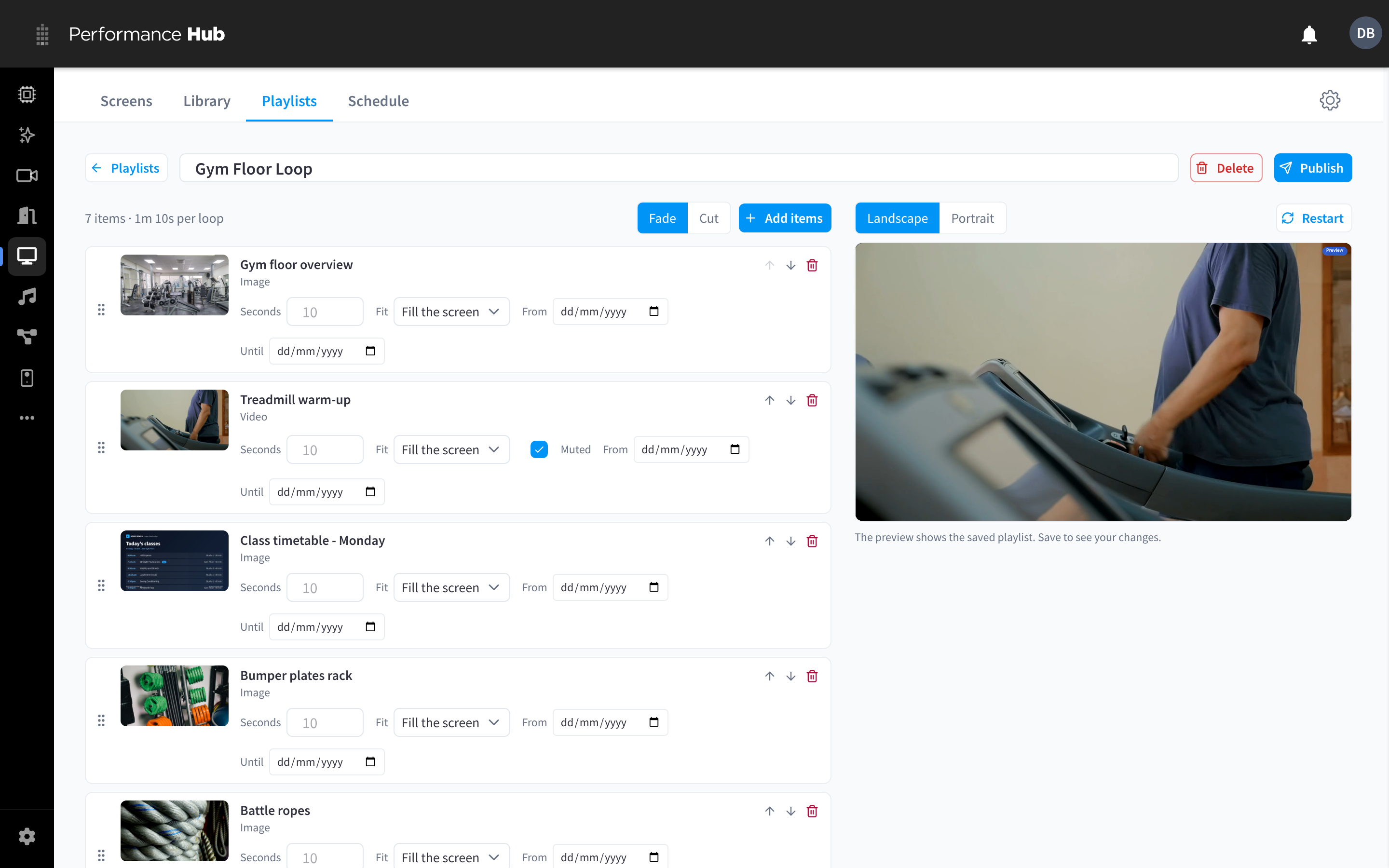
Figure 4: Editing a playlist, with transitions, item timing and a preview
| Control | What it does |
|---|---|
| ← Playlists | Back to the list of playlists |
| Name | Rename the playlist |
| Delete | Delete the playlist. You can't delete a playlist while it is published; remove it from screens first. |
| Publish | Put the playlist on screens |
| Items and loop length | How many items the playlist has and how long one loop takes, for example "7 items · 1m 10s per loop" |
| Fade / Cut | The transition between items: a short fade, or an instant cut |
| Add items | Add more items from the Library |
Item settings
Each item in the playlist has its own row:
| Setting | What it does |
|---|---|
| Drag handle, up and down arrows | Change the order items play in |
| Bin | Remove the item from the playlist (it stays in the Library) |
| Seconds | How long the item shows for each loop, from 5 to 3,600 seconds (one hour). New items start at 10 seconds. |
| Fit | For images and videos: Fill the screen (the default) crops the edges so the item fills the whole display. Show it all shows the whole item, with bars at the sides if its shape doesn't match the screen. |
| Muted | For videos: plays without sound. Videos are muted unless you untick this. |
| From / Until | Optional dates. The item only plays between these dates, so you can add an offer in advance and let it drop off by itself. Leave both empty to always play it. |
Save your changes
Changes in the editor aren't saved until you save them. While you have unsaved changes, a bar at the bottom of the page says You have unsaved changes: click Save changes to keep them, or Discard to undo them.
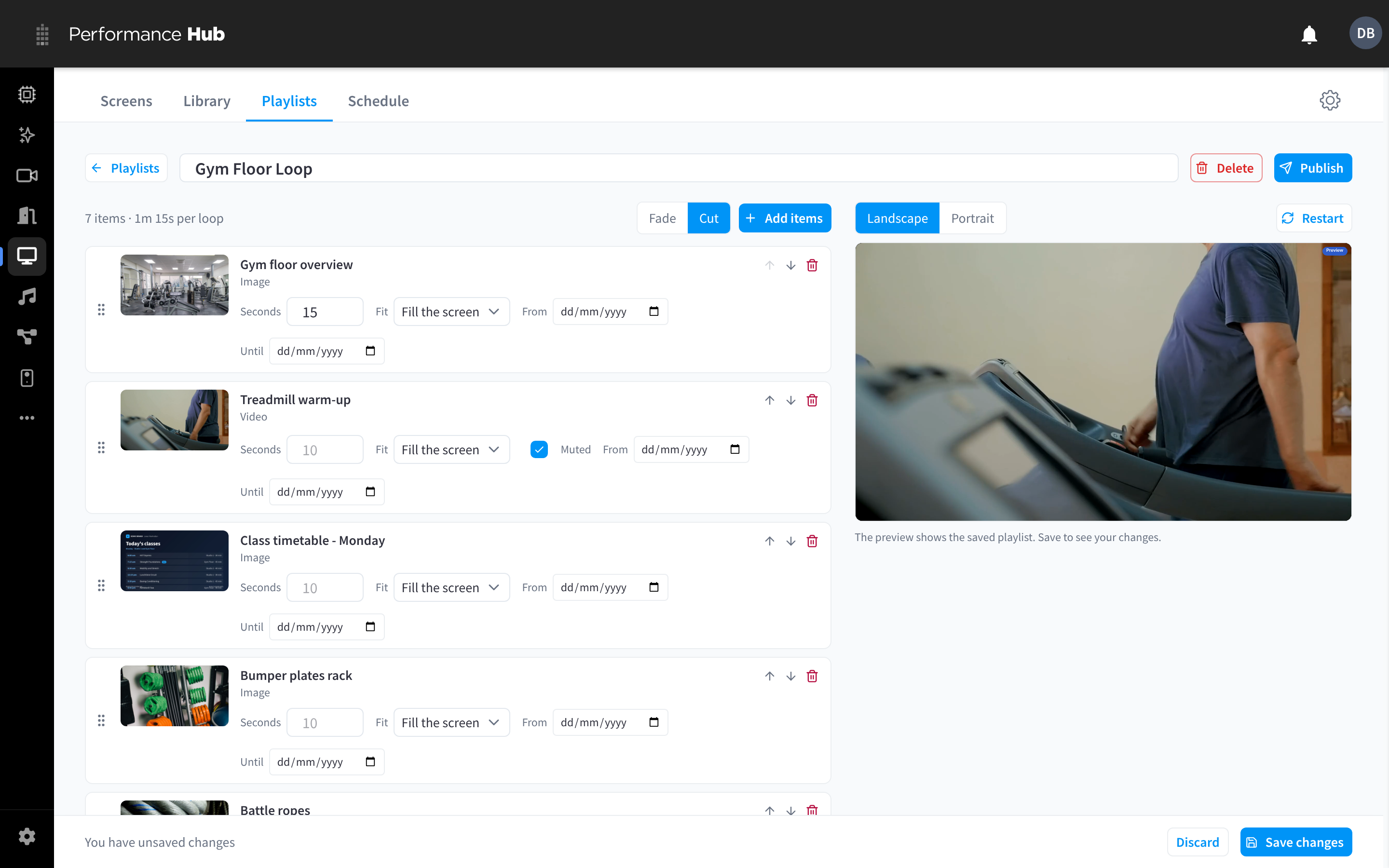
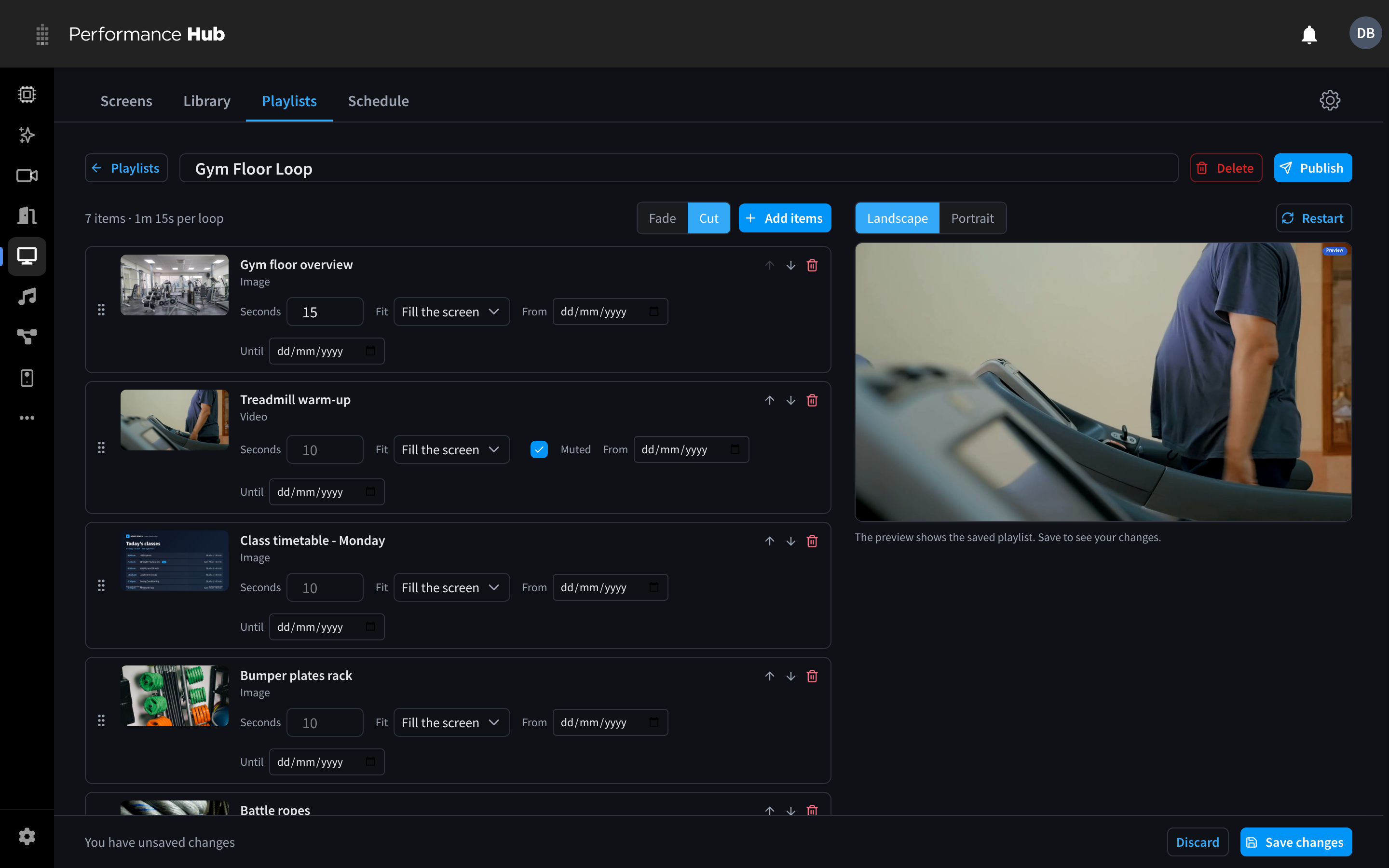
Figure 5: A playlist with unsaved changes
Preview
The preview on the right plays the saved playlist. Switch between Landscape and Portrait to check it on both screen shapes, and click Restart to play it from the start. The preview shows the saved playlist, so save first to see your changes.
Changes to a published playlist reach screens within seconds of saving. You don't need to publish it again.
Publish a playlist
- Open the playlist and click Publish.
- Choose the target: one or more screens, a group, or every screen at the facility (users with organisation-wide access can also choose a brand or the organisation).
- Under When, choose Always (default) (replaces what the target normally shows), Scheduled (certain days, times or dates) or Take over now (straight away, for a set time).
- Click Publish (or Take over).
This works the same way as publishing a Library item. To schedule a playlist on the Schedule calendar instead, use Schedule content.
Tips
- One default playlist per area. Publish a default playlist to each group (for example "Reception", "Café" or "Waiting room"), then layer scheduled content on top for events, specials or classes.
- Keep loops short. People rarely watch a screen for long. A loop of four to eight items at 8 to 15 seconds each works well for promotions.
- Use dates for offers. Set Until on time-limited promotions so they never outstay the offer.
- Items that can't play are skipped. If an item can't be shown, for example an agent app that has been unpublished or a camera view whose cameras are unavailable, the screen moves on to the next item. If nothing in the playlist can play, the screen shows the Fallback Slate.
- Web pages that block framing can't play in a playlist. Use a screen with the Full-page website (Kiosk Mode) Data Source instead.
Related pages
- Adding content: add the items your playlists use
- Publishing content: where and when a playlist plays
- Schedule: see when each playlist plays
- Screen content: check what a screen is playing