
Smart Displays and published apps
A Smart Display is a screen showing an app your AI Agent hosts. Because the agent runs the app, it can change what the screen shows as things change around it: members arriving at the gym, a lunch rush at the counter, a visitor opening the front door, a busy waiting room. Describe what you want in plain language. The agent builds the app, keeps it up to date, and you put it on your screens like any other content.
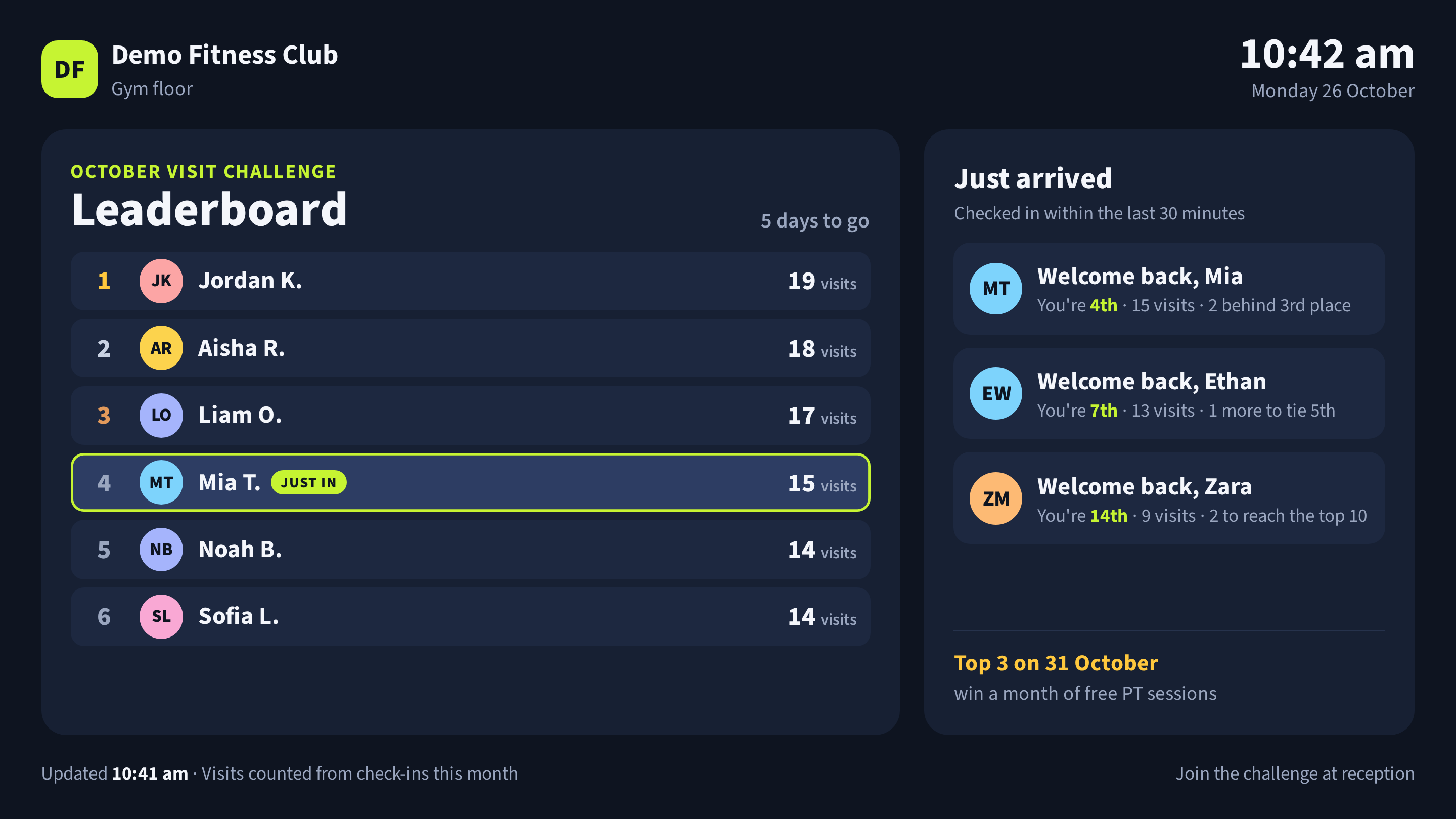
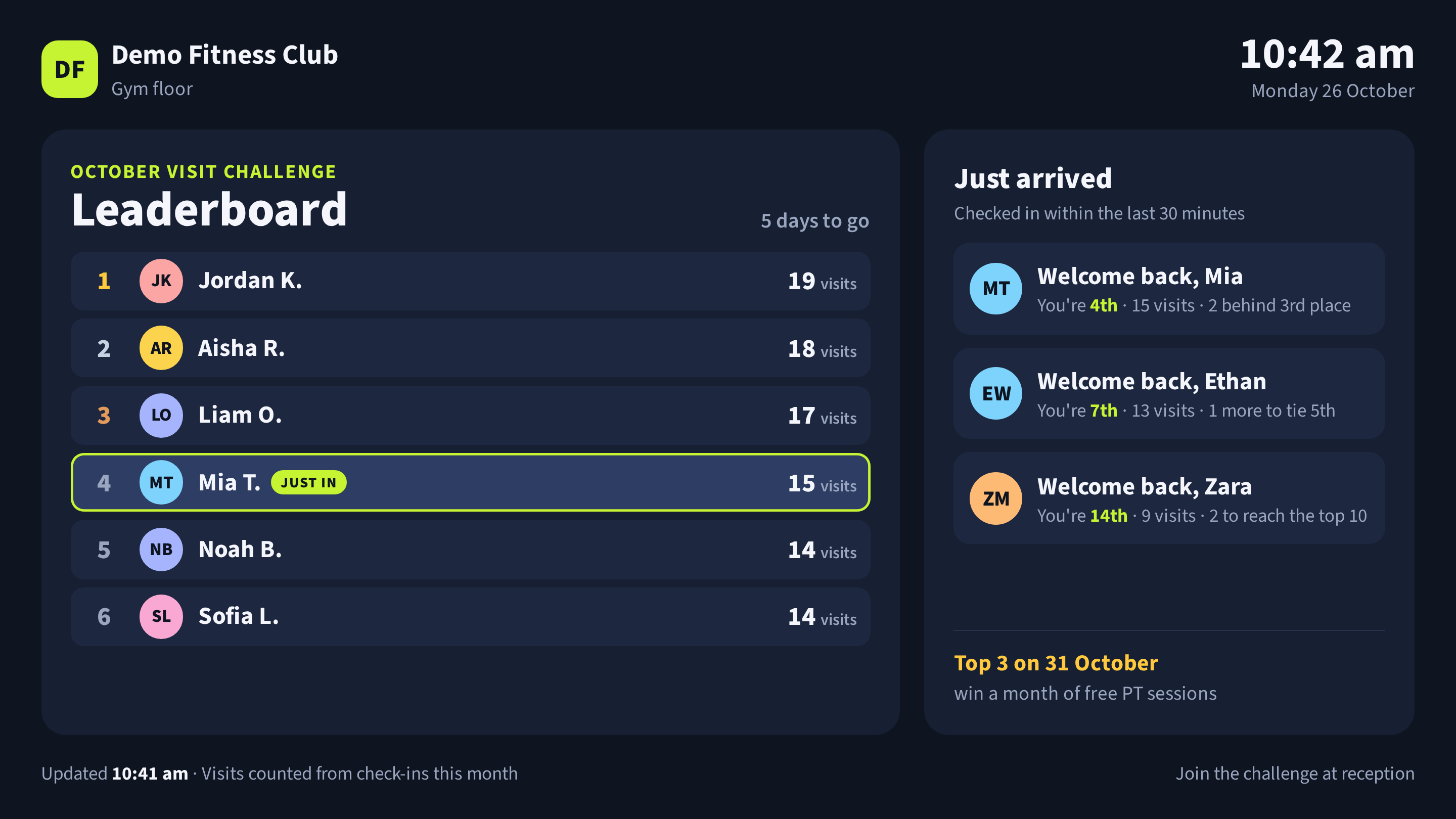
Figure 1: A Smart Display on a gym floor. The agent recounts check-ins every few minutes and shows members who just arrived where they rank. The club and members are fictitious.
You stay in control: every app is in your Library, where you can preview it, see where it is used, and change or remove it.
Smart Displays
A Smart Display uses an Agent: Published App: a web app your AI Agent built that runs live on your facility's AI Agent device. Screens show the live app, so when the agent changes what it shows, the screen changes too. Nobody republishes anything.
The agent keeps the app current in one of two ways:
- On a schedule. An automation runs every few minutes during the hours that matter. Through its Performance Hub connection, the agent reads what it needs, such as check-ins, door events or camera counts, and updates the app. Each run uses AI spend, so check only as often as you need to.
- When something happens. An event at your site, such as a visitor's pass opening the front door, prompts the agent to update the app. The screen changes soon after the event, and the agent does no work in between. See the office lobby welcome.
A Smart Display can only use what the agent can read. Its MCP access must include the facility and the capabilities the app needs, such as Door & Gate Access for door events or CCTV for check-ins and camera counts. See Connecting to Performance Hub.
Two ways an app reaches your screens
| Agent: Published App (Smart Display) | On-Device Web App | |
|---|---|---|
| Who builds it | Your AI Agent | You, a developer, or any AI agent connected through MCP |
| Where it runs | On your AI Agent device, shown live on screens | On each screen (screens download it) |
| Keeps adapting | Yes: the agent changes it as things change at your site | No: it plays the same files until a new version is published |
| Your facility's data | Yes, anything the agent can read | No: only public data, such as the weather |
| If the internet or agent drops out | Skipped until the agent is back | Keeps playing |
| Versions and rollback | Managed by the agent | Yes, in the Library |
| Modules needed | Display Screens, AI Agent and Custom Apps | Display Screens |
Your agent can build an On-Device Web App for you too, but once it is published it can't keep adapting. It plays the same files on every screen until someone publishes a new version, and it can't use your facility's data. Only an Agent: Published App keeps changing with what happens around the screen.
Choose a Smart Display when the screen should react to your site: who has arrived, how busy it is, or what just happened. Choose an On-Device Web App for content that stays the same or only needs public data, and that must keep playing offline.
Smart Display examples
Each example below is a real setup: what the screen reacts to, what it shows, how the agent keeps it current, and what you need. The businesses and people are fictitious.
Gym leaderboard that greets members as they arrive
A gym runs an October visit challenge. Its agent hosts a leaderboard for the gym floor screens that ranks members by visits this month and welcomes challenge members when they're near the screen.
- Reacts to: who's near the screen. The agent knows this through Performance Hub's facial recognition, recent check-ins, or both, depending on how the gym sets it up. Each challenge member near the screen gets a Just in tag and a card showing where they rank. In the figures, the gym uses check-ins from the last 30 minutes.
- Shows: the top members by visits, first name and last initial only, the days left in the challenge and the prize.
- Stays current: every 5 minutes during opening hours, the agent recounts this month's check-ins with
insights_checkins, checks who's near the screen, and updates the app. - You need: CCTV with AI Insights & People, with facial recognition on the cameras near the screen, check-ins from your member management system, or both, and an opt-in list of the members who joined the challenge.
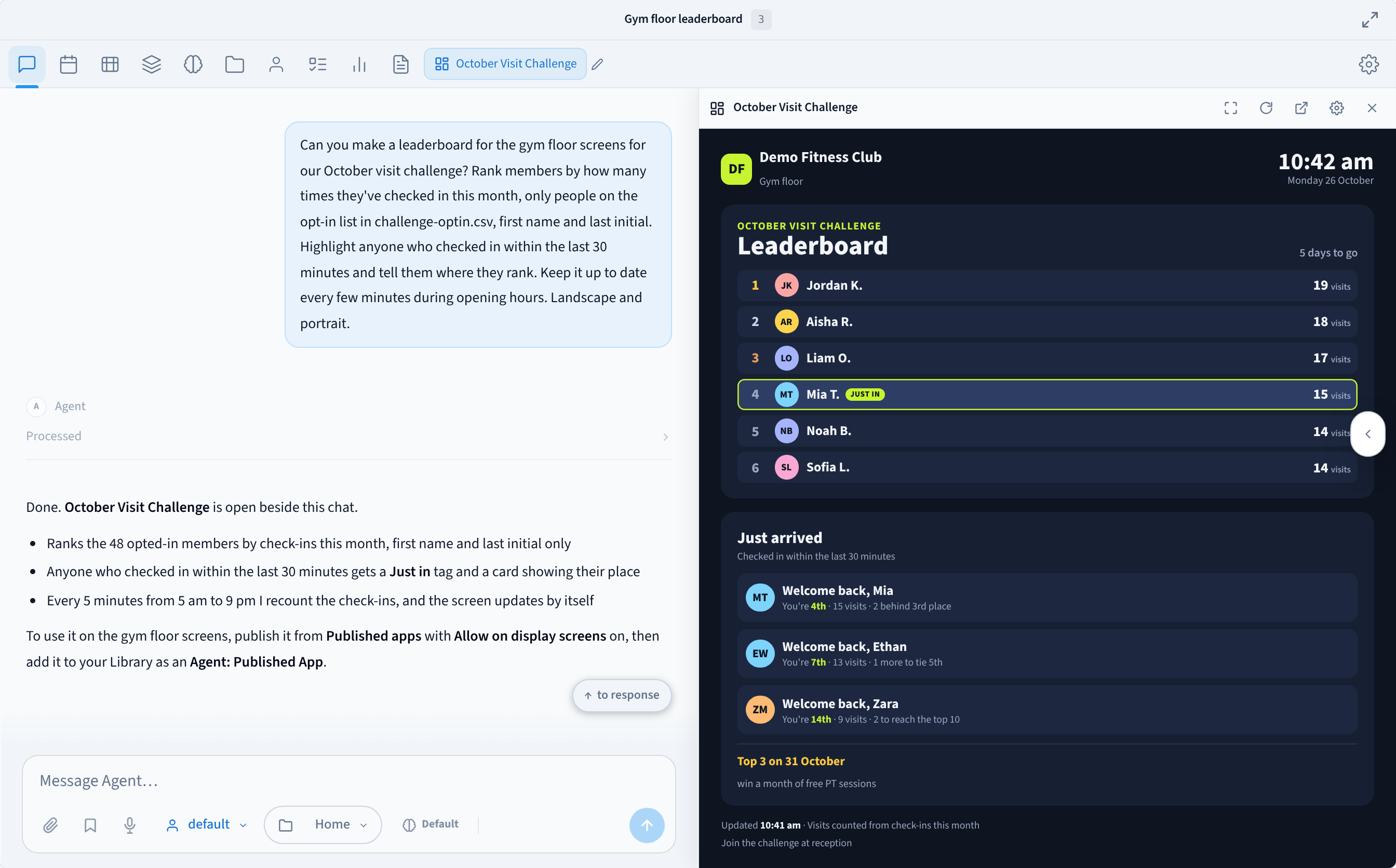
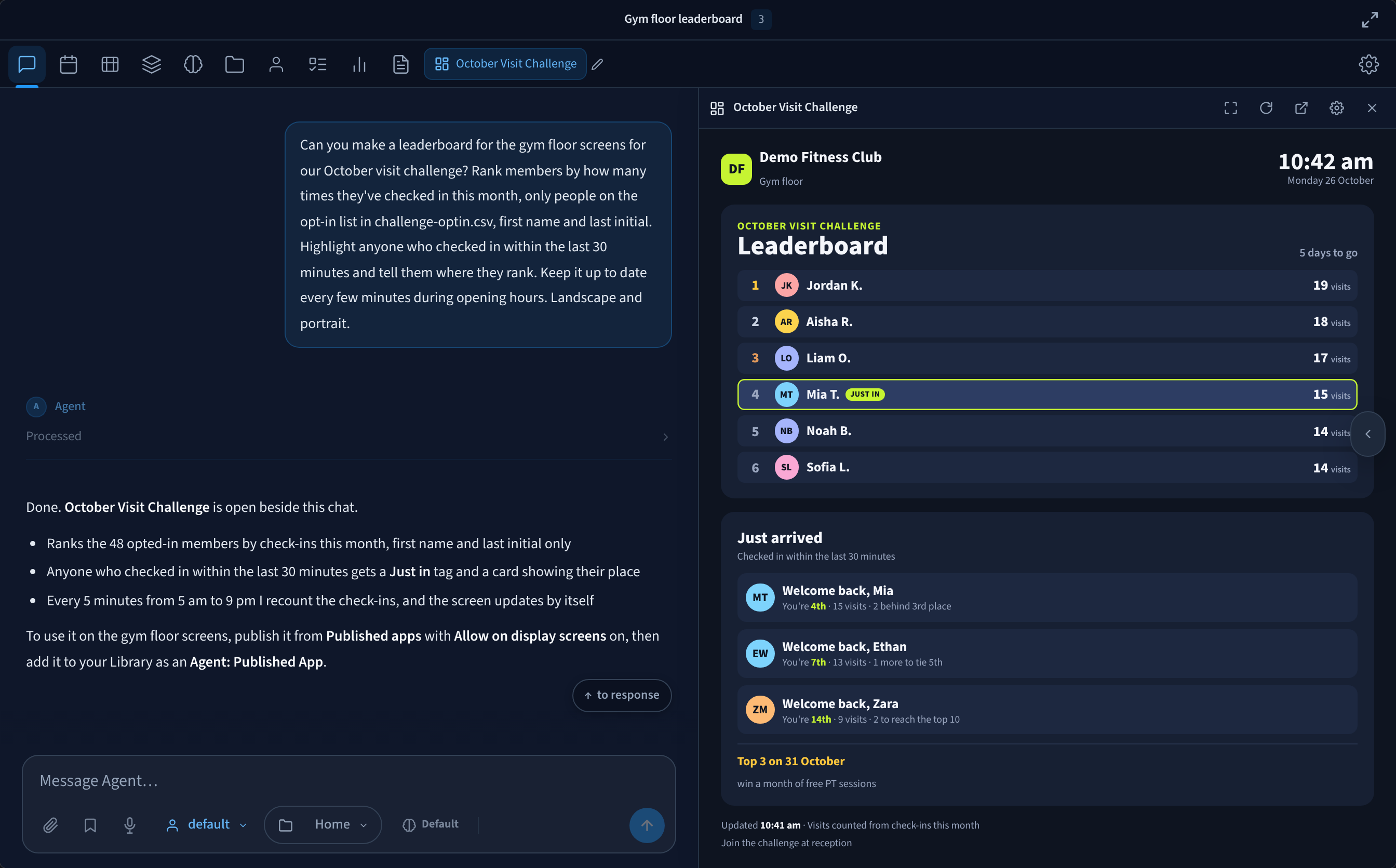
Figure 2: Ask your AI Agent for the leaderboard. It builds the app, opens it beside the chat, and recounts check-ins every 5 minutes. The conversation is an example.
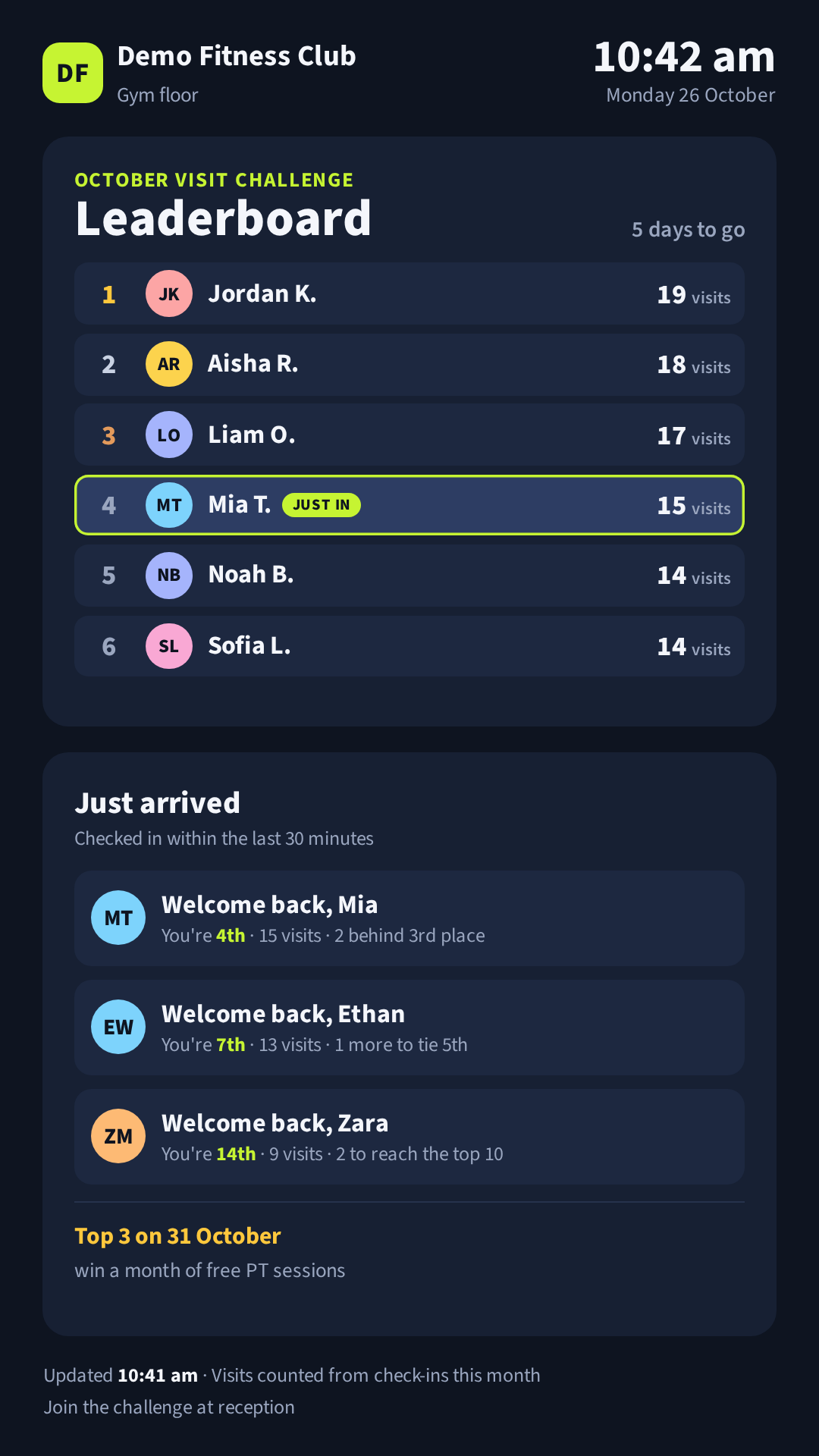
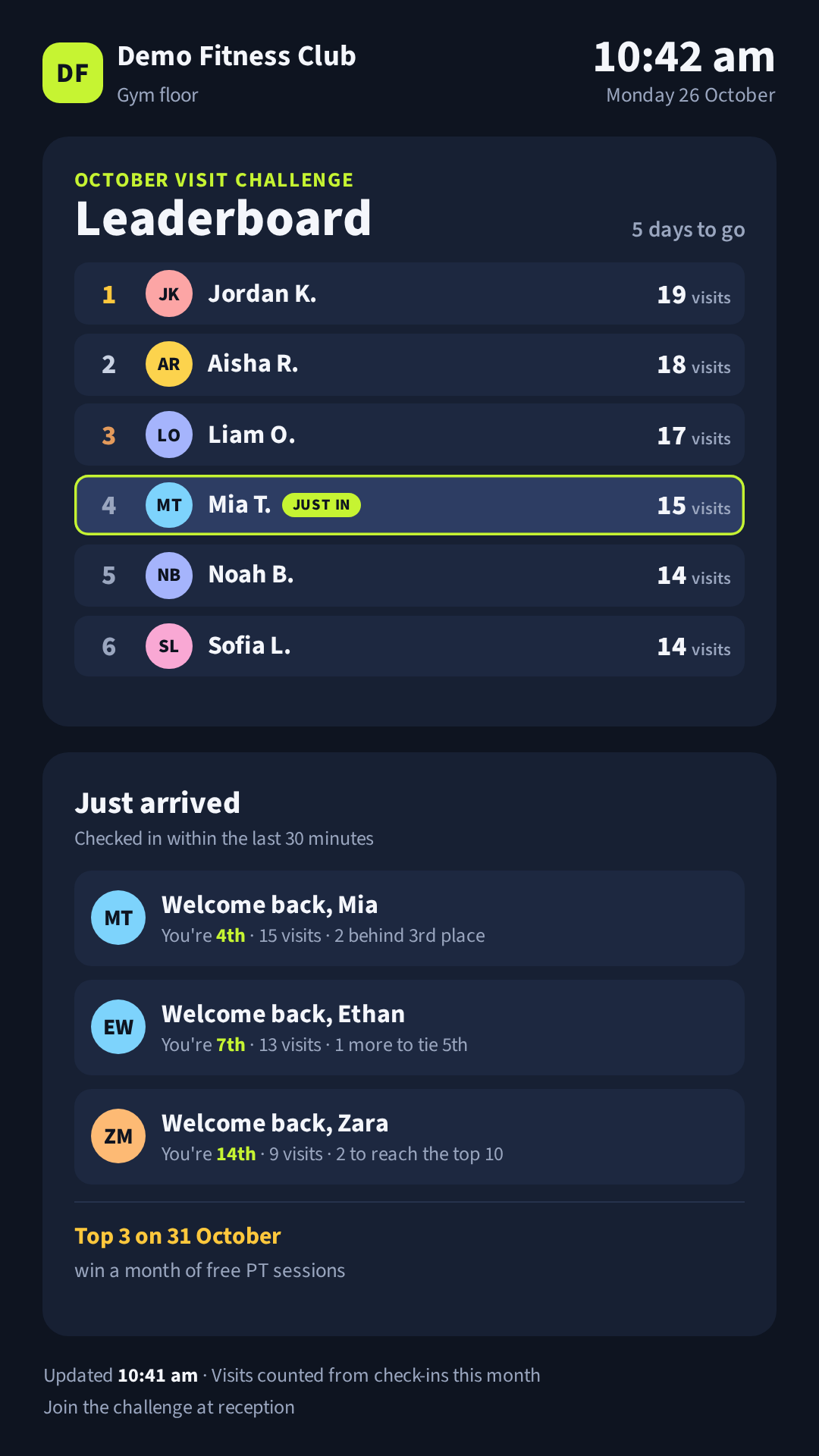
Figure 3: The same leaderboard on a portrait screen
Privacy. Include only members who opted in, show no more than a first name and last initial, and never show membership or health details.
Quick-service menu board that reacts to the lunch rush
A quick-service restaurant asks its agent for the menu board above the counter. It switches menus through the day and, when the counter is busy, moves the items that are quickest to prepare to the top.
- Reacts to: the time of day, and how busy the counter is: the number of people the counter camera has counted so far this hour, compared with a normal hour.
- Shows: breakfast until 11 am, lunch until 3 pm, then the afternoon menu. When it's busy, a Ready in under 3 minutes banner with the fast-prep items, and a Quick tag on them in the menu.
- Stays current: every 5 minutes, the agent checks today's camera counts in AI Insights & People and updates the app. Prices and prep times come from a menu file you give the agent.
- You need: CCTV with AI Insights & People, with a camera that covers the counter.
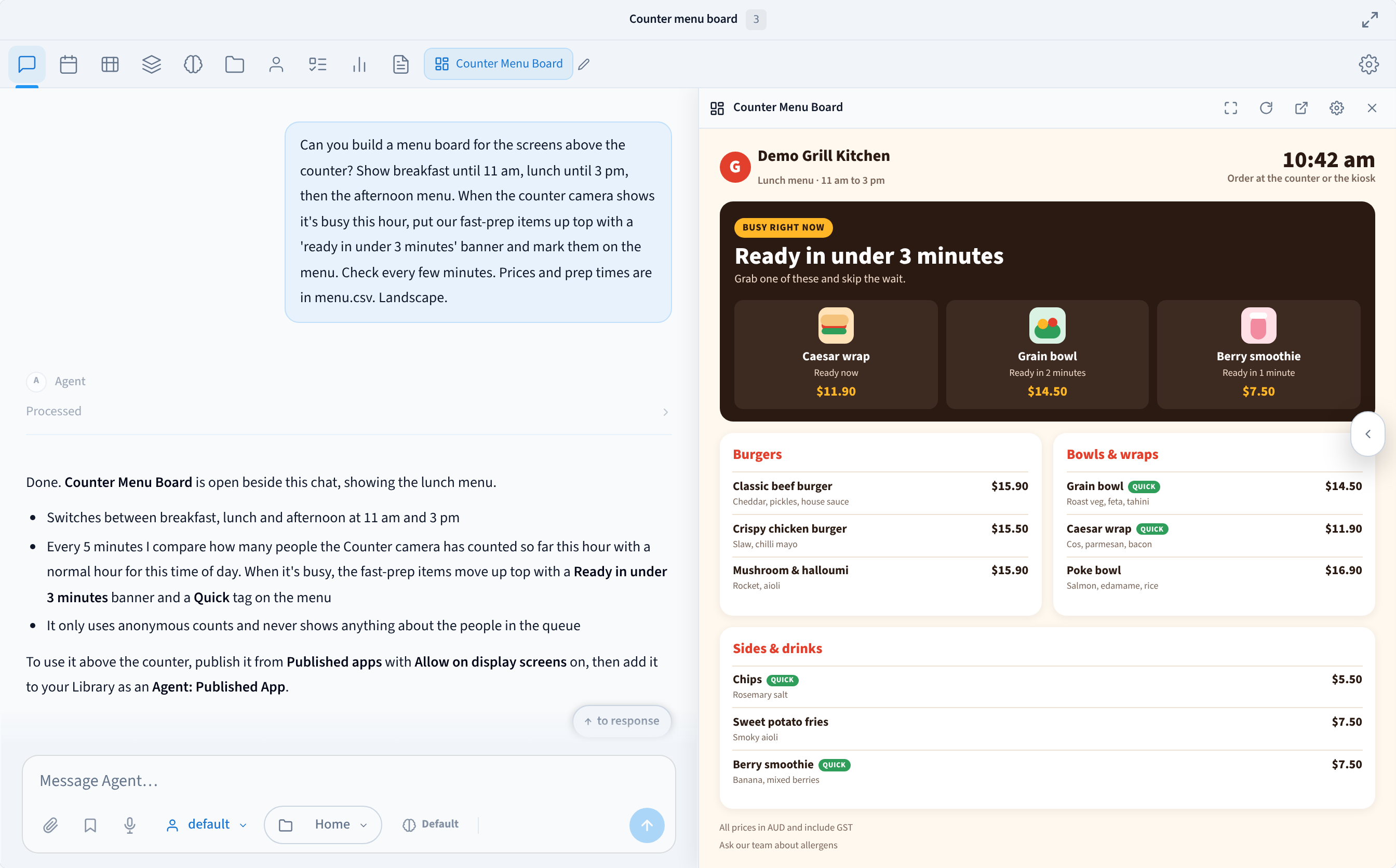
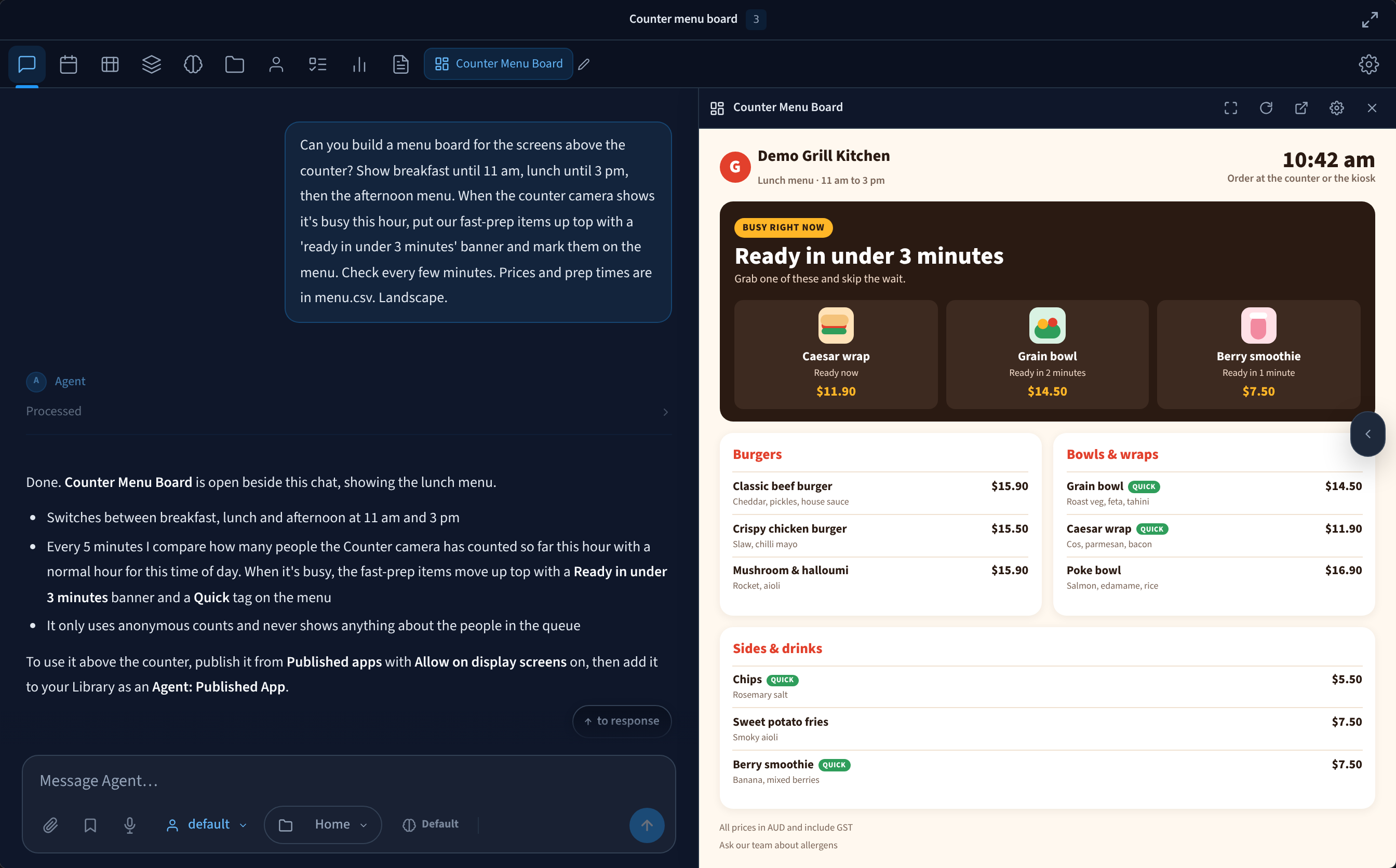
Figure 4: The agent builds the menu board and opens it beside the chat. It uses anonymous counts only. The conversation is an example.
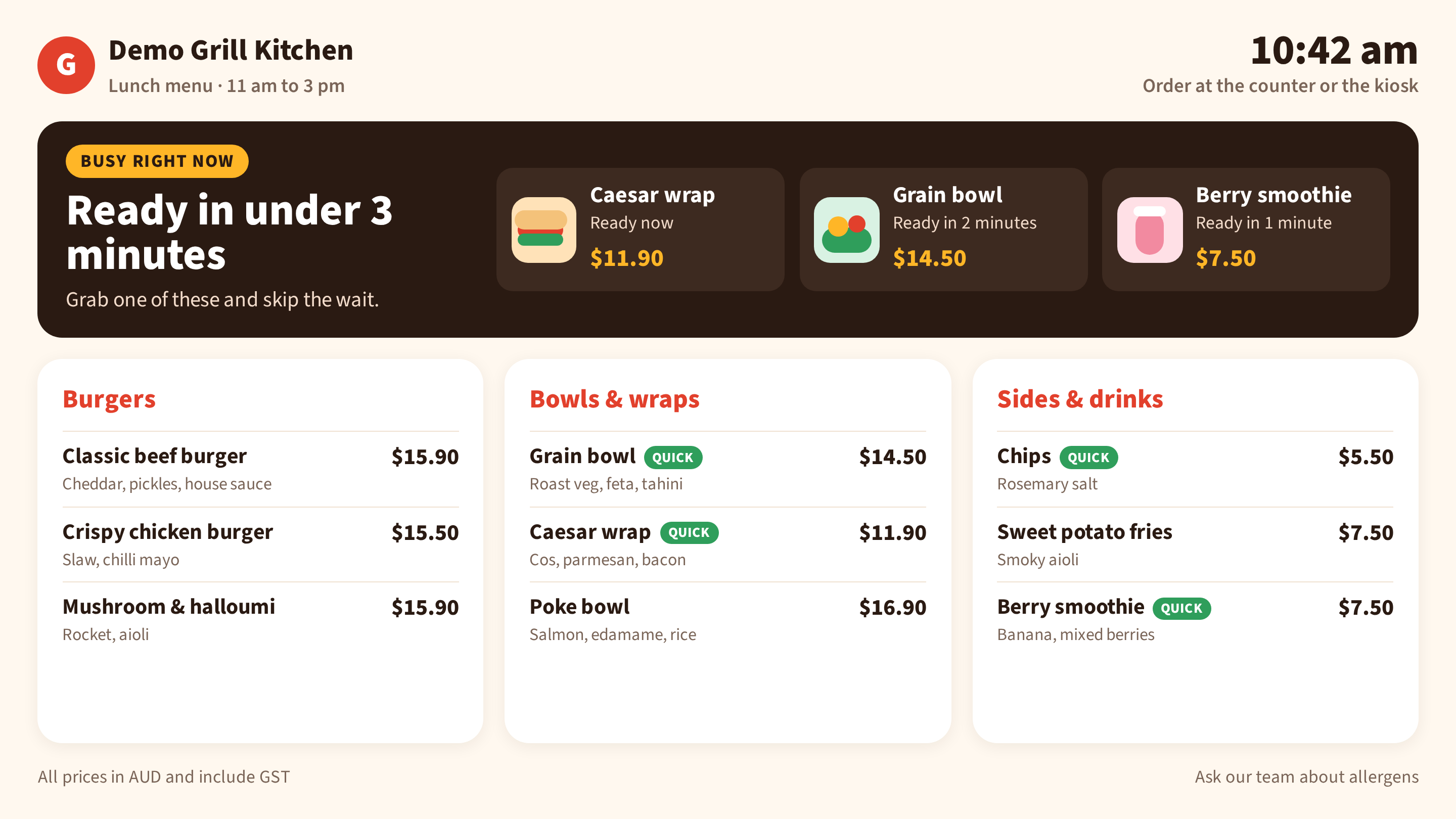
Figure 5: The result above the counter during the lunch rush
Office lobby welcome for each visitor
An office gives each visitor a Door & Gate Access pass for the time of their visit. When a visitor's pass opens the front door, the lobby screen greets them by first name with their host, meeting room and directions, then goes back to the usual welcome after a minute.
- Reacts to: the visitor's pass opening the front door.
- Shows: "Hi Priya, great to see you", the host's name and team, the meeting room and time, and step-by-step directions.
- Stays current: a workflow triggers the greeting when the visitor's pass opens the front door. The agent matches the person on the door event to today's visitor list, which reception keeps and gives the agent with each visitor's host, room and directions. Door events don't include names, hosts or rooms, so the list is always needed.
- You need: Door & Gate Access and a visitor list for the day.
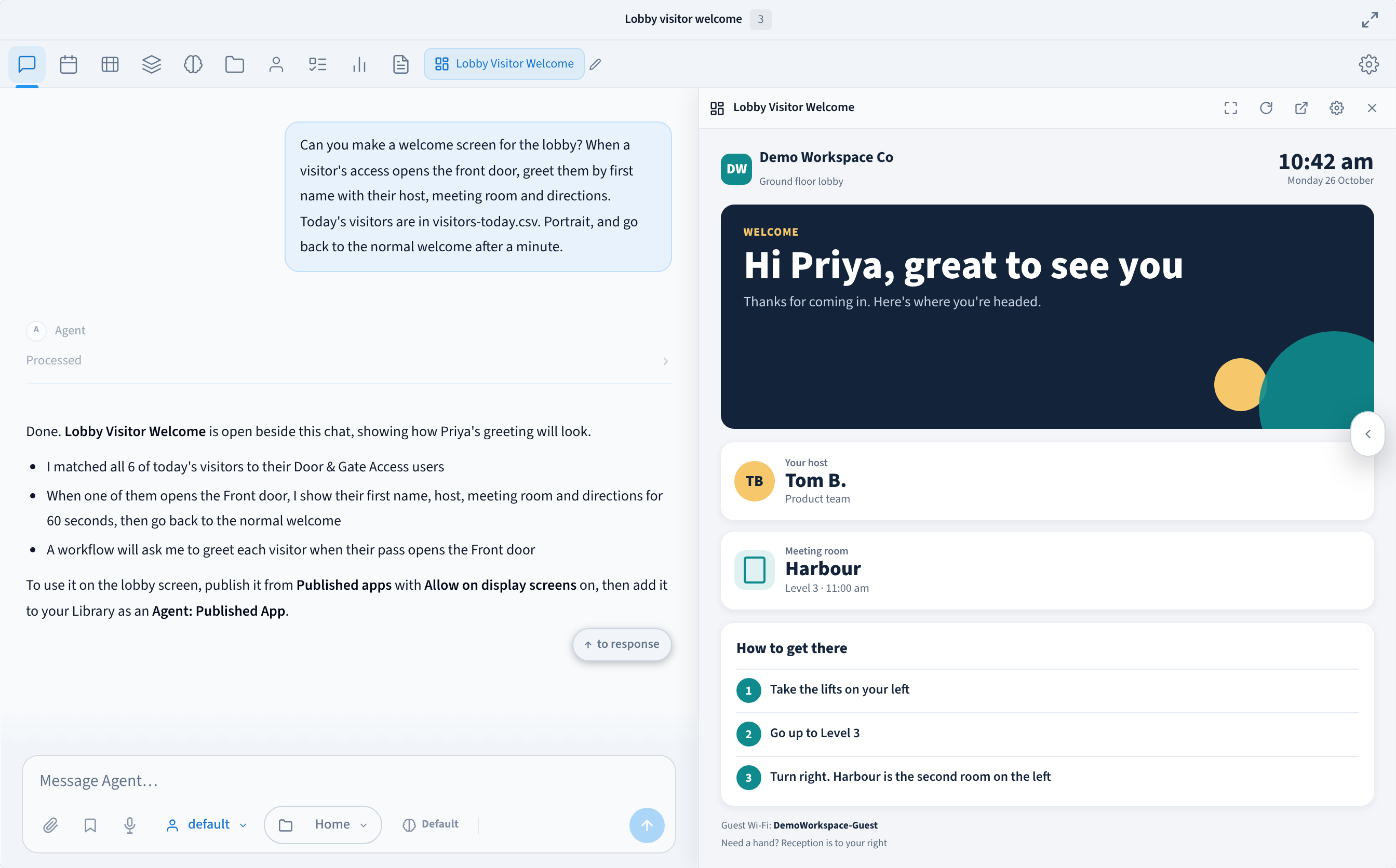
Figure 6: The agent builds the welcome screen and opens it beside the chat. The conversation is an example.
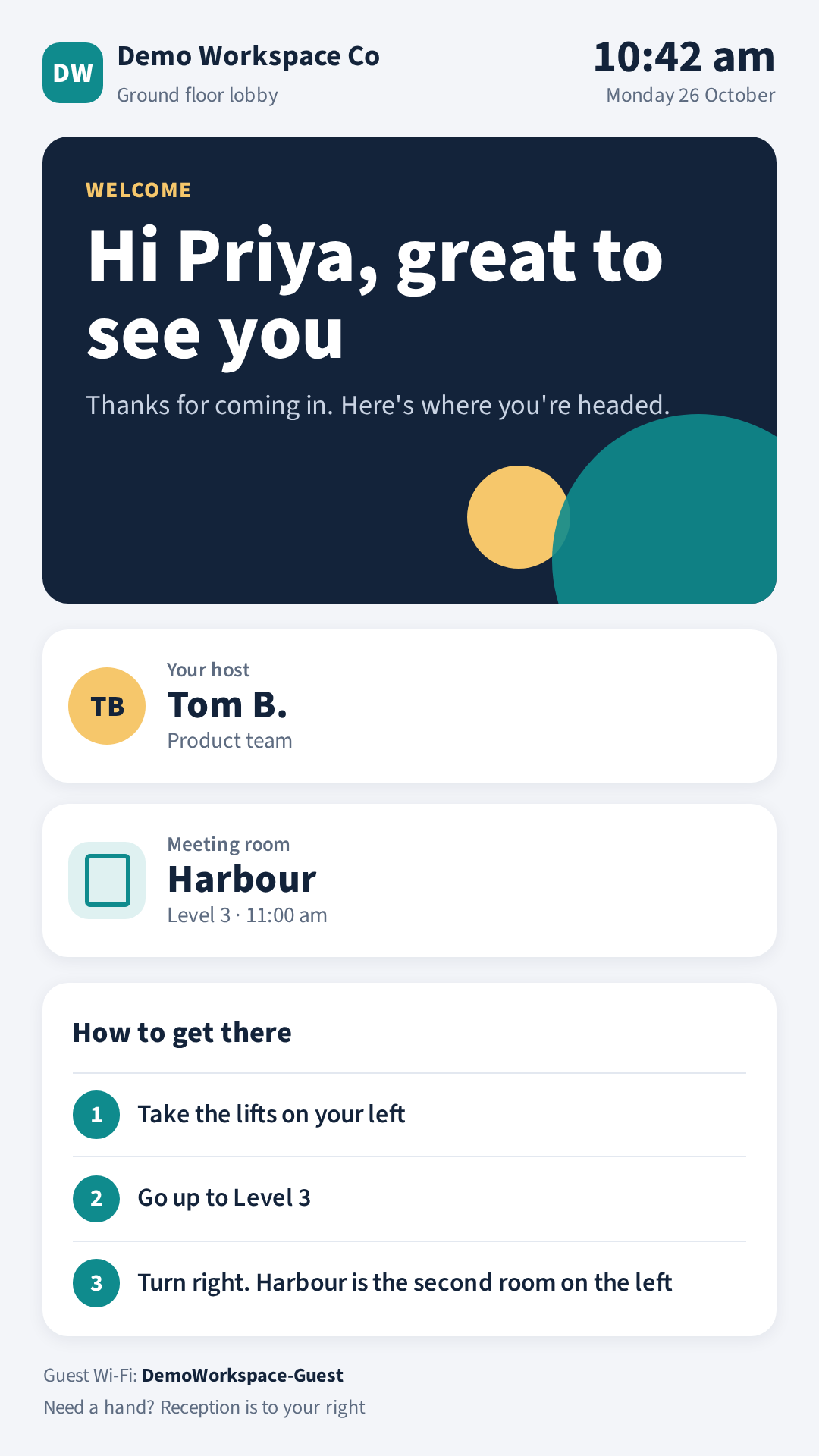
Figure 7: The result on the portrait screen in the lobby
The same setup can welcome your own team. For example, it can wish a team member a happy birthday when they arrive on their birthday, from a birthday list of people who agreed to it. Date of birth is personal information: include only people who agreed, and show no more than a first name.
Think about who can see the screen. Anyone in the lobby can see a welcome message. Show no more than a first name, and never show private information such as health, membership or HR details.
Waiting room board with live wait times
A clinic or service centre shows how long the wait is right now, so people waiting know what to expect.
- Reacts to: about how many people are waiting, from the anonymous counts of the camera that covers the waiting area, and arrivals from check-ins where your site records them.
- Shows: an approximate wait and about how many people are waiting, the opening hours, and a reassuring message when it's busy.
- Stays current: every few minutes, the agent reads the latest counts and arrivals and works out the wait from the typical time per visit you give it.
- You need: CCTV with AI Insights & People, with a camera that covers the waiting area.
An example of what the screen says when it's busy:
About 25 minutes
About 7 people waiting
We're busier than usual this morning. Thanks for your patience: we'll call you as soon as we're ready.
Never show patient or customer information. The board shows totals only, never names or reasons for a visit.
Hotel lobby board that follows the day
A hotel or venue shows guests what's on, changing with the time of day and how busy the lobby is.
- Reacts to: the time of day, and how busy the lobby is, from the lobby camera's anonymous counts.
- Shows: check-in information and the Wi-Fi details in the afternoon, tonight's events and restaurant availability in the evening, and breakfast times and check-out reminders in the morning. When the lobby is busy, check-in and Wi-Fi details come first, so arriving guests find them quickly.
- Stays current: every few minutes, the agent reads the lobby counts and updates the app. Events and restaurant availability come from lists or systems you give the agent access to.
- You need: CCTV with AI Insights & People for the lobby counts. Without CCTV, the board still changes with the time of day.
An example of what the screen says at 6 pm:
Tonight at Demo Harbour Hotel
Jazz in the lounge, 7 pm to 10 pm
Harbour Grill: tables free from 8:30 pm. Book at reception.
Breakfast tomorrow from 6:30 am in Harbour Grill.
Shopping centre signage that follows the audience
A shopping centre asks its agent for atrium signage that picks the promotion from the age and gender mix of shoppers near the signs.
- Reacts to: the age and gender mix of shoppers near the signs over the last 5 minutes, as anonymous aggregate counts: totals by age band (18-24, 25-34, 35-44, 45-54 and 55+) and by gender. No individual is ever identified or tracked.
- Shows: a promotion for families, students or seniors, or a general one, with the clock and what's on today, and nothing about the people nearby.
- Stays current: every 5 minutes, the agent reads the demographics from the facility's computer vision data in AI Insights & People and, whenever the promotion should change, refreshes the app.
- You need: CCTV with AI Insights & People at the facility.
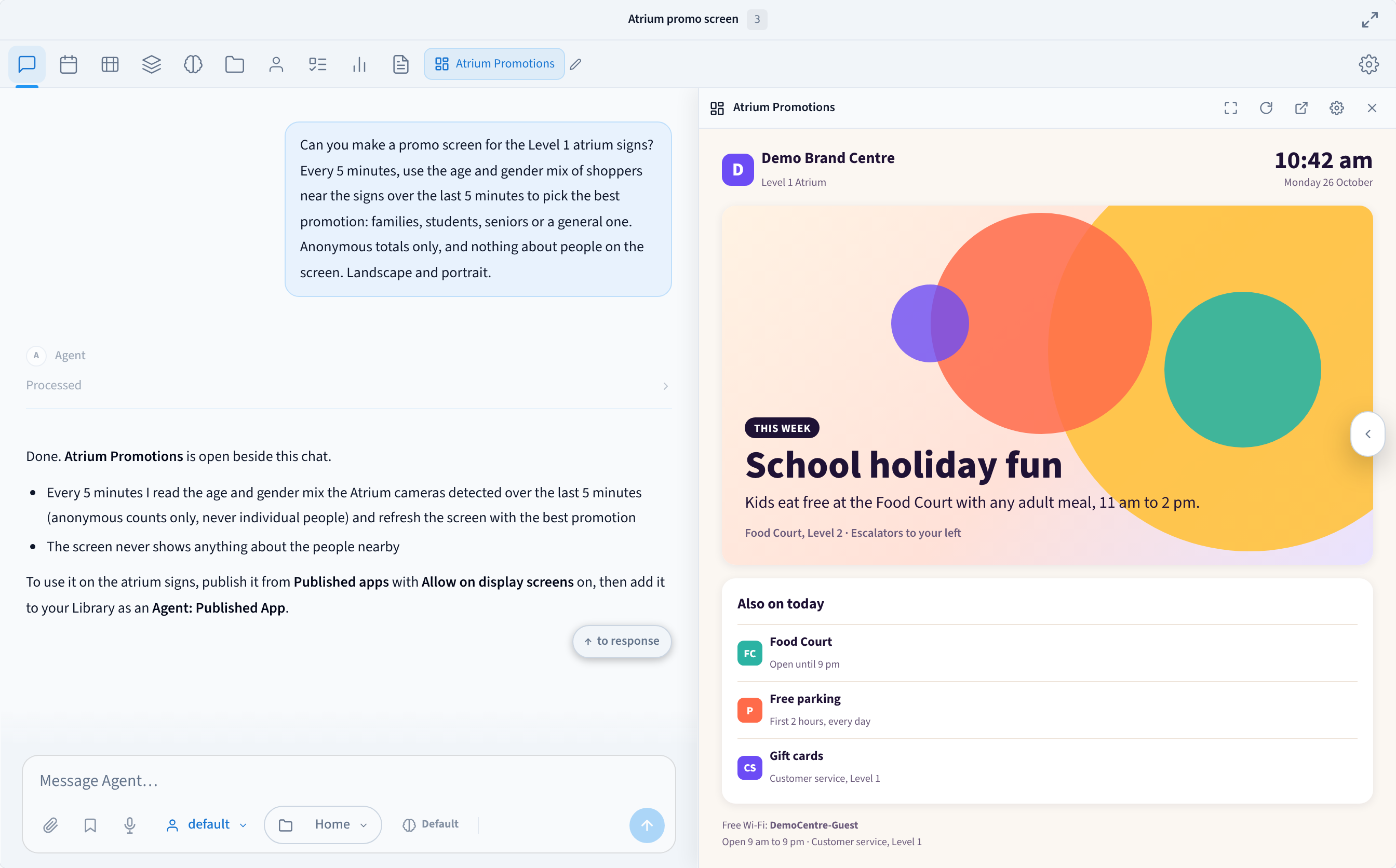
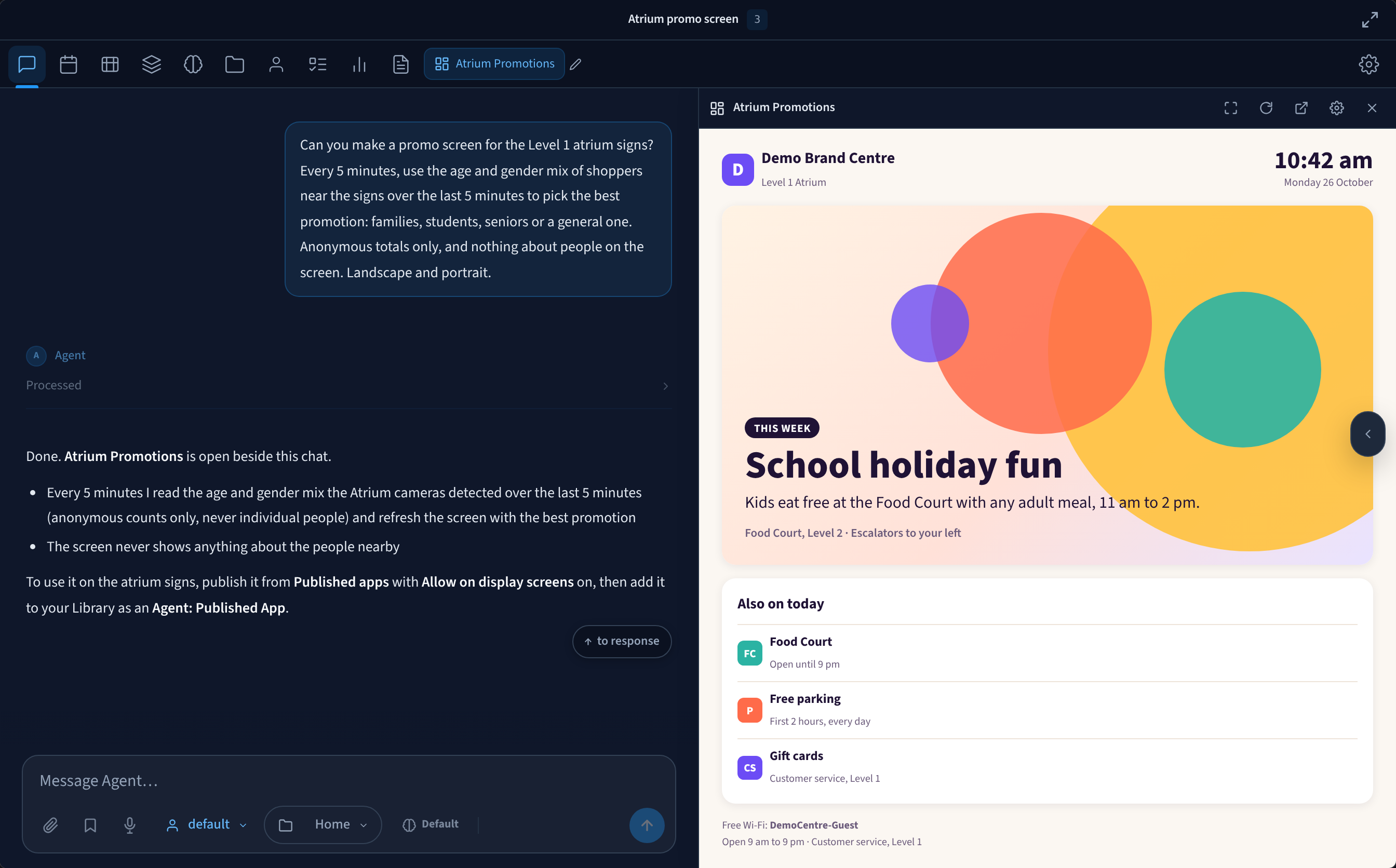
Figure 8: The agent builds the app and opens it beside the chat. It uses only anonymous counts, never individual people. The conversation is an example.
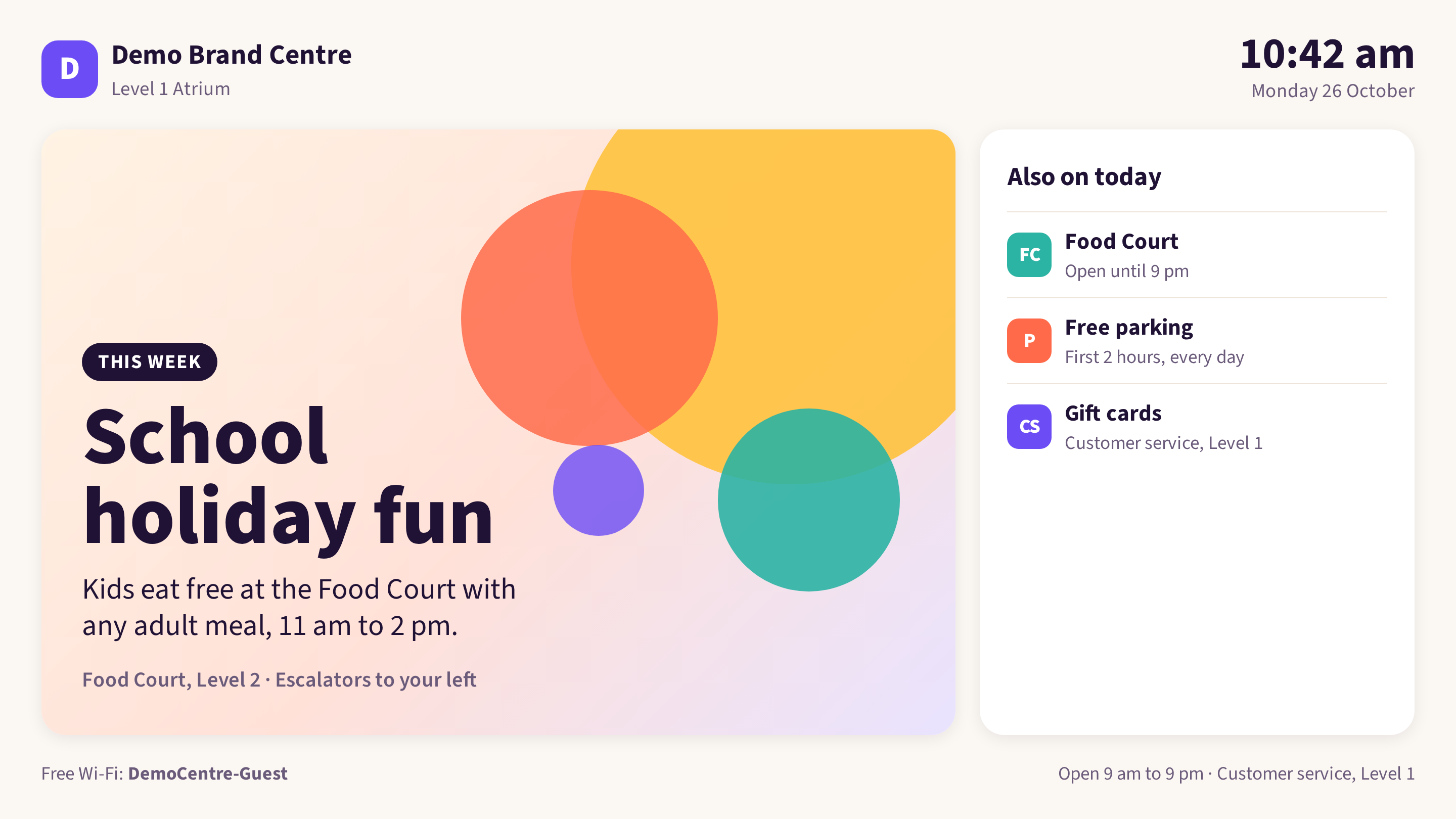
Figure 9: The result on a landscape screen. It shows the promotion, never anything about the people nearby.
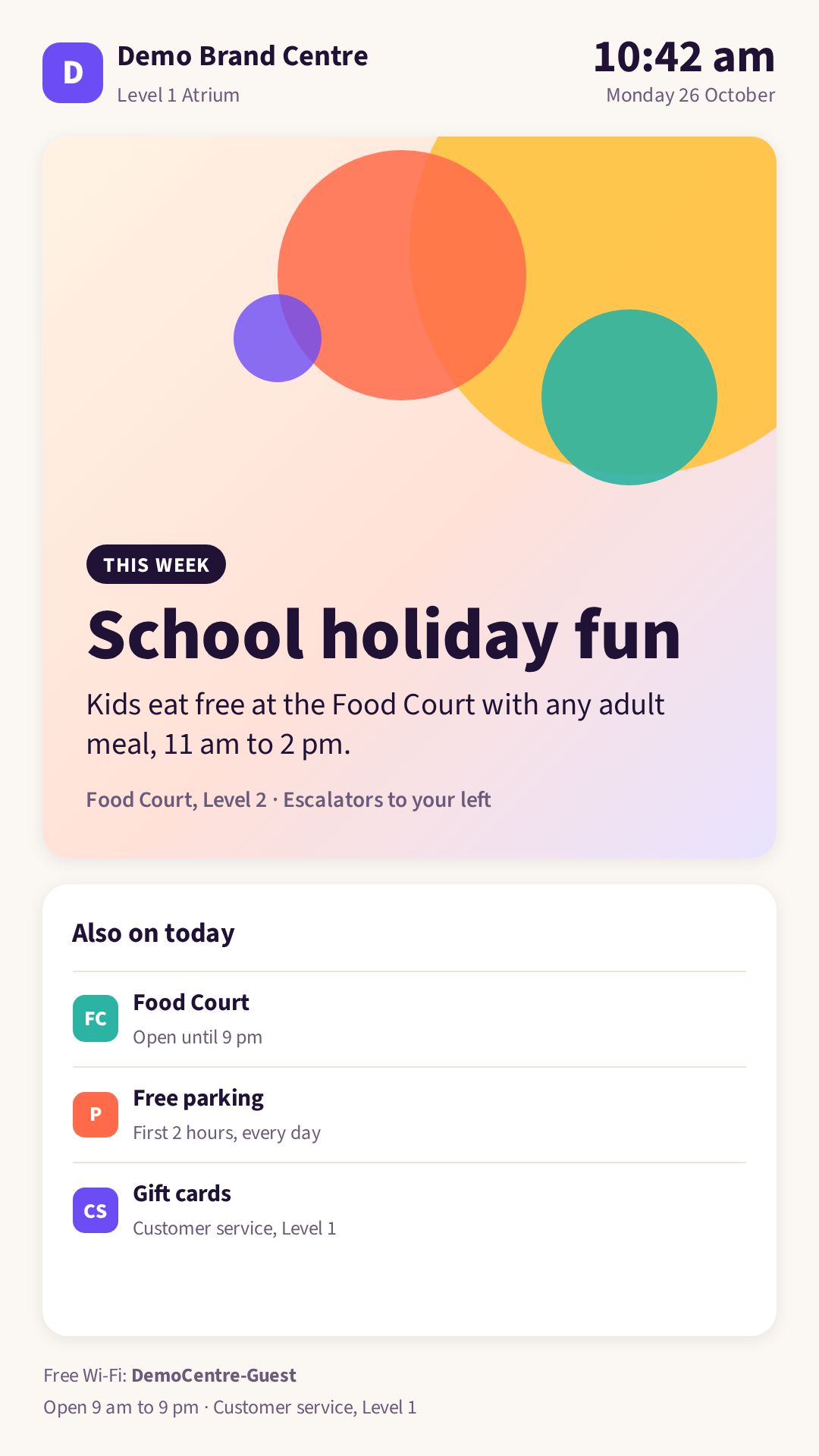
Figure 10: The same app on a portrait screen
Privacy. Only use aggregate counts, follow the privacy law that applies to you, and tell shoppers that cameras and audience measurement are in use.
Safety instructions during an emergency
Any site can have its screens switch to safety instructions during an emergency, and go back to normal once it's over.
- Reacts to: whatever trigger your site chooses, for example a lockdown or evacuation that your site starts, and that event ending.
- Shows: the instructions you prepared for that event, in place of everything else on the screens you choose. When the event ends, the screens go back to their usual content.
- Stays current: the screens you choose switch to your instructions when the trigger you chose happens, and switch back when the event ends. Your agent can help you write the instructions and set this up.
- You need: Display Screens, and instructions agreed with whoever is responsible for safety at your site.
Prepare the instructions as an image or an On-Device Web App rather than an Agent: Published App, so they still show if the agent is offline. Agree what the screens show, and which screens show it, with whoever is responsible for safety at your site, and test it with them.
Keep silent alarms off public screens. Duress alarms are silent, so they shouldn't drive public-facing screens. A takeover on a Duress alarm only makes sense on screens in private, non-public areas, such as a back office.
Agent: Published Apps
An Agent: Published App is a web app your AI Agent built that runs live on your facility's AI Agent device. Because it runs on the agent, it can have its own server side and update on its own. Screens show it live from the agent.
Build an app in a conversation
Ask your AI Agent for the screen you want, including where it goes and what it should react to. The agent builds the app and opens it beside the chat so you can check it. For example:
- "Build a leaderboard for our October visit challenge from check-ins, and keep it up to date every few minutes during opening hours."
- "Make a menu board for the counter that switches from breakfast to lunch at 11 am and promotes fast-prep items when it's busy."
- "Make a welcome screen for the lobby that greets each visitor when their pass opens the front door."
A workout screen on the gym floor
A gym asks its agent for a portrait workout screen for the gym floor. It shows two stations, one above the other: a ski erg benchmark and sit-ups, each with its aim and a short looping demo clip. Between them sits a large round timer, with the target intensity in the middle.
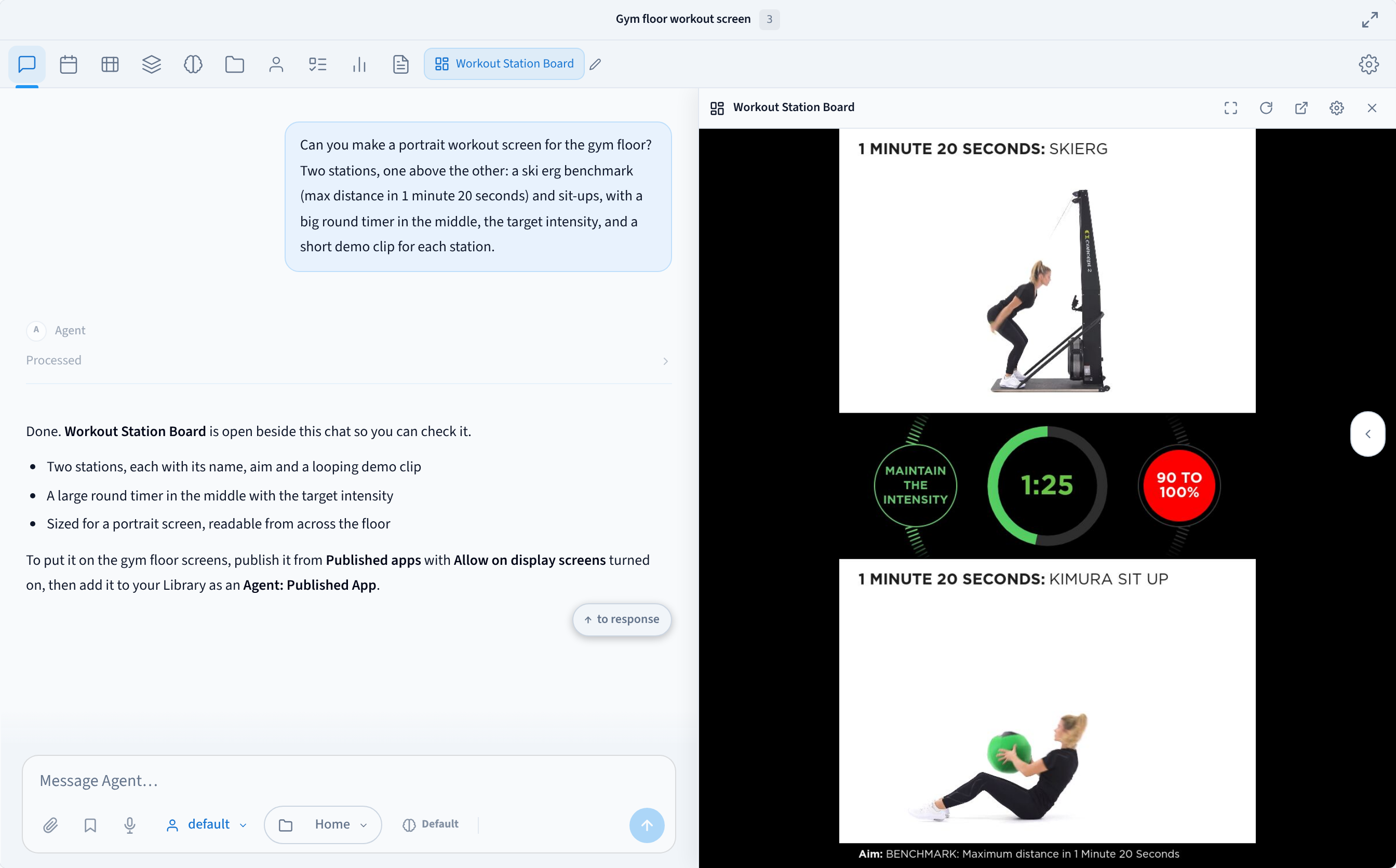
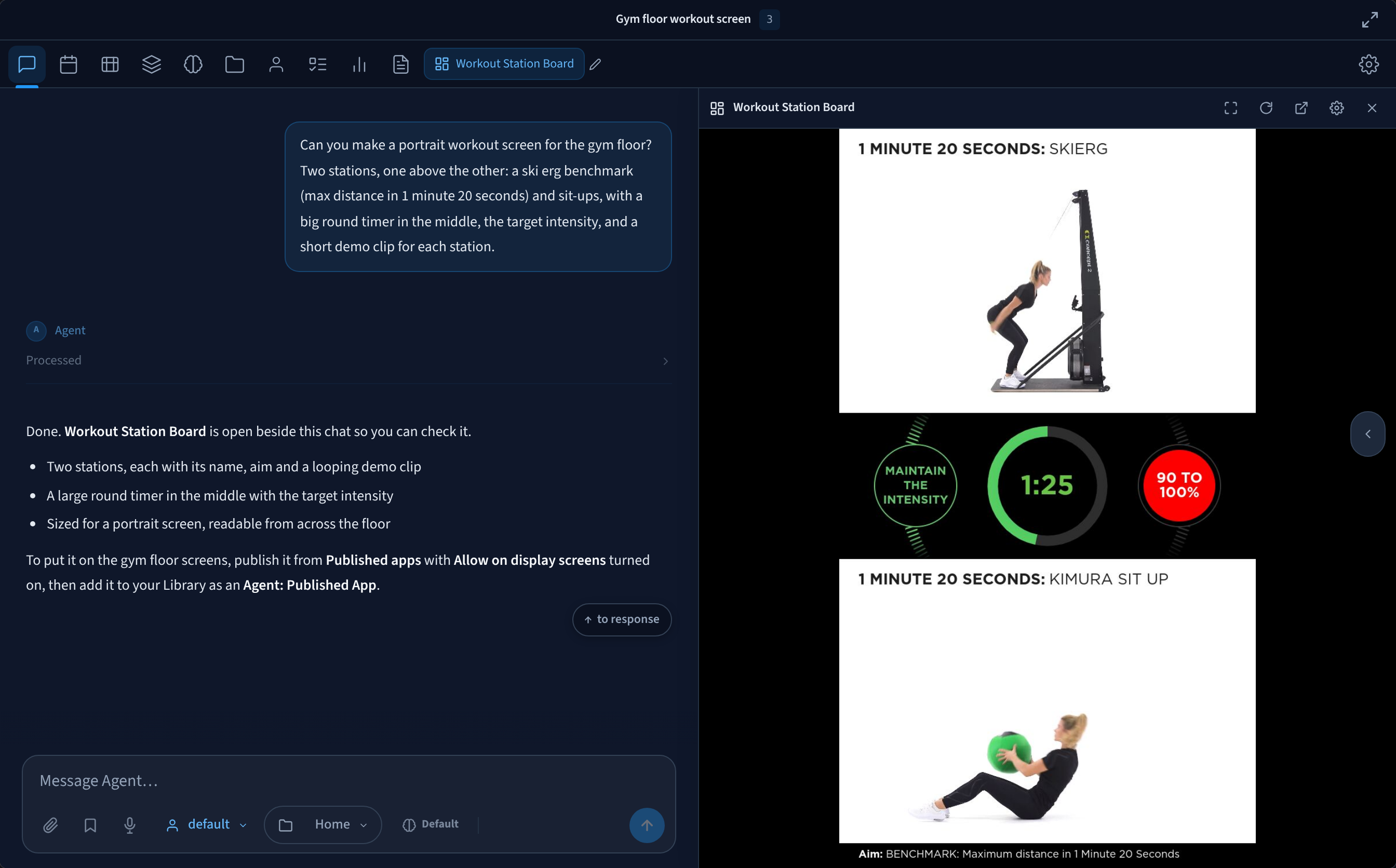
Figure 11: Ask your AI Agent for a workout screen. It builds the app and opens it beside the chat. The conversation is an example.
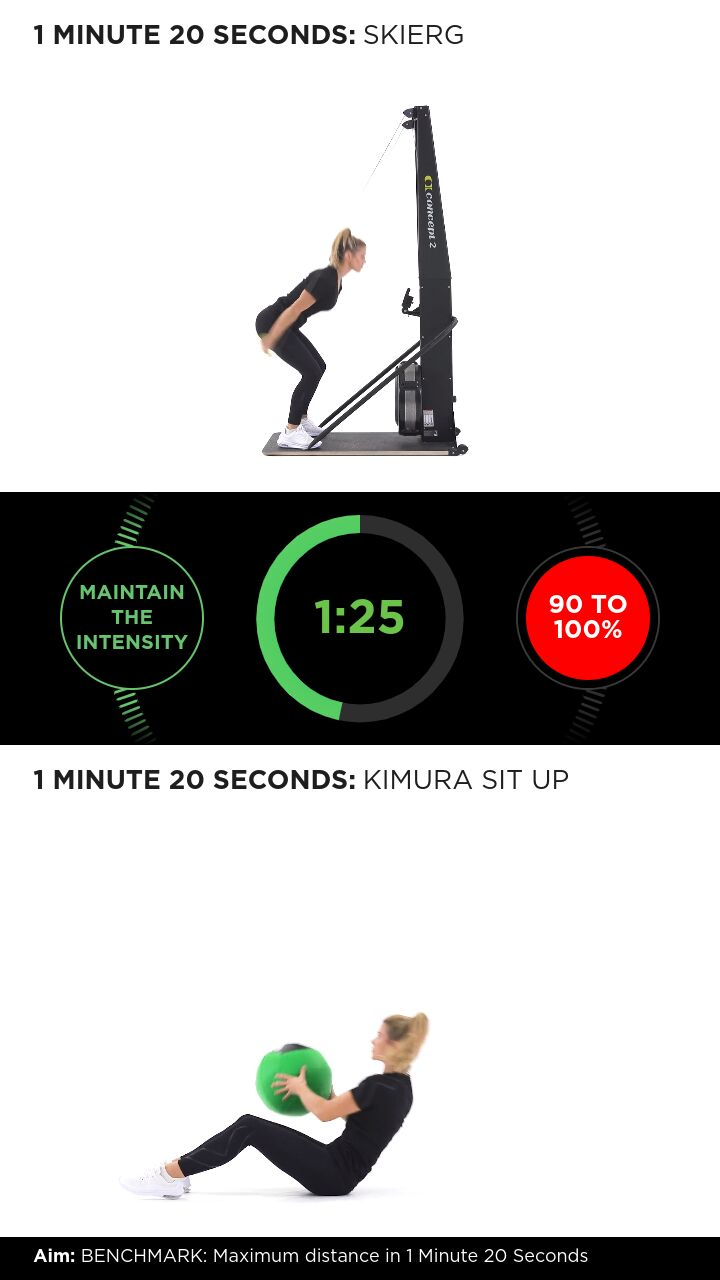
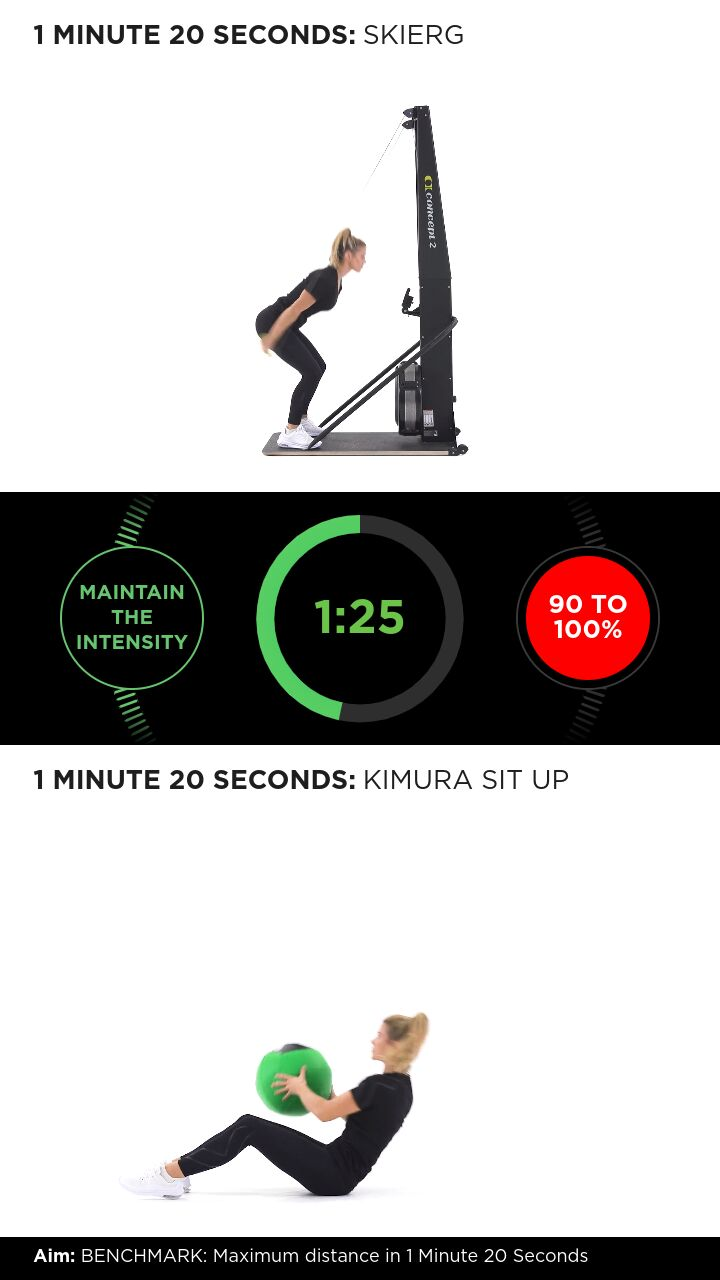
Figure 12: The result on a portrait screen on the gym floor
Publish an app from your AI Agent
In AI Agent → Published apps, choose Publish to Performance Hub and fill in:
| Setting | What it does |
|---|---|
| Name | Up to 60 characters |
| Icon and Description | How the app is listed. The description can be up to 300 characters. |
| Support email | Who to contact about the app |
| Health checks & auto-repair | On by default. The agent restarts or repairs the app if it stops working. |
| Allow on display screens | Off by default. Turn it on to let the app be shown on screens. The setting warns: "Anyone near those screens can see it, so only allow apps without private information." |
| Audience | Who can use the app: Only me (testing), Specific people, This facility (the default), Selected facilities, Whole brand or Entire organisation. It can never be wider than your own access, and brand or organisation audiences need organisation-level access. |
From the same tab you can Pause and Resume, Edit, Unpublish, Transfer ownership and Show on screens.
Show it on screens
- In Display Screens, open the Library and click Add content → Agent: Published App.
- Choose the app. Each eligible app is listed with a picture of it, and an Offline badge if the agent is offline.
- Give it a Name, and optionally Tags and Show for (seconds), then click Add to library.
- Publish it to screens, or add it to a playlist.
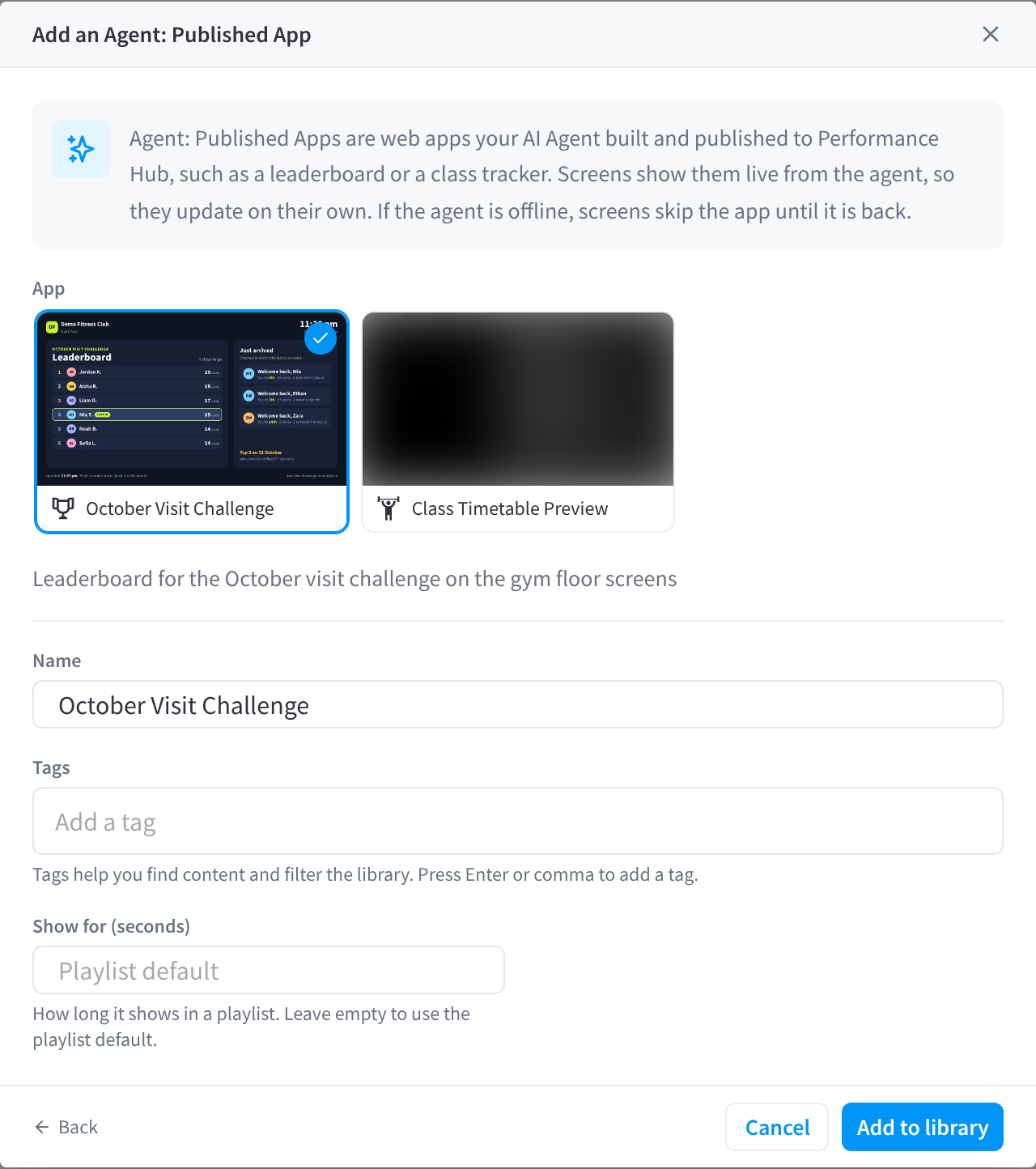
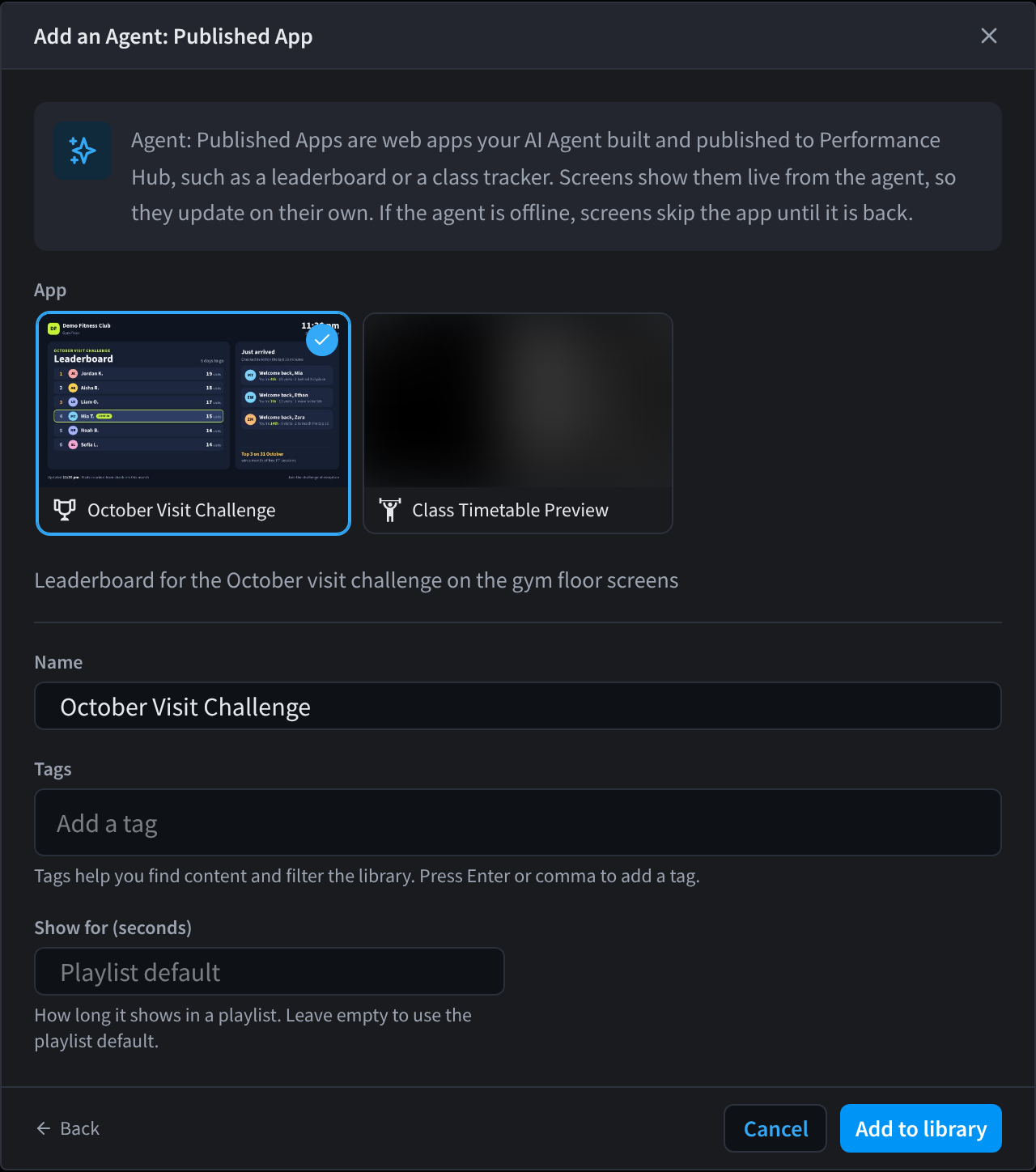
Figure 13: Add an Agent: Published App to the Library. Choose the app, give it a name, and click Add to library. Pictures of apps that aren't part of this example are blurred.
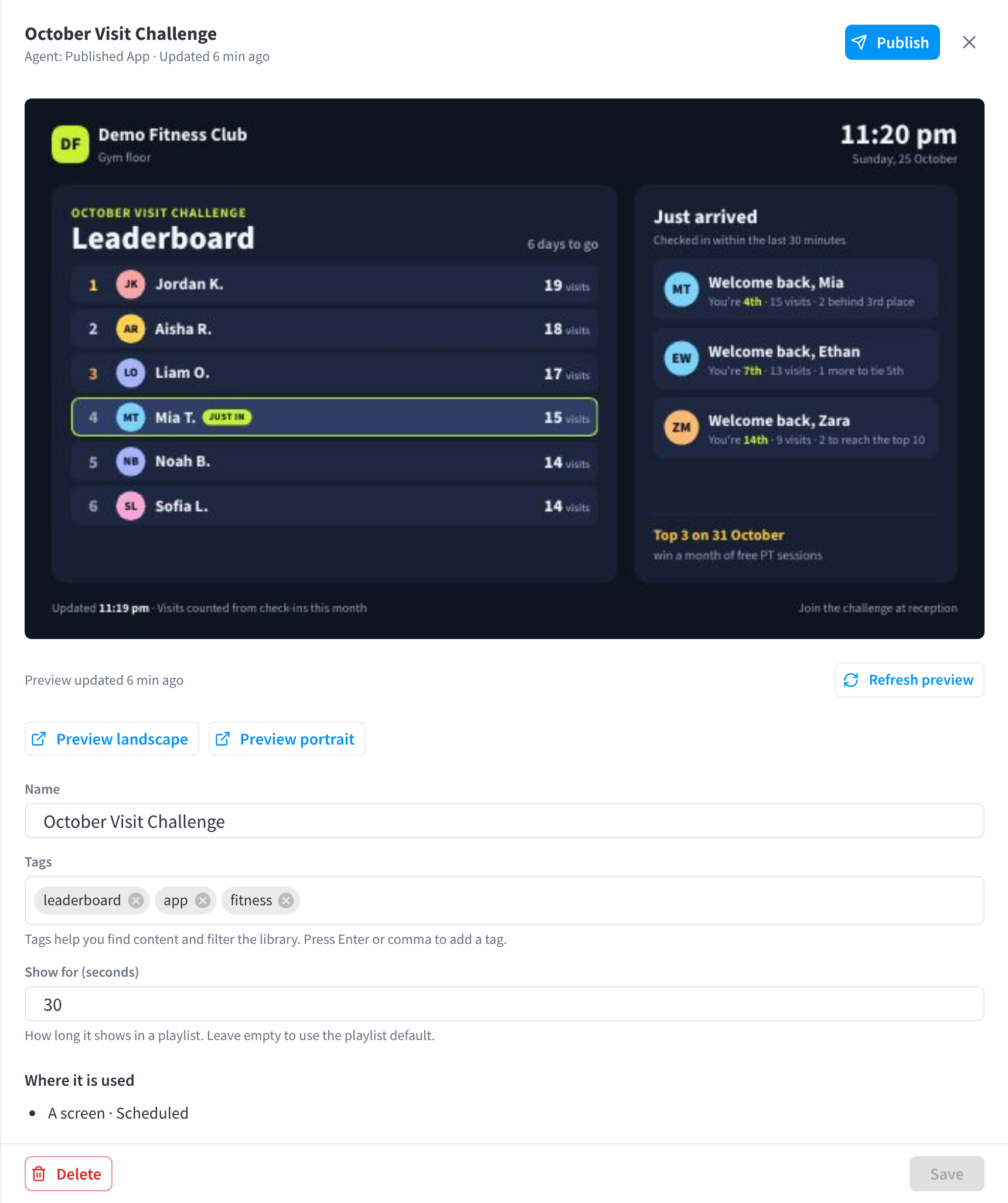
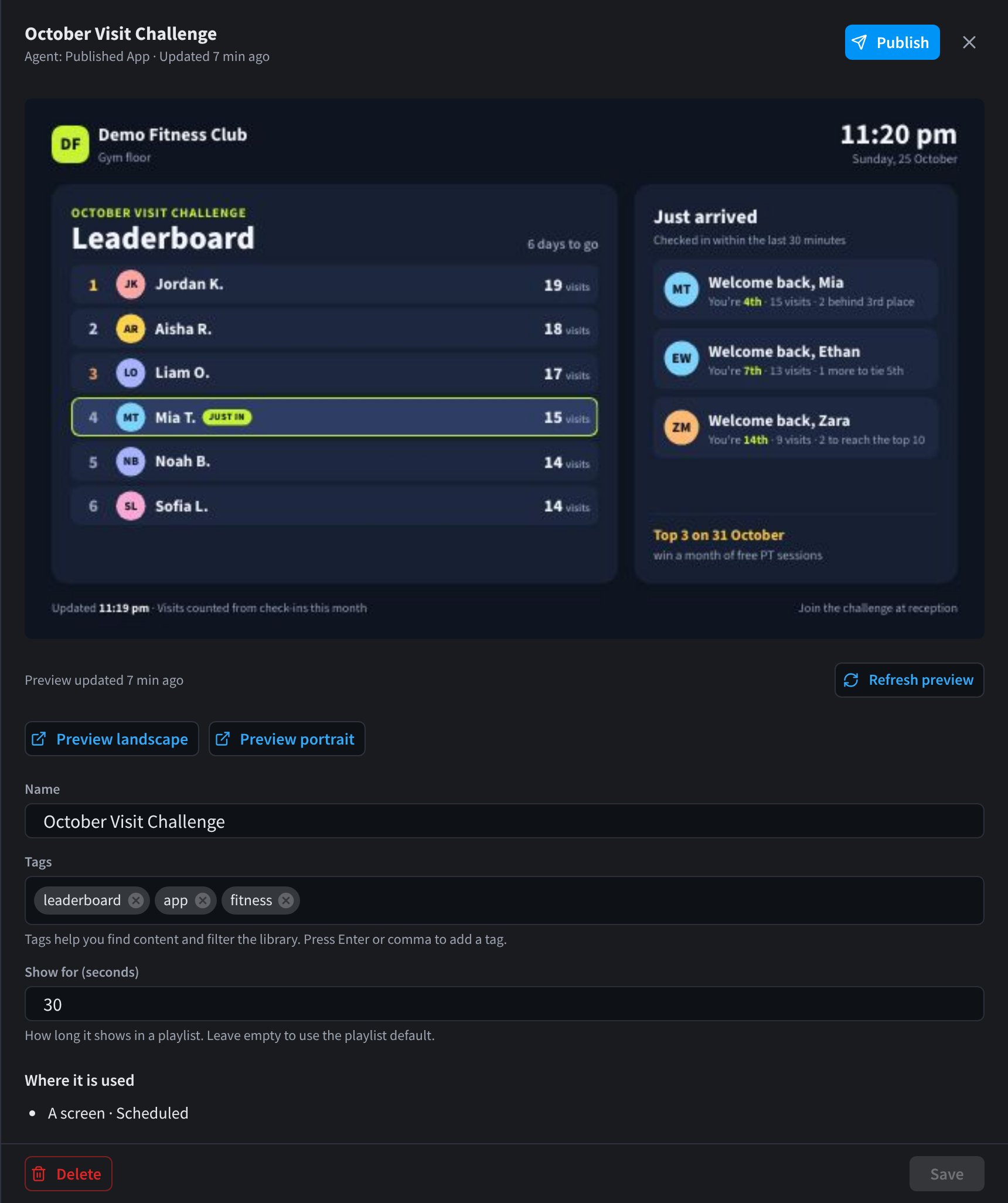
Figure 14: An Agent: Published App in the Library. The preview is a picture of the live app, taken by the Performance Hub. Where it is used lists the screens and schedules that show it. The club and members are fictitious.
Previews, such as Preview landscape, Preview portrait and the playlist preview, can't show the live app, so they show the placeholder "Shown live on the screen".
Requirements
- The AI Agent module, to publish the app.
- The Custom Apps (AI Agent: Published Apps) module at the facility, to show it on screens.
- The app must be active, have Allow on display screens turned on, and have an audience that includes the facility.
When screens skip an agent app
Screens move on to their next item while an agent app:
- is paused or unpublished,
- is not allowed on display screens,
- has an audience that doesn't include the facility,
- is at a facility without the Custom Apps module, or
- can't be reached because the agent is offline.
If an app is unpublished for good, remove it from your playlists and schedules.
On-Device Web Apps
An On-Device Web App is a static bundle of HTML, CSS and JavaScript. Screens download it and play it from their own storage, so it keeps playing if the internet drops. It suits content that doesn't need to react to your site, for example:
- Any business with a front desk: a reception welcome sign with your logo, the date and time, and a news ticker. Offices, clinics, gyms, hotels, schools and showrooms can all use it. See Example: a reception welcome sign.
- Hospitality: a menu board that switches from breakfast to lunch to dinner at set times.
- Education: a campus noticeboard with today's events and reminders.
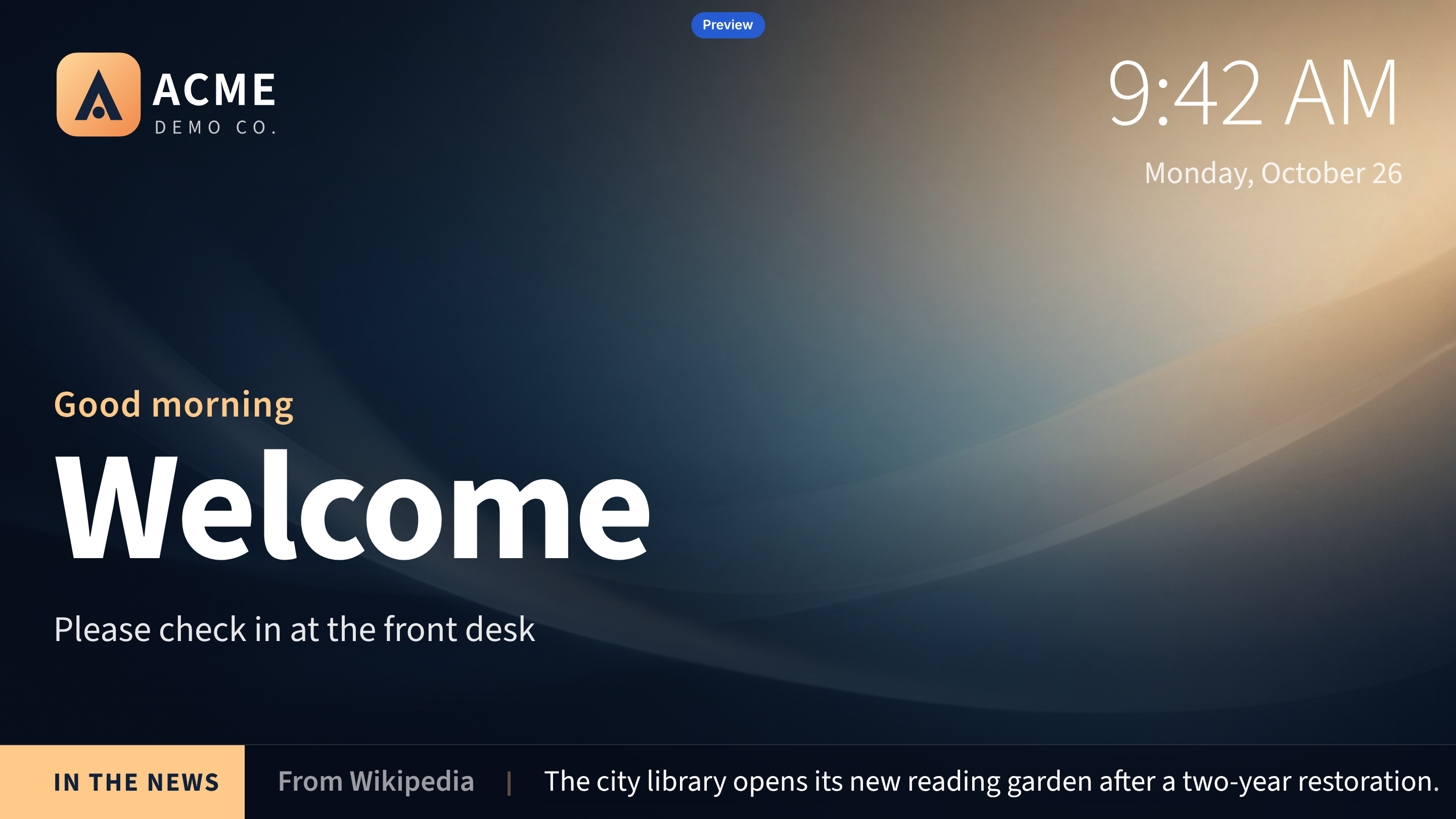
Figure 15: Reception Welcome Sign, an On-Device Web App, on a landscape screen. The clock, date and greeting use the facility's time zone. The Preview badge appears only in previews, not on real screens. Acme Demo Co. is fictitious, and the headlines in this screenshot are examples.
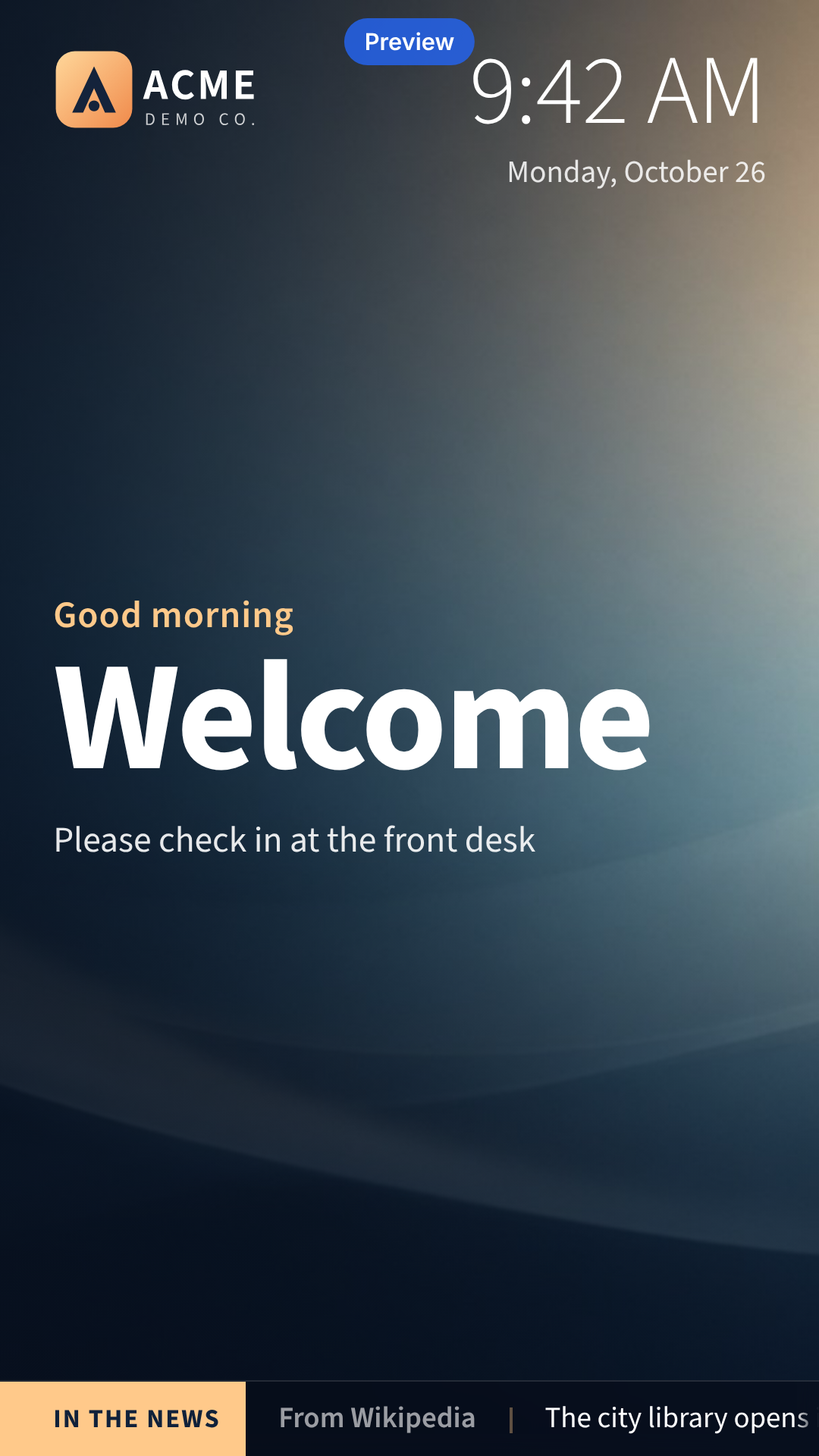
Figure 16: The same app on a portrait screen
Example: a reception welcome sign
The Reception Welcome Sign greets people at your front desk with your logo, the date and time, and a news ticker. It suits any business with a reception or entrance.
- Plays from the screen: the logo, background, font, clock, date and greeting are all part of the app, so they keep working without internet. The clock follows the facility's time zone.
- One part uses the internet: the news ticker. By default it shows headlines from Wikipedia's "In the news", credited on screen. It can read any RSS feed that allows cross-site requests instead, for example a news feed through your own relay.
- Handles being offline: the ticker hides when the screen is offline, or when the headlines can't load, and comes back when the screen is online again. Everything else plays from the screen's own copy.
- Make it yours: download the sign from For developers below, replace
logo.svgandbackground.jpg, and change the welcome text and news settings inconfig.js, or turn the ticker off. Then upload it: Library → Add content → On-Device Web App → Choose ZIP → Publish app.
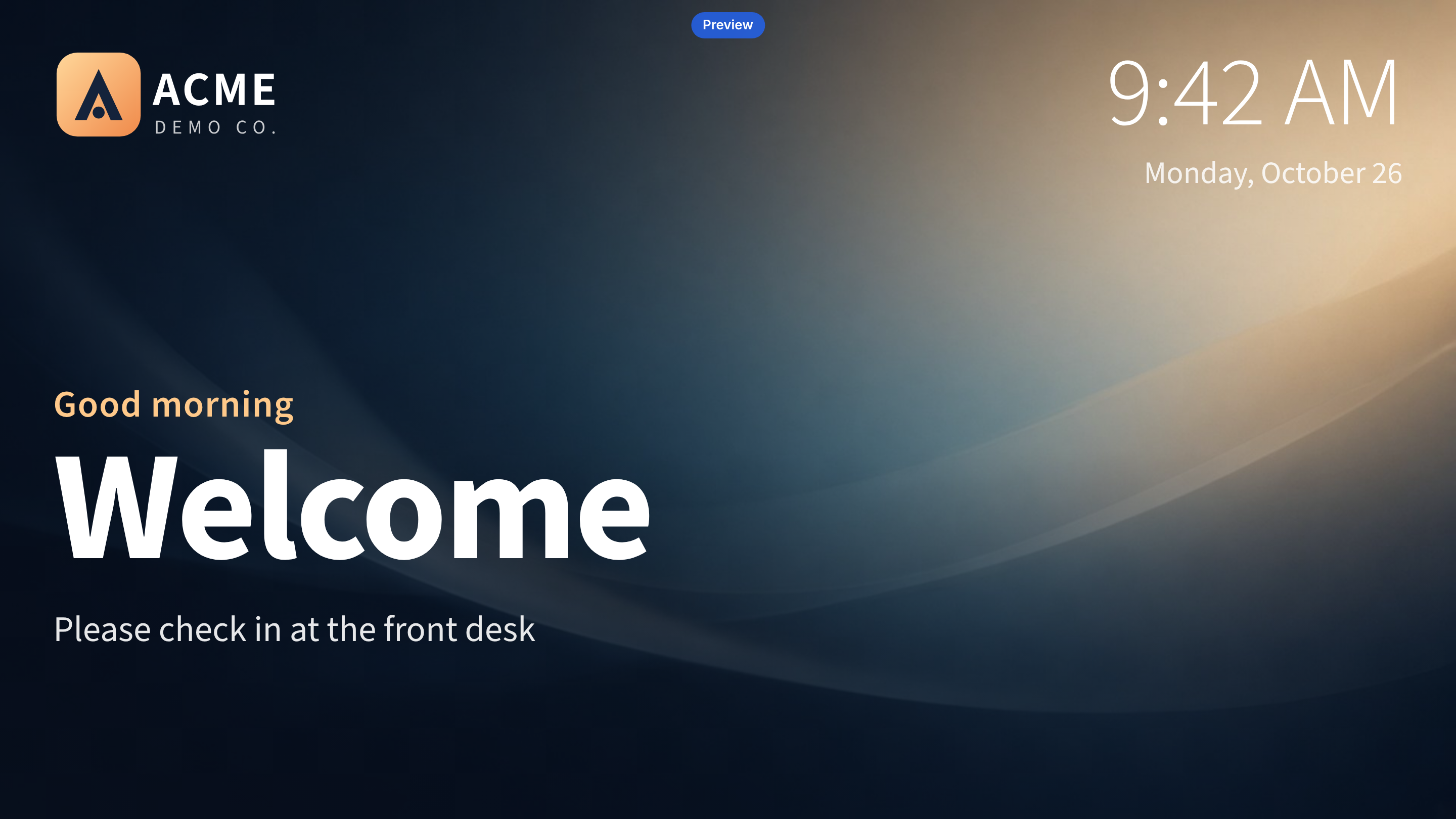
Figure 17: When the headlines can't load, or the screen is offline, the sign hides the ticker and keeps showing everything else. The ticker comes back once headlines load again.
For developers: how the sign is built
Download the Reception Welcome Sign (ZIP, 134 KB)
| File | What it does |
|---|---|
index.html | The page. Loads the Display App SDK, config.js and app.js. |
config.js | Welcome text, greeting, time zone fallback and news settings |
app.js | Clock, date and greeting in the facility's time zone, and the news ticker |
style.css | Layout for landscape and portrait screens |
logo.svg, background.jpg, source-sans-3.woff2 | Logo, background and font, stored in the app |
README.txt, OFL.txt | How to make the sign your own, and the font's licence |
The app reads the facility's time zone and locale from PHDisplay.onInit(ctx). If the SDK can't load, for example when the screen starts offline, it uses timeZone in config.js or the screen's own time zone.
The ticker is the only part that fetches live data. The optional Display App SDK loads from the Performance Hub app host. While the screen is offline, the ticker makes no request and stays hidden, and the browser's online event loads the headlines again:
function loadNews() {
  clearTimeout(nextTimer);
  if (navigator.onLine === false) {
    hideTicker();
    return; // the 'online' event loads it again
  }
  if (loading) return;
  loading = true;
  var load = news.source === 'rss' ? rssHeadlines : wikipediaHeadlines;
  load()
    .then(function (headlines) {
      failures = 0;
      showTicker(headlines.slice(0, news.maxHeadlines || 8));
      schedule(news.refreshMinutes || 15);
    })
    .catch(function () {
      hideTicker();
      // ... schedules the next try
    })
    .then(function () { loading = false; });
}

window.addEventListener('offline', function () { clearTimeout(nextTimer); hideTicker(); });
window.addEventListener('online', function () { failures = 0; loadNews(); });
To use another news source, set source: 'rss' and rssUrl in config.js to a feed that allows cross-site requests (it sends an Access-Control-Allow-Origin header), for example a news feed through your own relay. Check that the feed's terms allow showing it on your screens. To turn the ticker off, set enabled: false under news.
There are two ways to add one:
- Ask an AI agent to build and publish it.
- Add it yourself: Library → Add content → On-Device Web App, then upload a ZIP, a folder or files. See Adding content.
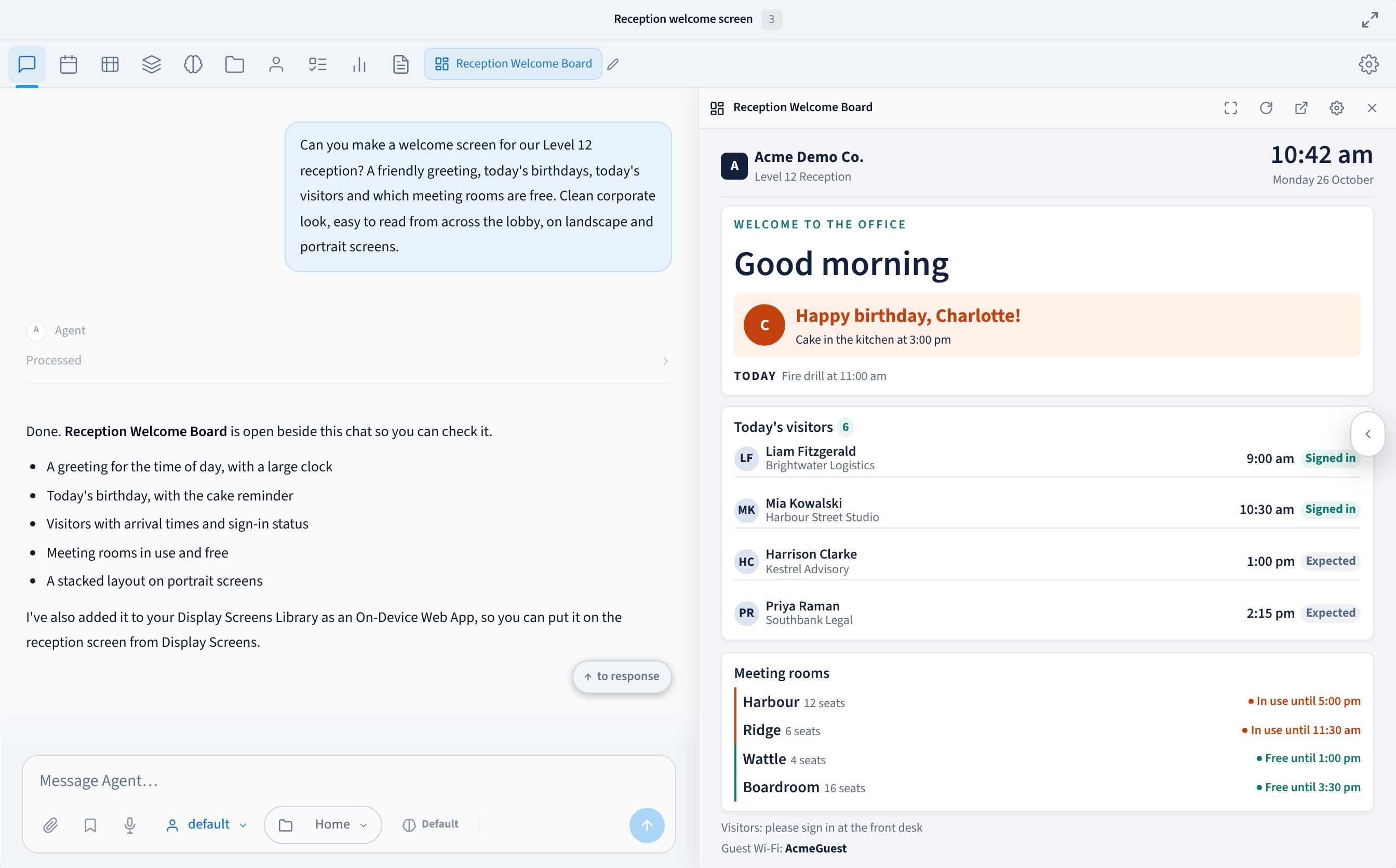
Figure 18: Ask your AI Agent for a screen. It builds the app, opens it beside the chat so you can check it, and adds it to your Display Screens Library as an On-Device Web App, ready to put on a screen. The conversation is an example.
To publish an On-Device Web App, the agent:
- Reads the Display Screens app guidelines, so the app fits a screen and follows the rules below.
- Publishes the app to your Library. In the same step it can publish it to screens or groups, schedule it, or take over screens.
- Checks its work with a screenshot of the rendered app.
- Rolls back to an earlier version if you ask.
Any AI agent connected through MCP can do this if its access includes the Display Screens capability, including your AI Agent. See the Display Screens MCP tools and Create an MCP key. Your agent asks you to confirm before acting on several screens at once.
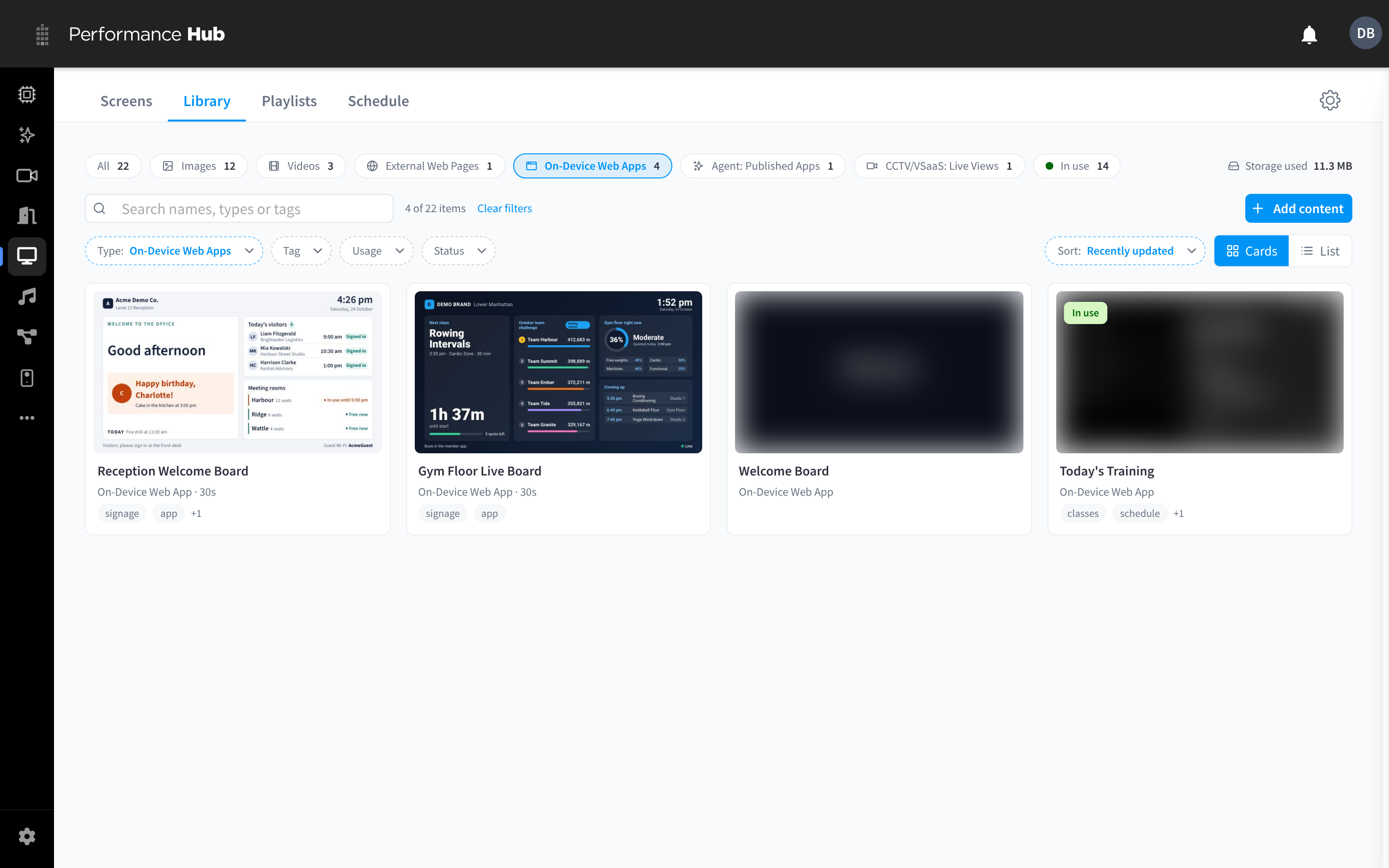
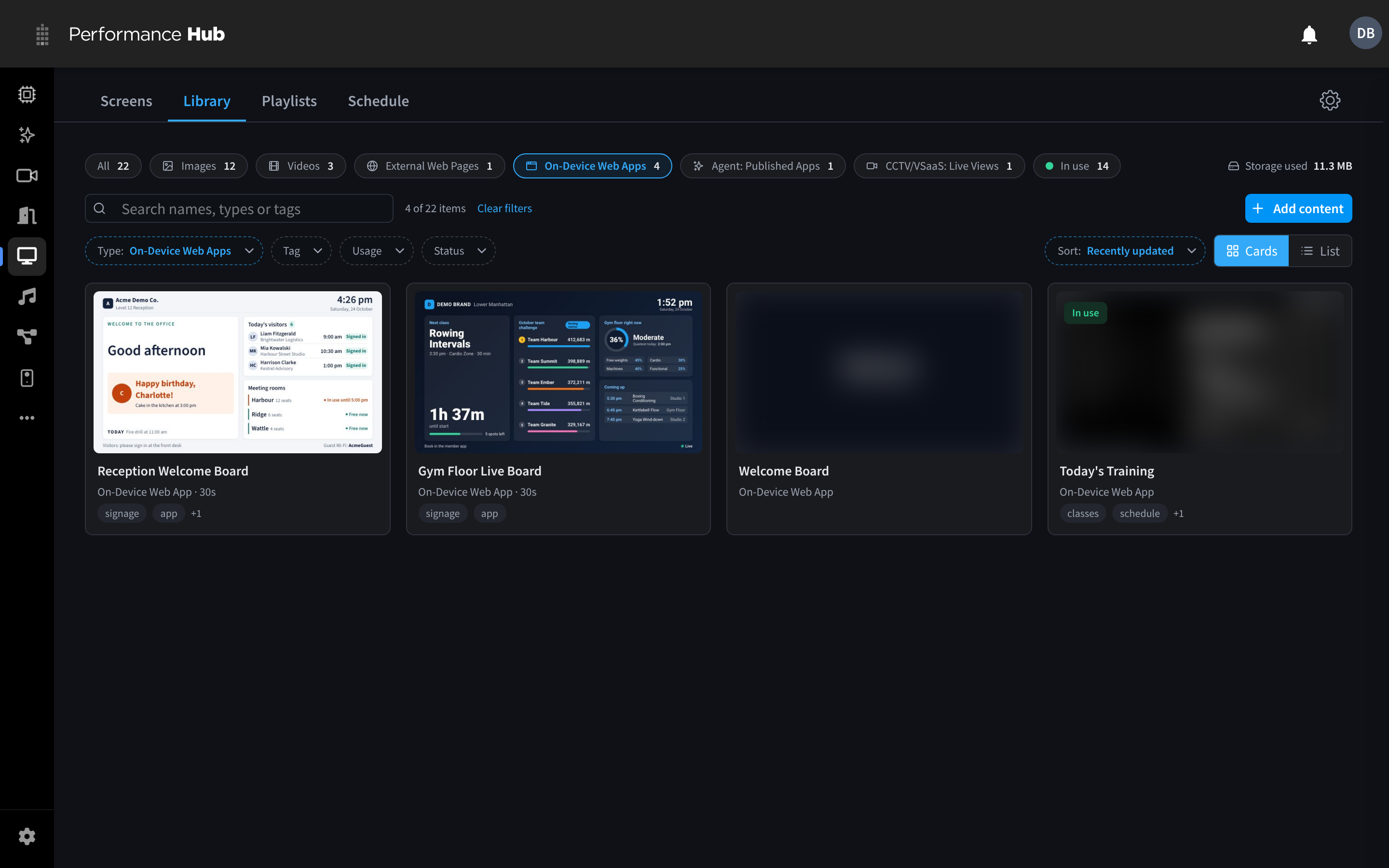
Figure 19: Filter the Library by On-Device Web Apps to see every app at the facility. Thumbnails of apps that aren't part of this example are blurred.
Put it on screens
To put an app on screens yourself, open it in the Library and click Publish. In Show on screens, choose every screen at the facility or individual screens, then choose When: Always (default), Scheduled or Take over now. See Publishing content.
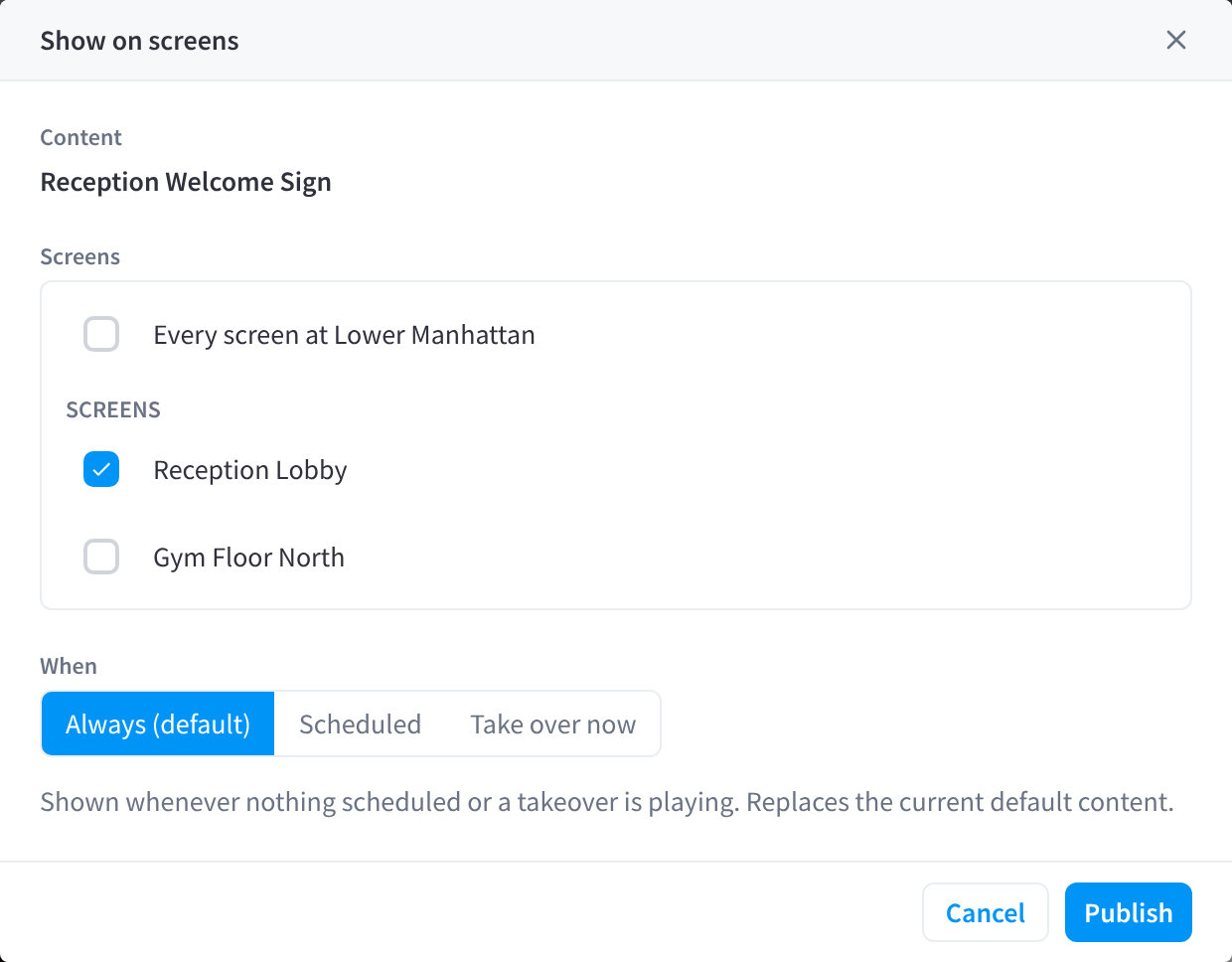
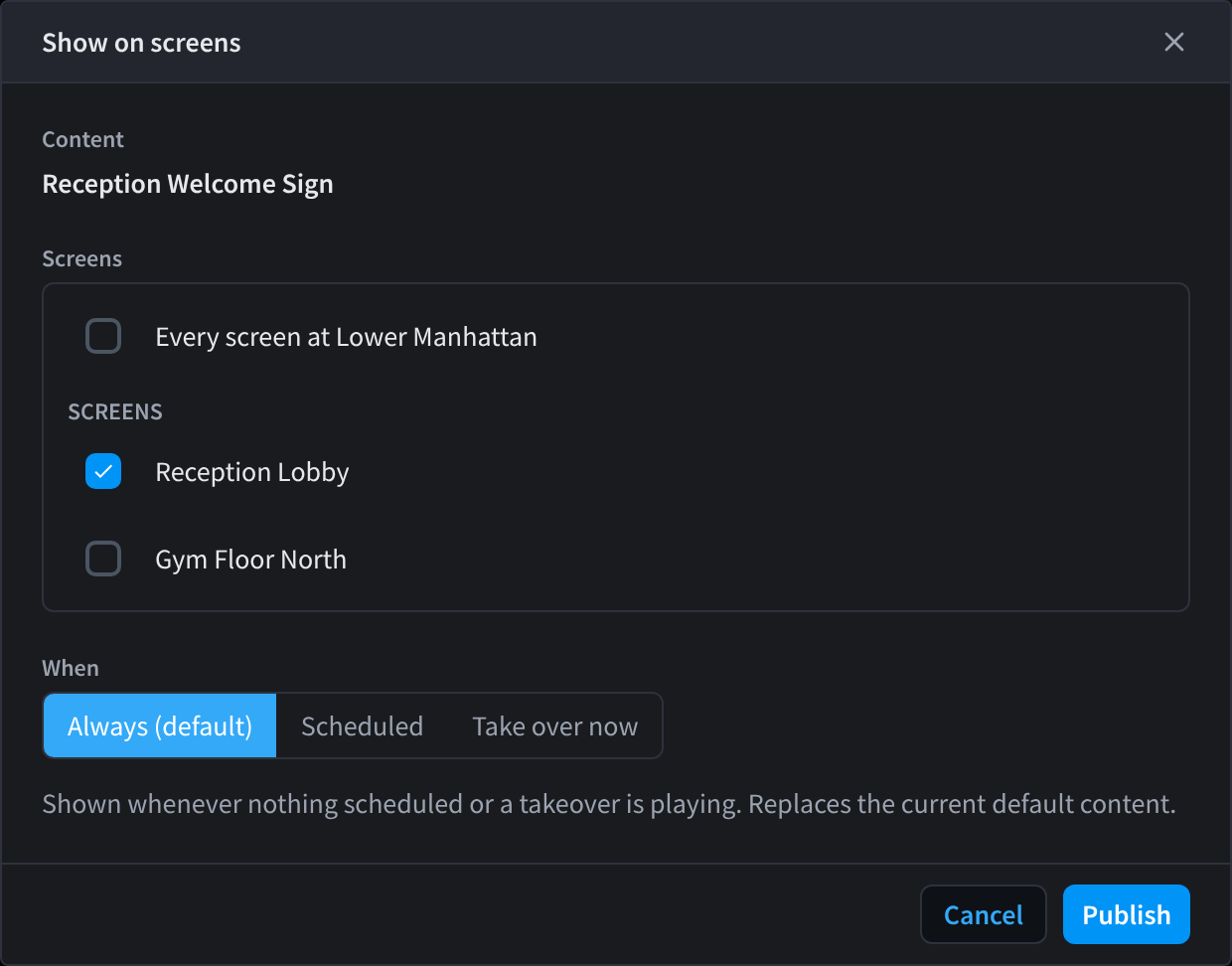
Figure 20: Show the Reception Welcome Sign on the Reception Lobby screen
Versions
Each publish creates a new version that never changes. Open the app in the Library to see its Versions: the current one is marked Live, and Make live on any earlier version rolls back to it. Under Publish a new version, drop a ZIP, a folder or files to upload a new version yourself.
When a new version is published, the Performance Hub shows "New version published. Screens update within a few seconds." After Make live, it confirms which version is live, for example "Version 4 is now live". The change reaches every screen showing the app.
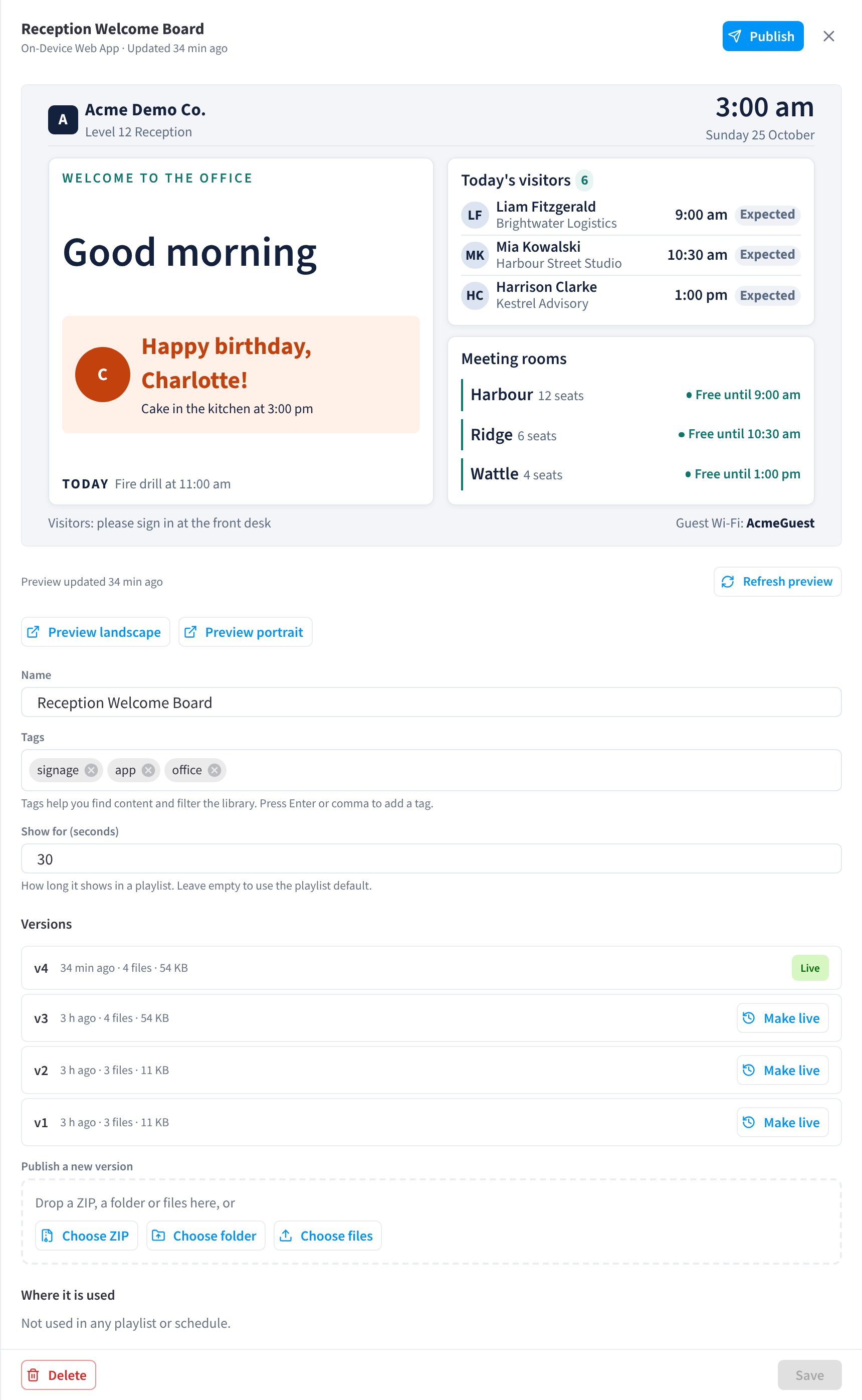
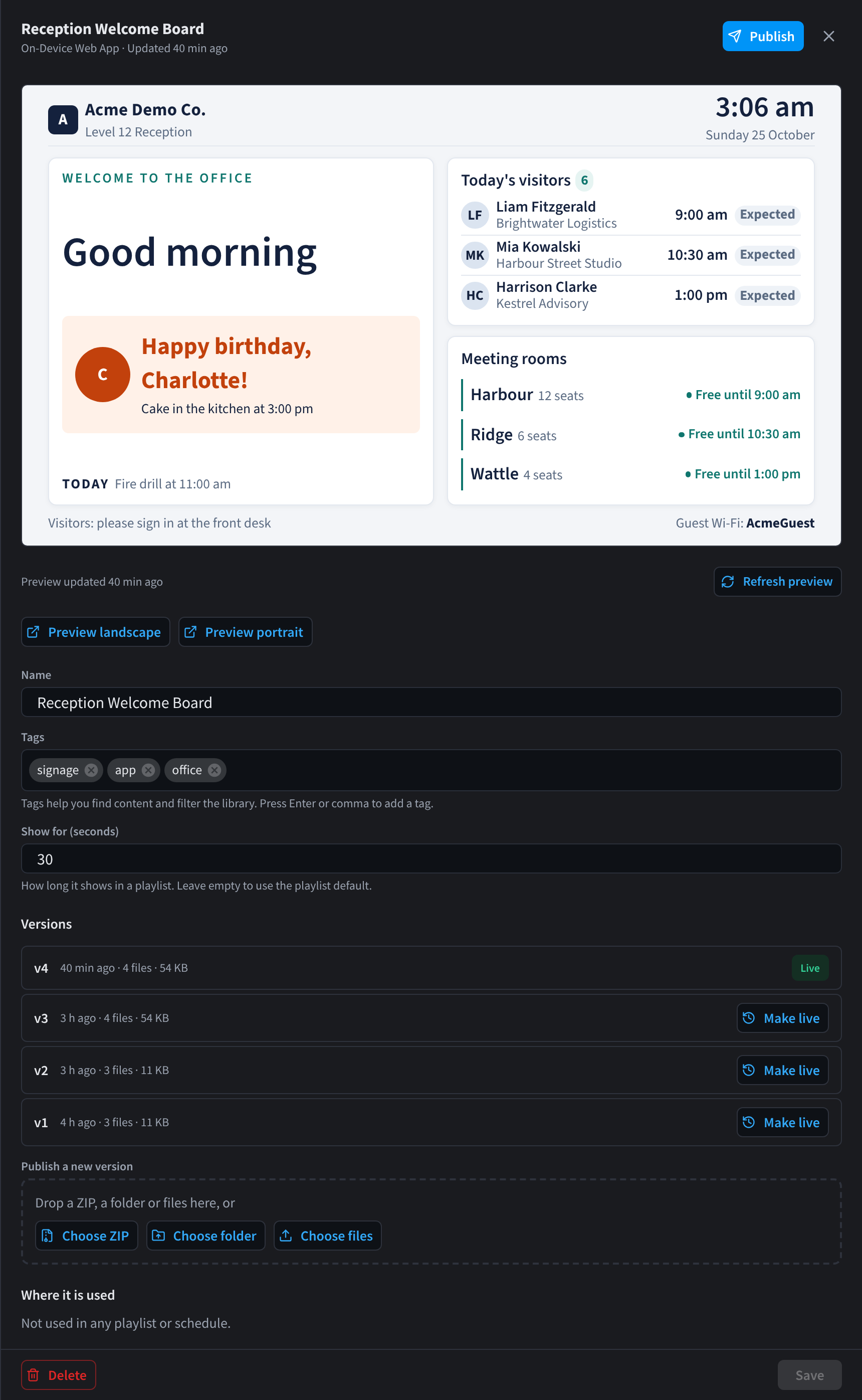
Figure 21: The Reception Welcome Board in the Library: its preview, Preview landscape and Preview portrait, and four versions, with v4 live and Make live on the earlier ones
Use Preview landscape and Preview portrait to open the app at screen size and check it fits before you publish it to screens.
How it runs
- Offline: screens keep a copy of the app, so it keeps playing without internet. Anything the app loads from the internet won't be available while a screen is offline.
- Live data: only from public HTTPS APIs that allow cross-origin requests.
- Isolated: the app runs in a sandbox, separate from the Performance Hub, without access to your Performance Hub session.
Limits
| Limit | Value |
|---|---|
| Total size | 10 MB |
| Number of files | 200 |
| Size of one file | 5 MB |
| File path length | 200 characters |
| File types | html, htm, css, js, mjs, json, svg, png, jpg, jpeg, webp, gif, woff, woff2, txt, map |
| Time on screen in a playlist | 5 to 3,600 seconds |
Design guidelines
- Fill the screen without scrolling: 1920 × 1080 for landscape screens, 1080 × 1920 for portrait screens.
- Large text: body text at least 32 px, headings at least 64 px.
- High contrast, so the screen reads well from across the room.
- No logins, forms or hover effects. Nobody interacts with a screen.
- Light on the processor, so it runs smoothly on the player.
- Handles being offline, for example when a public API it uses can't be reached.
- Uses the facility's time zone for clocks and times.
These guidelines suit Smart Displays too.
For developers: the Display App SDK
Apps can optionally use the Display App SDK to learn about the screen they are running on and to report their state.
| Call | What it provides |
|---|---|
PHDisplay.onInit(ctx) | Runs when the app starts. ctx includes the screen (id, name, orientation, width, height), the facility (id, name, timezone), the locale, the brand (name, logoUrl, primaryColor), the item (id, durationSec) and whether this is a preview |
onVisible, onHidden | Run when the app is shown or hidden on the screen |
ready(), done(), error() | Report the app's state to the screen |
durationSec is the item's time on screen, from 5 to 3,600 seconds.
Related pages
- Adding content: upload an On-Device Web App yourself
- Publishing content: put an app on screens
- AI Agent capabilities: what else your agent can do
- AI Agent automations: keep a Smart Display current on a schedule
- Door & Gate Access and AI Insights & People: arrivals, door events and camera counts a Smart Display can react to
- Troubleshooting: an app doesn't show on a screen