
Create an MCP key
An MCP key is a personal API key that lets an external AI client - such as OpenAI Agent Builder, Cursor, or Claude Desktop - connect to Performance Hub through its MCP server. You create and manage these keys yourself from User Preferences; each key belongs to your account and inherits your access.
Before you start
- MCP keys are tied to your user account, not to a single facility - the key carries whatever access your account already has.
- The new key's secret value is shown only once, at creation. Have somewhere secure ready to store it (a password manager or your MCP client's settings).
- You'll need two things to configure your MCP client: the Server URL and an active key. Both are available in the same dialog.
Open the MCP keys manager
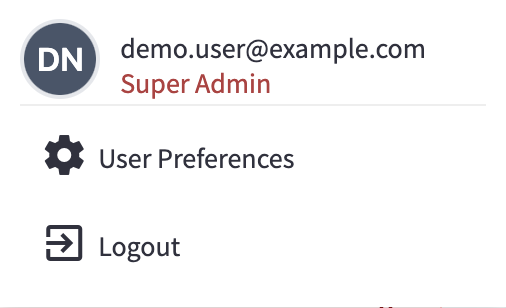
Open User Preferences
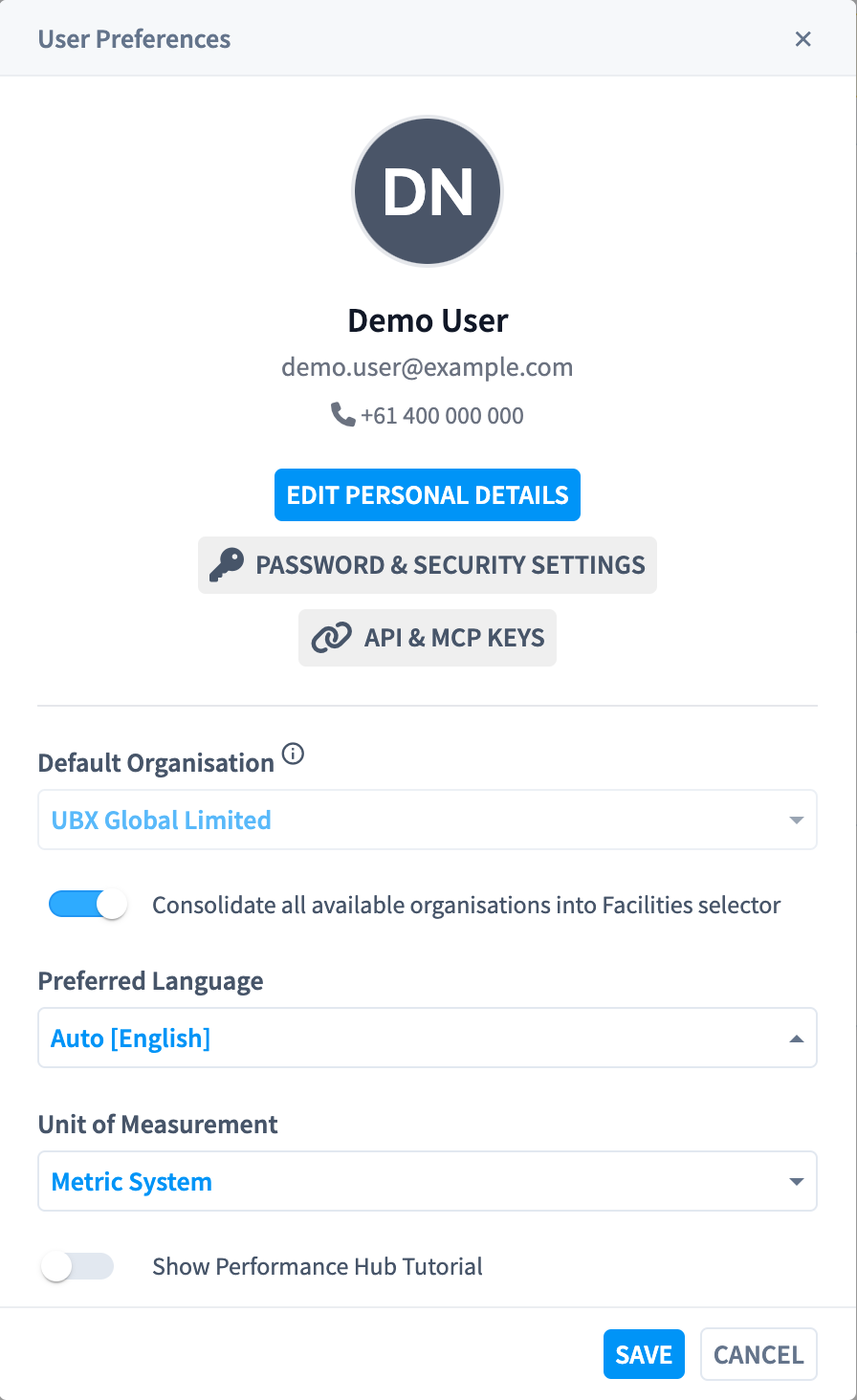
Open API & MCP Keys
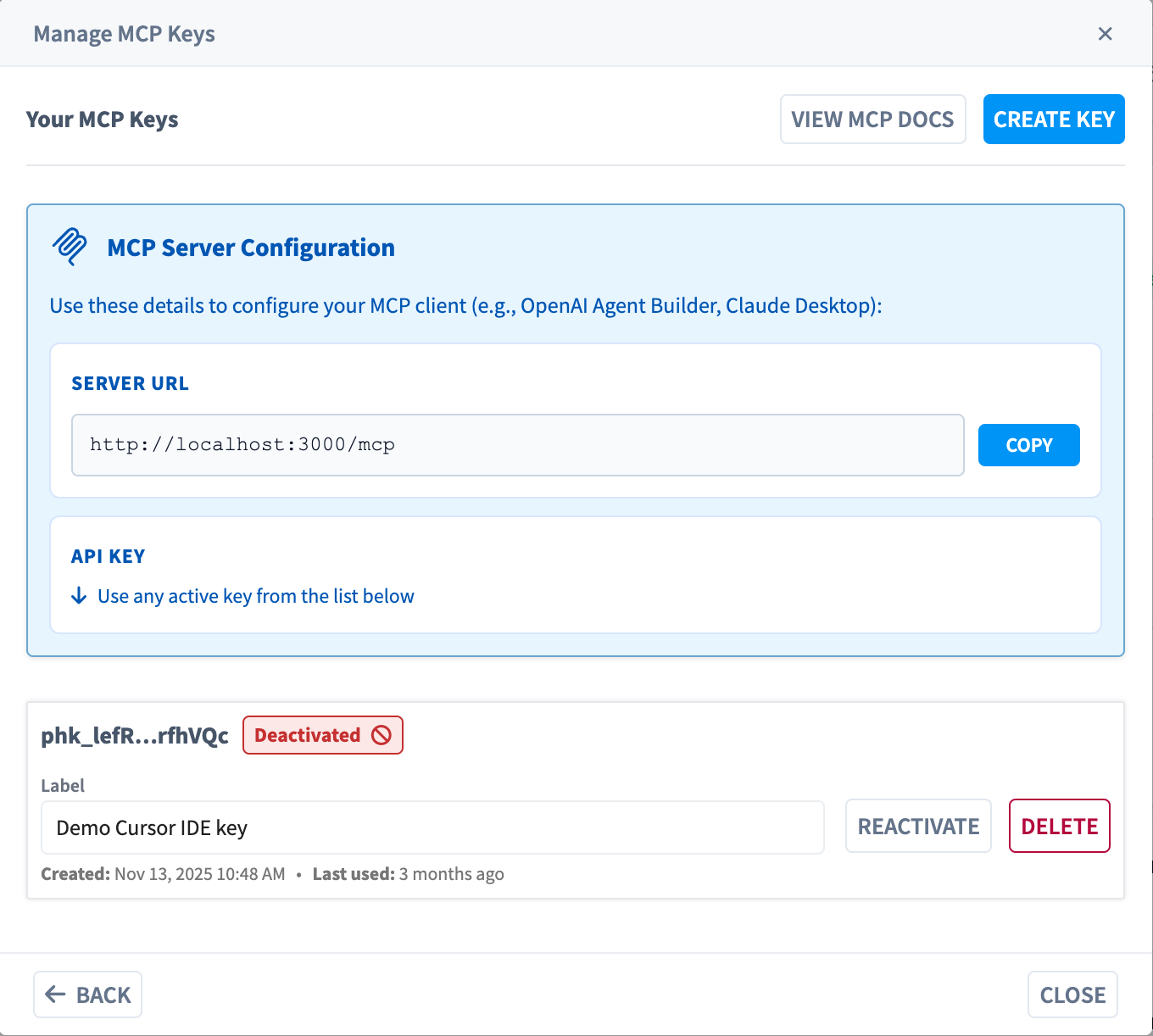
Review the Manage MCP Keys dialog
Create a key
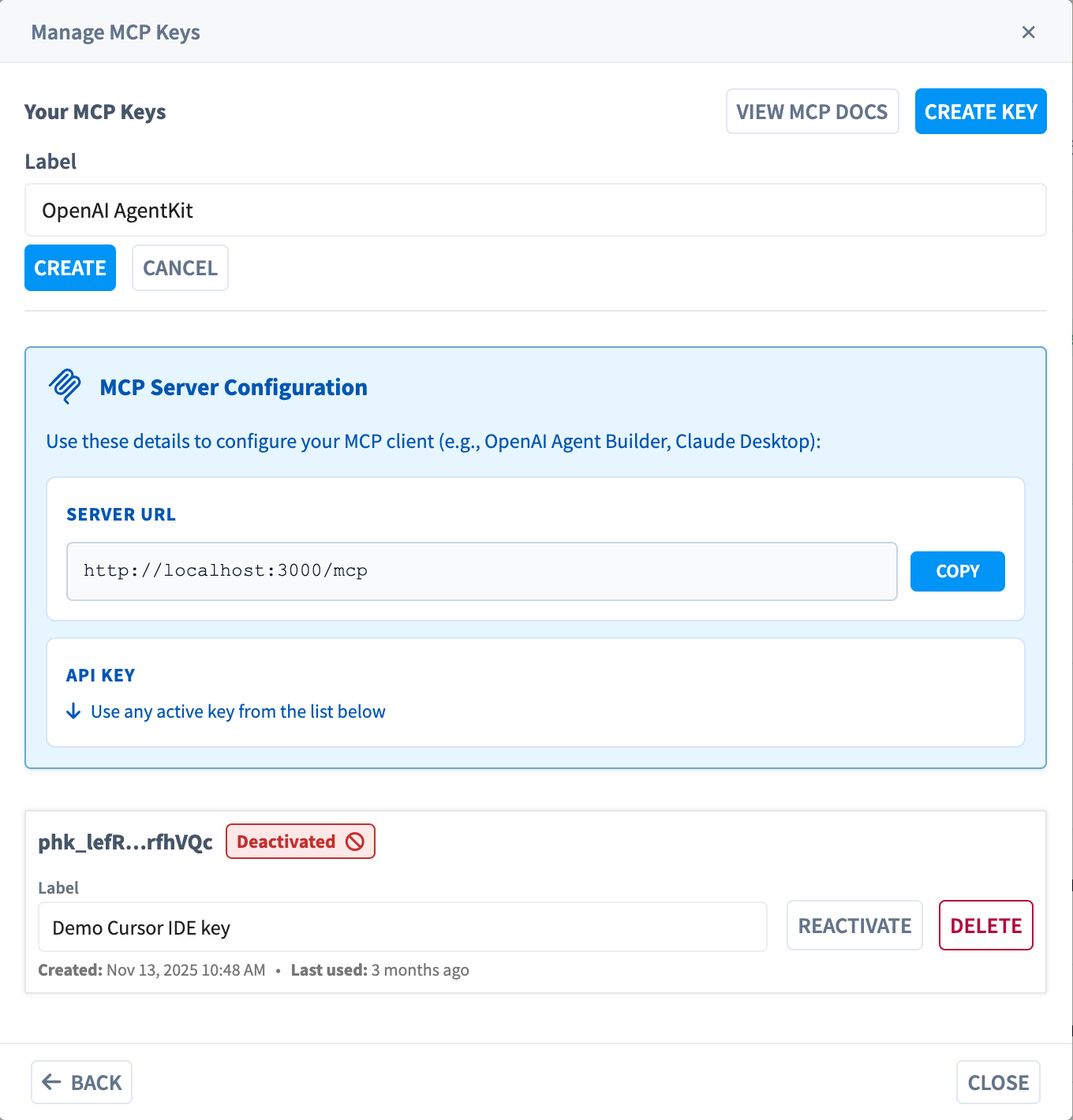
Start a new key
Give it a label
Copy the key now
phk_dLK5...J6HMii) is shown afterwards.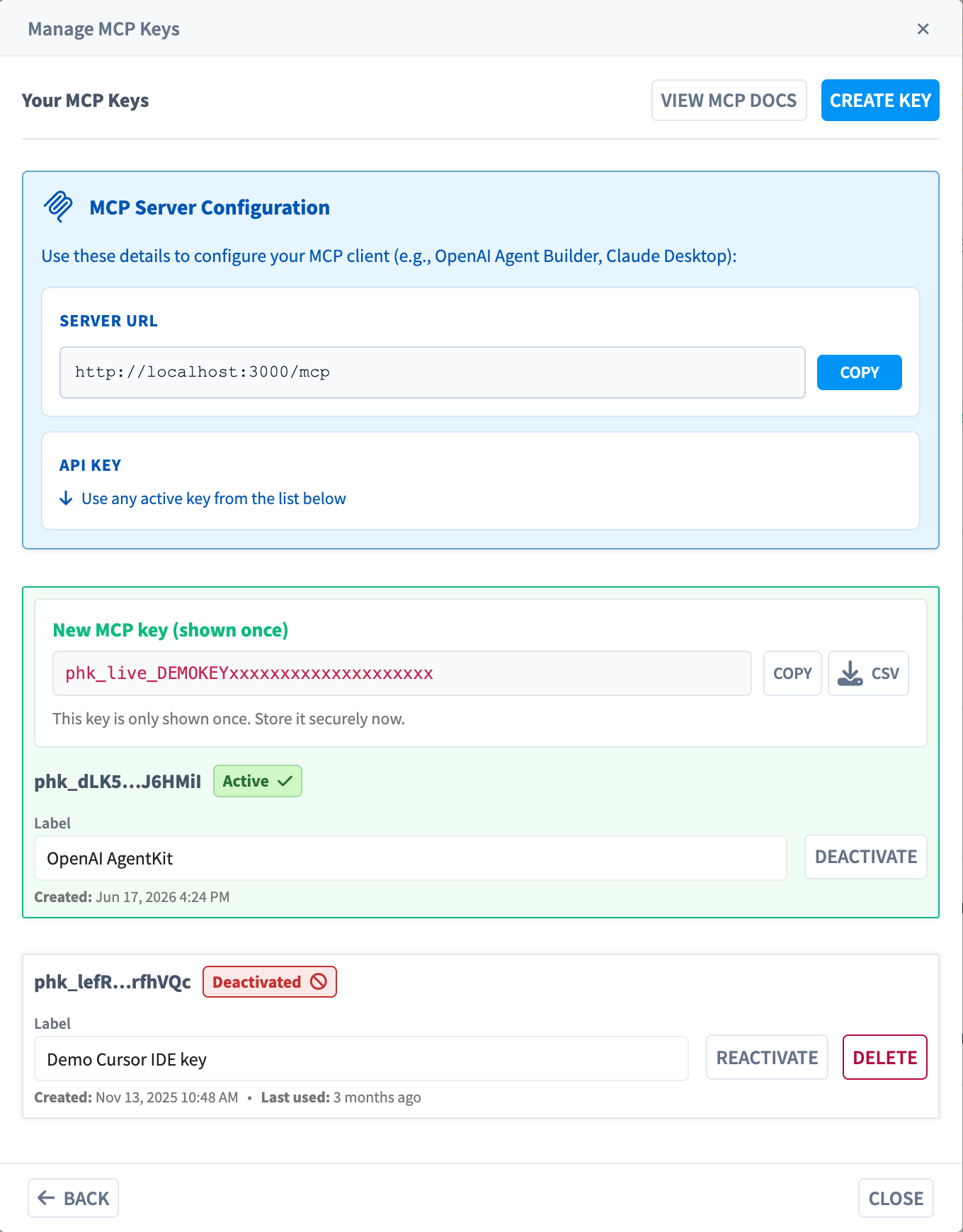
Security: Treat an MCP key like a password. Don't paste it into shared documents, screenshots, or chat. If a key is ever exposed, deactivate it (and delete it) straight away and create a replacement.
Connect your MCP client
Use the details from the MCP Server Configuration panel to set up your AI client:
| Field | Where to find it | Notes |
|---|---|---|
| Server URL | Top of the Manage MCP Keys dialog | Click Copy to copy it. This is the address your MCP client connects to. |
| API Key | Any Active key in the list | Use the secret value you copied/downloaded when the key was created. |
For client-specific install snippets (Cursor, Claude Desktop, and more), see Set up & integrate.
Manage existing keys
Each key in the list shows its redacted identifier, a status badge, an editable Label, and its Created (and, if used, Last used) timestamps, alongside lifecycle controls.

Key statuses
| Status | Meaning |
|---|---|
| Active | The key works and can authenticate MCP requests. |
| Deactivated | The key is disabled and will be rejected. It can be reactivated or permanently deleted. |
Available actions
| Action | When it's shown | What it does |
|---|---|---|
| Label (edit field) | Always | Rename a key inline. A green check confirms Changes Saved. |
| Deactivate | Active keys | Disables the key immediately. MCP clients using it will stop working. |
| Reactivate | Deactivated keys | Re-enables a previously disabled key. |
| Delete | Deactivated keys only | Permanently removes the key. A key must be deactivated before it can be deleted, and this cannot be undone. |
| Download CSV | Header, once after first key creation | Exports your key list (identifiers, labels, status, timestamps) as a CSV. |
To retire a key safely: Deactivate it first (this immediately blocks any client still using it), confirm nothing breaks, then Delete it if you no longer need it.