
Publishing content
Publishing puts a Library item on screens. You choose where it shows (screens, groups, every screen at the facility, or wider with organisation-wide access) and when (always, on a schedule, or straight away as a takeover). You can publish a single item without making a playlist; playlists are published the same way from the Playlists tab.
Quick reference
Where to find it: Display Screens → Library → click an item → Publish
Who can access: Users with Display Screens access at the facility. Publishing to a brand or the organisation needs organisation-wide Display Screens access.
Purpose: Decide where and when content plays
Publish an item
- Click the item to open it, then click Publish. The Show on screens dialog opens.
- Under Screens, choose the target: Every screen at your facility, or individual screens (and groups, if you have them). If you have organisation-wide Display Screens access, you can also choose every screen in a brand or the organisation.
- Under When, choose when it plays:
- Always (default): what the target shows whenever nothing is scheduled and no takeover is running. This replaces the target's current default content.
- Scheduled: only on the days you pick (Mon to Sun), From one time to another (in the facility's time zone, shown beside the times). Optionally set Starting and Ending dates.
- Take over now: interrupts everything straight away for 15 minutes, 30 minutes, 1 hour, or Until… a time you choose (up to 7 days), then ends by itself.
- Click Publish (or Take over for a takeover).
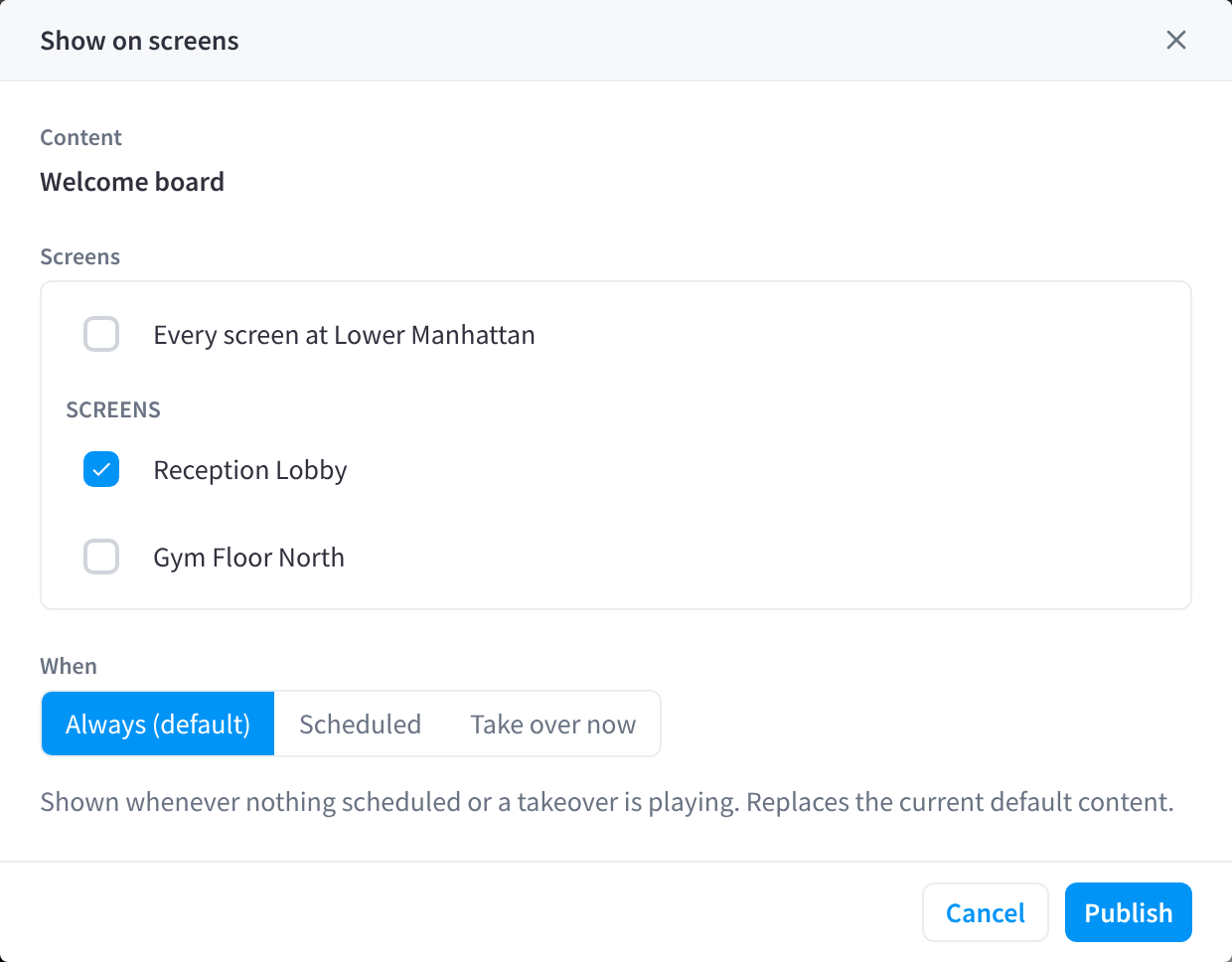
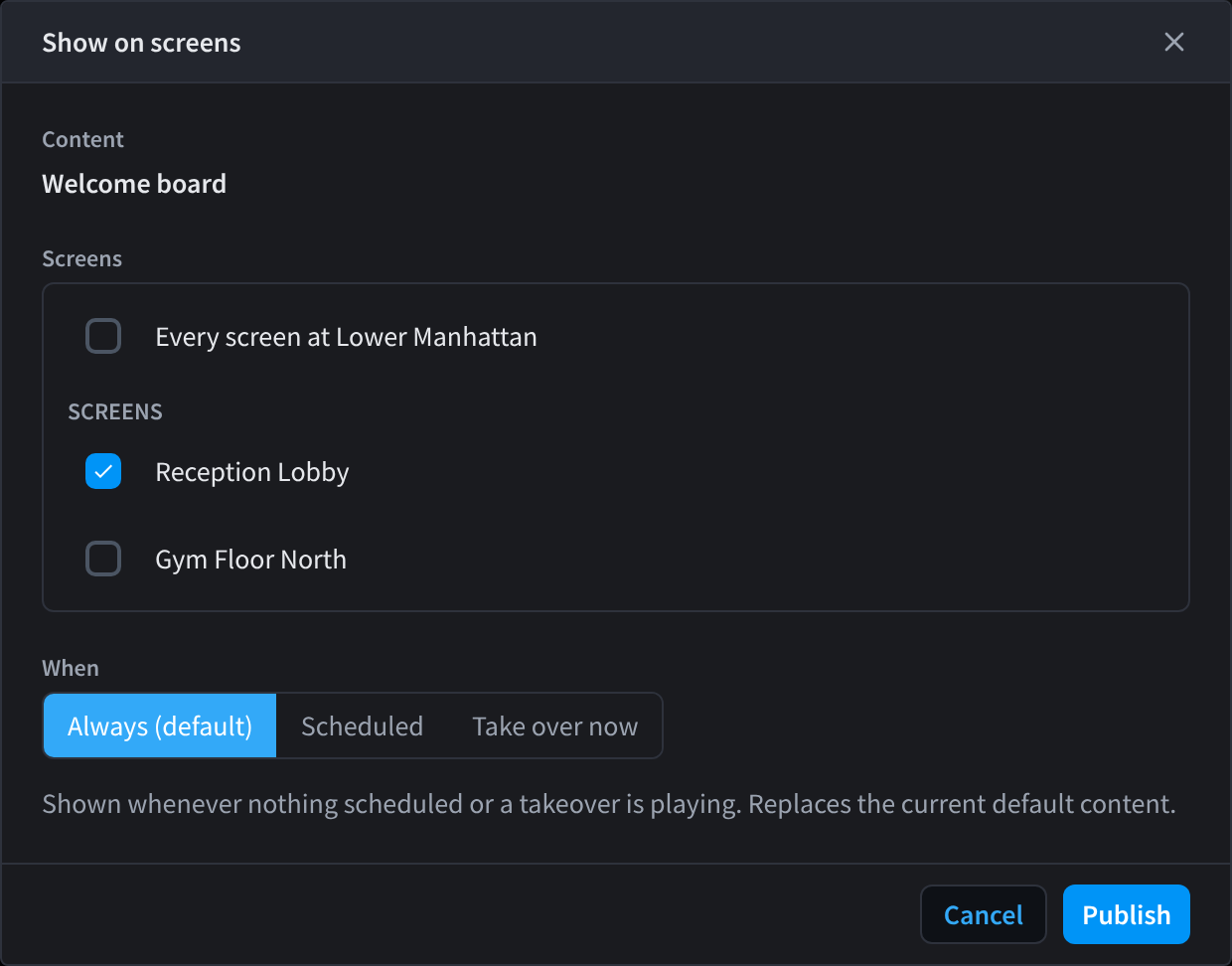
Figure 1: Publish an item to screens
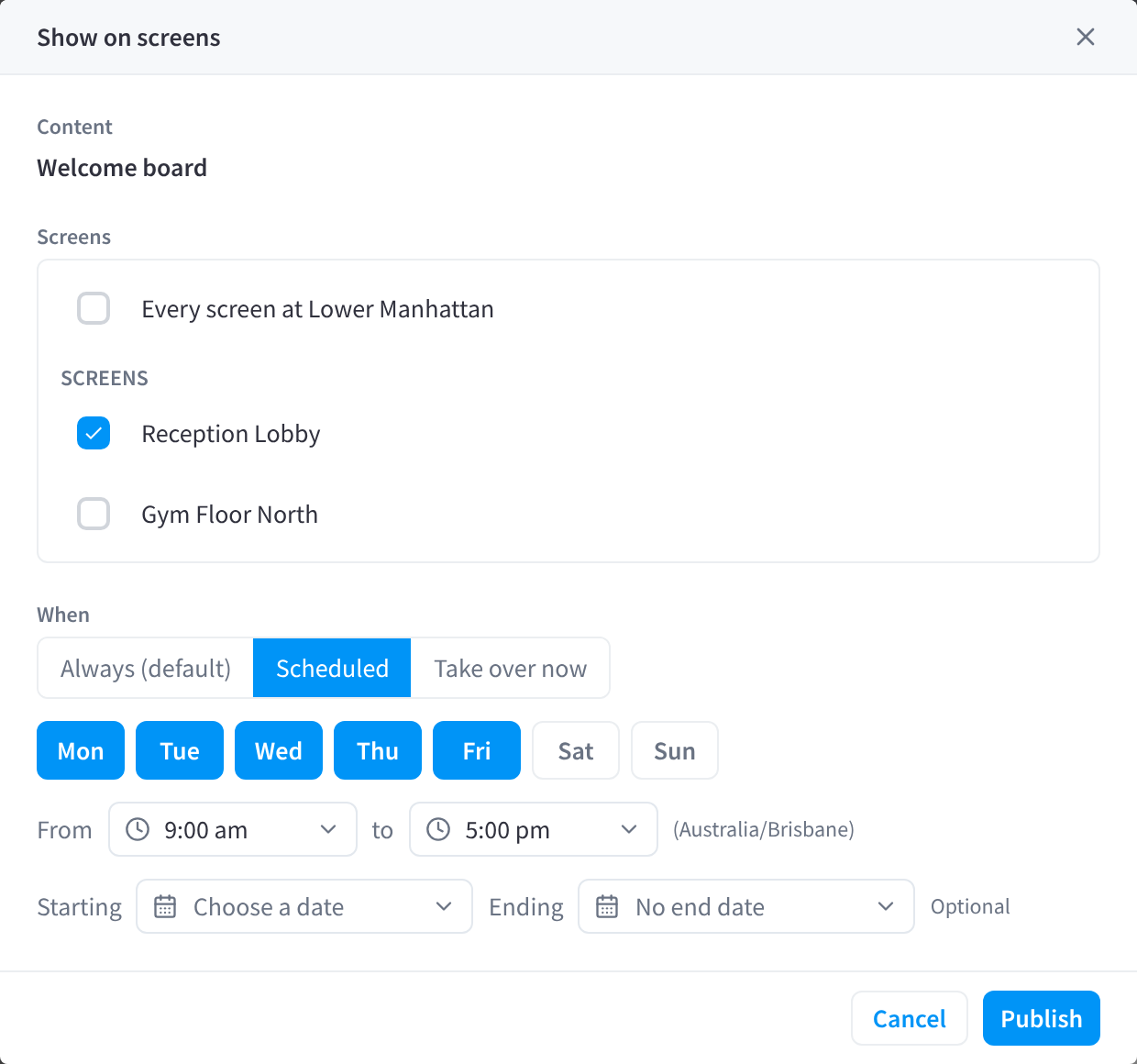
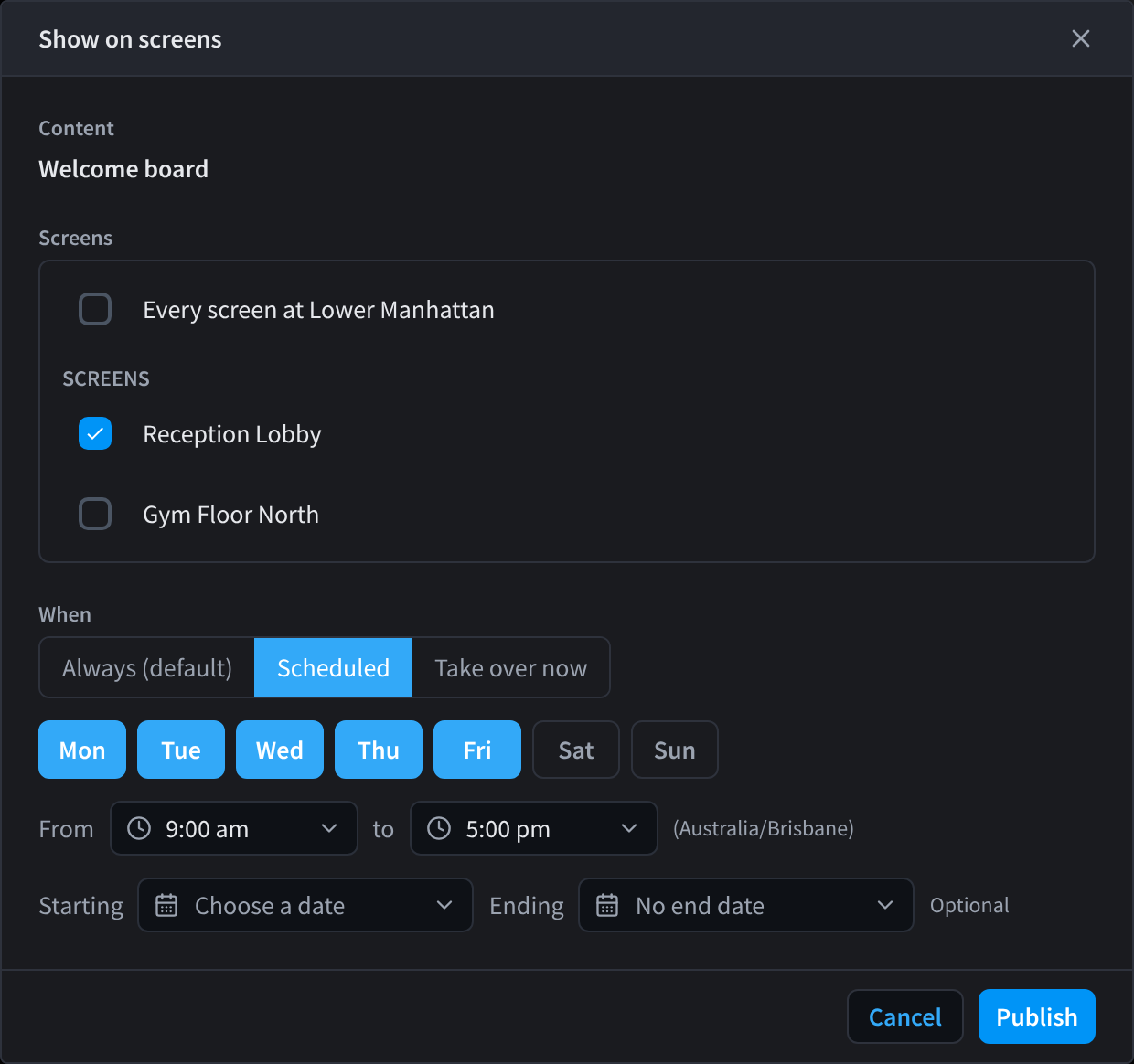
Figure 2: Publish on a schedule: pick days, times and dates
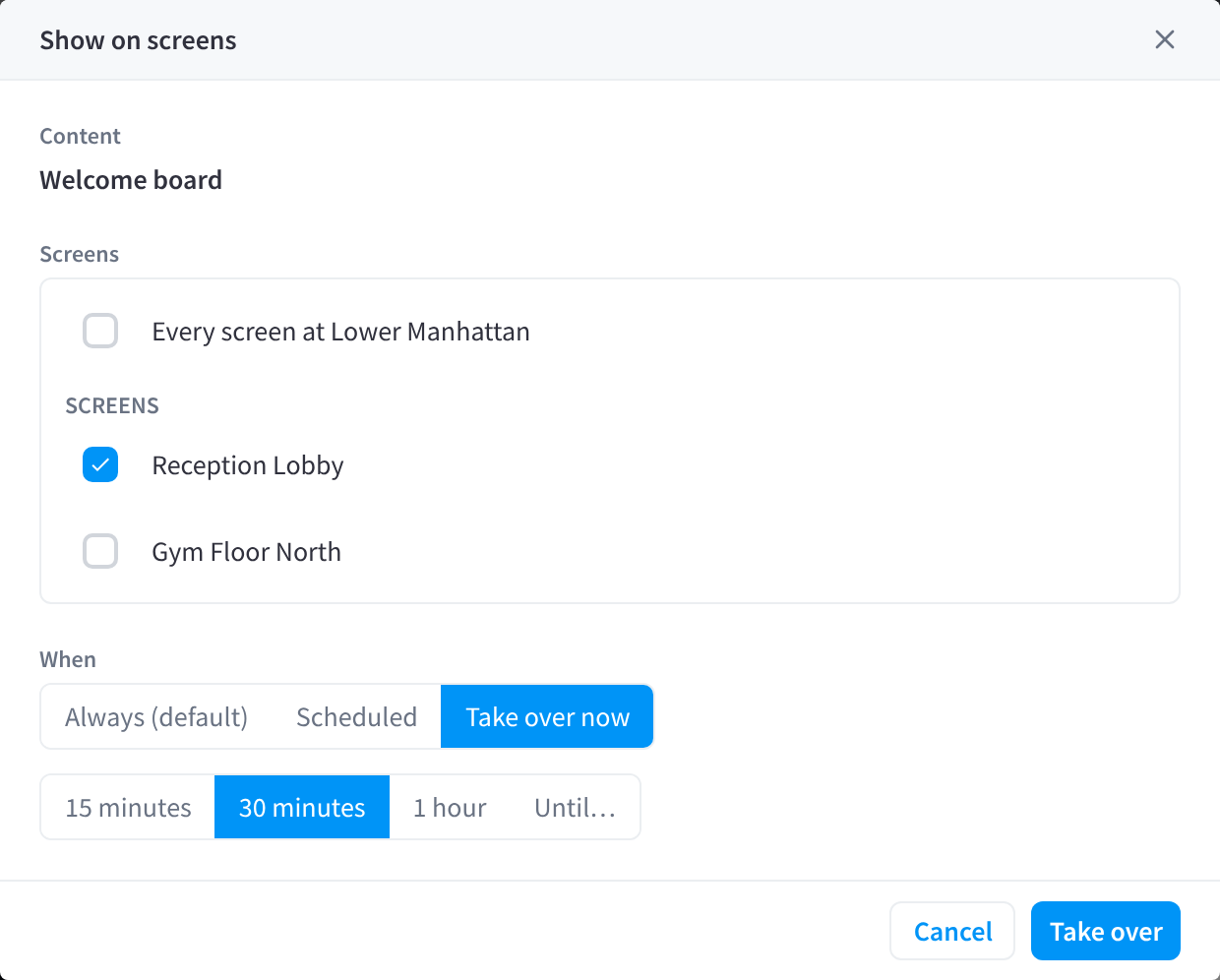
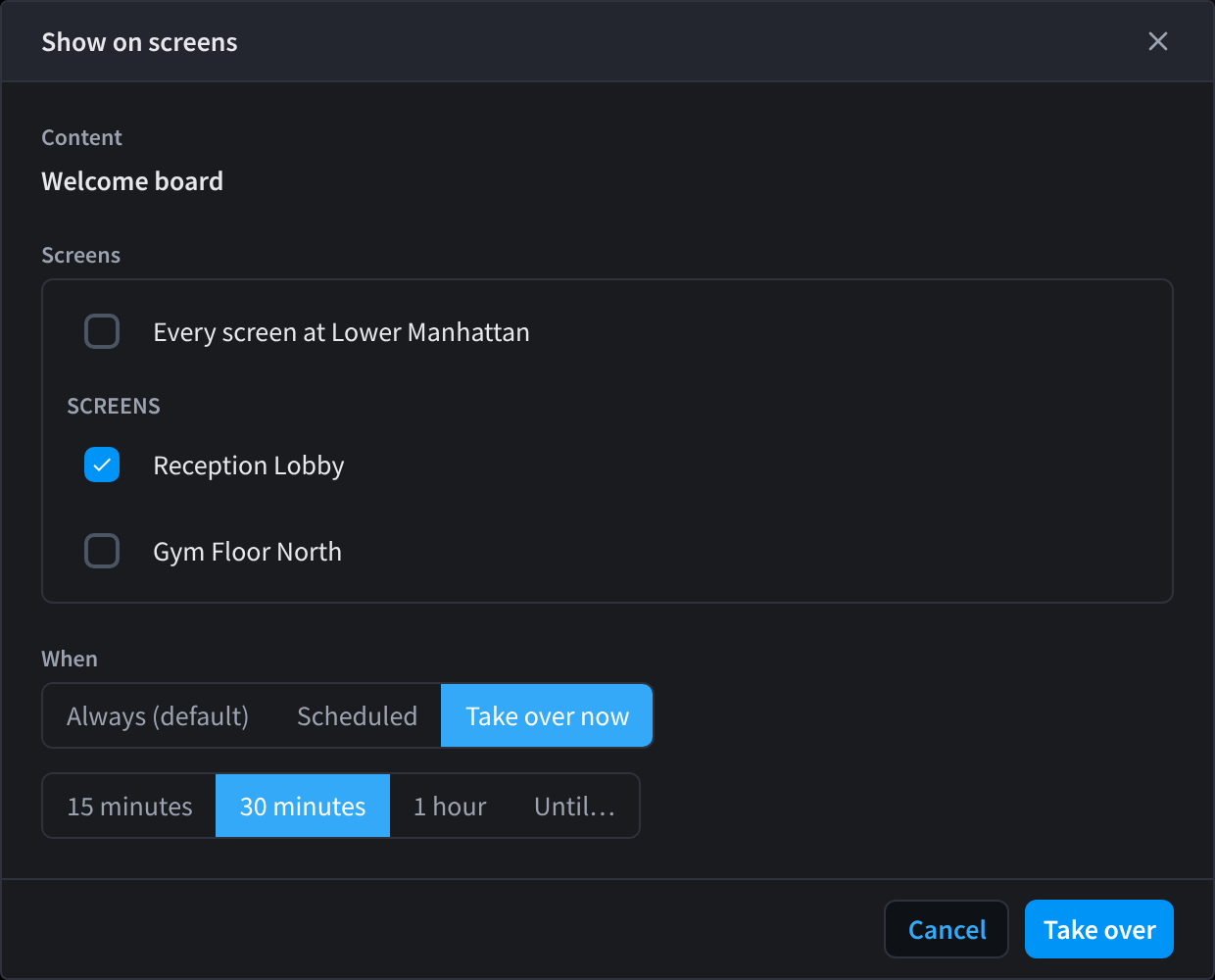
Figure 3: Take over screens straight away
Screens update within seconds. Only screens whose Data Source is User managed content show published content; other screens are skipped. Publishing to a group also reaches screens you add to the group later.
Which publish wins
A screen can have several things published to it at once. A takeover beats scheduled content, scheduled content beats the default, and content published to the screen itself beats group and facility content in the same layer. See How a screen decides what to show.
See and stop a publish
- To see everything published across the week, use the Schedule.
- To see what one screen has, open the screen's Content tab.
- To stop a publish, open a screen → Content tab and click Remove on the item. This applies to every screen that shares that publish.
Related pages
- Adding content: get content into the Library first
- Playlists: combine items into a loop and publish it
- Schedule: the week at a glance
- Take over screens: interrupt screens from the Screens tab