
Display Screen Player
The Display Screen Player is the small, fanless computer that drives each display screen. It connects to one TV or monitor over HDMI and to your network, and plays everything you manage in Display Screens: published content, apps, live camera views and the Fallback Slate. Players arrive pre-loaded and ready to mount. There's no software to install; plug it in and pair it. You need one player per TV or monitor.
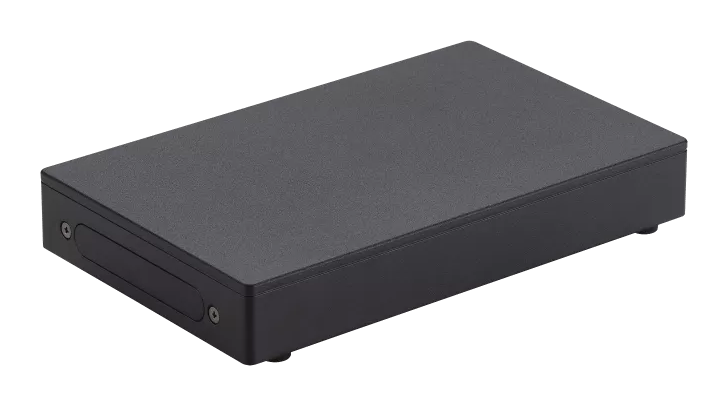
Figure 1: The Display Screen Player
Quick reference
Current model: ASUS NUC 13 Rugged with Intel Processor N50 (kit NUC13BRK)
Connects to: One TV or monitor (HDMI), your network (Ethernet recommended, or Wi-Fi) and mains power, or power over Ethernet with the optional PoE dongle. On PoE, connect no USB accessories; for peripherals, switch to the regular power supply. See Power & Connectivity.
Pairs with: Your facility, using the pairing code the TV shows. See Adding a screen.
Order: Order hardware
Hardware versions vary. The model supplied as a Display Screen Player can change over time, and players already installed at your facility may be an earlier model. Current units ship on the ASUS NUC 13 Rugged with Intel Processor N50. The specifications on these pages are for that model.
At a glance
| Current model | Source | |
|---|---|---|
| Processor | Intel Processor N50, with Intel UHD Graphics | ASUS tech specs |
| Display outputs | 2 x HDMI 2.1 (TMDS), with HDMI-CEC. Display Screens doesn't use the built-in CEC; see Power & Connectivity. | ASUS tech specs, ASUS datasheet |
| Network | 2 x 2.5 GbE Ethernet, Wi-Fi 6E, Bluetooth 5.3 | ASUS tech specs |
| Design | Fanless, rated IP50 | ASUS Technical Product Specification |
| Operating temperature | 0 to 40 °C | ASUS tech specs |
| Size and weight | 174 x 108 x 25.9 mm, 714 g | ASUS tech specs |
Full tables are in Specifications.
What's in the box
The two mounting brackets come in the box, with their screws.
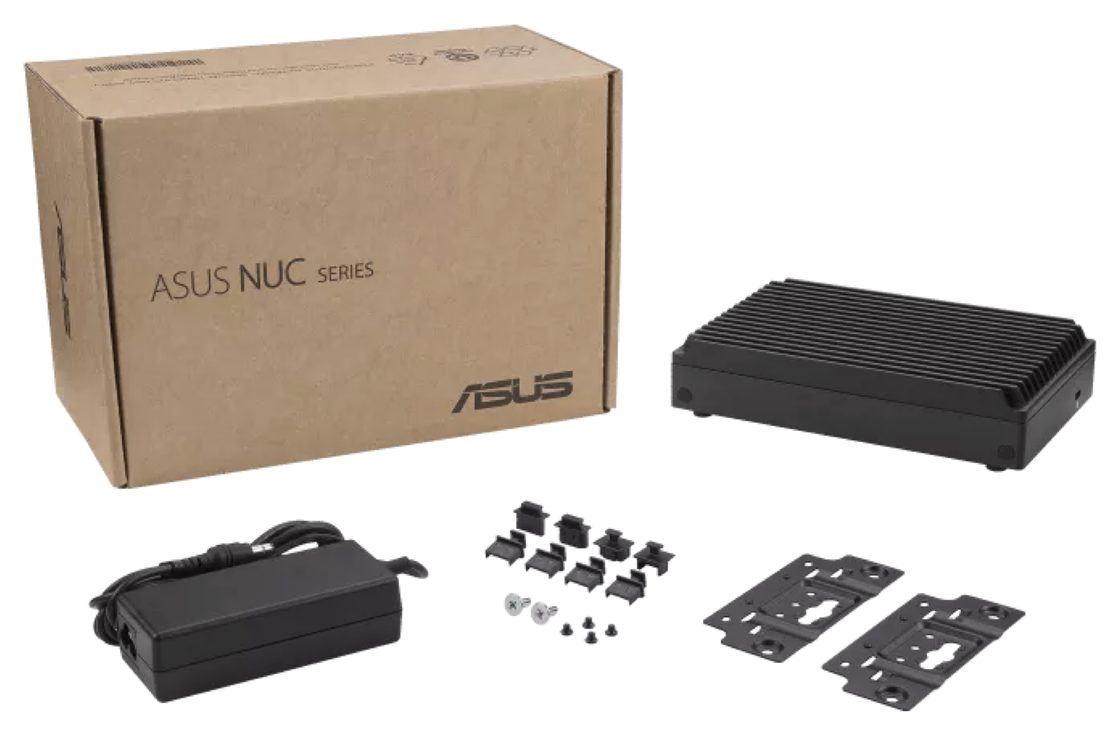
Figure 2: What's in the box, including the two mounting brackets
- 1 x Display Screen Player
- 1 x power adapter, with the plug type you choose when you order (order hardware)
- 1 x mounting bracket kit: two flat brackets and screws. The brackets fix under the left and right ends of the player so you can mount it on a wall or other surface. DIN rail clips can attach to the same brackets; the DIN rail isn't included (ASUS datasheet). See Mounting & Dimensions.
You also need an HDMI cable to the TV and, ideally, an Ethernet cable to your network.
Ports and what they're used for
The rear panel has 2 x USB 3.2 Gen 2 Type-A, 2 x USB 2.0 Type-A, 2 x HDMI, 2 x RJ45 Ethernet and the DC power input. A Kensington lock slot is on the side (ASUS tech specs, ASUS datasheet).
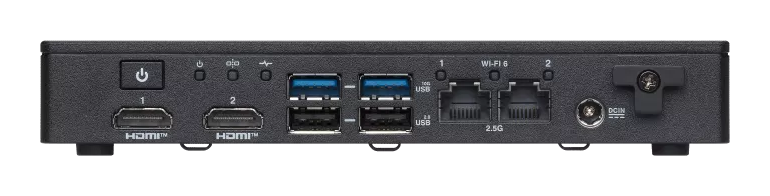
Figure 3: The rear panel
| Port | Used for |
|---|---|
| HDMI | The TV or monitor. Each player drives one display. Display Automations turn the TV off by stopping the signal (DPMS), the preferred method. HDMI-CEC is used only through a Pulse-Eight USB-CEC adapter on a USB port. See Turning the TV on and off. |
| Ethernet (RJ45) | Your network. Recommended for every screen. See Power & Connectivity. |
| USB | Optional peripherals: USB cameras for Camera restreaming, a relay controller, a Pulse-Eight USB-CEC adapter, or a USB drive for Backup Media on templated content screens |
| DC in | The supplied power adapter, or the optional PoE dongle. See Power & Connectivity. |
| Kensington lock slot | A security cable, to deter theft in public areas |
The player also has built-in Wi-Fi, for sites where a cable run isn't practical, and Bluetooth, which it uses to relay presses from nearby duress buttons when Duress alarm monitoring is on.
Pairing code
A player that isn't paired with a facility shows a 6-character pairing code and a QR code on the TV a minute or two after it starts. Enter the code, or scan the QR code, in Display Screens → Screens → Add screen. See Adding a screen.
When you remove a screen with Remove & reset screen, the player returns to its pairing code, ready to be added again.
Health and diagnostics
Each screen's Overview tab shows the player's CPU and memory usage, temperature, uptime, network connection and serial number. Consistently high temperature usually means the player needs more airflow; see Mounting & Dimensions.
Related pages
- Mounting & Dimensions: where and how to mount the player
- Power & Connectivity: power, Ethernet, Wi-Fi and HDMI
- Specifications: full specification tables and sources
- Hardware Troubleshooting: no picture, no power, offline players
- Adding a screen: pair the player with your facility