
Screen settings
A screen's Settings tab holds everything that applies to that one screen: its name, groups and tags, what it shows (its Data Source), and its display, audio and peripheral settings. Facility-wide settings, such as Display Automations and Brightness, are in Settings (cog icon).
Quick reference
Where to find it: Display Screens → Screens → click a screen → Settings tab
Who can access: Users with Display Screens access at the facility
Purpose: Name and group a screen, choose what it shows and match it to its TV
Change any settings, then click Save changes at the bottom of the tab. Settings are sent to the player straight away; some, such as orientation and resolution, may make the display restart briefly. Section headers show how many options are turned on, for example 2 of 2 on.
While a screen is offline, or running an end-of-life software version, you can rename it but can't change its hardware settings (Display, Casting & audio and Connectivity & peripherals).
Screen details
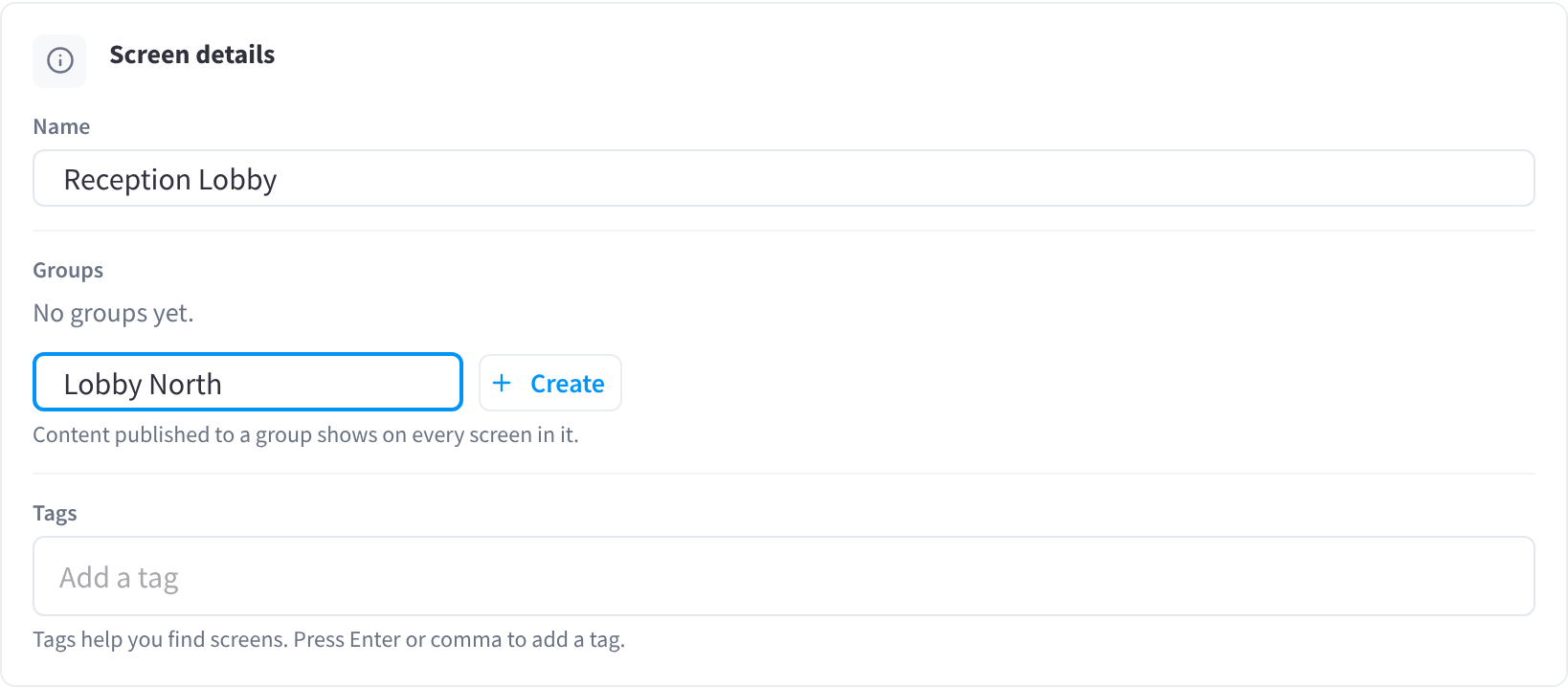
Figure 1: Name, groups and tags. Type a new group name, such as "Lobby North", and click Create to add the screen to it.
| Setting | What it does |
|---|---|
| Name | The name shown in Performance Hub and when you use Identify. Use the location, for example "Reception Lobby". |
| Groups | The groups this screen belongs to. Type a New group name and click Create to make a group and add the screen to it. Content published to a group shows on every screen in it, including screens you add to the group later. |
| Tags | Labels that help you find screens with search and filters. Type a tag and press Enter or comma to add it. |
Groups or tags? Use groups for screens that should show the same content, such as "Lobby", "Meeting rooms", "Dining room" or "Gym floor". Use tags for anything else you want to search on, such as a floor or a TV brand. Tags don't affect what a screen shows.
Data Source
Choose what this screen shows:
| Option | What the screen shows |
|---|---|
| User managed content | Content you publish from Display Screens: Library items, playlists, schedules and takeovers. |
| Full-page website (Kiosk Mode) | One website, full screen. Playlists and schedules are ignored. Use this for a page that must fill the display, or a page that refuses to load inside a playlist. |
| Templated content (source name) | Only at facilities that use templated content: the template for the screen's equipment or area, from the facility's templated source. See the Templated content tab, available where templated content is enabled for your location. |
Changing the Data Source asks you to confirm, then saves straight away and restarts the screen. For Full-page website (Kiosk Mode), enter the page address under Website in the confirmation (it must start with https://), then click Switch.
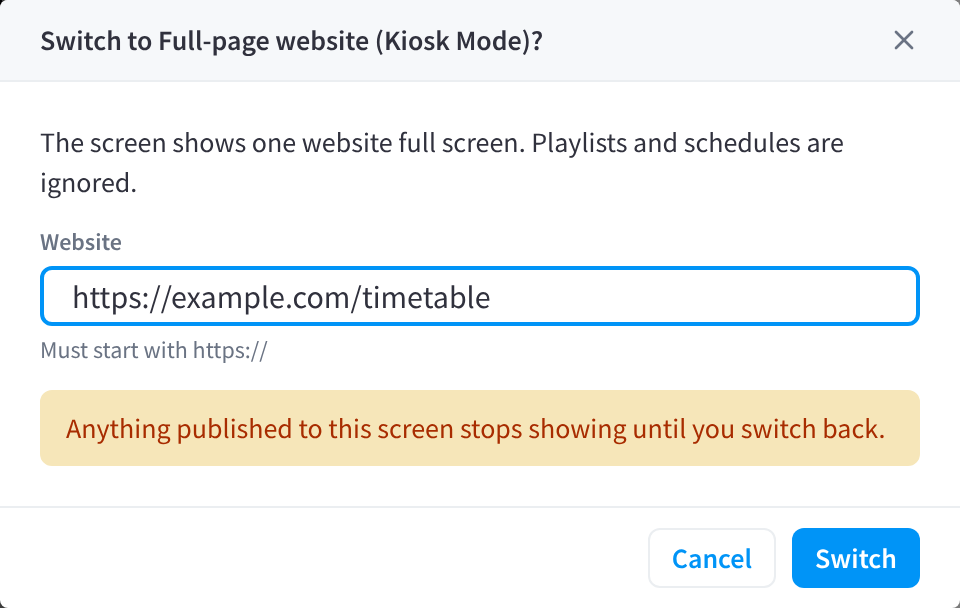
Figure 2: Show one website full screen
When you switch a screen away from User managed content, anything published to it, its groups or the facility stops showing on that screen. Switch back to User managed content and it returns.
Display
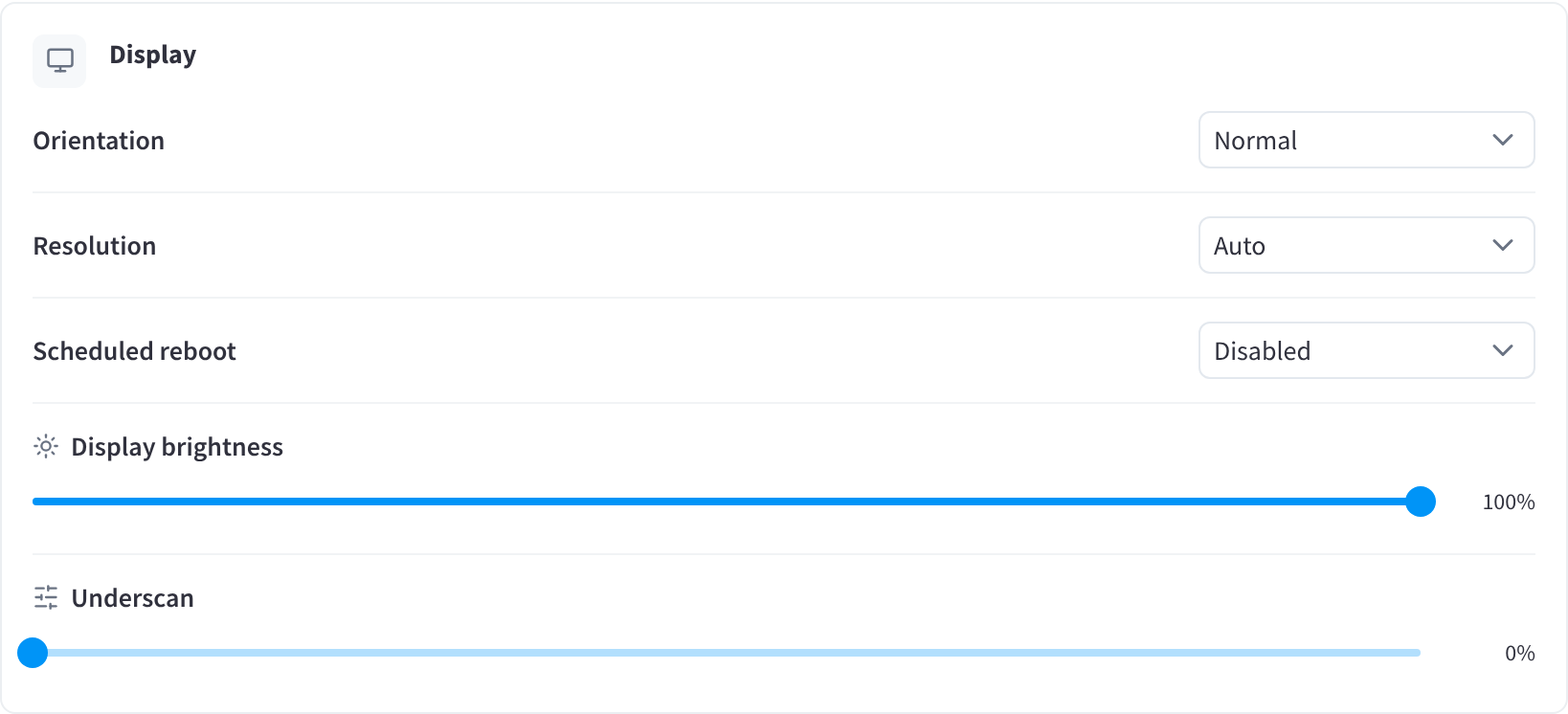
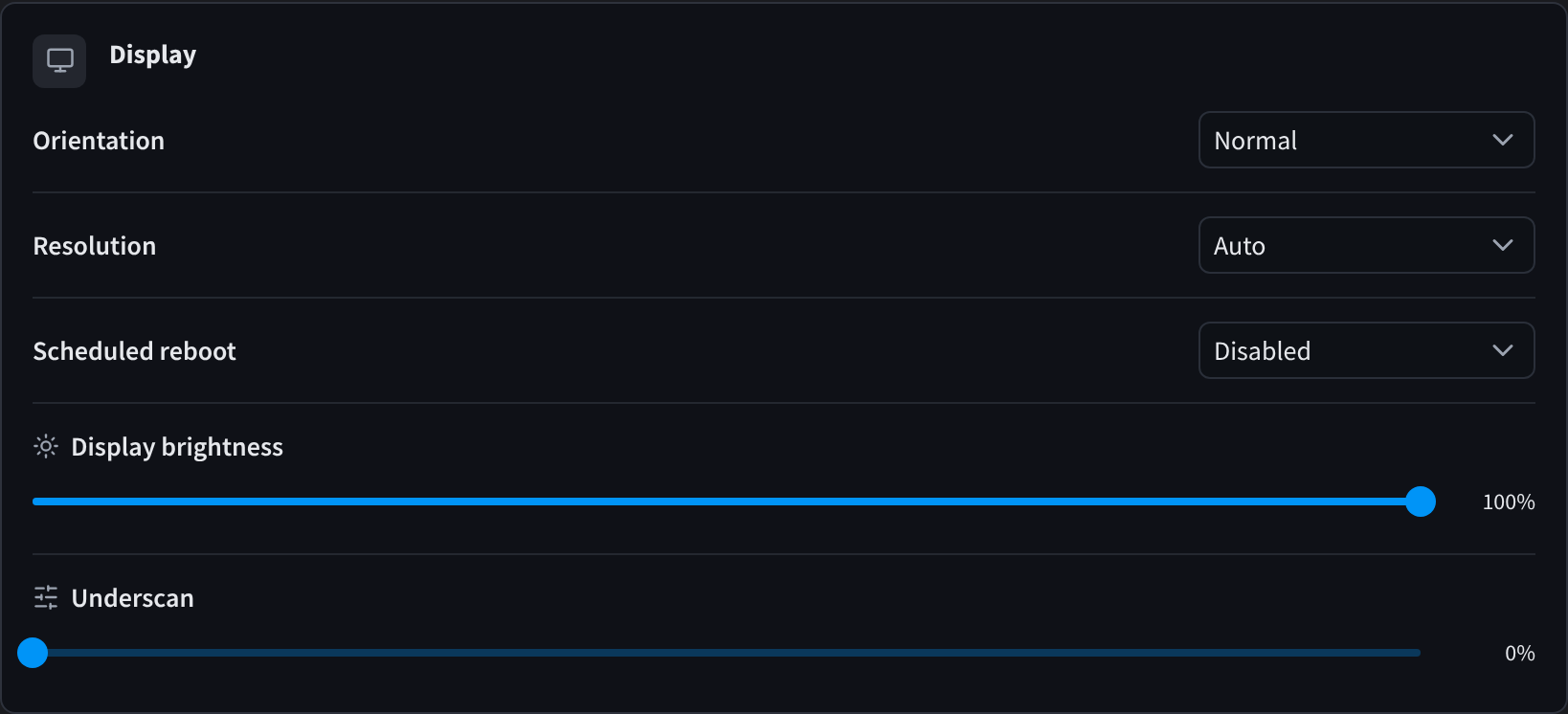
Figure 3: Orientation, resolution, scheduled reboot, brightness and underscan
| Setting | Options | What it does |
|---|---|---|
| Orientation | Normal, Left, Right or Inverted | Match how the TV is mounted. Choose Left or Right for a portrait (vertical) screen. |
| Resolution | Auto, 1920 x 1080, 1280 x 720 or 720 x 400 | Auto uses the display's preferred resolution. Choose a fixed resolution only if a display shows a blank or distorted picture on Auto. |
| Scheduled reboot | Disabled, Daily, Weekly or Monthly | Restarts the whole device on a regular schedule. Separate from the nightly player restart in Settings → Updates. |
| Display brightness | 0–100% | The screen's base brightness. If Brightness automation is on for the facility, it changes this level at dawn and nightfall. |
| Underscan | 0–100% | Shrinks the picture inside the edges of the TV. Increase it only if the edges of content are cut off; leave it at 0% otherwise. |
Casting & audio
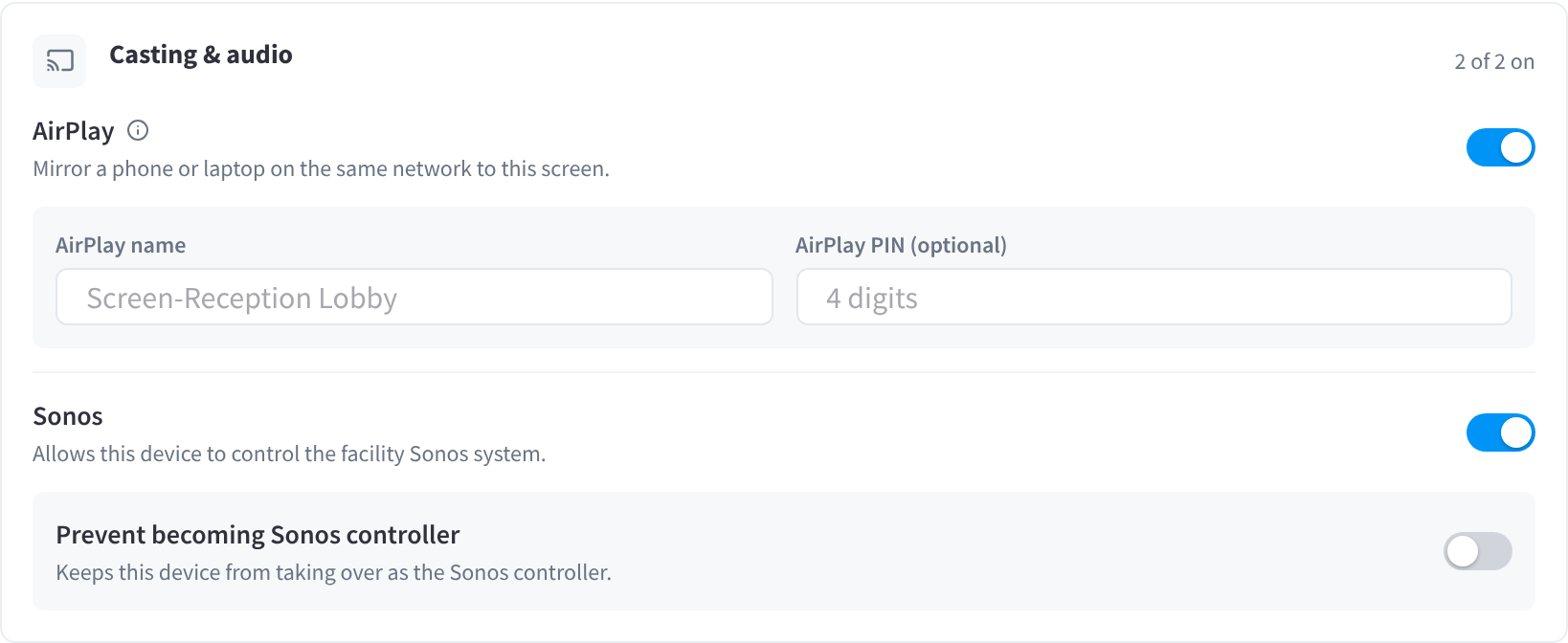
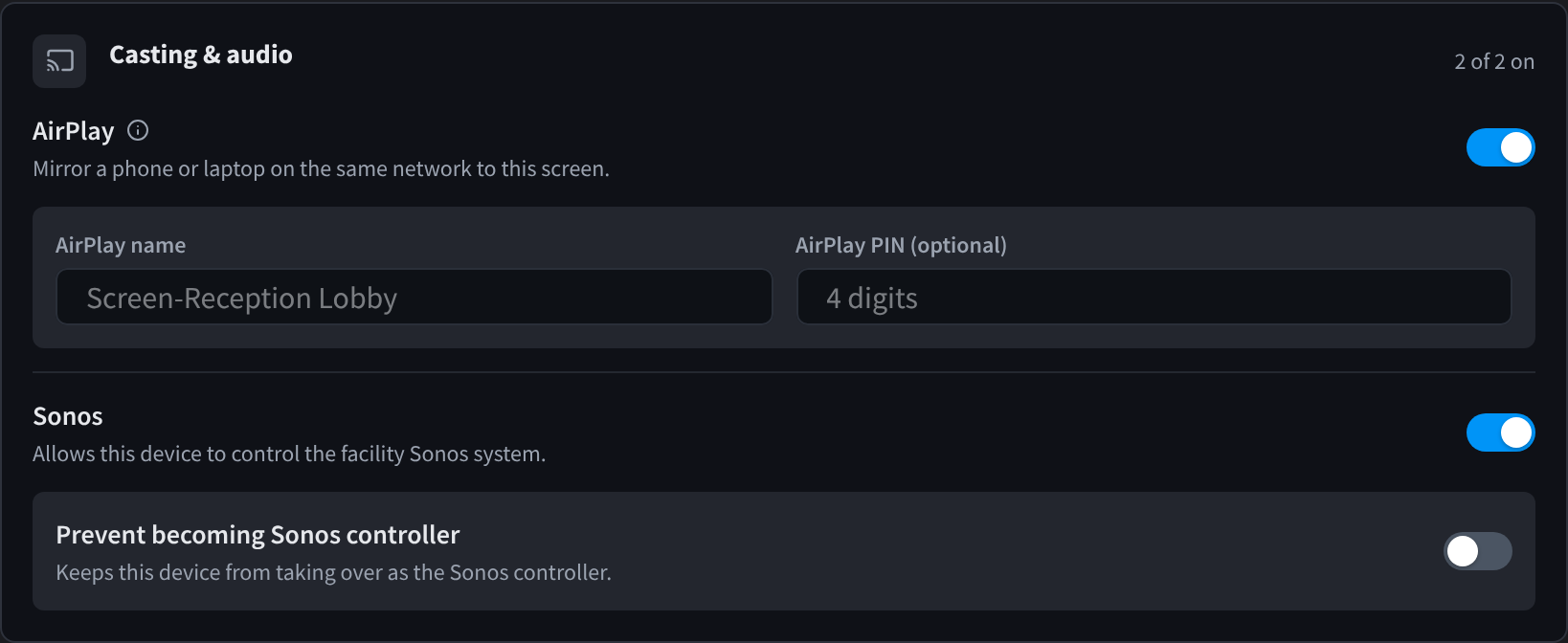
Figure 4: AirPlay and Sonos settings for the Reception Lobby screen
| Setting | What it does |
|---|---|
| AirPlay | Lets people mirror a phone or laptop on the same network to this screen. Set an AirPlay name (what people see in their AirPlay menu) and, optionally, a 4-digit AirPlay PIN they must enter to connect. |
| Sonos | Allows this player to control the facility's Sonos system. See Audio Control. |
| Prevent becoming Sonos controller | Keeps this player from taking over as the Sonos controller. |
Session timer
| Setting | What it does |
|---|---|
| Prevent becoming master clock | Keeps this player from driving the synchronised session timer across screens. Another screen takes the role. |
| Disable master clock audio | Stops timer audio playing over HDMI from this screen. |
Leave several screens able to act as the Sonos controller and master clock, so another can take over if one goes offline.
Connectivity & peripherals
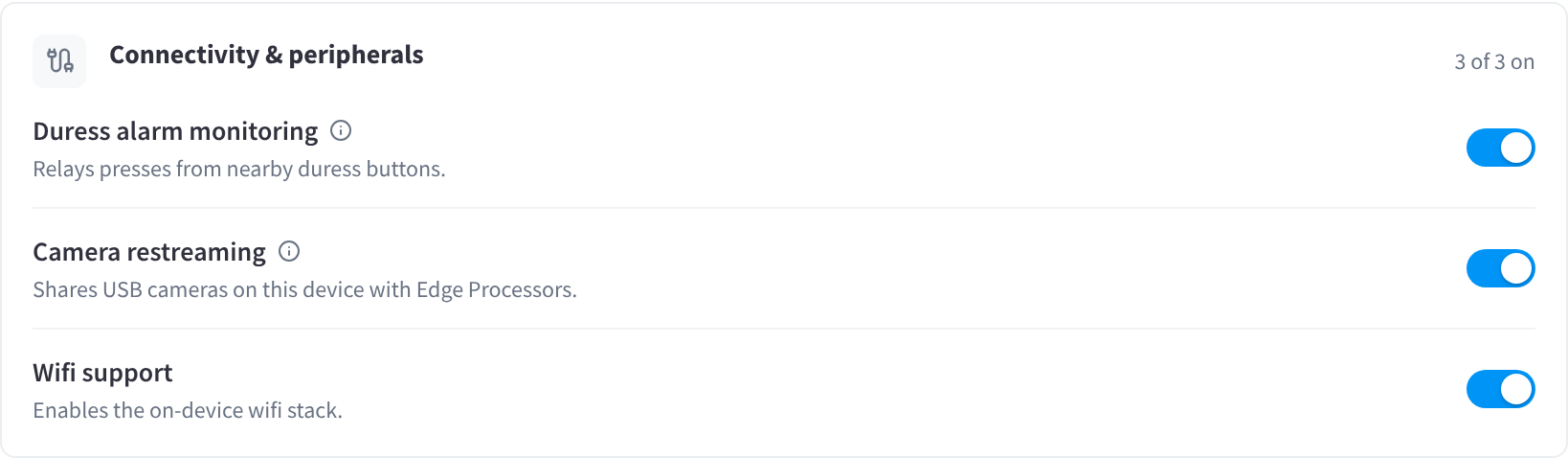
Figure 5: Duress alarm monitoring, camera restreaming and Wi-Fi support
| Setting | What it does |
|---|---|
| Duress alarm monitoring | Relays presses from nearby duress buttons (the player's Bluetooth duress scanner). See How presses reach Performance Hub. |
| Camera restreaming | Shares USB cameras plugged into this player with your Edge Processors, so they can be used in CCTV (VSaaS). |
| Wifi support | Enables the on-device Wi-Fi stack, including its Wi-Fi setup portal. To choose a network, use Manage Wi-Fi. |
The player's Bluetooth and USB ports are described in Power & Connectivity.
Relay controller
If a relay controller is connected to the player, choose what it is used for:
| Option | What it does |
|---|---|
| Unconfigured | The relay isn't used |
| Duress alarm | The relay responds to duress alarms. See Duress. |
| Duress low battery | The relay responds to duress button low-battery warnings |
| Mirror screens | The relay mirrors the screens |
Screen key
The section shows when the screen's current key was issued. Replace it if you think someone copied the screen address: click Replace screen key. The screen restarts with the new key.
Related pages
- Screen overview: quick actions, live metrics and device details
- Screen content: what the screen plays and where it comes from
- Advanced & device actions: restart, Wi-Fi, move and remove
- Power & Connectivity: power, HDMI, Ethernet and Wi-Fi for the player