
Audio Control
The Audio Control section lets you manage music playback across your facility's Sonos speakers directly from Performance Hub. You can see what's currently playing, control the active speaker, adjust volume, and select from your saved Sonos Favourites — all without leaving the platform.
Now Playing panel
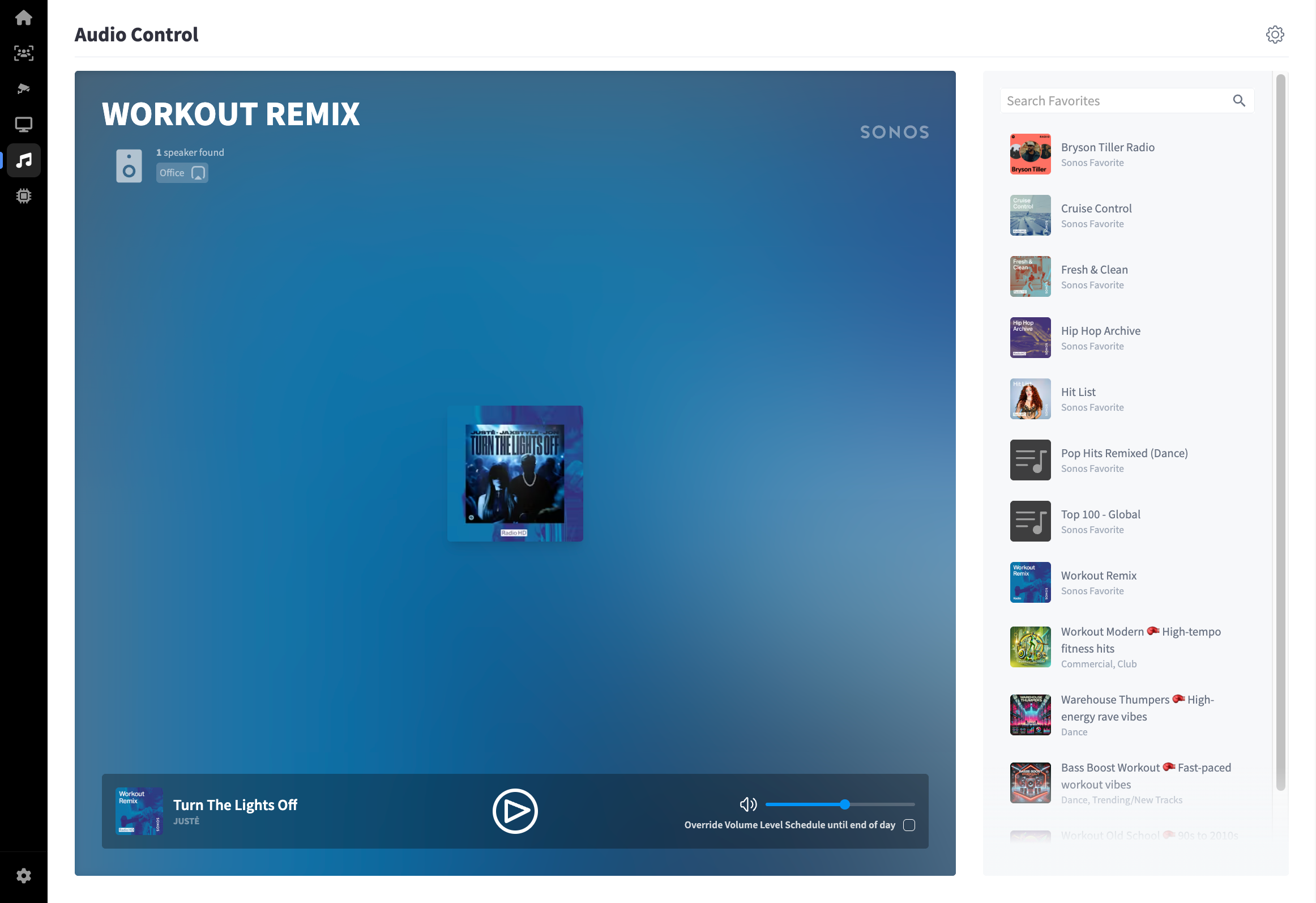 The main panel on the left shows the currently active playlist and speaker.
| Element | Description |
|---|---|
| Playlist name | The name of the active playlist or station (e.g. WORKOUT REMIX) |
| Speaker icon | Shows the number of speakers found and their names (e.g. 1 speaker found — Office) |
| Album art | Cover artwork for the currently playing track |
| SONOS logo | Indicates the audio is being delivered through a connected Sonos system |
Playback bar
 The bar at the bottom of the player panel shows the currently playing track and playback controls:
| Element | Description |
|---|---|
| Playlist thumbnail | Small artwork icon for the active playlist |
| Track name | Title of the currently playing track (e.g. Turn The Lights Off) |
| Play / Pause | Play or pause the current track |
| Volume icon | Mute or unmute audio |
| Volume slider | Drag to adjust the speaker volume |
Override Volume Level Schedule
A toggle labelled Override Volume Level Schedule until end of day is available below the speaker info. Enable this to bypass the facility's scheduled volume levels for the rest of the day and maintain a manually set volume instead.
Favourites panel
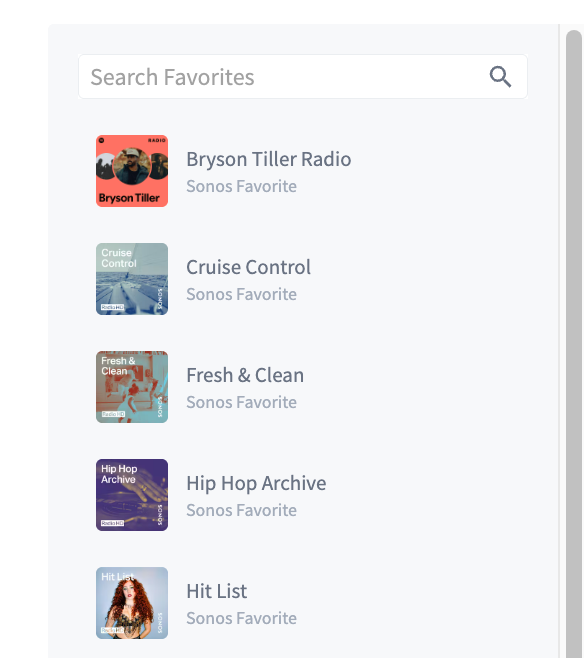 The right-hand panel lists all Sonos Favourites available for your facility. Use the Search Favourites field to filter by name.
Each favourite shows:
| Element | Description |
|---|---|
| Artwork | Playlist or station cover image |
| Name | Playlist or station name (e.g. Workout Remix, Hit List, Fresh & Clean) |
| Type | Source type — Sonos Favourite for items saved in the Sonos app, or a genre/mood label for curated playlists (e.g. Dance, Pop) |
Click any favourite to load it on the active speaker.
Adding Favourites
Favourites are managed through the Sonos app. Any playlist, station, or track you save to your Sonos Favourites in the app will automatically appear in this list.
Note: If a favourite that was part of your scheduled music source is removed from Sonos, Performance Hub will display an Update Required warning. Click Update music source to review and update your schedule.
Settings
 Click the settings icon (top right) to access Audio Control configuration. See Audio Control Settings for full documentation, including:
- Music start/stop scheduling tied to club hours
- Dead Air Detection
- Club and extended hours volume levels
- Volume Level Schedule (per-day, per-time-block)
- Music Source Schedule (assign playlists to days of the week)
Sonos controller
Performance Hub sends commands to your Sonos system through a Display Screens player on the same network. Each screen's Sonos and Prevent becoming Sonos controller settings, on its screen settings, control which screens can take that role.