
Audio Control Settings
The Audio Control Settings page lets you configure when music starts and stops, set volume levels for different operating periods, schedule automatic volume changes throughout the day, and plan which playlist loads on each day of the week. Access it via the cog icon (top right) on the Audio Control page.
Music Schedule
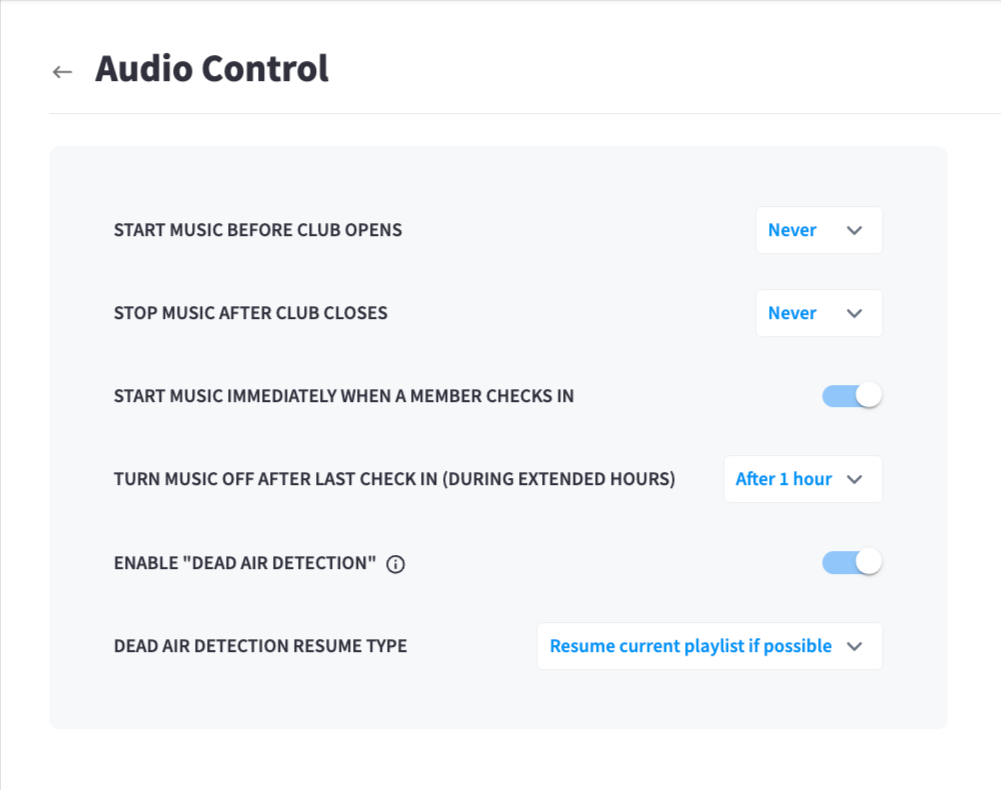
These settings control when music automatically starts and stops in relation to your club's operating hours.
| Setting | Description |
|---|---|
| Start Music Before Club Opens | How early music begins playing before the club opens (e.g. 5 minutes before) Available options: Never, 5, 10 or 15 minutes before |
| Stop Music After Club Closes | How long after closing music continues before stopping (e.g. 5 minutes after) Available options: Never, 5, 10 or 15 minutes after |
| Start Music Immediately When a Member Checks In | Toggle — if enabled, music starts automatically as soon as a member checks in during extended hours |
| Turn Music Off After Last Check In (During Extended Hours) | How long after the last check-in music continues during extended hours (e.g. After 2 hours) Available options: 45 minutes, 1 hour, 1 hour and half, or 2 hours after |
 |
Dead Air Detection
| Setting | Description |
|---|---|
| Enable "Dead Air Detection" | Toggle — when enabled, the system detects if music stops unexpectedly and automatically resumes playback |
| Dead Air Detection Resume Type | Controls what plays when dead air is detected Available options: Resume current playlist if possible, or play default source |
Volume Levels
| Setting | Description |
|---|---|
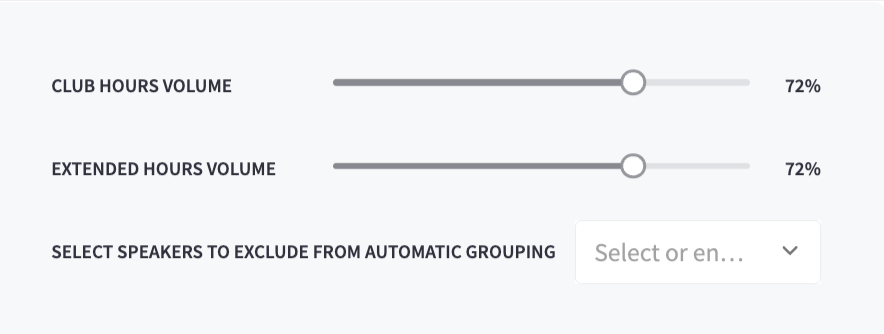
| Club Hours Volume | Default volume level during standard operating hours (e.g. 67%) |
| Extended Hours Volume | Default volume level during extended hours when fewer members are present. Typically lower than standard operation (e.g. 53%) |
| Select Speakers to Exclude from Automatic Grouping | Choose any Sonos speakers that should not be included when Performance Hub automatically groups speakers |
Volume Level Schedule
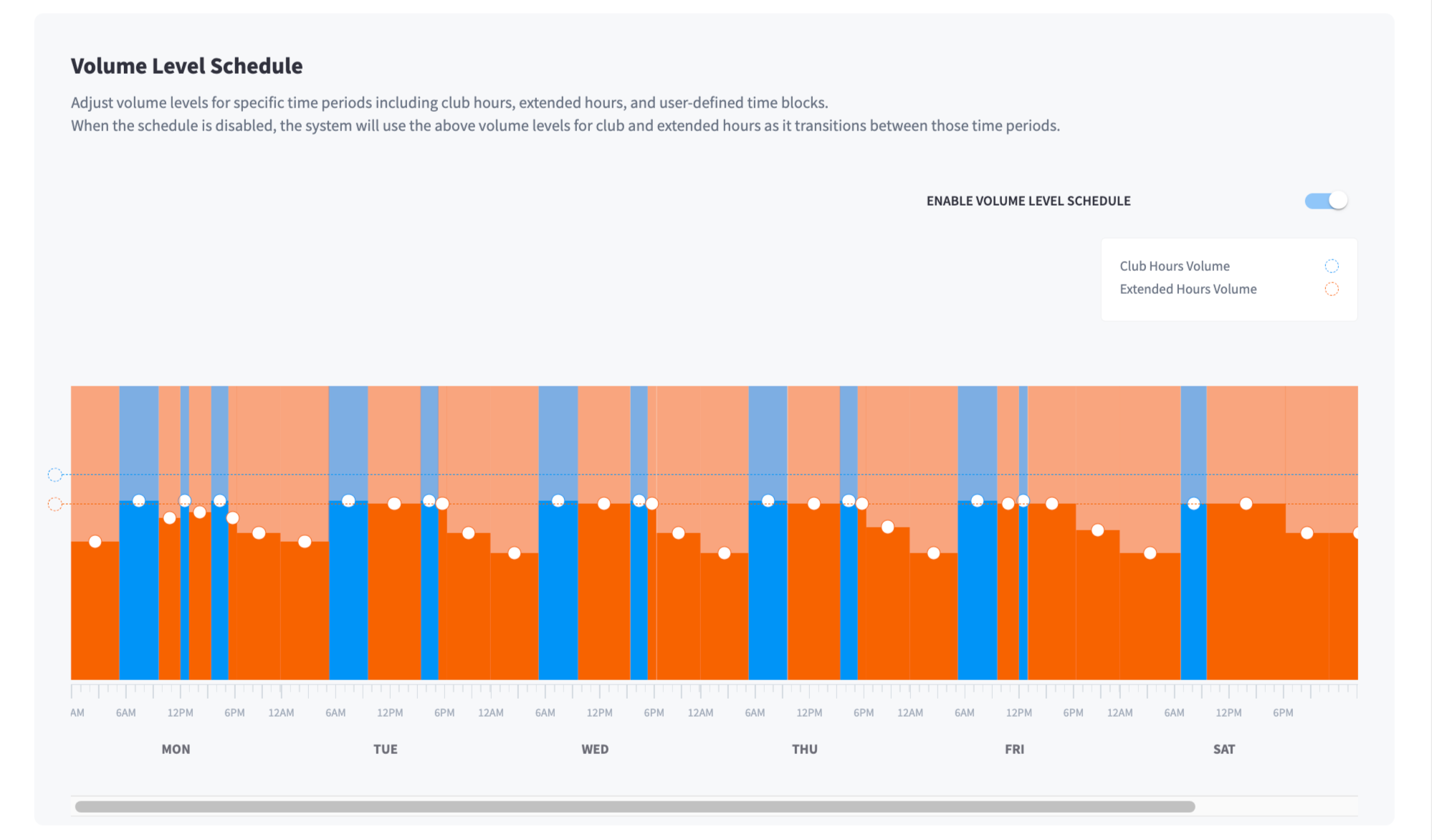 Set different volume levels across time blocks throughout each day of the week. This allows you to automatically lower or raise volume at specific times (e.g. quieter in the early morning, louder during peak hours).
| Setting | Description |
|---|---|
| Enable Volume Level Schedule | Toggle to activate the weekly volume schedule |
| Club Hours Volume | The reference volume level used during club hours within the schedule |
| Extended Hours Volume | The reference volume level used during extended hours within the schedule |
| Day rows (Mon–Sun) | Each day shows a time bar from 12AM to 12AM with markers at 6AM, 12PM, and 6PM |
Note: When the schedule is disabled, the system uses the Club Hours Volume and Extended Hours Volume settings above as it transitions between operating periods.
Music Source Schedule
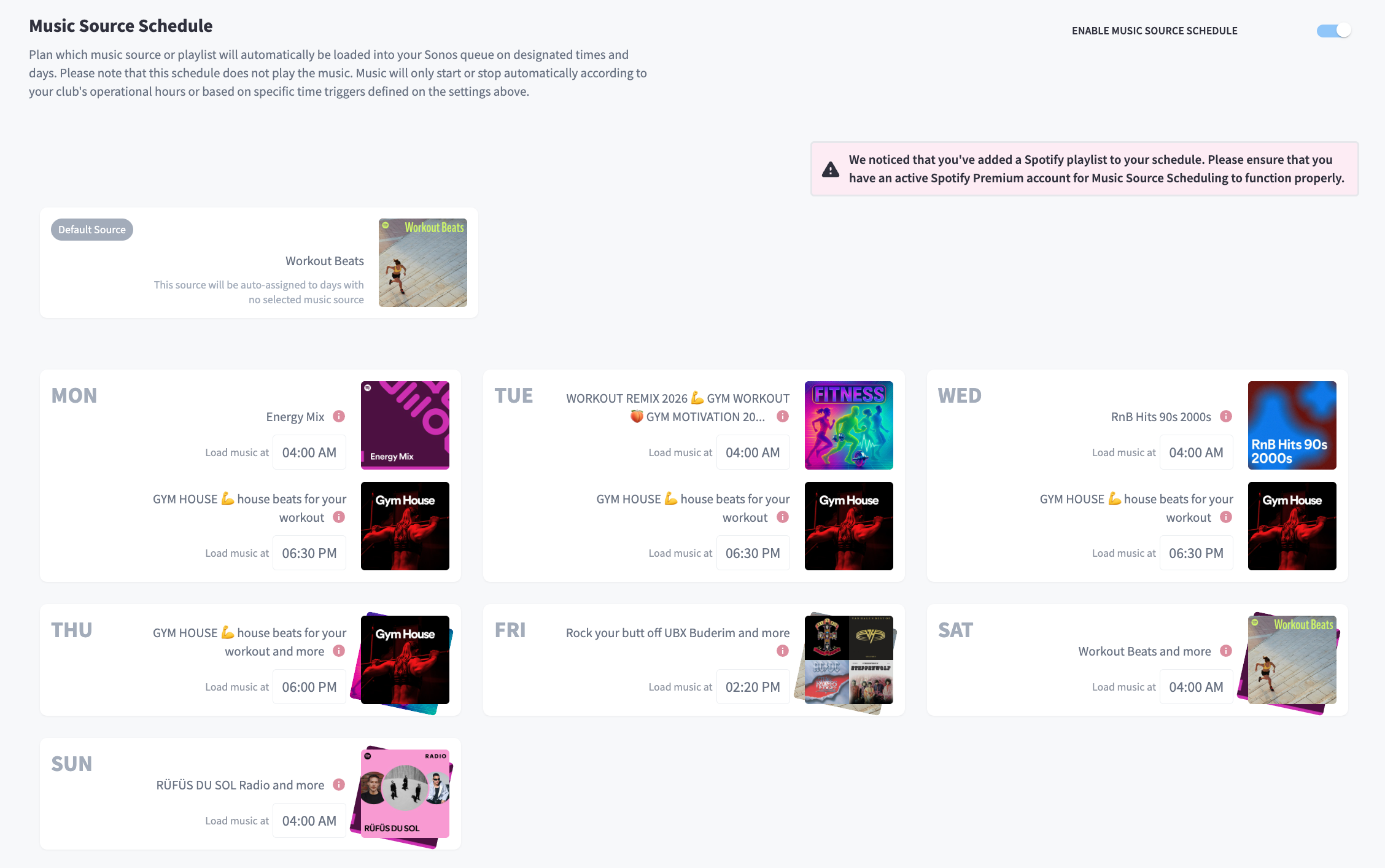 Plan which playlist or music source automatically loads into the Sonos queue on specific days and times. This schedule controls what plays — music only starts or stops based on the club hours settings above.
| Setting | Description |
|---|---|
| Enable Music Source Schedule | Toggle to activate the weekly playlist schedule |
| Default Source | The playlist automatically assigned to any day that doesn't have a specific source set (e.g. Workout Remix) |
| Day rows (Mon–Sun) | Set a music source and optional load time for each day of the week |
| Load music at | Optional specific time to load the music source on that day |
| Add Item | Add an additional music source entry for that day (e.g. for a playlist change mid-day) |
Related pages
- Audio Control — playback, speaker control, and Favourites