
Audit Logs
Audit Logs is a record of the requests made to Performance Hub in your organisation. It covers requests from people using Performance Hub in a browser or the app, and from connected tools such as API keys, AI agents connected through MCP, and the Model Router. Use it to answer questions such as who unlocked a door, why a change didn't save, or when an integration stopped working, whether your sites are offices, stores, cafés, venues, clinics, campuses or gyms.
Quick reference
Where to find it: Settings (cog icon, bottom left) → Audit Logs
Who can use it: You need a role that includes Audit Logs and Identity & Access Management in your organisation, such as Organisation Administrator. See Who can use Audit Logs.
Purpose: See who did what in Performance Hub, and find out why a request failed
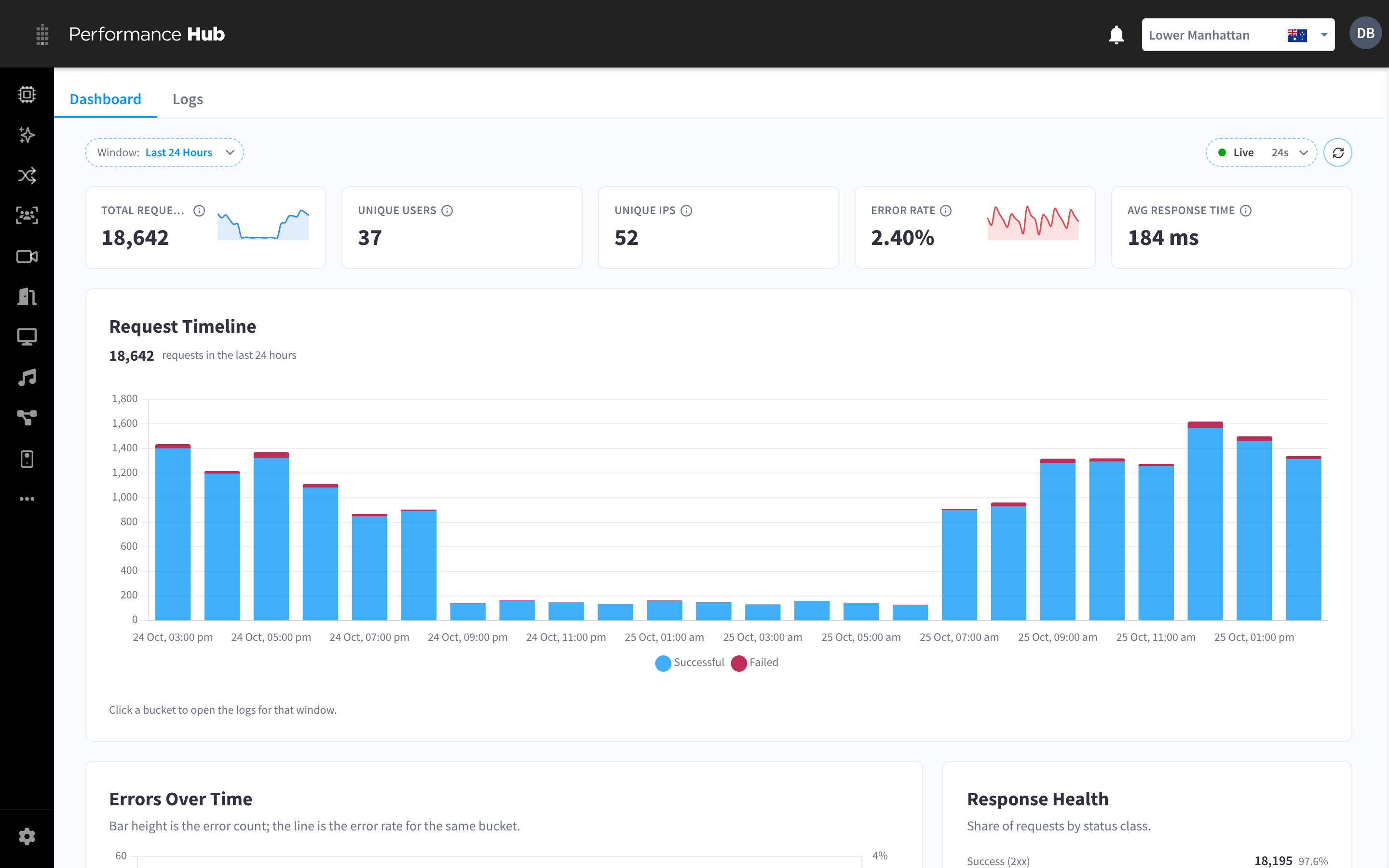
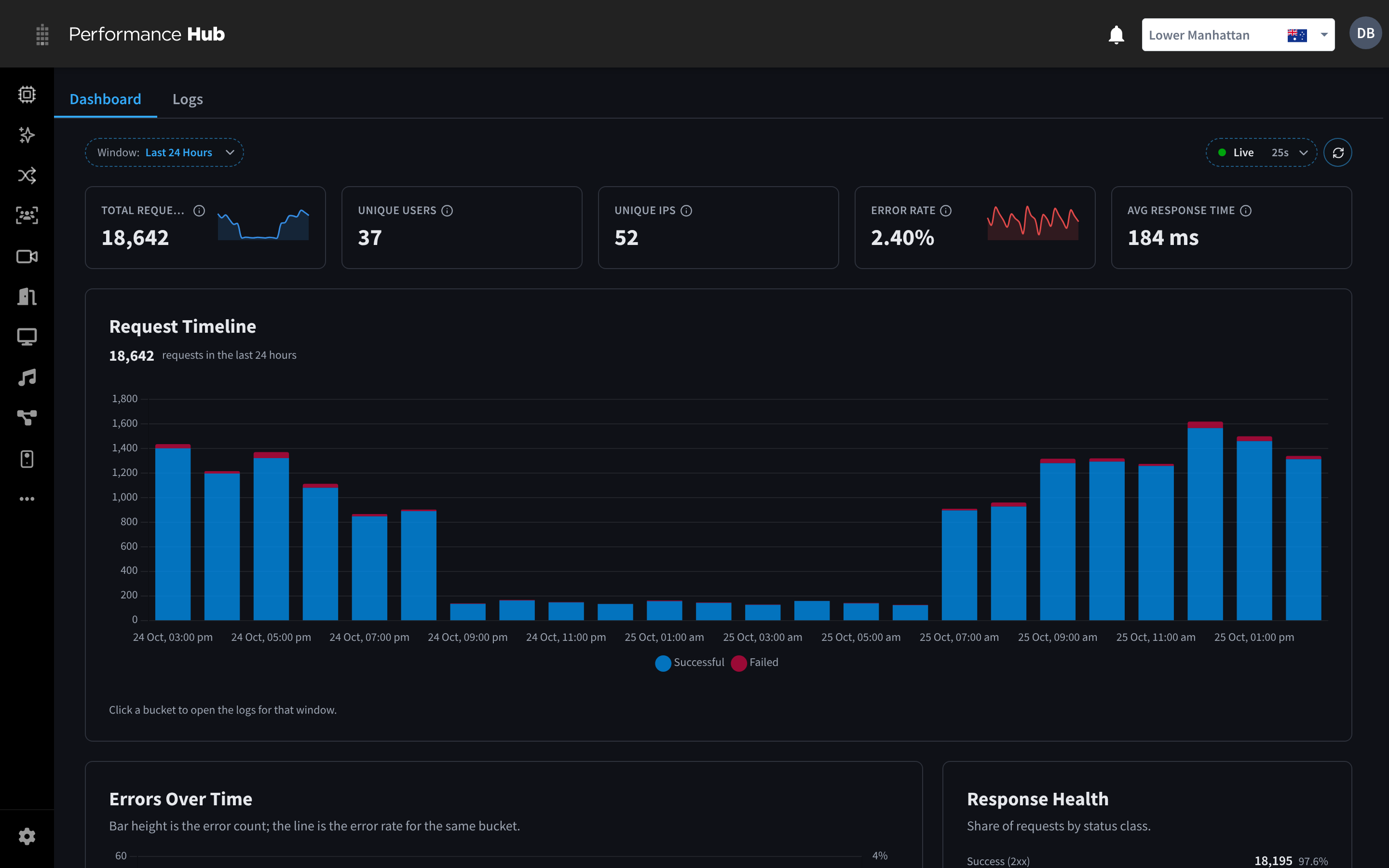
Figure 1: The Audit Logs dashboard: the time window, the headline figures and the request timeline
What gets logged
Each log entry is one request made to Performance Hub. It shows:
- Who made the request: the user's email address.
- Where from: the IP address, and the browser or tool that sent it.
- What was called: the method (for example GET to read or POST to create) and the endpoint, which is the part of Performance Hub the request was for, such as
/api/door-gate-access/doors/front-entrance/unlock. - The result: the response status, for example 200 for success or 403 when the person didn't have permission.
- How long it took, in milliseconds.
- Where it came from: a source badge, such as
webfor a person using Performance Hub orapi-keyfor an integration. See Source badges.
For recent requests, the log entry also holds what was sent and what came back. See Reading a log entry.
The two tabs
| Tab | What it's for |
|---|---|
| Dashboard | Totals, error rates and charts for a time window, with the busiest endpoints and users. Click a chart or row to open the matching logs. |
| Logs | The requests themselves. Filter and search the list, open a log entry to see its details, and export to CSV. |
Who can use Audit Logs
You need a role that includes Audit Logs and Identity & Access Management in your organisation, such as Organisation Administrator. If you can't see Audit Logs in the settings menu, your role doesn't include it.
- Which organisations you see: the organisations where your role includes both Audit Logs and Identity & Access Management. The Logs tab shows how many, for example "Viewing logs for 1 organisation".
- Role templates: the Organisation Administrator template includes Audit Logs. The Site Manager and Site Owner templates leave it out. See Role templates.
- Custom roles: to let a custom role use Audit Logs, include both Audit Logs and Identity & Access Management in its module access. See Access scope & module access.
Audit Logs shows people's email addresses, IP addresses and what they sent, so give it only to people who need it.
How long logs are kept
The Range menu on the Logs tab says:
"Audit logs are kept for 90 days. Full request and response payloads are kept for 7 days, after which a short preview remains. Need a longer history? Contact Support (additional charges apply)."
So you can look back 90 days. For the first 7 days a log entry holds the full request and response. After that, longer bodies are cut to a short preview. See After 7 days: previews.
What you can do
- Read the dashboard: see request volume, error rates and the busiest endpoints and users for a time window.
- Find requests: filter by time range, email address, IP address, endpoint, organisation, facility, method and status, and share a filtered view.
- Read a log entry: see who made a request, from where, and what was sent and returned. For a failed request, get a plain-language summary of the error.
- Export logs: download the loaded logs as a CSV file.
- Follow an investigation example: step-by-step answers to common questions, such as who unlocked a door or why an integration stopped syncing.
- Common questions
Related pages
- Role templates: which templates include Audit Logs
- Access scope & module access: give a custom role Audit Logs
- Door & Gate Access: Access Logs: the separate record of every door and gate unlock attempt