
Access scope & module access
Two sections of a role decide what its holders can reach:
- Access Scope: "Which facilities holders of this role can work with."
- Module Access: which modules they can use at those facilities.
Set both when you add or edit a role.
Quick reference
Where to find it: Settings (cog icon) → Identity and Access Management → Roles → Add Role or a role → Access Scope and Module Access
Who can access: Organisation admins, and people whose role includes Identity and Access Management
Purpose: Decide where a role applies and what it lets people do there
Access Scope
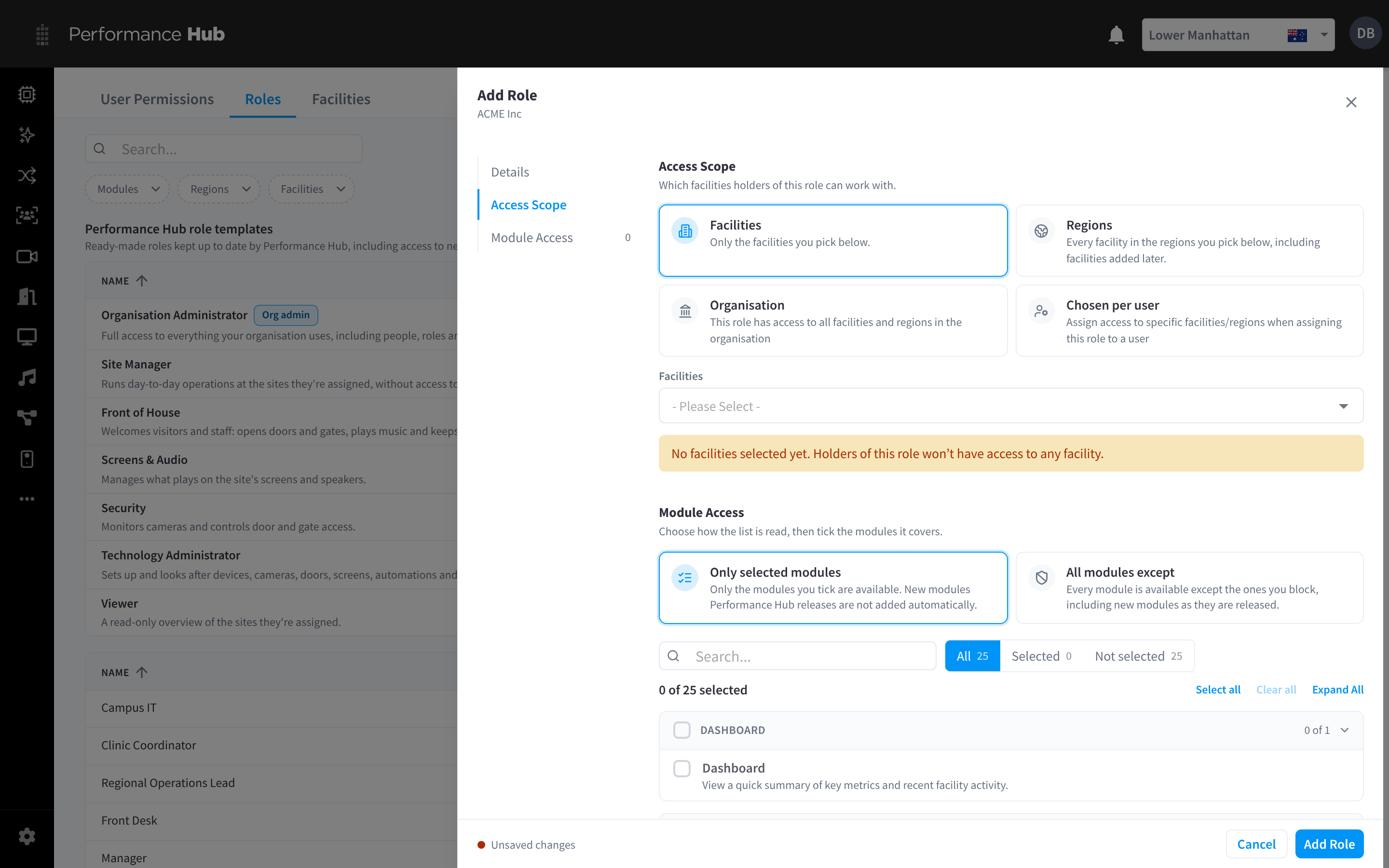
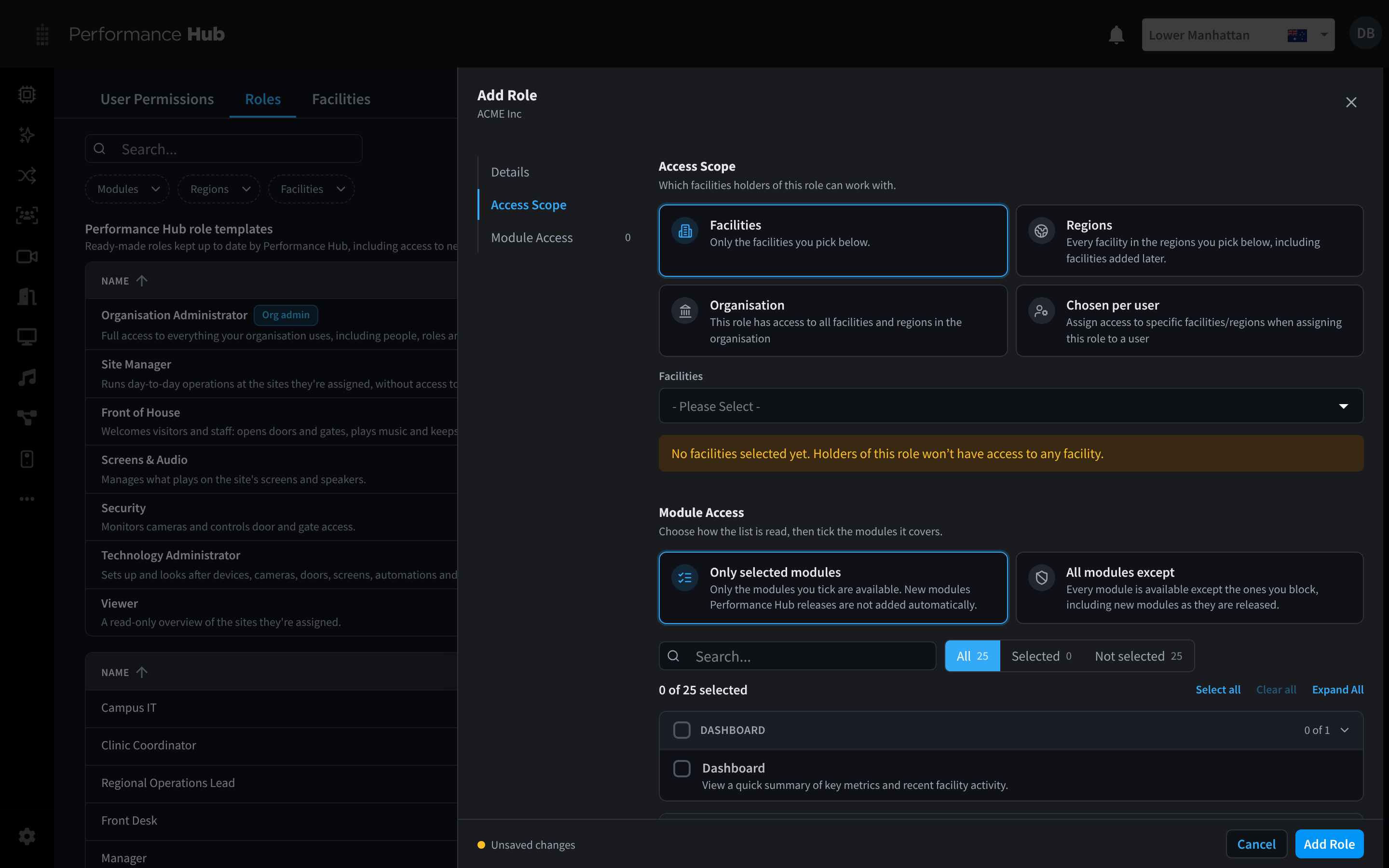
Figure 1: Access Scope decides which facilities holders of the role can work with
| Option | What it covers | Example |
|---|---|---|
| Facilities | "Only the facilities you pick below." Pick them in Facilities. | A Clinic Coordinator role for two clinics |
| Regions | "Every facility in the regions you pick below, including facilities added later." | Campus IT for every campus in one state |
| Organisation | "This role has access to all facilities and regions in the organisation" | A Regional Operations Lead who oversees every site |
| Chosen per user | "Assign access to specific facilities/regions when assigning this role to a user" | Store Manager, given to each manager for their own store |
Until you pick a facility for a Facilities role, the section warns: "No facilities selected yet. Holders of this role won't have access to any facility."
Which to choose:
- Use Chosen per user when many people do the same job at different sites. One Venue Duty Manager role can serve every venue: you pick the venue when you give the role to each person.
- Use Regions when the role should follow your growth. A new facility in the region is covered automatically.
- Use Facilities for a fixed, short list of sites that won't change often.
- Use Organisation sparingly, for people who genuinely need every site.
Every Performance Hub role template except Organisation Administrator uses Chosen per user.
Module Access
"Choose how the list is read, then tick the modules it covers."
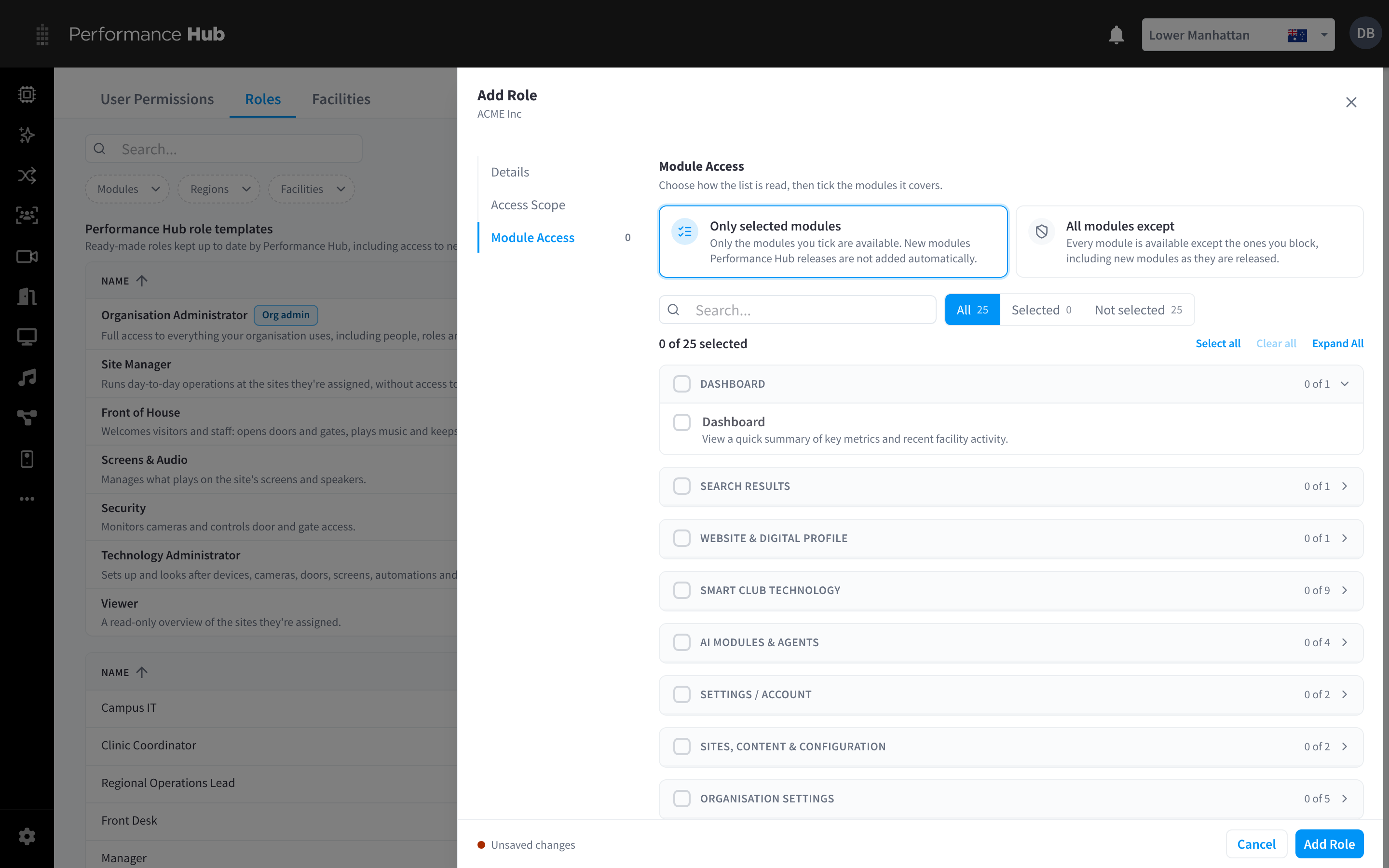
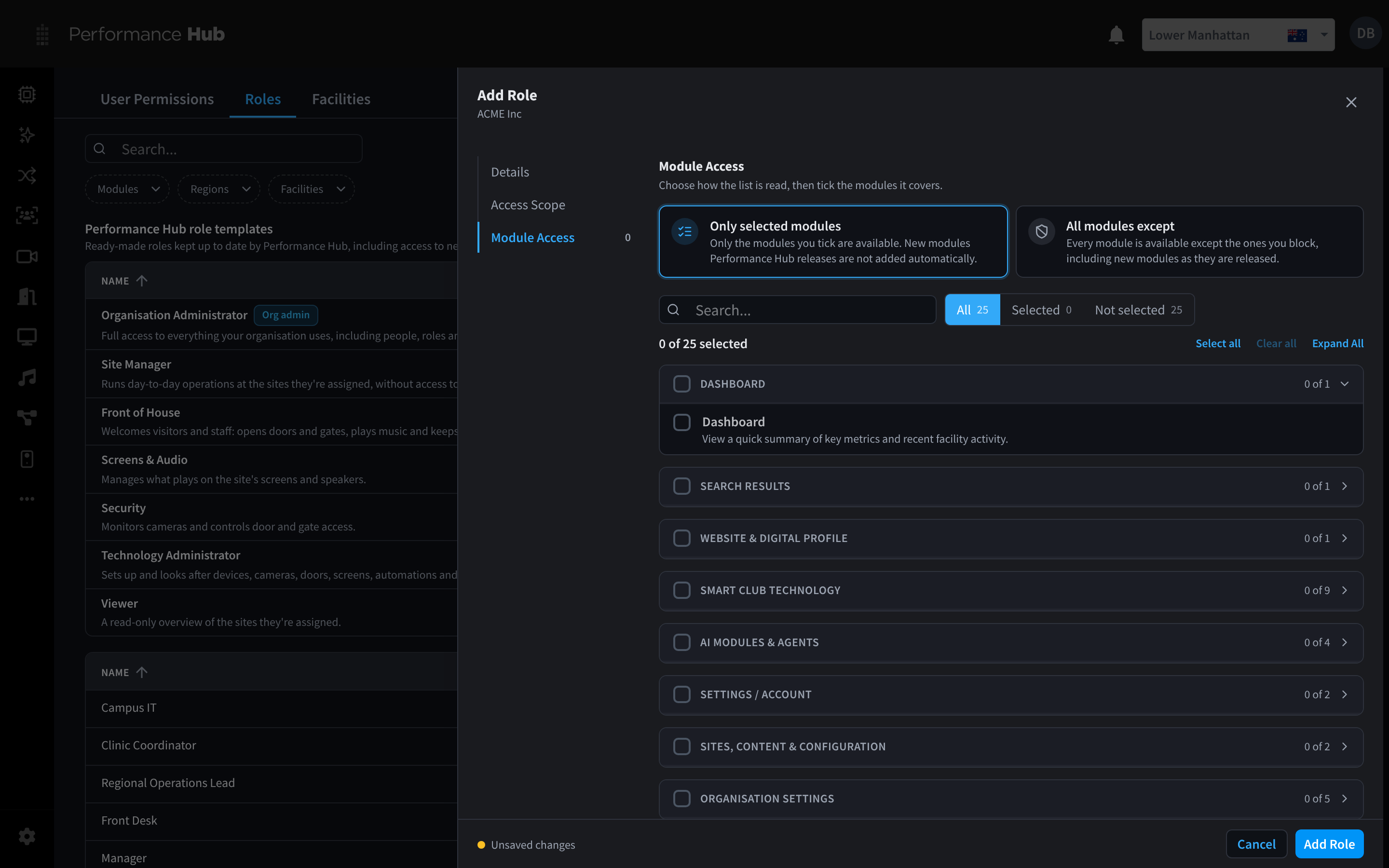
Figure 2: Module Access: only selected modules, or all modules except the ones you block
First choose how the list is read:
| Option | What it means |
|---|---|
| Only selected modules | "Only the modules you tick are available. New modules Performance Hub releases are not added automatically." |
| All modules except | "Every module is available except the ones you block, including new modules as they are released." |
Then tick the modules. They're grouped by area, such as Dashboard, Website & Digital Profile, Smart Club Technology, AI Modules & Agents, Settings / Account and Organisation Settings. Each group shows how many of its modules are ticked, for example 0 of 9.
To work through the list:
- Type in Search to find a module.
- Use All, Selected and Not selected to show only some modules. Each shows a count.
- Use Select all or Clear all to tick or untick everything, and Expand All to open every group.
- The count above the list, for example 0 of 25 selected, shows how many you've ticked.
Which to choose:
- Only selected modules suits narrow roles, such as a Front Desk role that only needs Door & Gate Access, Display Screens and Audio Control. New modules stay hidden until you add them.
- All modules except suits broad roles, such as a site manager who should get new modules as they're released but never billing or audit logs.
Related pages
- Creating & editing roles: the Details section
- Changing a user's roles: choose facilities when a role's access is chosen per user
- Facility settings & modules: the modules a facility can use