
Bulk requests & approvals
Large changes are hard to undo, so they need two people. Removing more than 25 people from your organisation at once "needs a second admin to approve. Nothing changes until they approve, and the request expires after 72 hours."
This might happen when a franchise store changes hands, a school year ends and casual staff finish up, or a venue closes for the season.
Quick reference
Where to find it: Settings (cog icon) → Identity and Access Management → User Permissions → Bulk requests (on the toolbar, shown when you have requests)
Who can access: Organisation admins. The approver must be another organisation admin.
Purpose: Send large changes for approval, and approve other admins' requests
Send a request for approval
- In User Permissions, tick the people to remove, then choose Remove from organisation (number). See Removing users.
- Because there are more than 25 people, the dialog asks for approval. In Approver, choose another organisation admin.
- Click Send for approval.
Nothing changes until the approver approves. If they don't approve within 72 hours, the request expires and nothing changes; send a new one if you still need it.
Approve a request
When requests are waiting for you, a callout above the user list on the User Permissions tab says "n bulk requests are waiting for your approval." Click Review to open the Bulk requests dialog.


Figure 1: The callout when bulk requests are waiting for your approval
You can also open the dialog in these ways:
- Click Bulk requests on the User Permissions toolbar. The button is shown when you have requests.
- Follow the link in the approval email.
The dialog has two lists:
- Awaiting your approval: requests other admins have sent you. Each shows who requested it, when it expires, and Show users (n), Reject and Approve.
- Your requests: requests you've sent, with their status and approver. Once a request is decided, it shows when, and how many users were removed, skipped or failed, for example "Removed: 26 · Skipped: 2 · Failed: 0", with the reason for each one skipped.
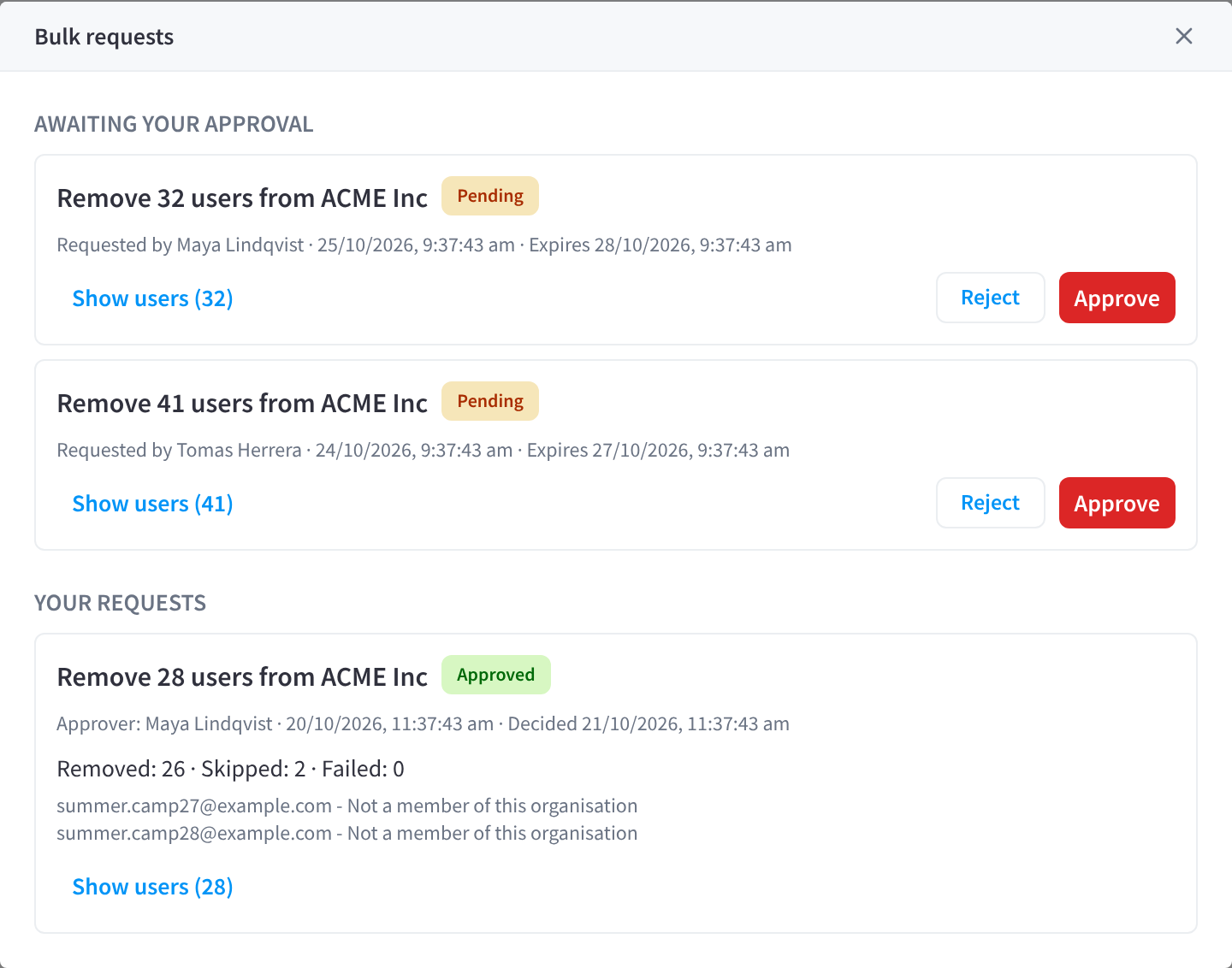
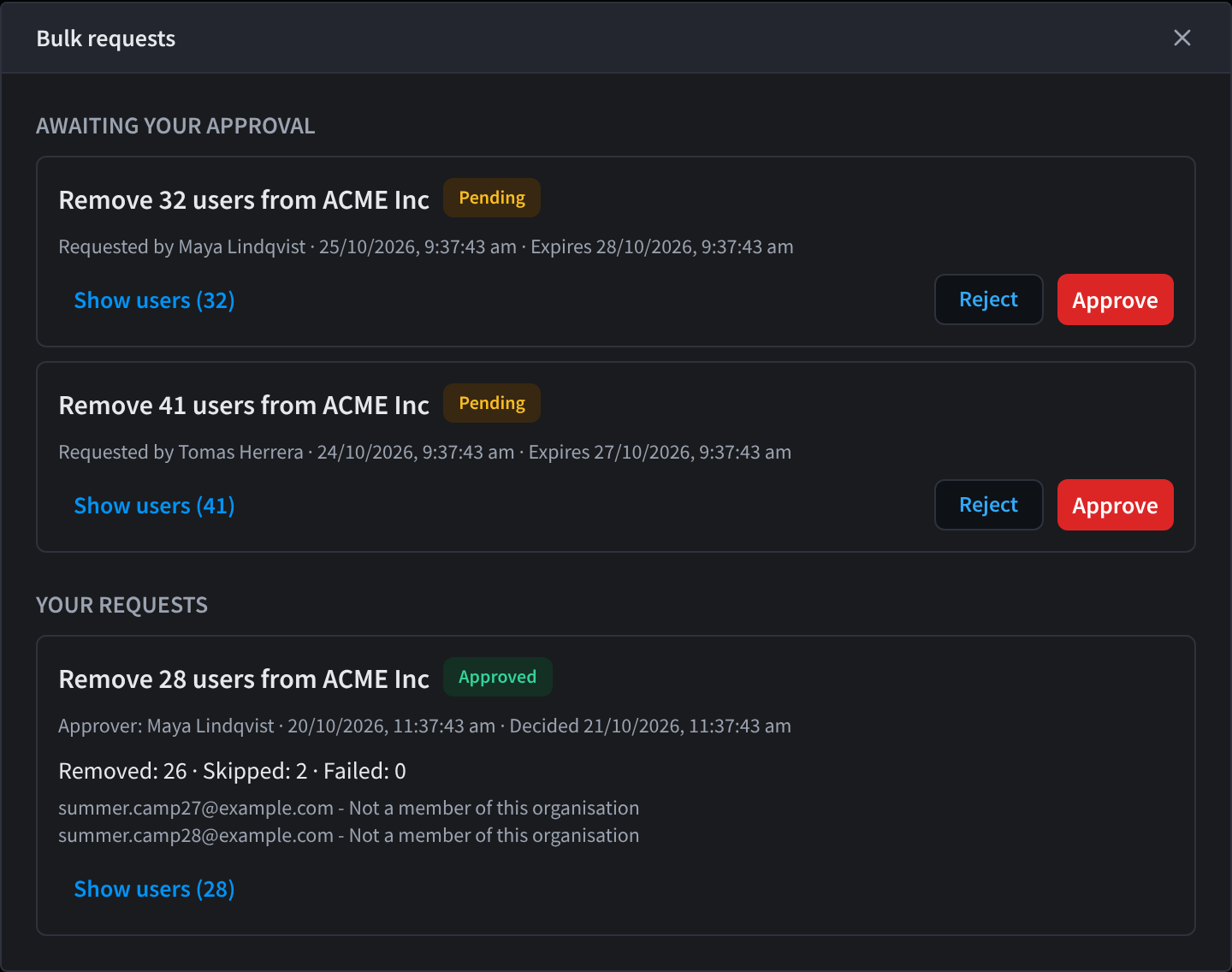
Figure 2: The Bulk requests dialog: requests awaiting your approval, and your own requests
To approve a request:
- Open Bulk requests and find the request under Awaiting your approval.
- Check what it does and who it affects.
- Click Approve.
- In Approve request, type the number of users the request affects to confirm, then click Approve and run.
The change runs straight away.
Reject or withdraw a request
- To decline a request, click Reject, add an optional note for the requester, and confirm. Nothing changes.
- To withdraw a request you've sent, click Cancel request on it under Your requests.
Related pages
- Removing users: remove one person or several
- Identity & Access Management: the User Permissions tab