
Changing a user's roles
People's jobs change: a front desk team member becomes a site manager, a technician starts looking after a second campus, or a casual staff member finishes up at one venue. Change their roles on the User Permissions tab. A person can hold several roles at once, each covering its own facilities or regions.
Quick reference
Where to find it: Settings (cog icon) → Identity and Access Management → User Permissions, in the person's Roles column
Who can access: Organisation admins, and people whose role includes Identity and Access Management
Purpose: Add, change or remove a person's roles
Roles in the User Permissions list
The Roles column shows each role a person holds, with the facilities or regions it covers underneath. For example:
- Grace Whitfield holds Front Desk at Riverside Aquatic Centre.
- Leo Hargreaves holds Campus IT for the Australia region.
- Daniel Novak holds two roles: Regional Operations Lead, and Site Manager for the Australia region.
Each role has a cross to remove it, and each person has Add Role. See Figure 1 on the Identity & Access Management overview.
Give someone another role
- Find the person in User Permissions.
- Click Add Role in their Roles column.
- In the dialog, which is titled with the person's email address, choose the role. As in Add New User, each role shows its description, access scope and modules.
- If the role's access is chosen per user, pick the Regions or Facilities it covers for this person.
- Click Save, or Cancel to close without changes.
You can't change your own roles; ask another organisation admin.
Change a role or where it applies
-
Find the person in User Permissions.
-
Click the role card (the role name and its facility) in their Roles column. A dialog opens, titled with the person's email address.
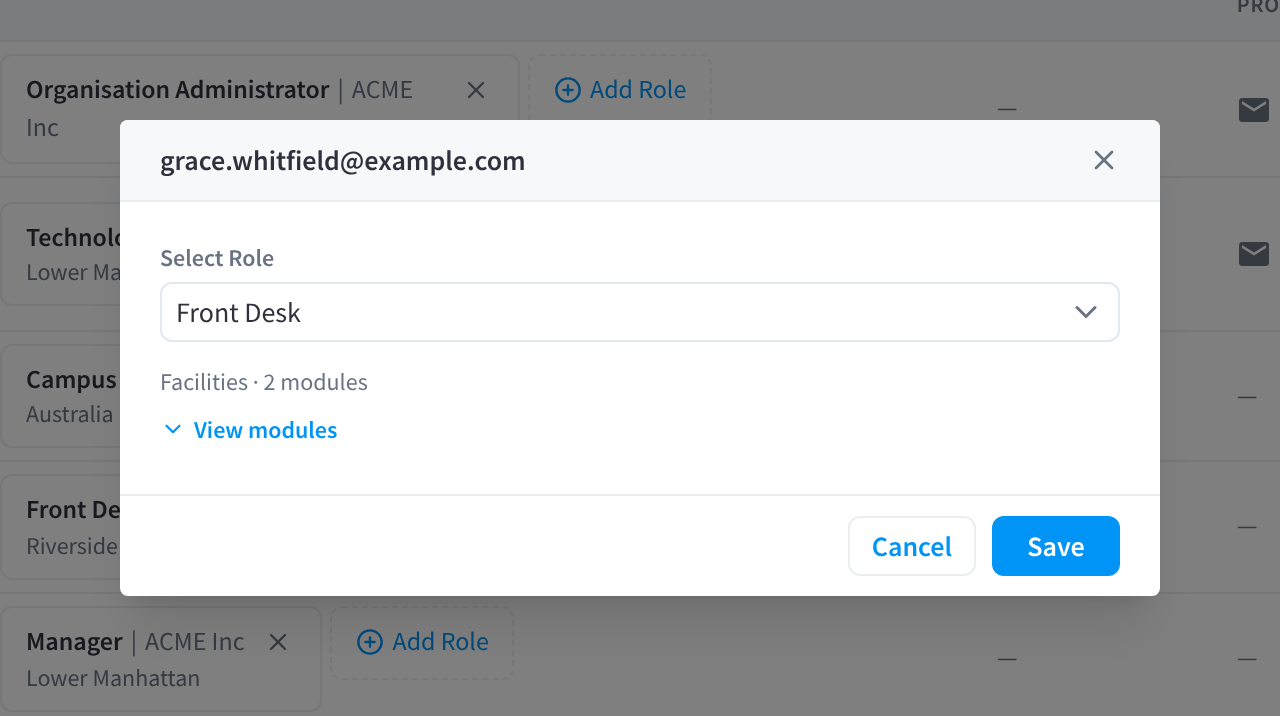
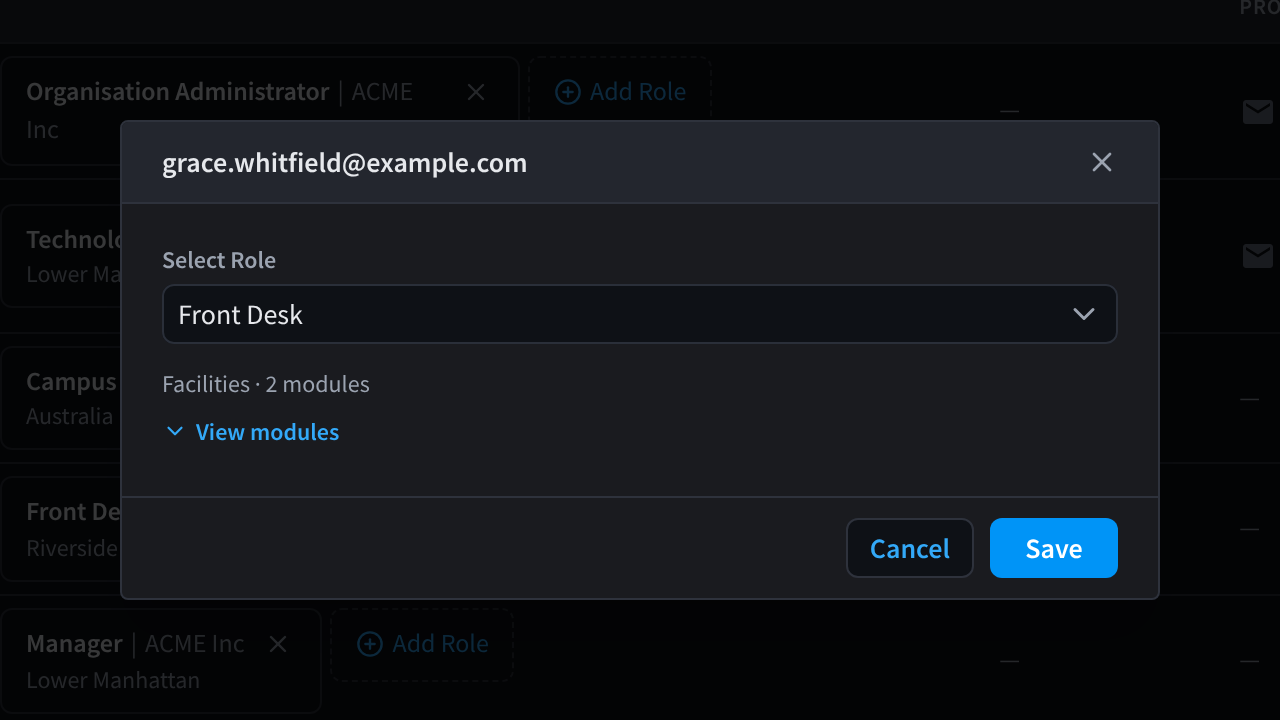
Figure 1: Click a role to change it. The dialog shows the role's facilities and how many modules it gives.
-
To give the person a different role instead, choose it in Select Role. Below it, the dialog shows the role's facilities and how many modules it gives, for example Facilities · 2 modules. Click View modules to list them.
-
To change where the role applies for this person, for example to move a Clinic Coordinator from one clinic to another, change the Regions or Facilities. These are shown when the role's access is chosen per user.
-
Click Save, or Cancel to close without changes.
To change where a role applies for everyone who holds it, edit the role's access scope instead. See Access scope & module access.
Take a role away
Click the cross on the role in the person's Roles column, then click Remove at "Are you sure you want to remove this role?". The person keeps their other roles. The change can take up to 30 seconds to apply.
To take every role in your organisation away from someone at once, use Remove from organisation.
Related pages
- Roles: the roles you can give people
- Removing users: remove every role at once
- Adding users: add a new person