
Removing users
When someone leaves your organisation, or no longer needs the Performance Hub, use Remove from organisation. It takes away every role the person has in your organisation, at every facility.
Their Performance Hub account isn't deleted. If they belong to other organisations, for example a contractor who also works for another business, they keep their access there. Only their roles in your organisation go.
Quick reference
Where to find it: Settings (cog icon) → Identity and Access Management → User Permissions → the person's User actions menu (⋮) → Remove from organisation
Who can access: Organisation admins
Purpose: Take away all of a person's access to your organisation
Remove one person
- In User Permissions, find the person.
- Click the menu at the end of their row (User actions) and choose Remove from organisation.
- Check the email address listed in the dialog. The dialog says: "These users will lose every role in your organisation. Their accounts and access to other organisations stay."
- Type remove in the box under "Type remove to confirm". Remove stays unavailable until you do.
- Click Remove.
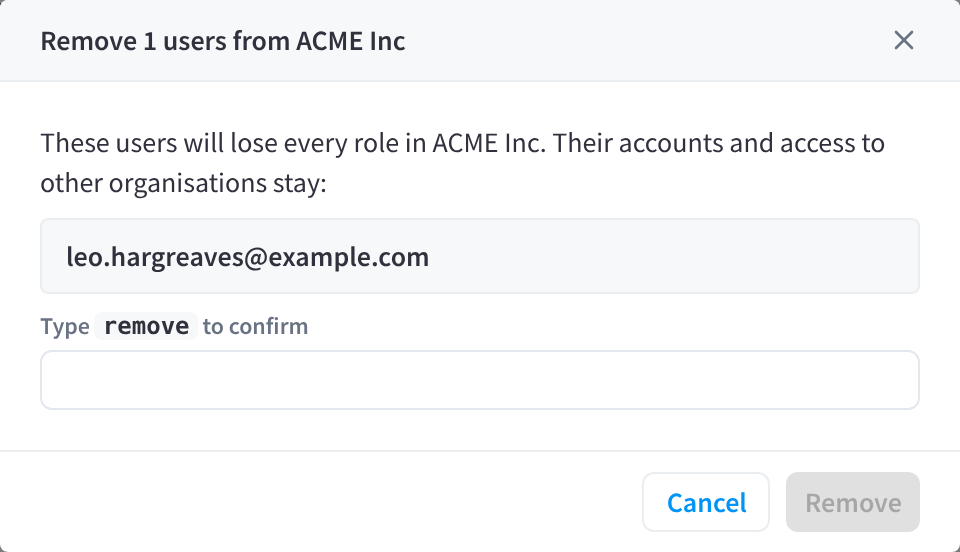
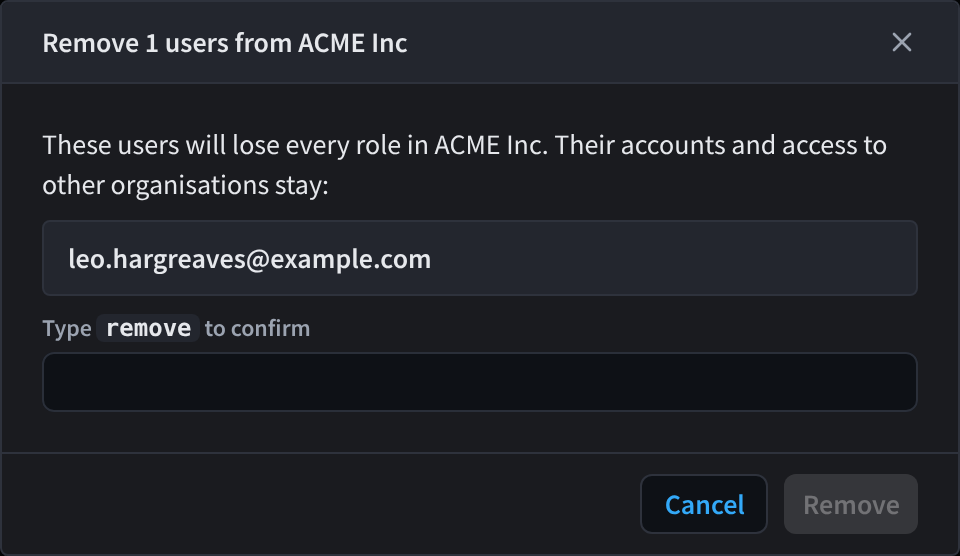
Figure 1: Remove from organisation: type remove to confirm
Remove several people
- In User Permissions, tick each person you want to remove. To tick a range, tick the first person, then hold Shift and tick the last. Use the filters first if it helps, for example Role to find everyone with a role at a site that has closed.
- Choose Remove from organisation (number), where the number is how many people you ticked.
- Check the list of email addresses, type remove and click Remove.
Removing more than 25 people at once "needs a second admin to approve. Nothing changes until they approve, and the request expires after 72 hours." See Bulk requests & approvals.
Things to know
- You can't remove yourself. Ask another organisation admin.
- Removing someone isn't the same as taking one role away. To take away one role and leave the rest, see Changing a user's roles.
- You can add the person back later. Because their account still exists, adding them again sends them an invitation to rejoin.
- Other access is separate. Door & Gate Access app users are managed in Door & Gate Access, so check its Users list as well when someone leaves.
Related pages
- Changing a user's roles: take away one role
- Bulk requests & approvals: removing more than 25 people
- Common questions