
Roles
A role decides what its holders can do in the Performance Hub: which modules they can use, at which facilities. Give people the roles that match their jobs, such as Front Desk at a leisure centre, Clinic Coordinator at an allied health clinic, Venue Duty Manager at a hospitality venue, Store Manager at a retail store, Site Supervisor at a coworking space, or Campus IT across a school's campuses.
Each role has three parts:
- Details: its name, and whether it makes holders organisation admins or requires a verification code at sign-in. See Creating & editing roles.
- Access scope: which facilities holders can work with.
- Module access: which modules they can use there. See Access scope & module access.
Quick reference
Where to find it: Settings (cog icon) → Identity and Access Management → Roles
Who can access: Organisation admins, and people whose role includes Identity and Access Management
Purpose: See, create and edit the roles you give people
The Roles tab
The tab has two lists: Performance Hub role templates first, then your organisation's own roles.
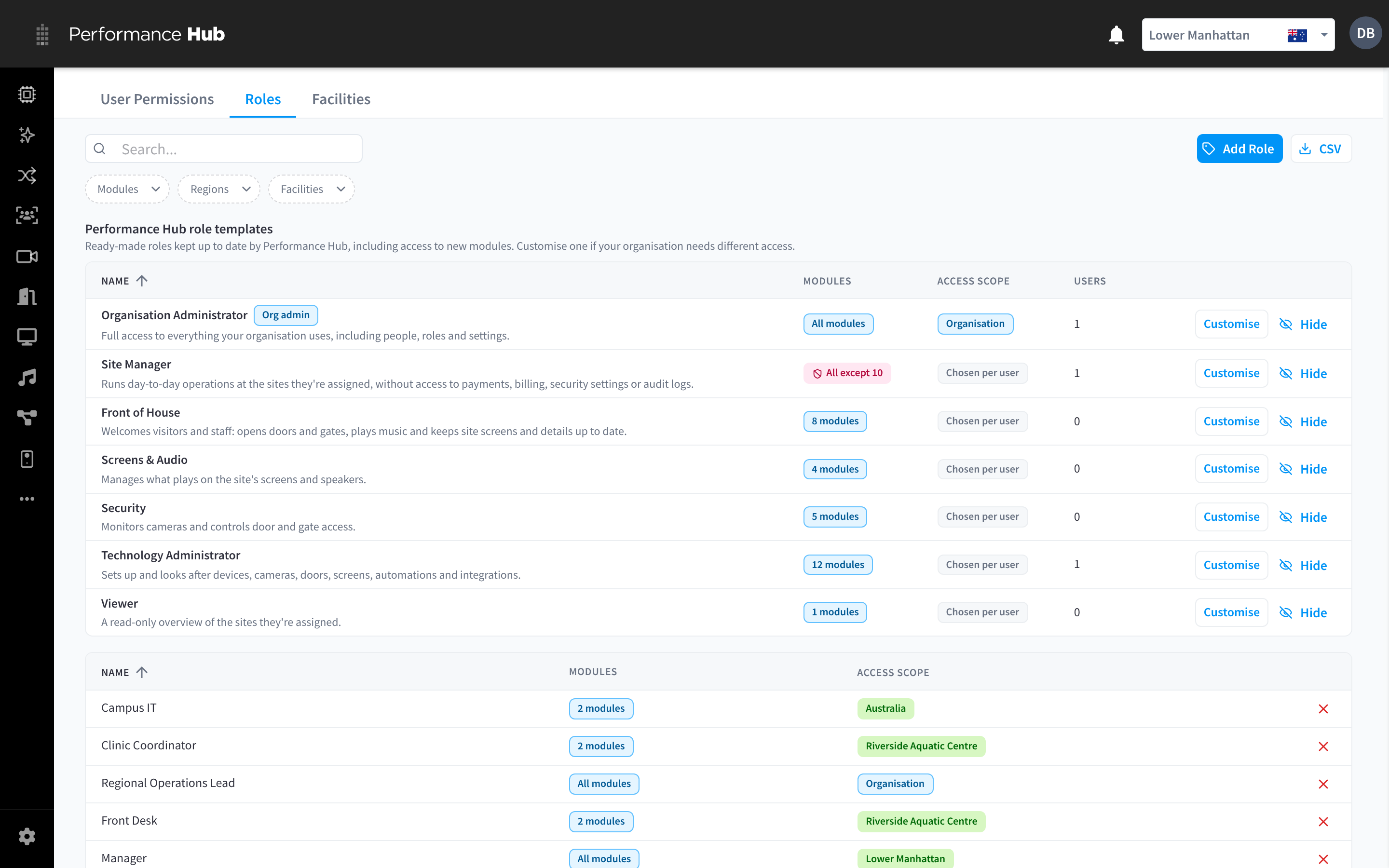
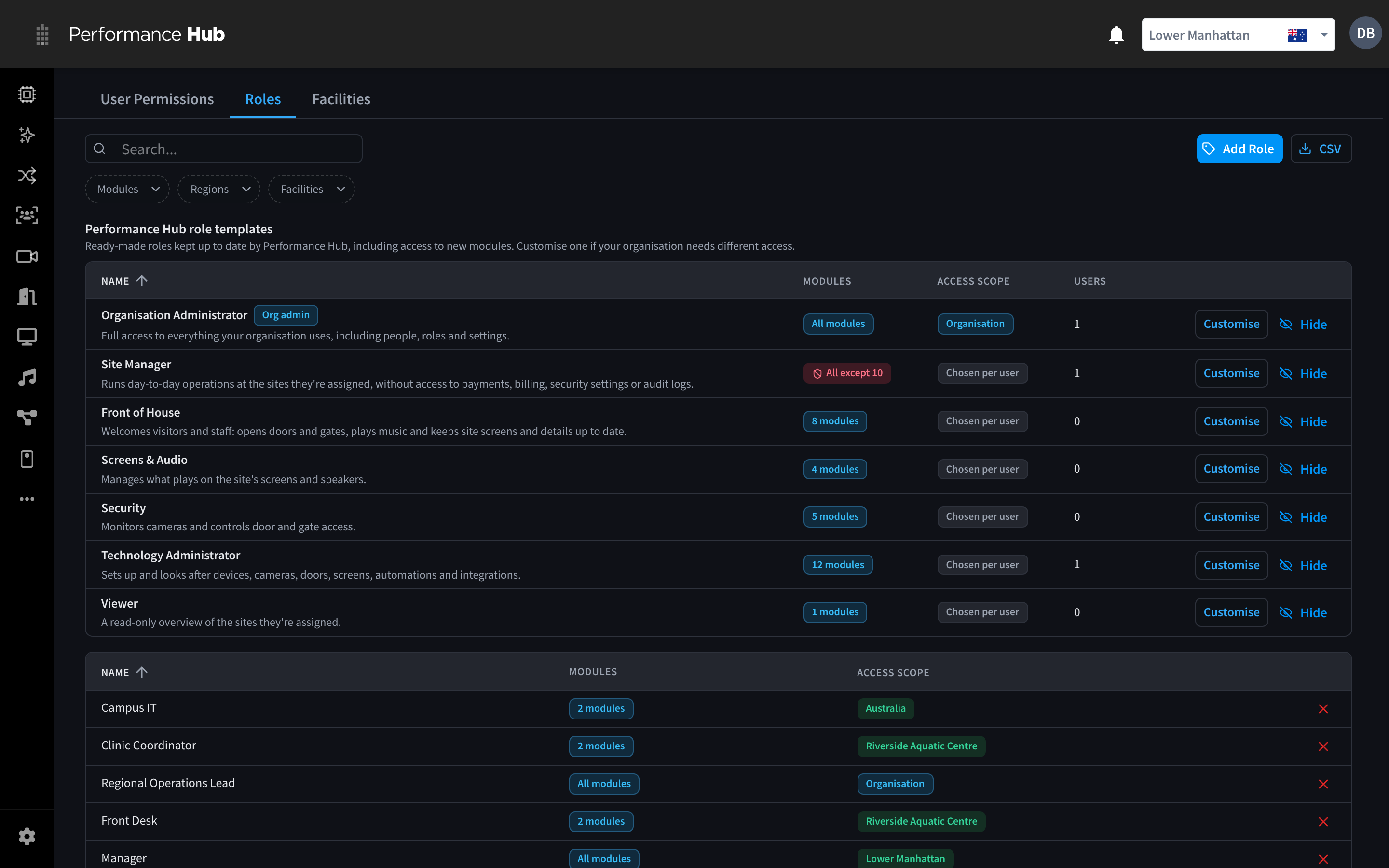
Figure 1: The Roles tab: Performance Hub role templates, then your organisation's roles
Above the lists:
- Search finds roles.
- The filters Modules, Regions and Facilities show only roles that cover them.
- Add Role creates a role.
- CSV downloads the list.
Performance Hub role templates
"Ready-made roles kept up to date by Performance Hub, including access to new modules. Customise one if your organisation needs different access."
| Column | What it shows |
|---|---|
| Name | The template name and description. Org admin marks a template that makes holders organisation admins. |
| Modules | How many modules the template covers, for example All modules, 8 modules or All except 10 |
| Access Scope | Organisation for the Organisation Administrator template; Chosen per user for the others |
| Users | How many people in your organisation hold it |
Organisation admins see Customise and Hide on each template. See Role templates.
Your organisation's roles
Below the templates are the roles your organisation has created, with their Modules and Access Scope. The access scope shows the facilities or regions the role covers, for example Riverside Aquatic Centre or Australia, or Organisation for a role that covers every facility.
Click a role to open it. See Creating & editing roles.
Delete a role
To delete a role, click the red cross (Remove Role) at the end of its row, and confirm with Delete at "Are you sure you want to remove this role?".
You can't delete a role while anyone holds it ("Cannot delete role as it is assigned to n user(s)."), so move its holders to another role first. Only organisation admins can delete a role that makes its holders organisation admins.
Choosing between a template and your own role
| Use | When |
|---|---|
| A role template as it is | It fits the job. Templates are kept up to date by Performance Hub, including access to new modules. |
| A customised copy of a template | A template is close, but you need different modules. Your copy no longer follows Performance Hub updates. See Role templates. |
| A new role | Nothing is close, or the role needs a fixed set of facilities or regions, such as Campus IT for every facility in one region. See Creating & editing roles. |
Related pages
- Creating & editing roles: add a role or change one
- Access scope & module access: which facilities and modules a role covers
- Role templates: the ready-made roles
- Changing a user's roles: give people roles