
Invitations
A Performance Hub account can belong to more than one organisation. When you add someone who already has an account, for example a technician who looks after several businesses or a manager who also works for a sister company, the Performance Hub doesn't create a second account. It emails them an invitation to join your organisation instead.
The role you chose applies once they accept. Until then, the invitation is pending.
Quick reference
Where to find it: Settings (cog icon) → Identity and Access Management → User Permissions → Pending invitations (number), at the top of the tab, above the toolbar
Who can access: Organisation admins, and people whose role includes Identity and Access Management
Purpose: Follow up invitations that haven't been accepted, resend them or cancel them
Send an invitation
- In User Permissions, click Add New User and enter the person's email address.
- The dialog says "This person already has a Performance Hub account. We'll email them an invitation to join your organisation; the role applies once they accept."
- Choose their role and access, then review. The Review step says the invitation expires after 14 days.
- Click Send invitation.
See Adding users for each step.
Pending invitations
Invitations that haven't been accepted yet are listed under Pending invitations (number), at the top of the User Permissions tab, above the toolbar: "Their role applies once they accept the invitation."
Each pending invitation shows:
- Invited by: the admin who sent the invitation.
- Expires: when it expires if it isn't accepted.
- Resend: sends the email again, for example if the person can't find it.
- Cancel invitation: withdraws it, if it was sent to the wrong person or is no longer needed. The person doesn't join your organisation.
If an invitation expires, add the person again to send a new one.
What the person receives
The person gets an email with the subject "You're invited to join your organisation on Performance Hub". It says who invited them and to which organisation, and shows the Organisation, the Role you chose and when the invitation Expires. "Nothing changes until you accept."
Review invitation opens the invitation in the Performance Hub, where they sign in with their usual account. If they weren't expecting it, they can decline the invitation or ignore the email, and it expires on its own.
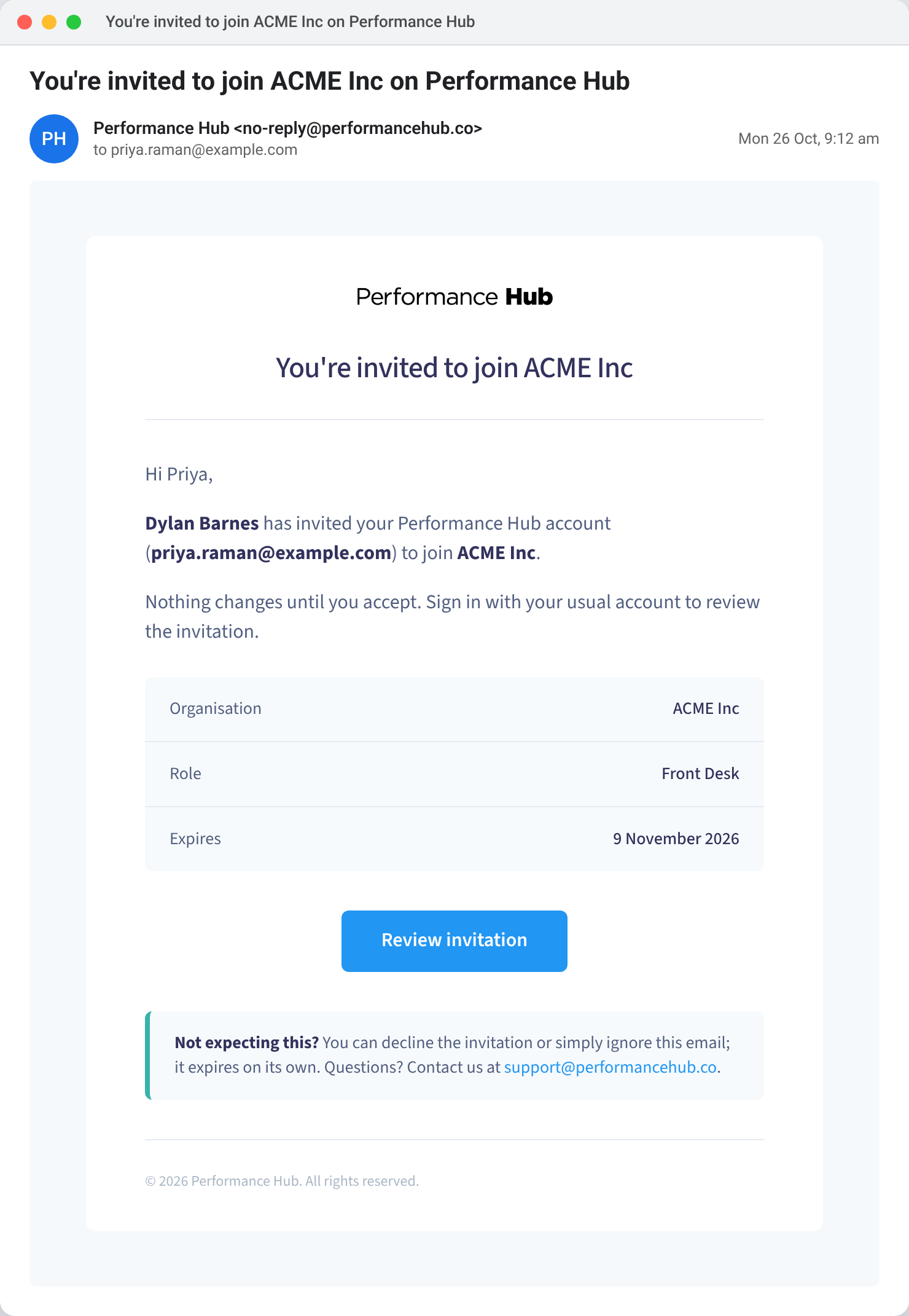
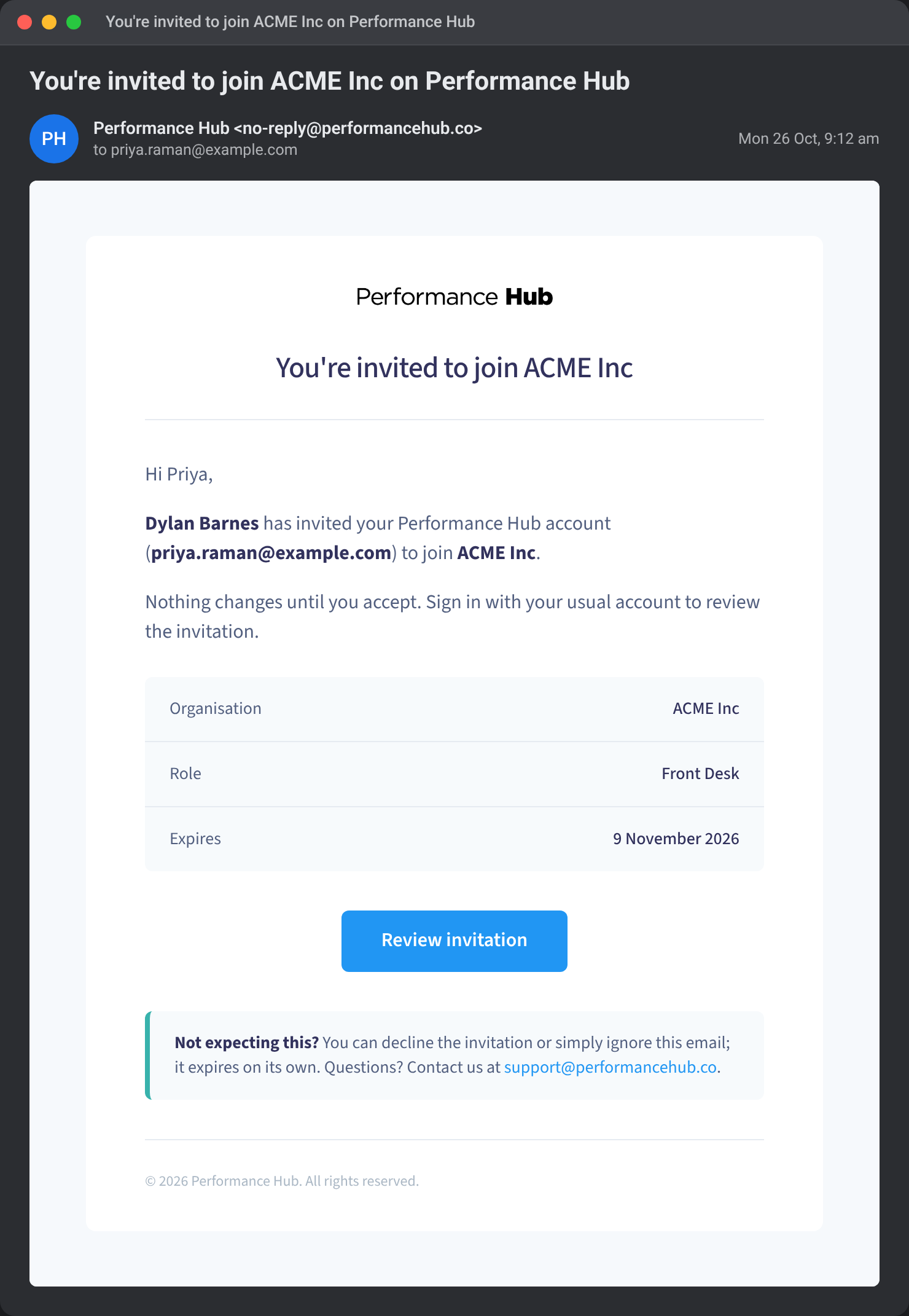
Figure 1: An example invitation email. Names and addresses are examples.
What the person sees
The person accepts or declines the invitation in the Performance Hub. Once they accept, they see "You've joined your organisation", and the role you chose applies straight away. See Accepting an invitation.
Related pages
- Adding users: add a person or invite them
- Accepting an invitation: the invited person's side
- Common questions