
Adding users
Add New User adds a person to your organisation in three steps: Details, Role and access, and Review. You give them one role as you add them; you can add more roles afterwards.
What happens next depends on whether the person already has a Performance Hub account:
- New to the Performance Hub: you create their account, and they get a welcome email with sign-in instructions and a link to set up their password.
- Already has an account (for example through another organisation): they get an invitation to join your organisation, and the role applies once they accept.
Quick reference
Where to find it: Settings (cog icon) → Identity and Access Management → User Permissions → Add New User
Who can access: Organisation admins, and people whose role includes Identity and Access Management
Purpose: Give a new team member access to the Performance Hub, with the right role at the right facilities
Step 1: Details
- Open User Permissions and click Add New User.
- Enter the person's Primary Email. Use the address they'll sign in with: "Primary email address cannot be changed after provisioning a new user."
- The dialog checks the address:
- "No existing account in system found for this email address" means you'll create a new account.
- "This person already has a Performance Hub account. We'll email them an invitation to join your organisation; the role applies once they accept." means they'll get an invitation instead.
- For a new account, enter their First Name and Last Name. Mobile Phone Number is optional.
- Click Continue.
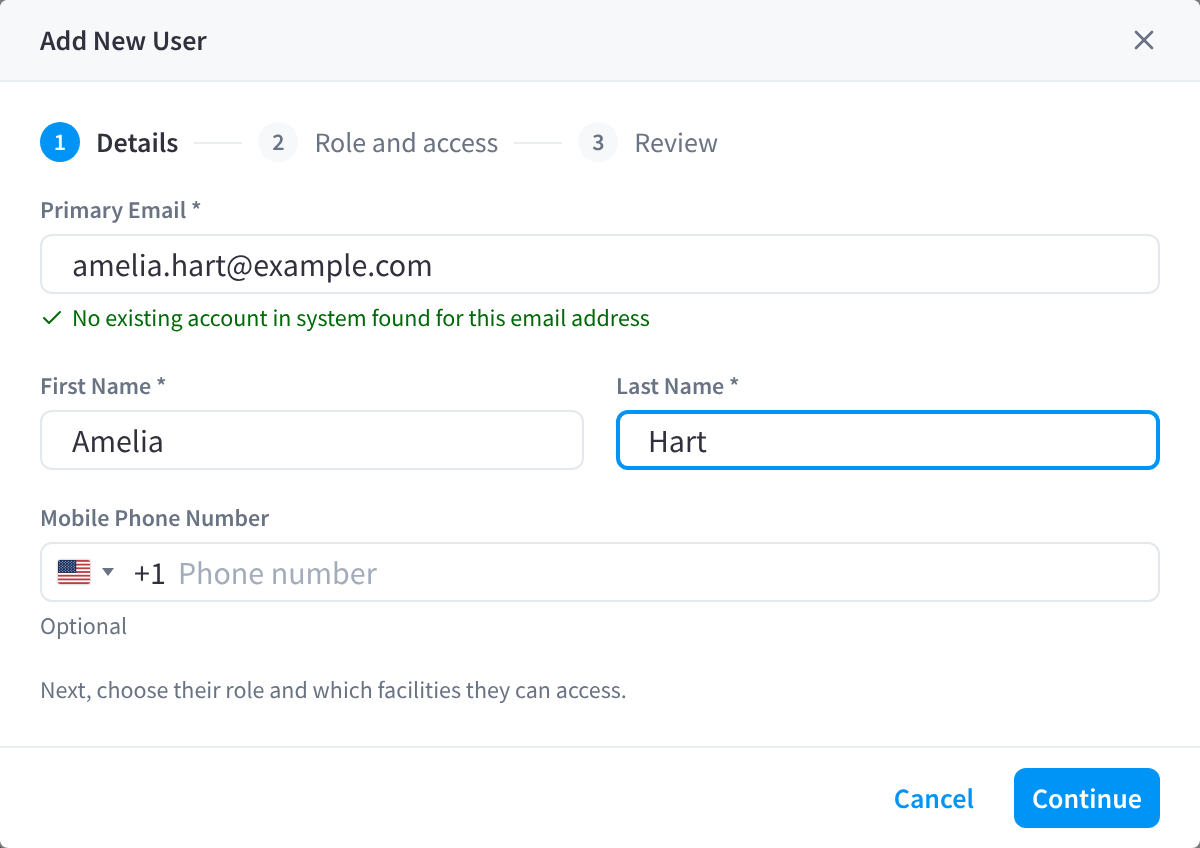
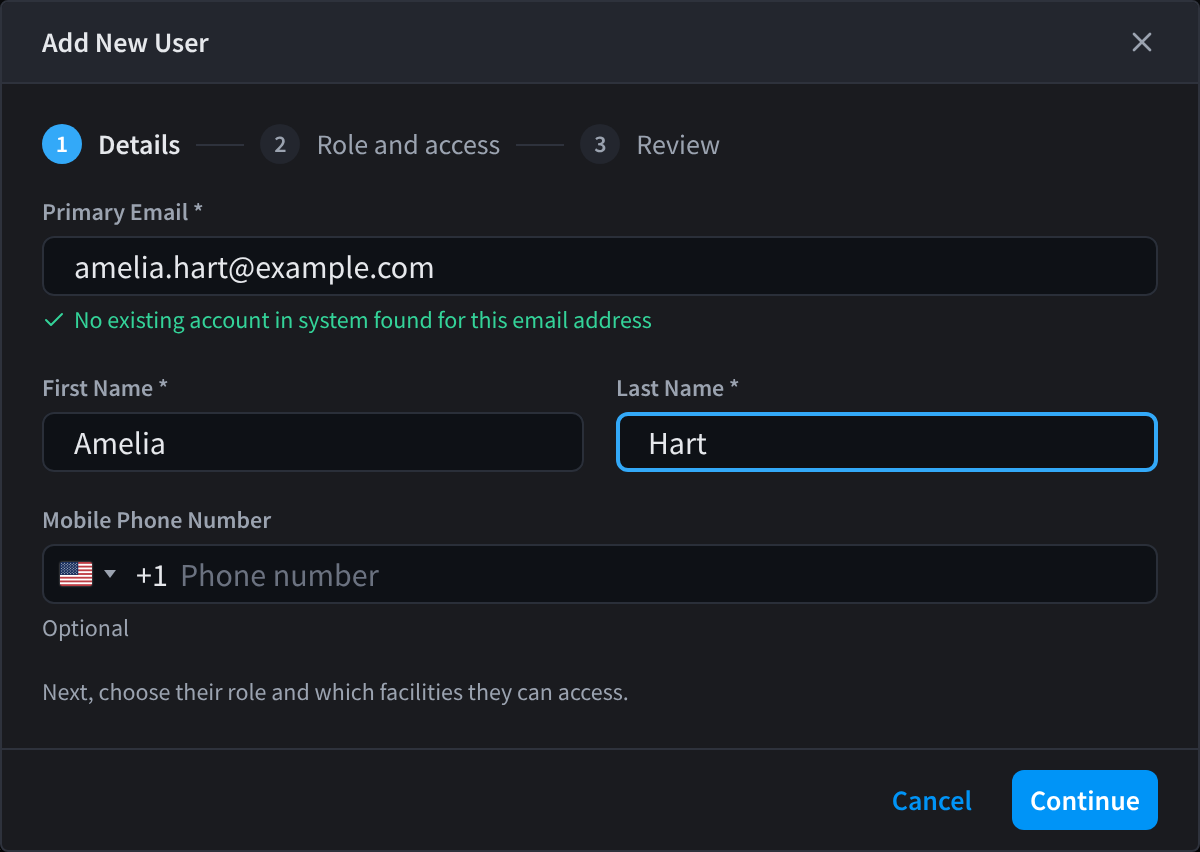
Figure 1: Add New User, Details step
Step 2: Role and access
- Choose a role. Type in Search roles to find one. Each role shows:
- its name, with a Template chip for Performance Hub role templates and an Org admin chip for roles that make the person an organisation admin
- its description
- its access scope and module access, for example Chosen per user - choose facilities or regions · All except 10
- View modules, which lists the modules the role covers
- If the role's access is chosen per user ("Facilities need to be assigned manually for this role"), use Regions and Facilities to pick where this person can work. Roles with a fixed access scope, such as Organisation Administrator, don't ask.
- Click Continue.
For example, give Amelia Hart the Site Manager template at Morningside, a Store Manager role at two retail sites, or Campus IT for every facility in a region.
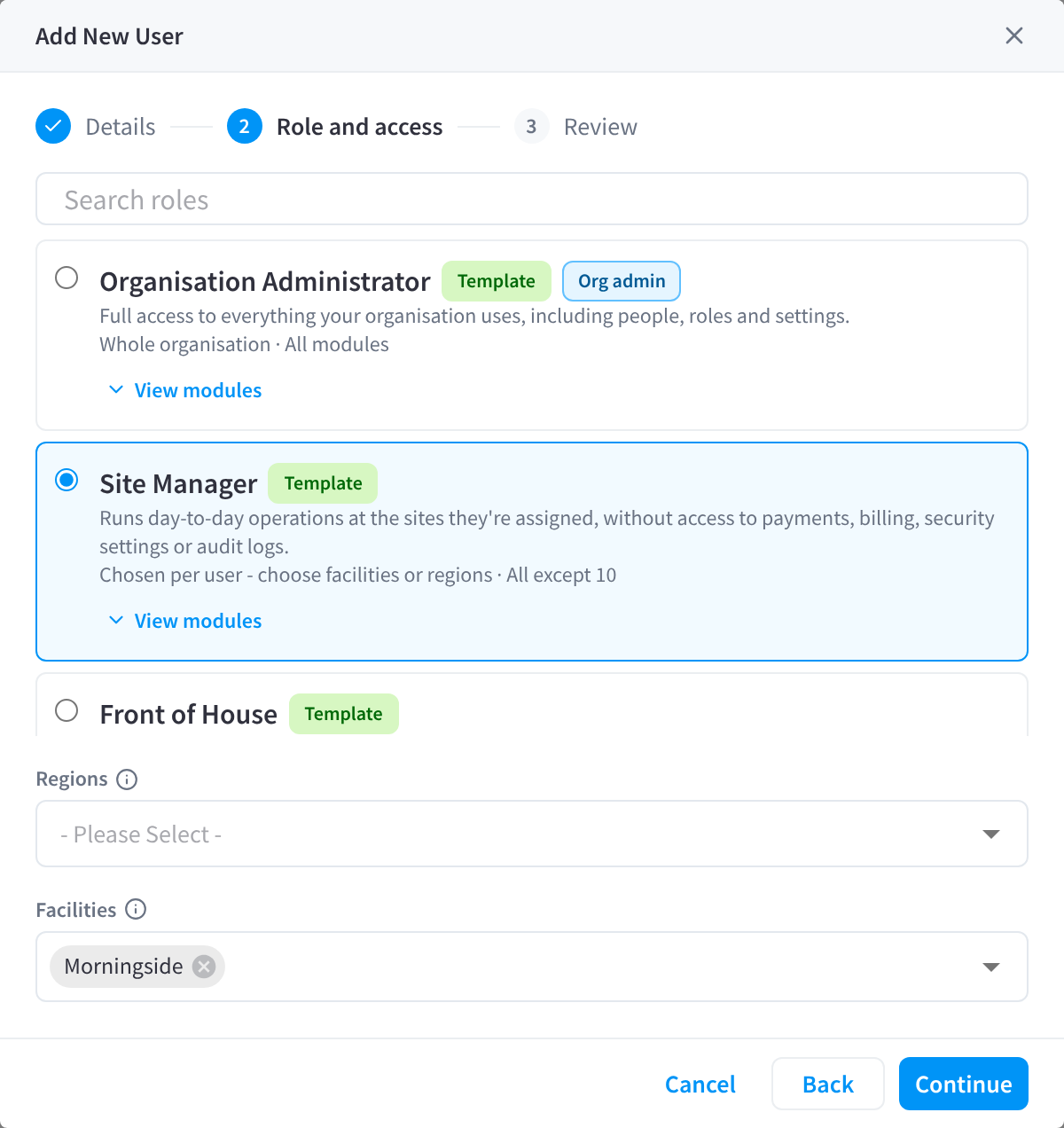
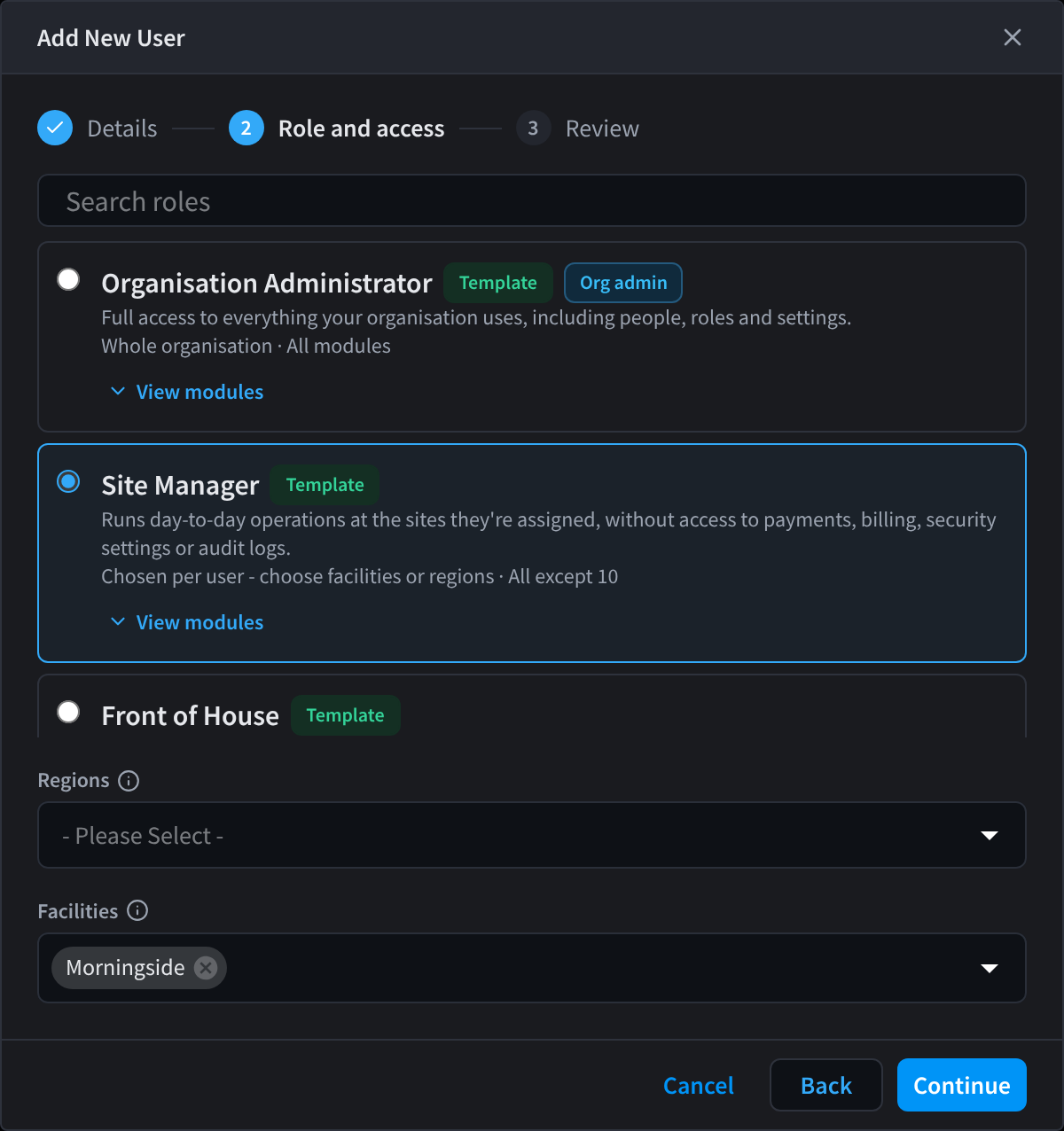
Figure 2: Role and access: choose a role, then the facilities or regions the person can access
Step 3: Review
The Review step shows the person's Details and their Role and access (role, access and modules). Click Edit on either card to go back and change it.
- For a new account, the dialog says: "As soon as you create this account, we'll send their email address a welcome email with sign-in instructions and a link to set up their password." Click Create user.
- For an existing account, the dialog says: "We'll email their email address an invitation to join your organisation. The role applies once they accept; the invitation expires after 14 days." Click Send invitation.
Tick Send me a preview copy to get a copy of the email yourself, so you can see what the person receives. The password setup link doesn't work in your copy.
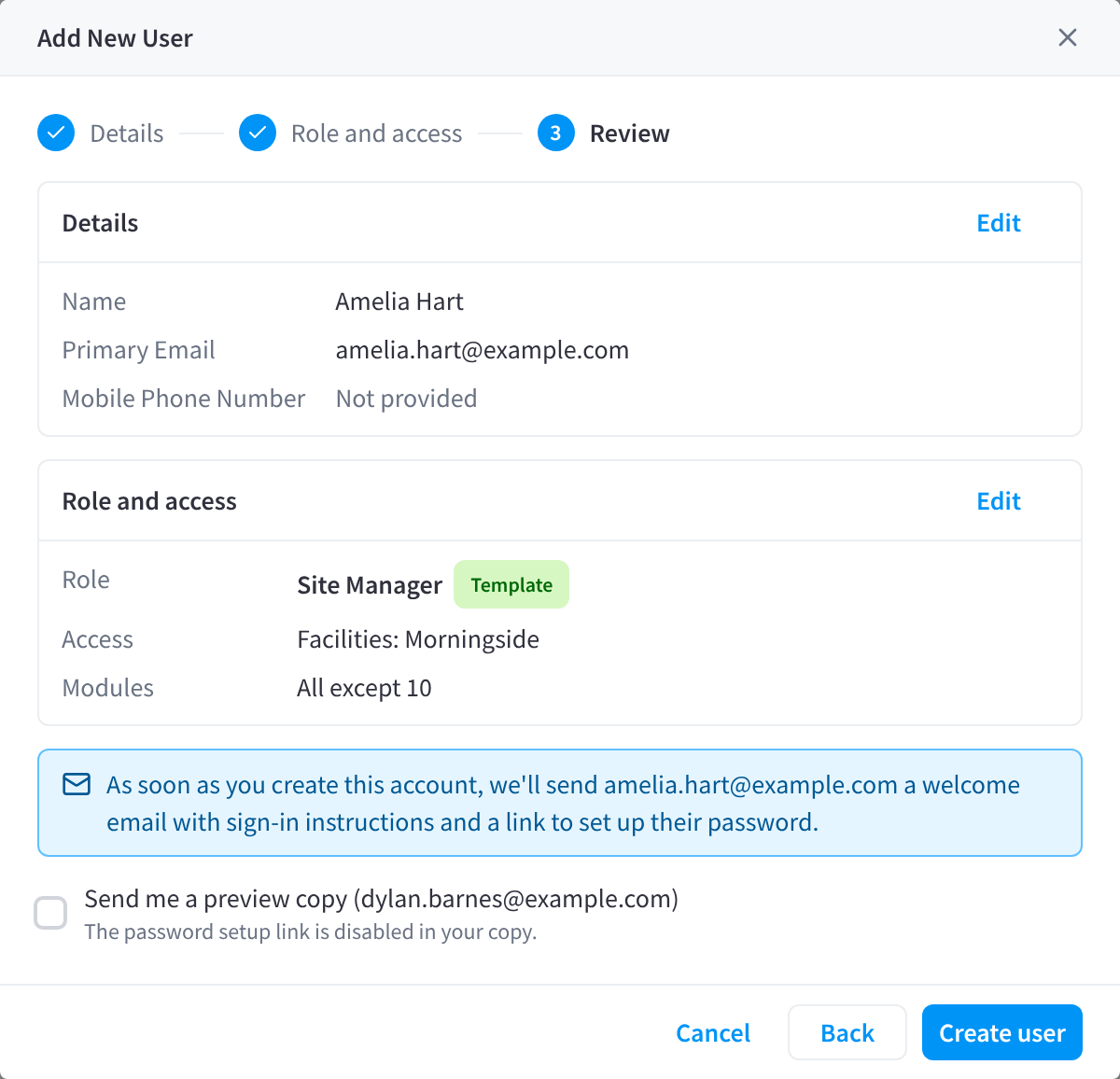
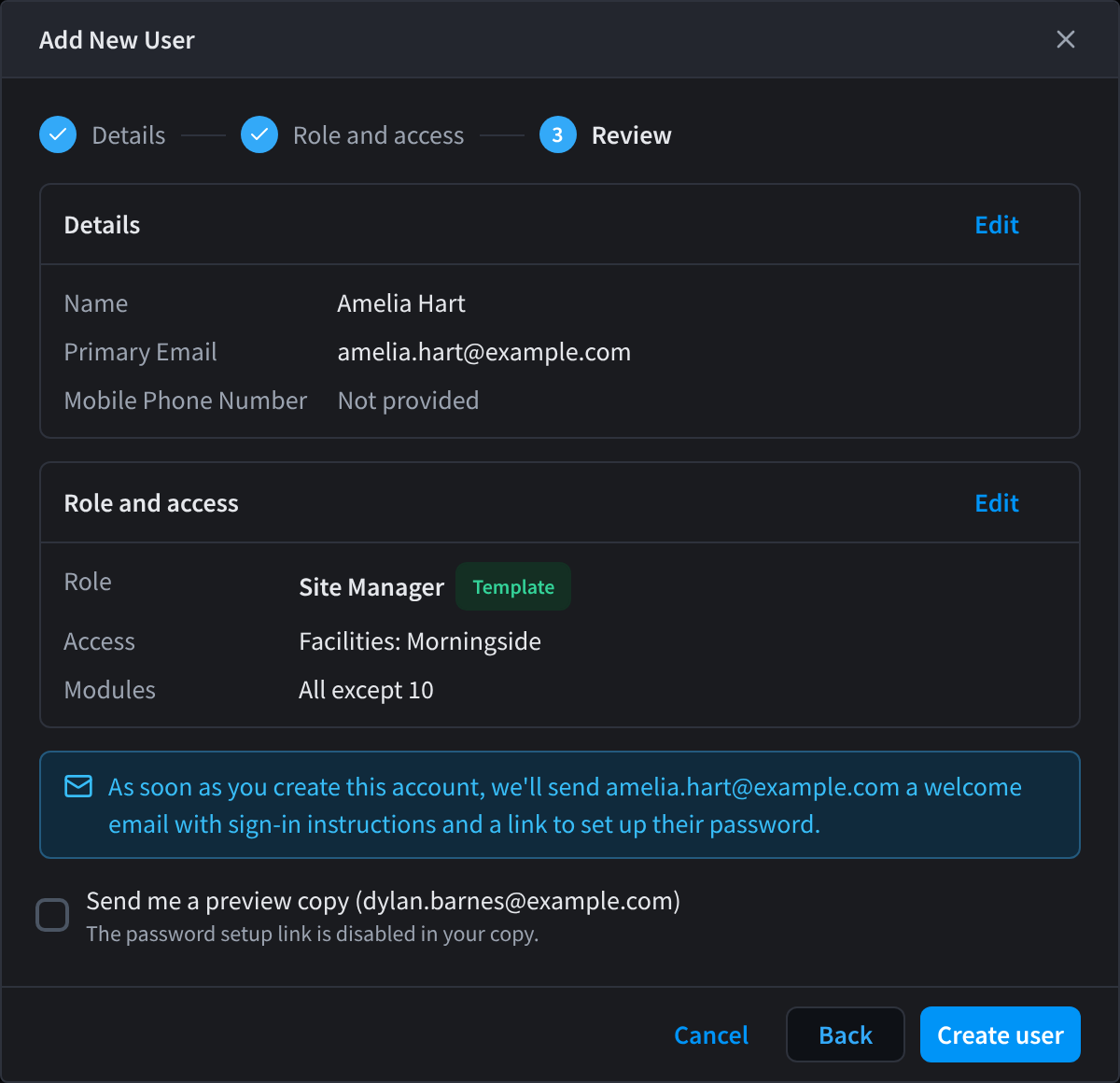
Figure 3: Review before you create the user
What a new user receives
When you click Create user, the person gets a welcome email with the subject "Welcome to Performance Hub". It lists the access you gave them under Your access: the organisation, the role and the facilities or regions it covers. It then offers two ways in:
- Sign In to Performance Hub: sign in with their Google, Microsoft, Apple or Slack account.
- Set Up Password: get instructions to set up a password, to sign in with their email address instead.
The email ends with a link to these docs.
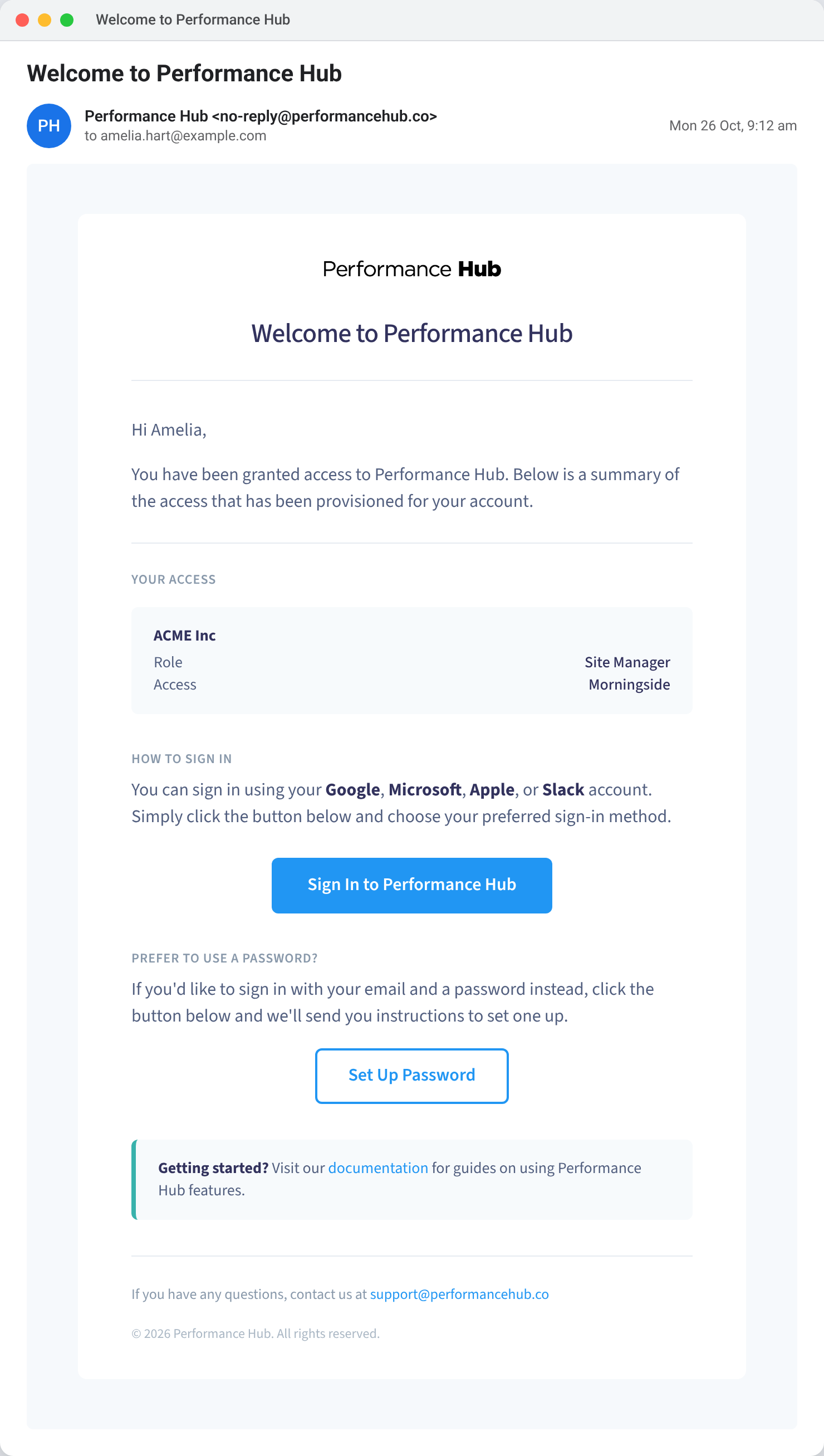
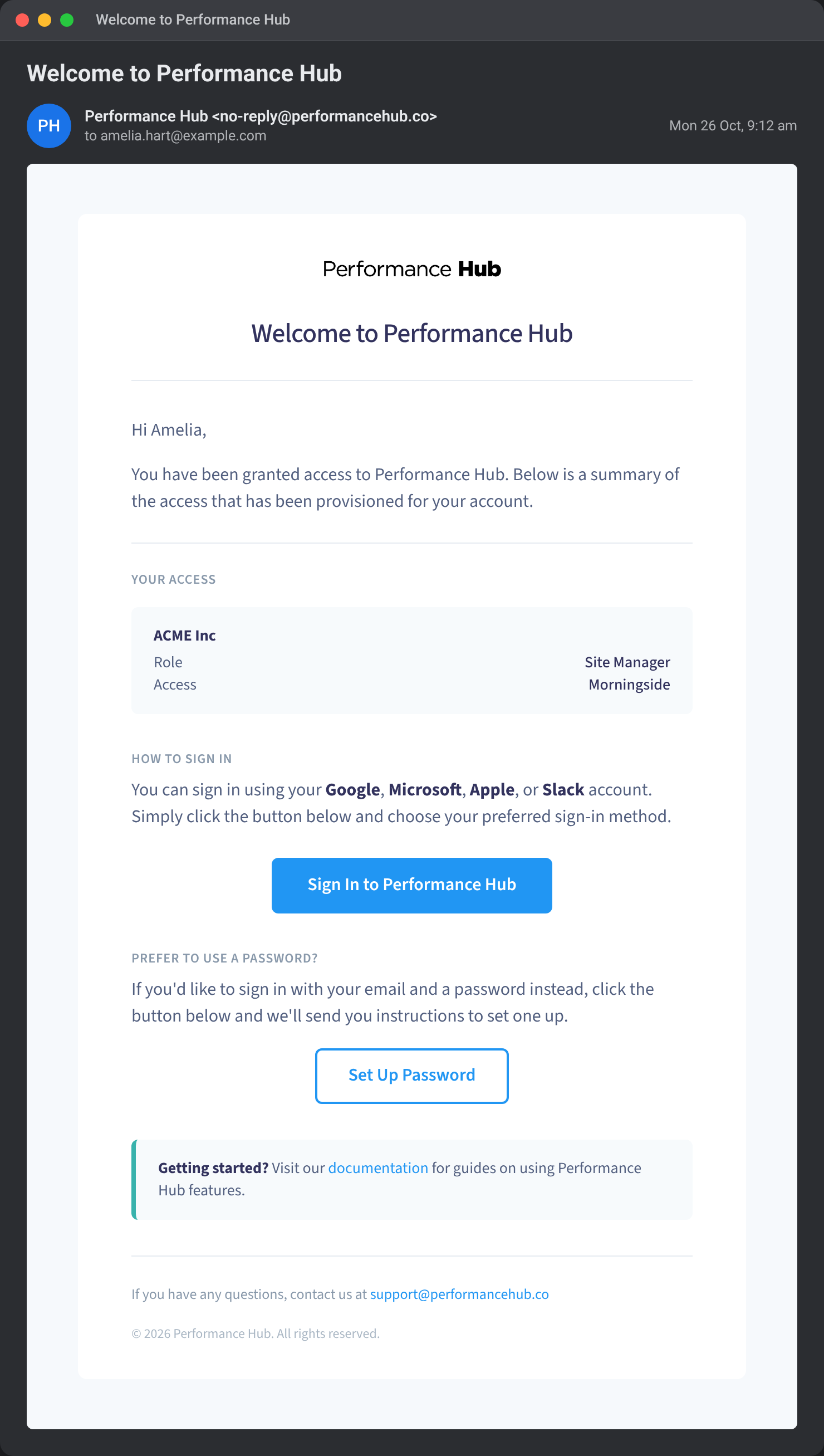
Figure 4: An example welcome email, with the access you gave them. Names and addresses are examples.
People who already have an account get an invitation email instead. See What the person receives.
After you add someone
- New users appear in User Permissions straight away. They can sign in once they've set up their password from the welcome email.
- People you invited appear in your pending invitations until they accept.
- To give someone another role, for example Venue Duty Manager at a second venue, see Changing a user's roles.
Related pages
- Invitations: invitations that haven't been accepted yet
- Roles: the roles you can give people
- Accepting an invitation: what an invited person sees
- Signing in: what your users do next