
Signing in
You sign in to the Performance Hub with an account your organisation has created for you. There's no self sign-up: if you don't have an account yet, ask an organisation admin to add you.
When an admin adds you, you get a welcome email with sign-in instructions and a link to set up your password. If you already have a Performance Hub account through another organisation, you get an invitation to join instead. See Accepting an invitation.
Quick reference
Where to find it: The Performance Hub sign-in page
Who can access: Anyone with a Performance Hub account
Purpose: Sign in with single sign-on or with your email address and password
The sign-in page
The sign-in page, Sign in to your account, offers two ways in:
- Single sign-on: Continue with Google, Continue with Microsoft, Continue with Slack or Continue with Apple.
- Email and password: below the OR divider, Sign in with Email.
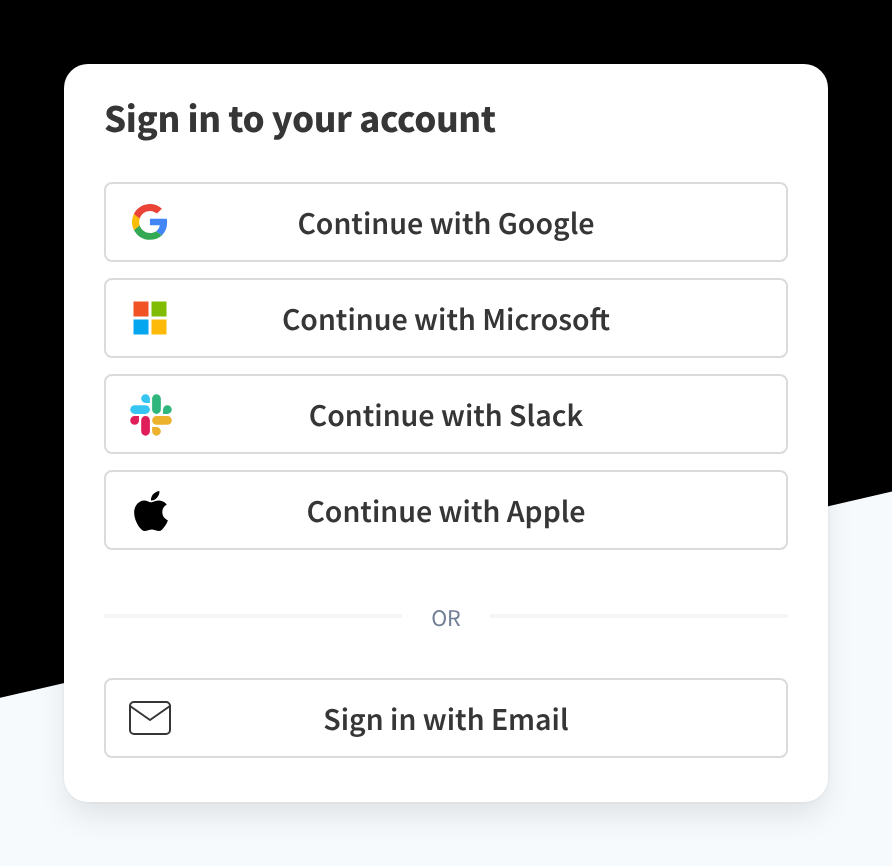
Figure 1: The sign-in page, with single sign-on buttons and Sign in with Email
Sign in with single sign-on
Use single sign-on if your organisation signs in to its work apps through Google, Microsoft, Slack or Apple.
- On the sign-in page, click the button for the provider your organisation uses, for example Continue with Microsoft.
- Sign in with that provider as you normally would.
If you're not sure which provider to use, ask your organisation admin.
Sign in with your email address and password
- On the sign-in page, click Sign in with Email.
- Enter your Email and Password.
- On a device that only you use, you can tick Remember me on this device. Leave it unticked on a shared computer, such as a reception desk or a front counter.
- Click Sign In.
If the email address or password is wrong, you see "Incorrect email or password." Check both and try again, or reset your password.
To go back to the single sign-on buttons, click Use another sign in method?.
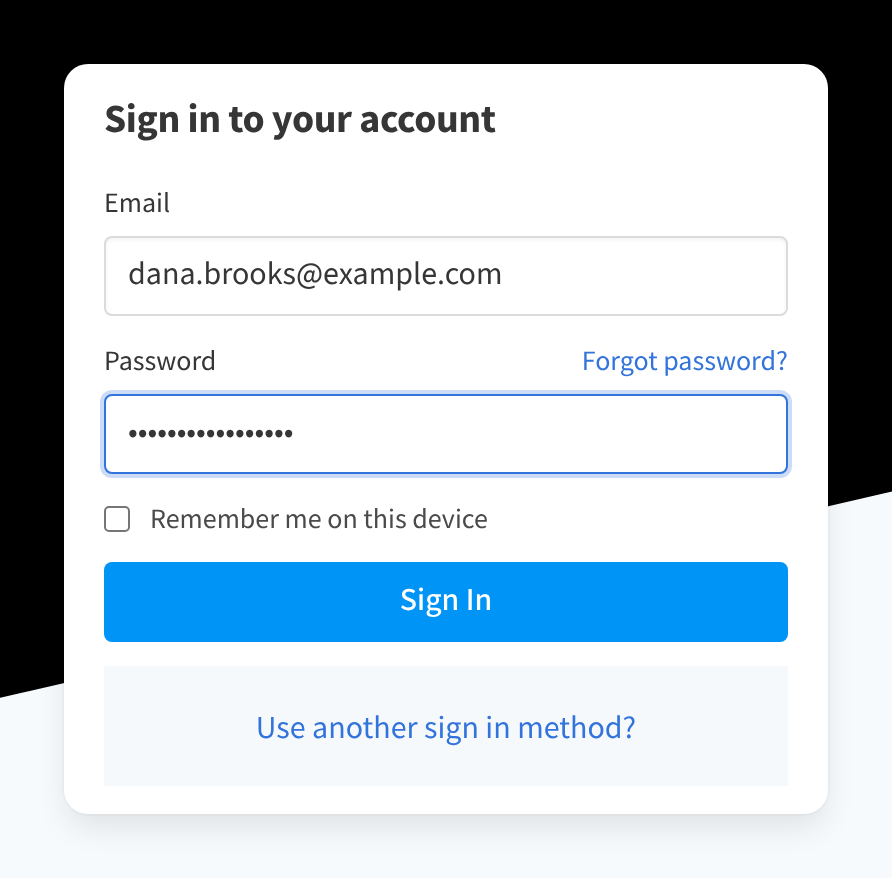
Figure 2: Signing in with your email address and password
Enter a verification code
If you've turned on two-factor authentication, or one of your roles requires it, the Performance Hub asks for a verification code after your password.
- On Enter verification code, check where the code was sent. The page shows part of the address, for example "We've sent a verification code to da********s@example.com. Please enter it below."
- Enter the 6-digit code in Verification Code.
- Click Verify.
The code is sent by text message to the mobile number on your profile. If there's no mobile number, or the text can't be sent, it's emailed to you instead.
If the code doesn't arrive, check your spam or junk folder, then click Resend code next to "Didn't receive the code?". To start again, click Back to sign in.
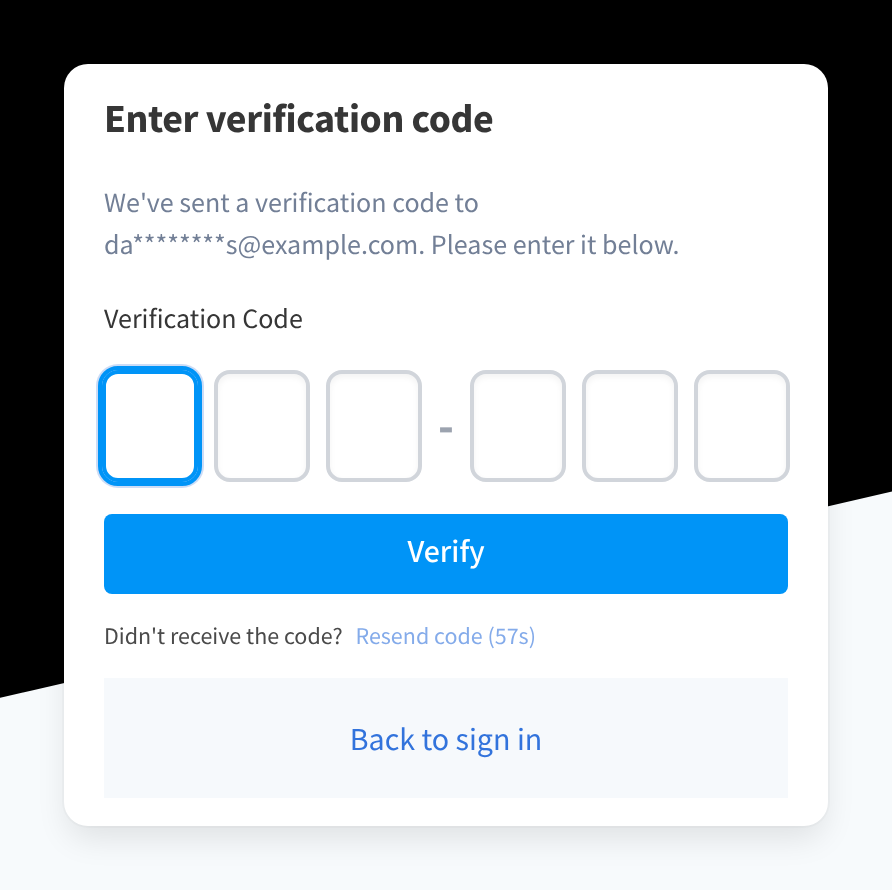
Figure 3: Enter the 6-digit verification code sent to your phone or email
Forgot your password?
- On the email sign-in page, click Forgot password?.
- On Forgot Password, enter your Email and click Send Reset Link.
- Open the email with the subject "Reset Your Password - Performance Hub" and follow the link in it.
- Choose a new password. It must be at least 8 characters long.
- Sign in with your new password.
If the email doesn't arrive, check your spam or junk folder and that you entered the address your account uses. To return to the sign-in page without resetting, click sign in? in "Back to sign in?".
If you sign in with single sign-on, the password you use there belongs to your Google, Microsoft, Slack or Apple account. Reset it with that provider.
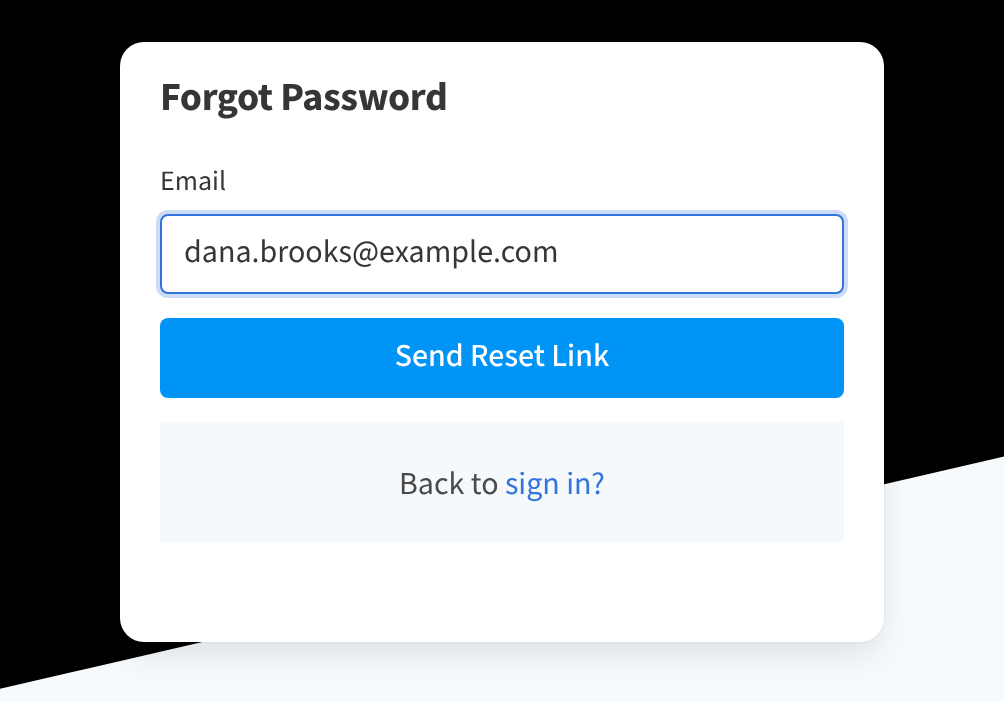
Figure 4: Forgot Password sends a reset link to your email address
Problems signing in
The sign-in page says "Problems Accessing? Please contact us for support, or your local representative." The link goes to Support.
Before you contact support:
- Check that you're using the email address your organisation added you with.
- Try the other sign-in method: single sign-on if you used your email address, or Sign in with Email if you used single sign-on.
- If you've just been added, look for your welcome email (or invitation) and follow its link first.
- Ask an organisation admin to check your account and roles in Identity & Access Management.
Related pages
- Your account & security: change your password and turn on two-factor authentication
- Finding your way around: what you see once you're signed in
- Accepting an invitation: joining another organisation with your existing account