
Finding your way around
Every page in the Performance Hub shares the same frame: the main menu down the left, the top bar with the facility selector and your profile, and the settings menu at the bottom of the main menu.
Quick reference
Where to find it: Every page, once you've signed in
Who can access: Every signed-in user. The items you see depend on your roles and on the modules your facility uses.
Purpose: Move between modules, switch facility, and reach your account and organisation settings
Page layout
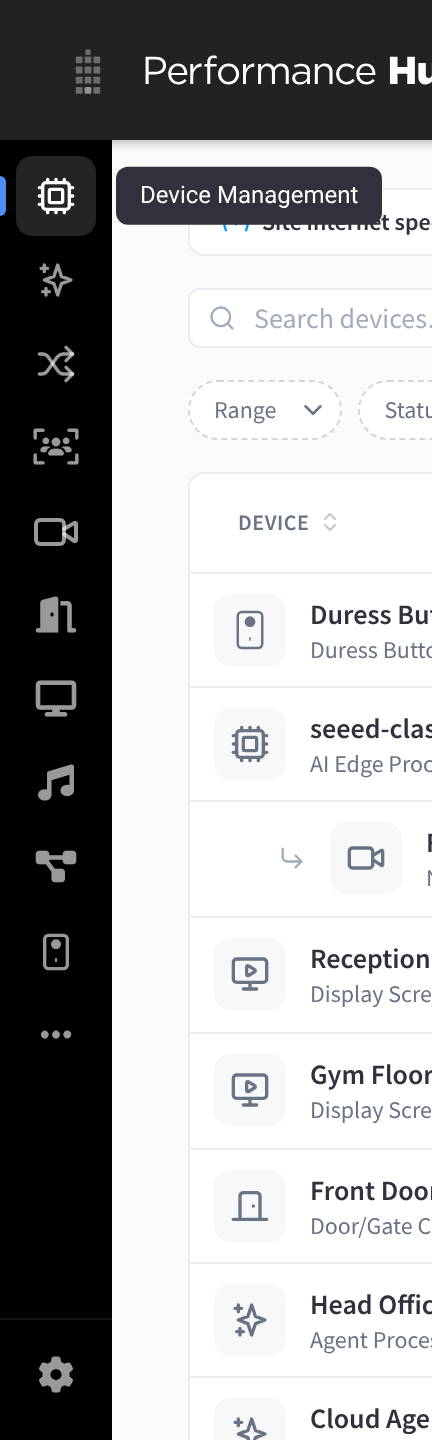
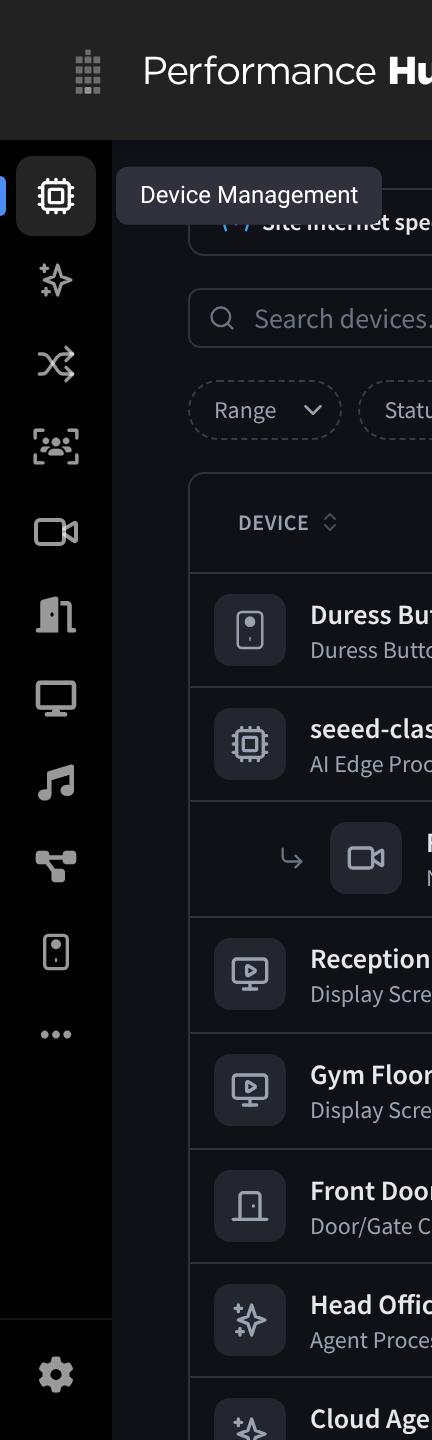
Figure 1: The main menu, one icon per module, with the settings cog at the bottom.
| Area | What it's for |
|---|---|
| Main menu (left) | One icon for each module you can use at the selected facility, such as Display Screens, Door & Gate Access, CCTV and Audio Control |
| Facility selector (top right) | Shows the facility you're working in, for example Lower Manhattan. Choose another facility from the list to switch. |
| Notifications (bell icon, top right) | Your Performance Hub notifications |
| Profile menu (your initials, top right) | Your email address, User Preferences, Appearance, Help and Log out. See Your account & security. |
| Settings menu (cog icon, bottom left) | Facility and organisation settings. See The settings menu. |
The facility selector
Most pages work on one facility at a time: the one shown in the facility selector. When you change facility, the page you're on switches to the new facility. For example, Facility & System Configuration shows the details and hours of the selected facility, and Display Screens shows its screens.
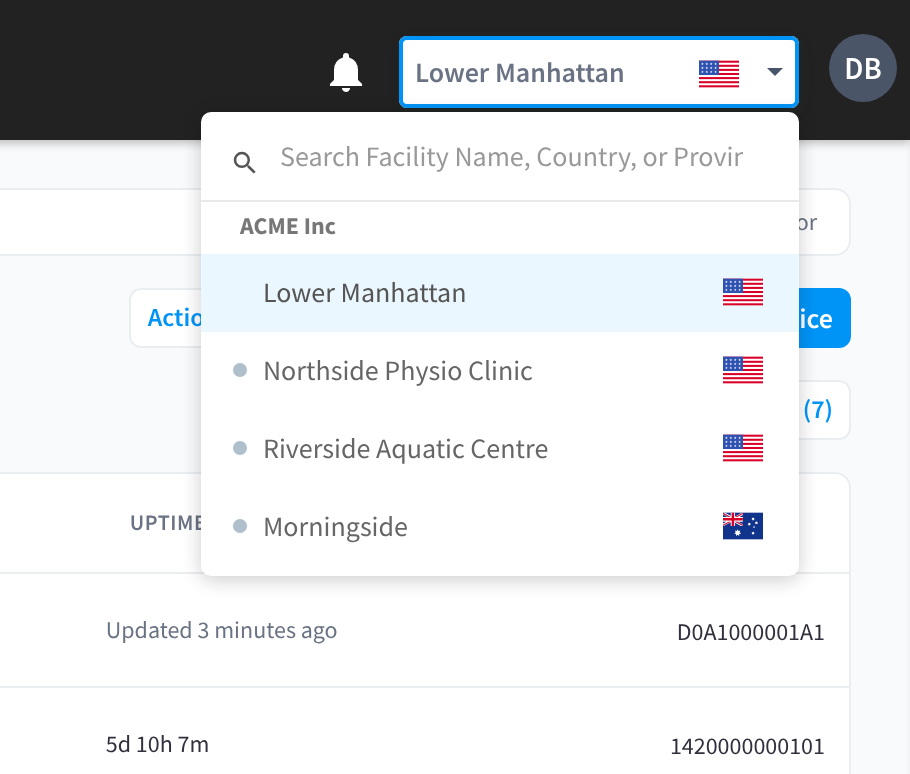
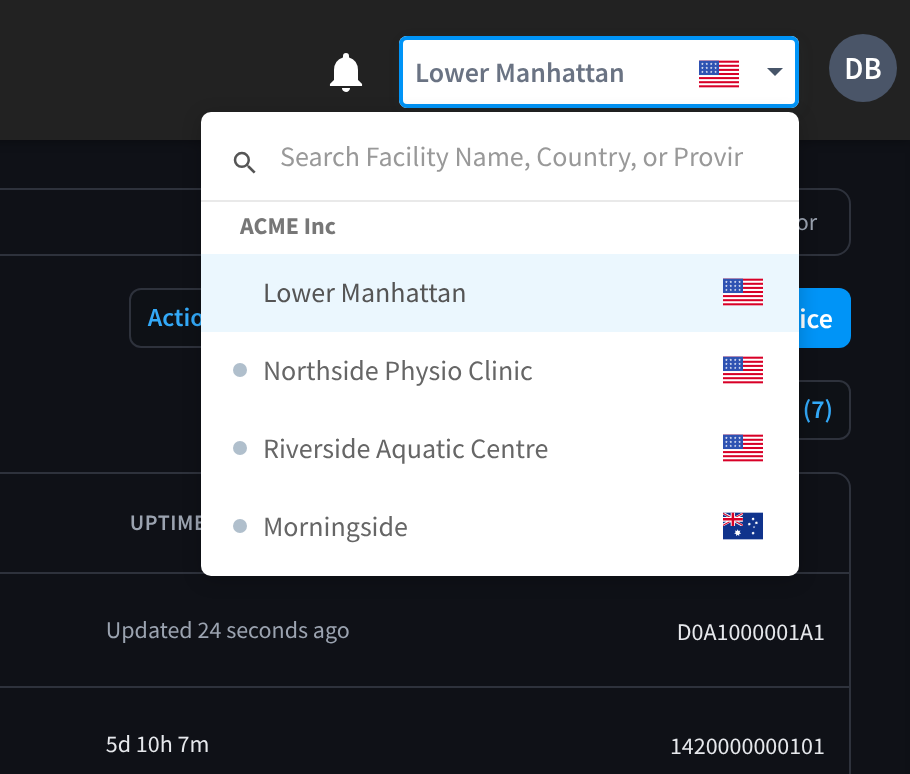
Figure 2: The facility selector, open. Type to search, or pick a facility from the list.
If you work in more than one organisation, you can list the facilities from all of them in the facility selector. Turn on Consolidate all available organisations into Facilities selector in User Preferences.
The settings menu
Click the cog icon at the bottom of the main menu to open the settings menu.
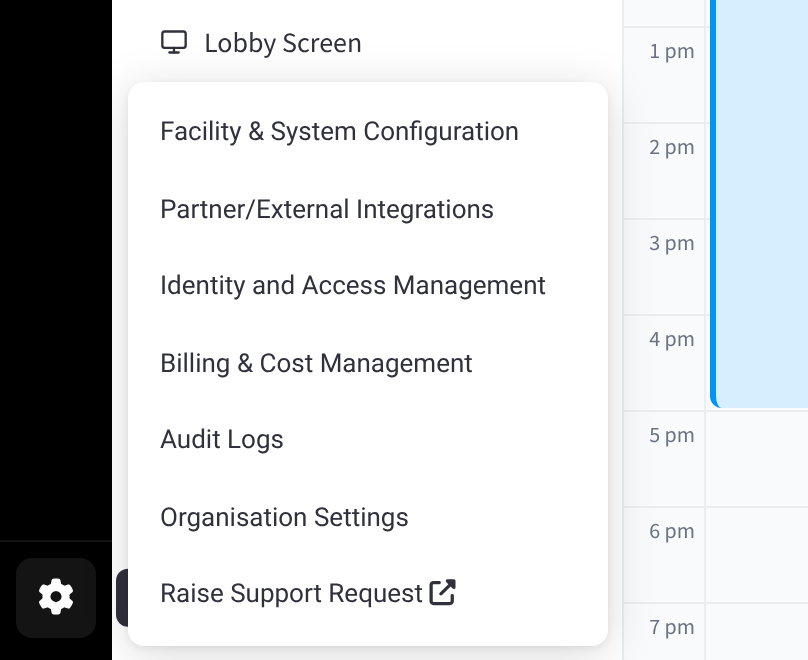
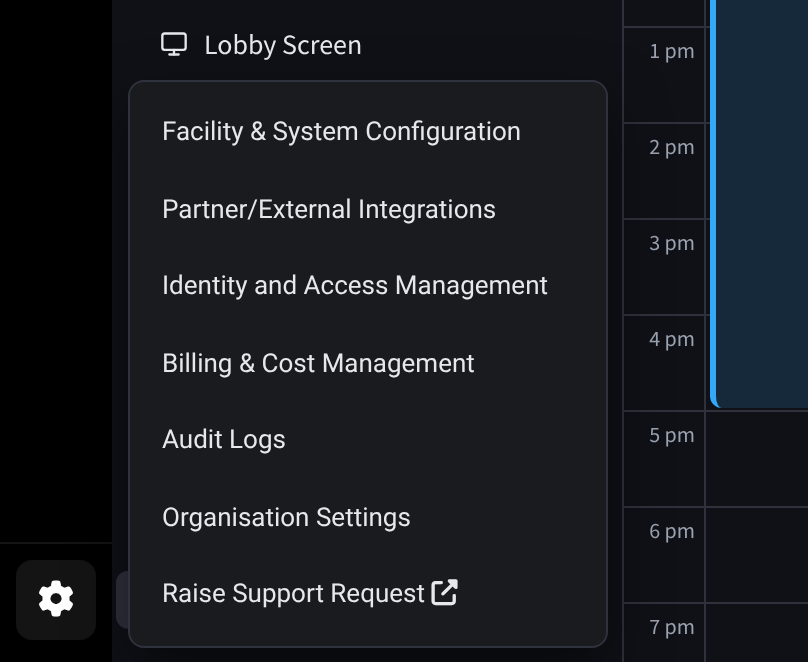
Figure 3: The settings menu, opened from the cog at the bottom of the main menu
| Item | What it's for |
|---|---|
| Facility & System Configuration | The selected facility's primary details, location and hours. See Facility & System Configuration. |
| Partner/External Integrations | Connections to partners and other systems |
| Identity and Access Management | People, roles and facilities in your organisation. See Identity & Access Management. |
| Billing & Cost Management | The facility's billing. See Billing & Cost Management. If your organisation pays for this facility, Billing & Cost Management opens your organisation's billing for it instead (organisation admins only). |
| Audit Logs | A record of requests made in your organisation, by people and connected tools. See Audit Logs. |
| Organisation Settings | Settings that apply across your organisation: details, billing, modules, holidays and brands. See Organisation Settings. |
| Raise Support Request | Contact Performance Hub support. It opens in a new tab. |
You only see the items your roles give you access to.
Related pages
- Your account & security: the profile menu and User Preferences
- First setup checklist: what to set up first
- Identity & Access Management and Facility & System Configuration