
Your account & security
Your account settings live in User Preferences, in the profile menu. Use them to keep your name and phone number up to date, change your password, turn on two-factor authentication, and choose how the Performance Hub opens for you.
Quick reference
Where to find it: Profile menu (your initials, top right) → User Preferences
Who can access: Every signed-in user, for their own account
Purpose: Manage your personal details, password, two-factor authentication and preferences
The profile menu
Click your initials in the top right corner to open the profile menu. It shows the email address you're signed in with, then:
| Item | What it does |
|---|---|
| User Preferences | Opens your account settings (below) |
| Appearance | Chooses the theme: Light, Dark, Auto (based on your local sunrise and sunset) or System. The shortcut is Alt+Ctrl+L (Option+Command+L on a Mac). Appearance is shown only where choosing a theme is available. |
| Help | Opens these docs in a new tab |
| Log out | Signs you out |
Log out when you finish on a shared computer.
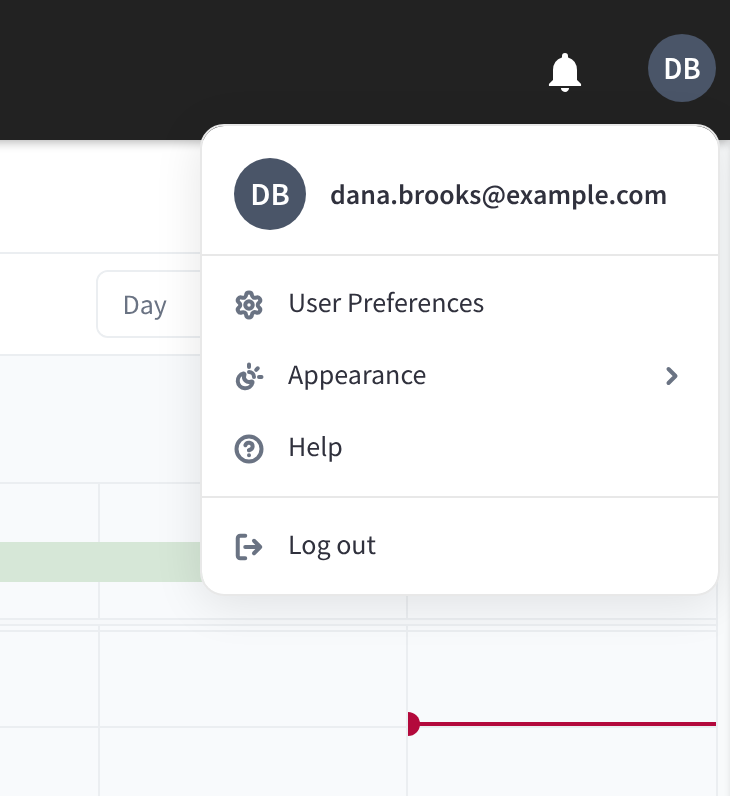
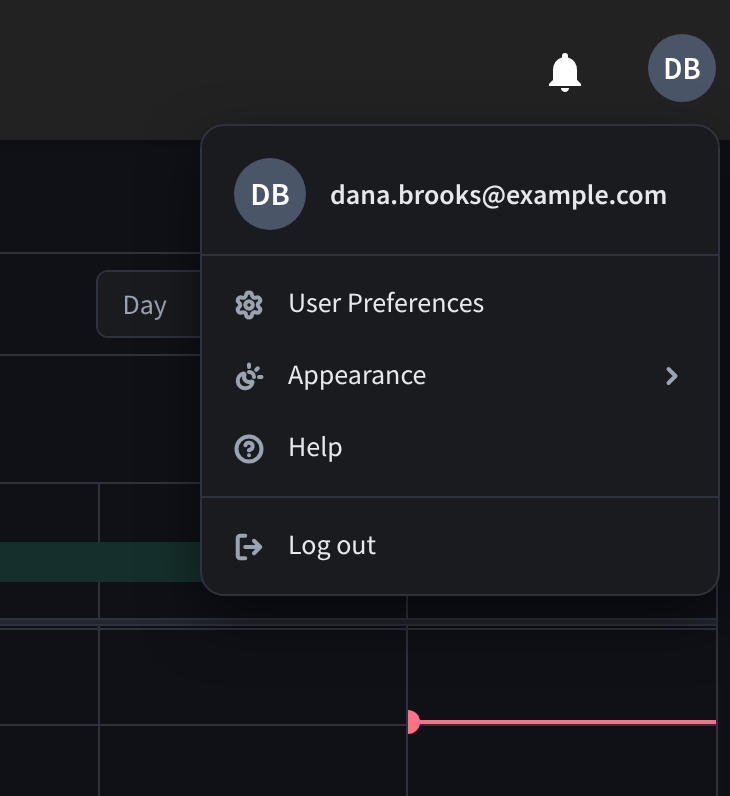
Figure 1: Open your profile menu to reach User Preferences
User Preferences
User Preferences shows your name and email address, three buttons for your account, and your preferences.
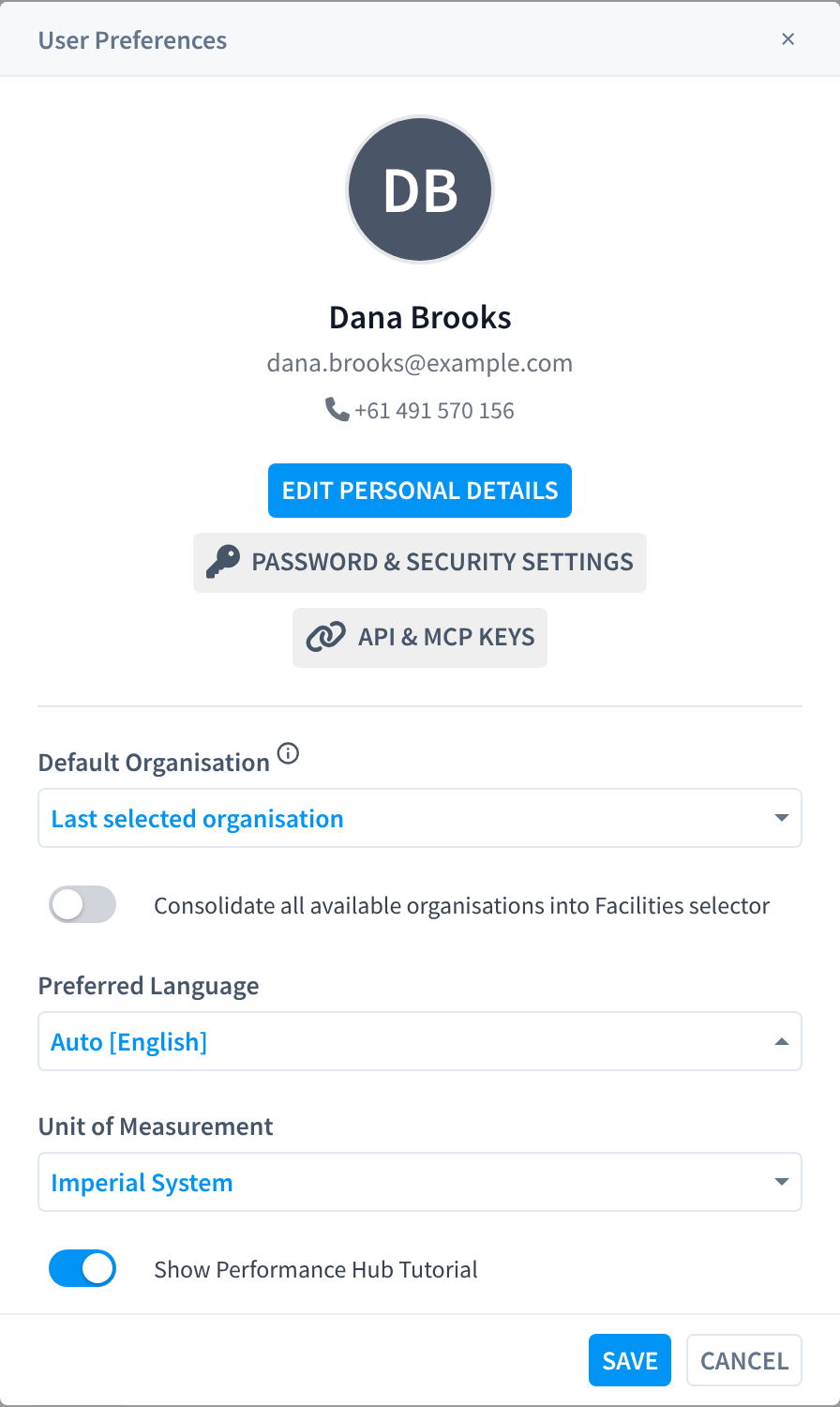
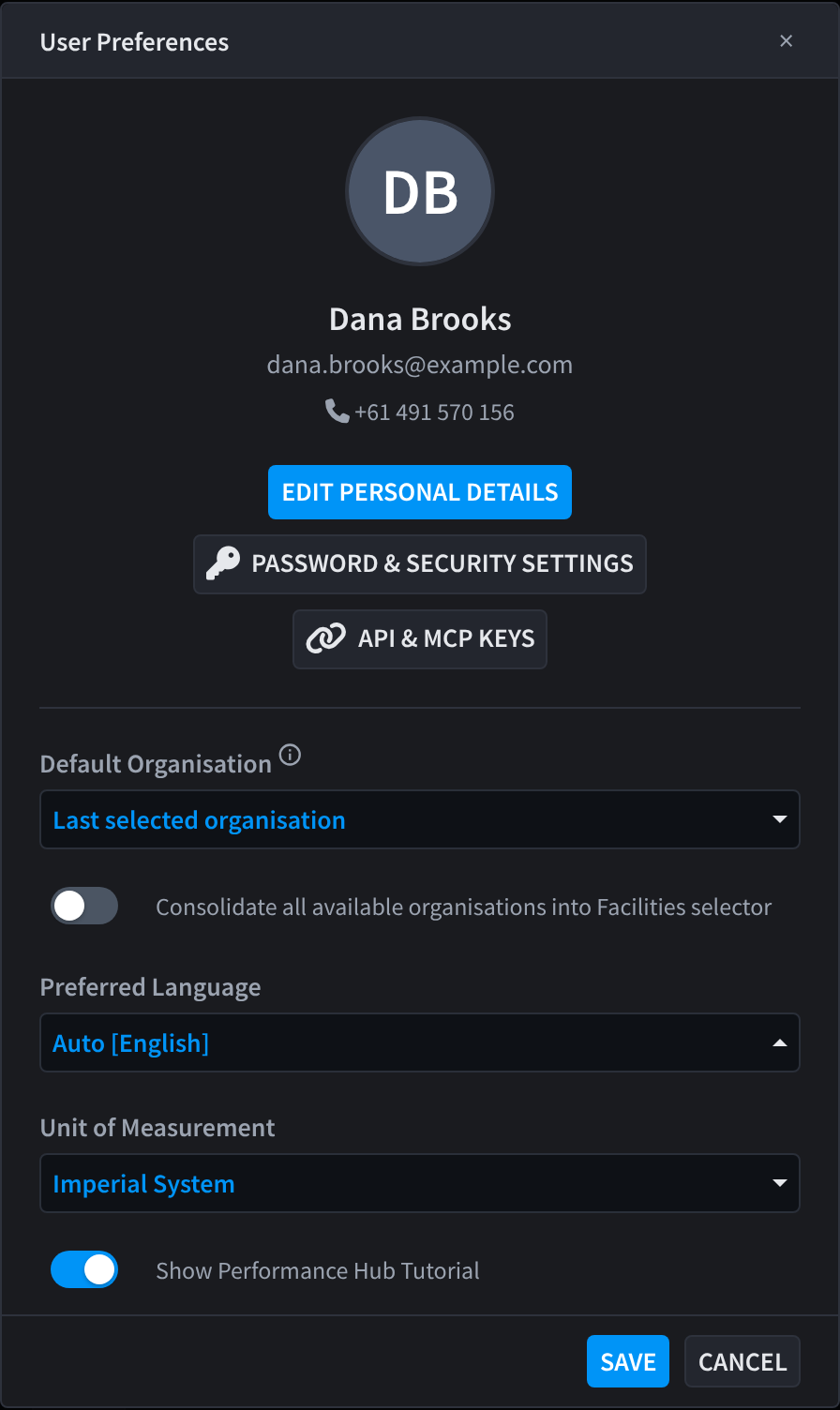
Figure 2: User Preferences, with Edit Personal Details and Password & Security Settings
| Setting | What it does |
|---|---|
| Edit Personal Details | Change your First Name, Last Name and Phone Number |
| Password & Security Settings | Change your password and turn two-factor authentication on or off. See Password and security. |
| API & MCP Keys | Keys for connecting apps and AI agents to the Performance Hub. This is a developer feature; see Create an MCP key. |
| Default Organisation | The organisation the Performance Hub opens in when you sign in. Last selected organisation opens the one you used last. |
| Consolidate all available organisations into Facilities selector | If you work in more than one organisation, lists the facilities from all of them in the facility selector |
| Preferred Language | The language the Performance Hub uses, for example Auto [English] |
| Unit of Measurement | Metric System or Imperial System |
| Show Performance Hub Tutorial | Shows or hides the Performance Hub tutorial |
Click Save to keep your changes, or Cancel to close without saving.
Your email address isn't one of the personal details you can edit: an account's primary email address can't be changed after the account is created.
Password and security
Password & Security Settings needs a phone number on your profile. If you don't have one yet, the Performance Hub asks for it first.
Add a phone number
If your profile has no phone number, clicking Password & Security Settings opens Missing Phone Number: "Phone number is required for password and security settings changes."
- Choose your country, then enter your mobile number in Phone Number.
- Click Add Phone Number.
- Enter the verification code sent to your email address.
- Enter the verification code sent to your new phone number.
Click Back to return to User Preferences, or Cancel to close.
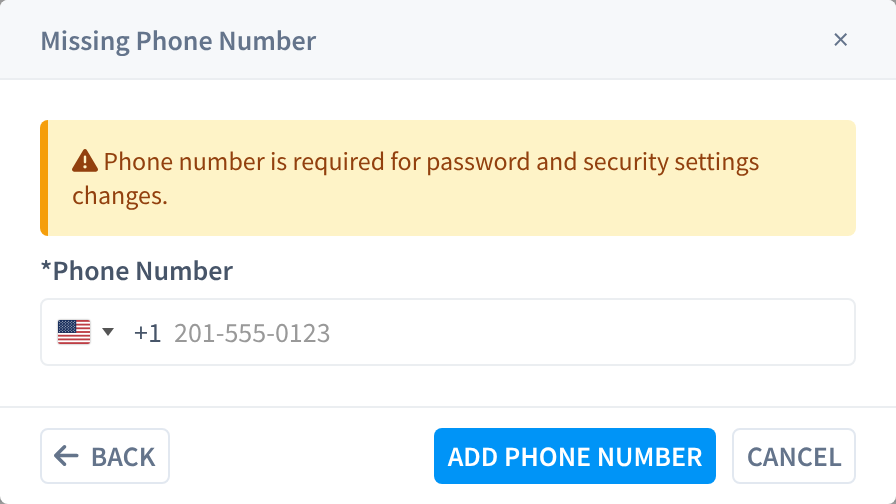
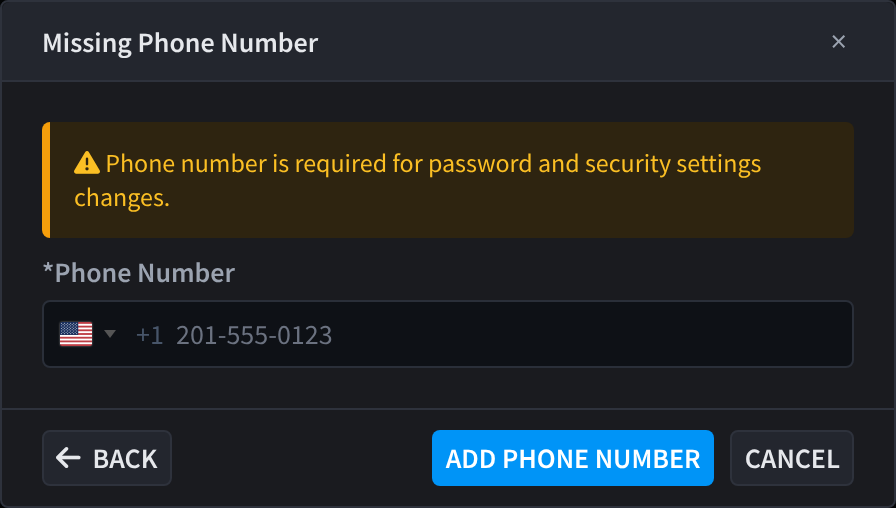
Figure 3: A phone number is needed before you can change password and security settings
Change your password
- Open User Preferences → Password & Security Settings.
- Under Password ("Update your account password"), click Change Password.
- Follow the prompts to set your new password. It must be at least 8 characters long.
Two-factor authentication
Two-factor authentication adds "an extra layer of security to your account": after your password, you also enter a 6-digit verification code. The status line shows "Two-factor authentication is enabled" or "Two-factor authentication is disabled".
To turn on two-factor authentication:
- Open User Preferences → Password & Security Settings.
- Under Two-Factor Authentication, turn on Enable Two-Factor Authentication.
- On Enter verification code, enter the 6-digit code sent to you and confirm. If it doesn't arrive, click Resend.
From then on, you enter a verification code each time you sign in. The code is sent by text message to the mobile number on your profile. If there's no mobile number, or the text can't be sent, it's emailed to you instead.
Some roles require a verification code at every sign-in, whatever your own setting. If one of your roles does, you're asked for a code even when two-factor authentication is off here. See Creating & editing roles.
Click Back to return to User Preferences, or Close when you're done.
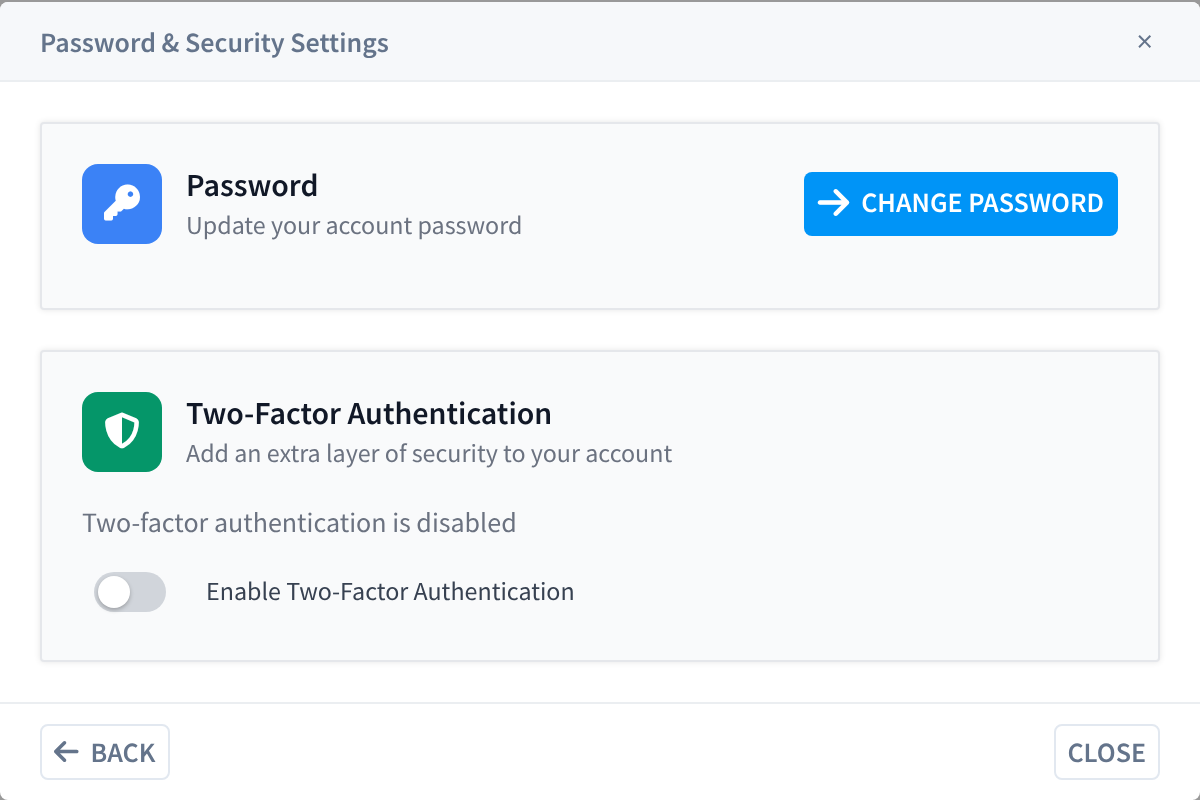
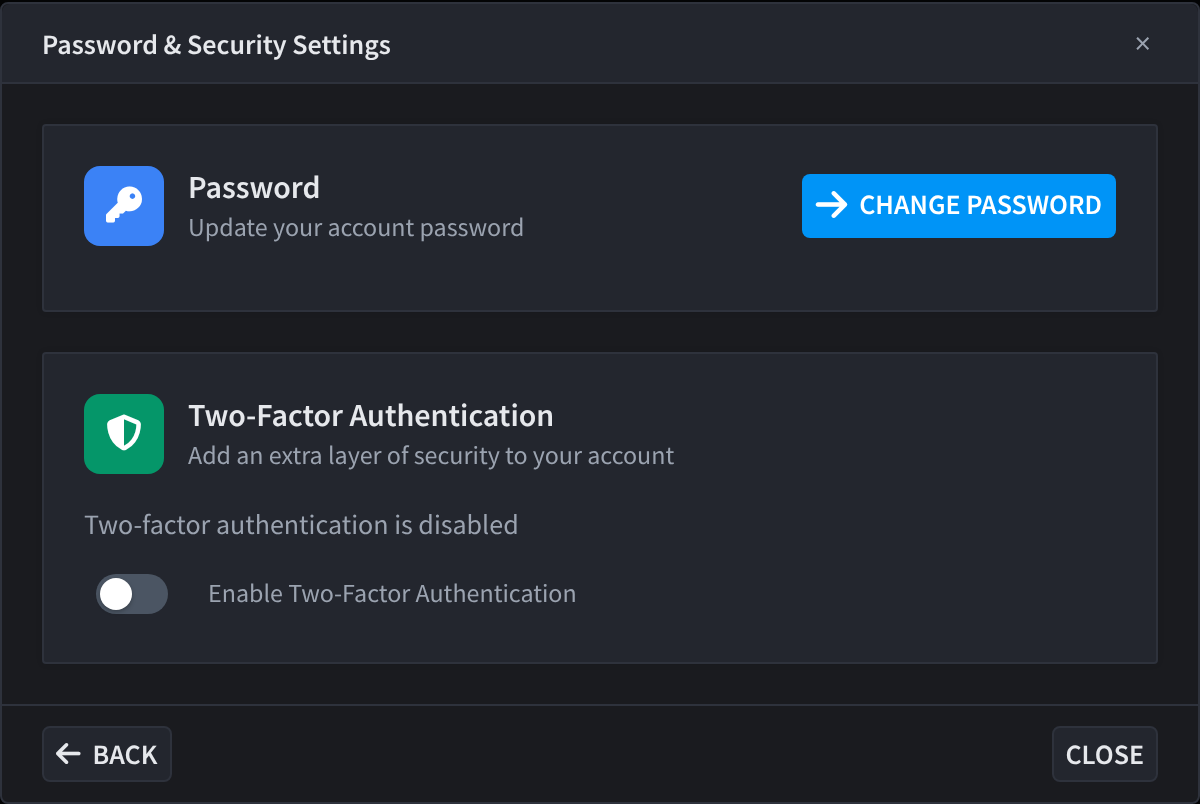
Figure 4: Password & Security Settings: change your password and turn on two-factor authentication
Related pages
- Signing in: single sign-on, email and password, and verification codes
- Finding your way around: the profile menu, the facility selector and the settings menu
- Create an MCP key: connect an AI agent to the Performance Hub