
Creating & editing roles
Create a role when none of the Performance Hub role templates fits a job, for example a Pool Supervisor at an aquatic centre, a Store Manager for a group of retail stores, or a Site Supervisor at a coworking space.
Quick reference
Where to find it: Settings (cog icon) → Identity and Access Management → Roles → Add Role (or click a role to edit it)
Who can access: Organisation admins, and people whose role includes Identity and Access Management
Purpose: Create a role, or change what an existing role gives access to
Add a role
- On the Roles tab, click Add Role. The Add Role panel opens, with three sections: Details, Access Scope and Module Access. Use the links on the left to jump between them.
- Fill in the Details.
- Choose the Access Scope.
- Choose the Module Access. The number next to Module Access on the left shows how many modules you've ticked.
- Click Add Role.
While you work, the panel shows Unsaved changes at the bottom left. Click Cancel to close it without saving.
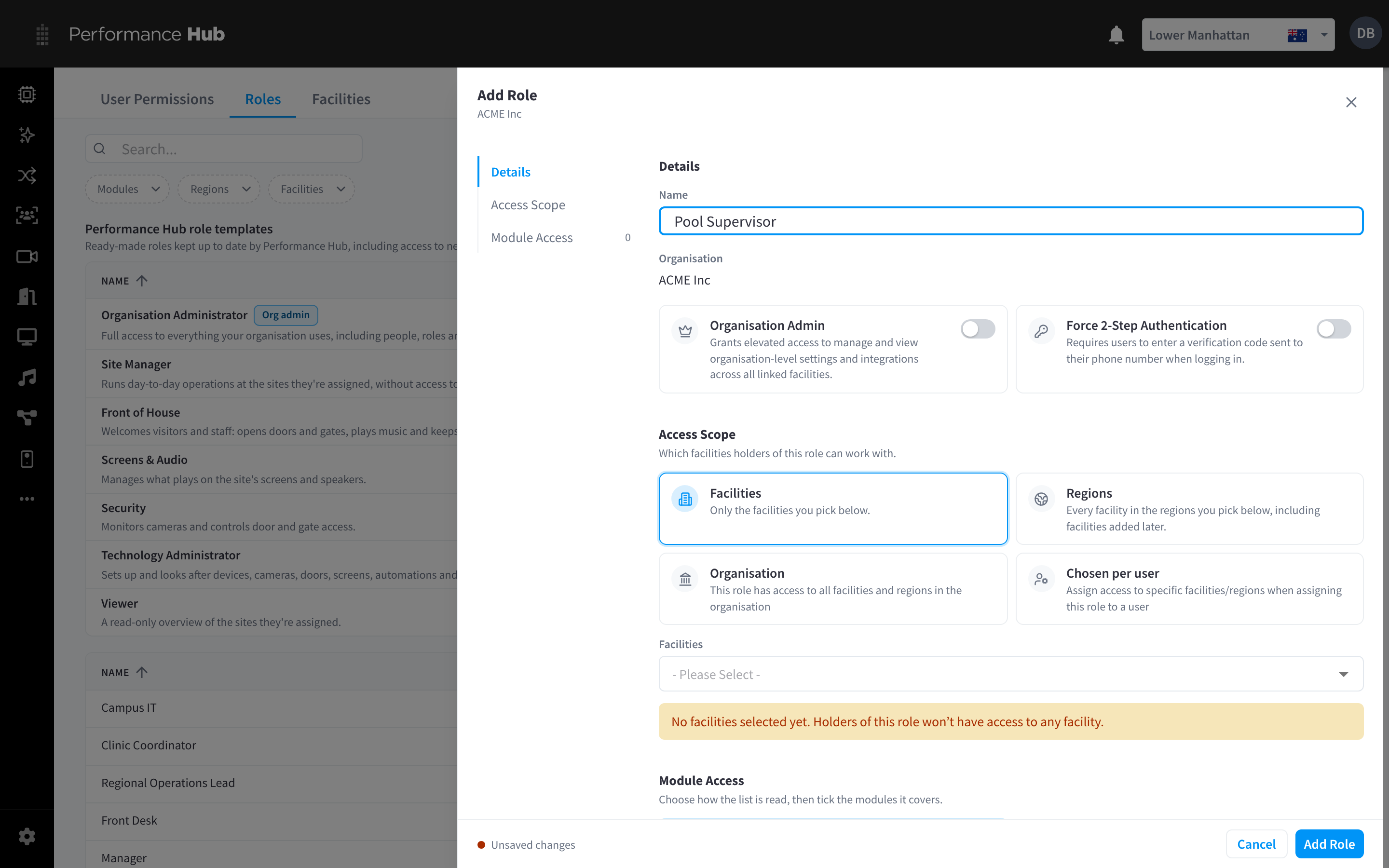
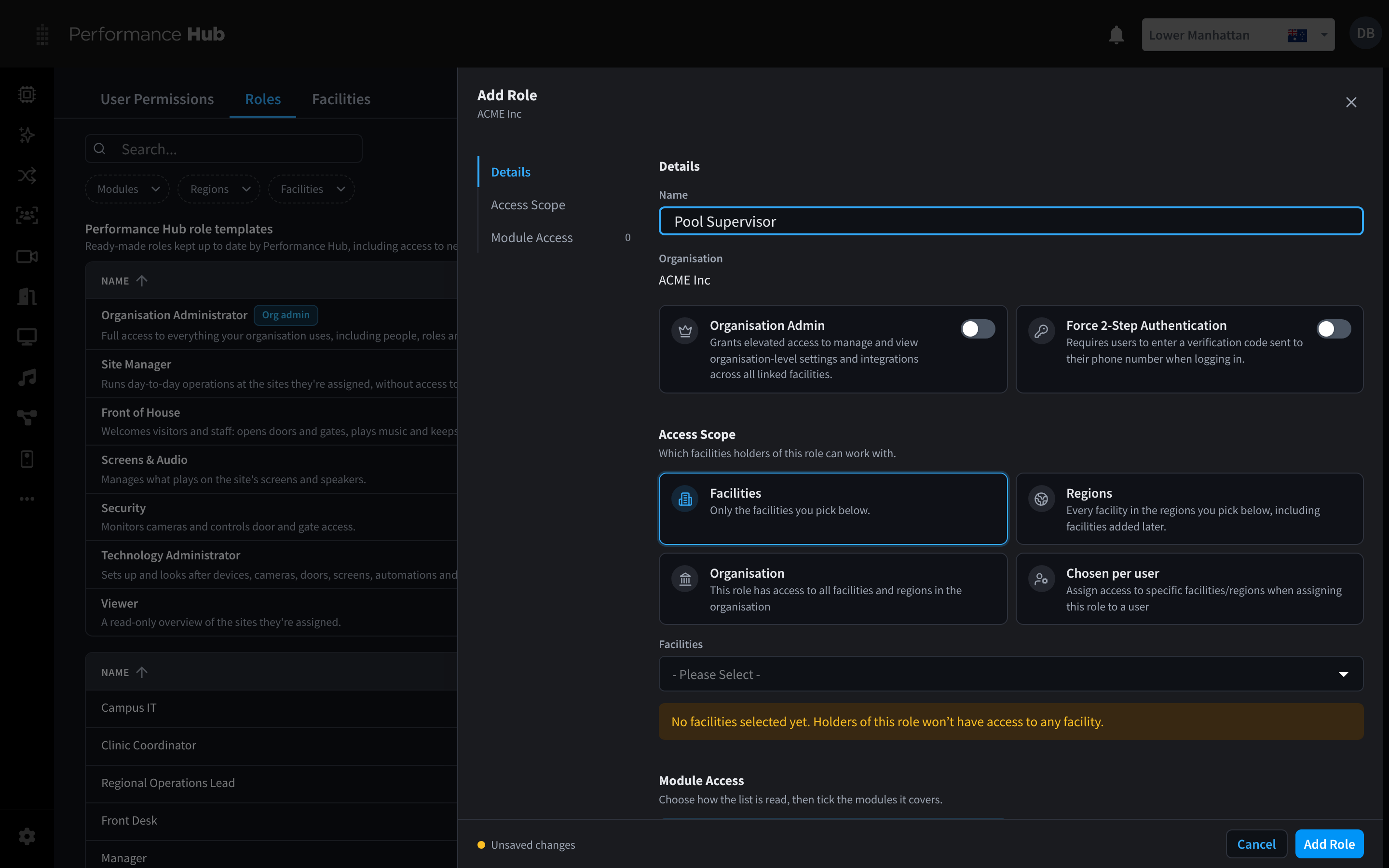
Figure 1: Add Role, Details: name, Organisation Admin and Force 2-Step Authentication
Details
| Setting | What it does |
|---|---|
| Name | The role name people see, for example Pool Supervisor or Venue Duty Manager. Name it after the job, not the person. |
| Organisation | The organisation the role belongs to (shown, not changed) |
| Organisation Admin | "Grants elevated access to manage and view organisation-level settings and integrations across all linked facilities." Turn it on only for the people who run the Performance Hub for your organisation. |
| Force 2-Step Authentication | "Requires users to enter a verification code sent to their phone number when logging in." Everyone with this role enters a code at every sign-in, even if they haven't turned on two-factor authentication themselves. |
Consider Force 2-Step Authentication for roles with wide access, such as organisation admins, security staff or anyone who can unlock doors remotely.
The code is sent by text message to the mobile number on the person's profile. If there's no mobile number, or the text can't be sent, it's emailed instead. See Signing in.
Edit a role
- On the Roles tab, click the role. It opens in a panel titled with the role's name, with the same sections as Add Role.
- Make your changes.
- Click Save.
Changes apply to everyone who holds the role. To change access for one person only, change their roles instead.
Performance Hub role templates can't be edited directly; they're "Maintained by Performance Hub". To change one, customise it to make a copy your organisation owns.
Related pages
- Access scope & module access: the other two sections of a role
- Roles: the Roles tab
- Role templates: ready-made roles