
Identity & Access Management
Identity & Access Management is where organisation admins decide who can use the Performance Hub, where, and for what. Add the people who work at your sites, give each of them one or more roles, and manage the facilities those roles cover, whether they're offices, stores, venues, campuses, clinics or gyms.
Quick reference
Where to find it: Settings (cog icon, bottom left) → Identity and Access Management
Who can access: Organisation admins, and people whose role includes Identity and Access Management. These pages describe what an organisation admin sees.
Purpose: Add and remove users, manage roles and what they give access to, and manage your organisation's facilities
How it fits together
- A user is a person with a Performance Hub account. One account can belong to more than one organisation.
- A role gives its holders access to a set of modules (parts of the Performance Hub, such as Display Screens or Door & Gate Access) at a set of facilities. A user can hold several roles, for example Front Desk at one site and Viewer at others.
- A role's access scope decides which facilities it covers: facilities you pick, every facility in some regions, the whole organisation, or facilities chosen each time you give the role to someone. See Access scope & module access.
- Performance Hub role templates are ready-made roles kept up to date by Performance Hub. You can use them as they are, customise them, or hide them. See Role templates.
- A role can make its holders organisation admins, and can require a verification code at every sign-in.
- Facilities belong to a brand and a region in your organisation. See Facilities.
The three tabs
| Tab | What you do there |
|---|---|
| User Permissions | See everyone in your organisation with their roles. Add users, change their roles and remove them from the organisation. |
| Roles | See the Performance Hub role templates and your organisation's own roles, and create or edit roles. See Roles. |
| Facilities | See, add, manage and delete or restore facilities. See Facilities. |
The User Permissions tab
The User Permissions tab lists everyone with a role in your organisation.
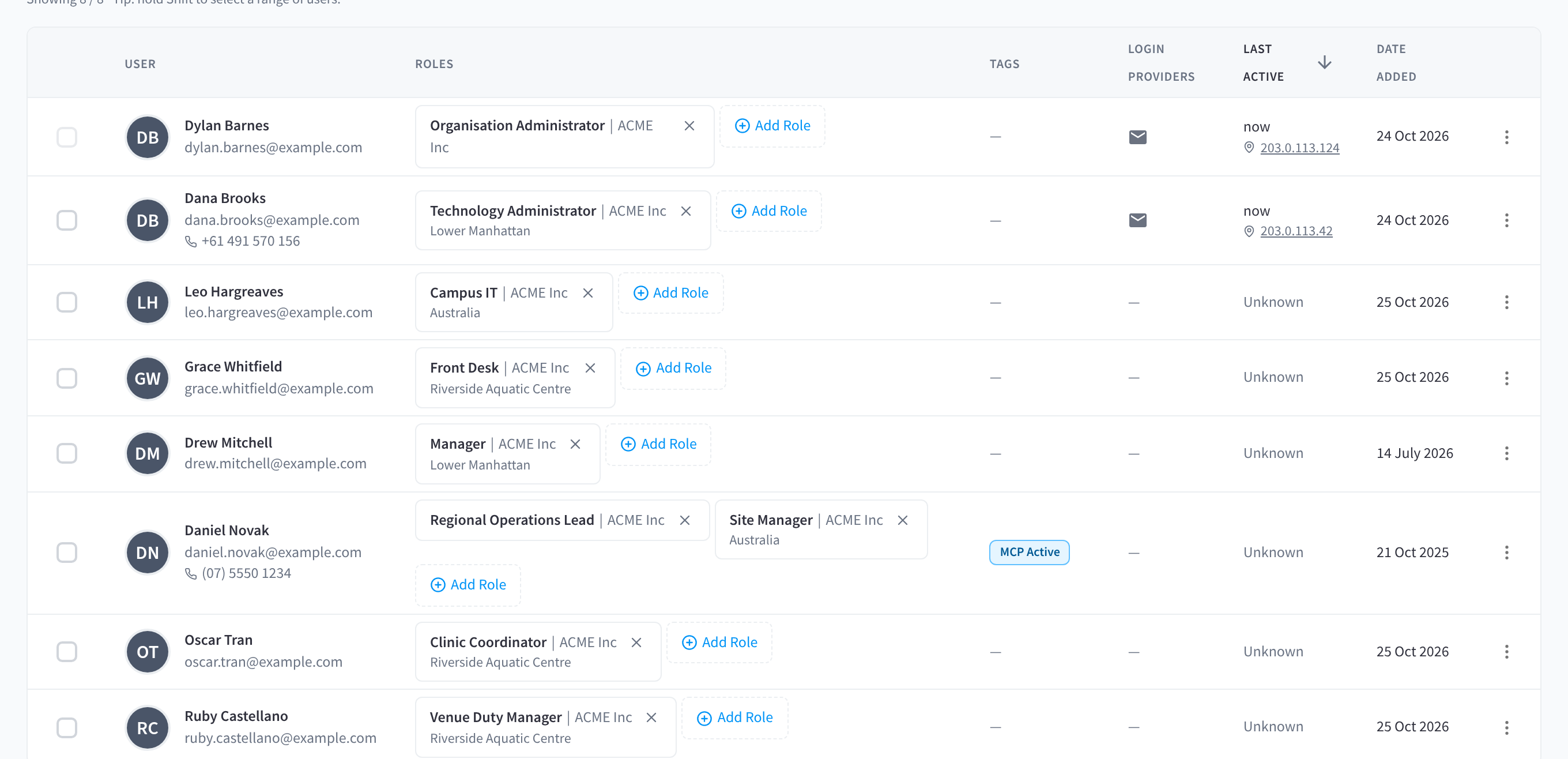
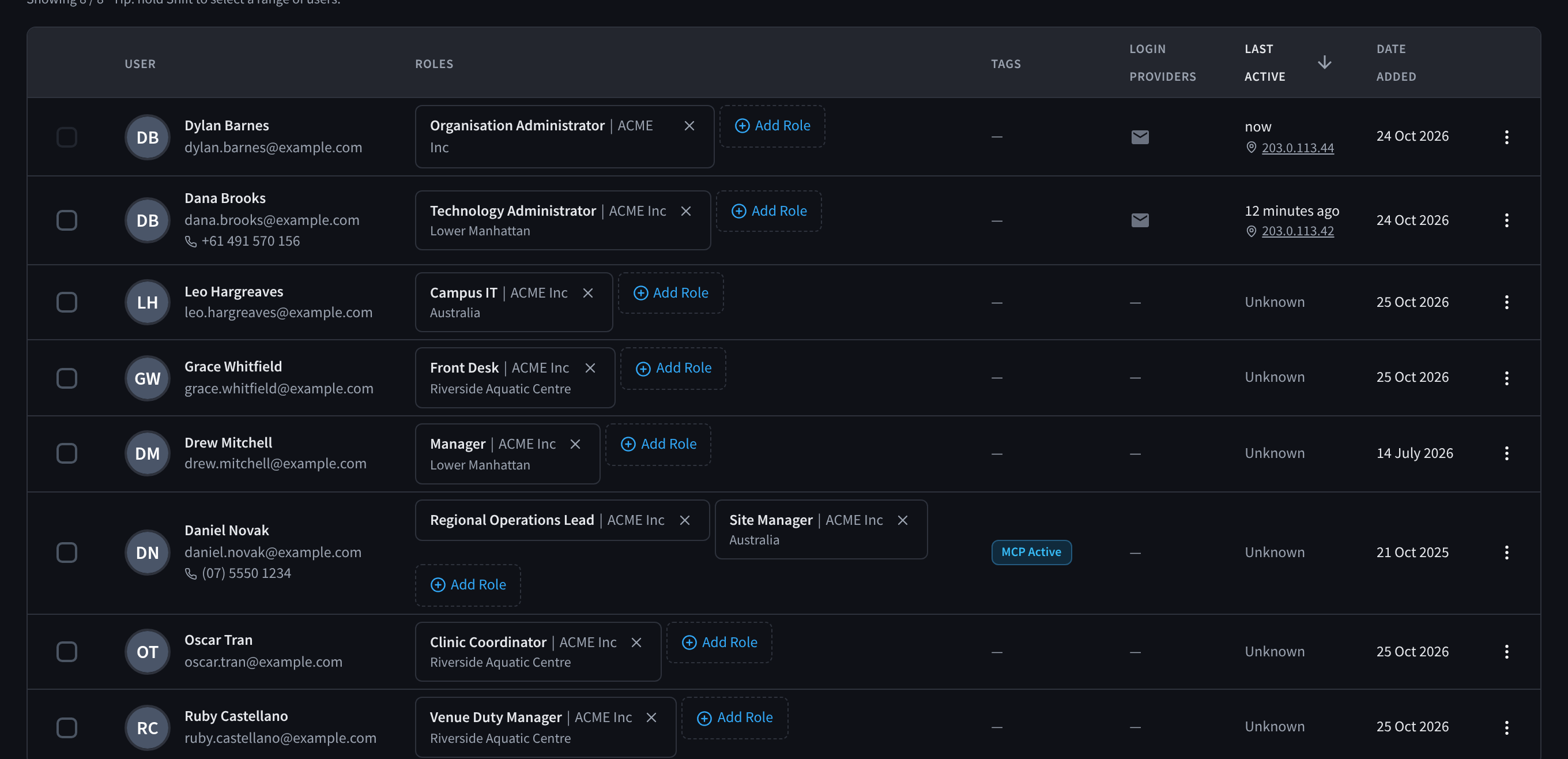
Figure 1: The User Permissions tab lists everyone in your organisation with their roles
| Column | What it shows |
|---|---|
| User | Name, email address and, if there is one, phone number |
| Roles | Each role the person holds, with the facilities or regions it covers, for example Front Desk at Riverside Aquatic Centre or Campus IT for Australia. Use Add Role and the cross on a role to change their roles. |
| Tags | Tags on the person's account |
| Login Providers | How the person signs in, for example with their email address |
| Last Active | When the person last used the Performance Hub, or Unknown if there's no record of it yet |
| Date Added | When the person was added to the organisation |
Above the list:
- Search finds people in the list.
- The filters Role, Facility, Region, Login Provider, Last Active and Date Added narrow the list. Clear filters removes them all.
- Select all ticks everyone in the list. Tick people to act on several at once, for example to remove them from the organisation. "Tip: hold Shift to select a range of users."
- Add New User adds a person.
- CSV downloads the list.
Organisation admins see a menu at the end of each row (User actions) with the actions for that person, such as Remove from organisation.
Documentation guide
People
- Adding users: add a new person, or invite someone who already has a Performance Hub account.
- Invitations: see, resend or cancel invitations that haven't been accepted yet.
- Changing a user's roles: add or remove roles for someone.
- Removing users: remove people from your organisation.
- Bulk requests & approvals: large changes that need a second admin to approve.
- Accepting an invitation: what the person you invite sees.
Roles
- Roles: the Roles tab, role templates and your own roles.
- Creating & editing roles: name a role, make it an organisation admin role, or require a verification code.
- Access scope & module access: decide which facilities and modules a role covers.
- Role templates: use, customise or hide the ready-made roles.
Facilities
- Facilities: the Facilities tab.
- Adding facilities: add a new site.
- Facility settings & modules: a facility's profile, who has access, and its modules.
- Deleting & restoring facilities: delete a facility, and restore it if you need it back.
Help
Related pages
- First setup checklist: roles and users in the order you set up an organisation
- Facility & System Configuration: each facility's details, location and hours
- Signing in: what your users do to sign in