
Adding facilities
Add a facility when you open a new site, whether it's a new store, a second office floor, a pop-up venue, a new campus, a clinic or a gym.
Quick reference
Where to find it: Settings (cog icon) → Identity and Access Management → Facilities → Add Facility
Who can access: Organisation admins, and people whose role includes Identity and Access Management
Purpose: Create a new facility in your organisation
Add a facility
- On the Facilities tab, click Add Facility. Add New Facility opens, "Adding to" your organisation.
- Under Where it belongs, choose the Brand and the Region. "Your organisation's regions are listed first."
- Under Identity ("How the facility is named across the Performance Hub"), enter the Name. Keep it short and based on the location, for example Fortitude Valley, Parramatta or Times Square, New York. Your brand name is shown separately.
- Under Contact and location, you can add the facility's Address, Email and Phone now, or later. To add the address, start typing it and choose it from the list; this also places the facility on the map.
- Click Create New Facility.
The dialog also shows the new facility's Facility ID. You don't need to do anything with it.
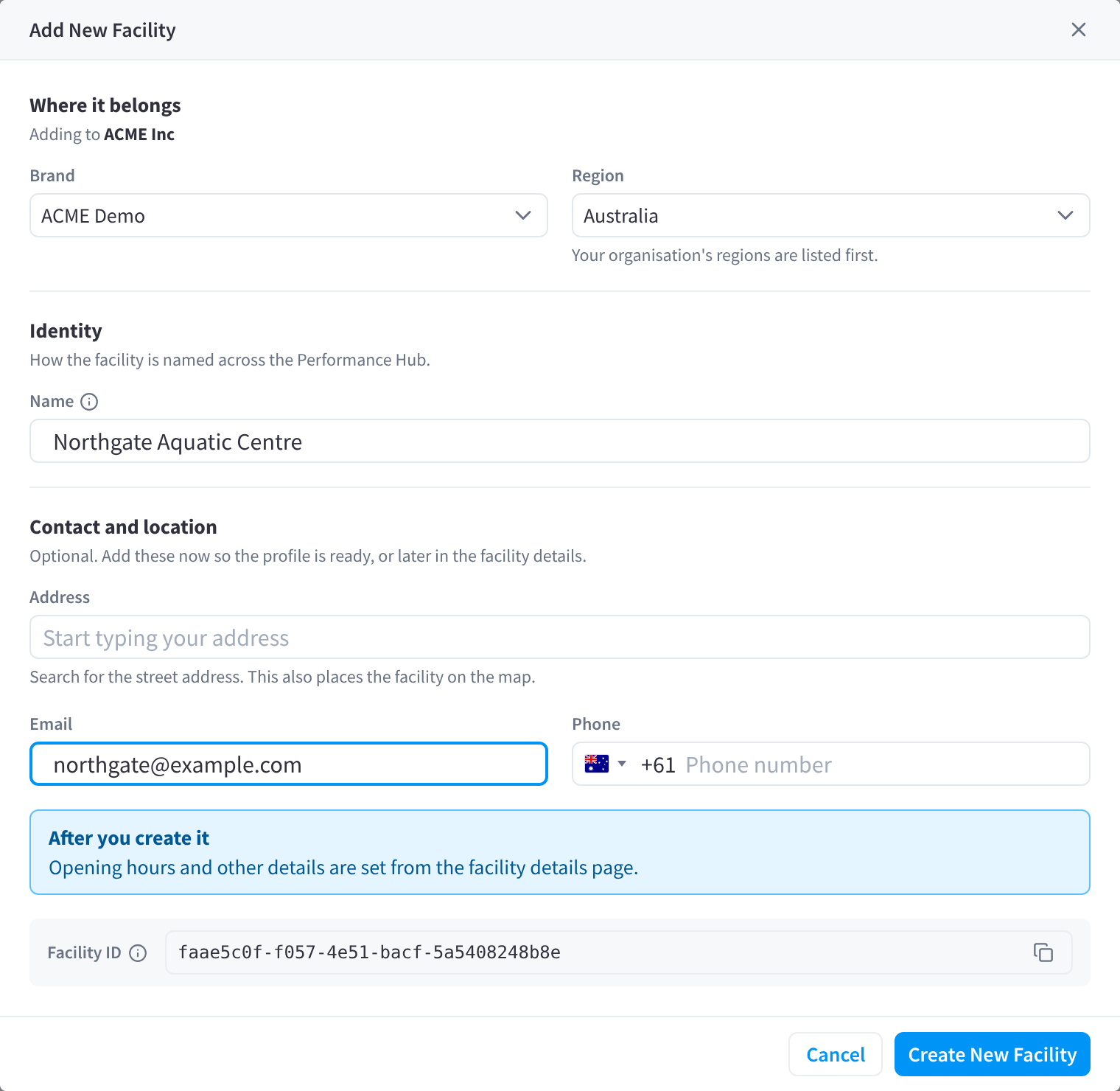
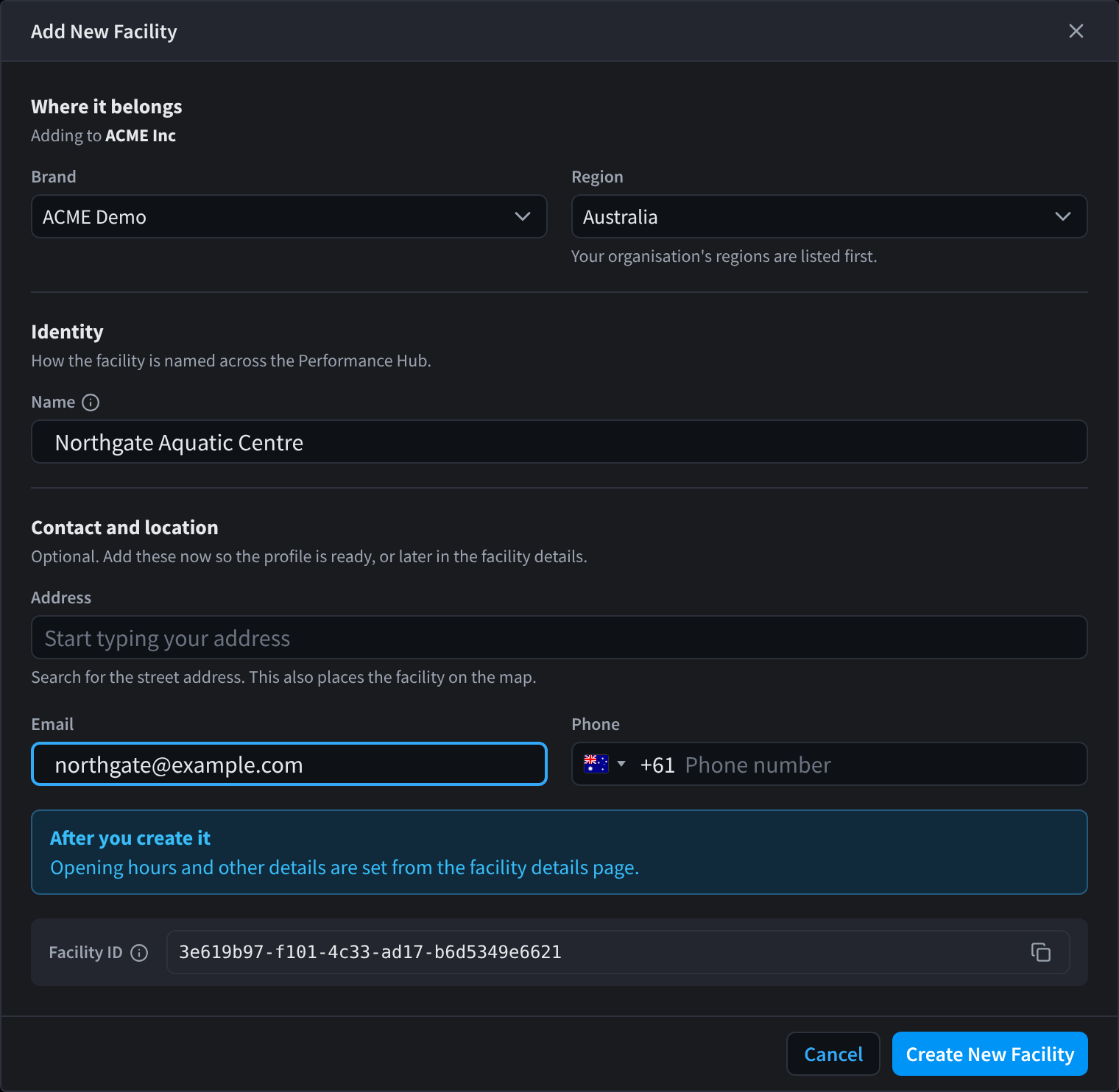
Figure 1: Add New Facility, filled in with an example
After you create it
"Opening hours and other details are set from the facility details page." Select the new facility in the facility selector, then open Facility & System Configuration to:
- check its primary details
- set its location, if you didn't add the address
- set its staffed hours, unstaffed or extended hours and holiday hours
Then:
- Check which modules it uses. A new facility uses its brand's default modules. See Facility settings & modules.
- Give people access. Roles that cover the facility's region, or the whole organisation, include it straight away. For roles whose access is chosen per user, or that cover chosen facilities, add it where needed. See Changing a user's roles.
Only if your organisation uses Website & Directory. Under Identity, Advanced: URL slug sets the Slug used for the facility's website URLs and landing pages. The new facility starts unpublished: "It was added to brand as unpublished. Open its details to add opening hours and more. Publishing is managed in Website & Directory." Publish it there when it's ready to appear publicly.
Related pages
- Facilities: the Facilities tab
- Facility settings & modules: manage the new facility
- Facility & System Configuration: its details, location and hours