
Unstaffed/Extended hours
Unstaffed/Extended Hours are the times the facility is "Open, but may not be staffed." Use them for sites people can still use when no one is on the desk: a gym's 24/7 member access, a coworking space open to members after reception closes, a university library's after-hours study area, or a self-service laundromat.
Quick reference
Where to find it: Settings (cog icon) → Facility & System Configuration → Facility Hours → Unstaffed/Extended Hours
Who can access: Users with Facility & System Configuration access at the facility
Purpose: Record when the facility is open without staff, so doors, screens and audio can behave differently from staffed hours
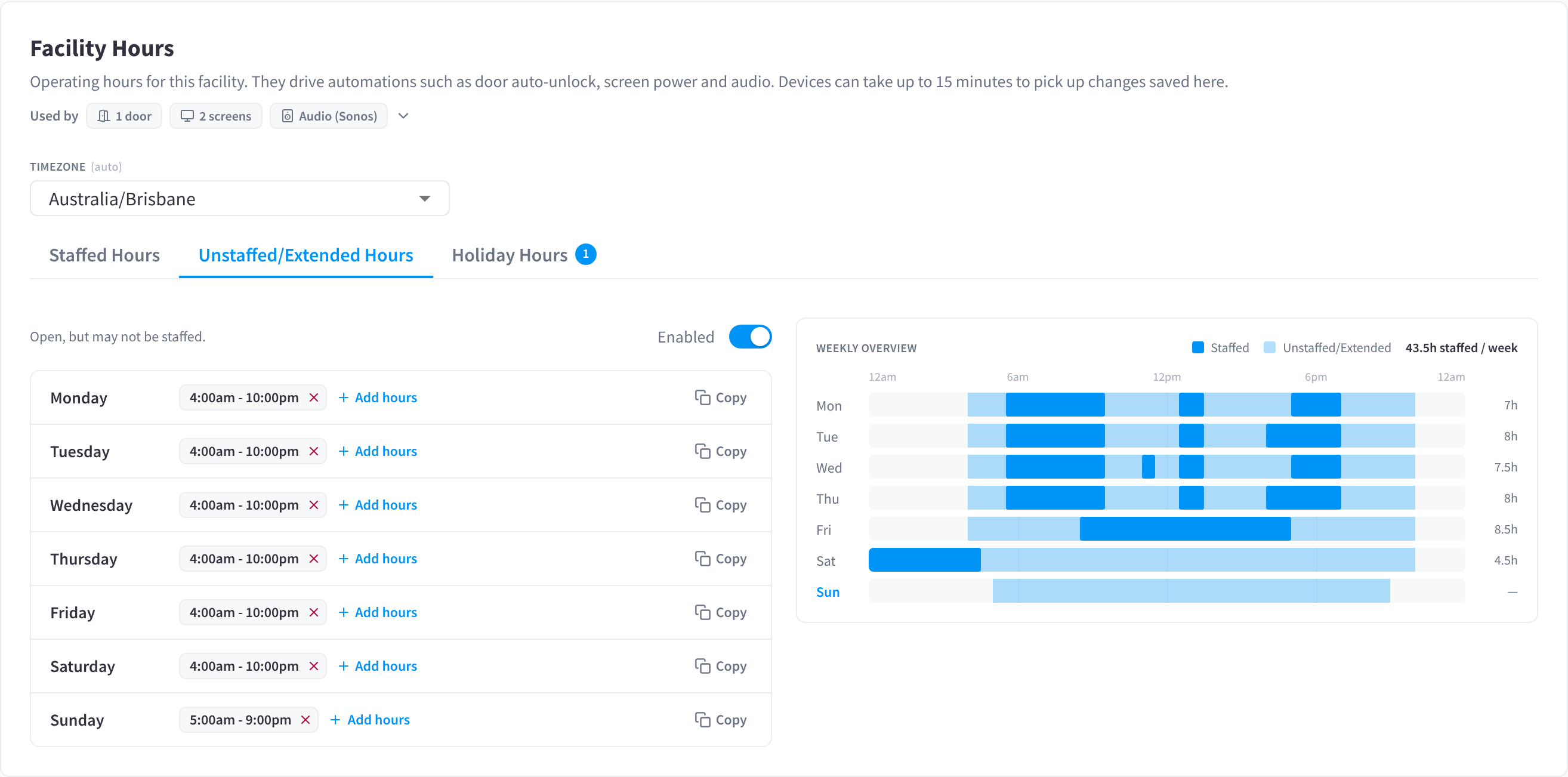
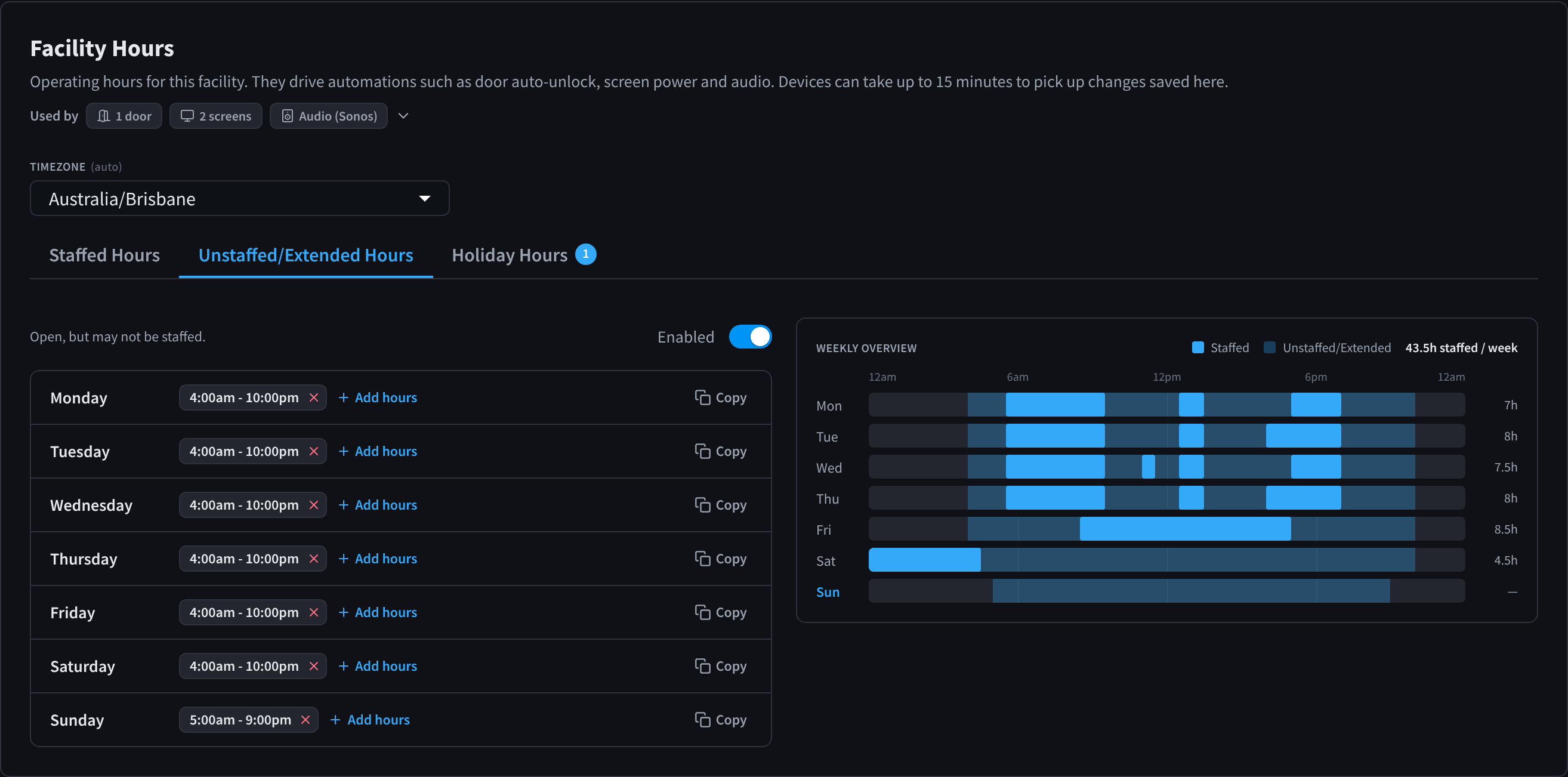
Figure 1: Unstaffed/Extended Hours: open, but may not be staffed
Turn unstaffed/extended hours on or off
Use the switch at the top right of the tab. It reads Enabled or Disabled. If your facility is only open while staff are on site, as many offices, shops and clinics are, leave it off and set only Staffed hours.
- Turning the switch on fills Monday to Saturday with 4:00am - 10:00pm and Sunday with 5:00am - 9:00pm. Change these to your real hours, then click Save changes in the bar at the bottom of the page.
- Turning the switch off clears all unstaffed/extended hours, so note them first if you might need them again. While it's off, the tab shows a dimmed preview.
Set unstaffed/extended hours
The day list works the same way as on the Staffed Hours tab:
- Click Add hours on a day and choose when the period opens and closes.
- Click the cross on a chip to remove a period.
- Click Copy on a day to copy its hours to other days.
- Click Save changes in the bar at the bottom of the page.
Unstaffed/extended hours can overlap your staffed hours, as the default hours do. The WEEKLY OVERVIEW shows unstaffed/extended hours in light blue, behind the staffed hours in dark blue.
What changes outside staffed hours
Features that follow your hours can treat unstaffed/extended hours differently from staffed hours, for example:
- Display screens can turn on when someone checks in and off again after the last check-in. See Check-in power.
- Audio can start when someone checks in, pause after the last check-in, and play at a separate, usually lower, volume. See Audio Control Settings.
- Holidays with no staffed hours fall back to the unstaffed/extended hours for that day. See Holiday hours.
See How hours are used for the full list.
Related pages
- Staffed hours: the time zone and the hours staff are on site
- Holiday hours: public holidays and other special days
- How hours are used: the automations that follow your hours