
Staffed hours
Facility Hours holds the "Operating hours for this facility. They drive automations such as door auto-unlock, screen power and audio. Devices can take up to 15 minutes to pick up changes saved here." The Staffed Hours tab is where most facilities start: the times the site is "Open with staff on site."
Quick reference
Where to find it: Settings (cog icon) → Facility & System Configuration → Facility Hours → Staffed Hours (or click Hours at the top of the page)
Who can access: Users with Facility & System Configuration access at the facility
Purpose: Set the facility's time zone and the hours it is open with staff on site
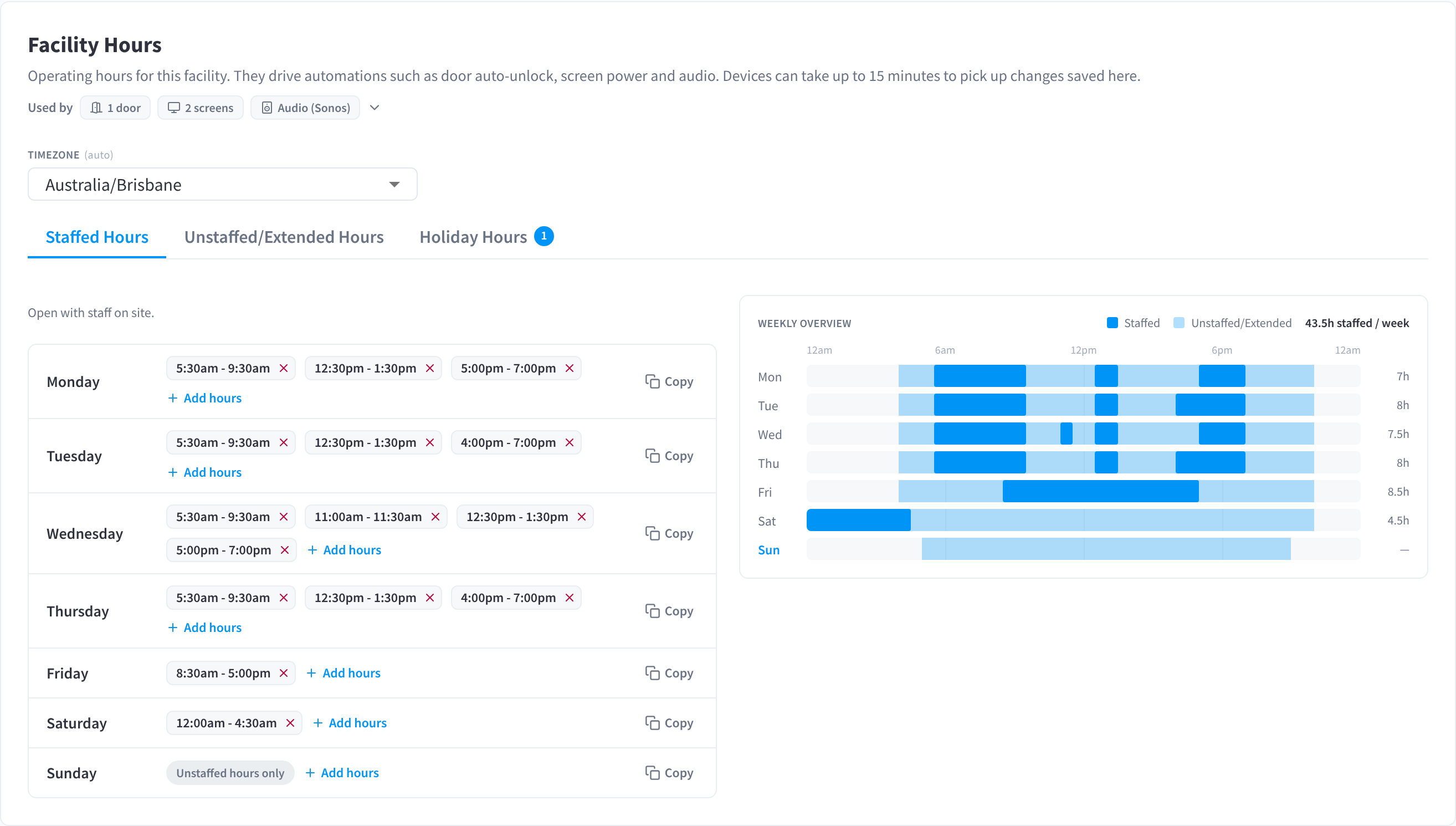
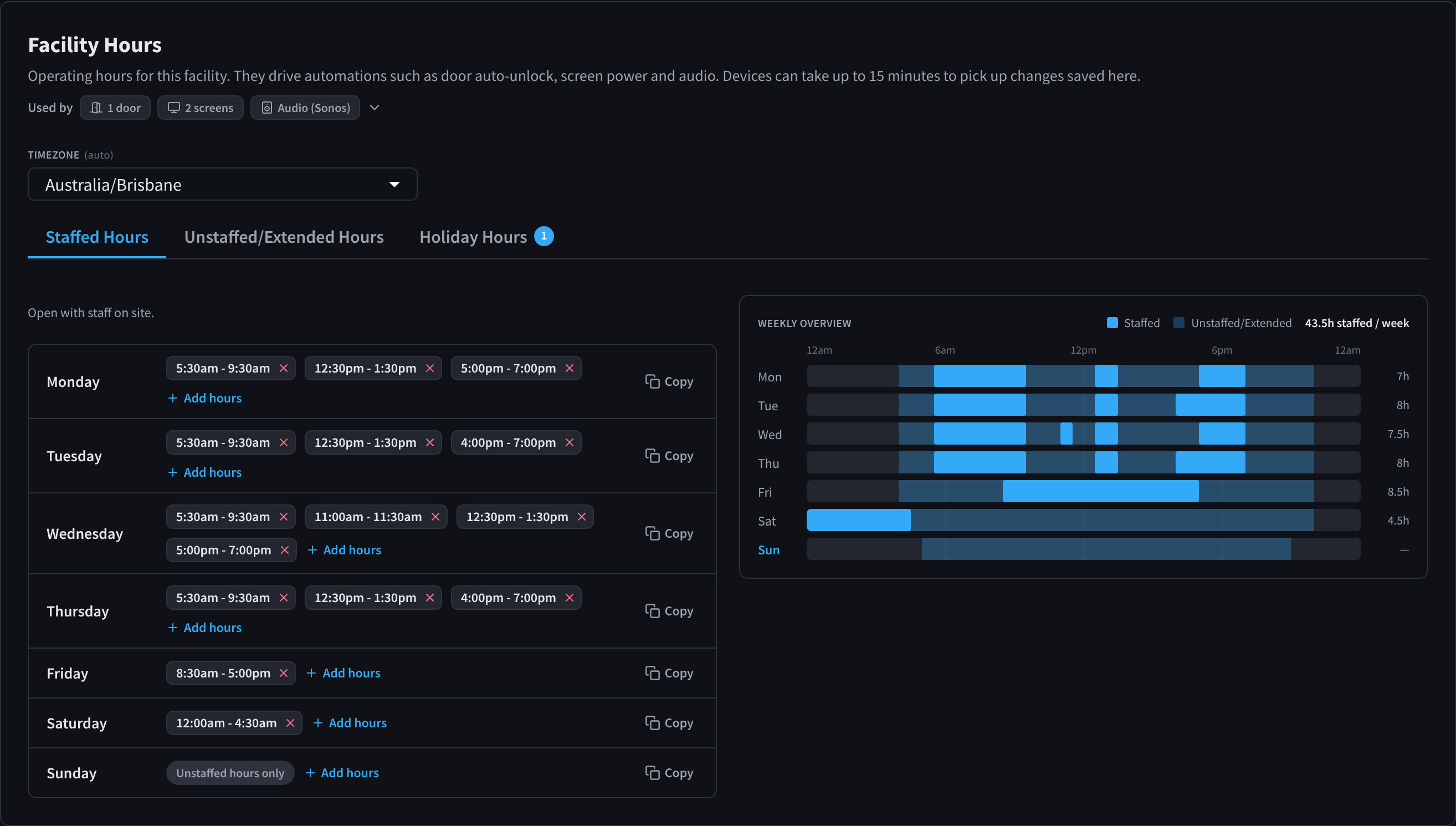
Figure 1: Staffed Hours, the weekly overview, and what uses these hours
The Facility Hours section
| Part | What it shows |
|---|---|
| Used by | Chips for the features that follow these hours at this facility, such as doors, screens and Audio (Sonos). See How hours are used. |
| TIMEZONE | The time zone every hour on this page is in. See Time zone. |
| Staffed Hours, Unstaffed/Extended Hours and Holiday Hours | One tab for each kind of hours. The number on Holiday Hours counts upcoming holidays. |
| WEEKLY OVERVIEW | A chart of the week's hours, next to the day list |
Time zone
TIMEZONE shows (auto) while it is set from the facility's address: "Timezone is auto-set from your location's Latitude and Longitude, unless overwritten here." For most sites, check that it's right and leave it alone. If the Facility location is correct, the time zone will be too.
To set it yourself, choose a time zone from the list, for example America/New_York or Australia/Sydney, then click Save changes. You must pick one of the listed time zones; otherwise you'll see "Please select a valid timezone from the list before saving."
Every schedule at the facility runs in this time zone, including door auto-unlock, display screen power and brightness, audio and workflows. A wrong time zone shifts all of them by hours, so check it first if something switches at the wrong time.
Set staffed hours
Each day lists its staffed hours as time chips, for example 8:00am - 6:00pm.
- On the Staffed Hours tab, find the day.
- Click Add hours. In Add hours for day, choose Opens and Closes, then click Save/Update. Times are in 30-minute steps, and you can also type a time such as 11:59pm.
- To add a second period on the same day, click Add hours again. A café closed between lunch and dinner service, or a gym with morning and evening sessions, has two or three periods on a day.
- To remove a period, click the cross on its chip.
- Click Save changes in the bar at the bottom of the page.
The closing time must be after the opening time ("Closing hour must be after the opening hour"), so a period can't run past midnight. For a late close, end the day at 11:59pm and add a 12:00am period on the next day.
A day with no staffed hours shows Unstaffed hours only: the facility uses its Unstaffed/Extended hours that day. A day with no staffed or unstaffed hours shows Closed.
Copy hours to other days
When several days have the same hours, set one day and copy it.
- Click Copy on the day you've set.
- Under COPY TO, choose Weekdays, Weekend or All days, or tick the days you want.
- Click Copy to (the button shows the number of days, for example Copy to 4 days).
- Click Save changes in the bar at the bottom of the page.
"This replaces any existing hours on the selected days."
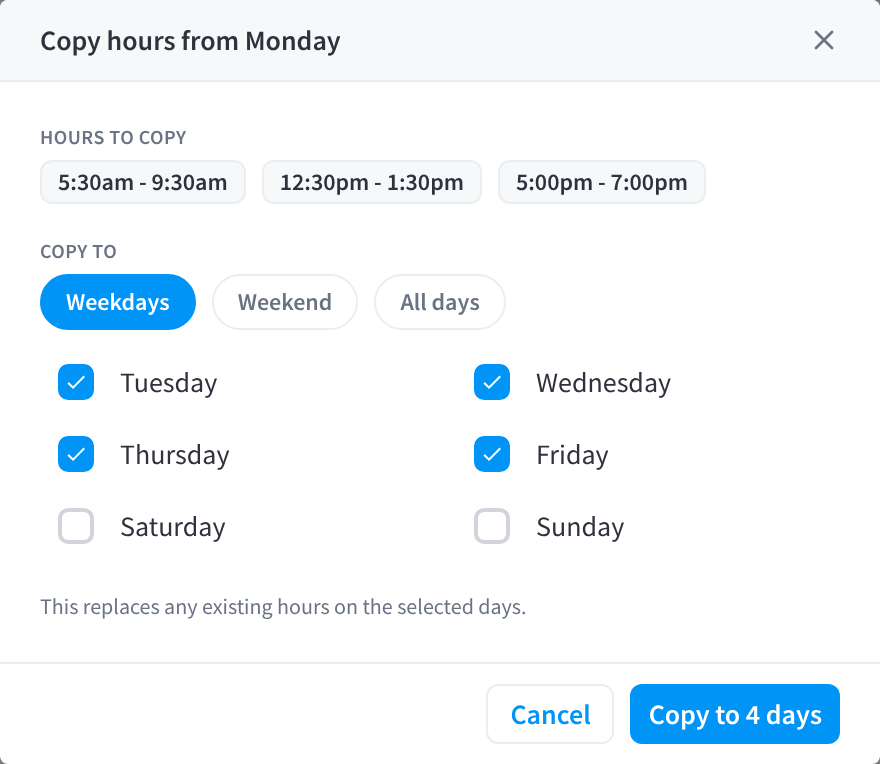
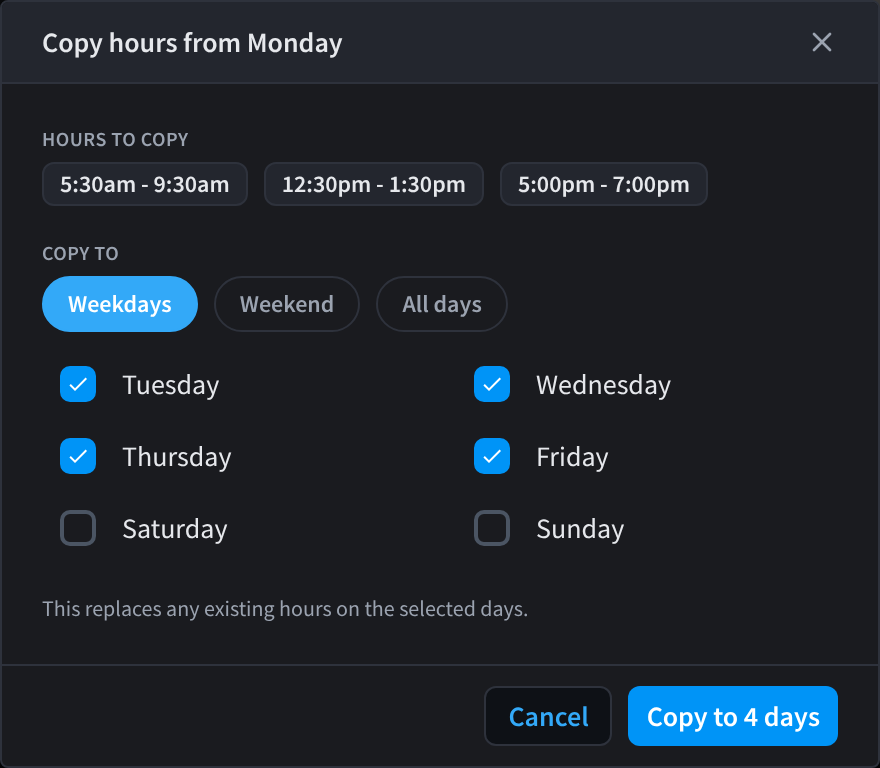
Figure 2: Copy hours from one day to other days
The weekly overview
WEEKLY OVERVIEW draws each day from 12am to 12am:
- Staffed hours in dark blue.
- Unstaffed/Extended hours in light blue.
- Each day's staffed total at the right, and the week's total at the top, for example 43.5h staffed / week.
Use it to spot gaps and overlaps, such as a day you forgot to set, before the hours start driving doors and screens.
Examples
| Facility | Staffed hours |
|---|---|
| Office with a staffed reception | Monday to Friday, 8:30am - 5:30pm |
| Clinic | Monday to Friday, 8:00am - 6:00pm, Saturday 8:00am - 12:00pm; Sunday has no staffed hours |
| Bar or venue | Wednesday to Sunday from 4:00pm. On Friday and Saturday it closes at 1:00am, entered as 4:00pm - 11:59pm plus 12:00am - 1:00am on the next day |
| Retail store | Every day, 9:00am - 5:30pm, late night Thursday to 9:00pm |
| Gym with early opening | 5:30am - 9:30am and 4:00pm - 7:00pm on weekdays, with 24/7 member access as Unstaffed/Extended hours |
Related pages
- Unstaffed/Extended hours: when the facility is open without staff
- Holiday hours: public holidays and other special days
- How hours are used: the doors, screens, audio and workflows that follow these hours
- Facility location: the address the time zone is set from