
Facility location
Facility Location holds "The physical address and map position of this facility." The position matters: the facility's time zone is set from it, and features such as the Door & Gate Access geofence start from it.
Quick reference
Where to find it: Settings (cog icon) → Facility & System Configuration → Facility Location (or click Location at the top of the page)
Who can access: Users with Facility & System Configuration access at the facility
Purpose: Record where the facility is, as an address and a point on the map
If you don't see Facility Location, your brand manages addresses centrally.
AUTO DETECT or MANUAL INPUT
Use the switch at the top of the section to choose how you enter the address: "Auto uses Google address search. Switch to Manual if your address can't be found."
| Option | Use it when |
|---|---|
| AUTO DETECT | Your address can be found with Google address search. This suits most sites. |
| MANUAL INPUT | Google can't find your address, for example a new development, a unit inside a shopping centre, or a building on a university campus |
Find the address (AUTO DETECT)
- Leave the switch on AUTO DETECT.
- In Display Address ("Start typing your address"), type the address, for example 100 Example Street, Lower Manhattan, NY 10004, and choose it from the list. "Location is automatically set from address."
- Check Address details (Address, City, State/Province, Postcode and Country).
- On the map, "Drag the marker to fine-tune the exact position", for example to the main entrance rather than the middle of the block. Latitude and Longitude update as you move it. Click Larger map for a bigger view.
- Click Save changes in the bar at the bottom of the page.
To correct part of the address, click Edit manually. The section switches to MANUAL INPUT with the address it found filled in, so you only change what's wrong.
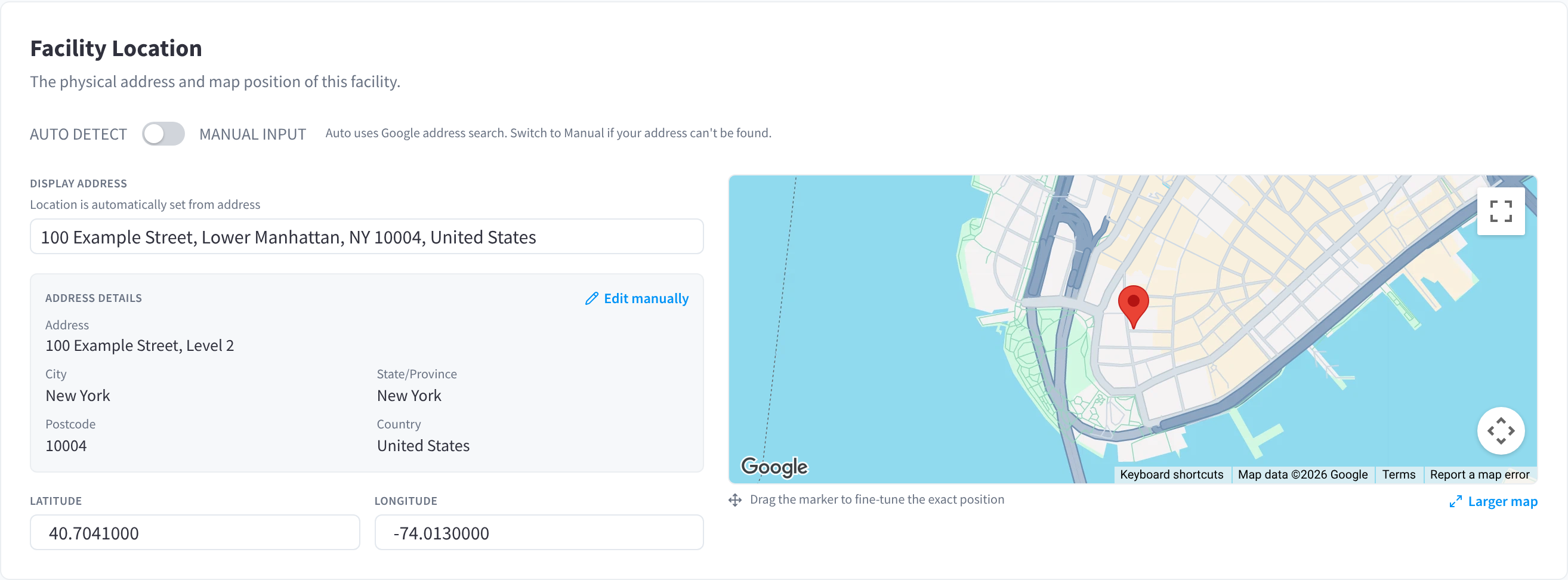
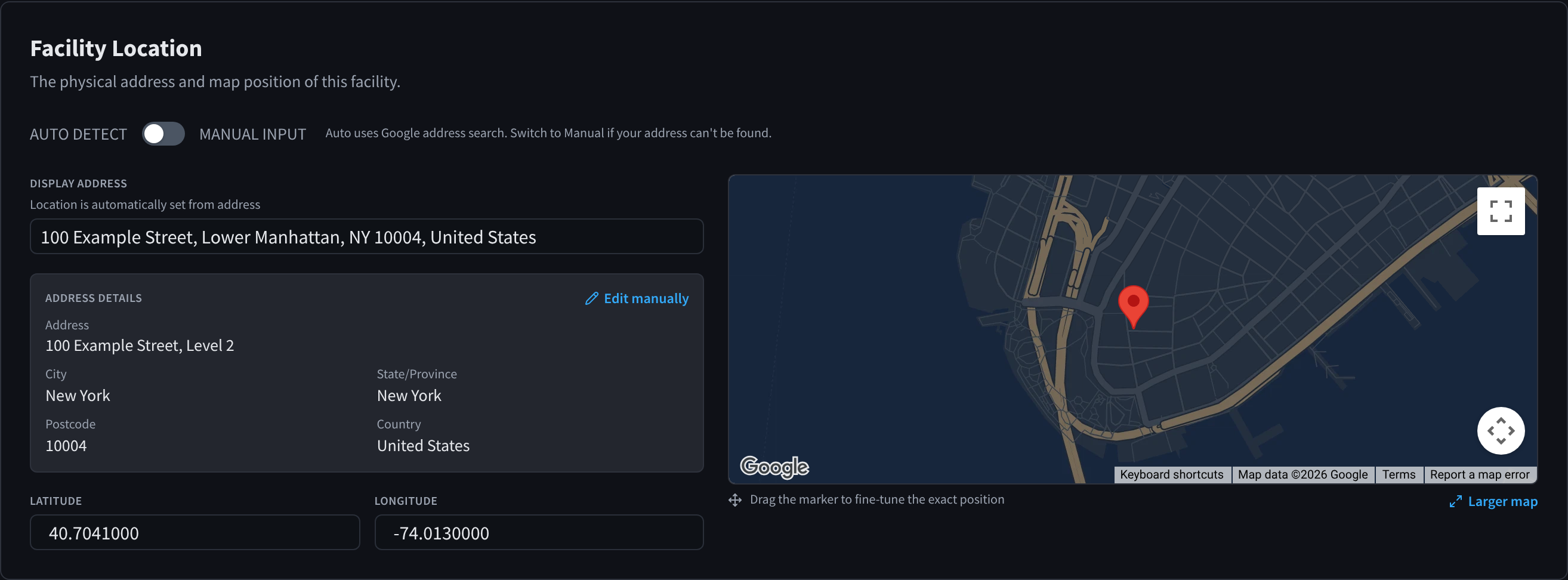
Figure 1: Facility Location with AUTO DETECT address search and the map pin
Enter the address by hand (MANUAL INPUT)
- Turn the switch to MANUAL INPUT.
- Enter Display Address, "The full address as a single line", for example 100 Example Street, Lower Manhattan, NY 10004, United States.
- Enter Address, for example 100 Example Street, and, if you need it, Address 2, for example Level 2, then Country, State/Province, City and Postcode.
- Enter Latitude and Longitude, or drag the marker on the map to the facility.
- Click Save changes in the bar at the bottom of the page.
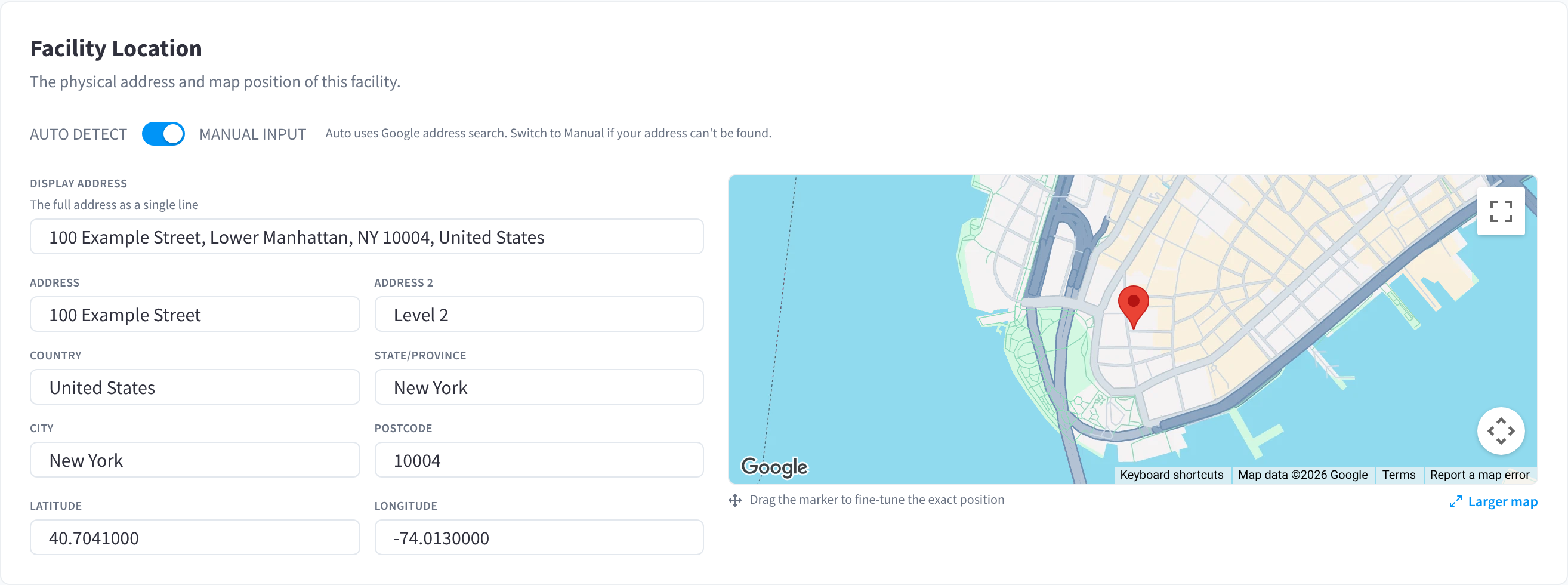
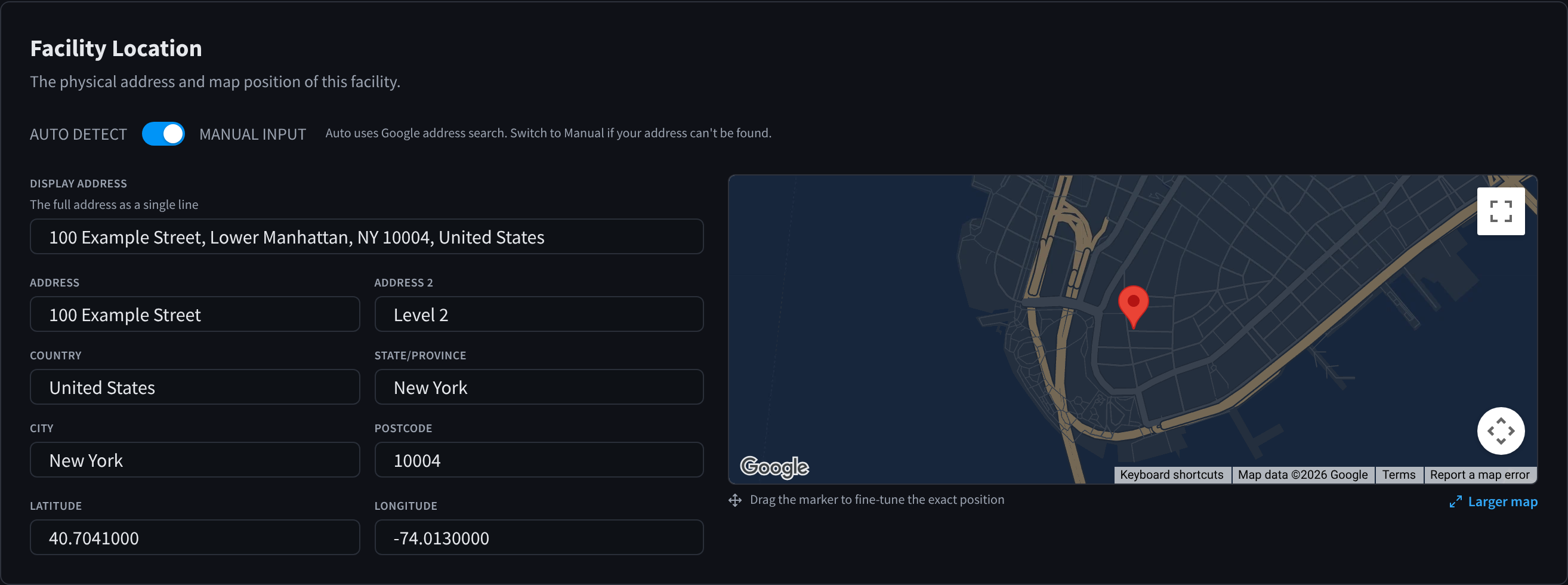
Figure 2: MANUAL INPUT, for an address Google can't find
Why the location matters
- Time zone. "Timezone is auto-set from your location's Latitude and Longitude, unless overwritten here." Every schedule at the facility, including its hours, runs in that time zone. See Time zone.
- Door & Gate Access geofencing starts from the facility's saved location. See Geofencing.
- Your facility's public details, such as its address in marketing designs, come from here.
Related pages
- Primary details: the facility's name and contact details
- Staffed hours: the time zone and the facility's hours
- Geofencing: unlocking doors only near the facility