
Geofencing
Geofencing restricts unlocking to people who are physically near the facility. When enabled, the mobile app must report a location inside the configured circle before an unlock is allowed — preventing someone from opening a door from home. Configure the facility geofence under Settings → Geofencing; scopes and individual doors can override it.
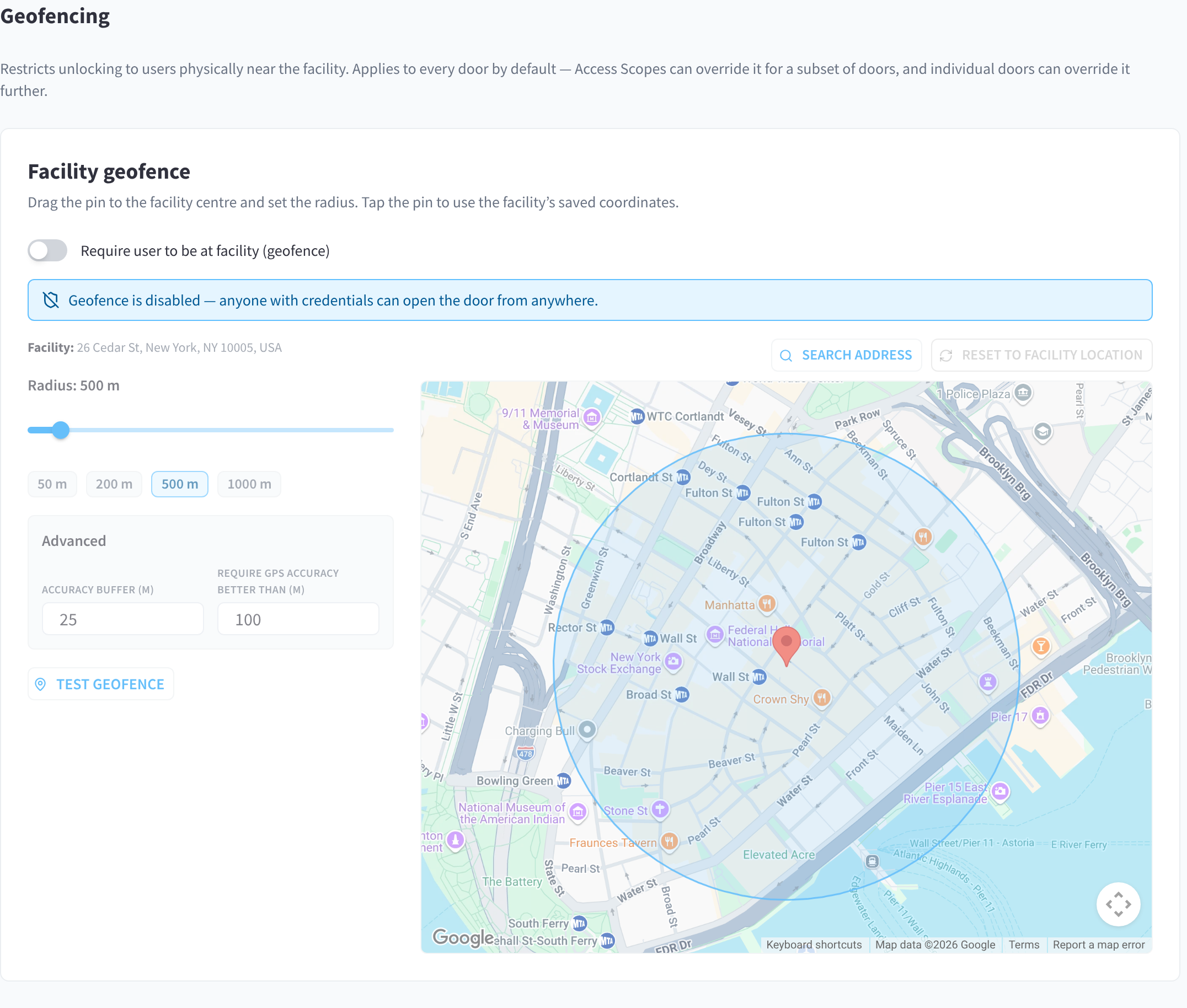
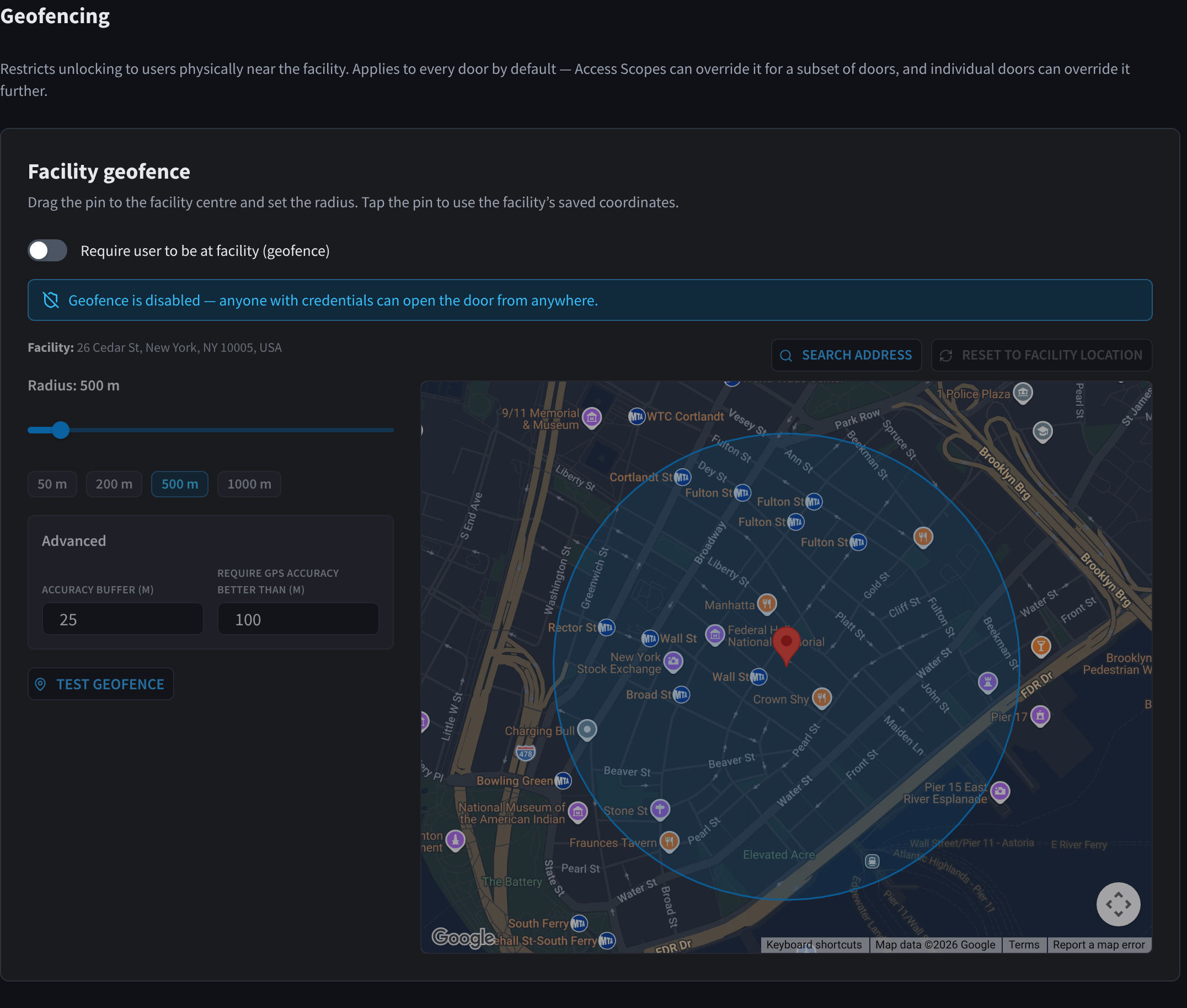
Figure 1: The facility geofence editor
How the check works
When a user taps unlock, their phone sends its current location and GPS accuracy. The server (not the phone) decides:
- No location reported → denied — the user is asked to enable location services. (Reason: location unavailable)
- GPS too imprecise — the reading's accuracy is worse than the Require GPS accuracy better than threshold → denied. This blocks unreliable readings (e.g. indoors with poor signal) from being trusted. (Reason: GPS too imprecise)
- Distance check — the user's distance from the geofence centre must be within: radius + reported GPS accuracy + accuracy buffer. Outside that → denied, and the app suggests moving closer. (Reason: outside geofence)
- Inside → the geofence check passes and the rest of the access decision continues.
Because GPS accuracy is added to the allowance, a user standing at the boundary with ±15 m accuracy still passes — the check is designed to avoid false denials from normal GPS noise while keeping remote unlocks out. The decision is made server-side, so a tampered app or spoofed location is still rejected.
If geofencing is enabled but the pin/centre is missing, unlocks are denied (the system fails closed) — always confirm the pin is placed.
Settings
| Setting | Default | Range | What it does |
|---|---|---|---|
| Require user to be at facility (geofence) | On for new facility configurations | On / Off | Master toggle. Off shows: "Geofence is disabled — anyone with credentials can open the door from anywhere." |
| Radius | 200 m | 50–5000 m (slider, 10 m steps; presets 50/200/500/1000 m) | The circle around the pin in which unlocks are allowed |
| Accuracy buffer (m) | 25 m | — | Extra metres added to the allowance to tolerate normal GPS noise |
| Require GPS accuracy better than (m) | 100 m | — | Readings with worse accuracy than this are rejected outright |
Placing the pin
- Drag the pin to the centre of your facility, or use Search address ("Start typing a street address…") to drop it on an address.
- Reset to facility location snaps the pin back to the facility's saved street-address coordinates. A Pin manually placed chip shows when the pin has been moved off the saved location.
- Warnings appear if the facility has no street address on file (with a link to Facility & System Configuration; see Facility Location) or if the pin is more than 500 m from the facility's saved location — both usually mean the facility address needs updating.
Testing the geofence
Click Test Geofence to enter test mode: a purple T pin appears on the map. Drag it to any spot to simulate a user unlocking from there — the editor immediately shows Would pass or Would be denied with the reason and distance. Click Stop testing to exit. Use this to sanity-check your radius before saving, e.g. confirming the carpark is inside but the café across the street is not.
Override hierarchy
The facility geofence applies to every door by default. Two levels can override it; the most specific wins:
| Level | Where | Options |
|---|---|---|
| Access Scope | Settings → Access Scopes → scope → Geofence tab | Geofence override toggle + its own full editor |
| Door | Doors → door panel → Geofence tab | Inherit from facility / Override for this door / Disable geofence for this door |
Per-door overrides win over scope overrides, which win over the facility default. Disabling the geofence for a single door is useful for back-of-house or service entrances where staff often unlock while still off-site. Each door card on the Doors tab shows its effective geofence (radius or Off, with · Override when door-specific).
What members see
When a geofence denial happens, the app explains it rather than failing silently:
| Situation | App behaviour |
|---|---|
| Outside the geofence | "Move closer" style message with the distance |
| GPS too imprecise | Asked to step outside / get a clearer GPS fix |
| Location services off | Prompted to enable location permissions for the app |
All geofence denials are recorded in the Access Logs with the reason and (when available) the distance — useful when investigating "it won't let me in" reports.
Related pages
- How access decisions work
- Doors — per-door geofence tab
- Access Scopes — scope-level override
- Troubleshooting — geofence denial walkthroughs