
Access Scopes
An Access Scope is a named bundle of doors — for example Main entrances, Staff-only, or Vehicle access. Scopes make permissions manageable at scale: target a named Access Policy, grant a user a whole scope, or apply a geofence override to the bundled doors. Configure them under Settings → Access Scopes.
What Access Scopes do
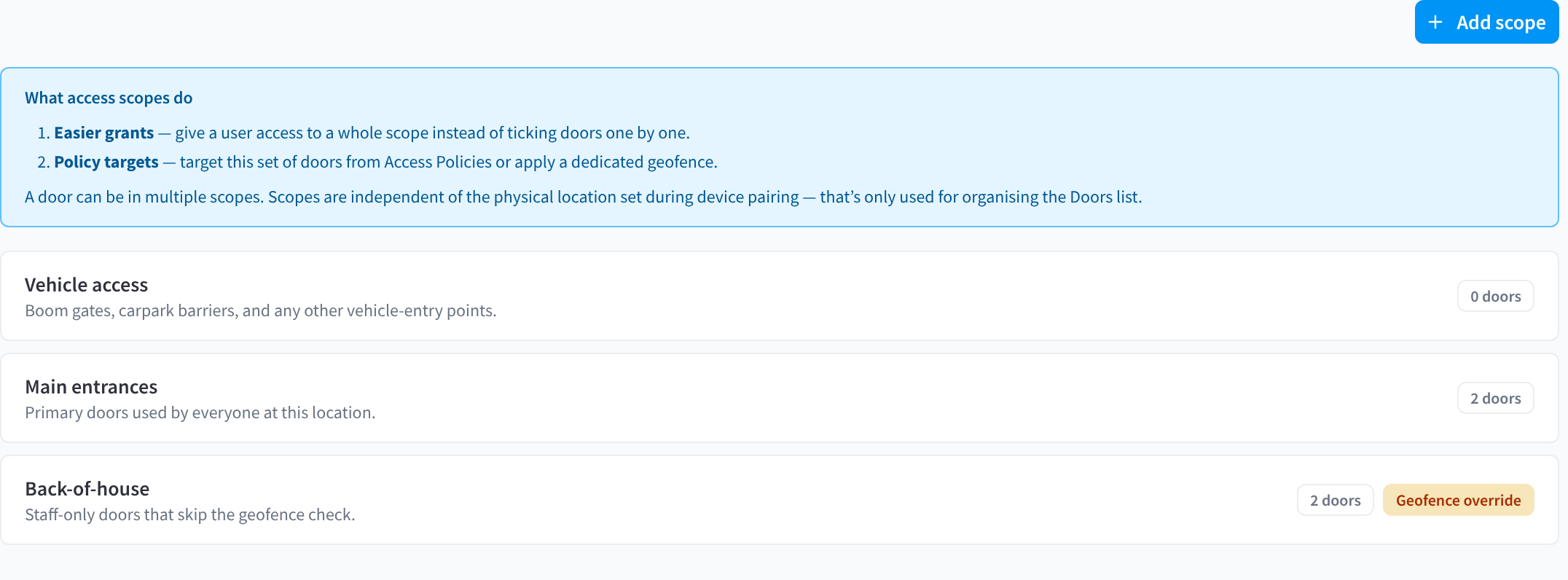
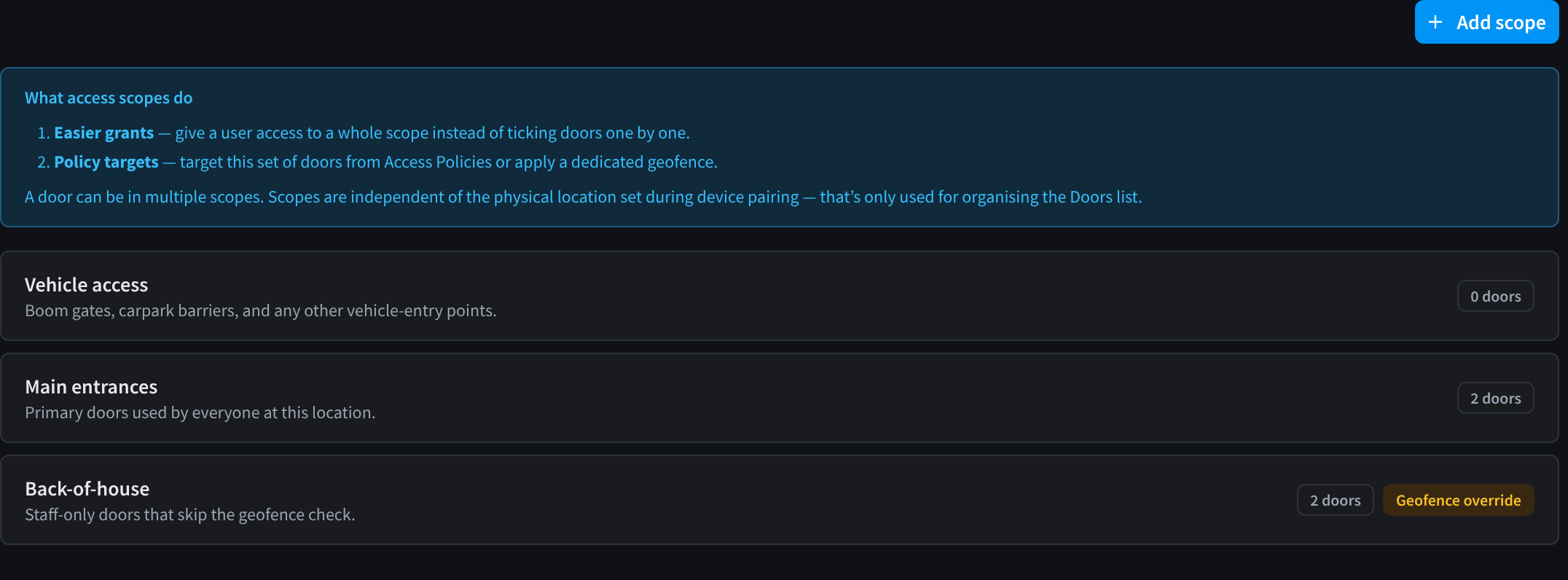
Figure 1: The Access Scopes list
- Easier grants — instead of ticking individual doors on a user, grant them a scope. The grant automatically covers doors added to the scope later.
- Policy targets and exclusions — a policy's Where can include or exclude a scope.
- Grant targets — permanent grants and administrator/integration windows can target a stable bundle without listing every door.
- Geofence overrides — a scope can still replace the facility geofence for its doors.
Notes on how scopes behave:
- A door can belong to multiple scopes.
- Multiple policies may target the same scope; policies are allow-only and OR together.
- Scopes are independent of the Door location label used to group the Doors list — a scope can mix doors from any locations.
- A scope referenced by an Access Policy must be removed from that policy before the scope can be deleted.
Creating a scope
- Go to Settings → Access Scopes and click Add scope.
- Optionally pick a template (below), or choose Custom to start blank.
- Enter a Scope name (required) and optional Description.
- Click Create scope, then open it to add doors.
If you have no scopes yet, the page shows a Get started with Access Scopes panel with the same templates plus a Build from scratch button.
Templates
Templates pre-fill the scope name and description:
| Template | Description |
|---|---|
| Custom | Start blank |
| Main entrances | Primary doors used by everyone at this location. |
| Staff-only | Doors intended for staff access. |
| Restricted area | Secure areas that need tightly targeted policies. |
| 24/7 access | Doors intended for a policy with an Anytime schedule. |
| Business hours | Doors intended for a policy with a business-hours schedule. |
| Vehicle access | Boom gates, carpark barriers, and other vehicle-entry points. |
| Service entries | Loading docks, delivery doors, and back-of-house entries. |
Templates do not grant access or set schedules. After adding doors to the scope, select it in an Access Policy's Where section and configure the policy's Who and When.
The scope editor
Click a scope to open its editor. It has a name/description header, Overview, Doors, Access Policies and Geofence tabs, plus Done / Save scope buttons.
Overview tab
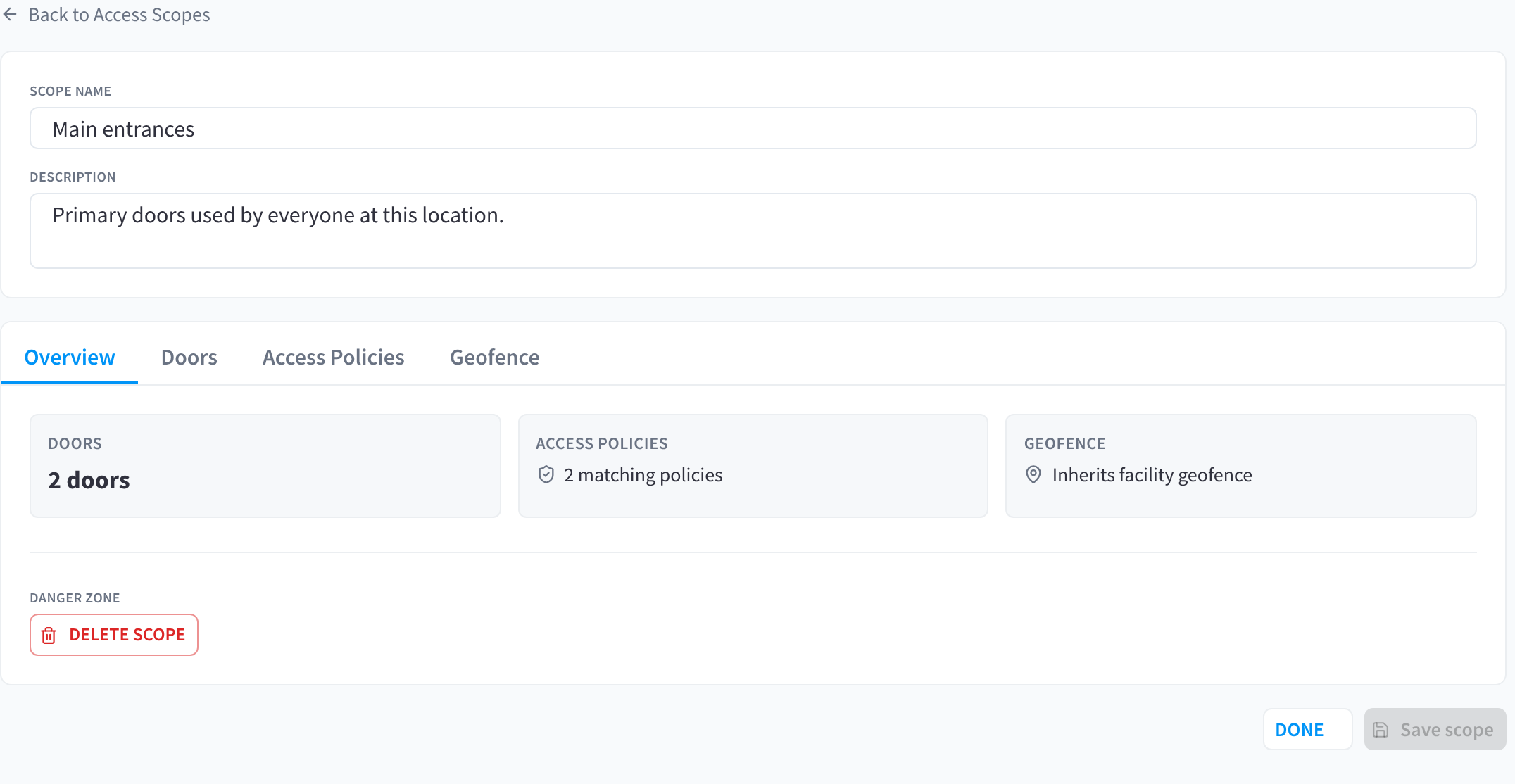
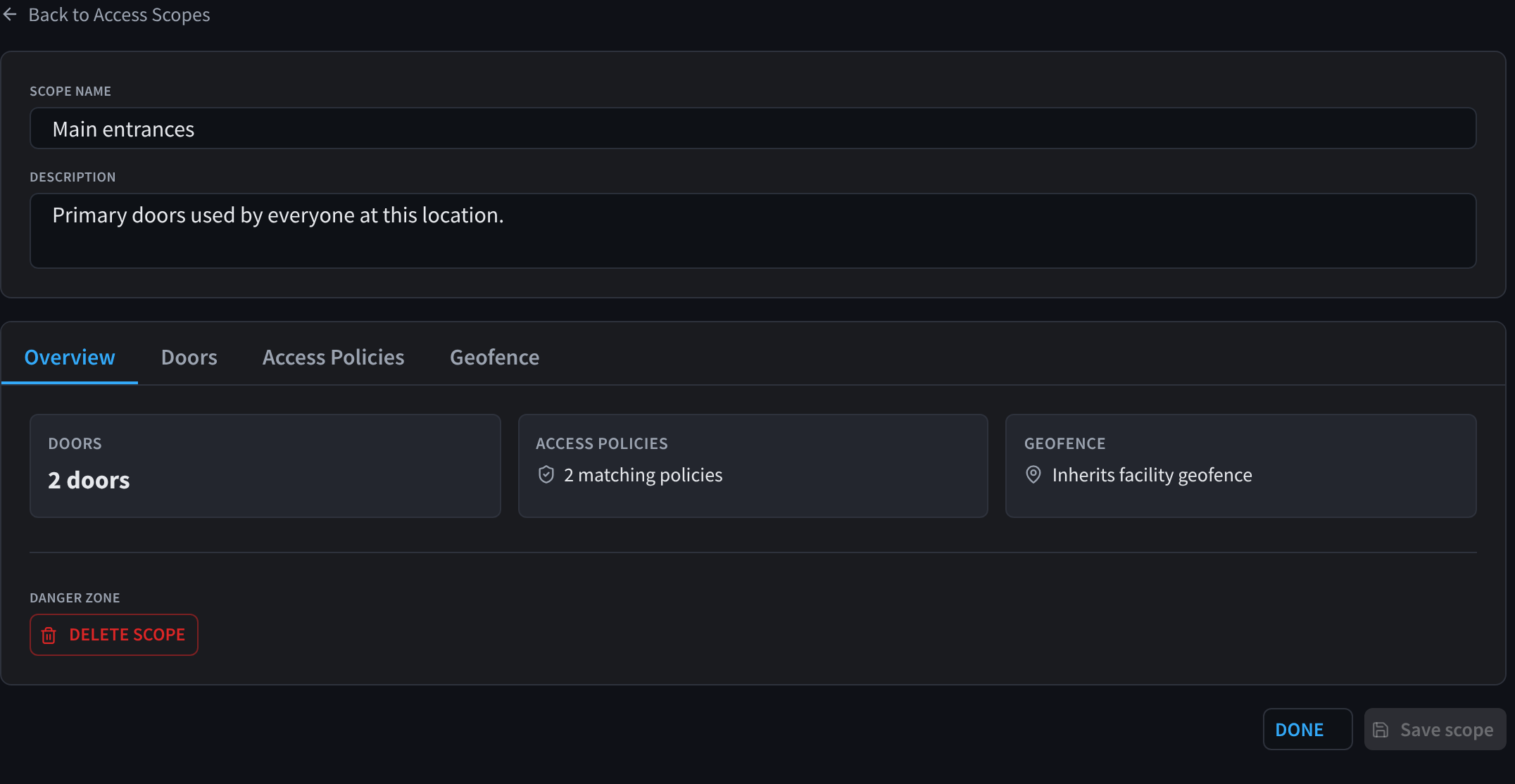
Figure 2: Scope overview with summary cards
Summary cards show the scope's doors, the policies that use it, and its geofence state; click a card to jump to that tab. The Danger zone holds Delete scope — confirmation warns: "User access assigned through this scope will no longer apply. Doors are not affected." A scope referenced by a policy must be removed from that policy before deletion.
Doors tab
Tick the facility doors that belong to this scope. Membership takes effect when you save. To control access, open Settings → Access Policies and include or exclude the scope in a policy's Where section.
Access Policies tab
Shows the Access Policies that match this scope. To change them, open Settings → Access Policies.
Geofence tab
Turn on Geofence override to give the scope's doors their own geofence (pin, radius, accuracy settings) using the standard editor described in Geofencing. While on, it replaces the facility geofence for those doors (a per-door override still wins).
Granting users a scope
Open a user in Users, scroll to Access Control → Additional permanent access, and tick the scope under Scope grants. The user can then unlock every door in the scope (subject to safety, geofence, and any grant hours), even if no Access Policy matches them.
For temporary access, choose the scope as a target in the user's Access Time Windows editor. Integration administrators can also map a stable source scope_key to this scope under Sync settings. If the scope is deleted or a source key is unmapped, that window fails closed; it does not become facility-wide.
Worked example
A gym wants members through the front doors during staffed hours, staff through everything, and a 24/7 outdoor training area:
- Create scopes Main entrances, Staff-only, and Outdoor training.
- Add an "Active members" policy: Who = Member/Current; Where = Main entrances; When = staffed Weekly windows.
- Add a "Staff" policy: Who =
stafftag; Where = all facility doors; When = Anytime. - Add an "Outdoor members" policy: Who = Member/Current; Where = Outdoor training; When = Anytime.
Each policy requires Who AND Where AND When, while the three policies OR together.
Related pages
- How access decisions work — policy and grant evaluation
- Access Policy Schedules
- Access Policies
- Geofencing
- Users — scope grants