
Door & Gate Access
Door & Gate Access lets your facility's members and authorised users unlock physical doors and gates with one tap in the Door & Gate Access mobile app, while you control exactly who can open which doors, when, and from where — all from Performance Hub.
Quick Reference
Where to find it: Main menu → Door & Gate Access
Who can access: Users whose role includes Door & Gate Access for the facility
Prerequisites: The Device Management and CCTV modules must be enabled for your organisation
Purpose: Manage door controllers, decide who can unlock doors (and when and from where), invite users to the mobile app, and audit every unlock attempt
How it fits together
- A door controller is a small hardware device installed at each door or gate. It actuates the lock relay and stays connected to Performance Hub over your network.
- Users sign in to the Door & Gate Access mobile app with a one-time code sent to their phone or email — there is no password and no self-signup. Only people you add (or sync) into Users can sign in.
- When a user taps Unlock, the server checks their access in real time: matching Access Policies or additive grants, the active schedule, and (if enabled) whether they are physically at the facility (geofence). If everything passes, the door opens for a configurable number of seconds.
- Every attempt — successful, denied, or failed — is recorded in the Access Logs for auditing.
- A door unlock can also trigger a Workflow, for example to turn on the facility's display screens.
- Door unlocks and lockdown on a duress alarm are set in Duress response actions, and need both Duress and Door & Gate Access.
- Your AI Agent can read door events through MCP, for example to greet visitors on an office lobby screen.
The four main areas
The module has three tabs plus a Settings area (cog icon, top right):
| Area | What you do there |
|---|---|
| Doors | See every door at the facility, its online status and analytics, unlock or identify a door remotely, lock a door early with Lock now, and configure per-door behaviour (name, location, icon, maintenance mode, hold time, auto-unlock schedule, policy coverage, block state, and geofence overrides). |
| Users | The list of every person who can use the mobile app at this facility. Add users manually, import from CSV, export to CSV, or sync them from Performance Hub staff, your member-management integrations and Computer Vision. Manage access control, invitations, sessions, and per-user messages. |
| Access Logs | A complete audit trail of unlock attempts: who, which door, when, from where, and the outcome (or the reason it was denied). The No visit recorded view lists one-off Access Time Windows that were never used. Export to CSV. |
| Settings | Access Policies (Who/Where/When), Automated Messages, Sync settings, Access Scopes, Access Time Windows, Geofencing, and App Security & Settings. The Settings menu also links to this documentation (Product Documentation). |
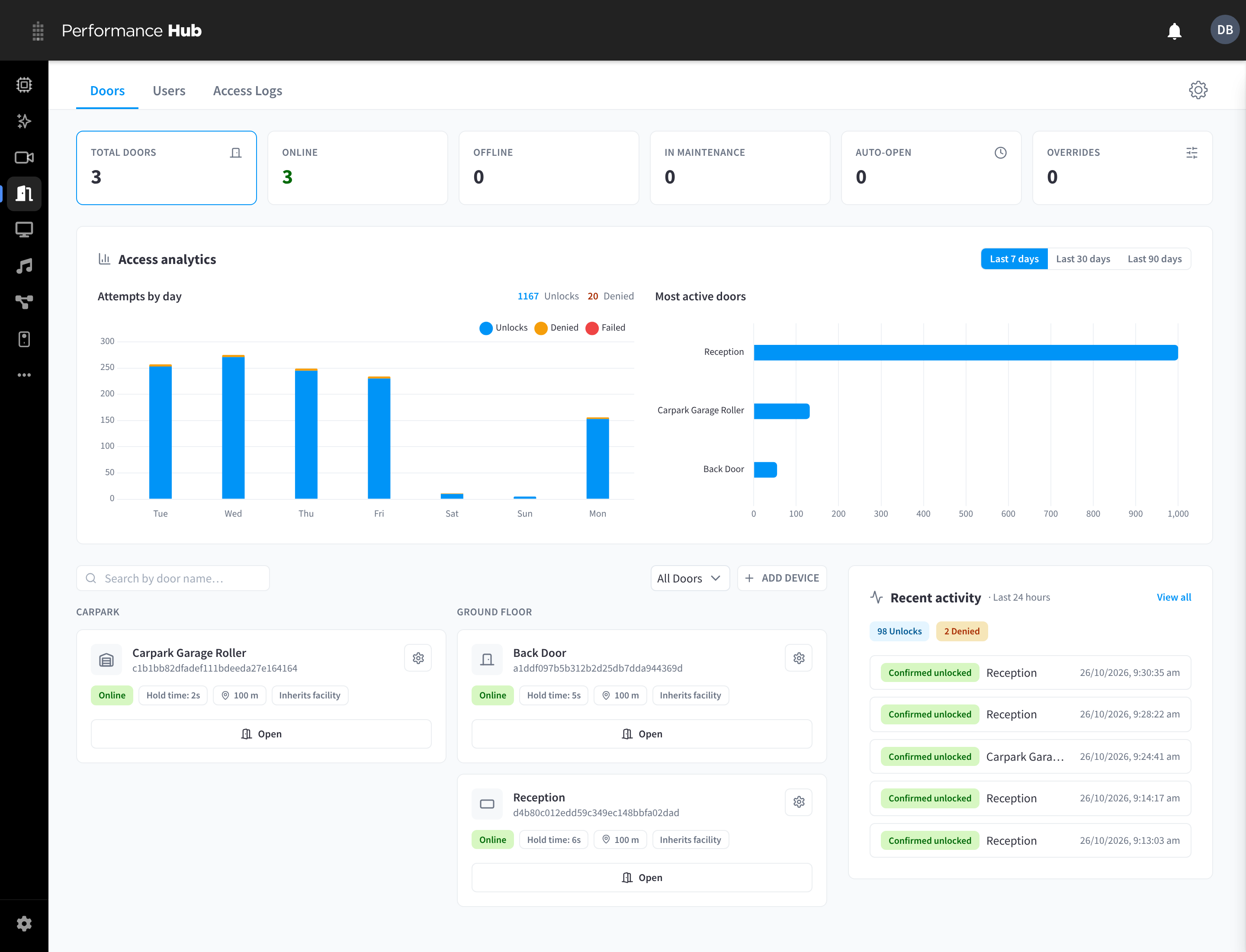
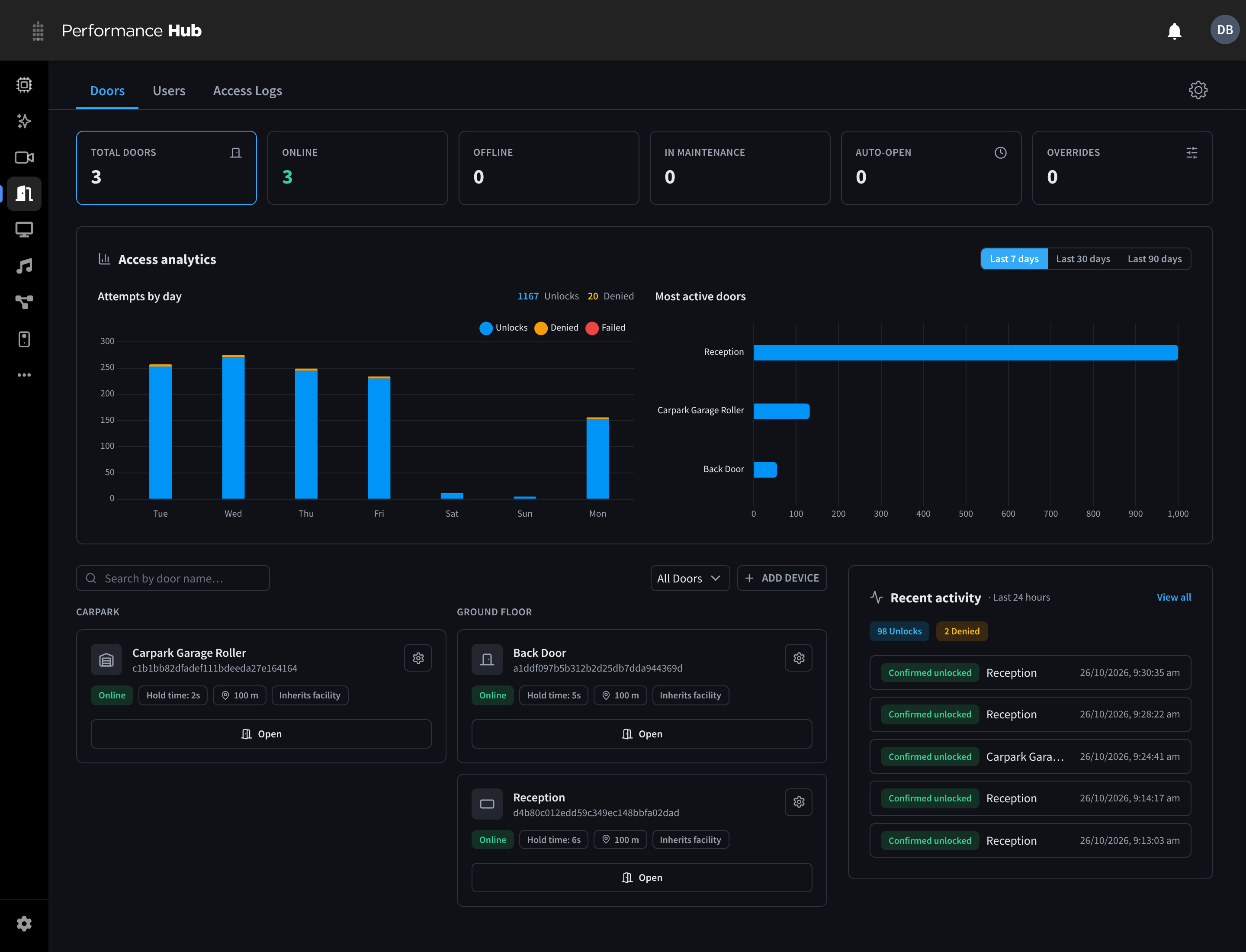
Figure 1: The Doors tab: status tiles, access analytics, the door cards grouped by location, and the recent activity feed
Setup banner


Figure 2: The setup banner at the top of the module
Until setup is finished, a banner lists the steps: Add a user, Add a door controller, and optional steps (Review Access Policies, Review sync settings, Set up geofencing). Skip for now hides it.
What's new
- Auto-unlock during staffed hours: a door can follow the facility's staffed hours, with offsets, public holiday handling and a 14-day preview. See Doors.
- Lock now: staff can lock a door early while its schedule is holding it open, then Resume schedule. See Doors.
- Performance Hub staff sync: staff are added to Users automatically, with an editable Performance Hub staff Access Policy. See Sync & Integrations.
- No visit recorded: see which one-off Access Time Windows were never used. See Access Logs.
- Invitation recipient rules: choose who receives app invitations by membership status, person type, tag or source. See App Invitations.
- User export: Export CSV downloads the filtered user list. See Users.
- Software updates: the door panel shows the controller's software, and users who also have Device Management access can install updates from there. See Doors.
Documentation guide
Concepts
- How access decisions work — the single most important page. Explains policies, grants, scopes, and the order checks run in. Includes the full glossary.
Managing doors
- Doors — the Doors tab, door cards, analytics, remote unlock/identify, Lock now, the auto-unlock schedule, and every per-door setting.
- Adding doors — pairing a new door controller with your facility.
Managing people
- Users — the user list, adding users manually, CSV import and export, the user detail panel, additional permanent access, and the access kill switch.
- App invitations — emailing users a link to install the app, individually or in bulk, auto-inviting synced users, and recipient rules.
- Sync & integrations — syncing Performance Hub staff, members from your integrations, or people from Computer Vision into Users, duplicate resolution, the sync activity panel, and bulk-deleting synced users.
Access policy
- Access Policies — define Who can use Where, and When, with existing access configuration imported automatically.
- Access Policy Schedules — Anytime, Weekly and One-time schedules, plus the Access Time Windows settings (grace periods and facility timezone).
- Access Scopes — bundle doors for policy targeting, one-tick grants, or shared geofence settings.
- Geofencing — require users to be physically at the facility before they can unlock, test the geofence, and set per-door exceptions.
Mobile app experience
- App messaging — facility-wide banners, per-user messages, and automated message rules (e.g. expired-membership notices).
- App security & settings — enforce Face ID/Touch ID/passcode before the app can be used, and control when support contacts appear in the app.
- The mobile app (for members) — what your members see: signing in, unlocking, and common messages.
Auditing & reference
- Access Logs — reading the audit trail, filters, event states, the No visit recorded view, the event detail view, and CSV export.
- Reference — every event state, denial reason, setting, default, and limit in one place.
- Troubleshooting — symptom-by-symptom fixes for offline doors, denied unlocks, sync issues, and invitation problems.
- Common questions — FAQ.
Getting started checklist
Tick items off as you go — your progress is saved in this browser, and you can print the list.
Selecting a facility
Door & Gate Access is configured per facility. Use the facility selector in the main Performance Hub toolbar to choose which facility you are configuring. If no facility is selected, the module shows "Select a facility in the main toolbar to configure Door & Gate Access."
Saving changes in Settings
All Settings pages share a save bar. When you have unsaved changes, a bar appears with Discard and Save changes. If you try to navigate away with unsaved changes, you are asked to confirm: "Discard unsaved changes? You have unsaved changes that will be lost if you leave this page."